
How to set up DMARC/DKIM/SPF for Soverin

Published 22 Nov 2026
Updated 22 Nov 2026
11 min read
Summarize with
Authenticate a custom domain in Soverin by connecting and verifying it, publishing SPF with include:soverin.net, adding the soverin1, soverin2 and soverin3 DKIM CNAMEs, and configuring DMARC at _dmarc. I start a new DMARC deployment with p=none and reporting, then verify a message sent through Soverin before enforcing a stronger policy.
Soverin's public DNS instructions also offer a DMARC CNAME pointing to reject._dmarc.soverin.net. If your domain already uses quarantine or reject, keep that policy. These steps apply to a domain you control; authentication for an address on a Soverin-owned domain is managed by Soverin.
Add your domain
I connect the domain in Soverin before editing authentication records. Have access to the domain's authoritative DNS host, which is not necessarily the company where you registered it.
- Open domain management: Sign in to the Soverin dashboard at my.soverin.net. Select Domains, then Add domain.
- Connect the domain: Choose Connect my domain. Enter your existing domain, select Connect this domain, confirm it, then select Create Domain.
- Verify ownership: Complete the ownership instructions displayed for that domain. Copy account-specific verification values exactly, then finish the verification flow in Soverin.
- Find the DNS editor: For Soverin-hosted DNS, select Domains, your domain, then DNS settings, and save changes with Save. For externally hosted DNS, edit records at the authoritative DNS host.
Soverin's connection workflow requires ownership verification before the remaining DNS setup. I use the verification instructions shown in the account rather than substituting a generic TXT token.
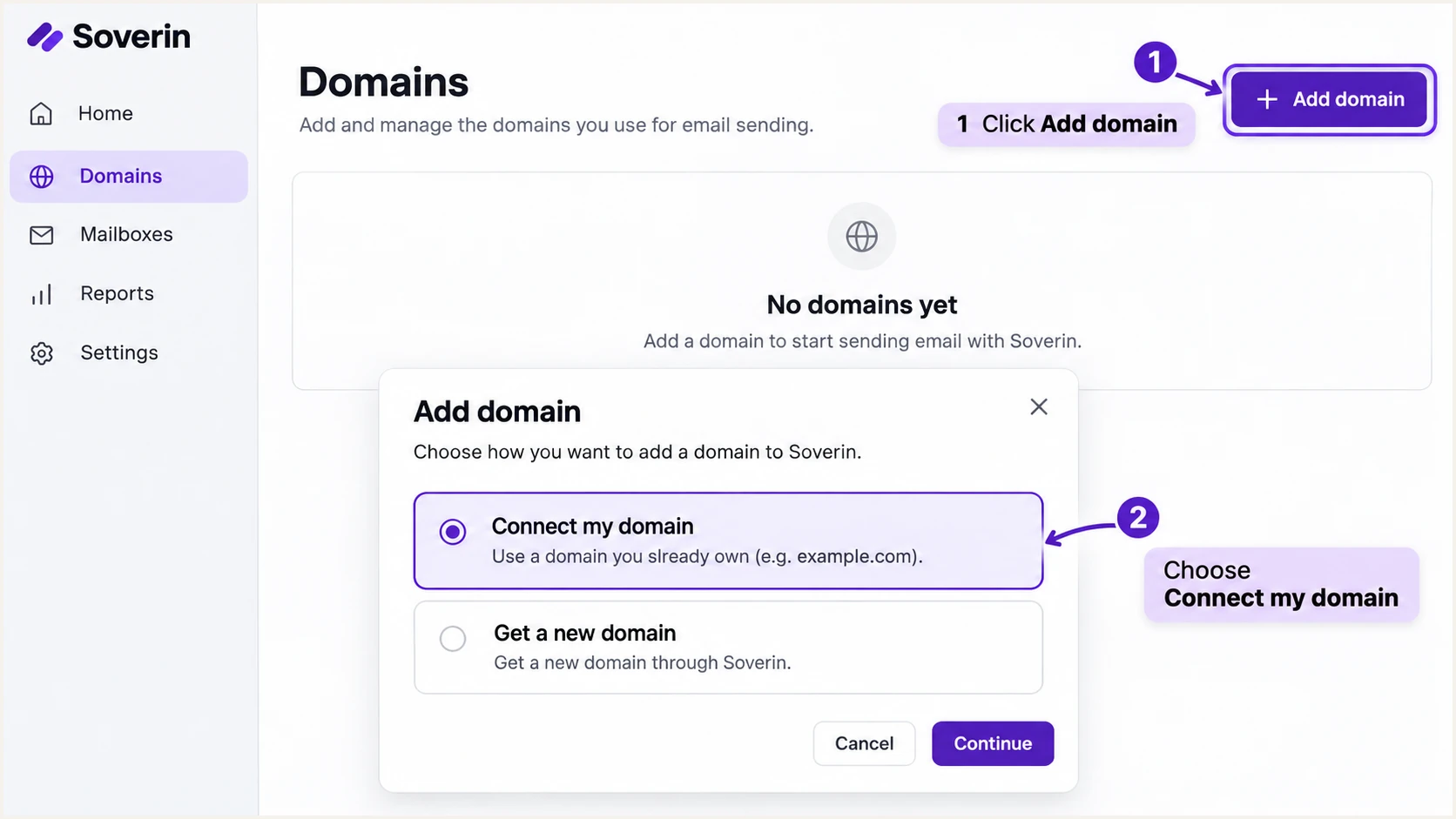
Soverin domain connection illustration showing Add domain and Connect my domain.
Create the mailbox or sending address you will test. If you are moving incoming mail to Soverin, its documented MX is mx.soverin.net with priority 10. Schedule that MX change separately because it redirects incoming mail; MX does not authenticate outgoing messages.
Set up SPF
Soverin supports Return-Path alignment for custom domains, so publish its SPF authorization. SPF checks the envelope sender domain, exposed as smtp.mailfrom in authentication results, rather than the visible From address.
- Inspect existing SPF: Look for the TXT record beginning v=spf1 at your domain root. Keep exactly one SPF record at each name.
- Authorize Soverin: If Soverin is your only sender, publish the TXT value below at @. If other senders already exist, insert include:soverin.net before the existing all mechanism in that same record.
- Preserve other senders: Keep existing authorizations and the intended final all mechanism. Do not replace a working multi-sender policy with the Soverin-only example.
- Check lookup limits: Keep evaluation within SPF's 10 DNS-querying-term limit, including nested includes. Save the record and check the published result.
Soverin-only SPF: TXT at @text
v=spf1 include:soverin.net ~all
The include authorizes Soverin's maintained sending infrastructure. I keep that include instead of copying individual outbound IP addresses, because the provider can change its sending pool.
Enter your domain below to inspect the published SPF record and its lookup count. A valid record is the DNS prerequisite; a sent-message test later confirms SPF passage and Return-Path alignment.
SPF checker
Find SPF syntax issues, lookup limits, and weak records.
?/16tests passed
After the relevant DNS TTL expires, repeat the check if an old value is still returned. Check authoritative DNS as well when troubleshooting a mismatch between the editor and public results.
If SPF passes but SPF alignment fails, compare smtp.mailfrom with the visible From domain. Adding more includes does not change the Return-Path. Investigate the actual sending route and keep working DKIM with domain alignment.
One SPF record per name
Two separate v=spf1 TXT records cause SPF permerror. Merge authorized senders into one record. For a Soverin-only setup, the documented ~all is a soft fail for other IP addresses; DMARC enforcement is configured separately.
Set up DKIM
Publish all of Soverin's documented DKIM aliases. Soverin manages the signing keys behind these CNAME targets; you do not generate a replacement private key for this setup.
- Create the aliases: Add the three CNAME records below in the DNS zone for your sending domain. Use the relative names if your DNS editor automatically appends the domain.
- Remove name conflicts: Each selector name must be a CNAME without another record at that same name. Check an existing record before replacing it.
- Save and resolve: Save the changes. Confirm that each alias resolves to its Soverin target and that a TXT lookup through the alias returns the provider's DKIM public key.
- Check the signature: Send through Soverin and inspect DKIM-Signature. Confirm that d= is your domain, s= identifies the active selector, and the receiving server reports dkim=pass.
Soverin DKIM aliases in the example.com zonedns
soverin1._domainkey CNAME soverin1._domainkey.soverin.net.
soverin2._domainkey CNAME soverin2._domainkey.soverin.net.
soverin3._domainkey CNAME soverin3._domainkey.soverin.net.
The names on the left are relative to example.com. The trailing dots on the targets indicate absolute DNS names. In a form-based DNS editor, select CNAME and enter the name and target into separate fields.
I keep every published selector available for key rotation. A DNS lookup confirms key availability, while the received message confirms which selector Soverin actually used and whether the signature passed.
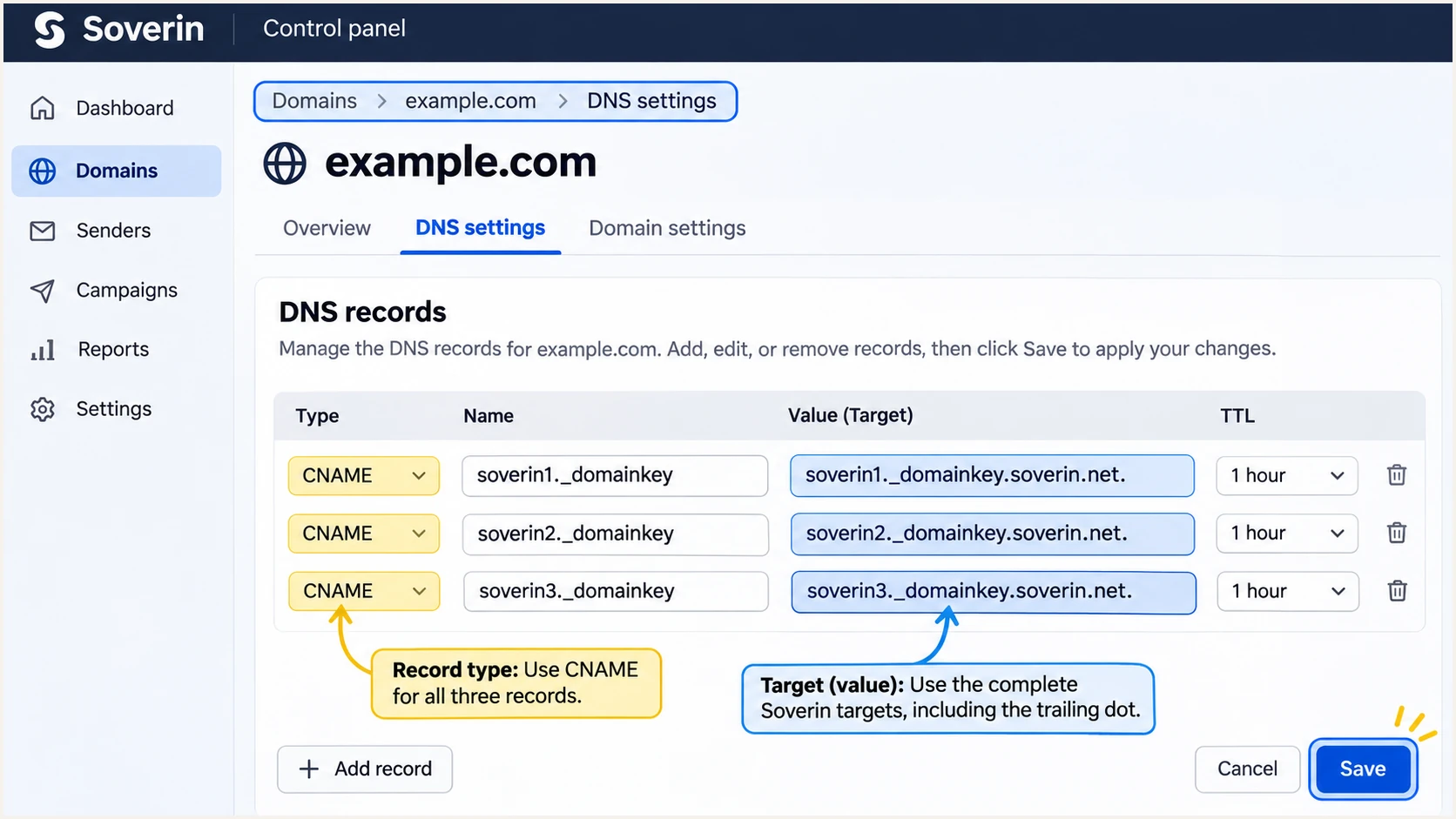
Soverin DNS settings illustration showing the three DKIM CNAME records.
For DKIM to count toward DMARC, the passing signature's d= domain must have domain alignment with the visible From domain. Under the default relaxed mode, a subdomain of the same organizational domain qualifies. A passing signature for an unrelated provider domain does not.
Set up DMARC
For a new deployment without an enforced policy, publish one TXT record at _dmarc.example.com using the value below. Replace dmarc@example.com with a mailbox you control that can receive aggregate XML reports.
- Inspect the current policy: Check both TXT and CNAME at _dmarc. A CNAME can lead to the effective DMARC TXT record, so inspect its target before changing anything.
- Keep enforcement: If the effective policy is p=quarantine or p=reject, retain it. Add reporting without downgrading the policy.
- Start new monitoring: For a domain without enforcement, use the p=none example. It requests reporting without requesting quarantine or rejection for DMARC failures.
- Generate and publish: Use the generator to build the record, publish it at _dmarc, then verify that only one effective DMARC policy is returned.
New deployment: TXT at _dmarctext
v=DMARC1; p=none; rua=mailto:dmarc@example.com
Build the value with our DMARC record generator. Keep the report destination real and monitored. A destination on another domain requires the reporting authorization expected by DMARC receivers.
Soverin documents a provider-managed alternative: a CNAME at _dmarc pointing to reject._dmarc.soverin.net. I check whether that record already exists before choosing a reporting policy.
New monitoring policy
Use your own DMARC TXT record with p=none and a working rua destination while checking legitimate senders. You control reporting and subsequent policy changes.
Existing Soverin policy
Keep an existing reject CNAME or other enforced policy. To control rua yourself, replace the CNAME with a TXT record that preserves the effective enforcement level.
A CNAME and a TXT record cannot coexist at _dmarc. If replacing the Soverin alias, record its effective policy first, then replace it with the intended TXT record in the same DNS change.
Use the checker below to validate the public policy and reporting syntax. It checks DNS configuration; it does not establish that your mail stream passes DMARC.
DMARC checker
Look up a domain's DMARC record and catch policy issues.
?/7tests passed
DMARC passes when at least one authentication method passes with domain alignment: SPF, DKIM, or both. I aim for both on direct Soverin mail, while keeping DKIM working for forwarding paths where SPF often fails.
Aggregate reports are periodic rather than immediate. Allow roughly 24-48 hours after sending traffic to participating receivers before investigating missing reports. A test message gives faster authentication feedback.
Verify and troubleshoot
I verify a message sent through the actual Soverin mailbox or client. A DNS-only check cannot prove that Soverin signed the message with your domain or used the expected envelope sender.
- Send a fresh message: Use Soverin webmail or authenticated SMTP at smtp.soverin.net. For a mail client, use port 465 with implicit TLS, or 587 with STARTTLS, and your full email address as the username.
- Run the email test: Send to the unique address supplied by the email tester below, using your custom-domain From address. Wait for the diagnostic report.
- Inspect receiver results: Check the receiving server's Authentication-Results for spf=pass, dkim=pass and dmarc=pass. Compare smtp.mailfrom and the DKIM d= domain with the visible From domain.
- Repeat each route: Test webmail and any application that sends as your domain. A website using a different SMTP server needs its own authorization and a passing method with domain alignment.
The email tester prompts you to send a message and returns a diagnosis of its authentication and other delivery checks. I use the received results to distinguish a DNS problem from a message-signing or routing problem.
Send a new message after each change. An older message retains its original signature and authentication results, even after DNS has been corrected.
Email tester
Send a real email to this address. Suped shows a results button when the test is ready.
?/43tests passed
A failed SPF alignment check does not itself mean DMARC failed. If DKIM passes with domain alignment, DMARC still passes. For direct Soverin mail, investigate unexpected Return-Path differences because this source supports SPF alignment.
Use the failure pattern to choose the next check. Do not weaken an enforced DMARC policy just because one authentication method fails while the other still produces a DMARC pass.
|
|
|---|---|
SPF permerror | Duplicate TXT; lookup limit |
SPF mismatch | Return-Path; sending route |
DKIM missing | Soverin route; signature |
DKIM failure | Selector; CNAME; message changes |
DMARC failure | From domain; passing identifiers |
Policy conflict | CNAME and TXT coexistence |
Match the diagnostic result to the next check.
For command-line checks, replace example.com with your domain. Query the selector shown in the received message as well as checking all documented aliases during setup.
Inspect the published authentication recordsbash
dig +short TXT example.com
dig +short CNAME soverin1._domainkey.example.com
dig +short TXT soverin1._domainkey.example.com
dig +short CNAME soverin2._domainkey.example.com
dig +short CNAME soverin3._domainkey.example.com
dig +short CNAME _dmarc.example.com
dig +short TXT _dmarc.example.com
If a result is stale, compare it with the authoritative nameserver and wait for cached TTLs to expire. If the DNS key resolves but a fresh, unmodified Soverin message still fails DKIM, give Soverin support the full headers and selector.
Get alerted when it breaks
Suped is our DMARC reporting and email authentication platform. For ongoing Soverin monitoring, it turns aggregate reports into source-level results and detected issues with steps to fix them. I use those results to check for regressions after DNS or sender changes.
- Route aggregate reports: Use the reporting destination supplied by your monitoring service in rua. If you use Suped, copy its supplied value exactly and retain your existing DMARC policy.
- Verify the source: In Suped's Sources view, review Soverin traffic and confirm it is a sender you authorize. Verify the source only after checking its IP addresses and authentication results.
- Enable notifications: Enable Issues detected notifications and Sending sources need verification notifications. Add DMARC summary emails for periodic review.
- Resolve and retest: Open a detected issue, follow its Steps to fix, then verify the DNS change and send another test message. Check later reports for recovery.
Our DMARC monitoring connects the source table with SPF and DKIM diagnostics, so a new failure has a specific sending source to investigate. Suped's DNS history also helps compare the previous record with the current value.
Alerts depend on incoming data
DMARC report alerts follow report arrival and processing. They are not an instant test of every message. Use the email tester immediately after a change, then use Suped notifications to detect issues in subsequent reporting data.
Secure your domain with p=reject
I enforce p=reject after legitimate sending routes consistently pass DMARC across a representative sending cycle. A successful Soverin test is one prerequisite; account for other services using the same From domain before changing a domain-wide policy.
- Inventory every sender: Review Suped's source table for Soverin and every other authorized sender. Include infrequent workflows such as monthly invoices, then investigate unknown sources before authorizing them.
- Fix legitimate failures: Use Suped's record Detail view to inspect SPF and DKIM results. Every legitimate route needs at least one passing authentication method with domain alignment.
- Stage enforcement: For a new monitoring deployment, move to p=quarantine after fixing legitimate failures. Review subsequent reports before moving to p=reject. Retain enforcement if it is already active.
- Check subdomains: Review the effect on sending subdomains. Subdomains without their own policy normally inherit the parent policy, subject to sp, so test them before enforcing the parent.
- Keep reporting active: Preserve rua at every stage. After changing policy, confirm public DNS, send fresh tests, and watch for legitimate failures in Suped.
Suped's Hosted DMARC lets your team manage policy changes in our dashboard after its DNS setup. Keep Soverin's SPF and DKIM records in place, and use one DMARC publishing method at _dmarc.
Quarantine stage: replace the report addresstext
v=DMARC1; p=quarantine; rua=mailto:dmarc@example.com
Proceed when remaining failures are understood and legitimate routes have been corrected. A low overall failure percentage alone is insufficient if those failures include an important sending workflow.
Reject stage: keep the same report destinationtext
v=DMARC1; p=reject; rua=mailto:dmarc@example.com
A reject policy requests rejection of messages that fail DMARC. Receivers retain discretion over handling, and a DMARC pass does not guarantee inbox delivery. Keep the source review and issue notifications running after enforcement.
Frequency asked questions
For a Soverin-only domain, publish v=spf1 include:soverin.net ~all as a TXT record at the domain root. If you already have SPF, add include:soverin.net to that record before its final all mechanism. Keep one SPF record at each name.
Soverin documents soverin1, soverin2 and soverin3. Each selector's _domainkey name is a CNAME to the corresponding name under soverin.net. Publish all of them, then inspect s= in a received DKIM-Signature to identify the selector used for that message.
Keep an existing enforced policy. Soverin documents _dmarc as a CNAME to reject._dmarc.soverin.net. If you need your own reporting destination, replace that alias with a DMARC TXT record that retains p=reject and adds your rua address. Do not publish a TXT record beside the CNAME.
Yes. A passing DKIM signature with domain alignment is enough for DMARC to pass. Soverin supports Return-Path alignment, so I still investigate unexpected SPF alignment failures on direct mail. Forwarding is a common reason SPF stops passing while DKIM remains valid.
The soverin.net domain is used by Soverin's mail infrastructure. I treat that rDNS suffix as a clue to Soverin rather than proof of an authorized sender. Confirm the sending IP against Soverin's current SPF authorization and check SPF, DKIM and DMARC results. Soverin manages reverse DNS for its own sending servers.




