How to set up DMARC/DKIM/SPF for Sophos

To set up Sophos Email Gateway, verify your domain in Sophos, add its regional SPF include to DNS, publish and activate a Sophos DKIM key, and publish a DMARC TXT record. Start a new DMARC deployment with p=none, then enforce the policy after legitimate sending sources pass authentication with domain alignment.
I check the deployment mode first. In Microsoft 365 Mailflow mode, Microsoft handles final outbound delivery, so keep Microsoft 365 SPF and DKIM configured. The Sophos signing steps below apply to Gateway mode. Sophos used only for inbound filtering does not need authorization in your outbound SPF record.
Add your domain
Use the domain in your visible From address, such as example.com. Have DNS access and the destination mail server details ready before changing mail routing.
- Open domain settings: In Sophos Fusion, open Global Settings > Products and Services > Email > Gateway Domains, then click Add Domain. Enter your domain under Email Domain.
- Verify ownership: Click Verify Domain Ownership. Publish the exact TXT name and value shown in your DNS, then click Verify. Close the dialog after verification succeeds.
- Configure delivery: Select Inbound and Outbound. Set the inbound destination and SMTP port, then choose the outbound gateway that matches your mail service. For Custom Gateway, add your sending server's public IP or CIDR range. Save.
- Complete routing: Open Configure External Dependencies and follow the Outbound Settings instructions for your mail service. Synchronize mailboxes and aliases before sending through Sophos. DNS authentication alone does not route email.
Older Sophos Central menus use Email Gateway > Settings > Domain Settings/Status. Current Sophos Fusion documentation calls this Gateway Domains. Keep a domain in one processing mode, Gateway or Mailflow.
The verification TXT record proves ownership. It does not authorize sending or activate DKIM. Leave MX changes until the routing configuration and policies are ready.
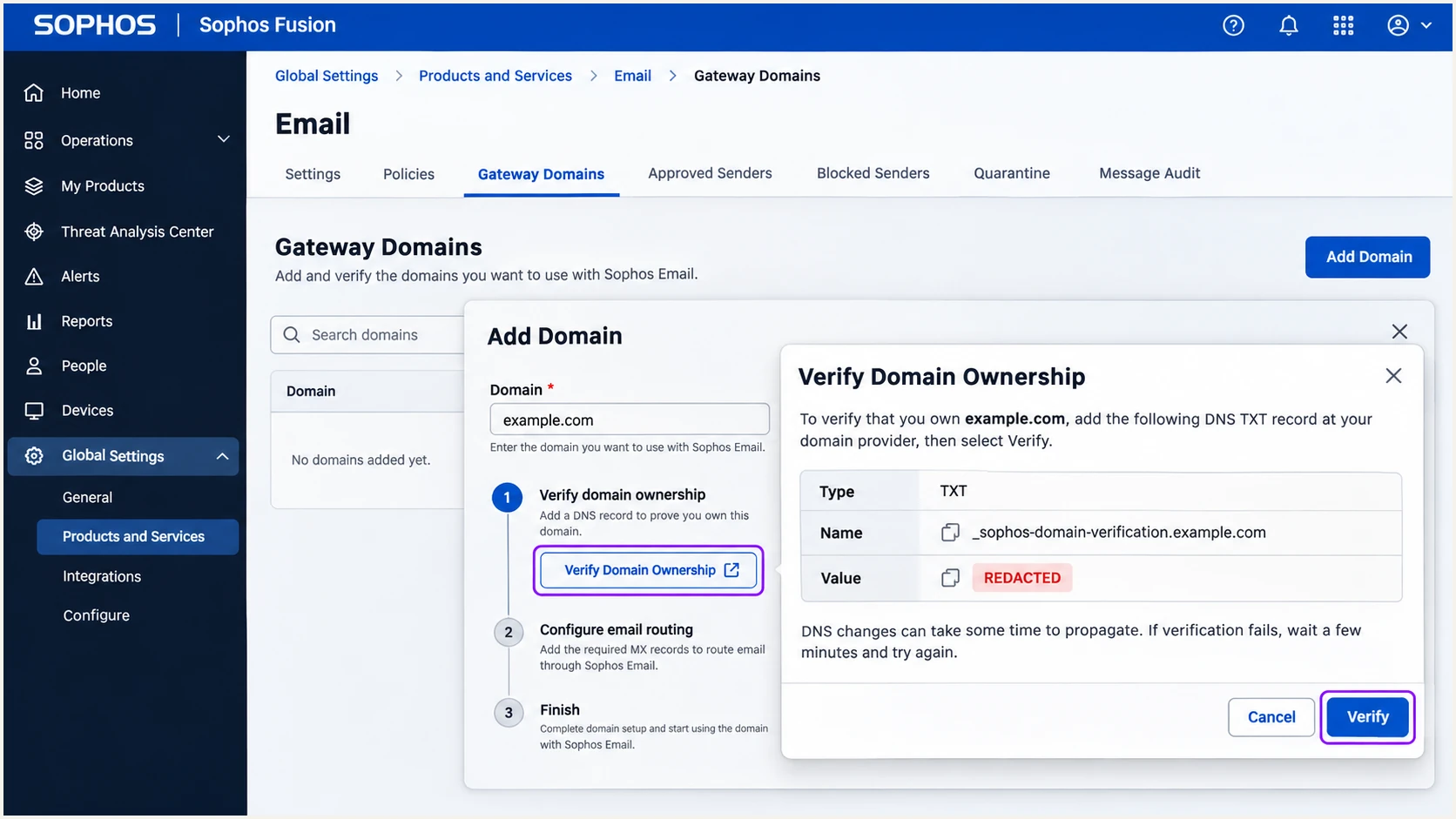
Sophos Gateway Domains: publish the ownership TXT record and click Verify.
A failed ownership test usually means the TXT value is wrong, the hostname was duplicated by the DNS editor, or DNS caches still hold the previous response. Query the exact name shown by Sophos and retry.
I finish domain verification before moving outbound traffic. A domain that verifies successfully still needs its authorized mailboxes and outbound connector or relay configuration.
Set up SPF
For Gateway mode, authorize the Sophos servers that make the final connection to recipients. Use the include for your Sophos account's data center, not the recipient's location.
- Confirm the region: Open Gateway Domains > Configure External Dependencies and check the region-specific configuration. Select the matching include below.
- Edit one record: Update the existing SPF TXT record at the envelope-sender domain, commonly @ for example.com. Insert the Sophos include before the final all mechanism. Keep other authorized senders and publish only one v=spf1 record at that name.
- Keep domain alignment: Use an envelope sender under the same organizational domain as the visible From address. Confirm the received message's Return-Path and smtp.mailfrom. A passing SPF check for an unrelated domain does not satisfy DMARC.
- Control lookups: Keep evaluation within 10 DNS-lookup-causing terms, including nested includes. Replace the legacy shared Sophos include with the regional value rather than adding both.
Regional Sophos SPF includes, select your account's regiontext
US West    include:_spf_uswest2.prod.hydra.sophos.com
US East    include:_spf_useast2.prod.hydra.sophos.com
Germany    include:_spf_eucentral1.prod.hydra.sophos.com
Ireland    include:_spf_euwest1.prod.hydra.sophos.com
Canada     include:_spf.eml100yul.ctr.sophos.com
Australia  include:_spf.eml100syd.ctr.sophos.com
Japan      include:_spf.eml100hnd.ctr.sophos.com
India      include:_spf.eml100bom.ctr.sophos.com
Brazil     include:_spf.eml100gru.ctr.sophos.com
UAE        include:_spf.eml100dxb.ctr.sophos.com
The example below is for US West with Sophos as the only outbound gateway. Merge the appropriate include into your existing record if other systems deliver directly. Use -all after the full sender inventory is authorized.
Run the envelope-sender domain through the SPF checker after publishing. Check for duplicate records and excessive nested lookups as well as syntax errors.
SPF checker
Find SPF syntax issues, lookup limits, and weak records.
?/16tests passed
An SPF record lookup validates DNS configuration. A live message test establishes whether the actual outbound IP is authorized.
Sophos supports SPF alignment through your domain's envelope sender. If a particular application uses an unrelated Return-Path, configure its envelope sender or rely on passing DKIM with domain alignment for DMARC.
Example SPF TXT value at @, US West with Sophos-only deliverytext
v=spf1 include:_spf_uswest2.prod.hydra.sophos.com -all
Set up DKIM
Generate the signing key in Sophos Email Gateway. Sophos retains the private key and gives you the public TXT record; its generated RSA keys are 2048 bits.
- Generate the key: Open Global Settings > Products and Services > Email > Gateway Domains. Select your domain and click Add key.
- Publish the public record: Copy the generated TXT hostname and complete public-key value into DNS. Use the exact selector Sophos provides. Do not replace an existing selector used by another sender.
- Test DNS: Wait for the TXT record to resolve publicly, then click Test record. Correct the hostname or value if the test fails.
- Activate signing: Activate the tested key and click Save. Sophos deactivates the previously active Sophos key for that domain. Send a fresh outbound message and check the receiving server's DKIM result.
A typical lookup name is SELECTOR._domainkey.example.com. Replace SELECTOR with the generated value; DNS editors that append example.com need only the relative hostname.
I check that the passing signature's d= domain matches the visible From domain under the DMARC alignment mode. A valid Sophos-owned signature alone does not authenticate your From address for DMARC.
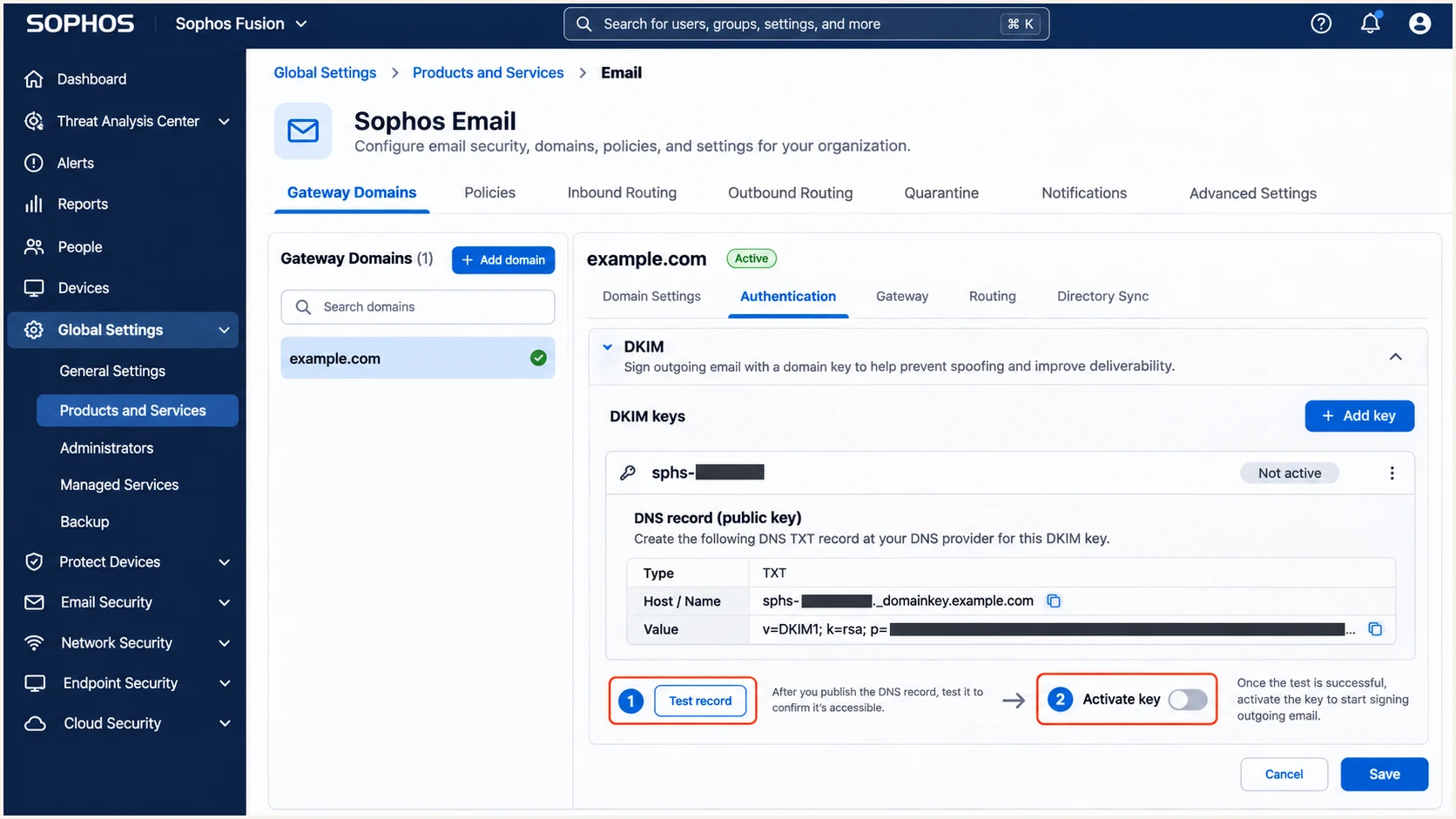
Sophos DKIM setup: publish the TXT record, test it, then activate signing.
Publishing the public key does not turn signing on. The activation step is required.
Keep the previous selector's public record during key rotation until messages signed with it have cleared delivery queues.
Sign after message changes
Sophos removes smart banners on outbound replies, which changes the message. Enable Sophos DKIM signing after those changes, then check that no downstream relay modifies the signed content.
Set up DMARC
Publish DMARC for the domain in the visible From address. One DMARC policy covers all sending sources using that domain, including services that bypass Sophos.
- Check the existing policy: Query _dmarc.example.com first. If the domain already uses quarantine or reject, keep that policy while configuring Sophos. Do not downgrade it to none.
- Create a new policy: For a domain without DMARC, add one TXT record at _dmarc with the monitoring value below. Do not publish a second DMARC TXT record at the same name.
- Set reporting: Replace dmarc@example.com with your actual aggregate-report destination. Use the exact reporting address supplied by your report processor. Complete external reporting authorization when the destination requires it.
- Validate publicly: Save the DNS change, wait for caches to expire, then check the domain below. Confirm that the policy and reporting destination match your intended settings.
If your DNS editor appends example.com automatically, enter _dmarc as the host. Check the resulting full name before saving so the domain is not appended twice.
Initial DMARC TXT value at _dmarc, replace the report addresstext
v=DMARC1; p=none; rua=mailto:dmarc@example.com
Use our DMARC record generator to build the record with your real report address. The example mailbox is a placeholder and cannot collect reports for your domain.
The checker reads your published policy. It does not prove that Sophos is signing outbound mail or that reports have arrived.
DMARC checker
Look up a domain's DMARC record and catch policy issues.
?/7tests passed
DMARC passes when SPF or DKIM passes with domain alignment. With default relaxed alignment, the authenticated domain and visible From domain share an organizational domain. Strict mode requires an exact domain match.
Sophos's Message Authentication settings under Settings > Inbound > Authentication govern received messages. Changing those failure actions does not publish your outbound DMARC policy.
Authentication without domain alignment
SPF passes for an unrelated envelope domain and DKIM passes for a provider-owned domain. Neither authenticates example.com in the visible From address. DMARC fails.
Authentication with domain alignment
SPF passes for example.com or DKIM passes with d=example.com. Either successful path is enough for DMARC, even if the other path fails.
Verify and troubleshoot
Test the complete outbound route with a new message. I trust the final recipient's Authentication-Results header for the delivery result; a Sophos processing log describes an earlier point in that route.
- Send through Sophos: Use a synchronized mailbox and your normal outbound connector. In Sophos, open Reports > Message History, select outbound direction, and locate the message by recipient and time.
- Inspect the message: Open the subject in the Processed report, then inspect Details and Raw Header. Confirm the expected sending route. At the final recipient, check spf=pass, dkim=pass, and dmarc=pass.
- Check identifiers: Compare smtp.mailfrom and DKIM header.d with header.from. A passing check with an unrelated domain does not satisfy DMARC. Check the DKIM selector against the key activated in Sophos.
- Test representative paths: Repeat for an ordinary message and a reply with smart-banner removal. Test every application that sends through Sophos, plus any service that bypasses it.
The email tester is the quickest check after publication and activation. Send a fresh message through your normal Sophos route to the address it provides.
The resulting diagnosis checks the received message's authentication and exposes configuration problems that a DNS-only lookup cannot establish.
Email tester
Send a real email to this address. Suped shows a results button when the test is ready.
?/43tests passed
Check the tester's reported sending IP and domain identifiers. If the message bypassed Sophos, fix the outbound route before changing authentication records again.
A single successful test verifies that sending path at that time. Use aggregate reports to find other legitimate sources before increasing DMARC enforcement.
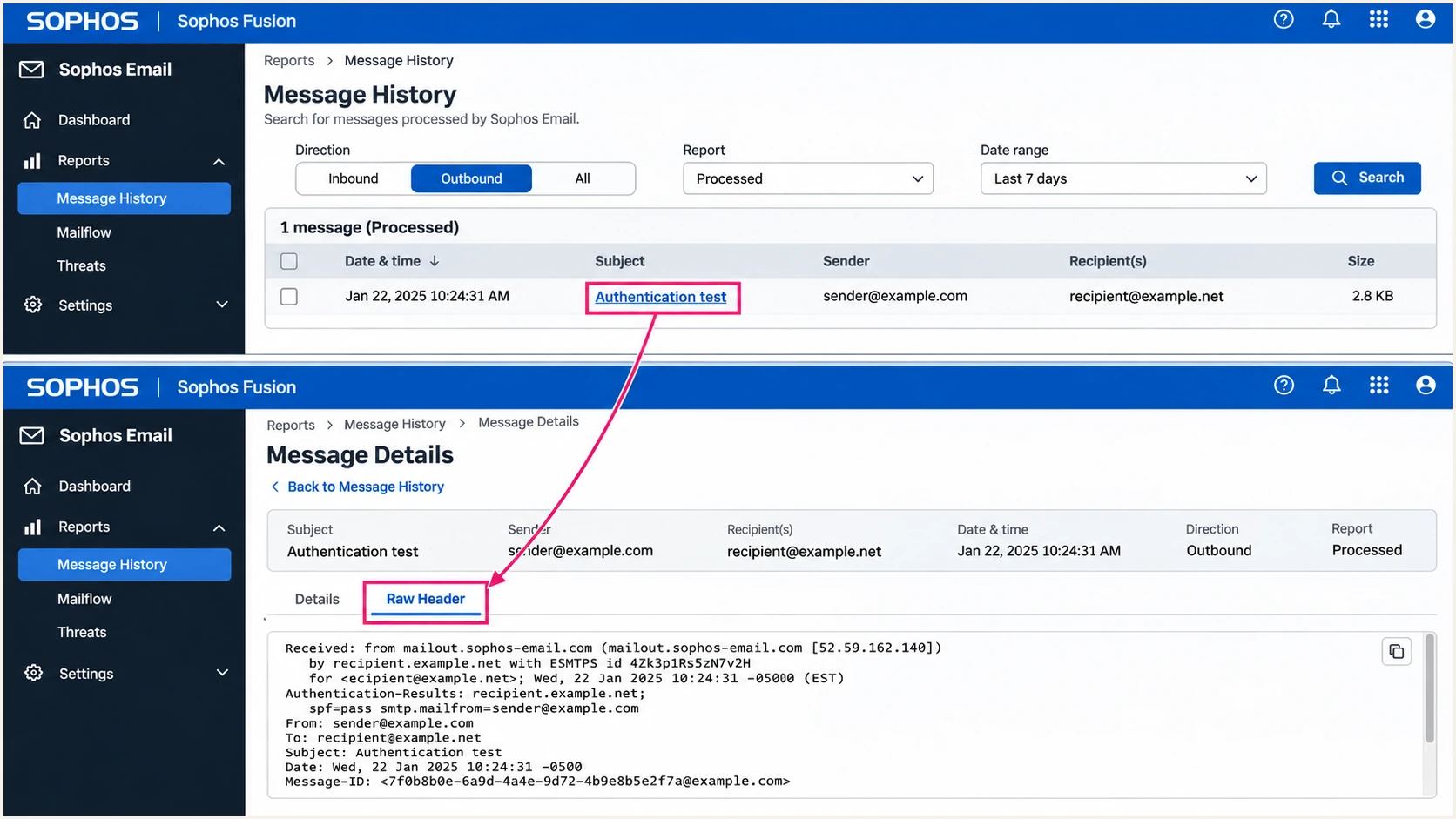
Sophos Message History: find the outbound test and inspect its raw headers.
Use DNS lookups to isolate missing records. Replace example.com and SELECTOR with the actual domain and the selector generated by Sophos.
For DKIM, copy the selector from the outgoing signature's s= value and query it under the signature's d= domain. This also catches testing the wrong selector.
Public DNS checks, replace the domain and SELECTORbash
dig +short TXT example.com
dig +short TXT SELECTOR._domainkey.example.com
dig +short TXT _dmarc.example.com
A missing answer points to the wrong DNS name or unpublished data. A valid answer with a failed live test points to authorization, key activation, or message changes.
Use the first checks below to narrow the fault before editing DNS. Keep an unchanged copy of the previous values for comparison.
|
|
|
|---|---|---|
SPF fail | Account region | Correct include |
SPF permerror | Duplicates / lookups | Repair SPF |
DKIM missing | Active key / route | Activate signing |
DKIM fail | TXT / content changes | Retest signature |
DMARC fail | Domain alignment | Fix sender identity |
No outbound log | Mailbox / connector | Repair routing |
First checks for common Sophos authentication failures.
Get alerted when it breaks
Our platform, Suped, monitors the receiver reports that expose authentication failures across your sending sources. Use Suped's DMARC monitoring to track Sophos authentication after the initial configuration and receive issue notifications.
- Enable issue notifications: In Suped's Notifications settings, enable Issues detected and confirm the notification recipients. Use the issue's steps to fix to identify the DNS or signing change required.
- Review new sources: Enable Sending sources need verification. Verify Sophos traffic against the expected region and sending applications before marking the source as authorized.
- Investigate the failure: Filter Data view by source, reporter, or IP address. Open Detail view for SPF, DKIM, DMARC, and rDNS diagnostics, then compare the failing messages with your successful test.
- Confirm recovery: After the fix, send another test through Sophos and review subsequent aggregate data. Enable DMARC summary emails to track recurring failures and unexpected senders.
I investigate changes in legitimate Sophos traffic separately from unknown traffic. An unknown source failing DMARC does not justify adding its IP to SPF.
DNS history in Suped helps connect a new failure to an SPF edit or a missing DKIM selector. Match the change time with the affected report period.
Allow for report delivery delays
DMARC aggregate reports commonly arrive daily. Suped's report-based alerts depend on those reports arriving. Run a live email test immediately after a Sophos or DNS change, then use monitoring to detect failures across ongoing traffic.
Secure your domain with p=reject
Move to reject after legitimate senders pass DMARC consistently. Suped gives you source verification and authentication diagnostics to make that decision using actual receiver data.
- Complete the inventory: Review every legitimate source in Suped, including billing systems and applications that bypass Sophos. Cover a representative business cycle, including infrequent sending jobs.
- Fix legitimate failures: For Sophos, verify the regional SPF include and active custom DKIM key. Prioritize passing DKIM with domain alignment so ordinary forwarding does not leave SPF as the only DMARC path.
- Stage enforcement: For a new deployment, move from none to quarantine, inspect the resulting legitimate failures, then change to reject. Preserve the report destination. Keep an existing quarantine or reject policy during the Sophos setup.
- Review subdomains: Check separate subdomain DMARC records and any sp policy before enforcing the parent domain. Confirm that subdomain senders have the authentication required by their effective policy.
- Keep monitoring: Use Suped issue notifications after each policy change. Investigate new legitimate failures before further enforcement changes, and keep reporting active after reaching reject.
With our Hosted DMARC, Suped can manage policy changes in the dashboard once hosting is configured. This keeps policy staging and the receiver evidence needed to assess each change in one workflow.
The record below requests rejection of messages that fail DMARC. Replace the example reporting mailbox and retain any other intentional policy tags from your existing record.
Final DMARC TXT example, only after legitimate sources are readytext
v=DMARC1; p=reject; rua=mailto:dmarc@example.com
Reject is a request to receiving systems, which apply their own handling policies. Continue checking legitimate traffic after enforcement, especially following Sophos routing changes or DKIM rotation.
Before onboarding another sender, verify its authentication in test messages and receiver reports. Keep that check in the change process so new applications do not fail under your enforced policy.
Frequency asked questions
Sophos Email uses hosts under prod.hydra.sophos.com. Sophos's published configuration examples include mail.delivery-11-us-west-2.prod.hydra.sophos.com. Treat a matching reverse-DNS name as a source-identification clue, then confirm the sending IP, route, and authentication results. The suffix alone does not prove that a message is authorized.
For standard Mailflow mode, Microsoft 365 makes final outbound delivery, so use Microsoft 365 SPF and DKIM. Add Sophos's regional SPF include when Sophos Gateway actually sends your domain's mail directly to external recipients. Confirm the final sending IP in a received test message before changing SPF.
Check that Test record passes and the key is activated and saved in Sophos. Then compare the received signature's selector with the published TXT hostname. An incorrect hostname, incomplete public key, or downstream content change causes failure. Test a newly sent message after each correction.
Yes. A passing DKIM signature with domain alignment is sufficient for DMARC even when SPF fails or authenticates an unrelated Return-Path domain. Sophos Gateway supports SPF alignment, so correct an unexpected envelope-sender mismatch in normal direct delivery. Forwarded messages often need DKIM because forwarding changes the connecting IP.
No. Inbound authentication settings control how Sophos handles received messages. Publish your domain's outbound DMARC policy in DNS at _dmarc.example.com, or update its existing hosted policy. Keep an existing quarantine or reject policy while configuring Sophos.