
How to set up DMARC/DKIM/SPF for Solera Vehicle Solutions

Published 21 Nov 2026
Updated 21 Nov 2026
11 min read
Summarize with
Set up Solera Vehicle Solutions email by confirming your sending domain with the relevant Solera support team, configuring its custom return path and SPF, enabling custom DKIM where supported, and publishing DMARC in your DNS. A message passes DMARC when SPF or DKIM passes and its authenticated domain matches the visible From domain under your DMARC settings.
I start with the actual sending application. Solera lists several dealer products, including AutoPoint and DealerSocket. Their email configurations are not interchangeable. Use the records issued for your application and account; do not copy Solera's corporate email records.
Add your domain
I treat domain setup as a support-assisted change unless the sending application provides its own verified instructions. I found no public, shared Solera Vehicle Solutions domain-authentication screen.
- Identify the application. Record the product name, dealership or account ID, and visible From address, such as service@example.com. Include every dealership location that uses a different sending domain.
- Request domain activation. Ask the application's support team to register your sending domain and provide the exact ownership-verification records, custom return-path configuration, and DKIM records supported by that application.
- Use the correct support form. For AutoPoint, open its public HelpDesk, select Submit a ticket, complete the required fields, and request authentication for your sending domain.
- Publish and confirm. Add the issued records at your authoritative DNS provider. Ask support to confirm domain verification and activate the custom sender before sending a test.
My support request includes the desired From domain and a proposed bounce host such as bounce.example.com. Support must confirm whether the application supports a customer-domain DKIM signature.
Keep the issued records with the support ticket. Have the DNS administrator confirm that they resolve, then get Solera's confirmation that the custom sender is active.
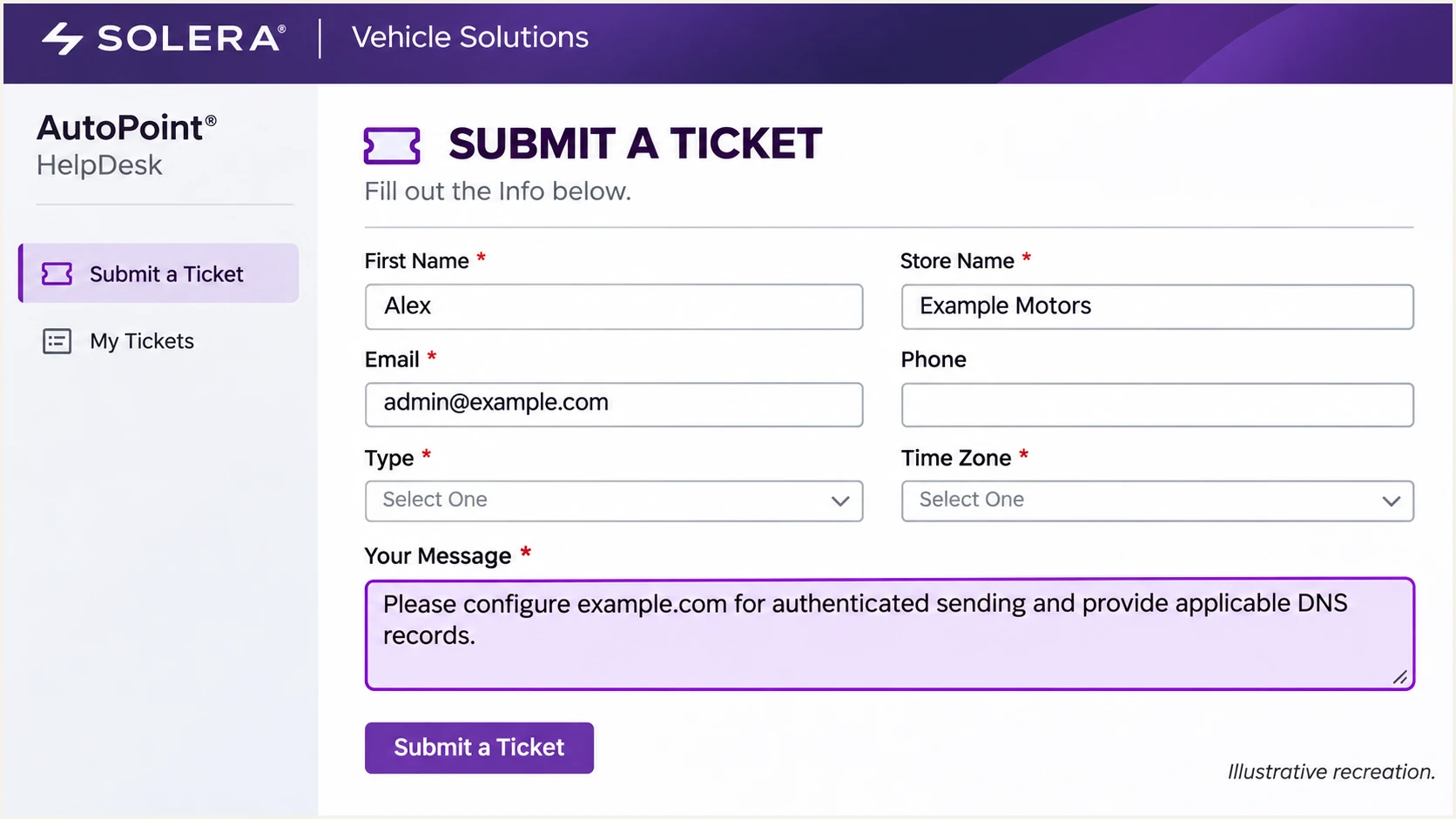
Illustrative AutoPoint HelpDesk ticket requesting sending-domain authentication.
Keep the ownership token and email-authentication records distinct. An ownership token proves control of DNS; SPF and DKIM establish whether outgoing messages authenticate.
Set up SPF
Solera Vehicle Solutions supports return-path matching for SPF. I ask support to enable it for the specific sending stream, then check the actual envelope domain in a delivered message.
- Configure the return path. Have Solera enable a custom MAIL FROM domain, for example bounce.example.com, for messages using example.com in the visible From address. Changing Reply-To does not change MAIL FROM.
- Publish at the right name. Use the record type, owner name and value Solera supplies. SPF is evaluated at the MAIL FROM domain. An SPF record at example.com is not inherited by bounce.example.com.
- Keep one SPF policy. Merge supplied IP addresses or include mechanisms into an existing SPF record at the same name. Preserve other authorized senders and keep a single final all mechanism.
- Respect DNS delegation. If Solera supplies a CNAME for the bounce host, publish that CNAME as instructed. Do not add a TXT record at the same name or replace your normal inbox MX records.
AutoPoint's public HelpDesk lists 66.129.126.137, 170.76.172.13 and 136.179.128.171 for service-advisor email. Confirm that this is your sending stream; these addresses are not a universal Solera policy.
AutoPoint-only SPF example, confirm the hostname and account firsttext
v=spf1 ip4:66.129.126.137 ip4:170.76.172.13 ip4:136.179.128.171 ~all
That example is a complete policy only for a hostname whose authorized senders are those AutoPoint IPs. If other systems send using the same envelope domain, preserve their authorization in the existing record.
Enter the actual MAIL FROM domain below. Check for duplicate SPF records and the limit of 10 DNS-lookup-causing terms across the evaluated SPF policy, including nested includes. Literal ip4 mechanisms do not consume that limit.
SPF checker
Find SPF syntax issues, lookup limits, and weak records.
?/16tests passed
A DNS pass confirms the policy is readable. I still check a fresh message for spf=pass and compare smtp.mailfrom with the visible From domain. Default relaxed SPF matching accepts bounce.example.com for From example.com. With aspf=s, the domains must match exactly.
If your particular deployment retains a provider-owned return path, adding SPF to your root domain does not fix SPF matching. An SPF alignment error is acceptable for DMARC only when a passing DKIM signature uses a matching domain.
Set up DKIM
I ask Solera to confirm custom DKIM support for the actual application. A provider-domain DKIM signature can pass cryptographic verification while contributing nothing to DMARC for your dealership's domain.
- Get the signing details. Request the exact selector, DNS record type, owner name and value, plus the signing domain that will appear in the DKIM d= tag. Do not assume a selector named solera or default.
- Publish the public records. Create the supplied TXT public key or CNAME records exactly. Publish every supplied selector and keep CNAME records in DNS-only mode if your DNS provider offers proxying.
- Activate signing. Ask Solera to enable signing after the records resolve. Publishing a public key does not cause the application to sign messages.
- Check a real signature. Send a new message through the application. Confirm dkim=pass and a signing domain that matches the visible From domain under your DMARC settings.
Use the s= selector and d= signing domain from the actual DKIM-Signature header to construct the lookup name. Replace SELECTOR and example.com below; these commands do not specify a real Solera selector.
Look up the selector supplied by Solerabash
dig +short CNAME SELECTOR._domainkey.example.com
dig +short TXT SELECTOR._domainkey.example.com
If the application does not support custom DKIM, request confirmation from support and preserve a working SPF path with a matching MAIL FROM domain. DMARC requires one passing method with a matching domain; some receiving-provider sender requirements also require SPF and DKIM authentication.
Do not create your own Solera key
Solera must hold the signing private key and configure the application to use it. An unrelated DKIM key generated locally will not authenticate messages sent by Solera. Never publish a private key in DNS.
Set up DMARC
I use p=none for a domain without an existing enforcement policy. If the domain already uses p=quarantine or p=reject, keep that policy and fix the Solera configuration without weakening it.
- Read the existing policy. Look up TXT records at _dmarc.example.com for a visible From domain of example.com. For a sending subdomain, also check the parent policy that applies when no subdomain record exists.
- Create one DMARC record. For a new monitoring setup, publish the example below at _dmarc.example.com after replacing the reporting address with a mailbox you control. Edit an existing record rather than creating a duplicate.
- Make reporting usable. Confirm the reporting mailbox accepts aggregate XML attachments. If you use an external reporting destination, complete its required DNS authorization.
- Validate the policy. Check syntax, the effective policy and reporting configuration before relying on incoming reports.
New monitoring policy at _dmarc.example.comtext
v=DMARC1; p=none; rua=mailto:dmarc@example.com
Use the DMARC record generator to construct the record with your real reporting destination. The example.com address above is a placeholder, not an operating report collector.
Enter your visible From domain below. Use the dealership's domain, not solera.com and not the bounce host unless that host is also the domain in From.
DMARC checker
Look up a domain's DMARC record and catch policy issues.
?/7tests passed
DMARC uses the domain in the visible From header. It does not use the display name or Reply-To address. A passing SPF or DKIM check on an unrelated provider domain does not satisfy DMARC.
The p=none policy requests monitoring without DMARC enforcement. Receivers still apply their own filtering, and a valid DNS record does not prove that Solera's messages pass.
Verify and troubleshoot
I test each live Solera workflow separately. A sales reply and an automated service reminder are separate test cases even when they show the same From address.
- Send through Solera. Trigger a genuine application message to a mailbox you control. Include automated reminders and a one-to-one message where those workflows are enabled.
- Inspect receiver results. Read Authentication-Results added by the receiving system. Record spf, smtp.mailfrom, dkim, header.d and dmarc alongside the visible From domain.
- Separate failure types. For SPF failures, verify the envelope host and authorized sending IP. For DKIM failures, verify the selector, public key and enabled signing. For DMARC failures, compare authenticated domains with From.
- Retest after changes. Send a fresh message after DNS caches expire. Keep its raw headers and the support ticket so you can distinguish a DNS correction from a different sending route.
|
|
|
|
|---|---|---|---|
Pass | Pass | Pass | Monitor |
Pass | Fail or absent | Pass | Review DKIM |
Fail or absent | Pass | Pass | Review SPF |
Fail or absent | Fail or absent | Fail | Fix before enforcement |
Each Pass means authentication succeeded and the domain matched From. At least one matching pass is required.
The email tester below is the quickest message-level check: send a new email directly from the Solera application to the test address it provides. Forwarding a received message changes the delivery path and is not an equivalent test.
The resulting report diagnoses authentication and other delivery checks. I use it to confirm the actual sender configuration after the DNS checks above.
Email tester
Send a real email to this address. Suped shows a results button when the test is ready.
?/43tests passed
If DNS looks correct but the message still fails, give Solera support the raw headers, timestamp, application name and sending IP. Ask which configured domain and signing selector were applied to that specific message.
A passing test is evidence for that sending path, not every Solera workflow. Repeat it for other locations and message types, and confirm the same result in aggregate DMARC reports.
Get alerted when it breaks
Suped is our DMARC reporting and email authentication platform. Our DMARC monitoring connects authentication failures to sending sources, with detected issues and steps to fix them. I use those records to investigate Solera changes after the initial tests pass.
- Verify known sources. Confirm that the Solera traffic belongs to your account before marking its source as verified. Compare the sending IPs and authentication domains with your test messages.
- Enable issue notifications. Enable Issues detected and Sending sources need verification notifications for the people responsible for DNS and Solera administration.
- Investigate the evidence. Open the affected records in Suped's Data view and Detail view. Compare SPF and DKIM results, the sending IP and the relevant DNS records.
- Close the loop. Compare DNS history with the failure period, apply the correction, send another Solera test, and verify recovery in later reports.
Aggregate DMARC reports usually arrive on a daily cycle. Alerts based on those reports inherit that delay. I use immediate test results and Solera's delivery errors when a current customer message is failing.
Keep monitoring after verification
New sending infrastructure, removed DNS records and DKIM selector changes can break a previously working configuration. Suped keeps the source history and issue workflow available so the next failure has evidence to investigate.
Secure your domain with p=reject
I move to p=reject after every authorized sending stream is accounted for, including traffic outside Solera. Suped's source verification and record diagnostics make that decision traceable to actual authentication results.
- Cover a full business cycle. Review regular service notifications and less frequent campaigns in Suped. Investigate failures on legitimate traffic instead of relying on a domain-wide pass percentage.
- Fix each authorized stream. Require a passing SPF or DKIM result with a matching domain for every legitimate source. Prefer working custom DKIM as well as SPF when the Solera application supports both.
- Stage enforcement. For a domain at p=none, move to p=quarantine and inspect reports and delivery errors before p=reject. Keep an existing p=reject policy while onboarding another sender.
- Manage the policy. Use Suped's Hosted DMARC policy controls to stage changes after the hosted DNS setup is complete, or update your existing DNS TXT record directly.
- Check subdomains and recovery. Review the effective policy for each From subdomain, retain the previous working DNS values, and keep notifications enabled after enforcement.
Our Hosted DMARC manages policy changes through Suped after the initial DNS configuration. It does not repair Solera's signing or return-path settings; use the diagnostics to fix those at their source.
Keep reporting active when you change policy. Replace the example reporting mailbox below, preserve any required existing tags, and apply the change to the policy that governs your actual From domain.
Enforcement policy example at _dmarc.example.comtext
v=DMARC1; p=reject; rua=mailto:dmarc@example.com
Traffic that fails because it is unauthorized should not hold up enforcement. Traffic that fails despite being a legitimate Solera workflow needs a specific correction before that workflow is exposed to rejection.
I distinguish the two cases using source ownership, message headers and report history. A source name or reverse DNS hostname alone does not establish authorization.
Ready for enforcement
All identified legitimate workflows have a passing method with a matching domain. Low-volume senders have been tested, and the reporting mailbox is working.
Investigate before enforcement
A service reminder still fails both matching checks, a sender remains unidentified, or tests cover only a different Solera product. Resolve the affected workflow before changing its policy.
Frequency asked questions
Use the policy supplied for your specific Solera application and MAIL FROM hostname. The AutoPoint service-advisor example above applies only to that sending stream. Confirm applicability with support, preserve other authorized senders, and do not copy Solera's corporate SPF record.
SPF can pass for a provider-owned return-path domain that does not match your visible From domain. Enable the custom return path for your account or enable a passing DKIM signature with a matching signing domain. Adding an SPF include at your root domain does not change the envelope sender.
Do not assume that capability across the Solera product family. Ask the support team for your application whether it supports a customer-domain DKIM signature. If it does not, DMARC can pass through SPF with a matching MAIL FROM domain. Check applicable receiving-provider requirements separately.
A Solera-associated reverse DNS name is a clue about the sending server, not proof of a particular application or authorized customer. No verified universal rDNS suffix was established for this product family in the public material reviewed. I identify the source using the sending IP, trusted Received headers, authenticated domains and confirmation from Solera support.
Keep an existing p=reject or p=quarantine policy. Configure the Solera sender and test a controlled message before releasing production traffic. Use p=none as the starting policy only when the domain does not already have enforcement.
No. DMARC confirms domain authentication and matching. Receivers also evaluate sender reputation and message handling. If authentication passes but delivery fails, inspect the receiver's error and check sending-IP or domain blocklist (blacklist) status. For shared Solera infrastructure, ask Solera to investigate the sending IP.




