
How to set up DMARC/DKIM/SPF for Solera Service Suite

To authenticate Solera Service Suite email, configure your sending domain and custom return path with Solera, publish the confirmed SPF and DKIM records in DNS, and publish a DMARC policy for your visible From domain. Verify a real Service Suite notification before moving to p=reject.
I start by requesting the account-specific records from Solera. Its public pages do not document a Service Suite domain-authentication screen or a universal DKIM selector. The public AutoPoint SPF instructions describe a separate sending configuration, so they are not a substitute for Service Suite records.
Add your domain
Use the domain in the visible From address of your Service Suite emails, such as example.com for service@example.com. Register that sending identity with Solera before changing DNS.
The Solera Service Suite Contact Us page lists 1-866-337-9390. I ask the account support team to confirm the setup procedure and records for the dealership and enabled email workflows.
- Capture a message. Trigger a Service Suite notification to a mailbox you control. Save its original headers, including From, Return-Path and any DKIM-Signature.
- Request domain setup. Give Solera the sending domain, intended From address and dealership identifier. Request ownership-verification records, a custom return-path hostname, SPF instructions, and DKIM selectors with their TXT values or CNAME targets.
- Publish ownership proof. If Solera supplies a verification TXT or CNAME, add that exact host and value at your authoritative DNS provider. Complete the verification using the procedure Solera provides.
- Confirm activation. Ask Solera to confirm which email workflows use the verified domain and authentication settings. Repeat this check for each dealership location that has a different sender configuration.
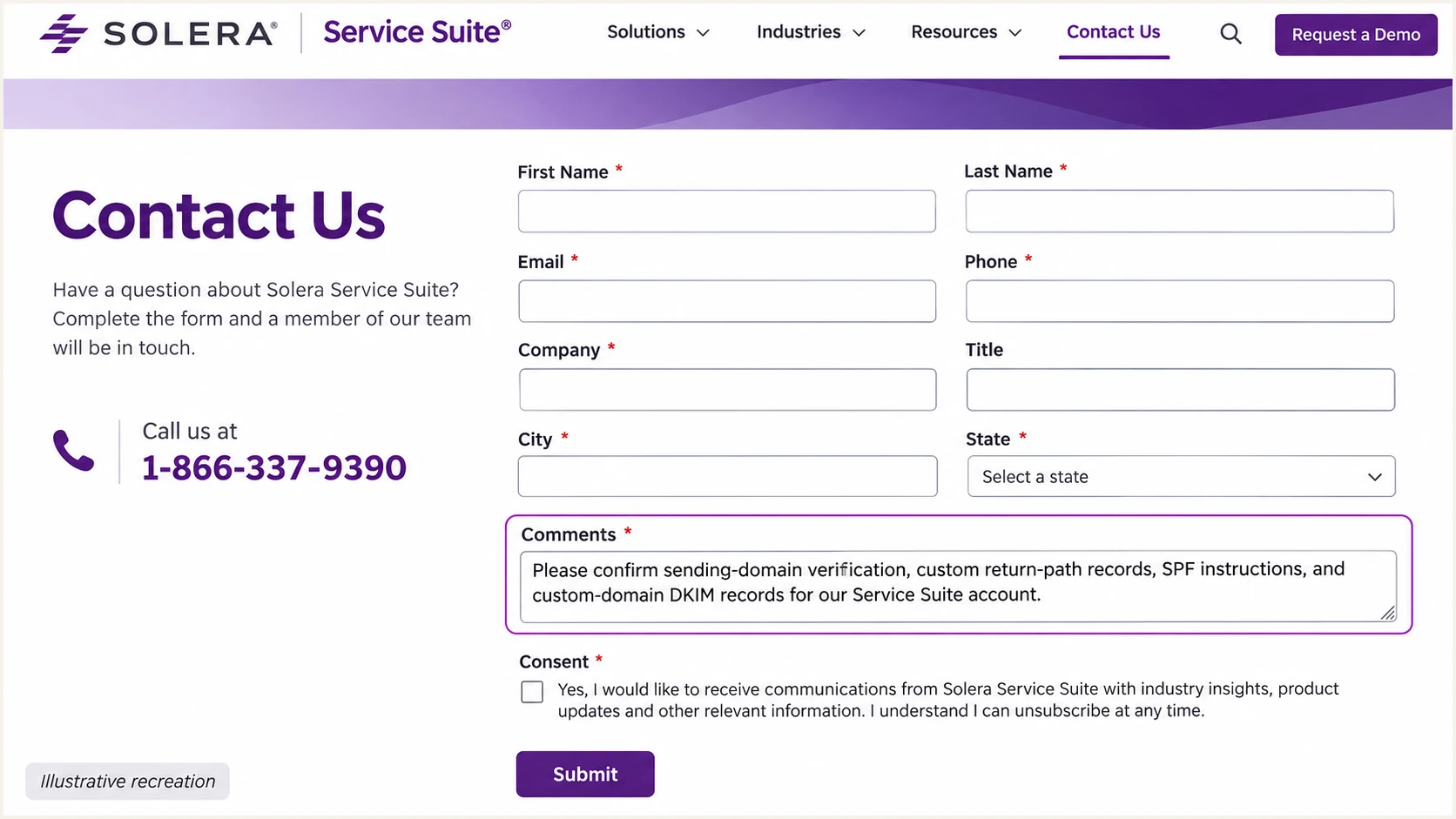
Illustrative recreation of the Solera Service Suite contact form for requesting sending-domain records.
Keep Solera's returned DNS values with the support case. A change to the displayed sender address alone does not configure SPF or DKIM.
Set up SPF
SPF checks the SMTP MAIL FROM domain, normally visible in the delivered Return-Path header. Solera Service Suite supports return-path alignment, so request a custom return path under your domain, such as bounce.example.com for a From domain of example.com.
I check the actual return-path hostname before editing SPF. A record at example.com is not inherited by bounce.example.com, and adding an SPF record cannot change the return path that Solera uses.
- Use confirmed records. Publish the custom return-path DNS records supplied for your Service Suite account. Do not infer an SPF include from solera.com or copy AutoPoint sending IPs without confirmation.
- Handle the record type. If Solera supplies a CNAME, publish its exact target. If it supplies SPF mechanisms for a TXT record, merge them into the existing SPF record at the specified hostname, before its final all mechanism.
- Preserve existing senders. Keep one v=spf1 record per hostname. Retain other authorized senders and the existing final all mechanism. A CNAME cannot coexist with a TXT record at the same name.
- Check DNS lookups. Keep DNS-triggering SPF terms within the limit of 10, including nested includes. Direct ip4 and ip6 mechanisms do not consume that limit.
Enter the actual Return-Path domain in the SPF checker below. Checking only your main domain does not validate a separate bounce subdomain.
SPF checker
Find SPF syntax issues, lookup limits, and weak records.
?/16tests passed
After DNS caches expire, send a fresh Service Suite message. Confirm spf=pass and compare smtp.mailfrom with the visible From domain. With relaxed SPF alignment, bounce.example.com and example.com share the required organizational domain.
If your existing DMARC policy has aspf=s, SPF requires an exact domain match. Confirm a compatible return path with Solera or ensure DKIM satisfies DMARC under the existing policy.
When a route uses a provider return path
If Solera confirms a particular route cannot use your custom return path, adding it to your root SPF record is unnecessary. Expect SPF alignment warnings on that route. DMARC still passes when DKIM passes with a signing domain that matches your From domain under the applicable alignment mode.
Set up DKIM
Solera must configure signing on its sending system and provide the corresponding public DNS records. Publishing a key without activating signing does not authenticate outgoing messages.
- Request your signing domain. Ask Solera whether custom-domain DKIM is available for each enabled email workflow. Request a signing domain that matches your visible From domain, plus every selector and its exact TXT value or CNAME target.
- Publish each selector. Add the supplied record at the exact selector hostname. Check whether your DNS editor appends your domain automatically so you do not create a duplicated name. Publish public keys only, never private keys.
- Activate signing. Once the records resolve publicly, follow Solera's activation instructions or ask support to activate signing. Confirm the change applies to actual service notifications.
- Verify a fresh message. Read d= and s= in DKIM-Signature. Require dkim=pass in the receiving system's Authentication-Results and confirm that d= meets your DMARC domain-matching requirement.
For these lookup commands, replace selector and example.com with the actual s= selector and d= signing domain. The names below are examples, not published Solera selector values.
Look up the selector supplied by Solerabash
dig +short CNAME selector._domainkey.example.com
dig +short TXT selector._domainkey.example.com
DKIM with your domain
A passing signature with d=example.com matches mail using From: service@example.com. It supplies a DKIM path to a DMARC pass.
I prefer this alongside a custom return path because forwarding commonly breaks SPF.
DKIM with a provider domain
A valid signature using an unrelated provider domain passes DKIM authentication but does not supply the required DMARC domain match.
If custom-domain DKIM is unavailable, use passing SPF with a matching custom return path. Forwarded copies still need separate testing.
Set up DMARC
DMARC passes when SPF or DKIM passes authentication and its authenticated domain meets the matching requirement for the visible From domain. Both methods do not have to pass, although configuring both gives your Service Suite email more resilience.
For a domain without an existing policy, start with p=none and reporting. If the domain already has p=quarantine or p=reject, keep that policy while correcting Solera's configuration.
- Inspect the current policy. Check the exact From domain and any inherited parent policy. Edit the existing DMARC record rather than creating a second one, and preserve existing reporting recipients.
- Publish the TXT record. For From addresses at example.com, use the DNS name _dmarc.example.com. For a From domain of service.example.com, use _dmarc.service.example.com when publishing its own policy.
- Choose a real report address. Replace dmarc@example.com in the example with a working aggregate-report destination you control. If reports go to another domain, confirm any required external reporting authorization.
- Check matching settings. The example uses the default relaxed modes. Retain existing strict settings unless you deliberately change them after reviewing every authorized sender.
Initial DMARC TXT value at _dmarc.example.comtext
v=DMARC1; p=none; rua=mailto:dmarc@example.com
Use the DMARC record generator to build the record with your real reporting destination. Then check the visible From domain below to confirm that receivers can discover a valid policy.
DMARC checker
Look up a domain's DMARC record and catch policy issues.
?/7tests passed
A valid DMARC DNS record confirms that the policy is discoverable. It does not prove that Service Suite signs messages correctly or uses the configured return path.
The p=none policy requests monitoring without DMARC enforcement. It does not guarantee delivery, and other recipient checks still apply.
Verify and troubleshoot
I test a new message generated by Service Suite after the DNS changes and sending configuration are active. A message sent manually through your staff mailbox tests a different sending route.
- Use the real workflow. Copy the recipient address generated by the email tester below. Use it for a test customer notification through Service Suite, following your account's supported test procedure. Send the original message directly rather than forwarding a received copy.
- Check received headers. Read the receiving system's Authentication-Results. Compare smtp.mailfrom, header.d and header.from, and confirm dmarc=pass. Save the original message and any delivery error.
- Fix SPF errors. For permerror, check duplicate SPF records, syntax and the lookup limit. For an SPF domain mismatch, verify that Solera actually activated your custom return path.
- Fix DKIM errors. For a missing key, check the selector name and CNAME target. For no signature, ask Solera to confirm signing is active. For a bad signature, investigate the key and any message changes after signing.
- Repeat across workflows. Test each enabled notification type and dealership sender configuration. A successful appointment email does not establish that another message route uses the same settings.
The email tester prompts you to send a test email and gives a full diagnosis of the received message. This is the quickest check that DNS and the actual Service Suite sending configuration work together.
Email tester
Send a real email to this address. Suped shows a results button when the test is ready.
?/43tests passed
The example below shows the expected relationship between the domains. It is an illustrative header, not a captured Solera message.
Use the receiver's DMARC verdict as the final authentication result. A standalone SPF or DKIM pass with an unrelated domain does not authenticate your visible From domain for DMARC.
Illustrative headers with both DMARC paths passingtext
From: Service <service@example.com>
Return-Path: <bounce@bounce.example.com>
Authentication-Results: receiving.example;
    spf=pass smtp.mailfrom=bounce.example.com;
    dkim=pass header.d=example.com;
    dmarc=pass header.from=example.com
|
|
|
|
|---|---|---|---|
Pass + match | Pass + match | Pass | Monitor |
Pass + mismatch | Pass + match | Pass | Fix return path |
Pass + match | Fail | Pass | Fix DKIM |
Pass + mismatch | Pass + mismatch | Fail | Fix domain matching |
Fail | Fail | Fail | Check DNS/signing |
Match means the authenticated domain meets the DMARC requirement for the visible From domain.
A DMARC pass does not guarantee inbox placement. If authentication passes but customers still do not receive notifications, give Solera the message identifier, recipient, timestamp and rejection details so it can investigate delivery.
Get alerted when it breaks
Suped is our DMARC and email authentication platform. Its DMARC monitoring connects Service Suite traffic with authentication diagnostics and issue notifications, so a passing test is followed by ongoing checks.
- Confirm the source. In Suped's source table, verify Service Suite only after checking the sending IPs and message evidence. The .redcapvalet.com rDNS suffix is a useful identification clue, not proof that the traffic is authorized.
- Enable notifications. Open notification settings and enable Issues detected, Sending sources need verification and DMARC summary emails. Keep the receiving mailbox monitored by the team responsible for dealership email.
- Investigate the alert. Filter DMARC data by source, reporter, IP address and date. Open a failing record to compare SPF and DKIM results, then check DNS history for changes near the failure.
- Verify the repair. Use Suped's issue-specific steps to fix, correct the DNS or Solera sending configuration, and send another Service Suite test. Confirm subsequent report data reflects the repair.
I keep a named owner for these alerts because DNS changes and signing changes need different fixes. Suped keeps the issue diagnostics and DNS history in the same investigation workflow.
Report-based alerts have a delay
DMARC aggregate reports arrive in batches, typically daily. Suped can detect issues when that data is available; these alerts do not provide an immediate status for every Service Suite message. Use a fresh test and available delivery errors for an active incident.
Secure your domain with p=reject
Move to p=reject after every authorized sending route has a reliable DMARC pass. I review legitimate traffic separately because unauthorized messages are expected to fail and should not prevent enforcement.
- Review every sender. Use Suped to confirm Service Suite and all other legitimate senders using the domain. Include staff email, invoicing, CRM and infrequent automated messages.
- Observe a full cycle. Review enough report history to cover normal sending patterns, including low-volume notifications. Resolve unexplained failures on verified sources before increasing enforcement.
- Stage the policy. For a domain starting at p=none, move to p=quarantine, check legitimate delivery, then move to p=reject. Preserve reporting and other intentional tags. Keep an existing enforcement policy in place.
- Check the scope. Review subdomain policies and inherited settings before changing the parent policy. Continue Suped issue notifications after enforcement and retest when Solera changes its sending configuration.
Our Hosted DMARC product lets you manage policy in Suped after its DNS setup is complete. That supports policy staging while you review source failures, without editing DNS for each policy change.
Final DMARC TXT value, with your real reporting addresstext
v=DMARC1; p=reject; rua=mailto:dmarc@example.com
Use verified traffic to approve enforcement
Require a working SPF or DKIM path with the correct domain match for each legitimate Service Suite workflow. Keep reporting active so Suped can surface a broken return path, selector change or newly introduced sender after p=reject is published.
Frequency asked questions
Request the exact SPF instructions for your Service Suite account and custom return-path hostname from Solera. Its public pages do not establish a universal Service Suite include. Do not infer one from solera.com or apply AutoPoint SPF addresses without confirmation.
DMARC requires at least one passing method with the required match to the visible From domain. Passing SPF with a matching return path is sufficient, as is passing DKIM with a matching signing domain. Configure both when supported, because forwarding commonly breaks SPF.
SPF authenticated the return-path domain, but that domain did not meet the DMARC matching requirement for your visible From domain. Ask Solera to activate your custom return path. If the route cannot use one, a passing DKIM signature with a matching domain still permits DMARC to pass.
DNS publication does not enable signing on Solera's sending system. Check the actual message's d= and s= values against the record you published, confirm activation with Solera, and test a fresh notification. A signature using an unrelated provider domain does not satisfy your DMARC domain match.
Suped identifies the .redcapvalet.com rDNS suffix with Solera Service Suite, also associated with RedCap. I use the suffix to investigate the source, then confirm the sending IP and message headers. rDNS alone does not establish authorization or a DMARC pass.
Keep the existing p=reject policy. Configure Solera's return path and available custom-domain DKIM, test actual notifications, and investigate failures in Suped. The p=none example is for a domain without an existing enforcement policy, not a default downgrade during onboarding.




