How to set up DMARC/DKIM/SPF for SocketLabs

To set up SocketLabs, verify your sending domain, publish a custom bounce-domain CNAME for SPF, enable custom DKIM, and add a DMARC TXT record. SocketLabs supports SPF alignment through its custom Return-Path. Its current setup does not require adding an include to your root SPF record.
I configure both custom authentication methods because SocketLabs' default SPF and DKIM authentication uses email-od.com. Those checks can pass while DMARC fails for your visible From domain. The examples below use example.com; replace it with the domain in your actual From address.
Add your domain
I start in the SocketLabs server that the application actually uses. Domain verification and custom authentication must apply to that sending configuration.
- Open domain settings: Sign in to SocketLabs, select the sending server, and open Configuration, then Domain Management or Sending Domains.
- Add the From domain: Add example.com if the application sends as notifications@example.com. Add a sending subdomain separately when the From address uses that subdomain.
- Verify control: Complete the email authentication-code process with an address you control at that domain, or validate it through custom bounce-domain or DKIM DNS authentication.
- Confirm permission: Check that the domain is listed as verified before sending. Repeat for other From domains and sending servers in use.
Email verification authorizes sending; it does not configure custom SPF or DKIM. I still complete both DNS steps after verifying the domain.
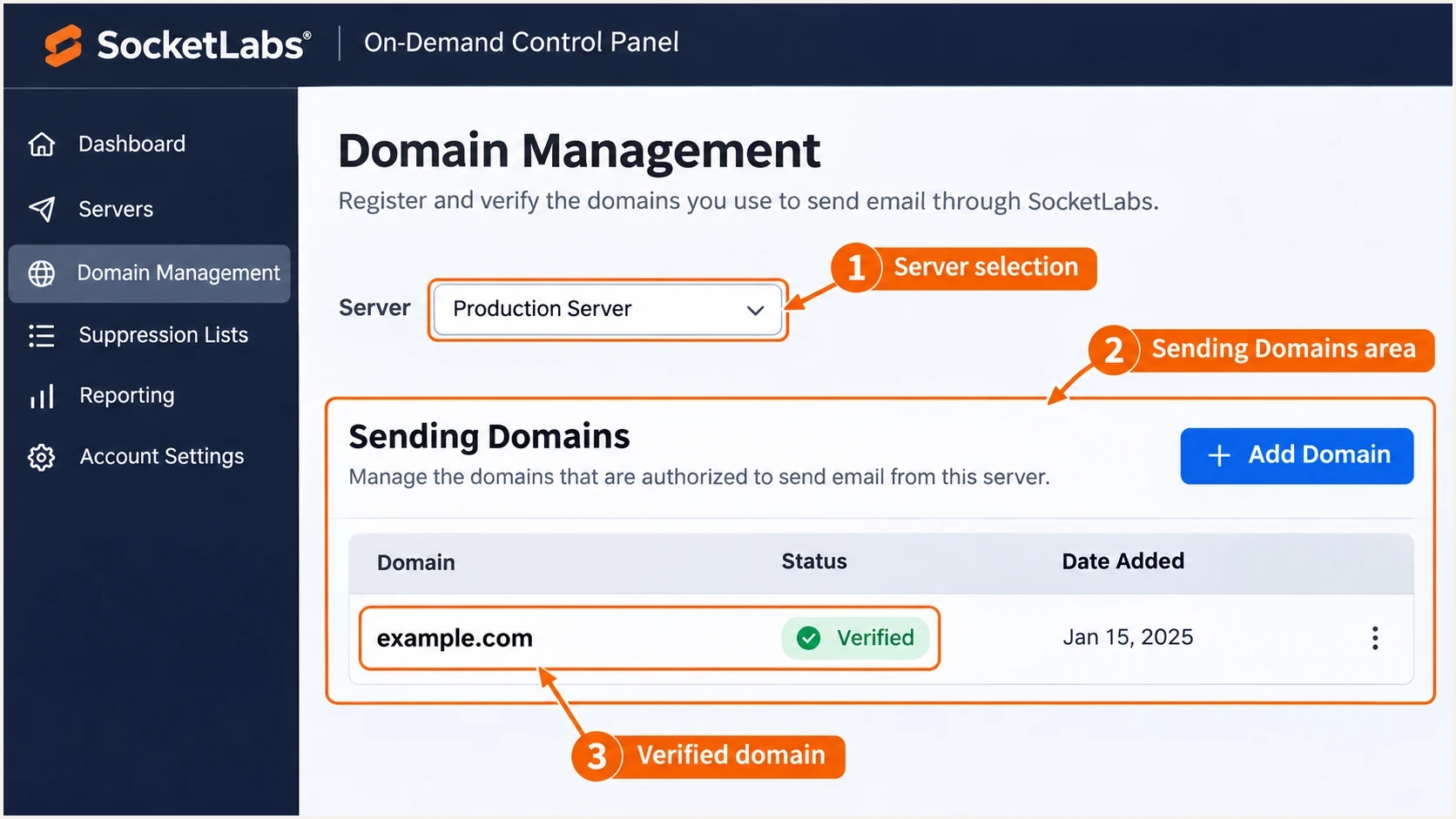
SocketLabs Sending Domains list with example.com verified (illustration).
SocketLabs documents email-code and DNS-based verification in its "Sending Domains" support article. An unverified sender can produce SMTP error 554 5.1.0, "The Sender's Address Was Not Allowed".
Set up SPF
SocketLabs implements custom SPF through a bounce-domain CNAME. I use bounces.example.com for mail with a visible From domain of example.com.
- Create the CNAME: At your authoritative DNS host, add a CNAME named bounces with target tracking.socketlabs.com. If the DNS form expects a full hostname, enter bounces.example.com instead.
- Keep DNS unproxied: Use DNS-only resolution. Choose an unused hostname because a CNAME cannot coexist with TXT or MX records at that same name.
- Enable custom bounces: In SocketLabs, open Configuration > Advanced Authentication, then Custom Bounce Domain. Enter bounces.example.com and save or enable it after DNS validation succeeds.
- Check domain selection: Configure a matching bounce domain for every From domain. SocketLabs selects a matching entry; without one it uses the configured default or email-od.com.
Custom bounce-domain DNS recorddns
bounces.example.com. IN CNAME tracking.socketlabs.com.
Leave your existing root SPF record intact. SocketLabs' current "Custom Bounce Domains and SPF Authentication" documentation specifies this CNAME method without changing that record.
With default relaxed SPF alignment, bounces.example.com matches a From domain of example.com. An existing aspf=s policy requires an exact match, so this subdomain does not satisfy strict SPF alignment. Keep custom DKIM passing for the exact From domain.
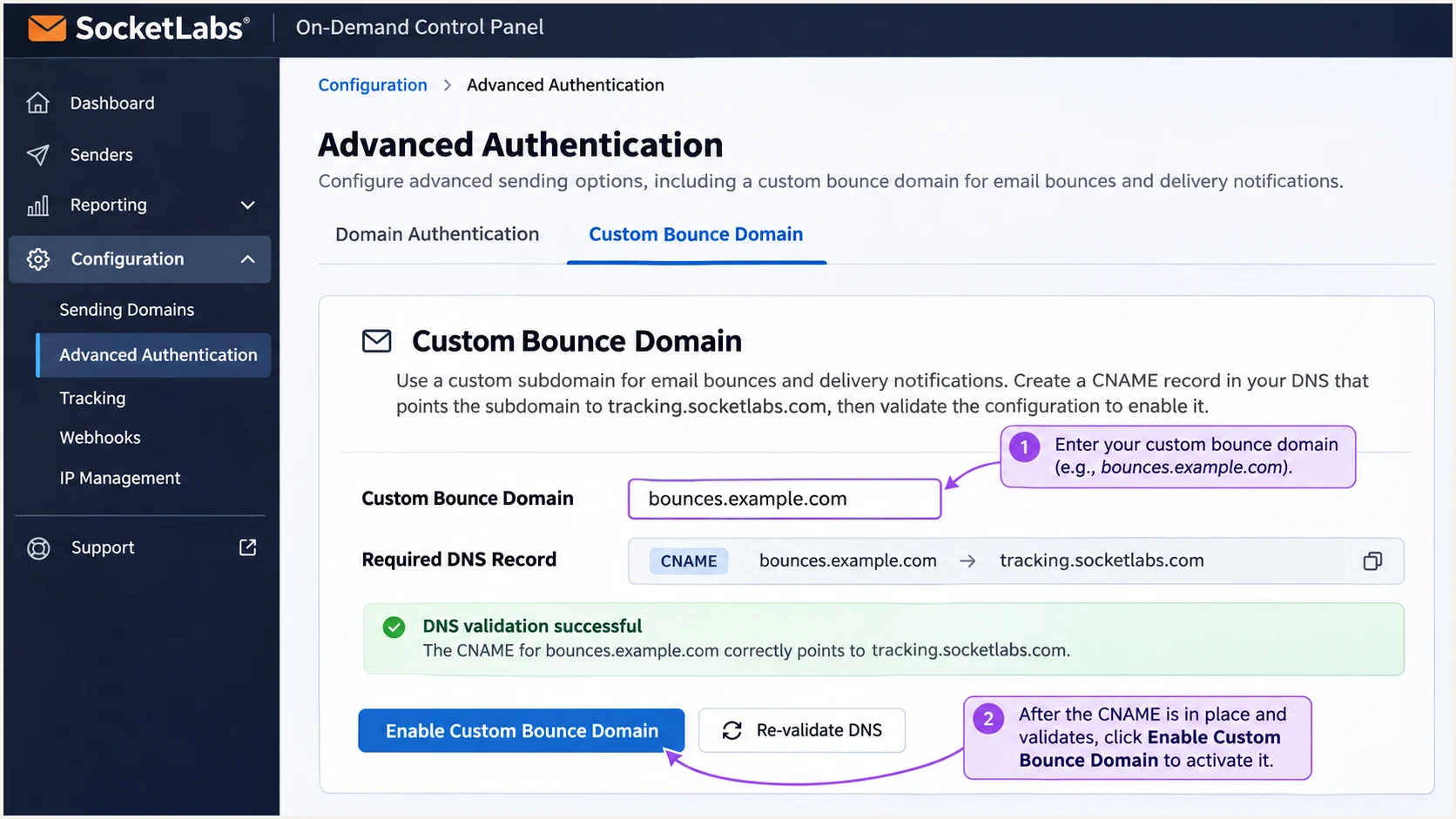
SocketLabs custom bounce-domain configuration for SPF (illustration).
I check the bounce hostname itself because SPF evaluates the Return-Path domain. A successful check of example.com alone does not validate SocketLabs' custom bounce setup.
Enter bounces.example.com in the SPF checker below, using your own hostname. Confirm that the CNAME resolves and the SPF result has no syntax or lookup-limit errors.
SPF checker
Find SPF syntax issues, lookup limits, and weak records.
?/16tests passed
The DNS check confirms publication. A fresh email must also show a Return-Path under bounces.example.com, proving SocketLabs selected the custom domain.
If the Return-Path still ends in email-od.com, recheck the enabled bounce entry, selected server, and From-domain match. Adding include:email-od.com to the root SPF record does not change that Return-Path.
Set up DKIM
I use SocketLabs' "Use a CNAME record" option for straightforward setup. SocketLabs manages the signing keys, and your DNS delegates the public-key lookup.
- Open custom DKIM: In the selected server, open Configuration > Advanced Authentication and the DKIM settings. Select "Use a CNAME record" for the sending domain example.com.
- Publish the selector: Create the CNAME dkim._domainkey.example.com pointing to dkim._domainkey.email-od.com. In a DNS editor that appends example.com, enter only dkim._domainkey as the host.
- Validate and save: Return to SocketLabs and save or enable the custom signature after its DNS check succeeds. Use the exact domain that the application puts in the From address.
- Resolve selector conflicts: If dkim._domainkey already has another record, use SocketLabs' "Generate a TXT record" option with an unused selector such as socket01. Publish its public key only and retain the existing sender's selector.
CNAME-based custom DKIM recorddns
dkim._domainkey.example.com. IN CNAME dkim._domainkey.email-od.com.
The "CNAME DKIM Signing Feature" support article specifies this selector and destination. If your DNS host rejects underscores in CNAME names, use the generated TXT method instead.
For TXT-based DKIM, copy the generated public key before leaving the setup screen and complete SocketLabs' validation. Never publish the private key in DNS.
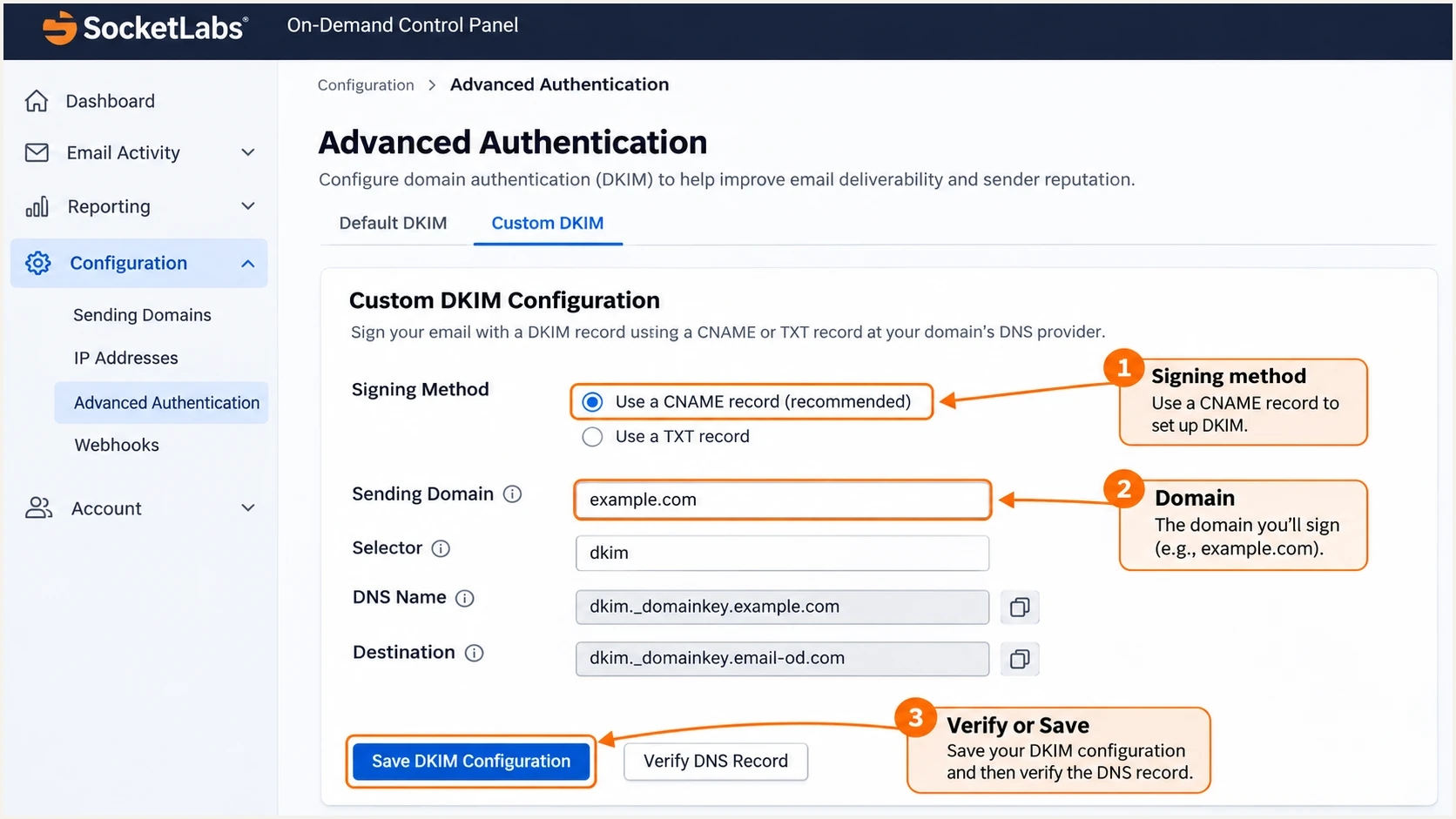
SocketLabs custom DKIM settings using a CNAME record (illustration).
On a new message, look for a passing signature with d=example.com and s=dkim. A second signature using d=email-od.com is normal, but it does not establish DKIM alignment for example.com.
Authenticate the exact sending domain
SocketLabs applies a custom signature only when the configured signing domain matches the message's responsible sending domain. Check the From address and any Sender header. A configuration for example.com does not automatically configure custom signing for alerts.example.com.
Set up DMARC
DMARC is published in your domain's DNS. I check for an existing policy before creating anything, because multiple DMARC records at one name invalidate the policy.
- Preserve enforcement: If the domain already uses p=quarantine or p=reject, keep that policy. Fix SocketLabs authentication without resetting the domain to p=none.
- Start monitoring: For a domain without DMARC, create one TXT record at _dmarc.example.com using the monitoring value below.
- Use a real report address: Replace dmarc@example.com with a mailbox or reporting destination you control. Replace example.com throughout with your sending domain.
- Verify the result: Look up the visible From domain in the DMARC checker. Confirm one valid policy and the intended reporting address. Check explicit subdomain policies when applicable.
Starting DMARC TXT value at _dmarc.example.comdns
v=DMARC1; p=none; rua=mailto:dmarc@example.com
Use our DMARC record generator to build the record. With default relaxed settings, DMARC passes when either SPF or DKIM passes authentication and its domain matches the visible From domain under the applicable DMARC rules.
Enter example.com in the checker, rather than the bounce hostname. A valid DNS policy does not prove that your application's messages pass DMARC; the next step checks an actual message.
DMARC checker
Look up a domain's DMARC record and catch policy issues.
?/7tests passed
A p=none policy requests reporting without requesting quarantine or rejection for DMARC failures. It does not guarantee inbox delivery.
Aggregate reports arrive on the reporting providers' schedules, commonly daily. If the report destination uses another domain, complete any required external reporting authorization.
Verify and troubleshoot
I test through the application's actual SocketLabs SMTP or API route. A message sent through another route does not verify this configuration.
- Send a real test: Open the email tester below and copy its generated recipient address. Trigger a transactional email through SocketLabs using your production From domain.
- Read the diagnosis: Check SPF, DKIM, and DMARC results. Confirm the custom Return-Path and a passing DKIM signature for your domain, rather than relying on pass labels alone.
- Check DNS publication: If validation fails, inspect the authoritative DNS answer for the exact hostname. Correct duplicated domain suffixes, missing underscores, or conflicting records before waiting for caches.
- Repeat coverage: Test each From domain and sending server after changes. DNS caching can delay visibility; SocketLabs advises allowing up to 48 hours for its validation checks.
The email tester prompts you to send a message and returns an authentication diagnosis. It is the quickest check that the published DNS records and the actual sending configuration work together.
Email tester
Send a real email to this address. Suped shows a results button when the test is ready.
?/43tests passed
For the CNAME setup above, a healthy result has SPF passing for bounces.example.com, DKIM passing for example.com, and DMARC passing for example.com. The following header excerpt is illustrative.
Read the Authentication-Results added by the receiving system you trust. Header values supplied by the sender are not proof of successful authentication.
Illustrative successful message headerstext
From: Notifications <notifications@example.com>
Return-Path: <bounce-id@bounces.example.com>
Authentication-Results: receiver.example;
    spf=pass smtp.mailfrom=bounces.example.com;
    dkim=pass header.d=example.com header.s=dkim;
    dmarc=pass header.from=example.com
Forwarding can break SPF while preserving DKIM. A message still passes DMARC when its matching custom DKIM signature passes. On direct SocketLabs delivery, investigate an unexpected SPF alignment failure.
I separate sender authorization errors from authentication failures. The first prevents SocketLabs from accepting the sender; the second concerns how the recipient evaluates the delivered message.
|
|
|
|---|---|---|
554 5.1.0 | Unverified domain | Verify sending domain |
SPF domain mismatch | Default bounce domain | Enable custom bounces |
Custom DKIM missing | Sending domain mismatch | Check From domain |
DNS validation fails | Incorrect DNS host | Check full hostname |
DMARC fails | Neither method matches | Check authentication domains |
Common SocketLabs authentication failures and the first check to make.
Get alerted when it breaks
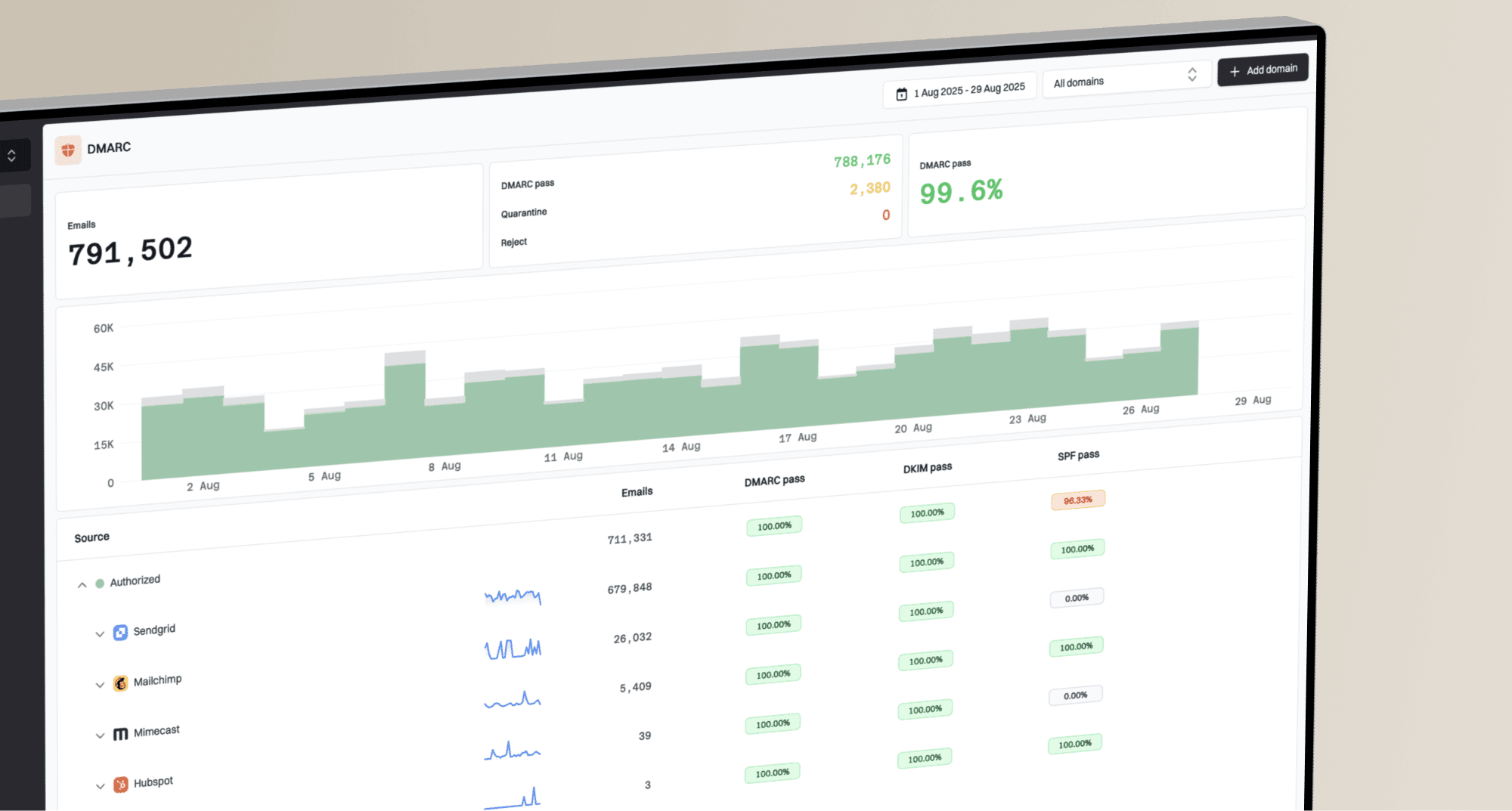
Suped is our DMARC reporting and email authentication platform. For ongoing SocketLabs monitoring, it connects authentication failures to sending sources and provides steps to fix detected issues.
- Enable issue alerts: For a domain already monitored in Suped, enable "Issues detected" and "Sending sources need verification" notifications. Keep DMARC summary emails enabled for periodic review.
- Verify the source: Review SocketLabs in the Sources table and confirm that your organization authorizes it. Verification records your decision; it does not authorize a sender through DNS.
- Investigate failures: Open the affected source, inspect individual records in Data view, and use Detail view to compare SPF and DKIM domains with the visible From domain.
- Trace the change: Use DNS history to check for a removed CNAME, altered selector, or policy change. Apply the issue's fix steps and verify recovery with a fresh SocketLabs test.
I prioritize failures on verified legitimate sources before tightening policy. Suped's DMARC monitoring combines source review with issue notifications, so an authentication regression has a clear investigation path.
DMARC alerts depend on reports reaching the platform. They are not instant per-message alarms; keep SocketLabs delivery and bounce monitoring active for immediate application delivery failures.
Secure your domain with p=reject
I move to p=reject after legitimate sending streams pass DMARC across representative traffic. One successful SocketLabs test is insufficient when other systems send using the same domain.
- Inventory every sender: Use Suped's source table to review legitimate systems and investigate unknown sources. Include infrequent billing or monthly notifications before changing policy.
- Fix legitimate failures: Confirm SocketLabs custom DKIM and bounce-domain selection. In Suped, resolve authentication issues on verified sources and inspect remaining failures individually.
- Stage enforcement: After monitoring establishes coverage, use p=quarantine and review legitimate delivery. Move to p=reject when remaining failures are understood and authorized traffic keeps passing.
- Keep policy control: With Suped Hosted DMARC already configured, change policy in the dashboard. Otherwise edit the existing DNS TXT record. Retain reporting, review subdomain policies, and continue alerts after enforcement.
Suped makes that progression reviewable through verified sources, record-level diagnostics, and hosted policy management. Judge readiness by legitimate traffic, since spoofed messages are expected to keep failing.
Keep the working reporting destination when changing policy. The example below changes only p=none to p=reject; replace its address before publishing.
Enforced DMARC TXT value after validationdns
v=DMARC1; p=reject; rua=mailto:dmarc@example.com
With Hosted DMARC, use its existing DNS delegation rather than adding a competing TXT record at the same name. With a direct TXT setup, maintain one DMARC policy record.
A reject policy requests rejection of mail that fails DMARC. Recipients retain local handling rules, and DMARC does not prevent display-name impersonation or messages sent using a different domain.
Ready to enforce
Every authorized source has been reviewed. Representative messages pass DMARC, and remaining failures have an identified cause.
Keep investigating
A legitimate stream lacks matching authentication, a sending domain is untested, or reports have not covered its normal sending cycle.
After enforcement, trigger another SocketLabs message and review subsequent reports for authorized traffic. Treat new legitimate failures as a configuration incident and correct the affected sender.
Keep a known working policy value and an accountable owner for changes. Reassess authentication whenever an application adds a From domain or moves to another sending server.
Frequency asked questions
Not for the current custom bounce-domain setup. SocketLabs documents a CNAME to tracking.socketlabs.com, without changing your root SPF record. Older SocketLabs material contains include:email-od.com, but that root include does not change the Return-Path or establish SPF alignment by itself.
The mechanism include:email-od.com is associated with SocketLabs and appears in its older SPF documentation. I treat that as a source-identification clue, not an instruction to add it. Configure the custom bounce-domain CNAME described in the current SocketLabs support documentation.
SocketLabs uses email-od.com infrastructure. Its published message-header examples include bca5.email-od.com, so that suffix is a SocketLabs identification clue. Check the sending IP's actual PTR record and trusted Received headers, then confirm your account's traffic. A hostname suffix alone does not prove that your organization authorized the message.
The passing checks can use email-od.com instead of your visible From domain. DMARC needs at least one passing method whose authenticated domain matches the From domain under its rules. Configure custom DKIM for your sending domain and the custom bounce domain for SPF.
Yes. A passing custom DKIM signature with the required domain match is sufficient for DMARC. Forwarding and strict SPF settings can explain an SPF mismatch. I still investigate unexpected failures on direct SocketLabs messages because custom bounce domains support relaxed SPF alignment.
Keep the existing quarantine or reject policy. Complete SocketLabs domain verification and custom authentication before routing production mail through it. Validate a fresh message and monitor legitimate failures instead of resetting the whole domain to monitoring mode.