
How to set up DMARC/DKIM/SPF for SMX

Published 21 Nov 2026
Updated 21 Nov 2026
12 min read
Summarize with
Set up SMX authentication by approving your domain in SMX, adding include:spf.nz.smxemail.com or include:spf.au.smxemail.com to your existing SPF record, requesting custom DKIM for your sending domain, and publishing a DMARC TXT record. Choose the SPF include for your SMX service region. Start a new DMARC deployment with p=none; keep an existing quarantine or reject policy.
I check the outbound route first. SMX supports Return-Path alignment, but the delivered message must confirm it. An inbound-only SMX deployment does not require authorizing SMX to send your mail.
Add your domain
Sign in to the SMX Email Admin Portal with technical access and select the correct customer. SMX documents domain creation and approval in its public "How do I add a scrubbing domain?" and "What do I do after adding a scrubbing domain?" FAQs.
Have the destination Mail Relay Host ready before saving. This is the server SMX delivers incoming mail to, such as your organization's mailbox host, rather than an SMX outbound smart host.
- Open domains: Select Inbound Scrubbing > Scrubbing Domains > New Scrubbing Domain.
- Enter details: Enter your Domain Name and Mail Relay Host, then select Save. The new domain enters a pending state.
- Complete approval: SMX Service Desk checks the domain's relationship to your company and delivery to the Mail Relay Host. Resolve any query and obtain approval before cutover.
- Enable outbound: Confirm outbound service provisioning with SMX. For the documented Office 365 integration, open Outbound Scrubbing > Shared Services and tick Office 365. Ask SMX to do this if technical access is unavailable.
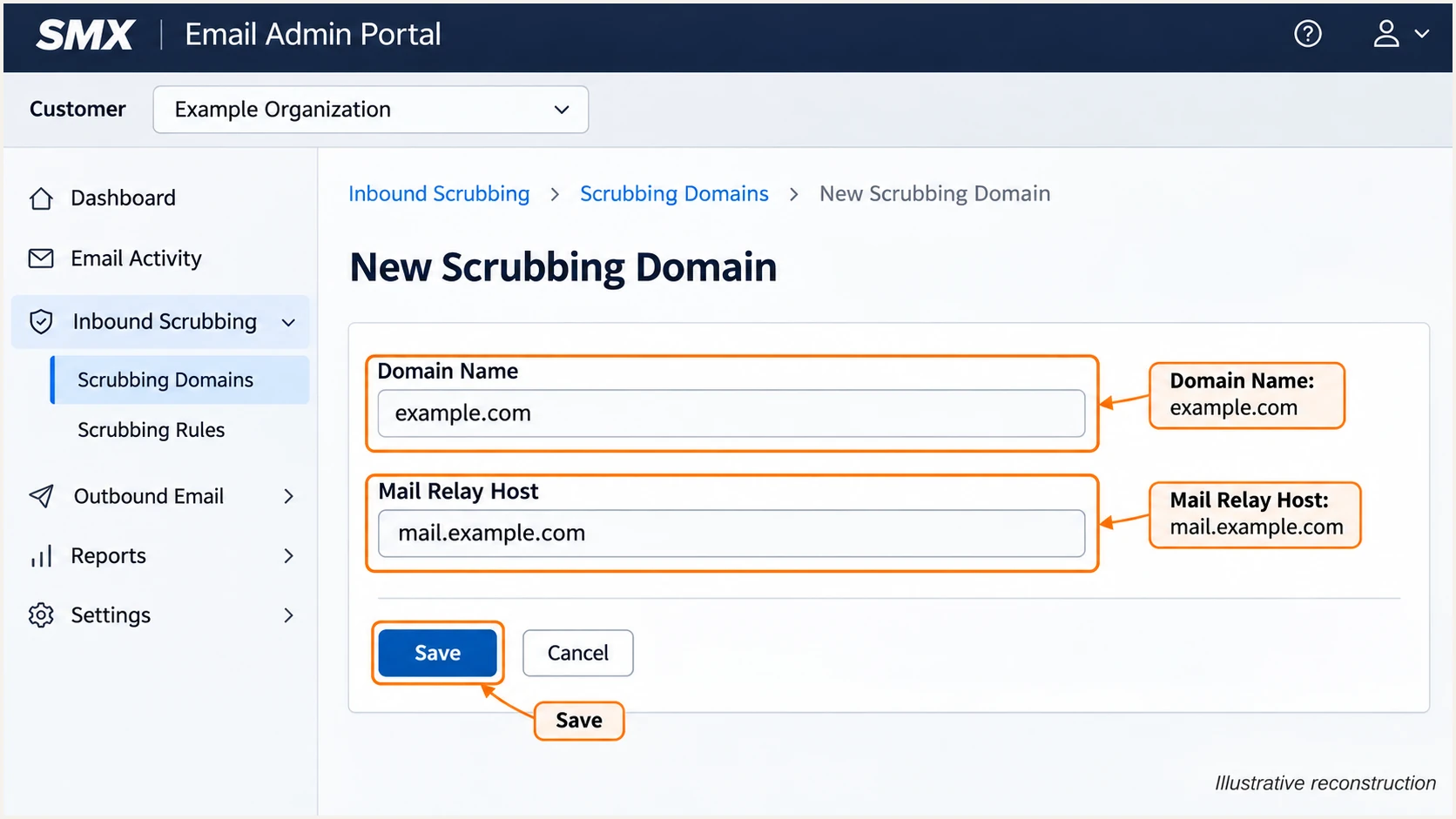
Illustrative SMX domain form with Domain Name, Mail Relay Host, and Save.
Domain approval and outbound routing are separate checks. Configure your mail system to use the SMX outbound route supplied during provisioning, then confirm a test message appears under Outbound Scrubbing.
SMX's published Office 365 configuration guide lists shared.nz.smxemail.com and shared.au.smxemail.com as regional smart hosts and requires TLS. Confirm the endpoint for your service with SMX before changing a connector; changing MX records alone does not route outgoing mail.
Set up SPF
SMX's "Office 365 Inbound and Outbound Configuration" guide specifies the regional includes below. Use the region where SMX provisions your outbound service, rather than your office location.
SPF checks the envelope sender domain, visible in Return-Path after delivery. I publish authorization at that exact domain. SPF records do not inherit into subdomains.
- Find the record: Look up TXT records for the envelope sender domain. Locate the existing value beginning v=spf1.
- Merge authorization: Insert the correct SMX include before the final all mechanism. Keep mechanisms for every other authorized sending route.
- Check domain matching: Keep the envelope sender within your visible From domain's organizational domain for relaxed SPF alignment. Strict aspf=s requires the domains to match exactly.
- Validate limits: Publish one SPF record at each applicable name. Keep the evaluated path within the 10 DNS lookup term limit, including nested includes.
|
|
|---|---|
New Zealand | spf.nz.smxemail.com |
Australia | spf.au.smxemail.com |
Use include: followed by the domain for your provisioned SMX region.
The first two values below are alternatives where SMX is the only required SPF authorization. Publish the appropriate value at the envelope sender domain, using @ if that domain is the DNS zone root.
Preserve your underlying mailbox service's required authorization, as SMX's guide does for Office 365. The merged example uses DNS zone syntax: its adjacent quoted strings form one TXT value. Do not publish the examples together at one name.
Regional alternatives and a merged Office 365 exampletext
# SMX-only authorization: New Zealand
v=spf1 include:spf.nz.smxemail.com -all

# SMX-only authorization: Australia
v=spf1 include:spf.au.smxemail.com -all

# Office 365 with New Zealand SMX: one TXT record
example.com. IN TXT (
  "v=spf1 include:spf.protection.outlook.com "
  "include:spf.nz.smxemail.com -all"
)
A DNS lookup confirms publication. It does not prove that a message used SMX or that its envelope sender matches the visible From domain.
Enter your actual envelope sender domain in the SPF checker. Resolve duplicate SPF records, invalid includes, and lookup limit errors before continuing.
SPF checker
Find SPF syntax issues, lookup limits, and weak records.
?/16tests passed
If the checker passes but a delivered message fails SPF, compare the connecting IP with your selected regional include. Check for a direct sending route that bypasses SMX.
If SPF passes for an unrelated Return-Path domain, it does not contribute to a DMARC pass for your From domain. Correct the envelope sender configuration with SMX and verify custom DKIM as well.
Set up DKIM
Request custom DKIM for every domain you use in the visible From address. SMX's public upgrade form distinguishes its default outbound DKIM signature from custom signatures requested through "Sending domain list for DKIM key creation?".
SMX's "On boarding next steps" page says SMX creates the keys and supplies your DNS instructions. There is no universal SMX selector or public key to copy across accounts.
- Request signing: Supply your sending domains during provisioning or ask emailsupport@smxemail.com to provision custom DKIM for an existing account.
- Publish records: Copy the exact record type, selector hostname, and value supplied by SMX into your authoritative DNS. Follow the supplied instructions for TXT or CNAME records.
- Confirm activation: Ask SMX to confirm custom signing is enabled after the records resolve publicly. Publishing DNS alone does not activate a signer.
- Test the signature: Send through SMX. Check DKIM-Signature d= for your domain and s= for the supplied selector, then confirm the receiving server reports dkim=pass.
Look up the selector supplied by SMXbash
dig +short CNAME selector-from-smx._domainkey.example.com
dig +short TXT selector-from-smx._domainkey.example.com
Replace selector-from-smx and example.com with SMX's supplied selector and your signing domain. If DNS follows a CNAME, verify the final TXT public key resolves. Avoid appending your zone name twice in the DNS editor.
I retain working selectors while SMX rotates keys and check a fresh message after the change. SMX manages the signing private key; only the supplied public DNS material belongs in your DNS.
A default signature is not enough
A passing DKIM signature for an SMX-owned domain does not satisfy DKIM alignment for your own From domain. Confirm that at least one passing signature uses your domain, or the same organizational domain under relaxed alignment. With adkim=s, the signing domain must match exactly.
Set up DMARC
Publish DMARC in DNS for the domain in the visible From address. SMX's inbound DMARC filtering settings do not publish your outbound domain policy.
Use the DMARC record generator to build the record. A new monitoring deployment can use the exact example below after you replace the reporting address with one you control.
- Choose the name: Create or edit the TXT record at _dmarc.example.com for mail using example.com in From. Enter _dmarc if your DNS editor appends the zone name.
- Choose the policy: Start with p=none only if you have no enforcement policy. Keep p=quarantine or p=reject if already deployed.
- Set reporting: Replace dmarc@example.com with a working aggregate reporting destination. Preserve existing required reporting addresses when editing a record.
- Keep one record: Publish one DMARC TXT record at that name. Leave relaxed alignment defaults unless you have a specific requirement for stricter domain matching.
Starting DMARC TXT value at _dmarc.example.comtext
v=DMARC1; p=none; rua=mailto:dmarc@example.com
The example address is a placeholder. A mailbox receives aggregate XML attachments; it does not automatically turn those reports into source diagnostics. If you use a reporting service, use its assigned destination and complete any external reporting authorization it requires.
Check public DNS after saving. The DMARC checker validates the published policy and reporting configuration; the later message test checks whether real SMX mail passes.
DMARC checker
Look up a domain's DMARC record and catch policy issues.
?/7tests passed
Enter the visible From domain, without the _dmarc prefix. Confirm that the result shows your intended policy and reporting destination.
p=none requests monitoring without DMARC quarantine or rejection. DMARC passes when SPF or DKIM passes with the required domain matching; I configure both for direct SMX delivery and keep DKIM working for forwarded mail.
Verify and troubleshoot
Send a fresh message using the same mailbox or application that will send production mail. I test each outbound route separately, because a DNS check cannot establish which route a message actually used.
SMX's public "How do I perform a mail search?" FAQ documents the portal search path. Use that trace to confirm routing, then inspect the external recipient's authentication results.
- Find the customer: Select your customer in the SMX Email Admin Portal, then open Outbound Scrubbing > Mail Search.
- Find the message: Filter by sender, recipient, subject, or message ID, then run Search. Check the delivery status.
- Inspect details: Double-click the result to open Message Details. Record the From Host and SMTP response when investigating a failure.
- Check the receiver: Use the receiving service's trusted Authentication-Results header to confirm SPF, custom DKIM, and dmarc=pass. Compare the domains rather than relying on pass labels alone.
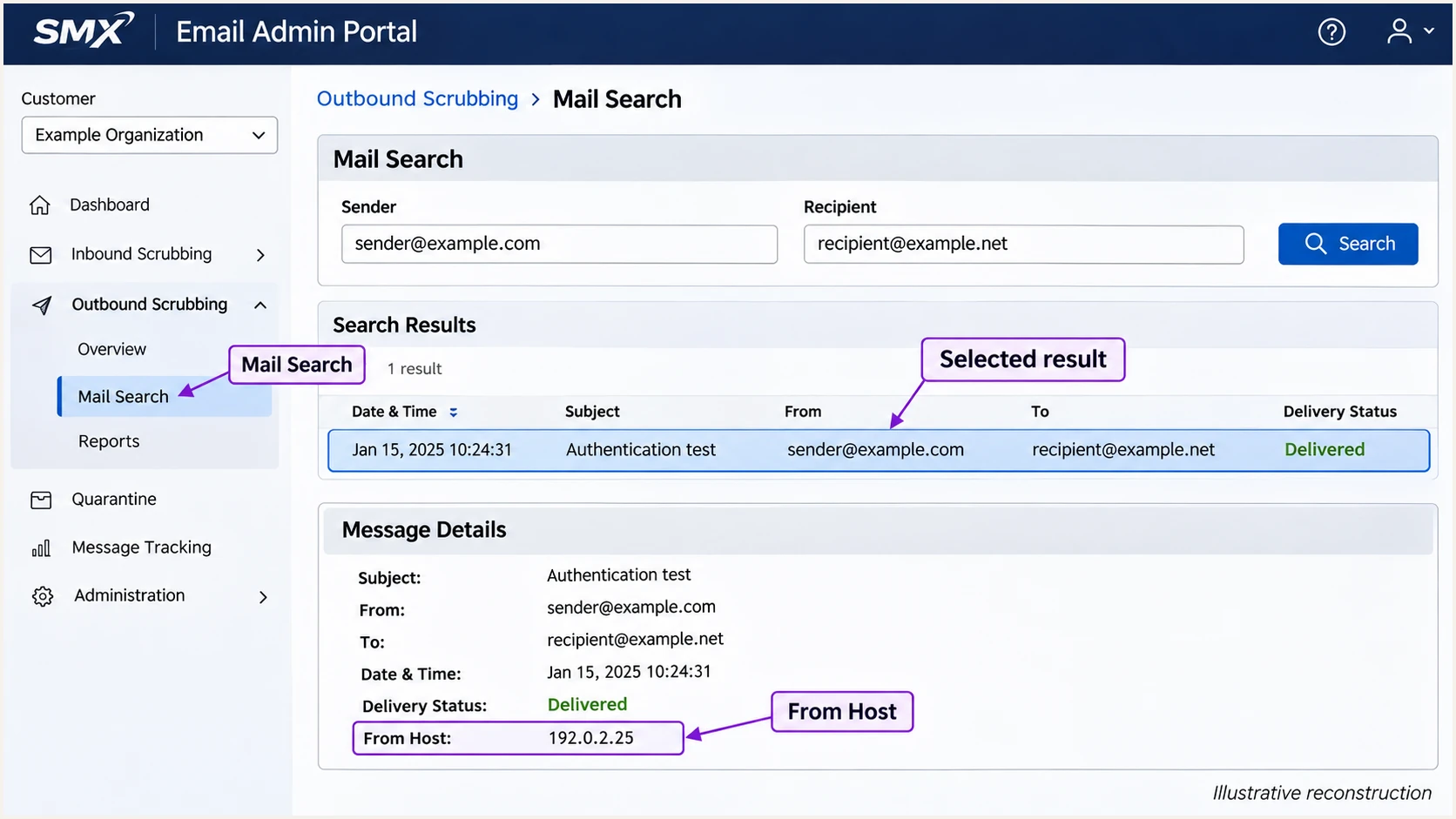
Illustrative SMX Mail Search and Message Details used to trace an outbound test.
Delivered in SMX means the next receiving server accepted the message. It does not prove inbox placement or a DMARC pass.
The email tester below is the quickest message-level check: send a fresh email to its generated address through your normal SMX route. It provides a full diagnosis of the received message, including authentication results.
Email tester
Send a real email to this address. Suped shows a results button when the test is ready.
?/43tests passed
Check the tester's SPF domain, DKIM signing domain, and visible From domain. A successful direct-delivery result should resemble the illustrative header values below.
Use the recipient's trusted results rather than an Authentication-Results header inserted earlier in the route. Multiple DKIM signatures are acceptable if at least one valid signature meets DMARC's domain matching requirement.
Illustrative authentication results for a passing SMX routetext
From: sender@example.com
Return-Path: <bounce@example.com>
Authentication-Results: receiver.example;
 spf=pass smtp.mailfrom=example.com;
 dkim=pass header.d=example.com;
 dmarc=pass header.from=example.com
For SPF failures, check the final sending IP, the actual envelope domain, and the regional include. For DKIM failures, check the selector lookup and ask whether any relay changed signed content after signing.
If authentication passes but DMARC fails, compare the authenticated domains with From. These two cases explain why a pass label by itself is insufficient.
Authentication passes, DMARC fails
SPF passes for an unrelated envelope domain and DKIM passes only for an SMX-owned domain. Neither authenticated domain matches your From domain.
Correct the envelope sender and request custom DKIM. Adding another SPF include does not change either domain.
Forwarded mail passes DMARC
Forwarding changes the connecting IP and SPF fails, but an unchanged custom DKIM signature passes for your From domain. DMARC still passes.
Keep custom DKIM working. Investigate forwarding failures without authorizing arbitrary forwarding servers in your SPF record.
Get alerted when it breaks
Suped is our DMARC reporting and email authentication platform. Its DMARC monitoring brings receiver reports together with detected issues and fix steps, so changes to an SMX route are visible after the initial setup.
I watch for new sending sources and changes to the domains used for authentication. A successful one-off test does not cover a later connector change or DKIM rotation.
- Verify the source: Review SMX traffic in the source table and confirm it belongs to your organization before marking it verified. A recognizable rDNS suffix alone is insufficient.
- Enable notifications: In Suped Notifications, enable Issues detected and Sending sources need verification. Enable DMARC summary emails for recurring review.
- Investigate changes: Open the affected source and individual records. Compare SPF and DKIM results, sending IPs, and the report period with the SMX change window.
- Confirm the fix: Apply the recommended DNS or SMX correction, send another test through the affected route, and verify later reports show recovery.
Report timing determines alert timing
DMARC aggregate reports usually arrive on a daily schedule, as described in RFC 9989. Suped evaluates received data, so report-based alerts do not arrive at the instant a message fails. Use message tests and SMX logs for immediate diagnosis.
Secure your domain with p=reject
I move to p=reject after validating legitimate sending routes and reviewing indirect delivery. Maintain custom DKIM before enforcement, because SPF alone is fragile when messages are forwarded.
Suped's hosted DMARC supports managing the policy through our dashboard after its initial DNS setup. Use the source diagnostics to fix legitimate failures before changing the policy.
- Inventory senders: Confirm every authorized sender, including direct routes that bypass SMX. Do not add unknown sources to SPF just because they appear in reports.
- Fix custom DKIM: Require a valid signature using your domain on legitimate SMX mail. Test each sending domain and any gateway content changes.
- Cover real traffic: Review reports across normal business activity and infrequent sends. Test forwarding and mailing lists before enforcing policy on employee mailbox domains.
- Stage enforcement: Change a new deployment to p=quarantine after legitimate failures are resolved. Review delivery impact before proceeding to p=reject.
- Keep monitoring: Use Suped to compare sources and failures after each policy change. Review subdomain policy inheritance and any explicit child policies before enforcement.
For domains whose users post to Internet mailing lists, RFC 9989 recommends caution with reject policies. It recommends at least a month of p=none followed by an equally long quarantine period before considering reject for those domains.
When the evidence supports enforcement, update the existing record rather than creating another one. The example below preserves aggregate reporting; substitute your actual reporting destination.
DMARC TXT value after a validated enforcement rollouttext
v=DMARC1; p=reject; rua=mailto:dmarc@example.com
p=reject requests rejection of messages that fail DMARC, subject to receiving servers' local handling. It does not prevent display-name impersonation or messages sent using a different lookalike domain.
If a legitimate route breaks, restore the previous working policy while fixing that route. Keep reporting active so you can verify recovery before tightening the policy again.
Frequency asked questions
SMX uses sending infrastructure associated with the .smxemail.com rDNS suffix. Treat it as a source identification clue. SMX is a gateway, so confirm the sending IP, message route, and authenticated domains before deciding which organization originated a message.
These SPF include domains belong to SMX. SMX's public outbound configuration guide specifies spf.nz.smxemail.com for New Zealand service and spf.au.smxemail.com for Australian service. Add the include for your provisioned outbound region to your existing SPF record. Do not add both simply because both identify SMX.
Use the selector and DNS value supplied by SMX for your domain. Request custom DKIM through provisioning or SMX support. Read s= and d= in a new message's DKIM-Signature to confirm which selector and signing domain are actually in use.
A default signature for an SMX-owned domain can pass DKIM without matching your visible From domain. If SPF also fails to pass with the required domain matching, DMARC fails. Enable custom DKIM for your domain and retest the received message.
No. Authorize SMX in SPF when SMX sends outgoing mail using your envelope sender domain. Receiving and filtering incoming mail through SMX does not require adding SMX to your outbound SPF authorization. Configure authentication for the services that actually send your mail.
Keep a working quarantine or reject policy. Provision the SMX outbound route and custom DKIM, publish the necessary SPF update, and test before switching production traffic. Use p=none as the starting policy for a new monitoring deployment, rather than an automatic reset during a migration.




