
How to set up DMARC/DKIM/SPF for SMTP.com

Published 15 Nov 2026
Updated 15 Nov 2026
11 min read
Summarize with
Set up SMTP.com by adding your sending domain, authorizing its servers with include:_spf.smtp.com, publishing the DKIM record assigned to your account, and adding a DMARC TXT record at _dmarc on your sending domain. Start a new DMARC deployment with p=none. Keep an existing p=quarantine or p=reject policy.
I verify a message sent through the production application before changing enforcement. DMARC needs successful SPF or DKIM authentication with a domain that matches the visible From domain under your alignment settings; a green DNS verification status alone does not prove that.
Add your domain
I start with the domain after the @ in the application's From address. For billing@example.com, authenticate example.com; for billing@mail.example.com, use mail.example.com. Have an active SMTP.com account and access to the authoritative DNS zone.
- Open onboarding. Sign in to SMTP.com's onboarding portal. Existing accounts also have domain verification under Account > Manage Sending Emails and Domains.
- Enter the domain. Fill in 'What is your sending domain?' with the domain only, then click Next. Omit the email address and https:// prefix.
- Copy the records. Keep the SPF and DKIM verification details open. Copy each assigned name, record type, and value before editing DNS.
- Complete verification. After publishing the records in the next steps, return and click Verify SPF and Verify DKIM. Confirm both show Verified.
Adding the name starts setup; publishing and verifying its authentication records completes it. Configure the application to use a From address on that domain.
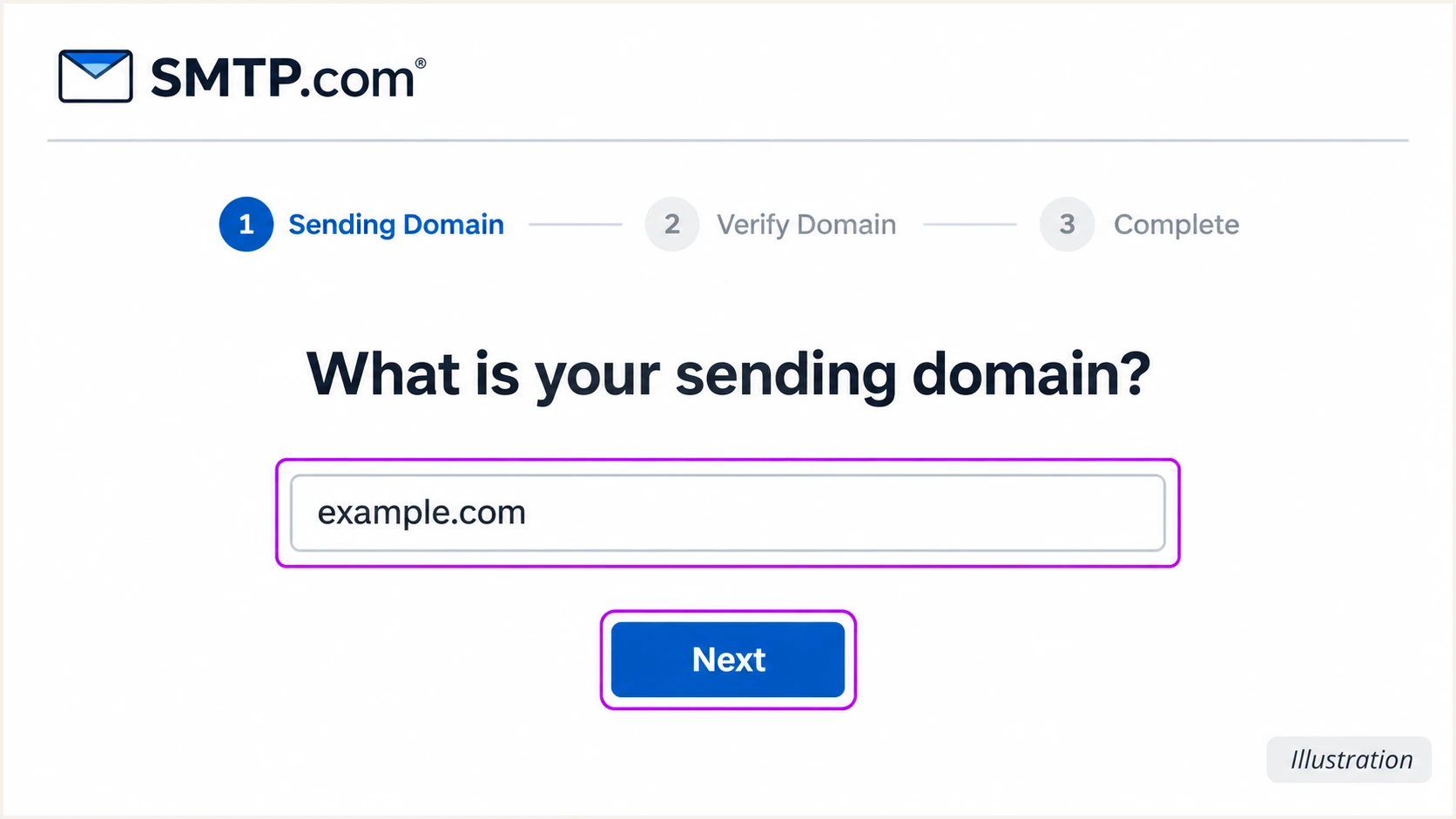
Illustration of SMTP.com's sending-domain field and Next button.
Keep this setup screen open while updating DNS. Use the names SMTP.com supplies, especially when your account uses a different DKIM selector.
Set up SPF
SMTP.com's documented SPF include is include:_spf.smtp.com. If SMTP.com is the only sender authorized at this hostname, the complete TXT value is:
SPF TXT value for an SMTP.com-only sending domaintext
v=spf1 include:_spf.smtp.com ~all
Publish it at the hostname specified in setup, usually @ for the domain being authenticated. A subdomain does not inherit its parent's SPF record.
- Merge existing SPF. If a TXT value already starts with v=spf1, insert include:_spf.smtp.com before its final all mechanism. Preserve other authorized senders and the existing ~all or -all ending.
- Keep one policy. Publish exactly one SPF TXT record per hostname. Multiple unrelated TXT records are fine; multiple v=spf1 policies cause a permanent error.
- Check the limit. Keep evaluation within 10 DNS-querying SPF terms, including nested includes. Adding one include does not guarantee the whole policy stays within the limit.
- Verify in SMTP.com. Save DNS, return to onboarding, and click Verify SPF. If it fails, check the authoritative record before waiting for cached answers to expire.
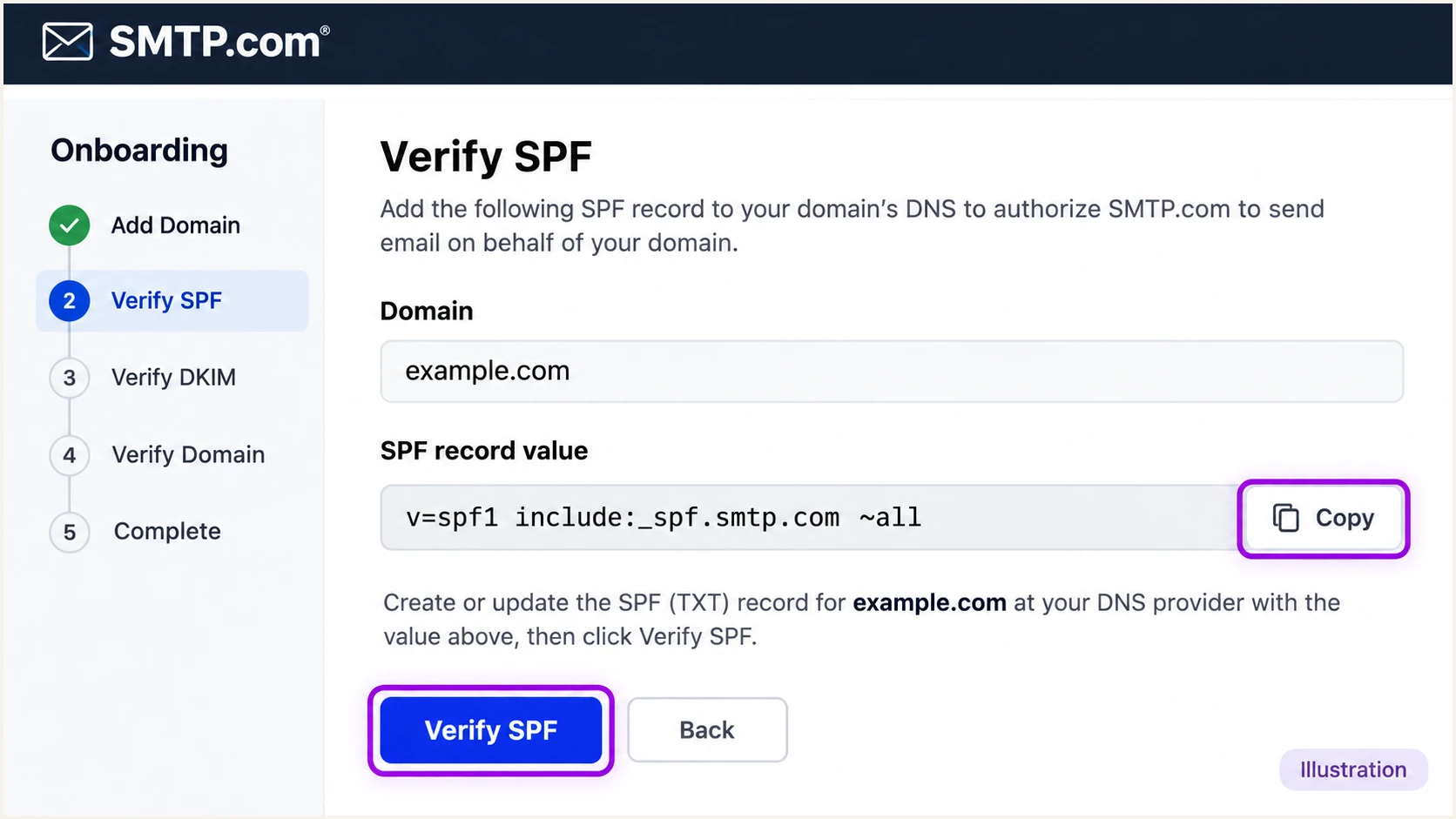
Illustration of SMTP.com's SPF record and Verify SPF control.
I also check the envelope sender, shown as smtp.mailfrom in the receiving server's results. Adding SMTP.com to your From domain's SPF does not change a provider-owned Return-Path.
For SPF alignment, ask SMTP.com support to configure a custom Return-Path on your domain and provide its exact DNS requirements. Publish the assigned records, confirm activation, and test a fresh message. A bounce subdomain such as bounce.example.com matches example.com under relaxed SPF alignment, but not strict alignment.
SPF checker
Find SPF syntax issues, lookup limits, and weak records.
?/16tests passed
Check both the setup hostname and the actual Return-Path domain when they differ. If the Return-Path remains provider-owned, an SPF alignment failure is expected and DMARC still passes through successful DKIM with your domain.
Set up DKIM
I use the record shown in SMTP.com's DKIM Verification step. Its onboarding flow documents a TXT key with a smtpcustomers selector; other configurations use a CNAME or a selector supplied by support. The assigned record determines which procedure applies.
- Copy the assignment. Copy the exact record type, selector hostname, and complete public value. A documented TXT hostname is smtpcustomers._domainkey, but use your account's value if it differs.
- Publish the record. For TXT, paste the complete public key without truncating it. For CNAME, paste the assigned destination. Do not publish TXT and CNAME at the same hostname. Use TTL 3600 or the DNS provider's default.
- Verify the key. Return to DKIM Verification and click Verify DKIM. Confirm Verified. Enter only the hostname prefix when your DNS provider appends the domain automatically.
- Confirm signing. Send a fresh message. Require dkim=pass with your domain in header.d. If signing still uses only smtpsend.com, ask SMTP.com support to enable custom-domain DKIM signing.
Some SMTP.com configurations use the following CNAME pair. Publish it only when SMTP.com assigns it to your account; it is not a replacement for an assigned TXT key.
Conditional CNAME example for an SMTP.com-assigned selectortext
Type: CNAME
Name: smtpkey._domainkey.example.com
Target: smtpcustomer._domainkey.smtpsend.com
The selector in a delivered DKIM signature determines the lookup: s=smtpkey with d=example.com uses smtpkey._domainkey.example.com. A different selector needs its own record.
A public key in DNS does not activate signing on its own. SMTP.com must retain the corresponding private key and sign messages with your domain.
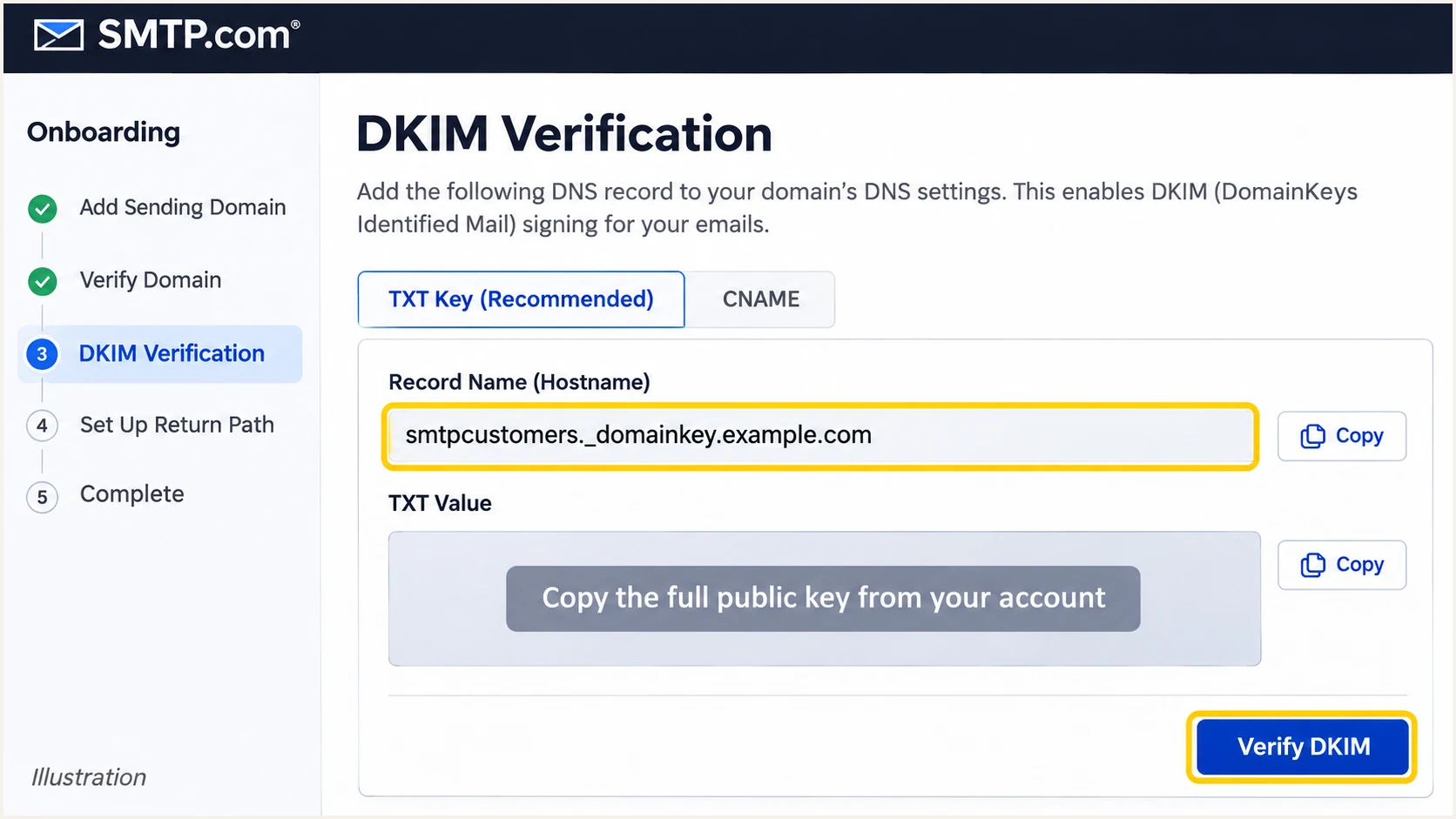
Illustrated SMTP.com DKIM Verification screen; copy your account's full key.
I keep existing DKIM selectors used by other senders. Adding SMTP.com does not require deleting another service's working keys.
Set up DMARC
Publish DMARC in your domain's DNS, independently of SMTP.com's SPF and DKIM verification. For a new deployment, start with p=none. If quarantine or reject is already working, retain that policy while authenticating SMTP.com.
- Inspect the policy. Look up TXT at _dmarc.example.com. Edit an existing DMARC policy instead of creating a second record for SMTP.com.
- Build the value. Use the DMARC record generator to set the policy and aggregate-report destination.
- Publish one record. Create a TXT record named _dmarc in the example.com zone using the monitoring example below. Replace example.com and the reporting mailbox before publishing.
- Keep reports working. Use a monitored destination that accepts aggregate XML reports. An external reporting destination also needs authorization in the destination domain's DNS.
Initial DMARC record for a domain without enforcementtext
Name: _dmarc.example.com
Type: TXT
Value: v=DMARC1; p=none; rua=mailto:dmarc@example.com
This policy requests reporting without requesting quarantine or rejection for DMARC failures. Receivers still apply their own spam filtering. SMTP.com messages must authenticate with a matching SPF or DKIM domain to pass DMARC.
Use the DMARC checker to confirm that public DNS returns one valid policy with the intended reporting destination. It checks DNS configuration, not the authentication of a specific message.
DMARC checker
Look up a domain's DMARC record and catch policy issues.
?/7tests passed
I then confirm that aggregate reports actually arrive. Most reporting receivers send them daily; allow roughly 24-48 hours after sending traffic before investigating missing reports.
Verify and troubleshoot
I send the test through the same application and SMTP.com sender used in production. A message sent directly through a mailbox provider tests a different delivery path.
Use the email tester below for the quickest diagnosis. Send a fresh SMTP.com message to the address it provides, then review its SPF, DKIM, and DMARC results together with domain alignment.
Email tester
Send a real email to this address. Suped shows a results button when the test is ready.
?/43tests passed
Read the receiving server's Authentication-Results header when investigating a failure. The example below shows a successful message with a custom bounce domain under relaxed alignment.
- Check From. Confirm header.from is the intended sending domain and that the application has not substituted another address.
- Check DKIM. Require dkim=pass and a matching header.d. Compare the signature's s= selector with the DNS hostname you published.
- Check SPF. Confirm spf=pass for smtp.mailfrom. A pass on an unrelated provider domain does not provide SPF alignment for your From domain.
- Check DMARC. Require dmarc=pass. If both mechanisms pass but DMARC fails, compare their domains with header.from and inspect strict alignment settings.
Illustrative successful receiver resultstext
From: Billing <billing@example.com>
Return-Path: <bounce@bounce.example.com>
Authentication-Results: mx.example.net;
 spf=pass smtp.mailfrom=bounce.example.com;
 dkim=pass header.d=example.com;
 dmarc=pass header.from=example.com
For DNS failures, check for duplicate SPF policies, a domain appended twice, or a truncated DKIM key. Query the selector actually present in the message, then re-run SMTP.com's verification after correcting the record.
I separate authentication from alignment when reading a report. These two successful SPF results have different consequences for DMARC:
Matching Return-Path
From uses example.com and the verified Return-Path uses bounce.example.com. SPF pass contributes to DMARC under relaxed SPF alignment.
Provider Return-Path
From uses example.com and the Return-Path uses an unrelated provider domain. SPF pass does not contribute to DMARC; successful DKIM with example.com still does.
If DNS is correct but DKIM is absent or uses only SMTP.com's shared domain, send SMTP.com support the Message-ID and complete headers. Ask them to check domain signing on the sender handling that message.
Get alerted when it breaks
Suped is our DMARC platform for keeping SMTP.com authentication under observation after setup. Automated issue detection connects reported failures with diagnostic details and steps to fix them, so the team has a concrete next action.
- Receive reports. Confirm your live rua destination delivers aggregate reports to Suped. The example dmarc@example.com address is a placeholder, not a Suped reporting address.
- Verify SMTP.com. Review the sending source in Suped and mark it verified only after confirming that your organization uses it. A recognized provider name alone does not authorize the traffic.
- Enable notifications. In Suped's notification settings, enable Issues detected and Sending sources need verification. Enable DMARC summary emails for routine review.
- Resolve the failure. Inspect affected records, compare SPF and DKIM domains, follow the issue's fix steps, and send another message through SMTP.com to confirm recovery.
Suped's DMARC monitoring groups the reported SMTP.com traffic with authentication results. I use that source-level history to distinguish a recurring configuration fault from an isolated forwarded message.
Keep SMTP.com delivery logs available for immediate sending failures. Aggregate reports describe what participating receivers observed and do not cover every individual delivery.
Reporting has a delay
Suped can notify you when an issue is detected, but DMARC aggregate data arrives on the receiver's reporting schedule. Use the email tester after a change instead of waiting for the next report.
Assign an owner to authentication notifications. A DKIM key removed during a DNS migration needs someone to restore the exact record and verify signing again.
Secure your domain with p=reject
I move to p=reject after legitimate senders consistently pass DMARC across a representative business cycle. SMTP.com's passing test is one prerequisite; the domain's policy also affects its other sending systems.
- Review every source. Use Suped's source table to account for normal SMTP.com traffic and other legitimate senders. Include infrequent billing or account-notification jobs in the review.
- Fix legitimate failures. Resolve missing signatures and incorrect signing domains before enforcement. Verify custom Return-Path configuration if SPF alignment is required; keep matching DKIM working for forwarded mail.
- Stage enforcement. For a domain starting at none, move to quarantine, review the next reports and delivery logs, then request reject when legitimate traffic remains healthy.
- Check subdomains. Review sp= and explicit subdomain DMARC records. A separate subdomain policy takes precedence for that subdomain, so a root p=reject alone does not prove complete coverage.
|
|
|
|---|---|---|
p=none | No enforcement | Observe traffic |
p=quarantine | Treat as suspicious | Review impact |
p=reject | Reject | Enforce policy |
Requested treatment of messages that fail DMARC.
Suped's Hosted DMARC lets your team manage these policy stages in the dashboard after DNS delegation is configured. Pair policy changes with Suped's source diagnostics so unresolved legitimate failures are visible before tightening enforcement.
For a directly managed TXT policy, the final example is below. Retain your real reporting destination and other intentional tags when changing p=. Receivers retain control over their final handling of a message.
Enforcement example after legitimate senders are verifiedtext
Name: _dmarc.example.com
Type: TXT
Value: v=DMARC1; p=reject; rua=mailto:dmarc@example.com
Keep monitoring SMTP.com after enforcement. New sending domains and DKIM changes need fresh tests before production traffic relies on them.
Frequency asked questions
SMTP.com has used sending hostnames under rs.smtp.com, including mailer69.gate89.rs.smtp.com. Treat that suffix as an infrastructure clue, not authorization for your domain. Confirm the sending IP against your SMTP.com activity and inspect the message's authentication results before approving the source.
SMTP.com uses include:_spf.smtp.com as its documented SPF authorization mechanism. Merge it into the existing SPF policy at the hostname specified during setup. Do not add other SMTP-related include domains just because they appear in a report or share a similar name.
Use the type assigned to your account. SMTP.com's documented onboarding flow uses a TXT public key, with smtpcustomers shown as the selector. Other configurations use an assigned CNAME, such as smtpkey._domainkey pointing to smtpcustomer._domainkey.smtpsend.com. Never substitute one type for the other without SMTP.com's instructions.
SPF can pass for a provider-owned Return-Path that does not match your From domain. If DKIM also lacks a successful matching signature, DMARC fails. Enable custom-domain DKIM and verify header.d on a fresh message, or complete a supported custom Return-Path setup for SPF alignment.
Verification succeeds when SMTP.com can resolve the correct records. Cached DNS answers can delay that, and the onboarding instructions allow up to 48 hours. Check authoritative DNS first, then click Verify SPF and Verify DKIM again. A delivered-message test confirms whether signing is active.
No. One DMARC policy on the From domain covers SMTP.com and other senders using that domain. Authenticate SMTP.com under the existing policy, keep any working quarantine or reject enforcement, and preserve reporting. Add a separate policy only when you intentionally manage a subdomain independently.