
How to set up DMARC/DKIM/SPF for SmarTone

Published 21 Nov 2026
Updated 21 Nov 2026
10 min read
Summarize with
For a domain you own that sends through SmarTone, authorize its outbound servers in SPF, configure DKIM signing for your domain, and publish DMARC in DNS. Start a new DMARC policy at p=none. Keep an existing p=quarantine or p=reject policy.
I found no public SmarTone setup article specifying a customer SPF include, DKIM selector, or domain-verification screen. Get service-specific values from SmarTone before editing DNS. First confirm that SmarTone actually handles outbound mail; an internet connection alone does not identify the email sender.
Add your domain
I start with the SmarTone service owner or account support contact. Use the domain in your visible From address and have access to its authoritative DNS host.
- Confirm your package. Ask whether your service supports sending with your own domain and which outbound mail system handles it. For a SmarTone-owned address, authentication changes belong to SmarTone.
- Request domain activation. Give support your From domain and sending addresses. Request authorization to send for that domain, or confirmation that the existing domain setup is active.
- Verify ownership. If support supplies a verification TXT or CNAME, publish that exact record. Ask support to verify it and confirm domain activation after it resolves.
- Collect authentication settings. Request the approved outbound SPF mechanisms or IP ranges, custom Return-Path instructions, and confirmation of custom-domain DKIM support. For DKIM, obtain the exact selector, record type, and value.
The domain belongs in the sending service; DNS records belong at your DNS host. Keep existing MX records unless SmarTone is also changing your inbound mail service.
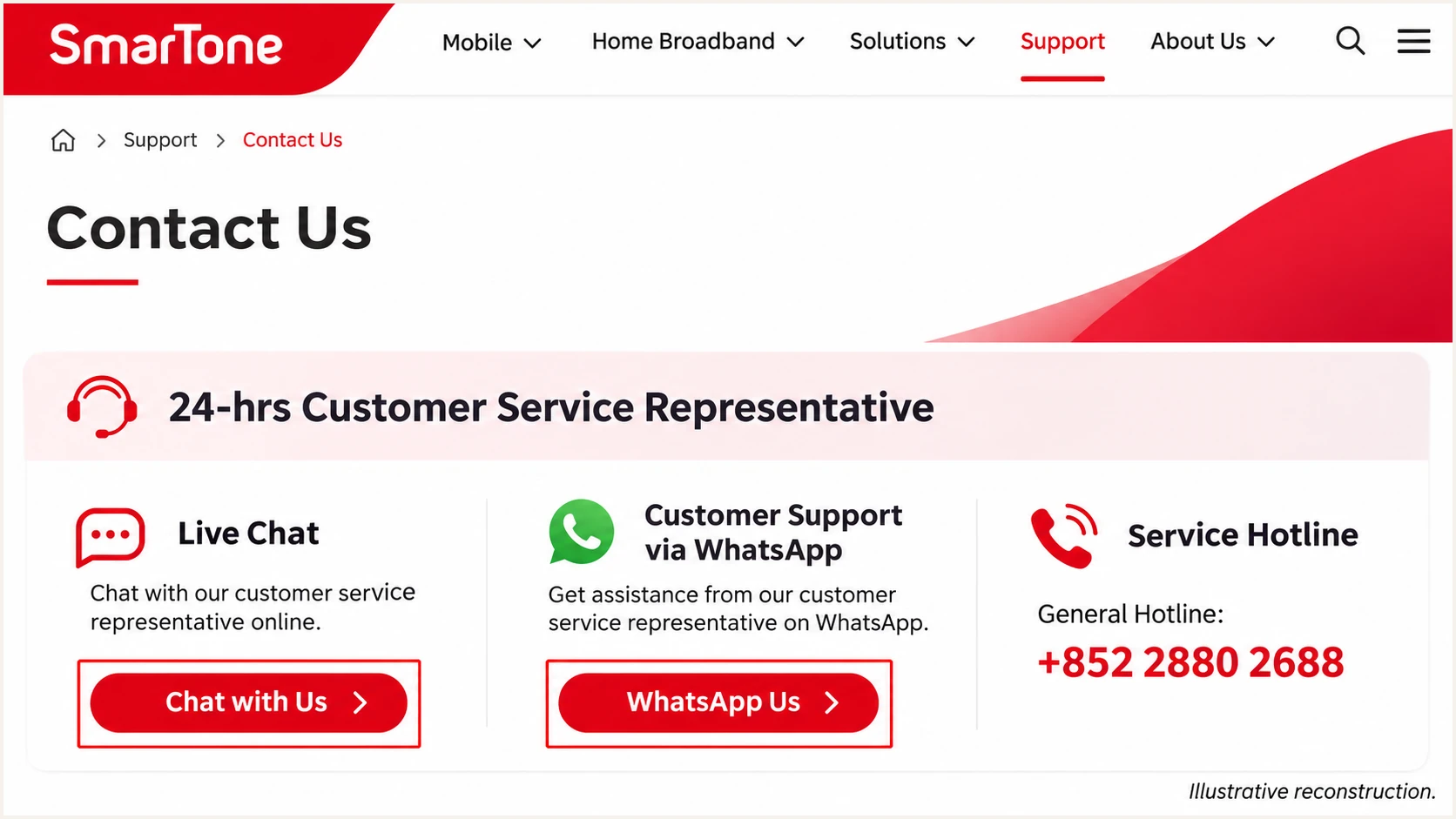
Illustration of SmarTone's Contact us page and support contact options.
Use SmarTone's Contact Us support options to request the email technical team. I keep the supplied DNS values and activation confirmation together so later tests use the correct service configuration.
Set up SPF
Ask SmarTone to activate its supported custom Return-Path capability for your service, using your domain or a subdomain such as bounce.example.com. Confirm the required DNS records with support.
SPF checks the SMTP MAIL FROM domain, normally visible in Return-Path on delivered mail. Under default relaxed DMARC alignment, bounce.example.com matches a From domain of example.com. An existing strict SPF alignment setting requires an exact domain match.
SPF checker
Find SPF syntax issues, lookup limits, and weak records.
?/16tests passed
Run the SPF checker against the actual MAIL FROM domain. I inspect the existing record before adding SmarTone's authorization.
- Use approved values. Publish only the include mechanism or complete outbound IP ranges supplied for your service. An SMTP submission hostname or a SmarTone rDNS suffix is not an SPF authorization instruction.
- Keep one SPF record. Merge approved mechanisms into the existing v=spf1 TXT record at that DNS name, before its final all mechanism. Preserve other legitimate senders and the existing ending unless deliberately changing it.
- Check DNS limits. Keep evaluation within SPF's limit of 10 DNS-querying terms, including nested includes. Fix duplicate SPF records and lookup errors before testing delivery.
- Verify the envelope. Send through SmarTone and confirm that Return-Path uses the configured domain. Check that the receiver reports spf=pass for that domain.
Replace these example domains with the domains actually in use. A record at example.com is not inherited by bounce.example.com; check the precise DNS name SmarTone specifies.
Inspect SPF at the From and Return-Path domainsbash
dig +short TXT example.com
dig +short TXT bounce.example.com
Set up DKIM
I ask SmarTone whether it signs outgoing mail with the customer's domain. A valid signature using only SmarTone's domain does not provide DKIM alignment for your own From domain.
Get the selector and public DNS value from the system that will sign the messages. Publishing a key alone does not switch signing on.
- Request domain signing. Ask support to enable DKIM with your domain in the signature's d= value. Request a 2048-bit RSA key where supported and confirm the selector in s=.
- Publish the supplied record. Add the exact TXT or CNAME at the supplied selector._domainkey name. Check whether your DNS host automatically appends the domain. Publish only public material, never a private key.
- Activate the signer. Ask support to confirm signing is enabled after DNS verification. If your own outbound server signs, configure its private key and signing domain there.
- Check a fresh message. Confirm dkim=pass at the recipient and a d= domain that matches the From domain under your DMARC settings. Read s= from the actual signature rather than guessing selectors.
Look up the selector supplied by the signing systembash
dig +short TXT SELECTOR._domainkey.example.com
dig +short CNAME SELECTOR._domainkey.example.com
Replace SELECTOR and example.com with the signature's s= and d= values. A CNAME must resolve to the signer's published public key.
If SmarTone does not offer customer-domain signing on your package, ask about signing on your own server before relay. Test a delivered message because relay modifications can invalidate that signature.
SmarTone signs
SmarTone enables the signer and retains its private key. You publish the supplied public key or CNAME and verify the delivered signature.
Your server signs
Your server signs before SmarTone relays the message. You manage the key and verify that SmarTone preserves the signed content.
Set up DMARC
For a new DMARC deployment, use p=none while checking legitimate mail. If the domain already uses p=quarantine or p=reject, keep that policy and correct the SmarTone configuration.
Use the DMARC record generator to prepare the TXT value. I keep the default relaxed alignment settings during an initial rollout unless the domain already requires stricter matching.
DMARC checker
Look up a domain's DMARC record and catch policy issues.
?/7tests passed
Check the sending domain first, then edit its existing policy or create one if absent. Do not publish a second DMARC policy at the same name.
- Inspect the policy. Look up TXT records at _dmarc.example.com, substituting your actual From domain. Preserve existing enforcement and intentional policy settings.
- Set the DNS name. Create a TXT record named _dmarc if the DNS host appends example.com automatically. Otherwise enter the full _dmarc.example.com name.
- Set the report destination. Replace dmarc@example.com with a real mailbox or report-processing address you control. Retain an existing working report destination. External destinations require DMARC reporting authorization.
- Verify the published value. Run the DMARC checker again after the previous DNS TTL expires. Confirm one valid policy with the intended reporting address.
The starter value below uses an example report address. A mailbox receives aggregate XML reports; a reporting platform processes them into source-level results.
Start new policies in monitoring mode
Use this value only for a new monitoring policy, replacing the report address before publishing. p=none requests no DMARC-based quarantine or rejection.
New DMARC policy at _dmarc.example.comtext
v=DMARC1; p=none; rua=mailto:dmarc@example.com
Verify and troubleshoot
I test through the same SmarTone sending route used in production, with the same From domain. A test sent through a different SMTP service proves a different configuration.
The email tester below gives a diagnosis from an actual received message. Send to its generated test address instead of waiting for aggregate DMARC reports.
Email tester
Send a real email to this address. Suped shows a results button when the test is ready.
?/43tests passed
Send a new message after each change. An older message contains the authentication results recorded before the fix.
- Send through SmarTone. Use the tester's destination address in your normal mail application or sending system. Keep the generated result with the DNS values you changed.
- Inspect both identities. Compare the visible From domain with the SPF MAIL FROM domain and the DKIM d= domain. Authentication passing for an unrelated provider domain does not establish DMARC alignment.
- Trace the failure. For SPF, check the receiver-observed outbound IP against approved ranges and lookup limits. For DKIM, check the selector record, active signer, and message changes after signing.
- Recheck DNS. Check the authoritative record and a recursive resolver after the old TTL expires. Correct duplicated domain suffixes, missing records, or a key published under the wrong selector.
Use the receiving system's trusted Authentication-Results header. This illustrative result shows both authentication paths working for a From domain of example.com.
Example recipient authentication resultstext
Authentication-Results: mx.receiver.example;
 spf=pass smtp.mailfrom=bounce.example.com;
 dkim=pass header.d=example.com;
 dmarc=pass header.from=example.com
DMARC needs at least one passing authentication method with domain alignment. For SmarTone, configure both where your package supports them.
If a sending service keeps its own Return-Path, SPF alignment errors are expected even with spf=pass. Adding SPF at your From domain does not change that. DMARC still passes through a valid DKIM signature with domain alignment.
|
|
|
|---|---|---|
SPF fail | IP not authorized | IP and SPF policy |
SPF mismatch | Different domains | Return-Path |
DKIM fail | Invalid signature | Key and signer |
DMARC pass | One valid path | Other senders |
Use received-message results to choose the next check.
Forwarding can break SPF, so also test an important forwarding route. A DMARC pass establishes authentication, not inbox placement.
Get alerted when it breaks
Use DMARC monitoring in Suped, our DMARC platform, to track SmarTone alongside your other senders. Source verification and record-level diagnostics make authentication failures actionable.
I assign an owner to issue notifications and keep summaries enabled during policy changes. Suped's DNS history helps compare a failure with a recent record change.
- Enable issue notifications. In Suped, open Settings, then Notifications. Expand Issues detected and add the responsible team's recipient address. Adding the address saves the setting.
- Enable source review. Add recipients under Sending sources need verification. Confirm SmarTone against your account and message headers before marking the source as verified.
- Investigate the record. Open the reported issue and its Steps to fix. Inspect SPF, DKIM, DMARC, and rDNS details, then apply the DNS or signer correction and verify it.
- Keep summaries active. Add recipients under DMARC summary and choose weekly or monthly delivery. Review SmarTone's authentication results after DNS changes and sending-service updates.
Keep the domain's rua destination connected to the report processor you use. Receiving reports is separate from enabling notification recipients.
Account for reporting delays
Suped's issue and source-verification emails run daily during the 9 AM hour in the saved timezone when new items exist. Aggregate reports also depend on receiver delivery. Use a fresh test email to validate an immediate change.
Secure your domain with p=reject
Use Suped's Hosted DMARC to manage policy changes through the dashboard once configured. Suped's source verification and detailed authentication records support the decision to enforce.
I base enforcement on legitimate sending workflows, including infrequent mail. A high overall pass rate does not prove that a low-volume sender is ready.
- Inventory legitimate senders. Confirm SmarTone and every other service authorized to use the domain. Include periodic business mail and important forwarding routes in your tests.
- Resolve authorized failures. Use Suped's source and detail views to identify legitimate authentication failures. Require a passing DMARC path for every approved workflow; leave unauthorized traffic unverified.
- Stage enforcement. After monitoring a representative sending cycle, change the existing record to p=quarantine. Review delivery problems and source results before progressing. Keep an existing p=reject policy.
- Publish reject. Change the existing policy to p=reject once legitimate workflows pass. Keep the working rua address and re-run a SmarTone test immediately after the change.
Final policy example, replace the reporting addresstext
v=DMARC1; p=reject; rua=mailto:dmarc@example.com
Keep Suped notifications and report collection active after enforcement. Investigate new authorized senders before allowing them to use the domain.
Check inherited subdomain policy and any separate subdomain DMARC records before applying enforcement. Re-test SmarTone after a DKIM rotation or outbound relay change.
Frequency asked questions
The .smartone.com rDNS suffix identifies SmarTone infrastructure in Suped's source definitions. A matching hostname is a clue about the network, not proof that a message is authorized for your domain. Check the sending IP, your SmarTone service, and the message's authentication results before verifying the source.
Get the exact mechanism or outbound IP ranges from SmarTone for your service. I found no public customer setup article confirming a universal include. Do not assume include:smartone.com or copy SmarTone's corporate SPF record. Update the single SPF policy at your actual MAIL FROM domain.
Yes. SPF can pass for a provider-owned MAIL FROM domain that does not match your visible From domain. DMARC then needs a passing DKIM signature with domain alignment. If neither method supplies a passing, matching identity, DMARC fails.
No. The sending system must sign messages with the private key corresponding to the public DNS record. Ask SmarTone to enable customer-domain signing, or configure your own outbound signer if your service supports that route. Verify a newly delivered message.
Keep an existing p=quarantine or p=reject policy while configuring SmarTone. Correct the sender's SPF or DKIM settings and confirm a passing DMARC path. The p=none starter record is for a new monitoring deployment.
Only the operator of that domain's DNS and sending systems can change its authentication. Ask SmarTone to investigate that address. For a domain you own, you control the DNS records and coordinate the signing and Return-Path settings with the sending service.




