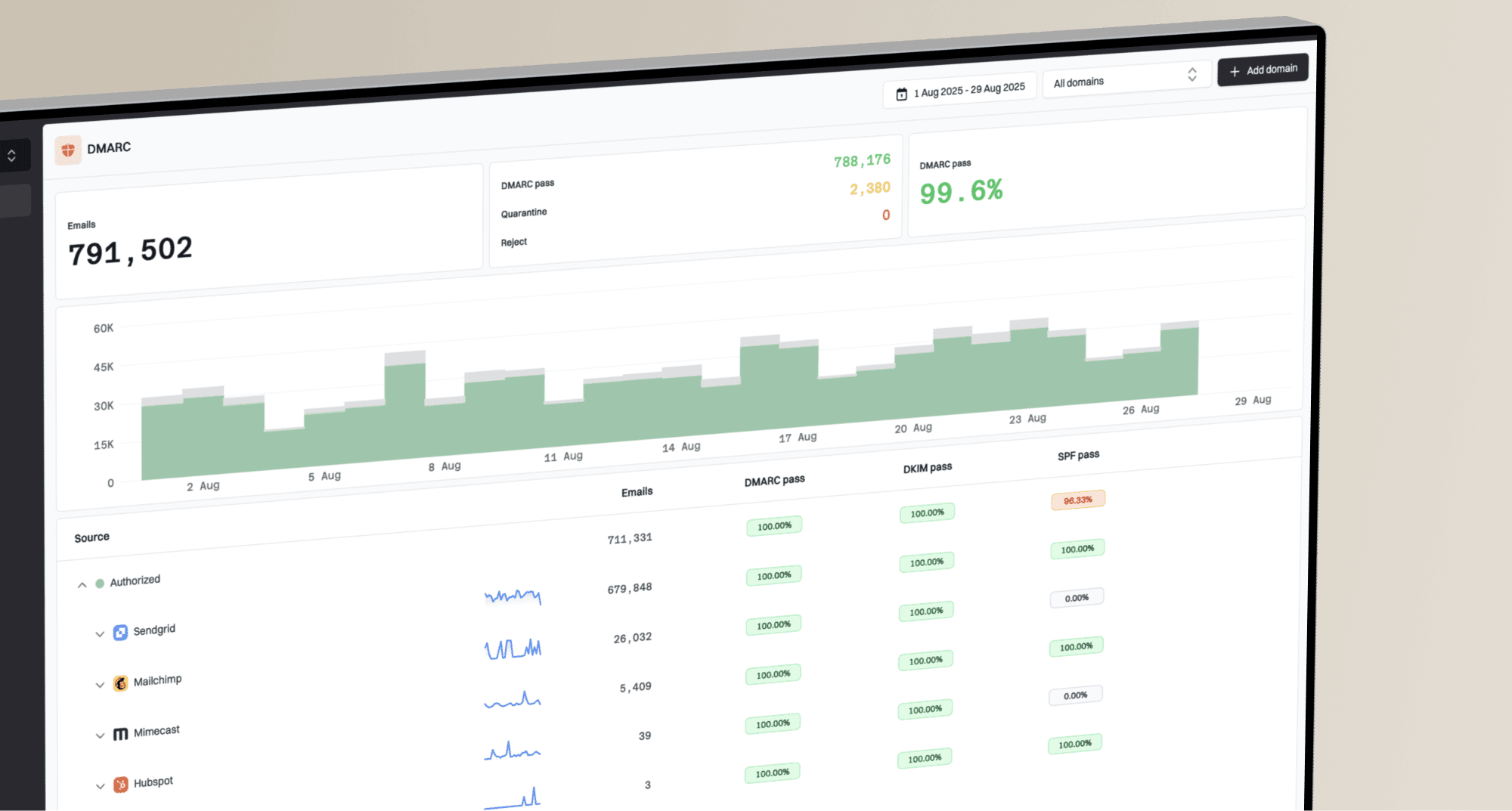
How to set up DMARC/DKIM/SPF for Smart Artist


Set up Smart Artist email authentication in cPanel: publish the account's suggested SPF record, install its DKIM public key, and add a DMARC TXT record at _dmarc on your authoritative DNS. I verify a real message before changing enforcement. DMARC passes when SPF or DKIM passes and its authenticated domain matches the visible From domain under the selected matching rules.
Smart Artist's knowledgebase documents cPanel hosting, and its migration notices record server IP changes. I use the active account's values because sending IPs and DKIM keys vary. The screenshots are illustrative cPanel views; account menus depend on the server version.
Add your domain
I first confirm that Smart Artist hosts the sending domain and identify where its public DNS is managed.
- Open hosting: Sign in to your Smart Artist client area and open cPanel for the relevant hosting service. Use the hosting login supplied with your account if no shortcut is available.
- Check the domain: Open Domains. If your domain is already listed, keep it. Otherwise choose Create A New Domain, enter your registered domain and click Submit. Older accounts use Addon Domains.
- Locate DNS: Check the domain's NS records. Edit records at the provider those nameservers identify. A local cPanel zone does not publish changes when another provider controls authoritative DNS.
- Confirm sending: Open Email Accounts and select the mailbox for this domain, or create it if required. Use Connect Devices or Configure Mail Client to obtain the account's authenticated SMTP settings.
Adding a domain to cPanel attaches it to the hosting account. I verify public DNS separately and send a test through its mailbox.
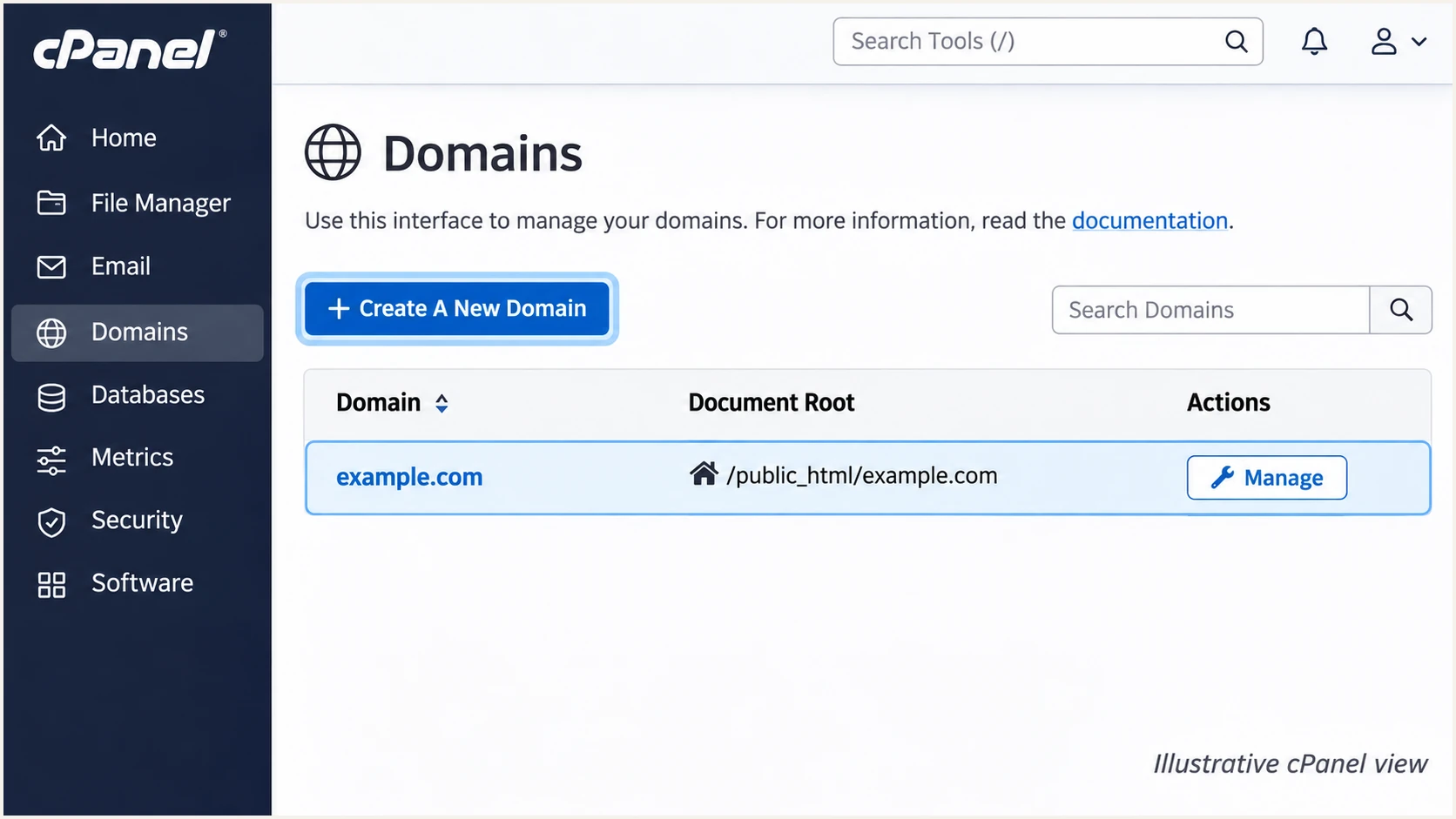
Illustrative cPanel Domains view for a Smart Artist hosting account.
If Domains or Email Accounts is unavailable, ask Smart Artist to confirm your plan's domain and mailbox permissions before changing DNS.
Set up SPF
Smart Artist supports a return path using your domain. I authorize its actual outbound servers and then check the received Return-Path.
- Get the value: Open Email > Email Deliverability > Manage beside your domain. Copy the Name and Value under Suggested SPF (TXT) Record. Ask Smart Artist for the outbound authorization if this screen is unavailable.
- Keep one record: At the authoritative DNS provider, find the TXT record starting v=spf1. Merge the Smart Artist authorization with existing senders before the final all mechanism. Do not create a second SPF record.
- Publish the change: For DNS hosted with Smart Artist, use Zone Editor > Manage, edit the SPF TXT record and click Save Record. Use the domain name in cPanel; external DNS editors often use @ for the root.
- Check the return path: Send through the Smart Artist SMTP account. Confirm SPF passes for the smtp.mailfrom domain and that this domain matches the From domain. A subdomain match works with relaxed SPF alignment.
I do not guess a universal Smart Artist SPF include or copy another customer's IP. The SPF checker below checks syntax and lookup limits.
SPF checker
Find SPF syntax issues, lookup limits, and weak records.
?/16tests passed
SPF permits at most 10 evaluated DNS-querying terms, including nested includes. Keep valid authorizations for every service that sends for this domain.
Run the check against the actual return-path domain if it differs from the From domain. Publishing SPF at the root does not configure a separate bounce subdomain.
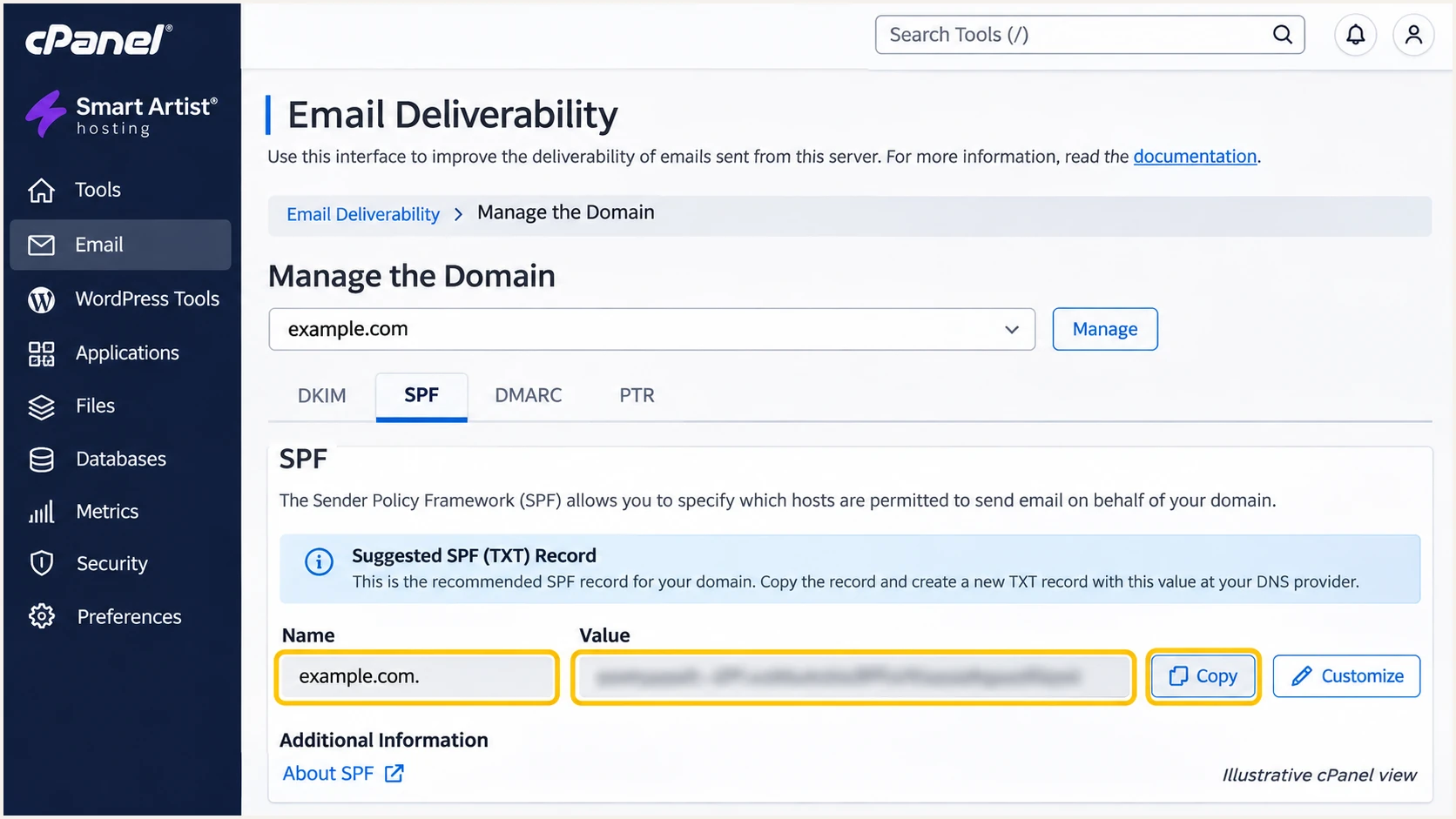
Illustrative cPanel SPF panel showing where to copy account-specific DNS values.
If a particular sending route uses a provider-owned return path, changing your root SPF cannot fix that mismatch. Passing DKIM with matching domains still gives a DMARC pass.
Set up DKIM
I use the DKIM key generated on the Smart Artist mail server so the published public key matches its signing key.
- Find DKIM: In Email Deliverability, click Manage for your domain and inspect the DKIM section. If no key exists, use Generate Local DKIM Key or ask Smart Artist to enable signing.
- Copy the public key: Copy the suggested TXT Name and Value. The name commonly uses default._domainkey, but publish the exact selector shown in your account. Keep the private key off public DNS.
- Install the record: When cPanel controls authoritative DNS, review and apply Repair. Otherwise publish the copied public TXT record at your DNS provider and have Smart Artist confirm server-side signing is active.
- Check a message: Send fresh mail and inspect DKIM-Signature. Its s= value identifies the selector and d= identifies the signing domain. Require dkim=pass with a domain that matches your From domain.
For long DKIM values, use the DNS editor's TXT splitting support. Multiple quoted chunks belong in one TXT record, preserving the complete public key.
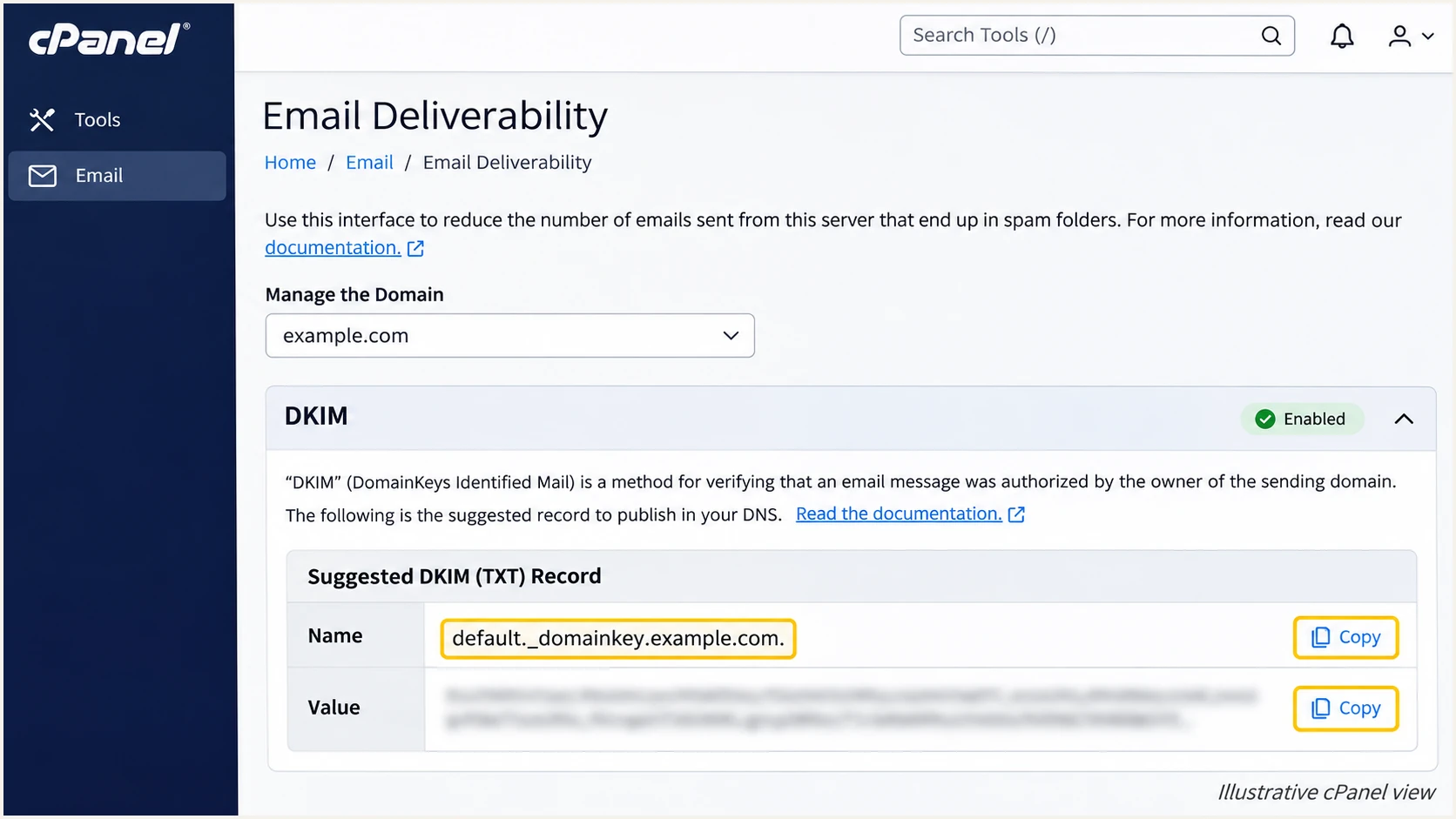
Illustrative cPanel DKIM panel showing the public record name and copy controls.
Publishing the key alone does not prove that mail is signed. I test website-generated messages separately because their sending route can differ from mailbox SMTP.
If DKIM is absent on website mail, configure the application to use the authenticated Smart Artist SMTP account and retest. Escalate persistent signing failures to Smart Artist.
Set up DMARC
For a domain without an enforcement policy, I start with p=none and collect reports while checking every legitimate sending source.
- Inspect the policy: Look up TXT at _dmarc.example.com. If p=quarantine or p=reject is already published, keep that policy and preserve its reporting destinations while fixing Smart Artist authentication.
- Prepare reporting: Create a mailbox that receives aggregate XML reports, or use your existing reporting destination. Replace dmarc@example.com with that real address before publishing the example below.
- Add the TXT record: Open Zone Editor > Manage for your domain, choose Add Record > TXT, enter _dmarc.example.com. as the name and paste the policy value. Click Save Record. With external DNS, the name is usually _dmarc.
- Avoid duplicates: Maintain one DMARC policy at this exact name. If a record already exists, edit it. Keep relaxed matching unless you have a tested requirement for strict SPF or DKIM alignment.
Use the DMARC record generator to build the policy and reporting tags, then publish the output at your authoritative DNS provider.
Initial DMARC value for _dmarc.example.comtext
v=DMARC1; p=none; rua=mailto:dmarc@example.com
This is an example address, not a working report destination for your domain. A reporting address on another domain requires that destination's external reporting authorization.
A p=none policy requests monitoring without DMARC enforcement. The checker below confirms the published policy and reporting syntax; a message test confirms authentication behavior.
DMARC checker
Look up a domain's DMARC record and catch policy issues.
?/7tests passed
I recheck after the previous DNS TTL expires. A cPanel success message does not establish what external recipients retrieve from authoritative DNS.
Verify and troubleshoot
I test the exact sending path used in production, including website forms and scheduled jobs, before treating the setup as complete.
- Send a test: Use the email tester below, copy its destination address, and send a message through your Smart Artist mailbox. Repeat separately for each website or application sending route.
- Read the diagnosis: Check the receiver's Authentication-Results for spf=pass, dkim=pass and dmarc=pass. Inspect smtp.mailfrom and header.d as well as the visible From domain.
- Resolve DNS errors: For missing records, confirm authoritative nameservers and the exact record name. For SPF permerror, check duplicate SPF records and the lookup limit. For DKIM failures, check the selector and complete key.
- Escalate server issues: Give Smart Artist the sending IP, timestamp and full received headers for unexpected relays, missing signatures or PTR problems. The provider controls reverse DNS for its server IPs.
The email tester checks the received message, so it is the quickest way to catch signing or return-path problems that DNS-only validation misses.
Email tester
Send a real email to this address. Suped shows a results button when the test is ready.
?/43tests passed
After each change, send a new message. Old messages retain their original authentication results, and DNS caches continue using earlier values until expiry.
For a command-line check, replace example.com with your domain and default with the selector in DKIM-Signature. These commands retrieve DNS; they do not validate a signature.
Check the public authentication recordsbash
dig +short NS example.com
dig +short TXT example.com
dig +short TXT default._domainkey.example.com
dig +short TXT _dmarc.example.com
SPF checks the envelope sender, while DKIM checks the signing domain and signature. A successful standalone check still needs matching domains to contribute to DMARC.
Forwarding commonly breaks SPF because the forwarding server has a different IP. DKIM can preserve a DMARC pass when the signature survives and its domain matches.
Separate authentication from inbox placement
A DMARC pass does not guarantee inbox delivery. If authentication passes but mail is rejected, inspect the SMTP response and sending-IP reputation. Ask Smart Artist to investigate a shared-server blocklist (blacklist) listing or a broken PTR record.
Smart Artist's older mail-client articles include legacy connection advice. I use the current account's authenticated, encrypted SMTP settings when investigating modern sending failures.
Get alerted when it breaks
Suped is our platform for monitoring this configuration after setup. Its DMARC monitoring connects incoming reports with source diagnostics and issue notifications.
- Check reporting: Confirm aggregate reports reach Suped for the domain. Preserve the current DMARC enforcement policy when updating rua, and use the reporting value supplied for that domain.
- Enable notifications: Open Settings > Notifications in Suped. Enable Issues detected and Sending sources need verification, and enable DMARC summary emails for routine review.
- Review new sources: Investigate unverified Smart Artist traffic using its sending IP and authentication domains. Verify the source only after confirming that your team uses it.
- Investigate changes: Use the affected record's Detail view to inspect SPF, DKIM and rDNS checks. Compare DNS history when failures begin after a DNS edit or hosting migration.
Smart Artist's 2025 migration notices describe changed IPv4 addresses and added IPv6. I recheck SPF after a migration, especially with externally hosted DNS.
cPanel setup checks
Use cPanel to retrieve the server's proposed SPF authorization and DKIM key. Review its current DNS status when configuring or repairing the domain.
Suped ongoing monitoring
Use our platform to review reported sending sources, investigate authentication failures and receive issue notifications. Keep the Smart Artist sending configuration in cPanel.
Report-based alerts depend on reports arriving, usually on a daily cycle. They do not provide a live notification for every individual failed message.
When a notification identifies a new sending IP, confirm it with Smart Artist before authorizing it. A familiar rDNS suffix alone is insufficient evidence.
Secure your domain with p=reject
I move to p=reject after every legitimate sending route has a reliable DMARC pass. Suped provides the source-level evidence for that decision.
- Inventory senders: Review Suped's source table across a complete sending cycle, including monthly jobs. Confirm Smart Artist mailbox traffic and each application that sends with your domain.
- Fix legitimate failures: Use Suped's detected issues and steps to fix to investigate known senders. Require passing DKIM with matching domains for Smart Artist mail, and correct SPF wherever the return path uses your domain.
- Stage enforcement: Change p=none to p=quarantine after testing, then review fresh reports before p=reject. If already enforcing, retain that policy. Resolve forwarding and mailing-list exceptions before tightening it.
- Publish and retest: Edit the existing _dmarc TXT record at authoritative DNS, or use Hosted DMARC if it is already configured. Change the policy only and preserve the working reporting destination.
- Keep watching: Continue Suped notifications and source verification after enforcement. Check low-volume legitimate senders individually; an overall pass rate that includes spoof attempts is not a readiness threshold.
The policy applies to the From domain across sending services. I assess all authorized traffic before changing the shared domain policy.
|
|
|
|---|---|---|
p=none | Monitor | Identify senders |
p=quarantine | Quarantine failures | Validate enforcement |
p=reject | Reject failures | Enforce protection |
DMARC policy requests for messages that fail; receivers retain their own handling decisions.
A parent domain's policy also affects subdomains that inherit it. Review explicit subdomain records and the sp tag before changing the parent policy.
For an already configured Hosted DMARC domain, our policy controls manage this change without another manual TXT edit. Verify the published result either way.
Final DMARC example, retaining your real reporting addresstext
v=DMARC1; p=reject; rua=mailto:dmarc@example.com
Replace the example reporting address and retain any required existing tags. A reject policy asks receivers to reject DMARC failures; their local rules determine the outcome.
Suped's report history helps check that authorized Smart Artist traffic keeps passing after enforcement. I investigate any legitimate failures before broadening the rollout.
Enforce after checking legitimate traffic
Proceed when every known sending route has been tested, its domain matching is correct, and reports cover its normal sending cycle. Passing DKIM with matching domains protects the DMARC result when forwarding breaks SPF.
Keep the last working record and the change time. If legitimate mail fails after enforcement, use those details to isolate the affected sender.
New mailboxes, application changes and hosting migrations each need a fresh message test. Keep reporting active so configuration drift remains visible.
Frequency asked questions
Use the suggested SPF authorization in your domain's cPanel Email Deliverability screen, or obtain it from Smart Artist support. Merge it into the domain's single SPF record. Do not assume another customer's IP or the provider's own SPF record applies to your account.
cPanel commonly uses default, but the account's suggested TXT name and a received message's DKIM-Signature s= value are authoritative for your setup. Publish the matching public key and verify dkim=pass for the actual sending route.
The smartartist.net.au suffix is associated with Smart Artist hosting infrastructure. Confirm the actual sending IP with Smart Artist and compare the message's authentication domains before identifying it as an authorized source. Shared hosting means a provider hostname does not identify a particular customer.
Yes. Keep the existing authoritative nameservers, copy the account's SPF and DKIM values into that provider's DNS editor, and publish DMARC there too. Ensure DKIM signing is enabled on the Smart Artist server. Updating only cPanel's local zone is insufficient when public DNS is elsewhere.
The return-path domain differs from the visible From domain, or forwarding causes SPF to fail. DMARC still passes when DKIM passes with a matching signing domain. Smart Artist supports a domain-matching return path, so investigate unexpected mismatches on direct mail. Adding SPF at your root cannot change a provider-owned return path.
No. A DMARC record covers a From domain across all its sending services. Keep one record at _dmarc for that domain. Authenticate Smart Artist alongside your other senders, and preserve an existing p=quarantine or p=reject policy during setup.