
How to set up DMARC/DKIM/SPF for Simply.com

Published 21 Nov 2026
Updated 21 Nov 2026
11 min read
Summarize with
To authenticate Simply.com email, publish the SPF TXT record and both DKIM CNAMEs below, send through authenticated SMTP, and configure one DMARC policy. Simply.com's support article 'SPF, DKIM and DMARC' documents automatic setup for new hosting plans, including p=reject. Keep existing quarantine or reject enforcement.
I start by checking the live DNS and the application's sending route. Replace example.com with your domain throughout; a correct DNS record alone does not prove that your website is using the authenticated mail server.
Add your domain
Use the domain attached to your Simply.com email or webhosting product. For an existing product, select that domain in the control panel before changing mail or DNS settings.
- Activate hosting. If the domain is absent, order an email or webhosting product for your existing domain. Simply.com's order form supports keeping the domain registration elsewhere.
- Find live DNS. Check the domain's NS records with the command below. Open DNS in the selected Simply.com product only if its nameservers host your authoritative zone; otherwise edit records at your actual DNS host.
- Prepare a mailbox. Open Email or Mail Administration for the selected domain. Create or select your sending mailbox and retain its full email address and mailbox password for SMTP authentication.
- Preserve incoming mail. Change MX records only when moving incoming mail. Simply.com's inbound host is mx.simply.com; outgoing authentication does not require an MX migration.
Find the authoritative DNS providerbash
dig +short NS example.com
Domain registration and DNS hosting are separate. A change in an inactive DNS zone will never reach recipients, even when the control panel saves it successfully.
In Simply.com's DNS administration, review the existing records and export the zone before editing. Verification means checking the published records and a delivered message; there is no need to add an unrelated ownership TXT record.
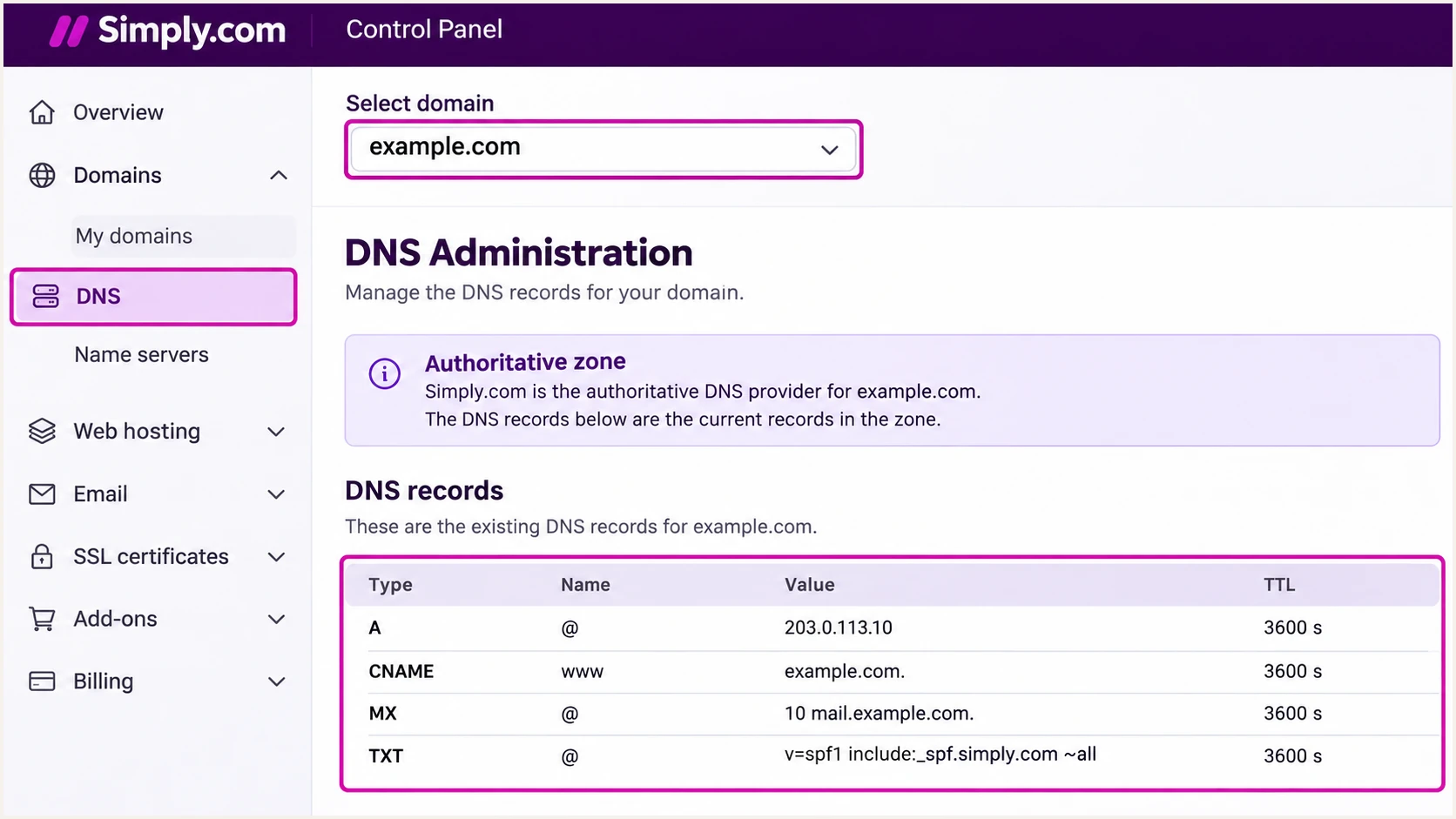
Illustrative Simply.com control panel view for selecting a domain and opening DNS administration.
Set up SPF
I check the envelope sender first. SPF evaluates the SMTP MAIL FROM domain, normally visible in the delivered Return-Path, rather than the address displayed in From.
- Edit one TXT record. In DNS administration, find the existing v=spf1 record for the envelope sender domain. Add include:spf.simply.com before the final all mechanism. Never create a second SPF record at that name.
- Use the correct name. For example.com, edit the root record, commonly shown as @. If MAIL FROM uses a subdomain, publish its SPF there; the root SPF does not automatically cover subdomains.
- Preserve other senders. Use the record below only when Simply.com is the sole authorized sender. Merge any other required mechanisms into the existing record and keep one final all mechanism.
- Check lookup limits. Keep evaluation within the SPF limit of 10 DNS-querying mechanisms and modifiers, including nested includes. Do not replace the maintained include with copied server IP addresses.
Root TXT value when only Simply.com sendstext
v=spf1 include:spf.simply.com -all
For SPF domain alignment, configure the application's envelope sender or bounce address under your own domain, for example sender@example.com. Use the application's SMTP envelope setting, not a manually inserted Return-Path header.
Enter the exact envelope sender domain in the SPF checker. This checks the published policy and lookup count; the delivered-message test later checks whether the real sending IP is authorized.
SPF checker
Find SPF syntax issues, lookup limits, and weak records.
?/16tests passed
If the received Return-Path still uses a provider-owned domain, inspect whether the application or relay rewrites MAIL FROM. Adding an SPF include to your From domain cannot change a provider-owned envelope sender.
An SPF alignment failure does not fail DMARC when a valid DKIM signature has domain alignment. I still configure SPF for the actual sending domain and confirm the final result with a real message.
Set up DKIM
Publish both delegated selectors. Simply.com manages the private signing keys; these CNAMEs direct recipients to its public keys.
- Check existing selectors. In DNS administration, inspect the two names below. Simply.com's 'Simply.com DKIM & SPF' DNS configuration includes them; review existing SPF before applying a configuration.
- Publish both CNAMEs. Create each record separately with the displayed relative Name and target Value. Do not append your own domain to the target, and remove conflicting data only at these exact selector names.
- Send through SMTP. Use websmtp.simply.com on port 587 with STARTTLS and mailbox authentication for scripts running on Simply.com web servers. That host is restricted to those scripts. Use smtp.simply.com on port 587 for mail clients.
- Retest the application. Send a message after changing the transport. Simply.com signs these SMTP routes and webmail; PHP mail() bypasses the documented authenticated route.
DKIM CNAME names and targetstext
simplycom1._domainkey CNAME dkim1.simply.com
simplycom2._domainkey CNAME dkim2.simply.com
Enter only the selector prefix in a Name field that automatically appends example.com. The resulting first owner name must be simplycom1._domainkey.example.com, without a duplicated domain suffix.
I verify the delivered DKIM-Signature header as well: s= identifies the selector, and d= identifies the signing domain. A valid signature for an unrelated provider domain does not satisfy DMARC for your From domain.
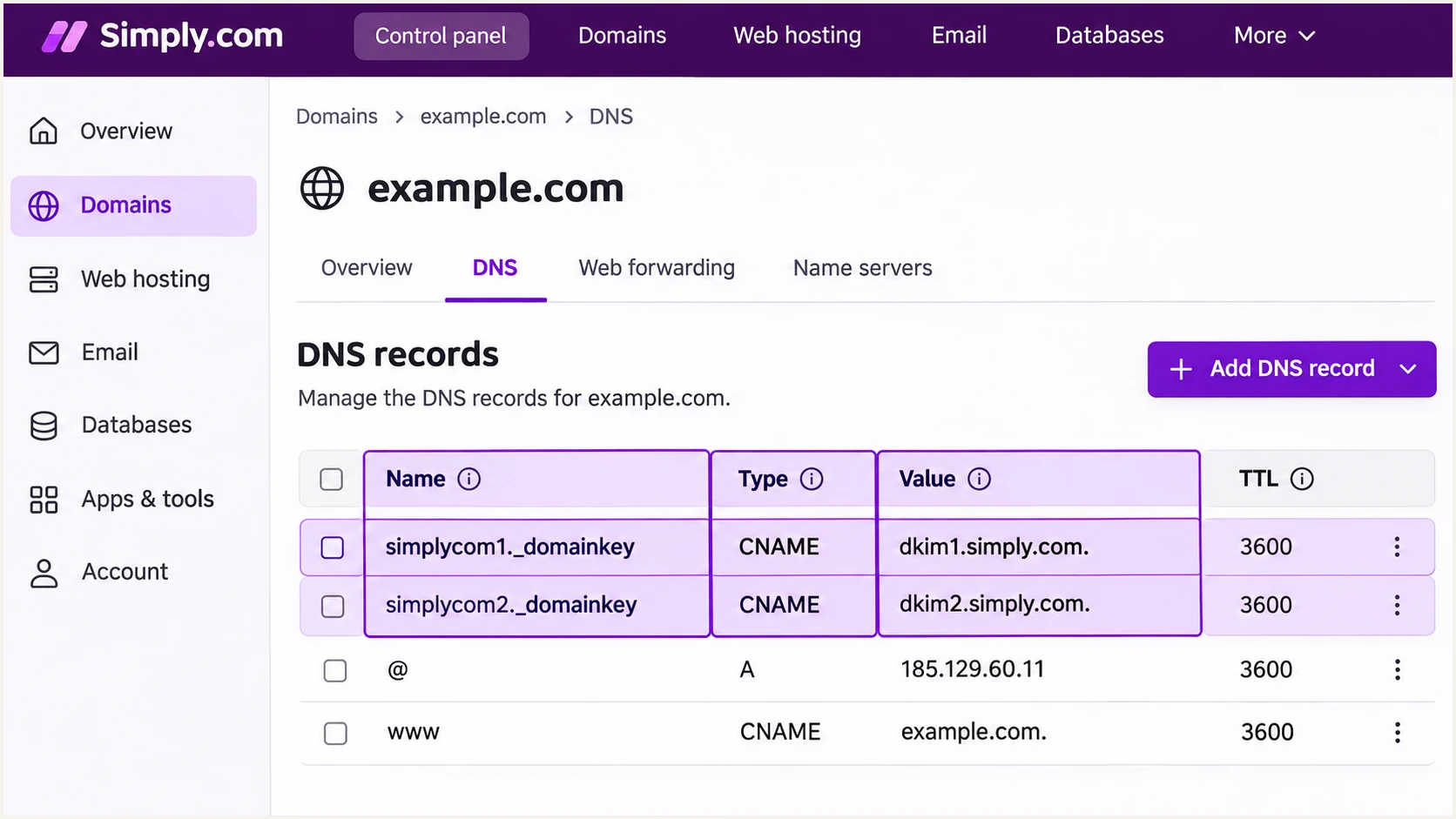
Illustrative Simply.com DNS view with both DKIM CNAME selectors.
Set up DMARC
I inspect the current policy before publishing a new one. Simply.com's default setup delegates _dmarc through a CNAME to dmarc.simply.com. A custom reporting policy requires replacing that delegation with your own TXT record.
Keep existing enforcement
If your live policy already has p=quarantine or p=reject, retain that value when adding reporting. The p=none example is for a new monitoring deployment. A CNAME and TXT record cannot coexist at _dmarc.
- Inspect the current name. Query _dmarc.example.com for CNAME and TXT. Follow any alias to read the effective policy before editing.
- Choose one policy. Keep the default delegation if it meets your needs. For custom reporting, remove that CNAME and publish one DMARC TXT record at Name _dmarc, preserving all required existing tags.
- Set a real destination. For a new deployment, use the exact example below as the starting policy. Replace dmarc@example.com with a working report mailbox or your assigned reporting address.
- Check external reporting. If the report address belongs to another domain, confirm the receiving service supplies the required external reporting authorization. A mailbox alone does not analyze aggregate XML.
New monitoring policy: TXT at _dmarc.example.comtext
v=DMARC1; p=none; rua=mailto:dmarc@example.com
A p=none policy requests reporting without asking recipients to quarantine or reject failures. It does not guarantee delivery: recipients still apply their own filtering.
Build your custom value with the DMARC record generator. Then enter your From domain in the DMARC checker to validate the published policy and reporting syntax.
DMARC checker
Look up a domain's DMARC record and catch policy issues.
?/7tests passed
After saving, wait for the previous record's TTL and any negative caching to expire before judging a cached result. Check that the TXT answer contains one policy starting with v=DMARC1.
The illustration below shows a new monitoring deployment. For a domain already enforcing DMARC, keep its quarantine or reject value in the same TXT editing workflow.
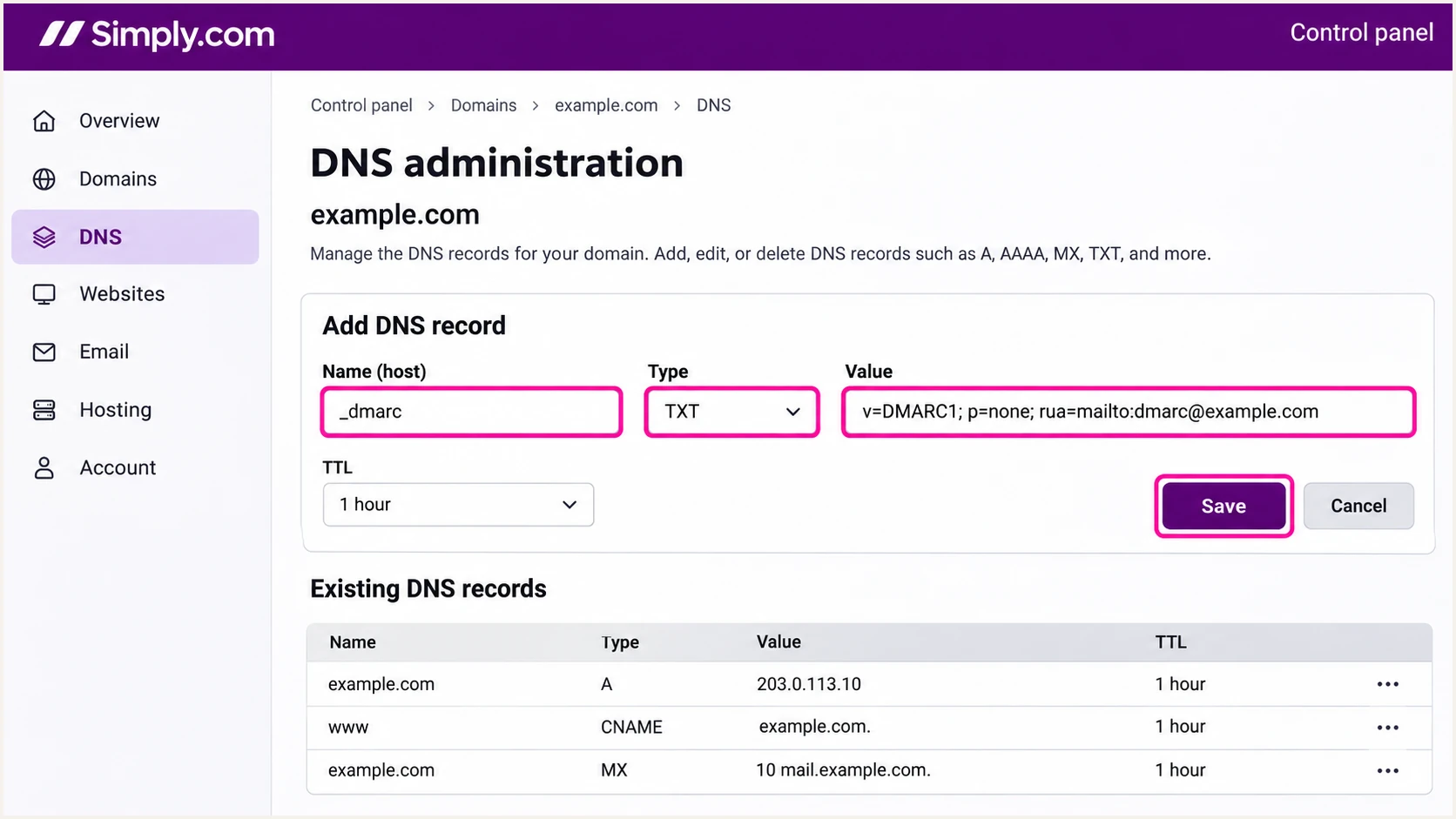
Illustrative Simply.com TXT form for a new DMARC monitoring policy.
Verify and troubleshoot
I test the actual website or application's message, because a successful webmail test does not verify a separate contact form's transport. Repeat the test for every production sending route.
- Check public DNS. Run the lookups below. Both selector aliases must point to their intended targets, and the effective DMARC policy must match your chosen enforcement level.
- Check receiver results. Inspect Authentication-Results added by the receiving service. Confirm dmarc=pass and a passing SPF or DKIM result with domain alignment; aim for both where the sending route supports them.
- Fix form identity. Use your own domain in the contact form's From address. Put the visitor's address in Reply-To, so the form does not attempt to authenticate as the visitor's domain.
- Trace delivery errors. Open Simply.com's outgoing mail log in the control panel and inspect the recipient response. SMTP acceptance by Simply.com does not prove final delivery or inbox placement.
Inspect DNS without changing itbash
dig +short TXT example.com
dig +short CNAME simplycom1._domainkey.example.com
dig +short CNAME simplycom2._domainkey.example.com
dig +short TXT simplycom1._domainkey.example.com
dig +short TXT simplycom2._domainkey.example.com
dig +short CNAME _dmarc.example.com
dig +short TXT _dmarc.example.com
|
|
|
|---|---|---|
SPF permerror | Duplicate or excessive lookups | Repair the single policy |
DKIM absent | Wrong sending route | Check SMTP transport |
DKIM fail | Selector or message changes | Check key and signature |
DMARC fail | No passing domain match | Inspect From and d= |
Common results and the next check
The quickest message-level check is to send to the address displayed by the email tester. It diagnoses the received message's authentication and other delivery checks without requiring you to interpret every header manually.
Trigger that email through the same production path that sends customer messages. A direct mailbox send and a website-generated send are separate tests.
Email tester
Send a real email to this address. Suped shows a results button when the test is ready.
?/43tests passed
After fixing an issue, generate a fresh message and rerun the test. Old messages retain their original signatures and authentication results.
For forwarding failures, compare a direct delivery with the forwarded copy. Forwarding often breaks SPF; an unchanged, valid DKIM signature with domain alignment can keep DMARC passing.
Get alerted when it breaks
I keep ongoing checks after the initial test. Suped is our DMARC reporting platform: its DMARC monitoring connects authentication failures to sending sources and provides steps to fix detected issues.
- Confirm report delivery. Verify that the published rua includes your assigned reporting address and that fresh aggregate reports arrive. Do not replace an existing reporting destination accidentally.
- Enable notifications. In Suped's notification settings, enable Issues detected and Sending sources need verification. Enable DMARC summary emails for regular review.
- Identify authorized sources. Review Simply.com traffic against actual mailbox and application ownership. Mark sources as verified only after confirming they belong to your organization.
- Investigate changes. Inspect failed records by source and sending IP, then compare DNS history. Correct the DNS or Simply.com sending route and verify a fresh message afterward.
One message test
The email tester checks the specific message you send. I run it after changing SMTP settings or DNS.
Ongoing monitoring
Suped processes aggregate reports across observed senders, detects issues, and sends configured notifications. This catches failures outside a single test.
DMARC aggregate reports arrive in batches, commonly daily. Alerts depend on received data and are not immediate notifications for every failed message. Use Simply.com's mail log when investigating an individual delivery now.
Secure your domain with p=reject
I move a new monitoring deployment to enforcement after every legitimate sending workflow is accounted for. A high overall pass rate is insufficient when a low-volume password reset or invoicing job still fails.
- Cover a full sending cycle. Review routine mail and periodic application jobs in Suped. Include every legitimate sender using the domain, even when Simply.com sends most of the volume.
- Resolve legitimate failures. Require a passing authentication mechanism with domain alignment for each authorized route. Use Suped's record diagnostics to distinguish configuration errors from unauthorized traffic.
- Stage the policy. For a new p=none deployment, move to p=quarantine, inspect subsequent reports, then move to p=reject after correcting legitimate failures. Keep existing enforcement while investigating new issues.
- Keep reporting active. Retain rua when changing p=. Review subdomain sending and inherited policy, and test critical messages again after every policy update.
Enforcement example: retain your real reporting destinationtext
v=DMARC1; p=reject; rua=mailto:dmarc@example.com
Suped's Hosted DMARC lets your team manage the policy in our dashboard alongside the reports used to assess each change. When enabling it, follow the supplied DNS instructions to replace the existing policy or delegation; publish one active configuration.
Keep the default relaxed domain matching unless every sender has been tested with stricter settings. A return-path subdomain and the root From domain can satisfy relaxed SPF alignment without being identical.
Enforce after validating the sending routes
Keep DKIM working for the real Simply.com application traffic, keep report notifications enabled, and rerun the message test after changes. A reject policy asks participating receivers to reject DMARC failures; receiver policy still determines final handling.
If a legitimate sender breaks after enforcement, inspect its latest message and report records before changing the policy. Restore its SMTP transport or authentication configuration, then confirm the fix with a new test.
Review newly detected sources before authorizing them. An unfamiliar IP or hostname is a reason to investigate ownership, not a reason to expand SPF automatically.
Frequency asked questions
Simply.com documents automatic records for new webhosting plans. Check the live zone before editing, especially when DNS is hosted elsewhere or the domain has older custom settings. Preserve an existing p=quarantine or p=reject policy.
SPF can pass for a provider-owned Return-Path without domain alignment with your From address. DMARC needs a passing SPF or DKIM result with that domain relationship. Inspect smtp.mailfrom and the DKIM d= value in the receiver's results.
Check its transport first. Simply.com's documented website route is authenticated websmtp.simply.com on port 587, with STARTTLS, for scripts hosted on its web servers. Replace PHP mail() sending with the SMTP route, publish both selectors, and test a new form submission.
No. A CNAME must stand alone at its owner name. To use your own policy and rua, replace the _dmarc delegation with one DMARC TXT record while retaining the existing enforcement level and other required tags.
Those hostname suffixes point toward Simply.com infrastructure. Simply.com was previously named UnoEuro and retained legacy hostnames after the rename. I confirm attribution using the actual sending IP's PTR result and receiver-added headers; a suffix alone does not prove that the message is authorized or passes DMARC.




