
How to set up DMARC/DKIM/SPF for SimplePart Infomedia

Published 21 Nov 2026
Updated 21 Nov 2026
9 min read
Summarize with
Authenticate SimplePart Infomedia email by enabling your sending domain with SimplePart, publishing its custom Return-Path and DKIM records, and adding a DMARC TXT record for your From domain. I verify a real SimplePart message before enforcing DMARC. Start a new deployment at p=none; keep an existing quarantine or reject policy.
SimplePart's public sender authentication instructions cover CNAME-based authentication and a manual TXT/MX alternative. Request the records for your dealership's sending account rather than copying another customer's selectors or DNS targets.
Add your domain
I start with the domain in the visible From address, which is not necessarily the parts store website domain.
- Confirm the site: Log in to the SimplePart Control Panel and check the dealership website name in the upper-right corner.
- Choose the sender: Give your Implementation contact or support@simplepart.com the dealership name, store website and intended From address, such as orders@example.com.
- Request authentication: Ask for domain authentication with DKIM signing and a custom Return-Path under your domain. Request every DNS hostname, record type and target value.
- Complete verification: Publish any ownership verification record SimplePart supplies. After the SPF and DKIM steps below, ask SimplePart to validate the records and activate the domain on the correct sending account.
Keep the website pointing records and existing mailbox MX records intact. Email authentication is a separate DNS change.
SimplePart documents the Control Panel site check. Its public instructions do not establish a self-service 'Add domain' screen there, so I obtain email authentication records through the account contact.
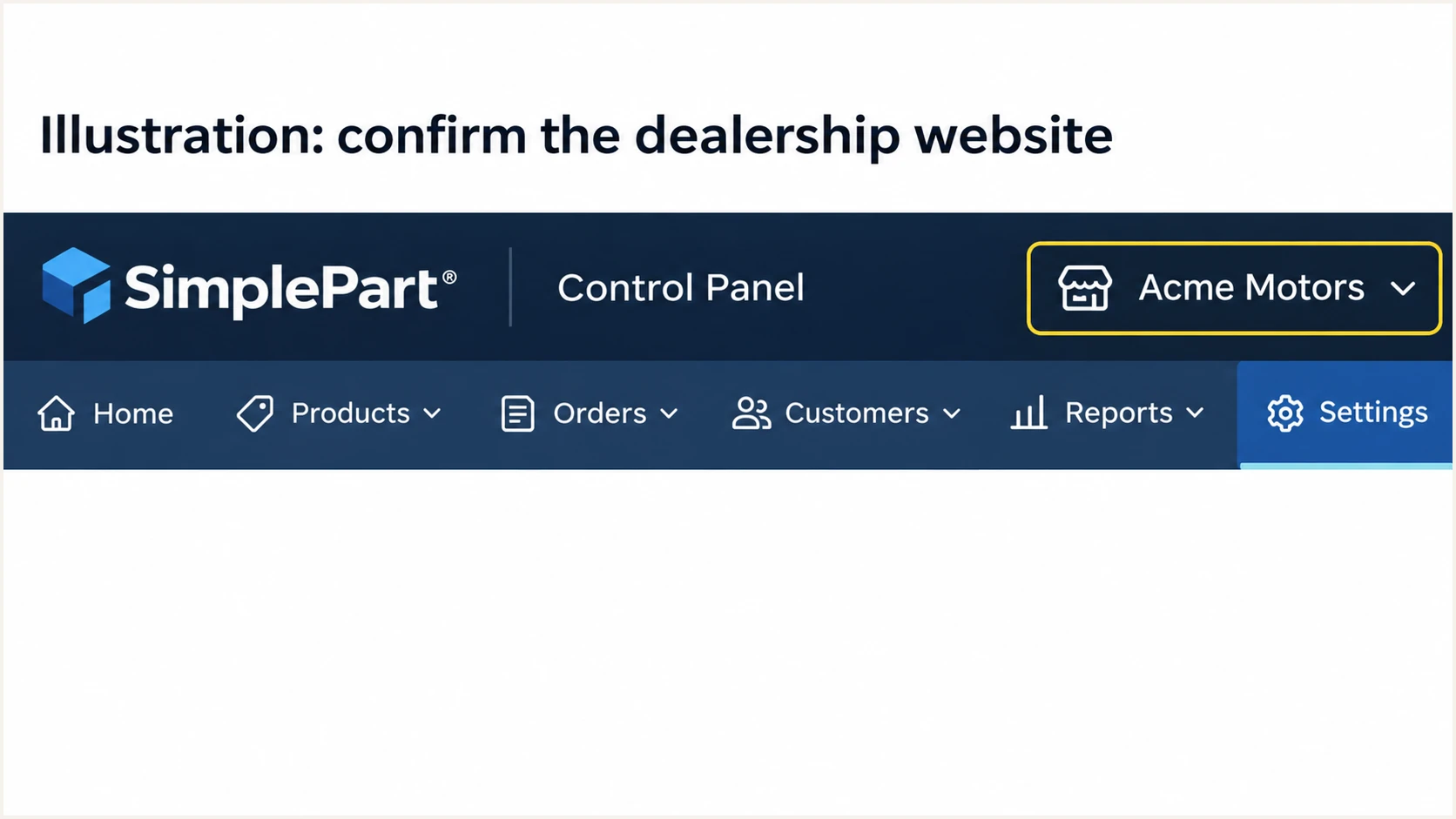
Illustration of the dealership website check in the SimplePart Control Panel.
If several dealerships share an account, include the specific website in the authentication request.
Keep the supplied DNS instructions with the change ticket so the DNS administrator and SimplePart can compare identical values.
Set up SPF
SimplePart supports a custom Return-Path, so SPF authentication can match your From domain for DMARC. I configure the supplied bounce subdomain instead of assuming an SPF change belongs at the root.
- Publish the CNAME: With automated security, add the Return-Path CNAME supplied for your account, typically at a hostname such as em1234.example.com. Copy its target exactly.
- Follow manual records: If SimplePart supplies a manual configuration, publish the specified SPF TXT and bounce MX records at the assigned Return-Path hostname instead.
- Preserve existing SPF: Do not create a second SPF record at the same hostname. Retain existing authorized senders if that hostname already has an SPF TXT record.
- Check the limit: Keep SPF evaluation within 10 DNS-querying terms, including nested includes. Do not place a TXT record alongside a CNAME at the same hostname.
Use the checker on the actual Return-Path domain. A check of example.com alone does not validate SPF for em1234.example.com.
An SPF pass for a provider-owned domain does not establish SPF alignment with your From address.
SPF checker
Find SPF syntax issues, lookup limits, and weak records.
?/16tests passed
For relaxed SPF alignment, a Return-Path under example.com works with a From address at example.com. Strict SPF alignment requires an exact domain match.
If a message still uses a provider-owned Return-Path, ask SimplePart to activate the custom configuration. Passing DKIM with domain alignment still allows DMARC to pass during that repair.
Set up DKIM
I publish the selectors assigned to this sending account and then check the signature on an actual message.
- Copy both selectors: For automated security, publish both supplied DKIM CNAME records. Common selector labels are s1 and s2; use custom labels if SimplePart assigns them.
- Avoid collisions: If an existing sender already uses a supplied selector hostname, request different selectors rather than overwriting its record.
- Keep DNS direct: Publish the records as DNS-only entries, without a web proxy. Check whether your DNS editor appends the zone name automatically.
- Confirm the signer: Ask SimplePart to verify the records and enable signing. In a new message, confirm dkim=pass and a signing domain that matches your From domain under the applicable DMARC alignment mode.
The following names and targets illustrate the format only. Replace them with the complete values supplied for your account.
Do not generate an unrelated DKIM key locally. The DNS public key must correspond to the private key used by the sending system.
Illustrative DKIM CNAME records, not production valuesdns
s1._domainkey.example.com. IN CNAME s1.domainkey.u123456.wl.sendgrid.net.
s2._domainkey.example.com. IN CNAME s2.domainkey.u123456.wl.sendgrid.net.
A manual configuration uses the supplied DKIM TXT record instead. Preserve the complete public key in one logical TXT record.
DNS verification confirms publication. A fresh message confirms the sending application actually uses the configured signature.
Set up DMARC
I publish one DMARC record for the visible From domain. DMARC passes when SPF or DKIM passes with domain alignment.
- Inspect the current policy: Check for an existing DMARC record before editing. If it already uses p=quarantine or p=reject, keep that policy while fixing SimplePart.
- Start with monitoring: For a domain without DMARC, publish the p=none example below at _dmarc.example.com, replacing the example domain and reporting address.
- Use a working destination: Replace dmarc@example.com with a mailbox or aggregate-report ingestion address that you control. Confirm external reporting authorization when the destination uses another domain.
- Keep one record: Update the existing DMARC TXT record instead of adding another. Retain other valid policy settings and reporting destinations unless you intend to change them.
This example requests reporting without requesting quarantine or rejection for DMARC failure.
Initial DMARC record for a new deploymenttext
Name: _dmarc.example.com
Type: TXT
Value: v=DMARC1; p=none; rua=mailto:dmarc@example.com
The example address is not a usable reporting destination for your organization. Replace it before publishing.
Check the exact sending domain, including a subdomain if it has its own DMARC record. Also inspect any inherited policy.
DMARC checker
Look up a domain's DMARC record and catch policy issues.
?/7tests passed
A valid DMARC record does not prove that SimplePart messages pass authentication. Test the actual sending route next.
Allow existing DNS caches to expire after a change. Aggregate reports arrive on reporting schedules rather than with every message.
Verify and troubleshoot
I test a message generated by SimplePart using the configured From address. A message sent from a personal mailbox tests a different route.
Use the email tester below to obtain a test recipient, send a SimplePart message to it and inspect the authentication diagnosis.
Email tester
Send a real email to this address. Suped shows a results button when the test is ready.
?/43tests passed
Use an internal test order or another approved SimplePart workflow that generates the email type you need to verify. Repeat for each distinct sending route.
Read the receiving server's Authentication-Results together with the visible From address. SPF and DKIM passes on unrelated domains do not establish a DMARC pass.
- Check the envelope: Compare the Return-Path domain with the From domain and confirm SPF passes for that Return-Path.
- Check the signature: Read the DKIM-Signature d= and s= values. Query that selector under its signing domain and confirm the receiver reports dkim=pass.
- Repair DNS errors: Look for repeated zone suffixes, wrong CNAME targets or conflicting records. SimplePart advises allowing up to 48 hours for DNS validation.
- Revalidate and resend: Have SimplePart rerun sender authentication validation, then generate a new message. If DNS is correct but signatures use another domain, ask it to check the sending account assignment.
I distinguish an authentication pass from a DMARC pass by comparing the domains involved.
The examples below assume relaxed alignment and a From address at example.com.
DMARC passes
SPF passes for em1234.example.com, or DKIM passes with d=example.com. Either supplies the required domain alignment.
DMARC fails
SPF and DKIM pass only for unrelated provider domains. Neither authenticates the example.com identity in the From address.
Forwarding often breaks SPF because the receiving server sees a different sending IP. A surviving DKIM signature with domain alignment preserves DMARC authentication.
Passing authentication does not guarantee inbox placement. Investigate delivery errors separately once these checks pass.
Get alerted when it breaks
I use ongoing report analysis to detect changes after setup. Our DMARC monitoring in Suped turns aggregate reports into source-level authentication results and issues with steps to fix.
- Route reports: Use the reporting destination issued for your monitored domain in the existing rua setting. Preserve the current DMARC policy.
- Verify the source: Review traffic identified as SimplePart against expected messages and account details. Mark the source as verified only after confirming it is authorized.
- Enable notifications: In Suped's notification settings, enable Issues detected and Sending sources need verification. Enable DMARC summary emails for routine review.
- Investigate failures: Open the affected records, compare the SPF and DKIM domains, and send SimplePart the failing sample headers and relevant DNS values. Retest after the fix.
Suped combines authentication diagnostics and DNS history, so a failure can be checked against a recent record change.
Notifications are most useful when the recipient owns the DNS change or the SimplePart support relationship.
Report timing affects alert timing
Suped alerts on issues it detects in available data. DMARC aggregate reports are delayed and do not provide an instant delivery signal for every SimplePart message. Run another email test after each authentication change.
Keep a recent passing message and the approved DNS values with the support ticket.
When the configuration changes, compare new messages against that baseline before treating the issue as resolved.
Secure your domain with p=reject
I move toward rejection only after every legitimate sender using the domain passes DMARC. SimplePart is one source in that inventory.
- Cover normal activity: Review reports across a complete sending cycle, including infrequent messages. Do not choose an enforcement date solely because a fixed number of days has elapsed.
- Fix authorized failures: Use Suped to filter failing SimplePart traffic, inspect its authentication domains and follow the detected issue steps. Confirm the repair with new messages.
- Stage enforcement: For a new deployment, move to p=quarantine after authorized sources are working. Review fresh reports and delivery errors, then change to p=reject.
- Keep monitoring: Retain aggregate reporting and issue notifications at p=reject. Recheck SimplePart after sender-domain changes or DKIM rotation.
Our Hosted DMARC in Suped lets teams manage policy changes from the dashboard after the required DNS setup.
For this workflow, Suped keeps policy management beside source verification and failure diagnostics, making each enforcement decision reviewable.
|
|
|---|---|
p=none | Authorized senders inventoried |
p=quarantine | Legitimate failures resolved |
p=reject | Enforcement tests pass |
Enforcement gates for the whole sending domain.
Reject requests that receivers reject messages failing DMARC, subject to their local handling decisions. It does not stop lookalike-domain impersonation.
Keep valid SimplePart DKIM records in place throughout the rollout. Test the active signing selector after any rotation.
Frequency asked questions
Use the account-specific instructions from SimplePart. With automated security, publish its Return-Path CNAME rather than adding a generic root SPF include. If SimplePart assigns a manual configuration using include:sendgrid.net, publish it at the specified Return-Path hostname and retain one SPF record there.
SPF authenticates the Return-Path domain. A provider-owned Return-Path does not match your From domain for DMARC. Ask SimplePart to activate the custom Return-Path. DMARC still passes when DKIM passes with domain alignment.
Request the selectors and DNS targets for your sending account from your SimplePart contact. On an existing message, the DKIM-Signature s= value identifies its selector and d= identifies its signing domain. Common selector names are examples, not proof of your assigned values.
That suffix points to SendGrid sending infrastructure, which SimplePart documents using for sender authentication. It does not uniquely identify SimplePart or an authorized dealership. I confirm the message against expected SimplePart activity and its authentication results before approving a source.
Keep an existing p=reject or p=quarantine policy. Configure and validate SimplePart authentication before sending production traffic with your domain. Use p=none as the starting point for a new DMARC deployment, then progress based on verified sending activity.




