
How to set up DMARC/DKIM/SPF for SimpleLogin

Published 30 Jul 2026
Updated 5 Oct 2026
13 min read
Summarize with
Updated on 5 Oct 2026: We clarified SimpleLogin authentication checks, report delivery, and current DMARC policy settings.
A SimpleLogin custom domain needs its ownership TXT record and MX records before aliases work. For authenticated sending, publish an SPF record that includes simplelogin.co, add every DKIM CNAME shown in SimpleLogin, and publish DMARC at _dmarc. Start DMARC at p=none, collect reports, then move to p=reject after every legitimate sender passes SPF or DKIM with DMARC alignment.
SimpleLogin supports return-path alignment for custom-domain sending. A forwarded inbound message can still show an SPF alignment failure for the original sender because forwarding changes the connecting server. That result does not break DMARC when an aligned DKIM signature passes. Test mail sent or replied to through a SimpleLogin alias separately from inbound forwarding.
Use the DNS values shown on your SimpleLogin domain page as the source of truth. Some older registrar instructions show one DKIM CNAME, while current setups can display several selectors.
Add your domain
Add the exact domain or subdomain that will appear after the @ in your aliases. A subdomain such as aliases.example.com is safer when the root domain already receives mail elsewhere, because SimpleLogin requires its own MX records at the host you add.
- Open Domains. Sign in to SimpleLogin, open Domains, choose New custom domain, and enter the full domain without a protocol or email address.
- Copy the token. On the SimpleLogin DNS page, copy the generated ownership TXT value exactly.
- Create the ownership TXT record at the host shown by SimpleLogin. DNS panels commonly use @ for the root and aliases for aliases.example.com within the example.com zone. Keep this TXT record when adding SPF.
- Verify ownership. Return to SimpleLogin and select Verify. If it remains pending, wait for the DNS TTL and retry.
- Route inbound mail. Publish the two SimpleLogin MX records, remove conflicting MX records at that same host, then verify the MX status.
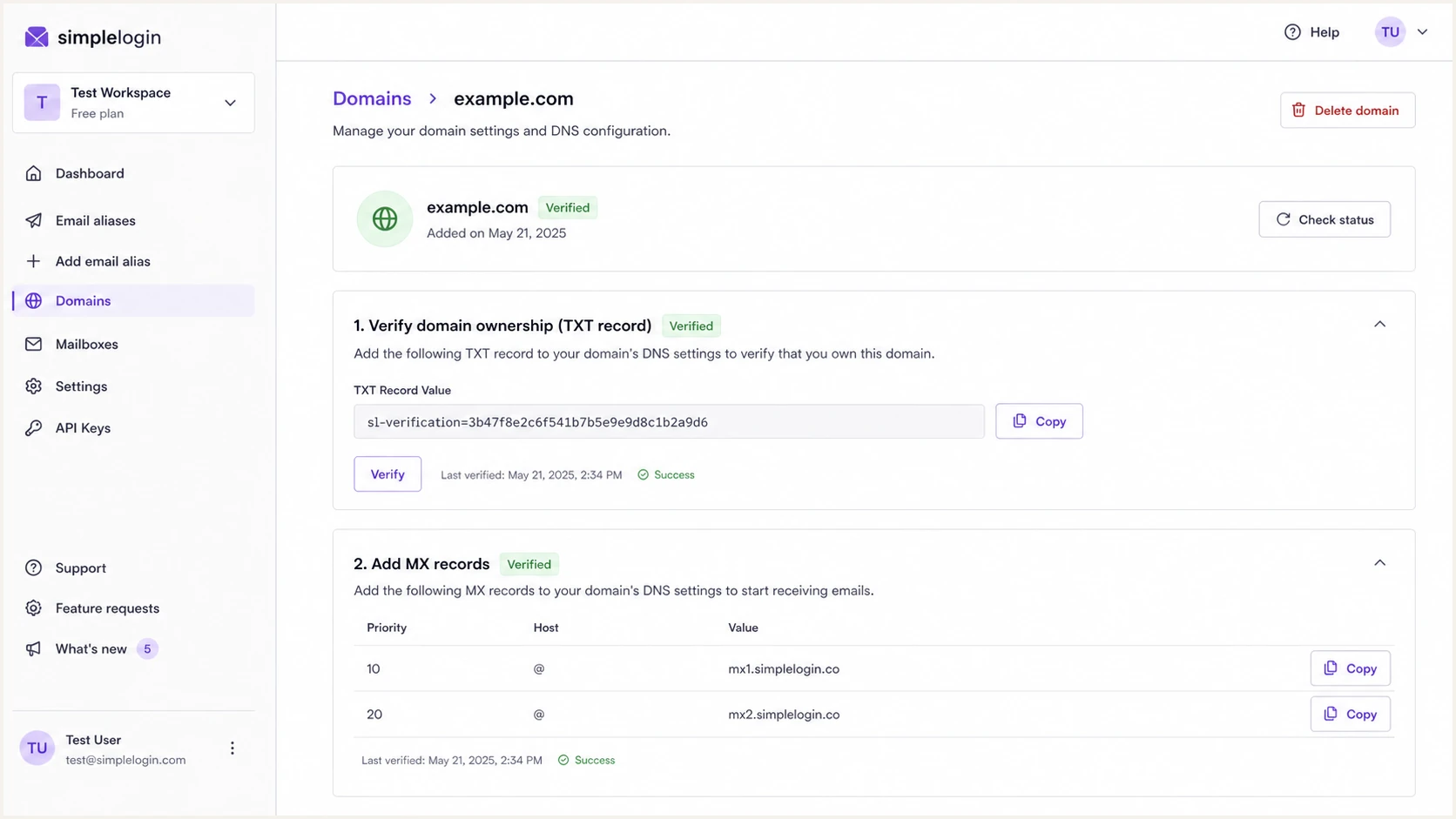
SimpleLogin custom domain DNS verification page
The inbound MX records for the selected host should resolve as follows. A trailing dot is optional in DNS panels that automatically treat the value as a complete hostname.
SimpleLogin MX recordsDNS
10 mx1.simplelogin.co.
20 mx2.simplelogin.co.
Do not replace the root MX records if another mailbox provider receives mail for the root domain. Add a dedicated subdomain to SimpleLogin instead, then publish the ownership, MX, SPF, DKIM, and DMARC records at that subdomain.
The required host field varies by DNS provider. SimpleLogin publishes worked examples in its NameCheap guide and Cloudflare guide. Copy SimpleLogin's displayed host and value rather than translating them by guesswork.
Set up SPF
Publish one SPF TXT record at your SimpleLogin custom domain. SPF checks the SMTP MAIL FROM domain, normally visible in Return-Path, rather than the visible From address. SimpleLogin's documented include authorizes its outbound servers and supports SPF alignment when the envelope sender uses your custom domain.
SPF record for SimpleLogin onlyDNS
v=spf1 include:simplelogin.co ~all
- Check for SPF. Look up the current TXT records at the custom domain before making a change.
- If no SPF record exists, publish the record above. If one exists, add include:simplelogin.co before its final all mechanism, or preserve its redirect= policy when no all mechanism exists. Recheck the merged policy.
- Keep one record. Never publish a second v=spf1 TXT record at the same hostname. Multiple SPF records cause a permanent error.
- Verify in SimpleLogin. Select Verify beside SPF on the domain DNS page after the record resolves publicly.
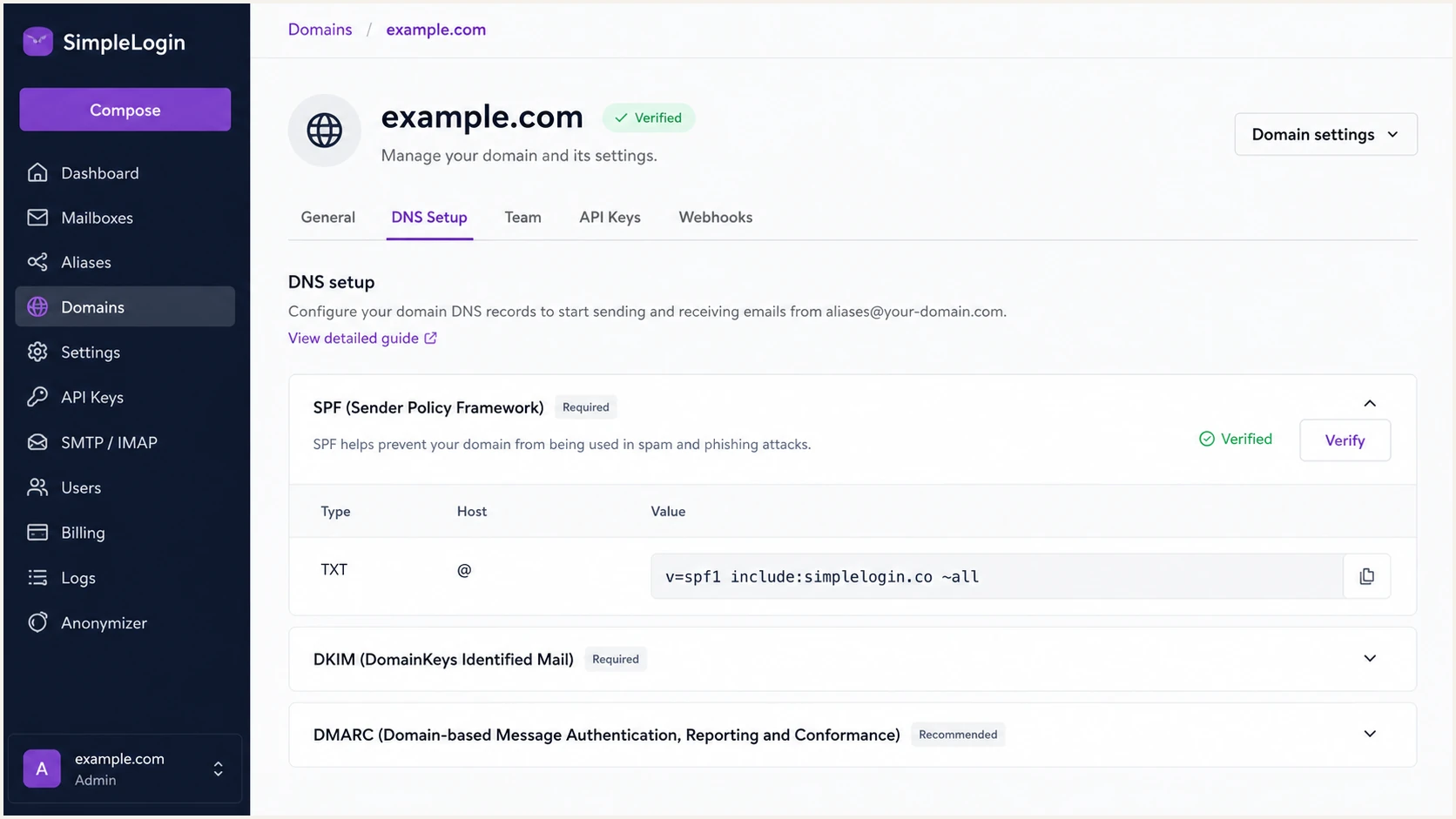
SimpleLogin SPF record and verified status
A domain with other outbound services needs a merged SPF record. Keep each authorized include in the same record and use no more than 10 DNS-triggering terms during evaluation, including nested includes and redirect chains. Exceeding that limit causes permerror under RFC 7208. Do not copy a merged example unless every listed sender belongs to your domain.
SPF is optional when the domain only receives aliases and never sends or replies through them. Configure it for any domain that can send, because it gives DMARC a second authentication path with alignment when DKIM is altered in transit. The documented ~all ending is a softfail for unauthorized servers, not a DMARC enforcement policy.
SPF checker
Find SPF syntax issues, lookup limits, and weak records.
?/16tests passed
Run the checker against the exact custom domain, not dkim._domainkey or _dmarc. A valid result should find one SPF policy, resolve include:simplelogin.co, and stay within the lookup limit.
If a message reports SPF pass but SPF alignment fail, compare the Return-Path domain with the visible From domain. DMARC uses alignment, not the raw SPF result. An aligned DKIM pass still gives the message a DMARC pass.
SPF forwarding caveat
When SimpleLogin forwards an inbound message, the original sender's SPF result can fail because the connecting IP changed. Judge that forwarded message by its surviving aligned DKIM signature and resulting DMARC verdict. Do not add the original sender's infrastructure to your SPF record.
Set up DKIM
SimpleLogin signs outbound alias mail and delegates its DKIM selectors through CNAME records. Copy every selector shown on the domain DNS page. Current setups can show dkim, dkim02, and dkim03, while some domains or older instructions show a different set.
Common SimpleLogin DKIM CNAME setDNS
dkim._domainkey CNAME dkim._domainkey.simplelogin.co.
dkim02._domainkey CNAME dkim02._domainkey.simplelogin.co.
dkim03._domainkey CNAME dkim03._domainkey.simplelogin.co.
- Copy all selectors. Use the host and target values displayed for your domain, including any numbered selectors.
- Choose CNAME. Create each record as CNAME, not TXT. Do not place the full public key in DNS.
- Disable proxying. If the DNS provider can proxy CNAME records, keep these records DNS-only.
- Verify selectors. Return to SimpleLogin and verify DKIM only after every required CNAME resolves.
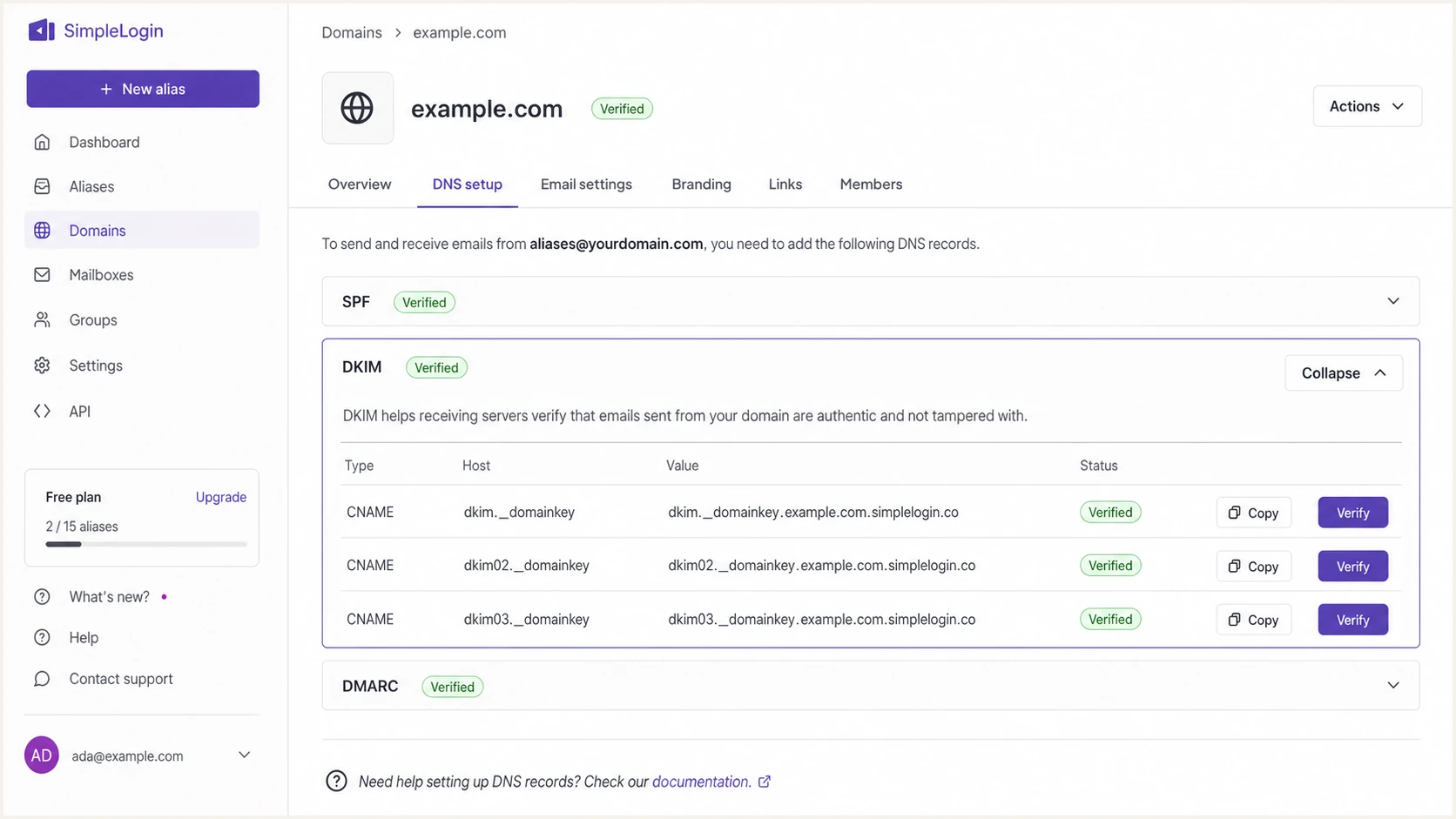
SimpleLogin DKIM CNAME selectors on the domain setup page
Many DNS panels append the zone name automatically. For example, enter dkim._domainkey as the host for example.com, not dkim._domainkey.example.com, when the panel already displays .example.com beside the field.
Use the displayed selector set
Do not add dkim02 or dkim03 solely because they appear in this example. Publish the exact selector set shown by SimpleLogin. The application can change or rotate its signing selectors without requiring you to guess.
After verification, send through a reverse-alias and inspect the received headers. DKIM should pass with the alias custom domain in the signature's d= tag. Check the selector in s= against the DNS records; the CNAME target under simplelogin.co is the public-key lookup destination, not the required signing domain.
Set up DMARC
After verifying SPF and DKIM, publish DMARC or review the existing policy. Start a new policy with p=none and the record below so reporting begins without asking receivers to quarantine or reject mail. Replace the example reporting mailbox with an address that accepts aggregate XML reports. If the domain already uses p=quarantine or p=reject successfully, keep that policy and do not downgrade it.
Starting DMARC recordDNS
v=DMARC1; p=none; rua=mailto:dmarc@example.com
- Find the policy. Check for an existing TXT record at _dmarc before publishing anything.
- Publish one record. Create or edit a single TXT policy at _dmarc for the exact SimpleLogin custom domain.
- Use a real mailbox. Replace dmarc@example.com with the aggregate report address supplied by your reporting workflow.
- Verify policy. Select Verify in SimpleLogin and confirm that the public TXT answer contains one complete DMARC record.
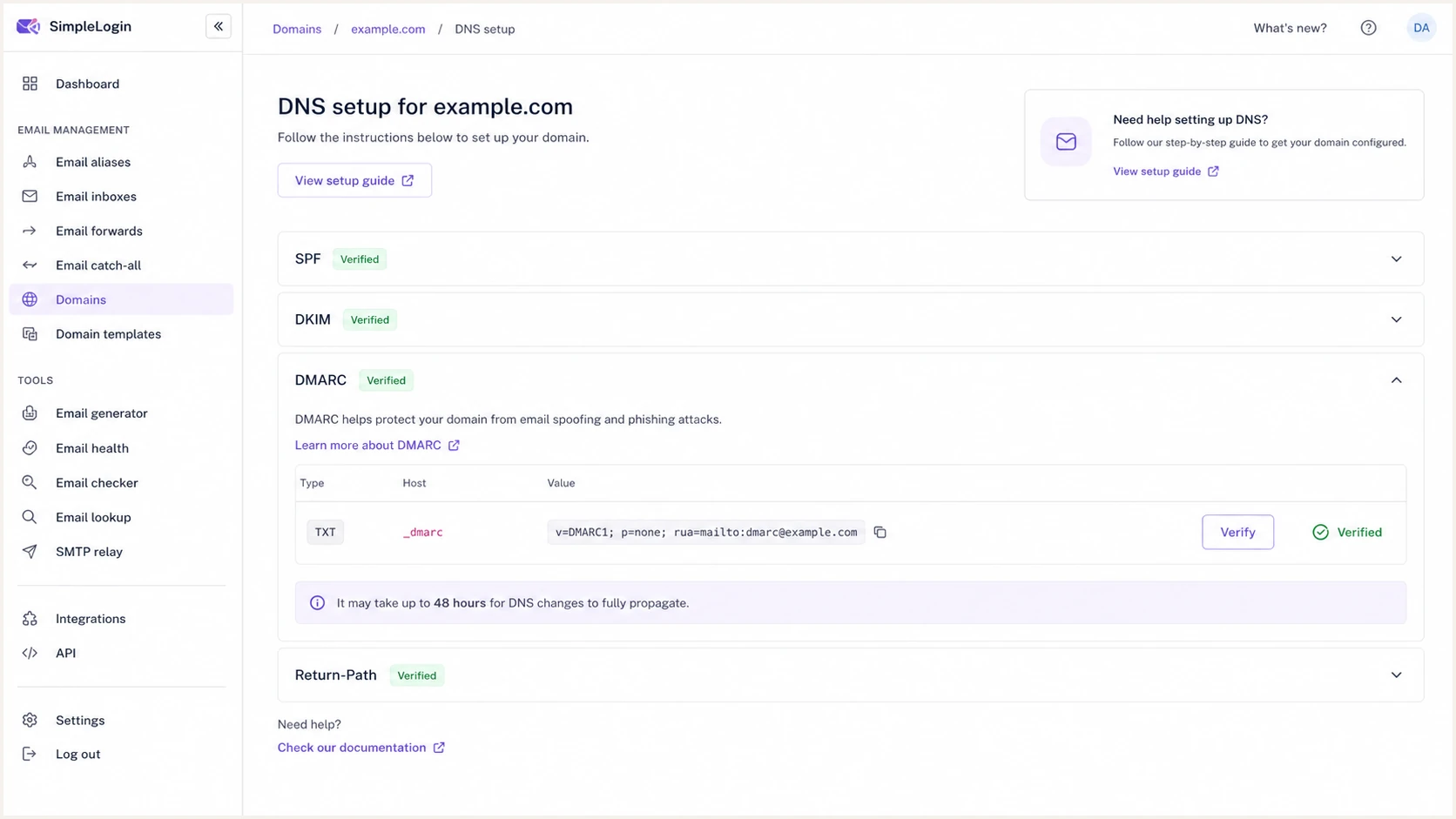
SimpleLogin DMARC record and verification status
DMARC passes when either SPF or DKIM passes with alignment to the visible From domain. It does not require both mechanisms to pass. Configure both for SimpleLogin outbound mail so one mechanism can preserve the DMARC pass if the other is changed in transit.
Use the DMARC record generator when you need to change the reporting address or stage a later policy. Keep one v=DMARC1 record at the hostname.
DMARC checker
Look up a domain's DMARC record and catch policy issues.
?/7tests passed
Check the exact domain used after the @ in the alias. The result should show your intended p policy and aggregate report address, with no duplicate DMARC policy.
For aliases on a subdomain, publish the record at _dmarc.aliases.example.com unless an organizational-domain policy already covers it and you intentionally rely on that inherited policy. An explicit subdomain record gives the clearest control.
The starting record uses relaxed alignment by default (adkim=r and aspf=r). Relaxed alignment requires the same DMARC organizational domain; strict alignment requires identical domains. Older registrar examples use adkim=s and aspf=s, so test every sender before copying them. RFC 9989 makes pct historic; omit it from new policies. See DMARC alignment and tags.
Verify and troubleshoot
DNS verification proves that the records exist. A sent-message test proves that SimpleLogin uses them. Create a reverse-alias for a contact, send a fresh message through it, and inspect the copy received by an unrelated mailbox.
- Query DNS. Confirm the SPF TXT answer, each DKIM CNAME target, and the DMARC TXT answer outside the DNS provider's control panel.
- Send correctly. Reply to a SimpleLogin reverse-alias or create a contact reverse-alias. Sending directly with the alias in another mail client's From field bypasses SimpleLogin.
- Read the final recipient's Authentication-Results header. Confirm dkim=pass and spf=pass, then check header.d and smtp.mailfrom against header.from for the applicable DMARC alignment mode. The custom From domain should have dmarc=pass.
- Separate forwarding. Do not treat the original sender's SPF failure on an inbound forwarded message as a failure of your SimpleLogin outbound setup.
Public DNS checksBASH
dig +short MX example.com
dig +short TXT example.com
dig +short CNAME dkim._domainkey.example.com
dig +short CNAME dkim02._domainkey.example.com
dig +short CNAME dkim03._domainkey.example.com
dig +short TXT _dmarc.example.com
Replace example.com with your exact custom domain, including aliases.example.com if you use a subdomain. Query only the DKIM selectors shown by SimpleLogin.
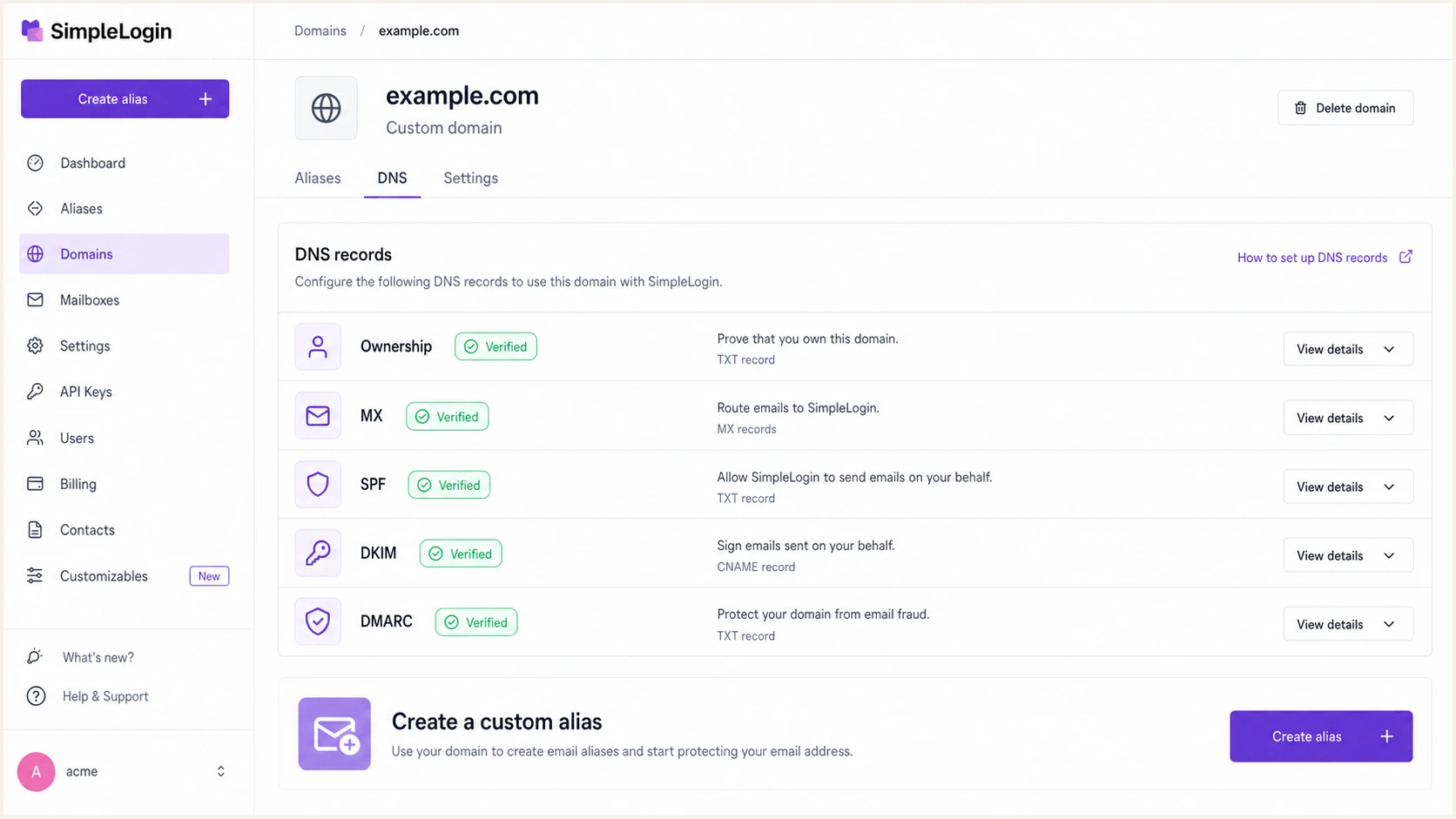
SimpleLogin domain page with all DNS checks verified
A green SimpleLogin status can appear before every recursive resolver has refreshed its cache. Check through more than one public resolver and allow for the previous record's TTL, including cached negative answers after creating a missing record.
The quickest end-to-end check is a live message diagnosis. It catches domain alignment problems that a DNS-only lookup cannot see, including a message sent outside the reverse-alias route or a DKIM signature using an unexpected signing domain.
Email tester
Send a real email to this address. Suped shows a results button when the test is ready.
?/43tests passed
Send the test message through SimpleLogin, then inspect the tester's SPF, DKIM, and DMARC sections. The DMARC result must pass for the alias From domain. A raw SPF pass against an unrelated Return-Path domain does not count toward DMARC alignment.
If DNS is correct but the message fails, compare the received DKIM s= selector and d= domain with your records, then confirm the message went through the intended reverse-alias. A new reverse-alias does not fix a missing key or cached DNS. An authentication pass also does not guarantee inbox delivery.
Healthy result
- SPF. One record authorizes include:simplelogin.co.
- DKIM. The active selector resolves and the signature passes.
- DMARC. At least one passing mechanism has DMARC alignment with From.
Investigate
- SPF. Duplicate policies or more than 10 lookups.
- DKIM. Wrong CNAME host, target, or selector.
- DMARC. Passing authentication without From alignment.
Confirm DMARC reports arrive
The rua tag requests aggregate XML reports. For an outbound baseline, send through an alias rather than relying on inbound forwarded mail.
- Check that the reporting mailbox accepts XML and compressed XML attachments.
- Allow a daily reporting cycle. Some receivers report later or do not send reports.
- For an external reporting destination, confirm its authorization TXT record.
- Compare reported source IPs and authentication results with your sent-message test.
For rua=mailto:dmarc@reports.example.net in example.com's policy, the report recipient publishes this authorization in reports.example.net's DNS, not yours. A wildcard authorization also works. Without authorization, receivers ignore that external destination under RFC 9990.
External report authorization exampleDNS
example.com._report._dmarc.reports.example.net. TXT "v=DMARC1"
When using Suped, copy its assigned reporting address and confirm authorization during onboarding. Missing reports do not prove that all mail passed DMARC.
Monitor SimpleLogin DMARC reports and alerts
SimpleLogin verifies the DNS state when you check its domain page, but production authentication needs continuous reporting. Suped is our DMARC reporting and email authentication platform. It turns aggregate DMARC data into source-level issues and alerts when failure patterns change.
- Connect reporting. Use the reporting address Suped provides in the rua tag, then confirm that reports arrive for the custom domain.
- Verify SimpleLogin. Mark SimpleLogin as an authorized source after its aligned SPF or DKIM results match your test.
- Send failure alerts and weekly summaries to an inbox that the domain owner reviews. Aggregate-report alerts follow report ingestion, rather than each message.
- Review new sources. Investigate an unrecognized IP or rDNS name before authorizing it or tightening policy.
Suped's DMARC monitoring combines DMARC reports with SPF and DKIM diagnostics for reviewing SimpleLogin traffic. Compare reported sources with your verified sending route before changing DNS or authorizing a sender.
Alert on change, not only failure
A new sending source can pass SPF yet still be unauthorized operationally. Suped's issue detection, verified-source review, and tailored fix steps make the change visible before it becomes a reason to delay p=reject.
Keep the alert threshold sensitive while first observing the domain. After the baseline stabilizes, tune notifications around meaningful volume shifts without disabling alerts for complete authentication loss.
Secure your domain with p=reject
Move to p=reject only after DMARC reports cover a complete sending cycle and every legitimate source is identified. Aim for 100% of known mail passing SPF or DKIM with DMARC alignment. A high percentage alone is not enough when the remaining failures contain business mail.
DMARC enforcement gates
Advance only when legitimate SimpleLogin and non-SimpleLogin traffic meets the stated evidence gate.
Observe
p=none
Collect reports and classify every source.
Restrict
p=quarantine
Quarantine after known mail passes DMARC.
Enforce
p=reject
Reject when no legitimate failures remain.
- Cover a full cycle. Observe long enough to include monthly notifications, low-volume aliases, and every active business sender.
- Confirm SimpleLogin against its SPF-authorized sending IPs, expected DKIM domain, and your sent-message tests. Use rDNS as supporting context, then identify every other source using the From domain.
- Fix alignment. Require each legitimate source to pass aligned DKIM or aligned SPF. Configure both when the sender supports both.
- Stage quarantine. Use p=quarantine, watch for legitimate affected mail, and resolve every remaining authorized failure.
- Publish reject. Change the policy to p=reject, retain rua reporting, and keep alerts enabled.
These are successive policies. Publish only one at a time at the same _dmarc hostname, keeping your real report address.
Quarantine policyDNS
v=DMARC1; p=quarantine; rua=mailto:dmarc@example.com
Reject policyDNS
v=DMARC1; p=reject; rua=mailto:dmarc@example.com
Ready for enforcement
- Coverage. Reports include the full sending cycle.
- Sources. Every legitimate source has an owner.
- Alignment. No legitimate DMARC failures remain.
Keep investigating
- Unknown volume. Unclassified sources still send mail.
- Seasonal gaps. Rare senders have not appeared yet.
- Forwarding noise. Failures are not separated from valid forwarding.
Suped's Hosted DMARC workflow supports policy staging without repeated manual TXT edits. When enabling it, replace the TXT at _dmarc with the CNAME supplied by Suped; a CNAME cannot coexist with a TXT record at that hostname. Manage subsequent policy changes in Suped and retain rua reporting. Cached policies still depend on DNS TTLs.
Do not use p=reject as a test. A receiver can reject a legitimate message during SMTP, and that outcome is harder to recover than a report collected under p=none. Return to the prior policy if a verified business sender was missed, fix its alignment, then resume enforcement.
SimpleLogin authentication FAQ
Yes. SimpleLogin supports return-path alignment for custom-domain sending when the SPF include is published and the message uses the expected SimpleLogin route. Check the Return-Path and From domains on a live message because a forwarded inbound message has different SPF behavior.
They are SimpleLogin's documented MX hosts. Outbound relays can use other hostnames, so rDNS alone is not proof that a source is authorized. Confirm the sending IP against SimpleLogin's SPF authorization and compare the DKIM signing domain and traffic with your known mail.
DMARC needs one aligned pass, so aligned DKIM is sufficient. Configure SPF as well when the sending source supports aligned return paths. If a route cannot produce aligned SPF, expect SPF alignment errors and rely on a fully passing, aligned DKIM signature.
The usual causes are a CNAME entered as TXT, the zone name appended twice, DNS proxying left enabled, a missing numbered selector, or cached DNS. Compare every host and target against the current SimpleLogin domain page, then retry after the TTL.
Do not mix another mailbox provider's MX records with SimpleLogin at the same host. Use a dedicated subdomain for SimpleLogin aliases when the root domain must keep receiving mail elsewhere.
Change to p=reject after reports cover a complete sending cycle, every legitimate source is classified, and no authorized mail lacks aligned SPF or DKIM. Keep aggregate reporting and alerts active after enforcement.