
How to set up DMARC/DKIM/SPF for SilverSky

Set up SilverSky by having its team provision your domain, authorizing its outbound servers in SPF, configuring DKIM on the system that signs your outgoing mail, and publishing a DMARC TXT record. The documented USA.NET SPF include is spf.usa.net. Confirm that your SilverSky account uses that route before adding it.
I test authentication at the final recipient after mail passes through SilverSky. DMARC requires a passing SPF or DKIM result with domain alignment to the visible From address. If SilverSky only filters incoming mail, configure outbound authentication on your actual sending service.
Add your domain
I start with SilverSky's deployment team because its published Email Protection Service overview describes managed provisioning and customer-specific DNS instructions.
- Sign in. Open SilverSky's website, choose Login, then Visit SMC. On the Security Management Console sign-in screen, enter your administrator email address and password, then select Login.
- Request provisioning. Ask your SilverSky administrator or deployment team to add your sending domain, such as example.com, to your account. Specify any sending subdomains separately.
- Verify ownership. Complete the ownership checks requested for your deployment. If SilverSky supplies a DNS verification record, publish that exact value and request confirmation that the domain is active.
- Confirm routing. Establish whether SilverSky handles outbound relay, inbound filtering, or both. Obtain the assigned relay and any required connector settings before changing mail flow.
The public sign-in screen has Email address and Password fields, a Login button, and a Remote Single Sign On option. Use the access method assigned to your organization.
I request the outbound SPF authorization and DKIM signing details in the same deployment ticket. That keeps the DNS changes tied to the route SilverSky actually provisions.
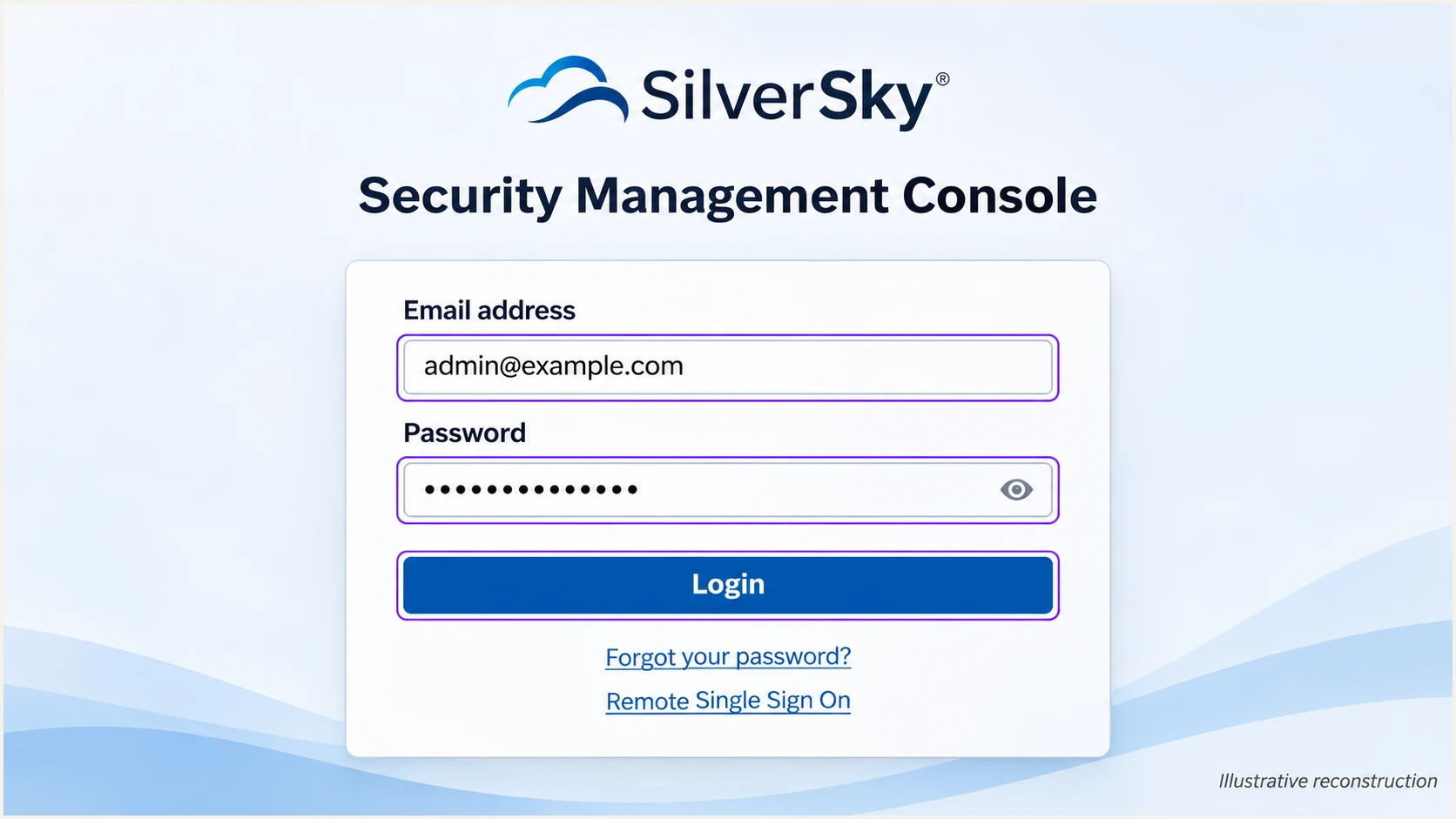
Illustrative reconstruction of the SilverSky Security Management Console sign-in screen.
Changing MX records directs incoming mail. It does not establish the outgoing envelope sender or enable DKIM signing.
Before cutover, I ask SilverSky to confirm domain activation and successful SMTP connectivity. Apply only the MX and relay values supplied for your deployment.
Set up SPF
USA.NET's Customer Best Practices documentation identifies include:spf.usa.net. I use it for a SilverSky outbound route only after the deployment team confirms that it covers the account's sending servers.
- Confirm the sender. Send an external message and inspect its Return-Path and the recipient's smtp.mailfrom result. SPF checks the envelope sender domain, which is not necessarily the visible From domain.
- Keep domain alignment. SilverSky supports return-path alignment. Confirm that your deployment preserves or uses an envelope sender domain under your control that matches the From domain under your DMARC alignment settings.
- Edit one record. At the envelope sender domain's DNS name, edit the existing TXT record beginning v=spf1. Add the confirmed SilverSky include before the final all mechanism, preserving other authorized senders. Create a record only if none exists.
- Check lookup usage. Keep SPF evaluation within the limit of 10 DNS-querying terms, including nested includes. Duplicate SPF records or excessive lookups cause permerror.
SPF value for a confirmed USA.NET-only outbound routetext
v=spf1 include:spf.usa.net -all
Publish that example only when this is the domain's sole authorized outbound route. An existing domain needs a merged record rather than a replacement that removes its other senders.
Enter the actual envelope sender domain below. If SilverSky uses a dedicated bounce subdomain, check that subdomain rather than assuming the root domain's SPF applies.
SPF checker
Find SPF syntax issues, lookup limits, and weak records.
?/16tests passed
I check for a single valid SPF record and an acceptable lookup count, then send another message. The recipient must report SPF pass for the actual sending IP.
An SPF pass for a provider-owned Return-Path does not establish DMARC SPF alignment for your domain. If that happens, correct the envelope sender configuration with SilverSky or obtain a passing DKIM signature with domain alignment.
Set up DKIM
I first establish whether SilverSky or the upstream mail server signs outgoing messages. SilverSky's public deployment overview includes DKIM configuration, but it does not establish a universal selector or a self-service signing procedure for every account.
- Identify the signer. Ask SilverSky whether custom-domain outbound DKIM signing is available for your service. Request the signing domain, selector, DNS record type, and exact public record value or CNAME target.
- Publish assigned records. Add the supplied TXT or CNAME record at the supplied selector name. Keep private keys on the signing system. Use a 2048-bit RSA key when supported.
- Activate signing. After the DNS record resolves publicly, ask the team operating the signer to enable signing for your domain. Publishing a public key alone does not enable DKIM.
- Test the final message. Send through the normal SilverSky route. Inspect the recipient's DKIM result and the signature's d= and s= values. The passing signature's d= domain must match your From domain under the applicable DMARC settings.
SilverSky signs
Have SilverSky supply the domain-specific selector and DNS values. Ask it to sign after any outbound content changes so the recipient can validate the final message.
Your upstream server signs
Enable custom-domain DKIM on your mail server. Have SilverSky preserve the signed content, or arrange valid signing after its modifications. Test the message after the final relay.
I test messages with any configured footer or encryption workflow separately. Changes to signed content after signing can invalidate DKIM.
If your service cannot sign with your domain and no valid upstream signature survives, there is no DNS-only DKIM fix. Passing SPF with domain alignment can still satisfy DMARC on direct delivery, but forwarding needs separate testing.
Set up DMARC
I start a new DMARC deployment with p=none while checking legitimate traffic. If the domain already uses p=quarantine or p=reject, keep that policy and validate SilverSky before routing production mail through it.
- Check the current policy. Look up the TXT record at _dmarc followed by the visible From domain. Edit the existing DMARC record rather than publishing a second one.
- Prepare reporting. Use a monitored address that can receive aggregate report attachments. Replace dmarc@example.com in the example with your actual reporting destination.
- Generate the value. Use our DMARC record generator to prepare the record. Keep the default relaxed alignment settings unless your domain requires strict matching.
- Publish the record. For mail sent as example.com, create a TXT record at _dmarc.example.com. Many DNS hosts expect only _dmarc in the name field.
Initial DMARC TXT value at _dmarc.example.comtext
v=DMARC1; p=none; rua=mailto:dmarc@example.com
The example requests reports without requesting quarantine or rejection for DMARC failures. Use the exact policy above as a starting template, replacing the reporting address before publication.
If the reporting destination belongs to another domain, confirm its external reporting authorization. Check your visible From domain below to verify the published policy and reporting syntax.
DMARC checker
Look up a domain's DMARC record and catch policy issues.
?/7tests passed
A valid DMARC record does not prove SilverSky messages pass DMARC. I verify the actual message results separately after DNS caches have refreshed.
Aggregate reports usually arrive on a daily cycle, and reporting coverage varies by recipient. A missing report immediately after publication does not establish a configuration failure.
Verify and troubleshoot
I use a message sent through the production route as the acceptance test. A message sent directly by an upstream server does not test SilverSky's final relay or content processing.
- Send a real test. Use the email tester below to obtain a destination address, then send to it through your normal SilverSky outbound route using your own From domain.
- Inspect trusted results. Read the final recipient's Authentication-Results header. Confirm DMARC pass and identify the passing authentication method that satisfies domain alignment.
- Compare domains. Compare smtp.mailfrom and DKIM header.d with header.from. Relaxed alignment allows the same organizational domain; strict alignment requires an exact domain match.
- Exercise other paths. Repeat for automated senders and any encryption or forwarding workflow. If DKIM breaks only after SilverSky processing, investigate content changes with the deployment team.
Read published DNS records, replacing the domain and issued selectorbash
dig +short TXT example.com
dig +short TXT _dmarc.example.com
dig +short CNAME issued-selector._domainkey.example.com
dig +short TXT issued-selector._domainkey.example.com
Replace issued-selector with the actual s= value supplied by the signer or shown in a message. A CNAME-based setup must resolve to the public key at its target.
The email tester checks the received message and returns authentication diagnostics with additional delivery checks. I use it for a faster check of the complete mail path after each configuration change.
Email tester
Send a real email to this address. Suped shows a results button when the test is ready.
?/43tests passed
Use the findings to fix the failing identity or signing stage, then send a fresh message. Rechecking an old message does not test the new configuration.
Authentication success is one part of delivery. If messages pass DMARC but are rejected or placed in spam, investigate the recipient's SMTP response and reputation signals separately.
|
|
|---|---|
SPF fail | Outbound authorization |
SPF permerror | Duplicates or lookups |
DKIM missing | Signer activation |
DKIM fail | Key or content changes |
DMARC fail | Domain alignment |
No reports | Reporting destination |
Get alerted when it breaks
Suped is our DMARC reporting and email authentication platform. I recommend its DMARC monitoring for ongoing SilverSky checks because it connects source-level failures with issue detection and repair steps.
- Enable notifications. In Suped's notification settings, enable Issues detected and Sending sources need verification emails. Enable DMARC summary emails for routine review.
- Verify SilverSky traffic. Confirm the source against your account's outbound route and a known test message before marking it verified. A familiar reverse DNS hostname alone does not authorize a sender.
- Investigate the issue. Filter the DMARC data by source or sending IP, open the record details, and compare SPF and DKIM results with the domains used for DMARC.
- Confirm the repair. Follow the issue's fix steps, compare relevant DNS history, then rerun the message test. Review subsequent aggregate reports for the corrected source.
Suped keeps these checks in the same workflow as SPF and DKIM monitoring. Its blocklist monitoring also helps investigate a separate blacklist listing when authentication passes but delivery deteriorates.
I keep DNS and message changes tied to the SilverSky deployment ticket so a later failure can be compared with the last working configuration.
Allow for report delivery
DMARC aggregate reports are asynchronous and commonly arrive daily. Suped alerts depend on the issues and data it receives; aggregate reporting is not an immediate notification for each rejected message.
Secure your domain with p=reject
I move to p=reject after legitimate sources pass DMARC across their normal sending cycles. Suped's source verification and failure details help separate unauthorized traffic from configuration problems before increasing enforcement.
- Inventory every sender. Review SilverSky alongside all other legitimate sources using the domain. Include occasional application messages and scheduled billing mail before judging readiness.
- Resolve legitimate failures. Require a passing SPF or DKIM result with domain alignment for each legitimate route. Test forwarding explicitly if a SilverSky route relies on SPF alone.
- Stage enforcement. Test a controlled subdomain first when practical. Move a new deployment through p=quarantine, review legitimate delivery, then change its existing policy to p=reject.
- Keep watching. Retain aggregate reporting and Suped issue notifications after enforcement. Investigate any new legitimate source before authorizing it.
Our Hosted DMARC product lets teams manage policy changes in Suped after its DNS delegation is configured. Use that policy workflow to coordinate enforcement with the evidence in your SilverSky reports.
Review subdomain policy inheritance before changing the organizational domain. Without a separate applicable policy or sp override, the parent policy also affects its subdomains.
Final DMARC TXT value, retaining your real reporting destinationtext
v=DMARC1; p=reject; rua=mailto:dmarc@example.com
Replace the example reporting address with your existing destination. A reject policy requests rejection of mail that fails DMARC; receivers retain local discretion.
I continue testing SilverSky after routing changes and DKIM key rotation. Use Suped's source-level reports to check that legitimate traffic still passes after each change.
Frequency asked questions
spf.usa.net is documented by USA.NET and is associated with SilverSky's legacy email infrastructure. Confirm that SilverSky assigns it to your outbound route before adding it. An include found in a report or an existing record is not sufficient evidence to authorize a sender.
A usa.net reverse DNS hostname points toward USA.NET infrastructure associated with SilverSky. I confirm the actual sending IP and the account's mail route before identifying it as legitimate SilverSky traffic. A PTR hostname alone does not prove authorization.
SilverSky's public setup material does not specify a universal customer selector. Ask the deployment team which system signs your messages and obtain its exact DNS records. If signing occurs upstream, use that system's assigned selector and verify that the signature survives SilverSky processing.
Yes. A passing SPF result satisfies DMARC when the envelope sender domain has the required match to the visible From domain. I still seek working DKIM because ordinary forwarding often breaks SPF, leaving an SPF-only route without a passing method for DMARC.
No. Add SilverSky authorization only when its servers send outbound messages using your envelope sender domain. Incoming MX routing alone does not require an SPF include for SilverSky.
Keep an existing p=reject or p=quarantine policy. Configure the new route and test it before production cutover. The p=none example is for a new monitoring deployment, rather than an instruction to reduce existing enforcement.




