
How to set up DMARC/DKIM/SPF for Shield by Mailprotector

To authenticate Shield by Mailprotector, add include:spf.shield.security to your existing SPF record, publish Shield's two DKIM CNAMEs, and create one DMARC TXT record. Shield works with Microsoft 365, so retain Microsoft's SPF authorization and existing DKIM records. Start a new DMARC deployment with p=none; keep quarantine or reject if enforcement is already active.
I verify a message delivered through the actual outbound route before calling the setup complete. DNS records authorize the route; the recipient's authentication results show whether that route works. Replace example.com and the reporting address in the examples with your own values.
Add your domain
Shield gets domains through your Microsoft 365 tenant. Verify ownership there first, then connect the tenant through Shield's deployment flow.
- Verify ownership: In Microsoft 365 admin center, open Settings > Domains > Add domain. Enter your domain, publish the verification TXT value Microsoft supplies, and complete verification. Skip this step for an already verified domain.
- Enable email: Complete the domain setup with Exchange Online Protection selected. If the status is Incomplete Setup, select Start setup. For No Services Selected, open DNS records > Manage DNS > More options > Add your own DNS records, then select Exchange Online Protection.
- Open Shield: For a new customer, open Shield Ctrl in the partner's parent organization, choose Manage Customers, and click +New Organization. For an existing customer, use Mailprotector Console > Customers > the customer > Shield > Open Shield.
- Connect the tenant: Follow the deployment prompts and Sign in with Microsoft using the customer's authorized administrator account. Complete the domain DNS stage and mail flow configuration.
- Confirm discovery: Open the organization's View Domains page and confirm the intended domain is present and email-enabled. Use Sync with Microsoft after changing the tenant's primary domain.
- Enable users: Use Add or Remove Products to enable Shield for the intended users and shared mailboxes. Deployment alone does not enroll every mailbox.
For a first partner deployment, have Mailprotector designate the partner's own domain as the NFR domain, then use Console > Shield > Activate Shield. New customer organizations belong in Shield Ctrl's +New Organization flow.
Keep the Microsoft 365 MX record during standard onboarding. Shield configures its connectors and transport rules during deployment; changing MX records is not required for SPF, DKIM, or DMARC.
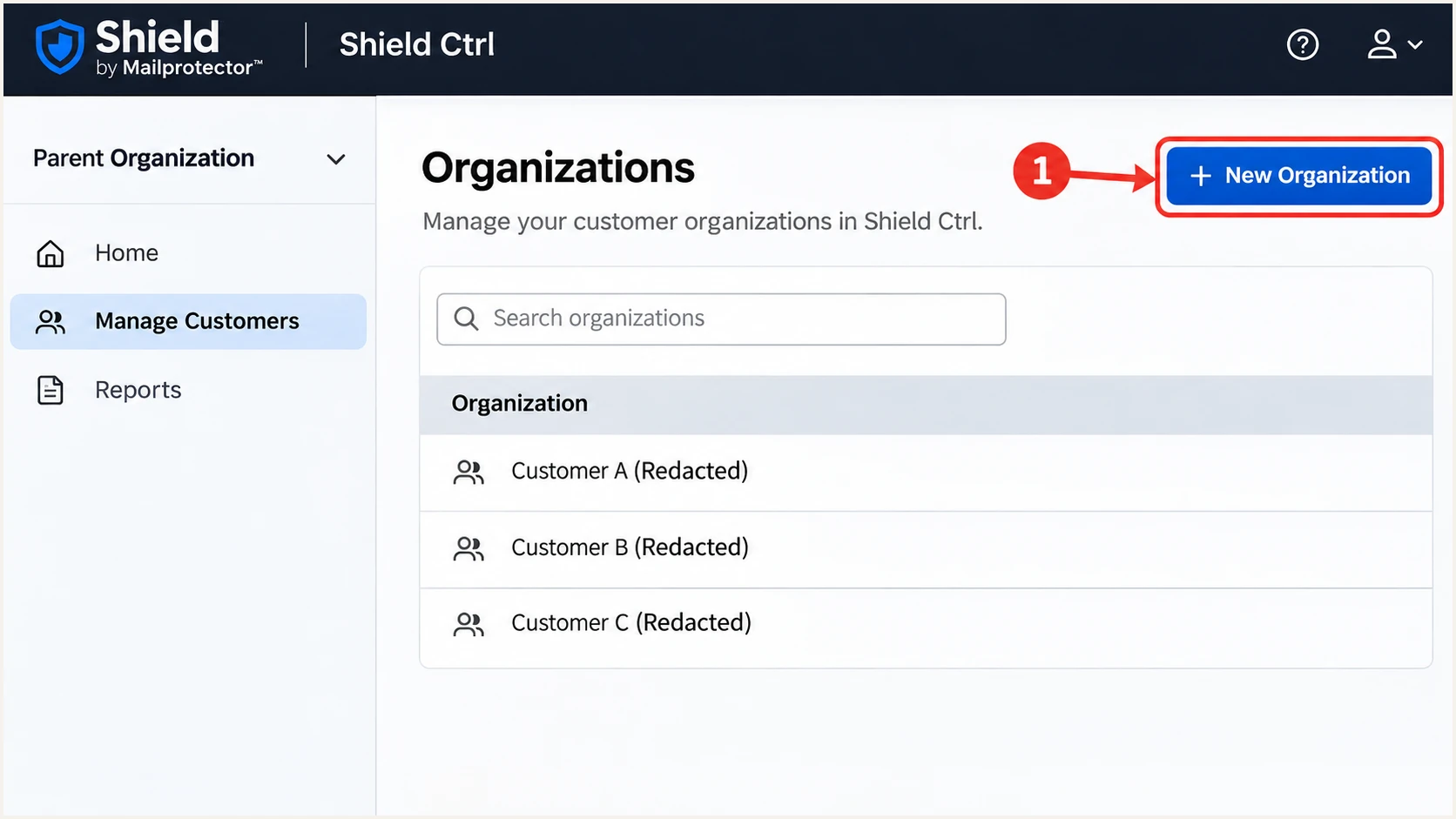
Illustrative Shield Ctrl screenshot highlighting +New Organization.
Set up SPF
Shield's documented SPF include is spf.shield.security. Add it to the existing SPF TXT record at the domain used by the message's envelope sender, normally your sending domain.
- Inspect the record: Find the TXT value beginning v=spf1 at your sending domain. Edit that record rather than creating a second SPF record.
- Authorize Shield: Insert include:spf.shield.security before the final all mechanism. Keep Microsoft's include and every other legitimate sender already authorized.
- Check the limit: Keep SPF within the 10 DNS-lookup limit, including nested includes. A record with only a few visible includes still needs a recursive lookup check.
- Confirm the identity: Send outbound mail through Shield and compare the envelope sender domain with the visible From domain. SPF contributes to DMARC only when SPF passes and those domains meet DMARC's domain-matching rules.
SPF example for Microsoft 365 and Shield onlytext
Name: @
Type: TXT
Value:
v=spf1 include:spf.protection.outlook.com include:spf.shield.security -all
This example assumes Microsoft 365 and Shield are your only authorized senders. Merge the Shield include into your existing record instead of replacing a longer working record with this example.
Enter your domain below to check the published SPF record and its lookup count. I check the actual envelope sender domain too when it differs from the visible From domain.
SPF checker
Find SPF syntax issues, lookup limits, and weak records.
?/16tests passed
Shield supports return-path alignment, so SPF is relevant to its outbound setup. Adding an SPF include does not change the Return-Path, and a passing SPF check for an unrelated provider domain does not satisfy DMARC.
If a particular forwarded message has SPF alignment failure, inspect its DKIM result before changing DNS. A passing DKIM signature with the correct signing domain is sufficient for DMARC.
Authorize your outbound route only
A Shield IP in a DMARC report can be a recipient-side relay. Do not authorize it merely because it appears in a report. Confirm that your organization actually sends through Shield before adding the include.
Set up DKIM
Publish both Shield CNAMEs at your DNS host. Mailprotector documents shield1 and shield2 as Shield's selectors; they are separate from Microsoft 365's selector1 and selector2 records.
- Copy the values: Use the DKIM names and destinations supplied during Shield's domain setup. For example.com, the documented target format uses example-com before selector1 or selector2.
- Publish both CNAMEs: Create shield1._domainkey and shield2._domainkey in the example.com zone using the targets below. If your DNS host appends the zone name, enter only the relative record name.
- Keep other selectors: Retain Microsoft 365's DKIM records and other legitimate selectors. Do not place TXT data at a hostname already used by a Shield CNAME.
- Verify signing: After completing Shield deployment, send a fresh message. Inspect DKIM-Signature for the signing domain and selector, then confirm a passing result at the receiving server.
Shield DKIM CNAME examples for example.comtext
Type: CNAME
Name: shield1._domainkey
Target: example-com.selector1._domainkey.shield.security

Type: CNAME
Name: shield2._domainkey
Target: example-com.selector2._domainkey.shield.security
Copy tenant-generated values even when the format looks predictable. A subdomain such as mail.example.com uses its own values; Mailprotector documents the subdomain-domain-tld target format. Keep these CNAMEs unproxied if your DNS host offers proxying.
Check that the DKIM signing domain matches the visible From domain under your DMARC settings. A signature using shield.security alone does not authenticate your own From domain for DMARC. Mailprotector's authentication overview explains the identities evaluated by SPF and DKIM.
DNS publication
Both Shield CNAMEs resolve to the supplied destinations. Existing Microsoft selectors remain in place. This makes the public keys available.
Message verification
A newly delivered message has a passing DKIM signature with your domain as its signing identity. This confirms that signing actually works.
Set up DMARC
DMARC is a domain-wide DNS policy. Shield's outbound configuration does not replace the need for a record at _dmarc on your sending domain.
- Inspect existing policy: Look for a DMARC TXT record before adding one. Keep an existing quarantine or reject policy, and preserve working reporting destinations.
- Create a monitoring policy: For a domain without DMARC, use the DMARC record generator and begin with the p=none example below. Publish one DMARC TXT record at _dmarc.
- Set report delivery: Replace dmarc@example.com with a mailbox or reporting destination you control. For an external reporting domain, complete any required external-report authorization.
- Keep domain matching practical: Use the default relaxed SPF and DKIM alignment unless a specific requirement calls for strict matching. Review existing strict settings before changing them.
Initial DMARC record for example.comtext
Name: _dmarc
Type: TXT
Value:
v=DMARC1; p=none; rua=mailto:dmarc@example.com
The address above is a placeholder. A monitoring policy requests reports without requesting quarantine or rejection for DMARC failure. Receivers still apply their own filtering decisions.
Enter the visible From domain below after saving DNS. Check that the lookup finds one valid policy at the intended name and that the reporting address is correct.
DMARC checker
Look up a domain's DMARC record and catch policy issues.
?/7tests passed
A valid policy lookup confirms publication. It does not prove that Shield signs messages correctly or that the reporting destination receives reports.
Keep a working quarantine or reject policy while fixing Shield's SPF and DKIM configuration. Adding a new sender is not a reason to reset the whole domain to monitoring.
Verify and troubleshoot
I verify the final message at an external recipient, after Shield has processed it. An internal Microsoft 365 message does not exercise the same outbound route.
- Check Shield health: Open the Shield organization > View Domains and click the heart beside your tenant domain. Review each failed component. For tenant deployment problems, open Health or View Health > Check Health, expand the issue, and use Repair when offered.
- Check public DNS: Run the commands below against the actual sending domain. For DKIM, follow the CNAME to its TXT public key if a signature fails.
- Send a fresh test: Use the email tester below and send a new message to its generated address through the affected Shield-enabled mailbox. Test shared mailboxes and any separate outbound routes too.
- Read recipient results: Check Authentication-Results added by the receiving service. Look for dmarc=pass and at least one passing SPF or DKIM identity that matches the visible From domain under DMARC.
Check the published authentication recordsbash
dig +short TXT example.com
dig +short CNAME shield1._domainkey.example.com
dig +short CNAME shield2._domainkey.example.com
dig +short TXT _dmarc.example.com
The tester prompts you to send an email and diagnoses the received message, including its authentication results. This is the quickest confirmation that the configuration works on the route you are testing.
Use a plain new message first, then test a normal business message that passes through your usual signatures and mail rules. Keep the results for comparison after future changes.
Email tester
Send a real email to this address. Suped shows a results button when the test is ready.
?/43tests passed
If SPF passes but DMARC fails, compare the envelope sender with the visible From domain. If DKIM passes but DMARC fails, compare the DKIM signing domain instead.
If both mechanisms fail, check the actual route and DNS values before editing the policy. A broken connector or message modification after signing needs a different fix than a missing DNS record.
|
|
|
|---|---|---|
SPF permerror | Duplicate SPF; lookups | Merge; reduce lookups |
SPF identity mismatch | Envelope sender | Verify outbound route |
DKIM key missing | CNAME names; targets | Correct DNS values |
DKIM signature fails | Post-signing changes | Inspect mail rules |
DMARC fails | Passing identity | Fix domain matching |
Start with the identity or route responsible for the failure.
Mailprotector documents courier.shield.security as an automatically created domain that remains red or Unhealthy. Investigate your tenant domain's results separately; do not edit this service domain to clear the indicator.
If your tenant domain is absent or its DNS stage is blank, return to Microsoft 365 and finish email provisioning. DNS propagation alone will not fix an unprovisioned tenant domain.
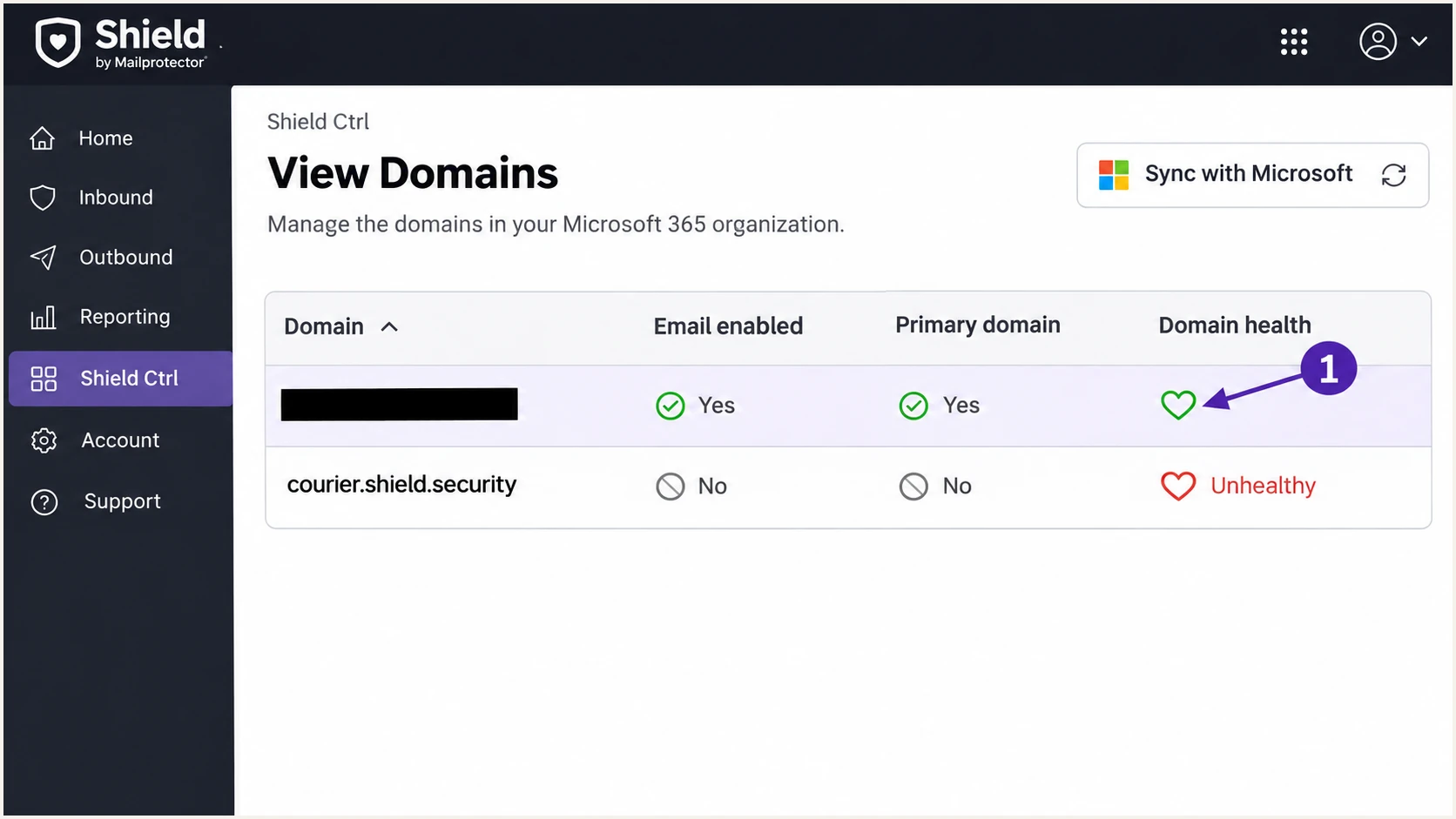
Illustrative Shield View Domains screenshot showing the domain health heart.
Get alerted when it breaks
Suped, our DMARC and email authentication platform, monitors authentication after the initial Shield setup. Its DMARC monitoring connects reported failures to sending sources and provides steps to fix detected issues.
- Enable issue notifications: In Suped's notification settings, enable Issues detected so new authentication problems reach the people responsible for DNS and mail flow.
- Review new sources: Enable Sending sources need verification. Confirm that a new source belongs to your organization before marking it verified or authorizing it in SPF.
- Diagnose failures: Open the affected source and inspect record details for SPF, DKIM, and DMARC results. Compare failures with recent DNS changes and Shield deployment changes.
- Verify the repair: Follow the issue's steps to fix, publish the required change, and send another test through Shield. Check later reports to confirm that the failure has stopped.
Report-based alerts follow aggregate report arrival, so they do not replace a live test after a DNS edit. I keep a test message and the previous DNS values with each change for that reason.
Keep the investigation tied to the sender
Use Suped's source filters and DNS history to separate a new sender from a changed Shield route. Enable DMARC summary emails for routine review while keeping issue notifications active.
Secure your domain with p=reject
Move to reject after every legitimate sending source has a verified DMARC pass path. A single successful Shield test does not cover applications that send directly or use a different service.
- Inventory traffic: Use Suped's source table to review Microsoft 365, Shield, and every other legitimate source. Include infrequent billing runs and shared-mailbox traffic before deciding that coverage is complete.
- Fix authorized failures: Resolve missing keys and domain mismatches for legitimate mail. Review forwarding separately instead of authorizing every relay IP seen in reports.
- Stage enforcement: Move a monitoring policy to p=quarantine after reviewing representative traffic. Check legitimate delivery and reported failures before advancing to p=reject. Keep an already enforced policy while correcting individual senders.
- Manage the policy: Suped's Hosted DMARC provides dashboard policy management after its DNS setup. Use it to stage policy changes while reviewing source-level failures and issue notifications.
- Review subdomains: Check separately published subdomain policies and inherited policy behavior. Keep reporting active after enforcement and investigate legitimate delivery errors immediately.
I base enforcement on coverage of real sending activity rather than a fixed waiting period or an overall pass-rate target. High-volume authorized traffic can hide a low-volume business application that still fails.
For manually managed DNS, update the existing DMARC TXT value to the example below once checks are complete. Keep your actual reporting destination and any other intentional policy tags.
Final rejection policy exampletext
Name: _dmarc
Type: TXT
Value:
v=DMARC1; p=reject; rua=mailto:dmarc@example.com
Reject requests rejection of messages that fail DMARC; receivers retain local policy control. It does not guarantee inbox placement or stop messages sent using a different lookalike domain.
Keep testing the Shield route after connector changes, DNS moves, or mail-rule edits. Suped's source diagnostics and notifications provide the continuing evidence needed to maintain enforcement.
Frequency asked questions
Shield's include is include:spf.shield.security. Merge it into your existing SPF record alongside Microsoft's authorization and other legitimate senders. Publish only one SPF record per domain and check the recursive DNS-lookup limit.
Shield uses shield1 and shield2. Publish both CNAMEs using the domain-specific destinations supplied during setup. Keep Microsoft's separate DKIM selectors, then verify a delivered message has a passing signature with your domain as its signing identity.
Names such as smtp003.production.us-east-2.shield.security are associated with Shield by Mailprotector. Use the source IP and message headers to confirm the route. A Shield hostname in a DMARC report can identify a recipient-side relay, so the hostname alone does not establish that your organization sends through Shield.
Yes. DMARC passes when either SPF passes with the required domain match or DKIM passes with the required domain match. For forwarded mail, a surviving DKIM signature often supplies that pass path. Shield supports return-path alignment, so investigate unexpected SPF mismatches on your own direct outbound route.
Mailprotector documents this when the Microsoft 365 domain is not fully mail-enabled or provisioned. Open Settings > Domains in Microsoft 365 admin center, complete verification and setup, and select Exchange Online Protection. Return to Shield once the domain setup is complete.
Keep an existing quarantine or reject policy. Configure Shield's SPF authorization and DKIM CNAMEs, finish the deployment, and test a fresh outbound message. Fix the affected sender's authentication rather than weakening the policy for all domain traffic.




