
How to set up DMARC/DKIM/SPF for Securence

Published 21 Nov 2026
Updated 21 Nov 2026
10 min read
Summarize with
Securence's legacy authentication setup used include:spf.securence.com for SPF, a domain-specific DKIM key under Outgoing Settings > Delivery, and a DMARC TXT record at _dmarc.example.com. Securence announced retirement of its email services effective November 11, 2026, so a new deployment needs a replacement mail service.
I check the actual outbound route before changing DNS. A message passes DMARC when SPF or DKIM passes with the required domain alignment. Publishing records alone does not prove that the sender uses them.
Securence's public Service Retirement FAQs says filtering and SMTP relaying stop accepting incoming and outgoing mail after the retirement date. DNS changes cannot restore a retired relay. Use the legacy settings to audit a migration, and configure active sending with the replacement provider's records.
Confirm your existing domain
Provision new domains with the replacement sender. For an existing Securence configuration, I first identify the domain, DNS host, and outbound relay that need replacing.
- Check DNS access. Confirm that your authoritative nameservers still answer. If DNS was hosted through the retired service, restore the zone with an active DNS host before editing authentication records.
- Identify the domain. Use saved Securence settings or available account records to confirm the exact sending domain. The legacy console selected domains on its Home screen; a missing domain is not fixed by adding an SPF record.
- Check the relay. Inspect your mail server's outbound connector. A route using smarthost.securence.com needs replacement. Incoming MX records do not establish which server sends outbound mail.
- Verify control. Confirm that you can publish TXT records for the sending domain. Use the replacement sender's ownership-verification record if it requires one; do not invent a Securence verification token.
Keep a copy of the existing SPF record, DKIM selectors, and DMARC policy before making changes. Preserve working authentication for every other authorized sender on the domain.
Set up SPF
The legacy Securence SPF include is spf.securence.com. I check the envelope sender first because SPF evaluates the SMTP MAIL FROM domain, usually visible in the delivered Return-Path, rather than the visible From address.
- Find the SPF domain. Read smtp.mailfrom in the final receiver's Authentication-Results. Publish SPF at that domain. A record at example.com does not automatically cover bounce.example.com.
- Edit one record. For a legacy Securence route, its include belongs before the final all mechanism in the existing SPF TXT record. Preserve other authorized senders and the existing -all or ~all ending. Never create a second SPF record.
- Check alignment. Use an envelope sender under your own domain where supported. With default relaxed alignment, bounce.example.com and example.com have the same organizational domain; strict alignment requires identical domains.
- Retire old access. For active sending after migration, replace the Securence include with the replacement sender's instructions once queues and fallback routes no longer use Securence. Keep the SPF evaluation within the 10 DNS-lookup-term limit, including nested includes.
Legacy SPF example for a Securence-only route, not a new deploymentdns
example.com. IN TXT "v=spf1 include:spf.securence.com ~all"
Do not copy that example over a record that also authorizes other senders. An include adds permission for the provider's listed IP addresses; it does not change your Return-Path or activate outbound relaying.
Run the SPF checker against the actual MAIL FROM domain. Check for duplicate records, broken includes, and lookup-limit errors after editing DNS.
SPF checker
Find SPF syntax issues, lookup limits, and weak records.
?/16tests passed
An SPF pass using a Securence-owned Return-Path still lacks SPF alignment with your own From domain. Adding the include to your From domain does not repair that mismatch.
If the route does not provide a custom Return-Path, no SPF change on your From domain is needed for that route's DMARC pass. An SPF alignment failure is acceptable when a valid DKIM signature has domain alignment and DMARC passes. I still keep SPF correct for the domain's other senders.
Set up DKIM
Securence's public 'Using DKIM to sign your outbound mail' instructions document the legacy controls below. For a migration, generate the replacement sender's key rather than reusing Securence's private key.
- Open the settings. In the legacy console, select the domain on Home, then Outgoing Settings > Delivery > Setup DKIM.
- Generate a key. Choose 2048 bits where supported and a unique selector, such as securence. The private key stays with the signing service.
- Publish the key. Copy the wizard's public-key TXT value to securence._domainkey.example.com, substituting your selector and domain. Copy the complete value.
- Validate DNS. Click Validate. Check that the lookup succeeds before activating the key.
- Enable signing. Select Enable DKIM Signing and the intended key's Enabled checkbox. Both settings matter.
The legacy document recommends 1024 bits for DNS compatibility. For a new key, I prefer 2048 bits. A long TXT value can contain multiple quoted character strings within one DNS record; those strings are concatenated. Separate TXT records are not equivalent.
Check the resulting signature's d= domain against the visible From domain. A cryptographically valid signature for an unrelated domain does not satisfy DKIM alignment for your domain.
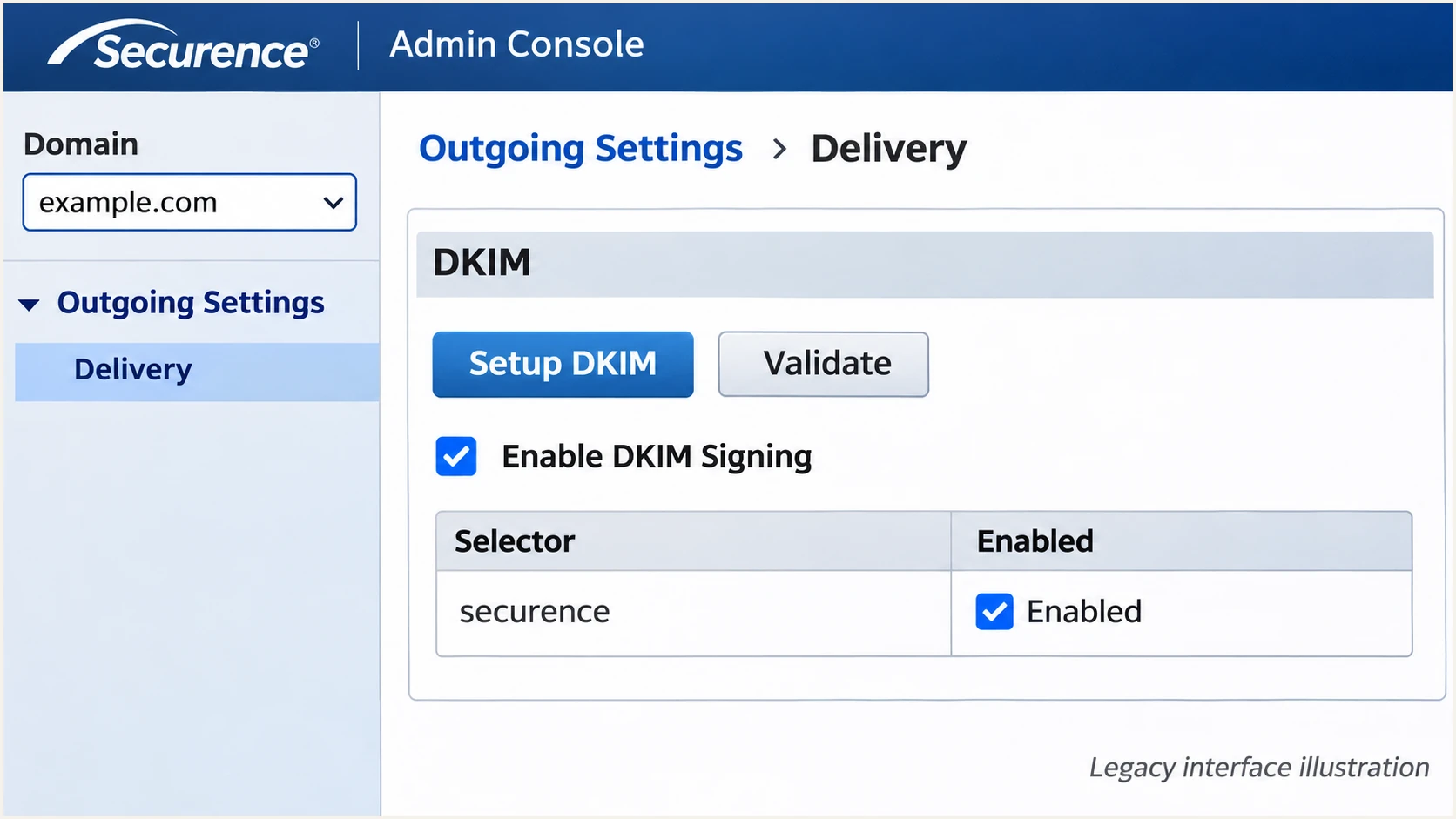
Illustration of the legacy Securence DKIM controls and both signing settings.
DNS validation checks publication. Only a delivered message confirms that the selected outbound route actually signs mail and that the signature survives delivery.
Set up DMARC
DMARC is published in your domain's DNS, independently of Securence. I start a domain without an enforcement policy at p=none while collecting reports. If the domain already uses p=quarantine or p=reject, keep that policy during the migration.
- Find the policy. Look up TXT at _dmarc.example.com. Edit the existing DMARC record if present; publish only one DMARC policy record at that name.
- Prepare reporting. Create a working mailbox or use your reporting platform's assigned aggregate-report address. Replace the example address below before publication.
- Publish the record. For a domain without an existing enforcement policy, add the monitoring record below. Use _dmarc as the host when the DNS editor automatically appends example.com.
- Check the result. Resolve the public record, validate syntax, and confirm reports reach the intended destination. If reporting uses another organization's domain, confirm its required external-report authorization.
Monitoring policy: TXT value at _dmarc.example.comdns
v=DMARC1; p=none; rua=mailto:dmarc@example.com
Use the DMARC record generator to build the policy with your real report address. Keep the existing reporting destination when it already works.
Run the DMARC checker against the visible From domain after the DNS change. Inspect the discovered policy and reporting tags; this checks DNS, while a message test checks the sending route.
DMARC checker
Look up a domain's DMARC record and catch policy issues.
?/7tests passed
A p=none policy requests monitoring without requesting quarantine or rejection for DMARC failures. It does not guarantee delivery, and receivers continue applying their own filtering.
Expect aggregate reports on the reporting receivers' schedules, commonly daily. A valid record without traffic or participating receivers does not guarantee an immediate report.
Verify and troubleshoot
I test each actual sending route, including application mail and any fallback connector. A successful message through one route does not verify every source using the domain.
- Query public DNS. Run the commands below, replacing example.com and the DKIM selector. Check the authoritative zone if recursive answers still contain cached values.
- Send a fresh message. Use the normal sender and outbound connector. Existing messages retain their original headers and signatures.
- Inspect receiver results. Use Authentication-Results added by the final receiving system. Confirm DKIM passes with your signing domain, and DMARC passes with your visible From domain.
- Separate transport failures. A connection failure or retired smarthost needs routing repair. A DNS authentication change does not make a stopped SMTP service accept mail.
Public DNS checks for the example domainbash
dig +short TXT example.com
dig +short TXT securence._domainkey.example.com
dig +short TXT _dmarc.example.com
Compare the received message's smtp.mailfrom, header.d, and header.from domains. An SPF pass with an unrelated MAIL FROM domain does not contribute an aligned pass; a passing DKIM signature with the required domain alignment is sufficient for the message's DMARC result.
The email tester is the quickest message-level check: send a fresh message to the address it provides. It returns a full diagnosis of the received message, including authentication results.
Email tester
Send a real email to this address. Suped shows a results button when the test is ready.
?/43tests passed
Read the individual authentication results rather than relying only on the total score. Prioritize an aligned DKIM pass and a DMARC pass, then investigate any SPF failure against the actual envelope sender.
Use these checks to narrow down a failure. DNS errors and disabled signing require different fixes.
|
|
|
|---|---|---|
SPF permerror | Duplicate SPF or lookup limit | Record count and includes |
SPF mismatch | Unrelated MAIL FROM | Return-Path domain |
No DKIM | Signing disabled or bypassed | Signing switches and route |
DKIM key missing | Wrong TXT owner | Selector and DNS suffix |
DKIM body failure | Message changed after signing | Final content-changing relay |
SMTP unavailable | Retired connector | Replacement relay settings |
Common failures and the next check
After correcting a record, allow its previous TTL to expire and send another message. If a relay adds a footer or rewrites signed content, place signing after that change or fix the relay's modification behavior.
Get alerted when it breaks
For ongoing checks, our platform Suped combines DMARC monitoring with detected authentication issues and notifications. This gives the team a continuing view of sender failures after a Securence migration, beyond a successful test message.
- Enable notifications. In Suped's notification settings, enable Issues detected and Sending sources need verification. Send summaries to the team responsible for mail authentication.
- Review new sources. Confirm unfamiliar sources against your sending inventory before marking them verified. Investigate unexpected Securence traffic after cutover.
- Inspect failures. Filter the data by source or IP, then inspect SPF, DKIM, and DMARC results in the record detail. Follow the issue's Steps to fix and verify the result.
- Track changes. Compare DNS history around the failure date. Check whether a removed include or a changed DKIM selector explains the issue.
Suped's alerts depend on the data available to the platform. Aggregate DMARC reports arrive after receiving systems generate them, so report-based alerts are not instant notifications for every message.
I use a fresh test after each configuration change and report monitoring across normal sending cycles. Each check covers a different operational gap.
One message test
Checks the headers and authentication of one delivered message.
Useful immediately after DNS changes or relay cutover.
Ongoing monitoring
Shows failures across the sources and receivers present in aggregate reports.
Useful for detecting forgotten senders and later configuration changes.
Secure your domain with p=reject
I use Suped's source verification and authentication diagnostics to establish readiness for enforcement. The decision depends on legitimate sending behavior, including the replacement route, rather than a fixed waiting period or an overall pass percentage.
- Inventory every sender. Identify business mail, application mail, and infrequent jobs. Separate unauthorized traffic from legitimate failures before tightening policy.
- Prove DKIM works. Confirm passing DKIM with domain alignment across legitimate routes. Do not rely only on SPF, which is vulnerable to forwarding-related failures.
- Stage enforcement. For a domain currently at p=none, fix legitimate failures, apply p=quarantine, review receiver reports and delivery issues, then apply p=reject when legitimate routes are ready.
- Check subdomains. Review inherited policy and any explicit subdomain DMARC records. Confirm that an existing sp tag does not leave unintended gaps.
- Keep watching. Continue reports and alerts after enforcement. Remove obsolete relay authorization after migration, and retain old public DKIM keys while messages signed with them still need verification.
Enforcement policy: TXT value at _dmarc.example.com, after validationdns
v=DMARC1; p=reject; rua=mailto:dmarc@example.com
With Suped's Hosted DMARC configured, the team can manage policy changes in our dashboard and review the resulting authentication data. That keeps policy staging and the evidence for each change in one workflow.
A p=reject policy requests rejection of mail that fails DMARC, subject to receiver policy. It protects the authenticated use of your domain; it does not prevent lookalike domains or guarantee inbox placement.
Frequency asked questions
Securence announced retirement of its email services effective November 11, 2026. Provision new sending with an active replacement provider. Legacy authentication records do not restore the retired SMTP service.
The legacy include is include:spf.securence.com. It belongs in the SPF record for the domain used by SMTP MAIL FROM, before the final all mechanism. After migration, remove obsolete authorization once no legitimate route depends on it.
The envelope sender and visible From address use different domains without the required domain relationship. If the route cannot use your domain as its Return-Path, rely on a passing DKIM signature with domain alignment for DMARC. Adding SPF at an unused domain does not change that result.
No. Validation confirms that the public key is published. The signing service must also activate the key and sign outbound messages. I verify the final receiver's DKIM and DMARC results with a fresh message.
Keep a working p=reject or p=quarantine policy during migration. Configure and test the replacement route before cutover. The p=none example is for a domain without an existing enforcement policy.
A hostname under securence.com is a clue pointing to Securence infrastructure. Confirm the connecting IP and trusted Received headers before attributing a message. An rDNS suffix does not authenticate the visible From domain or establish that the retired service is operational.




