
How to set up DMARC/DKIM/SPF for Salestrekker

Published 21 Nov 2026
Updated 21 Nov 2026
10 min read
Summarize with
Set up Salestrekker email authentication by authorizing its documented SPF include, include:sendgrid.net, requesting account-specific DKIM and custom Return-Path records from Salestrekker support, and publishing a DMARC TXT record. Start new DMARC setups at p=none; keep an existing quarantine or reject policy.
I verify a message sent by Salestrekker before enforcing a stronger policy. DMARC passes when SPF or DKIM passes with domain alignment to the visible From address. A passing check for an unrelated provider domain is insufficient.
Add your domain
I start by identifying the actual sending domain. Salestrekker's public instructions document SPF, but do not provide a self-service domain-authentication wizard or universal DKIM values. Use a support-assisted process for the account-specific setup.
- Choose the sender: Open a test deal, select Quick Actions > Send email, and inspect the sender selector. Record the business email address and its domain.
- Request authentication: Contact Salestrekker support with your organisation identifier and sending domain. Request domain verification instructions, DKIM selectors with DNS values, and custom Return-Path DNS records.
- Publish the records: Give your DNS administrator the exact names, record types and values issued for your organisation. Complete any ownership confirmation requested by support.
- Confirm activation: Ask support to verify the DNS records and confirm that your organisation uses the authenticated domain for signing and its custom Return-Path.
Adding an organisation contact address or changing an email signature does not authenticate the domain. DNS publication and activation on Salestrekker's sending system are separate requirements.
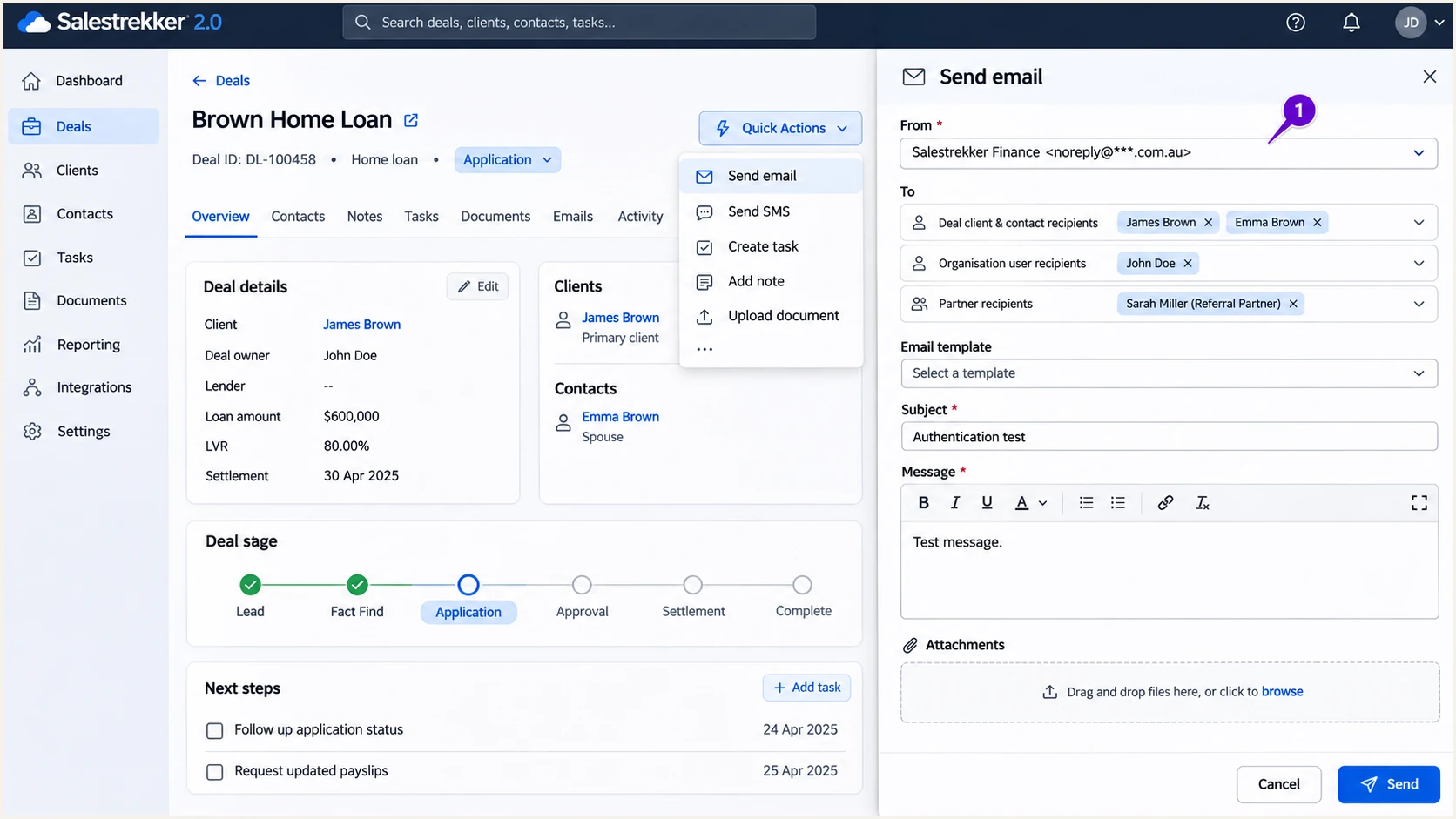
Illustrative Salestrekker Send email drawer showing where to check the sender.
Set up SPF
I configure SPF for the SMTP MAIL FROM domain, shown in the delivered Return-Path. An SPF include at your visible From domain cannot fix alignment when Salestrekker uses a different Return-Path domain.
Salestrekker's SPF instructions specify the value below. Publish this standalone TXT value only when no SPF policy exists at the hostname Salestrekker tells you to authorize.
Documented standalone SPF TXT valuetext
v=spf1 include:sendgrid.net ~all
For a root-domain SPF record, DNS providers commonly use @ as the host. For a custom Return-Path subdomain, use the exact host supplied by support; SPF policies are not inherited by subdomains.
- Merge existing SPF: If a v=spf1 TXT record already exists, insert include:sendgrid.net before its final all mechanism when instructed. Preserve existing senders and the existing all qualifier. Never create a second SPF policy at the same hostname.
- Set the Return-Path: Publish the account-specific records supplied for the custom bounce domain. If support supplies a CNAME, use that delegation and do not add a TXT record at the same name.
- Check the limit: Keep SPF evaluation within 10 lookup-causing terms, including nested includes. A short-looking SPF record still needs a complete lookup-limit check.
- Handle shared domains: If support has not provisioned your custom Return-Path, expect SPF alignment failures for a provider-owned domain. DMARC still passes when a valid DKIM signature has domain alignment with your From address.
Enter the actual MAIL FROM domain in the SPF checker. Check your root domain separately if it also has a policy for other senders.
SPF checker
Find SPF syntax issues, lookup limits, and weak records.
?/16tests passed
A successful DNS check confirms the published policy. Send a fresh Salestrekker message to confirm which domain the receiving server actually evaluates.
Under relaxed SPF alignment, bounce.example.com and a From address at example.com share an organisational domain. With aspf=s, the domains must match exactly.
Set up DKIM
I request DKIM records for the sending domain from Salestrekker support. There is no documented universal selector or public key to copy for every customer.
- Obtain issued values: Ask for each selector, its full DNS hostname, record type and complete target or public key. Do not generate an unrelated key pair locally.
- Publish exactly: Add the supplied CNAME or TXT records. Use DNS-only resolution for mail-related CNAMEs and avoid duplicating your domain suffix in the host field.
- Enable signing: Ask support to validate the records and activate signing for your organisation. Keep existing DKIM selectors used by other senders.
- Verify the signature: Send a new message. Inspect the receiver's Authentication-Results for dkim=pass and the DKIM-Signature d= and s= values for the signing domain and selector.
For DMARC, the passing DKIM signing domain must match your visible From domain or satisfy its relaxed domain-alignment rules. DKIM passing for Salestrekker's own domain does not authenticate a From address on your business domain.
Custom Return-Path
SPF can satisfy DMARC when the receiving server reports SPF pass and the MAIL FROM domain has alignment with your From domain. Keep DKIM enabled for forwarding resilience.
Shared Return-Path
SPF can pass for the shared domain while SPF alignment fails. A valid DKIM signature for your business domain can still produce DMARC pass.
Set up DMARC
I use p=none for a domain starting DMARC monitoring. If the domain already uses p=quarantine or p=reject, retain that policy and fix Salestrekker's authentication without weakening it.
- Find the host: Look for an existing TXT record at _dmarc.example.com, replacing example.com with your sending domain. Edit the existing policy instead of adding another DMARC record.
- Choose the policy: For a new setup, create a TXT record with host _dmarc and the monitoring value below. Use your DNS provider's required relative or fully qualified host format.
- Set reporting: Replace dmarc@example.com with a report mailbox you control or an issued aggregate-reporting destination. The example address is a placeholder.
- Preserve settings: Keep existing reporting destinations and intentional domain-alignment settings. Confirm authentication against those settings before changing enforcement.
Initial DMARC TXT value at _dmarc.example.comtext
v=DMARC1; p=none; rua=mailto:dmarc@example.com
If the reporting destination belongs to another domain, its operator must authorize external DMARC reports. Follow the reporting provider's authorization instructions.
Run the DMARC checker after publication. It validates DNS syntax and policy; a real message test is still required to verify Salestrekker's authentication.
DMARC checker
Look up a domain's DMARC record and catch policy issues.
?/7tests passed
Check the full DNS hostname returned by your provider. A record accidentally created at _dmarc.example.com.example.com will not be discovered at the intended name.
Keep the reporting destination active while making changes. Reports show whether legitimate sending continues to pass over time.
Monitoring does not enforce rejection
p=none requests reporting without requesting quarantine or rejection for DMARC failures. Fix legitimate sending before strengthening a new policy, and retain an existing enforcement policy.
Verify and troubleshoot
I test a message generated inside Salestrekker. Sending through a separate desktop email application tests that application's route instead.
- Use a test contact: Create a controlled contact in a test deal. Use the email tester's generated recipient address for this contact, without changing a real client's details.
- Send inside Salestrekker: Open the test deal > Quick Actions > Send email. Choose the intended sender and test contact, enter Authentication test as the subject, then click Send.
- Inspect the result: Check the visible From domain, Return-Path and DKIM signing domain. Require dmarc=pass in the receiver's results, with at least one passing mechanism that satisfies domain alignment.
- Test every route: Repeat for each sender identity and each automation that uses your domain. Test customer updates separately from notifications sent using Salestrekker's own domain.
Use a deal without live customer automations for the manual test. The steps below illustrate the documented Quick Actions menu; the generated test address belongs in the controlled contact's email field.
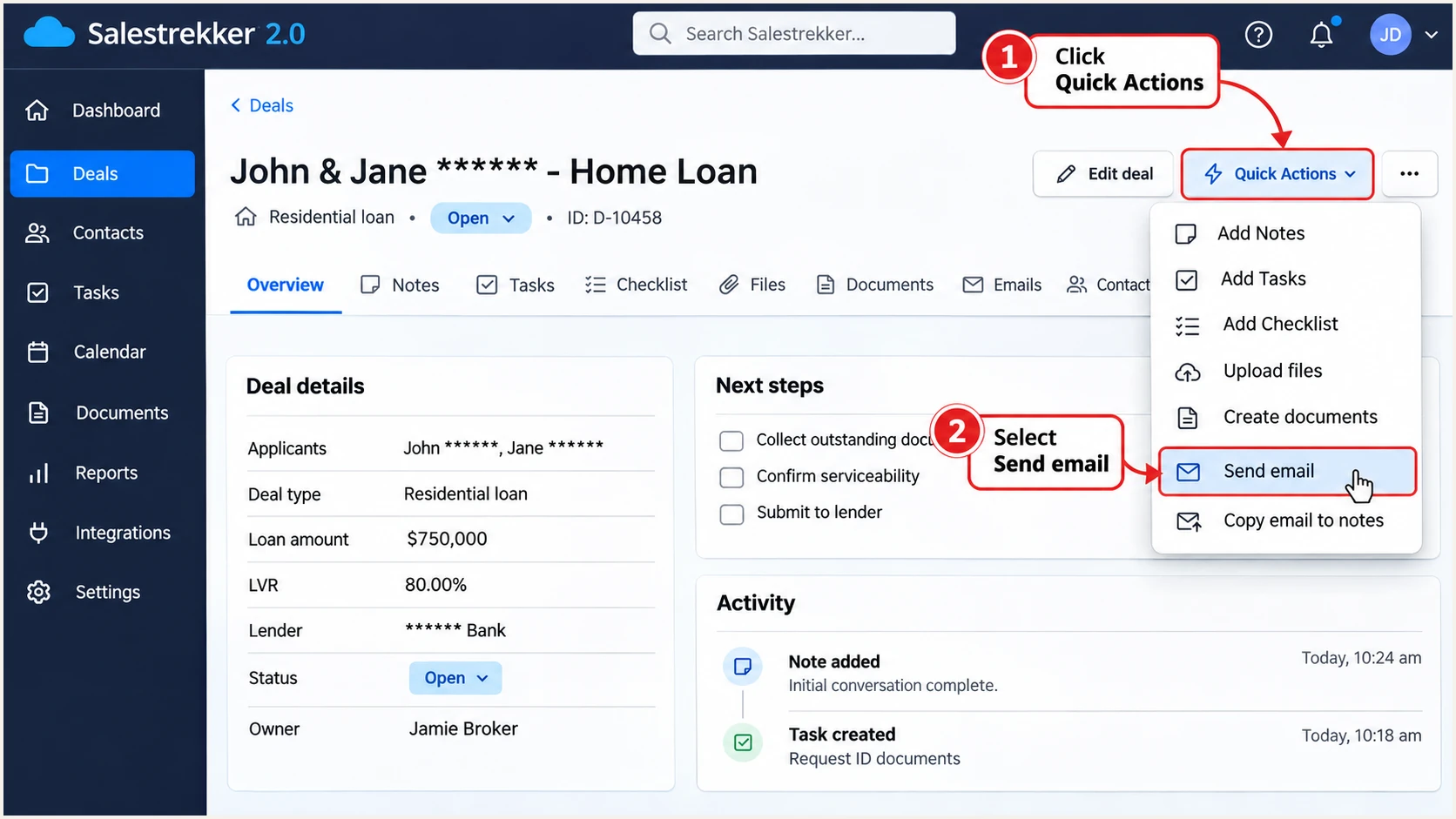
Illustrative Salestrekker Quick Actions menu with Send email selected.
The email tester below provides a recipient address and diagnoses the message it receives. Send to that address through Salestrekker to check the actual sending configuration.
A clean DNS lookup cannot confirm that signing is enabled or that the chosen sender uses the correct domain. A received test message exposes both checks immediately.
Email tester
Send a real email to this address. Suped shows a results button when the test is ready.
?/43tests passed
If the message fails, keep its full headers and the DNS values issued by support. Share those with your administrator or Salestrekker support so they can compare the configured domain with the delivered message.
Retest after the previous DNS TTL expires and after support confirms activation. Use the compact checks below to choose the next action.
|
|
|
|---|---|---|
SPF error | Duplicate policy | Single SPF TXT |
SPF limit | Nested includes | Lookup count |
DKIM fail | DNS or signing | Selector and key |
DMARC fail | Domain mismatch | From and domains |
No reports | Reporting setup | Mailbox and consent |
Common Salestrekker authentication failures
Get alerted when it breaks
I keep monitoring after the first successful test. Our platform, Suped, uses DMARC monitoring to identify authentication failures and provide steps to fix them when DNS or sending configurations change.
Keep Salestrekker as the sending application. Suped monitors the authentication reports; there is no need to route outgoing customer email through Suped.
- Keep reports flowing: Retain your active rua reporting destination so authentication data continues to reach the reporting platform.
- Enable notifications: In Suped notification settings, enable Issues detected and Sending sources need verification. Enable DMARC summary emails for periodic review.
- Investigate changes: Review the source and its sending IP in Suped. Compare the reported domains with your known Salestrekker tests and check DNS history for changed records.
- Verify the fix: Use Suped's issue-specific steps, correct the DNS or ask Salestrekker support to correct signing, then send another test and confirm recovery in subsequent reports.
Report-based alerts follow receiver reporting
Suped alerts on detected issues as data becomes available. Aggregate DMARC reports commonly arrive daily, so report-based alerts do not provide an immediate notification for every failed message.
Secure your domain with p=reject
I move to p=reject after all legitimate senders have demonstrated DMARC pass across a representative sending cycle. A single successful Salestrekker test is insufficient evidence for a domain-wide policy change.
Suped brings source-level failures and remediation steps into the same workflow. Our Hosted DMARC product lets teams manage policy changes in the dashboard once hosted DNS delegation is configured.
- Inventory senders: Review aggregate reports for every authorized system, including mailbox email and infrequent automated jobs. Confirm ambiguous sources with their owners.
- Resolve failures: Use Suped to investigate legitimate authentication failures. For Salestrekker, confirm custom Return-Path use and working DKIM for every business sender identity.
- Stage enforcement: Move a new policy from none to quarantine, review legitimate failures and delivery errors, then change to reject. Keep an existing reject policy if already deployed.
- Continue monitoring: Keep reporting and Suped issue notifications enabled through each change. Review new sources and retest after Salestrekker configuration changes or DKIM rotation.
The example below changes the policy to reject and retains aggregate reporting. Replace the example mailbox, preserve your intentional optional tags, and check subdomain policies before publishing.
Final DMARC TXT value after legitimate senders are verifiedtext
v=DMARC1; p=reject; rua=mailto:dmarc@example.com
p=reject requests rejection of messages that fail DMARC. Receiving systems apply their own handling policies, and authentication does not guarantee inbox placement.
If a legitimate Salestrekker route starts failing after enforcement, pause that route while correcting its authentication. Use a fresh test and subsequent reports to confirm the repair.
Frequency asked questions
Salestrekker documents v=spf1 include:sendgrid.net ~all. Merge the include into an existing SPF policy when appropriate instead of creating a duplicate record. For a custom Return-Path, follow the exact records issued by support.
Request selectors and their DNS values from Salestrekker support for your organisation and sending domain. Public SPF instructions do not supply a universal customer DKIM key. Confirm signing activation after publishing the records.
SPF can pass for a provider-owned MAIL FROM domain without domain alignment to your visible From address. Configure a custom Return-Path or a passing DKIM signature that satisfies alignment. Adding an SPF include to the From domain alone does not change the message's Return-Path.
Yes. Keep the existing policy while authenticating Salestrekker. Use p=none as the starting policy for a new monitoring setup, rather than replacing established enforcement. Test a controlled message before enabling new customer-facing automations.
Retest once the issued DNS records resolve publicly and Salestrekker confirms activation. Cached records remain until their TTL expires. Aggregate DMARC reports commonly arrive the following day; use a received-message test for faster confirmation.
That suffix identifies shared delivery infrastructure used by multiple applications. Salestrekker documents an SPF include for sendgrid.net, so its traffic is consistent with that infrastructure. The suffix alone cannot identify Salestrekker. Correlate sending IP, message timing and authentication domains with a message sent from your Salestrekker account.




