
How to set up DMARC/DKIM/SPF for Runbox

Set up Runbox authentication by publishing SPF with include:spf.runbox.com, generating the two DKIM CNAME records in Account > Email Hosting, and adding a DMARC TXT record at _dmarc. Start with p=none unless your domain already has p=quarantine or p=reject.
I configure this for a custom domain that I control, then test a real outgoing message. Runbox manages authentication for its own addresses, such as addresses ending in @runbox.com; these DNS changes belong on your own domain.
Add your domain
I start with domain activation in Runbox and access to the domain's authoritative DNS. Registering the domain through Runbox is optional.
- Open Email Hosting. Sign in to Runbox and open Account > Email Hosting. If your custom domain is already listed, use that entry.
- Add the domain. Enter your domain, such as example.com, and click Add Domain. A new entry initially has Pending status.
- Activate hosting. When moving incoming email to Runbox, set the domain's MX destination to mx.runbox.com at the authoritative DNS host. Wait for Runbox to verify the configuration and show Active.
- Create addresses. After activation, open Account > Aliases to create the addresses you need, or configure purchased sub-accounts. Enable Catch all only if you intend to receive mail for every otherwise undefined address.
Account > Email Hosting currently opens Runbox's legacy administration interface. This is also where the DKIM link appears beside each domain.
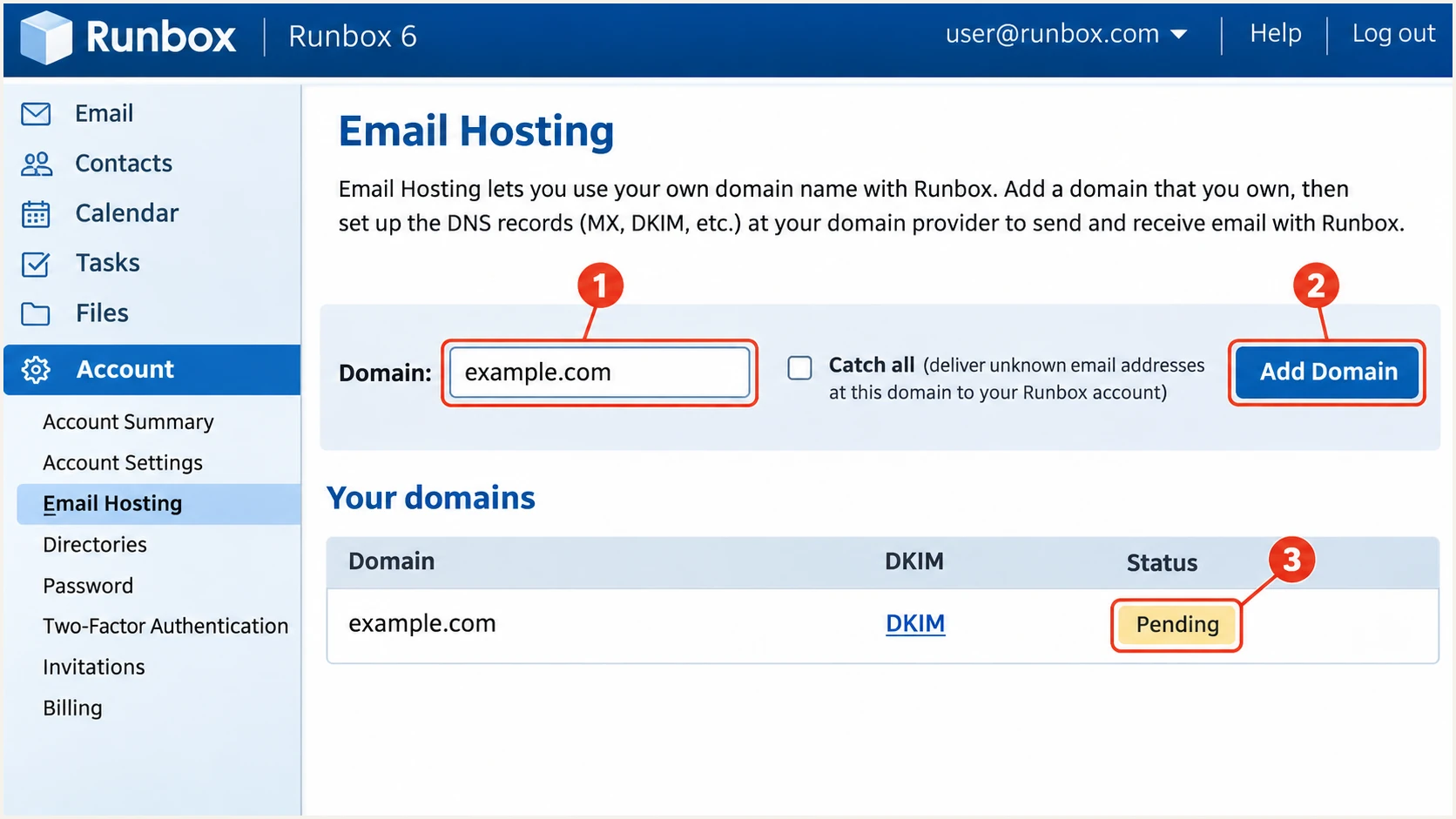
Illustrative Runbox Email Hosting screen with Add Domain and Pending status.
An MX change redirects incoming mail. I create the required mailboxes before switching it and keep the previous mailbox available while cached MX records expire.
Confirm activation by receiving a message at your custom-domain address. New aliases take up to 15 minutes to become available across Runbox's servers.
Set up SPF
Runbox's documented SPF include is spf.runbox.com. Publish it on the domain used for the SMTP envelope sender, which normally appears in the delivered Return-Path header.
- Find existing SPF. Look for a TXT record starting with v=spf1. Edit that record rather than publishing a second SPF policy at the same name.
- Authorize Runbox. If Runbox is your only sender, use the record below at @ with a TTL of 3600 seconds. With other senders, add include:spf.runbox.com before the existing final all mechanism and preserve their authorizations.
- Use Runbox SMTP. Send through Runbox webmail or mail.runbox.com with authenticated SMTP: port 465 with TLS, or port 587 with STARTTLS. Select your custom-domain sending identity.
- Check the limits. Keep SPF evaluation within 10 DNS-lookup-causing terms, including nested includes. Do not replace the Runbox include with a copied list of server IPs.
SPF when Runbox is the only authorized senderdns
@ 3600 IN TXT "v=spf1 include:spf.runbox.com -all"
In a DNS form, enter TXT as the type, @ as the host, and the text inside the quotes as the value. The zone-file quotes above delimit the TXT value; they are not part of the policy.
I keep the existing SPF authorizations during a migration. Replacing a shared policy with the Runbox-only example causes SPF failures for other legitimate senders.
SPF checker
Find SPF syntax issues, lookup limits, and weak records.
?/16tests passed
Enter your sending domain above and confirm that it has one SPF policy with a valid Runbox include. Resolve duplicate records and lookup-limit errors before testing mail.
Runbox supports Return-Path alignment, so SPF setup is relevant here. Check that the actual MAIL FROM domain and visible From domain share the same organizational domain under relaxed alignment. Publishing the include alone does not change the envelope sender.
Set up DKIM
I create DKIM keys inside Runbox. The two CNAME destinations are specific to your account and domain, so copy the displayed values rather than constructing them.
- Open DKIM. Go to Account > Email Hosting, locate your domain and click its DKIM link.
- Create keys. Click Create keys for your domain if keys do not exist. Runbox keeps the private signing keys on its outgoing servers.
- Publish both CNAMEs. Copy the records for selector1._domainkey and selector2._domainkey into your authoritative DNS, using the exact targets displayed by Runbox. Avoid conflicting TXT records at those owner names.
- Check activation. Refresh the DKIM page. Runbox's current interface checks CNAME status immediately. Confirm both records are found and that a signing key is active; only one selector needs to sign at a time.
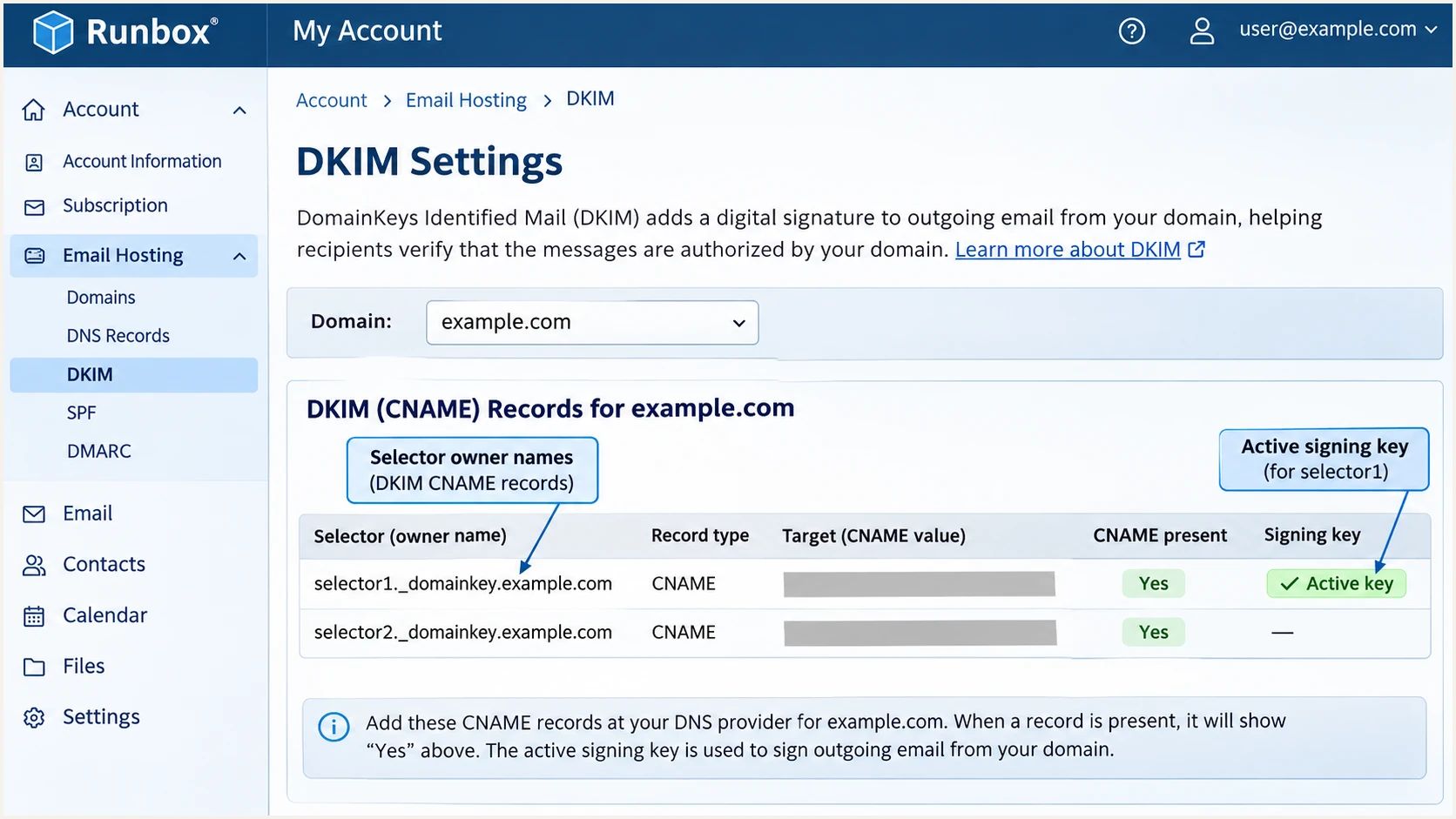
Illustrative Runbox DKIM screen showing both selectors and CNAME checks.
Keep both CNAME records published. Runbox uses them for key rotation, and deleting the currently unused selector breaks later signing changes.
Who hosts the authoritative DNS determines where to save the CNAMEs. Having Runbox handle incoming email does not automatically give Runbox control of your DNS.
Runbox hosts your DNS
Creating DKIM keys also publishes the required CNAME records when Runbox manages your DNS. Inspect the DKIM status to confirm publication.
Another provider hosts DNS
Add both displayed CNAME records at that DNS host. Return to Runbox and refresh the DKIM status after the records are publicly resolvable.
DNS forms handle trailing dots differently. Follow your DNS host's conventions and check the saved names for an accidentally repeated domain suffix. Runbox explains this in its DKIM setup discussion.
I then send a fresh message and check the receiver's DKIM result. A valid signature needs a d= domain matching your visible From domain under the applicable DMARC alignment mode.
Set up DMARC
For a domain without an existing DMARC policy, I start with p=none and collect reports. Use the DMARC record generator to build the record with your real reporting address.
- Check the current policy. Look up TXT records at _dmarc.example.com before editing DNS. Preserve an existing quarantine or reject policy.
- Publish one TXT record. Use host _dmarc, type TXT and TTL 3600. If your DNS form requires a full name, use _dmarc.example.com instead.
- Set the report recipient. Replace dmarc@example.com with a mailbox you control that accepts aggregate XML report attachments, or your reporting platform's assigned destination.
- Keep relaxed defaults. Leave aspf and adkim unspecified for relaxed alignment unless you have a tested requirement for strict matching.
Initial DMARC record at _dmarc.example.comdns
_dmarc 3600 IN TXT "v=DMARC1; p=none; rua=mailto:dmarc@example.com"
The TXT value is exactly v=DMARC1; p=none; rua=mailto:dmarc@example.com before replacing the example address. Do not publish the placeholder address on your production domain.
The p=none policy requests monitoring without asking receivers to quarantine or reject DMARC failures. Receivers still apply their own filtering rules.
Preserve existing enforcement
If your domain already has p=quarantine or p=reject, keep that policy while configuring Runbox. Fix Runbox authentication before sending production mail, and preserve existing reporting destinations unless replacing them intentionally.
When the reporting address is on a different domain, its operator must authorize external reporting in DNS. Use the destination supplied by your reporting platform and complete any required authorization.
Check that public DNS returns one usable DMARC TXT record. The checker below validates the published policy; a test message is still needed to verify authentication.
DMARC checker
Look up a domain's DMARC record and catch policy issues.
?/7tests passed
Recheck after the previous DNS TTL expires if the old policy is still visible. Confirm that the reporting address is correct before expecting reports.
DMARC passes when either SPF or DKIM passes with the required domain alignment. I configure both for Runbox and verify DKIM before moving toward rejection.
Verify and troubleshoot
I verify the DNS records and an actual delivered message separately. A successful DNS lookup does not prove that Runbox signed the message or used the intended envelope sender.
- Test every sending path. Send a fresh message through Runbox webmail and each SMTP client or application using your domain. Test custom-domain aliases as well.
- Inspect receiver results. Read Authentication-Results added by the receiving service. Check SPF against smtp.mailfrom, DKIM against header.d, and DMARC against header.from.
- Compare the domains. Under relaxed alignment, the authenticated domain must share the organizational domain of the visible From address. With strict alignment, the domain names must be identical.
- Check delivery separately. Confirm the message arrives and inspect any rejection notice. Authentication success does not guarantee inbox placement.
|
|
|
|---|---|---|
SPF | Pass | MAIL FROM domain |
DKIM | Pass | Signing domain |
DMARC | Pass | From domain |
DKIM DNS | Both CNAMEs resolve | Runbox DKIM status |
Checks for a fresh message sent directly through Runbox.
The email tester below is the quickest message-level check. It gives you a recipient address; send a new message there using your real Runbox sending identity.
Open the result for a diagnosis of authentication and the delivered headers. This catches wrong sending identities and missing signatures that DNS-only checks do not reveal.
Email tester
Send a real email to this address. Suped shows a results button when the test is ready.
?/43tests passed
If SPF passes but DMARC fails, inspect the domains rather than adding more SPF includes. A passing SPF check for an unrelated Return-Path does not authenticate your visible From domain.
Use these commands to inspect public DNS, replacing example.com with your domain. The DKIM TXT queries follow the CNAMEs to the published keys.
Inspect the published recordsbash
dig +short TXT example.com
dig +short CNAME selector1._domainkey.example.com
dig +short CNAME selector2._domainkey.example.com
dig +short TXT selector1._domainkey.example.com
dig +short TXT selector2._domainkey.example.com
dig +short TXT _dmarc.example.com
Cached DNS answers persist until their TTL expires. After correcting a record, send a new test message; changes do not update authentication results on previously delivered mail.
I use the failing result to choose the next fix:
- SPF permerror. Merge duplicate SPF policies or reduce DNS-lookup-causing terms. Preserve the authorized senders while making the correction.
- DKIM missing or failed. Check both CNAME targets, the active Runbox key and the selected From identity. Ensure the message actually leaves through Runbox.
- SPF alignment failure. Compare MAIL FROM with From. Aligned DKIM can still give DMARC a pass, but investigate an unexpected mismatch on direct Runbox mail.
- Domain still Pending. Confirm the authoritative MX points to Runbox and the domain is active. For SMTP login errors, also check credentials, app-password requirements and initial account validation.
Get alerted when it breaks
Suped is our DMARC platform for monitoring Runbox after setup. It converts aggregate reports into source-level authentication issues and provides fix instructions, so a later DNS change or new sending path is visible without manually reading XML.
- Collect reports. Set your existing DMARC record's rua value to the reporting destination supplied by Suped. Preserve the current policy and confirm report collection.
- Enable notifications. In Suped notification settings, enable Issues detected and Sending sources need verification. Enable DMARC summary emails for routine review.
- Review Runbox sources. Use the source table and record details to compare failing messages with expected Runbox traffic. Verify legitimate sources before treating unfamiliar IPs as authorized.
- Apply and verify fixes. Follow the detected issue's steps, correct the record in Runbox or your DNS host, then send another test message and review subsequent reports.
Our DMARC monitoring combines source identification with SPF and DKIM diagnostics. DNS history helps connect new failures with recent record changes.
I keep alerts enabled through policy changes and DKIM rotations. A working setup today still needs checks when someone changes DNS or adds an application that sends mail.
Account for report timing
DMARC aggregate reports usually arrive daily. Suped notifications depend on received report data, so use a fresh test email for immediate validation after a change.
Investigate failures on legitimate traffic before changing enforcement. A spike in unauthorized mail is a different operational problem from Runbox messages losing a valid signature.
Keep the report recipient working after enforcement. Continuing reports show whether newly added senders satisfy the domain policy.
Secure your domain with p=reject
I move to rejection after validating every legitimate sending path, including services outside Runbox. Suped provides the source inventory and failure details needed to make that decision with observed traffic.
- Cover normal activity. Review reports across a full business sending cycle, including infrequent applications. Base readiness on legitimate traffic, not the overall pass rate that includes unauthorized senders.
- Fix legitimate failures. Confirm Runbox DKIM passes with domain alignment. Test forwarding and mailing-list paths that your organization relies on before enforcing a stricter policy.
- Stage enforcement. If you are starting at none, change to quarantine and inspect subsequent reports and delivery outcomes. Move to reject after legitimate failures are resolved.
- Manage the policy. Suped Hosted DMARC supports managing and staging policy changes through our dashboard after hosted DNS is configured. Continue investigating Runbox failures in the same report workflow.
- Check subdomains. Review inherited policy and any separate DMARC records on sending subdomains. Keep reporting active and validate the published policy after each change.
Final DMARC example after validating legitimate sendersdns
_dmarc 3600 IN TXT "v=DMARC1; p=reject; rua=mailto:dmarc@example.com"
Replace the example reporting address with your actual destination. Keep existing reporting and other intentional policy settings when changing p to reject.
The reject policy asks receivers to reject messages that fail DMARC; receivers make the final handling decision. It protects use of your domain in the From address, while lookalike domains require separate controls.
Frequency asked questions
For a domain that sends only through Runbox, publish v=spf1 include:spf.runbox.com -all as a TXT record at the domain root. If other services send mail, merge their authorizations into the same SPF policy.
Open Account > Email Hosting and click DKIM beside your domain. Create keys if needed, then copy the displayed targets for selector1._domainkey and selector2._domainkey. Keep both records published for key rotation.
SPF authenticates the SMTP MAIL FROM domain. DMARC also requires that domain to match the visible From domain under the configured alignment mode, or a passing DKIM signature with matching domain alignment. A passing result for an unrelated domain is insufficient.
Keep an existing p=reject or p=quarantine policy. Configure Runbox SPF and DKIM, then test before sending production mail. The p=none starting record is for a domain without an existing enforcement policy.
Timing depends on DNS publication and existing cache TTLs. Runbox checks DKIM CNAME status immediately in its current interface, but cached results still expire on their normal schedule. New aliases take up to 15 minutes to activate; aggregate DMARC reports usually arrive daily.
Runbox is associated with mail hostnames under runbox.com, including aibo.runbox.com. I treat a PTR hostname ending in .runbox.com as a provider clue, then confirm the sending IP and authentication results. The rDNS suffix alone does not authorize that source to send for your domain.




