
How to set up DMARC/DKIM/SPF for Register.it

Published 22 Nov 2026
Updated 22 Nov 2026
11 min read
Summarize with
For Register.it-hosted email, authorize its sending servers with include:spf.webapps.net, enable DKIM in the Email panel, and publish a DMARC TXT record at _dmarc.yourdomain. I test a delivered message before changing the DMARC policy.
These steps apply to Register.it's standard hosted email. A domain registered there but sending through another provider needs that provider's authentication settings. Keep an existing quarantine or reject policy while completing the checks below.
Add your domain
I start with the domain's existing Register.it email service. Standard hosted mailboxes do not have a separate sender-verification TXT step in Register.it's published activation procedure.
- Select the domain: Sign in to Register.it. Under Domini e prodotti, select the domain. If it is missing, check the account and service provisioning with support.
- Activate a mailbox: Open Email, click Crea, enter the mailbox name and a strong password, then click Crea again. Skip creation for an existing mailbox.
- Find authoritative DNS: Check the domain's NS records. Edit authentication records at the DNS host those nameservers identify, even when Register.it is the registrar.
- Confirm provisioning: Sign in to the mailbox and send a message to an external recipient. Successful access confirms mailbox activation; authentication still needs testing.
Keep the existing MX records when configuring authentication. SPF, DKIM and DMARC setup does not require moving incoming mail.
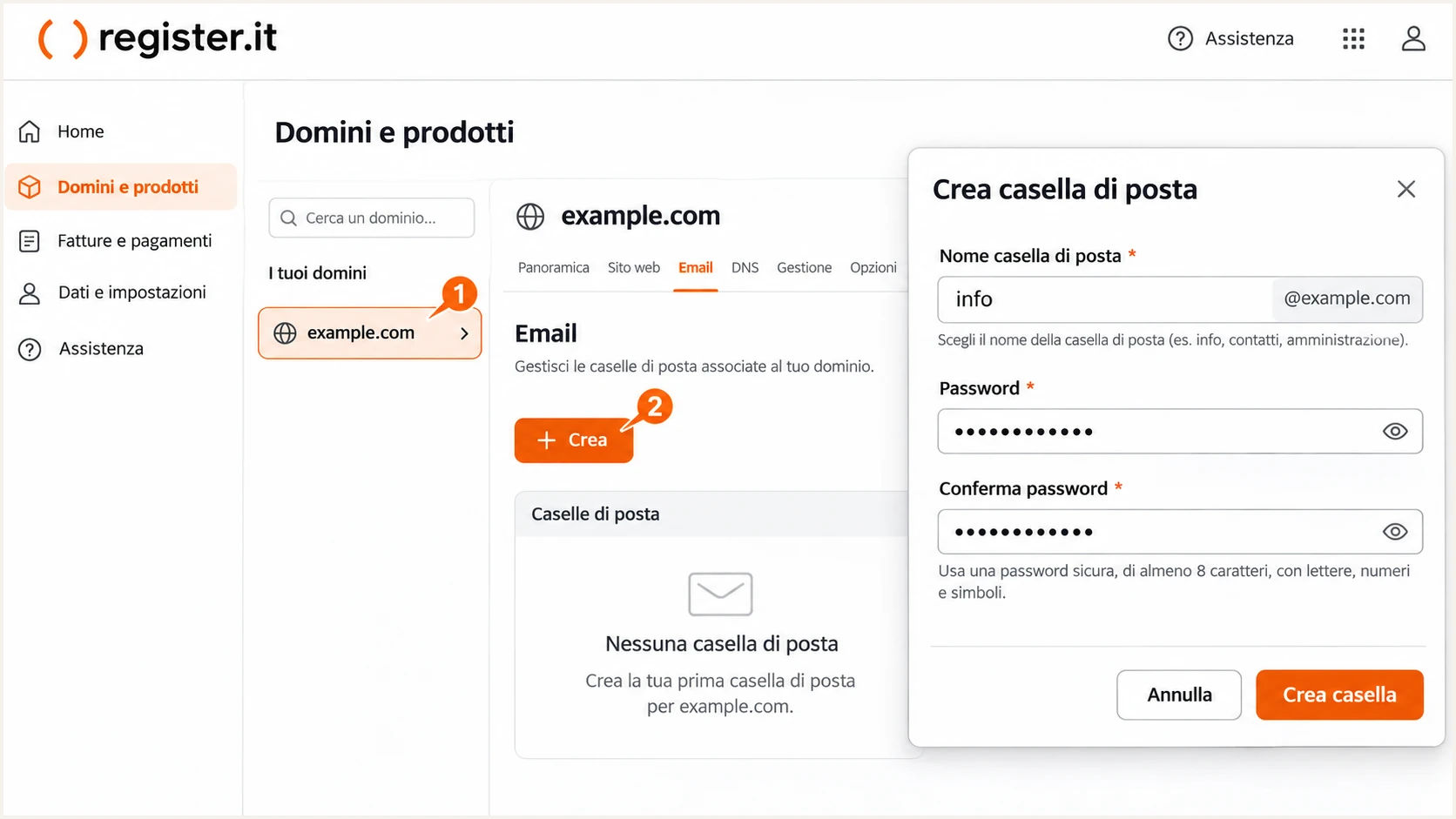
Illustrative Register.it mailbox creation screen with domain selection and Crea.
A working mailbox gives you a controlled sending path for the first authentication test. Test website and application mail separately afterward.
Save the existing DNS values before editing. This makes it easier to identify an accidental replacement or missing sender.
Set up SPF
Register.it documents include:spf.webapps.net for its SMTP, webmail and hosting services. I merge that authorization into the existing SPF record.
- Open SPF: Select Email > Azioni > SPF. If SPF is absent, use Aggiungi. If a record already exists, inspect it before changing anything.
- Keep one record: Maintain one TXT record beginning v=spf1 per sending domain. Add the Register.it include before the final all mechanism while preserving other authorized senders.
- Handle external DNS: Publish the change at your authoritative DNS host. A change in an inactive Register.it DNS zone will not affect public DNS.
- Check the envelope sender: Inspect the delivered Return-Path. Publish SPF for that domain; a root-domain SPF record does not automatically apply to a subdomain.
For a domain sending only through the documented Register.it service, publish this TXT value at the domain root. Preserve a deliberate existing -all policy.
SPF TXT value for Register.it-only sendingtext
v=spf1 include:spf.webapps.net ~all
Use the root name expected by your DNS editor, commonly @ or the full domain. Do not create a second SPF record.
SPF allows at most 10 DNS-lookup-causing terms during evaluation, including nested includes. Check the complete record after merging senders.
SPF checker
Find SPF syntax issues, lookup limits, and weak records.
?/16tests passed
Enter your actual sending domain above. Review duplicate records and lookup errors before sending a fresh test message.
For SPF alignment, the authenticated envelope domain must match the visible From domain under your DMARC settings. If Register.it rewrites it to an unrelated domain, rely on passing DKIM with your domain and ask support about envelope-sender options for that service.
Set up DKIM
I enable signing in Register.it and check the result on an actual message. Publishing a public key alone does not make a server sign email.
- Enable signing: Open Email > Azioni > DKIM, switch DKIM to ON, then close the popup.
- Publish at active DNS: If DNS is external, obtain the exact selector, record type and public value for your domain from Register.it. Publish those values at the authoritative host.
- Read the signature: Send a new message. In DKIM-Signature, find d=, the signing domain, and s=, the selector. Do not assume a universal Register.it selector.
- Confirm the result: Check the receiving server's Authentication-Results for dkim=pass and confirm that the signing domain matches your From domain under the DMARC alignment mode.
Use Register.it's signing key. A separately generated public key will fail verification unless Register.it signs with its matching private key.
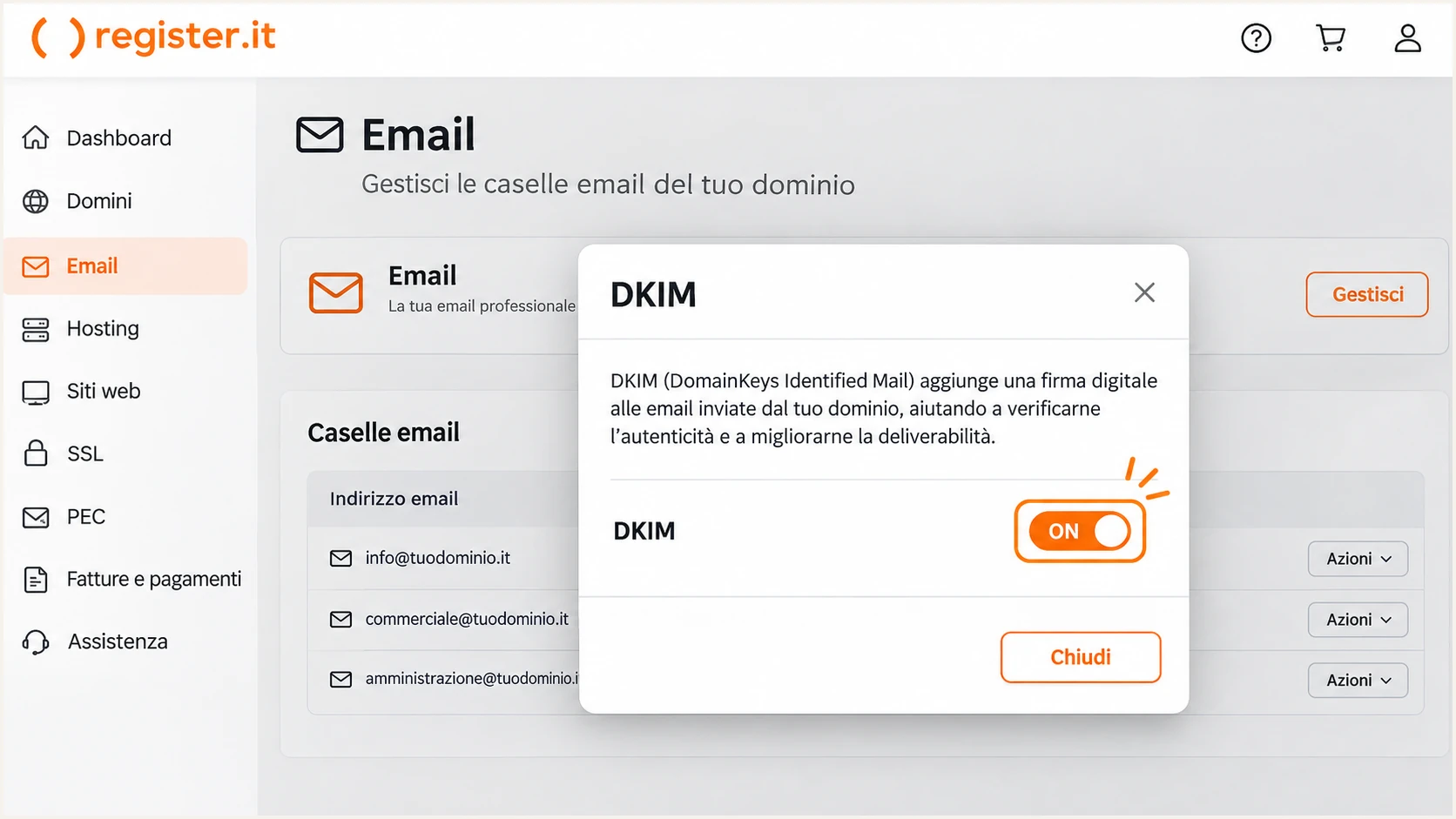
Illustrative Register.it DKIM popup with the signing switch set to ON.
With default relaxed alignment, example.com and mail.example.com share an organizational domain. Strict alignment requires an exact domain match.
A passing signature using an unrelated provider domain does not satisfy DMARC for your From address. Inspect the signing domain as well as the pass result.
DMARC passes through DKIM
From uses example.com. DKIM passes with d=example.com. SPF uses an unrelated envelope domain. DMARC still passes through DKIM.
Authentication passes without a DMARC pass
From uses example.com. SPF and DKIM pass only for unrelated provider domains. Neither authenticates the From domain for DMARC.
Website scripts and applications need their own test. Use the mailbox's authenticated SMTP service when local sending bypasses the configured signing path.
Forwarding often changes the sending IP and breaks SPF. A preserved DKIM signature using your domain gives DMARC another passing authentication path.
Set up DMARC
I start new deployments at p=none to collect reports. If the domain already uses p=quarantine or p=reject, keep that policy.
- Inspect first: Look up TXT records at _dmarc.example.com. Edit the existing DMARC record instead of adding another.
- Use the Email form: For a new record on Register.it DNS, open Email > Azioni > DMARC, enter the reporting address, and click Crea with enforcement disabled.
- Use DNS for the exact value: Open DOMINIO & DNS > Configurazione DNS > Modifica zone DNS. Use advanced DNS management for TXT records where required. Set the owner to _dmarc.example.com and save.
- Set reporting: Replace dmarc@example.com with a working reporting destination. An external reporting domain requires report-receiver authorization in DNS.
The minimal starting value below is for a new policy. In an editor that appends your domain, enter only _dmarc in the name field.
Initial DMARC TXT value at _dmarc.example.comtext
v=DMARC1; p=none; rua=mailto:dmarc@example.com
p=none requests monitoring without DMARC enforcement. It does not guarantee delivery or stop a receiver applying its own spam policy.
Use our DMARC record generator to build the value with your reporting address. Preserve existing reporting destinations when updating a working record.
DMARC checker
Look up a domain's DMARC record and catch policy issues.
?/7tests passed
Check the sending domain above after saving. Confirm that public DNS returns one valid DMARC policy with the intended reporting destination.
Register.it's form adds optional tags to its generated record. The minimal value above can be entered directly through DNS management.
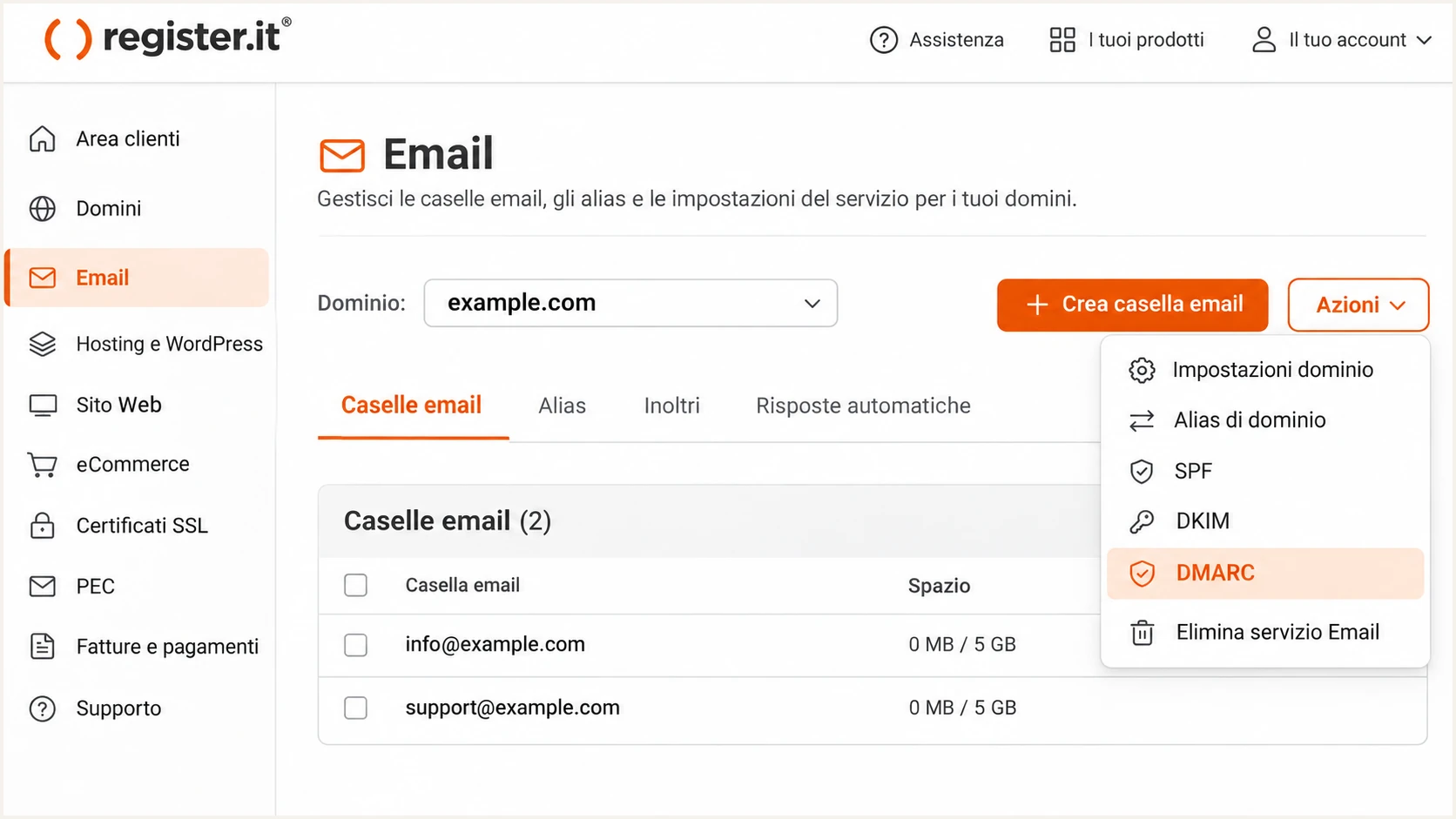
Illustrative Register.it Email screen showing Azioni > DMARC.
If nameservers are external, create the TXT record there. The Register.it Email form cannot make an inactive DNS zone authoritative.
The report address is a placeholder, not a ready-made reporting service. Use an address you control or the destination supplied by your report processor.
Verify and troubleshoot
I test each sending path with a newly delivered message. A DNS lookup confirms publication; a message test confirms authentication.
- Test webmail: Send a message directly from the Register.it mailbox to the test address. Use your domain in the visible From address.
- Test SMTP: Repeat through your mail client. Register.it lists authsmtp.securemail.pro on port 465 with SSL/TLS and the full email address as username for standard mailbox SMTP. Use service-specific settings for other plans.
- Test applications: Repeat through website forms and applications. Set the envelope sender to your domain where the application and sending service support it, then verify the delivered Return-Path.
- Read receiver results: Confirm dmarc=pass. Prefer both SPF and DKIM passing with matching domains, while recognizing that one passing authentication method with DMARC alignment is sufficient.
The quickest check is our email tester. Send a message to the address it provides for an authentication diagnosis of that sending path.
Email tester
Send a real email to this address. Suped shows a results button when the test is ready.
?/43tests passed
Use the receiving system's Authentication-Results header. A pass result inserted by an untrusted sender is not reliable verification.
Replace example.com below with your domain and SELECTOR with the actual s= value. DNS caches can retain old values until their TTL expires.
Check published DNS recordsbash
dig +short NS example.com
dig +short TXT example.com
dig +short TXT _dmarc.example.com
dig +short TXT SELECTOR._domainkey.example.com
Resolve the DKIM name using the message's d= domain, which is not always the visible From domain. Follow any CNAME target.
If public DNS is correct but a new message still fails, investigate the sending path and receiver diagnostics before replacing records.
|
|
|
|---|---|---|
permerror | Duplicate SPF / lookup limit | Merge SPF / count lookups |
No DKIM | Unsigned sending path | Enable signing / test SMTP |
dkim=fail | Key or message mismatch | Check selector / public key |
dmarc=fail | No passing matching domain | Compare From / SPF / DKIM |
Authentication failures and the first corrective action.
For a Register.it-managed shared sending IP, report PTR problems to Register.it. Changing a TXT record cannot repair the IP's reverse DNS.
Include a fresh message's full headers and any SMTP error when contacting support. Keep passwords and private keys out of the request.
Get alerted when it breaks
I keep monitoring active after the first successful test. Suped is our DMARC monitoring platform for detecting authentication issues and providing fix steps for Register.it traffic.
- Collect reports: Use the actual Suped reporting destination in rua if Suped processes your reports. Keep your current enforcement policy while changing reporting.
- Enable notifications: Configure Issues detected notifications, Sending sources need verification notifications, and DMARC summary emails for the responsible team.
- Review sources: Inspect Register.it traffic and other sources. Verify only senders your organization uses; investigate unexpected sources before authorizing them.
- Diagnose changes: Use Suped's record detail view for SPF, DKIM, DMARC and rDNS diagnostics. Check DNS history for changes, apply the fix, and verify it with another test message.
Suped connects recurring failures to the affected sending source, so the team can investigate the Register.it mailbox or application involved.
Report timing matters
DMARC aggregate reports arrive on receiver schedules, often daily. Suped notifications depend on the data received and issue detected; aggregate reporting is not an instant test of every message.
Use a fresh message test for immediate confirmation after a DNS edit. Use subsequent DMARC reports to check other sending paths.
Keep summary notifications enabled during quiet periods. Infrequent applications still need authentication when their next scheduled messages are sent.
Secure your domain with p=reject
I advance enforcement after every legitimate sending path has a demonstrated DMARC pass. Overall pass rate alone is not enough.
- Inventory legitimate mail: Include Register.it webmail, desktop clients, website forms and infrequent applications. Observe a complete sending cycle, including scheduled jobs.
- Resolve legitimate failures: Use Suped's source verification and issue diagnostics to separate authorized senders needing repair from unauthorized traffic. Keep DKIM passing with your domain on each legitimate path.
- Stage enforcement: Move a new monitoring deployment to p=quarantine, review delivery and report results, then change the existing policy to p=reject. Keep reporting enabled throughout.
- Check subdomains: Review mail from subdomains before enforcing the parent policy. Subdomains without an applicable explicit policy can inherit enforcement. Test forwarded mail and mailing-list paths too.
Suped's Hosted DMARC supports policy management after DNS delegation is configured. When managing DMARC directly in Register.it, edit the existing TXT record there.
Final DMARC TXT value after legitimate senders passtext
v=DMARC1; p=reject; rua=mailto:dmarc@example.com
Replace the reporting placeholder and preserve other intentional settings. Do not add strict SPF or DKIM alignment solely to reach p=reject.
Keep Suped notifications active during policy changes. Investigate failures by authorized source, then retest the affected Register.it sending path.
Enforcement needs verified senders
p=reject asks receiving servers to reject DMARC-failing mail, subject to local handling. It does not block lookalike domains or authenticate an attacker using another domain. Repair legitimate failures before increasing enforcement.
Save the previous policy before changing it. If legitimate delivery breaks, restore the previous enforcement level while fixing the affected source.
Confirm the final policy in public DNS and send fresh tests. Continue reviewing reports after the deployment is complete.
Frequency asked questions
Register.it documents include:spf.webapps.net for its SMTP, webmail and hosting email. Add it only when that service actually sends for your domain. Use the documented top-level include; do not copy nested infrastructure includes into your record.
The .register.it suffix is associated with Register.it infrastructure. Its support documentation names paganini04.register.it as a mail-server example. Confirm the sending IP's current PTR before classifying traffic. A hostname alone does not establish that a source is authorized to send for your domain.
Yes. A passing DKIM signature whose signing domain matches your From domain under the DMARC alignment mode is sufficient. If the delivered Return-Path belongs to an unrelated provider domain, adding SPF at your own domain does not change that identity.
Read s= in a newly signed message's DKIM-Signature header and d= for the signing domain. Query s._domainkey.d using those actual values. Obtain the required public DNS record from Register.it if it is missing; do not assume a selector used by another account.
Keep an existing working quarantine or reject policy. Add or fix Register.it authentication and preserve reporting while testing. p=none is the starting point for a new deployment without an existing enforcement policy.




