
How to set up DMARC/DKIM/SPF for Rackspace Email

Published 22 Nov 2026
Updated 22 Nov 2026
13 min read
Summarize with
To authenticate Rackspace Email, add include:emailsrvr.com to your domain's single SPF TXT record, enable DKIM under Domains > Sender Authentication (DKIM), and publish a DMARC TXT record at _dmarc. Rackspace supplies the domain-specific DKIM selector and public key.
I verify a newly delivered message before tightening the DMARC policy. DMARC passes when SPF or DKIM passes with domain alignment to the visible From address. These steps apply to Rackspace Email mailboxes; Microsoft 365 purchased through Rackspace has different setup requirements.
|
|
|
|
|---|---|---|---|
SPF | TXT | Sending domain | Rackspace include |
DKIM | TXT | Selector under _domainkey | Rackspace Control Panel |
DMARC | TXT | _dmarc | Your domain policy |
The DNS locations have different purposes. Publish each record at its own name.
Add your domain
I start with the domain registered in Rackspace Email and access to its authoritative DNS. If the domain and mailboxes already exist, confirm them and continue to SPF.
- Open domains: Sign in to the Rackspace Email Control Panel as an administrator. Under Domains, click Domains, then Add Domain.
- Choose DNS hosting: Enter your domain in Domain Name. Select I Own This Domain (Use External DNS) to keep your current DNS provider. Select the required Rackspace Email service and click Save.
- Create a mailbox: Open Rackspace Email > Mailboxes, select the domain, and click Add Mailbox. Create a mailbox you can use for an external test.
- Confirm setup: Check that the domain appears under Domains and that the mailbox is accessible. If you registered a new domain through Rackspace, complete its registration verification email within 15 days. Complete DKIM TXT verification in the DKIM section below.
For a planned migration to Rackspace, the standard inbound MX hosts are mx1.emailsrvr.com with priority 10 and mx2.emailsrvr.com with priority 20. Create the mailboxes before switching inbound routing.
An authentication update on an existing Rackspace domain does not require changing MX records or moving nameservers. I keep DNS at its current provider and publish the authentication records there.
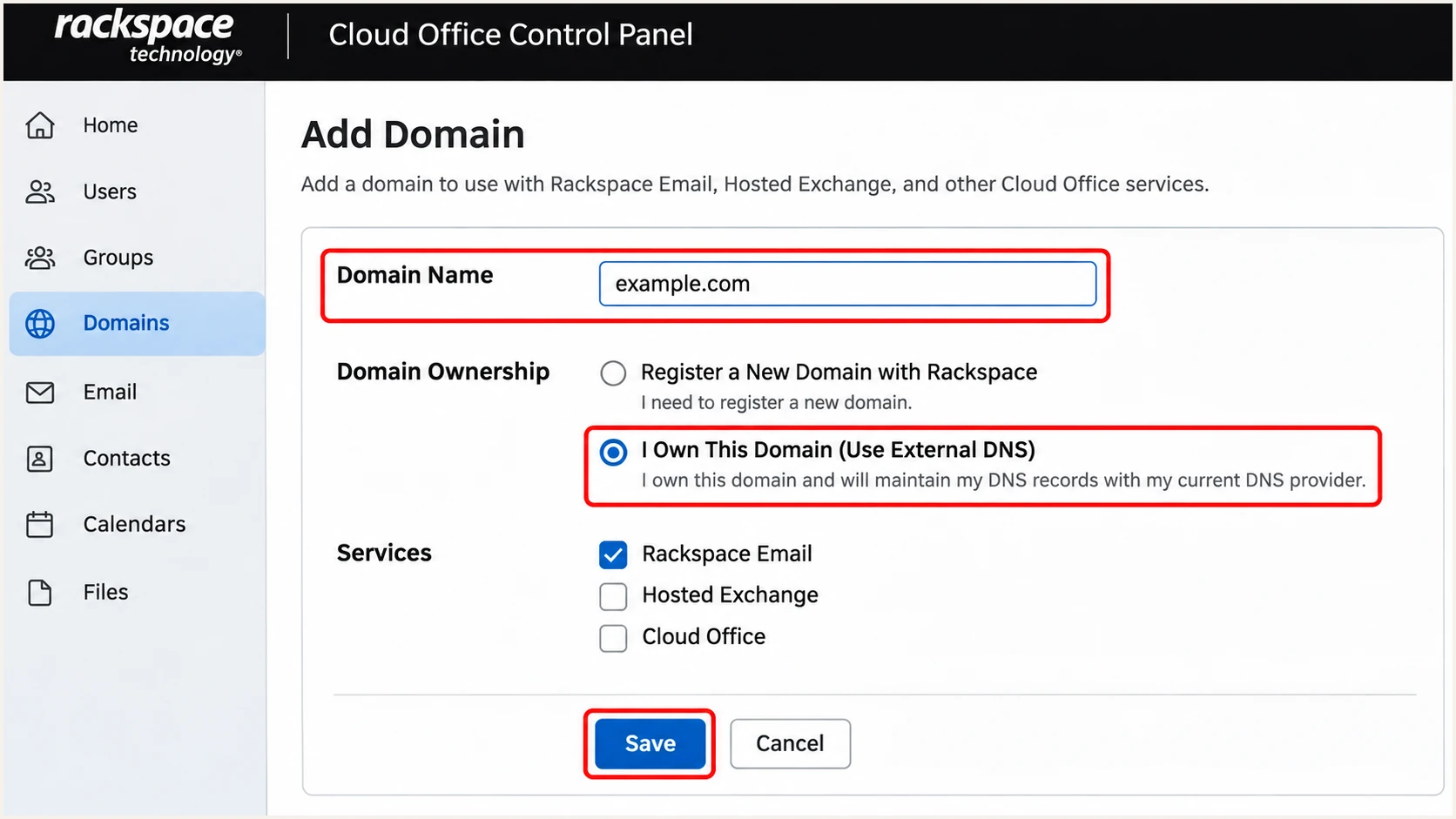
Illustrative Rackspace Add Domain form with external DNS selected.
Set up SPF
Rackspace Email documents include:emailsrvr.com as its SPF authorization. I add that mechanism to the existing SPF record rather than publishing a second SPF record.
- Find the record: At your authoritative DNS provider, inspect TXT records at the sending domain. For example.com, the DNS editor normally calls this host @ or leaves it blank.
- Authorize Rackspace: If no SPF record exists and Rackspace is your only sender, publish the TXT value below. Otherwise insert include:emailsrvr.com before the existing all mechanism and retain your other authorized senders.
- Keep one policy: Publish exactly one TXT record beginning v=spf1 at that DNS name. Keep the existing all qualifier when editing a working policy. Use a TTL of 3600 seconds or your provider's supported value.
- Check lookup cost: Stay within SPF's limit of 10 DNS lookup-causing terms, including nested includes. Remove obsolete authorizations after confirming they are no longer used.
SPF TXT value for a domain sending only through Rackspacetext
v=spf1 include:emailsrvr.com ~all
The ~all ending produces an SPF softfail for unlisted servers. It does not set your DMARC policy. Adding Rackspace to an existing SPF record must preserve the permissions your other legitimate senders need.
Enter your actual sending domain below. I check for duplicate records and lookup errors after saving, then repeat the lookup once DNS caches have refreshed.
SPF checker
Find SPF syntax issues, lookup limits, and weak records.
?/16tests passed
A valid SPF record proves that the published policy can be evaluated. The received message still determines which domain SPF checks: use the smtp.mailfrom result, normally corresponding to the Return-Path domain.
Rackspace Email supports Return-Path alignment. For a normal mailbox message, verify that smtp.mailfrom shares the visible From domain under your DMARC alignment mode. A provider-owned Return-Path requires passing, aligned DKIM for DMARC.
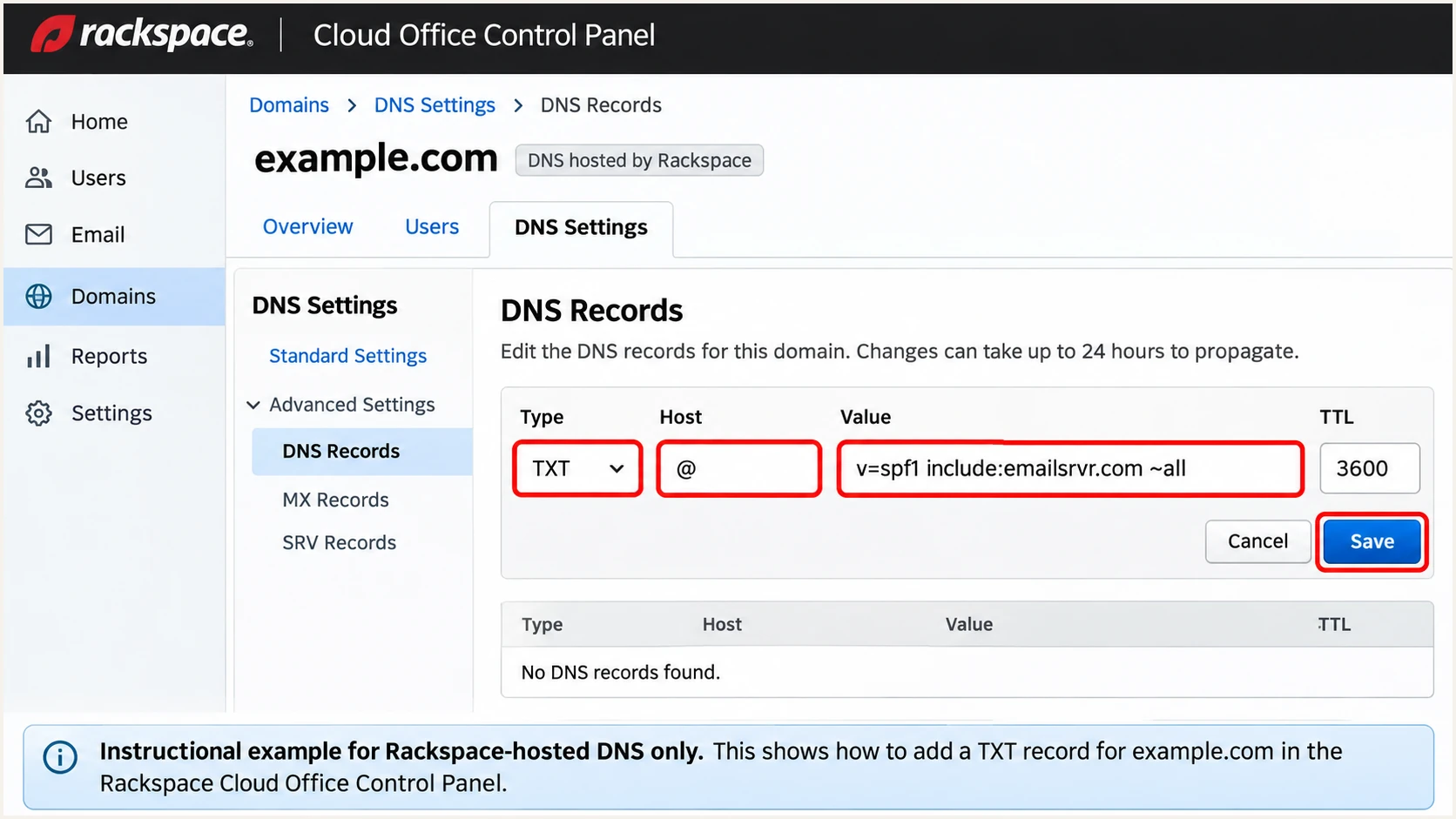
Illustrative SPF TXT record in Rackspace-hosted DNS.
Set up DKIM
I use Rackspace's generated DKIM record for each sending domain. A generic public key or a guessed selector cannot verify signatures created with Rackspace's private key.
- Open authentication: On the Control Panel home page, find Domains and click Sender Authentication (DKIM). Select your sending domain.
- Enable signing: Click Enable DKIM for. With active Rackspace-managed DNS, Rackspace configures the required DNS record automatically.
- Publish the key: For external DNS, copy the TXT record name and complete TXT value shown by Rackspace. Publish them at your DNS provider. Avoid appending the domain twice when the editor adds it automatically.
- Verify the record: Return to Rackspace and click Verify TXT Record. Resolve any displayed error, then confirm DKIM is enabled and send a fresh external message.
I copy the selector exactly as displayed. It is the part before ._domainkey in the DNS name and appears as s= in a message's DKIM-Signature header. The p= value in the DNS record is the public key, not a DMARC policy.
For the delivered test, require dkim=pass and check that the signing domain, shown as d=, has DMARC alignment with the visible From domain. Rackspace enabling DKIM does not enable signing for other systems using your domain.
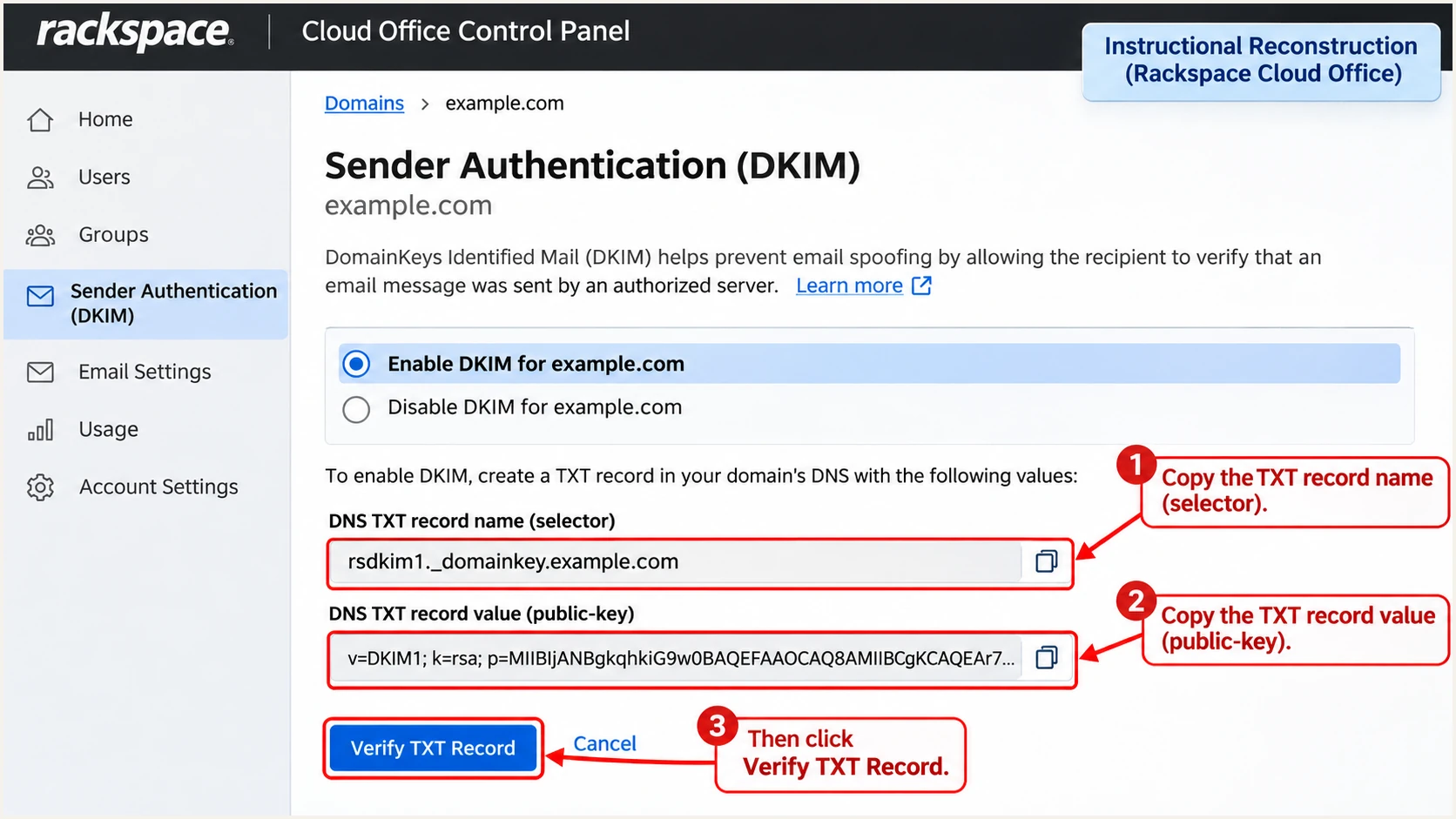
Illustrative Rackspace DKIM record fields and Verify TXT Record button.
DNS verification and message verification answer different questions. Rackspace's button checks the public record; a fresh delivered message confirms that the outgoing mail actually has a valid signature.
I keep DKIM working even when SPF passes. Forwarding commonly changes the sending IP and breaks SPF, while an unchanged signed message can retain a valid DKIM signature.
Rackspace hosts DNS
Enable DKIM in the Control Panel. Confirm the automatic DNS setup and enabled status, then test a new message.
Another provider hosts DNS
Publish Rackspace's exact TXT name and value at that provider. Return to Rackspace and click Verify TXT Record, then test a new message.
Set up DMARC
For a domain without an existing enforcement policy, I begin with p=none and aggregate reporting. If you already use p=quarantine or p=reject, retain that policy while fixing Rackspace authentication.
- Inspect existing DNS: Look for a TXT record at _dmarc.your-domain. Edit the existing policy if present; publish only one DMARC policy at that name.
- Create the policy: For example.com, use TXT host _dmarc, TTL 3600, and the monitoring value below. Replace the sample reporting address with a working mailbox or assigned aggregate-report destination.
- Use the right editor: For Rackspace-hosted DNS, open Domains > DNS Settings, select the domain, then DNS records under Advanced Settings. Under Hosting Records, click Add Additional Record, choose TXT Record, enter the values, and click Add Record. Otherwise use your authoritative DNS provider.
- Confirm publication: Check the public record after saving. Allow for DNS cache refresh; Rackspace documents up to 24-48 hours for changes to become visible everywhere.
Initial DMARC TXT value at _dmarc.example.comtext
v=DMARC1; p=none; rua=mailto:dmarc@example.com
The sample dmarc@example.com address is a placeholder. Create or replace the reporting destination before publishing. Reports contain aggregate XML data, and an external reporting domain requires the destination's DMARC reporting authorization.
Build the policy with the DMARC record generator, then check your live domain below. I keep the initial alignment settings at their relaxed defaults unless exact-domain matching has been tested.
DMARC checker
Look up a domain's DMARC record and catch policy issues.
?/7tests passed
A successful DNS check confirms policy syntax and publication. It does not confirm that Rackspace messages pass DMARC. The received message must pass at least one aligned authentication method.
With p=none, DMARC requests reporting without requesting quarantine or rejection for DMARC failures. Receivers still apply their own spam rules. Aggregate reports arrive on receiver schedules, commonly daily, rather than immediately after a test.
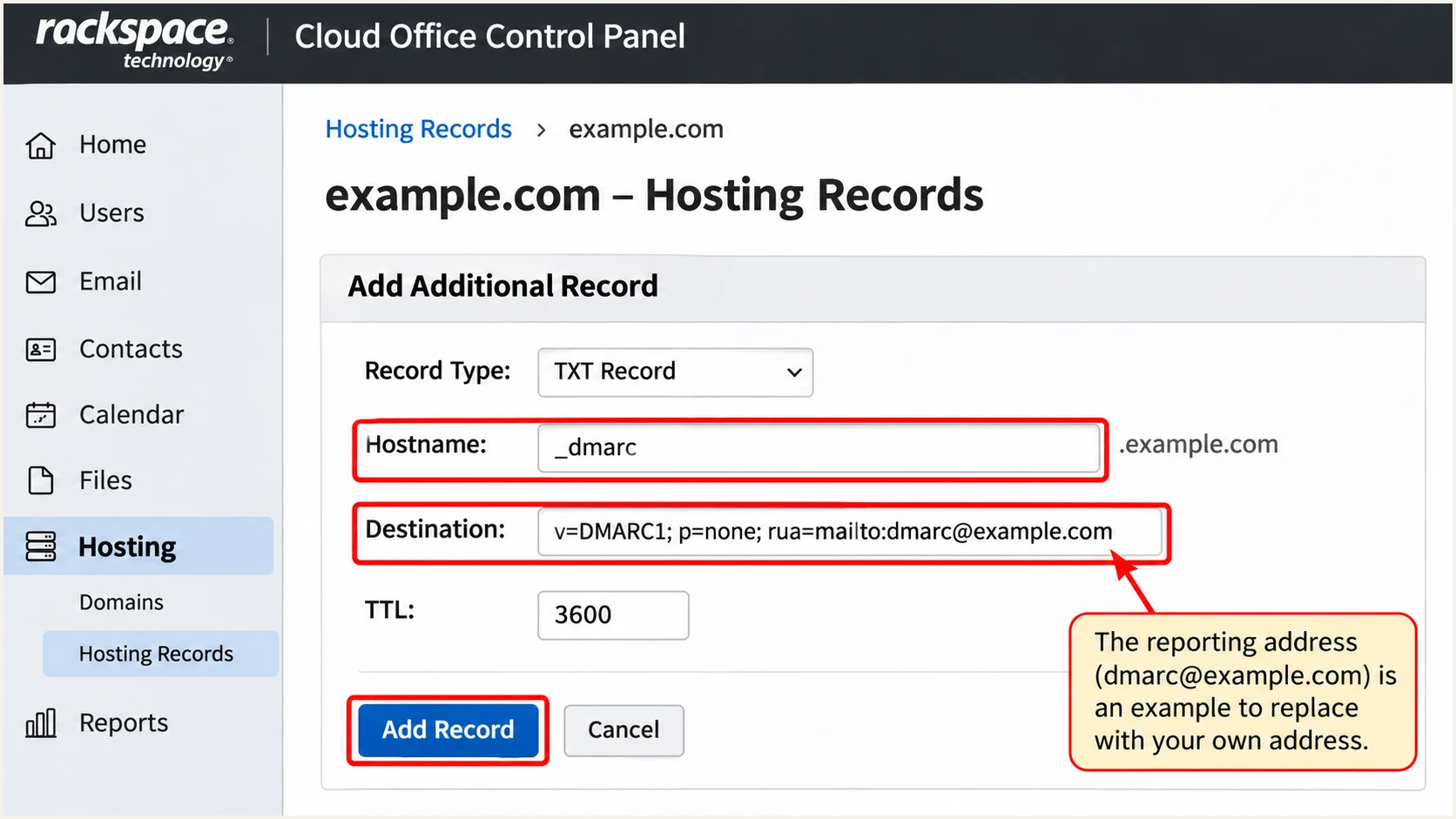
Illustrative DMARC TXT record in Rackspace-hosted DNS.
Verify and troubleshoot
I test the same route people actually use to send email. A webmail test does not validate an application that sends directly through another server.
- Send externally: Send a new message from the Rackspace mailbox to an external recipient. Repeat for applications and any aliases that use a different visible From domain.
- Read receiver results: Inspect the delivered message's Authentication-Results header. Require dmarc=pass for your From domain. Aim for spf=pass and dkim=pass, then check their authenticated domains.
- Inspect selector DNS: Read s= and d= in DKIM-Signature. Query the TXT record at the selector followed by ._domainkey and the signing domain. The commands below use an example domain; replace both it and the selector.
- Fix the failing layer: Resolve SPF permerror, missing DKIM records, or domain mismatch separately. Check the authoritative DNS zone and repeat with a newly sent message after each change.
Check public authentication recordsbash
dig +short TXT example.com
selector=replace-with-rackspace-selector
dig +short TXT "$selector._domainkey.example.com"
dig +short TXT _dmarc.example.com
The quickest end-to-end check is the email tester. Send a message from Rackspace to the address it provides and inspect the authentication diagnosis, including domain alignment.
Use the exact sender address and client you plan to use in production. This tests the delivered message, including the signature and sending IP, which a DNS-only lookup cannot validate.
Email tester
Send a real email to this address. Suped shows a results button when the test is ready.
?/43tests passed
Retest after changing DNS or enabling DKIM. Existing messages keep their original headers, so reading an old message cannot confirm that a fix worked. Use the receiver-generated authentication results for the fresh delivery.
If direct delivery passes but forwarding fails SPF, inspect DKIM before changing SPF. Authorizing every forwarder in your SPF record expands sending permission and does not solve domain mismatch.
|
|
|
|---|---|---|
SPF permerror | Duplicates or lookup limit | Merge or trim SPF |
DKIM key missing | Selector and DNS name | Publish exact TXT |
DKIM signature absent | Enabled status and route | Enable domain signing |
SPF pass, DMARC fail | MAIL FROM domain | Fix domain alignment |
Both pass, DMARC fail | Authenticated domains | Check From domain match |
No aggregate reports | rua and authorization | Fix destination; await reports |
A raw SPF or DKIM pass is insufficient when neither authenticated domain matches the From domain under DMARC.
Get alerted when it breaks
A successful test is a snapshot. I want ongoing visibility when a sender changes its route or a DKIM record disappears. Our DMARC monitoring in Suped turns aggregate reports into source-level authentication results and issue notifications.
- Route reports: Use the aggregate-report destination assigned for your domain in Suped in the existing DMARC record's rua tag. Keep the current enforcement policy and complete external reporting authorization when required.
- Verify the source: Review Rackspace traffic in Sources and mark it verified only after confirming it is an authorized sender. Investigate unfamiliar sources before trusting them.
- Enable notifications: Open Settings > Notifications. Enable Issues detected and Sending sources need verification. Enable DMARC summary emails for a recurring review.
- Investigate failures: Open the reported issue and its steps to fix. Use Data view to filter by source or IP, inspect the detailed SPF and DKIM results, fix the Rackspace or DNS setting, and verify the change.
Suped combines issue detection with the report details needed to diagnose the failure. Alerts depend on incoming report data, so their timing follows receiver reporting and processing rather than each individual message.
I also review DNS history after an unexpected change. For delivery problems after authentication passes, Suped's deliverability insights and blocklist (blacklist) monitoring help investigate the separate reputation issue.
Secure your domain with p=reject
I move to p=reject after legitimate sending routes consistently pass DMARC and unexplained legitimate failures are resolved. Suped's source inventory and issue diagnostics provide the evidence for that decision.
- Inventory all senders: Review Rackspace alongside every application sending with your domain. Observe a complete business sending cycle, including infrequent billing or scheduled messages.
- Resolve legitimate failures: Confirm passing, aligned DKIM on Rackspace and check SPF alignment on direct delivery. Authenticate each other sender separately before enforcement.
- Stage enforcement: Move a monitoring policy to p=quarantine, review subsequent reports and delivery outcomes, then use p=reject when authorized sources remain healthy. Keep existing enforcement while investigating new issues.
- Review subdomains: Check policies on sending subdomains and inherited policy behavior. Set sp deliberately if subdomains require different handling; account for those senders before enforcing the parent domain.
- Keep monitoring: Use our hosted DMARC policy controls to manage changes in Suped, review failures after each change, and retain reporting after reaching reject.
Our hosted DMARC product lets teams manage policy in Suped after its DNS setup is complete. I pair policy changes with source checks and issue notifications so a stricter policy follows verified sending behavior.
The record below shows the final policy for a domain using a mailbox for aggregate reports. Replace the example reporting address with your actual destination and preserve other intentional policy settings.
DMARC TXT value after enforcement readiness is confirmedtext
v=DMARC1; p=reject; rua=mailto:dmarc@example.com
Keep DKIM enabled and continue reviewing reports after enforcement. A new application sending with the same From domain needs its own authentication before it starts sending production mail.
A reject policy requests refusal when both available authentication paths fail DMARC. Receivers retain local discretion. It does not prevent abuse of compromised mailboxes or impersonation through a different domain.
Keep working enforcement in place
An SPF alignment failure alone is not a reason to weaken DMARC when aligned DKIM passes. Diagnose the actual DMARC result and affected legitimate source before changing the domain policy.
I use the first reports after each policy change to check for missed legitimate sources. Resolve those specific routes and send a fresh test before treating the configuration as complete.
For a sender you cannot authenticate, move its mail to a domain it can authenticate or stop it using your protected From domain. Keeping an exception indefinitely leaves that sending route unresolved.
Frequency asked questions
Rackspace Email uses include:emailsrvr.com. Add it to the single SPF record at the domain used for your envelope sender when you authorize Rackspace. Its presence identifies related sending infrastructure, not a particular customer. Do not add unrelated includes discovered in report data.
The emailsrvr.com domain is associated with Rackspace Email infrastructure, including hosted and reseller traffic. Treat an rDNS suffix as a source-identification clue. Confirm the connecting IP and authentication results; the hostname alone does not prove a message is authorized.
Open Domains > Sender Authentication (DKIM), choose the domain, and use the TXT record name Rackspace supplies. The selector is the part before ._domainkey. A newly signed message also identifies it in the DKIM-Signature s= tag. Do not assume one selector works for every domain.
Yes. DMARC passes when a valid DKIM signature has domain alignment with the visible From domain, even if SPF fails or uses an unrelated Return-Path domain. I still investigate unexpected SPF failures on direct Rackspace delivery, while keeping passing, aligned DKIM enabled.
No. It requests monitoring without requesting DMARC enforcement. Receivers still apply their own filtering. Review reports, authenticate legitimate senders, and progress through quarantine to reject once the observed traffic supports enforcement. Keep an existing quarantine or reject policy in place during setup.
Check that the record was published at the authoritative DNS provider, the selector name is exact, and the domain was not appended twice. Copy the complete public-key value supplied by Rackspace. Allow for DNS cache refresh, click Verify TXT Record again, and then test a newly sent message.




