How to set up DMARC/DKIM/SPF for Qvalent

Published 10 Nov 2026
Updated 10 Nov 2026
11 min read
Summarize with
To authenticate Qvalent email, have Qvalent configure a Return-Path under your domain, publish its support-confirmed SPF settings, and add a DMARC record to your DNS. DMARC passes when SPF authenticates that matching domain, or when a valid DKIM signature uses a matching domain.
I verify SPF first for Qvalent and ask support whether custom DKIM signing is available for the specific service. Qvalent's public QuickStream documentation does not publish a custom DKIM setup procedure or a universal SPF include. Obtain those settings for your facility before changing DNS.
Add your domain
Arrange sending-domain configuration with Qvalent support. For facilities using Qvalent's QuickStream Portal, the documented support route is the Help menu; there is no documented self-service email domain verification wizard.
- Identify the sender. Record your facility or community code, production From address, and the payment receipts or account notifications that use it.
- Contact support. In QuickStream Portal, open the Help icon, then Help & Documentation. Find the QuickStream Technical Support contact details and quote your community code.
- Request configuration. Supply the From domain. Request a matching envelope sender, approved SPF mechanisms, all production sending IPs, and confirmation of custom DKIM availability.
- Complete verification. Publish any ownership verification records support supplies. Ask support to confirm activation, then request a new message and check its actual sender domains.
QuickStream's Administration > Facility Settings > Manage Domain Whitelist controls server-to-server notification URLs. Adding a domain there does not authenticate email or configure its Return-Path.
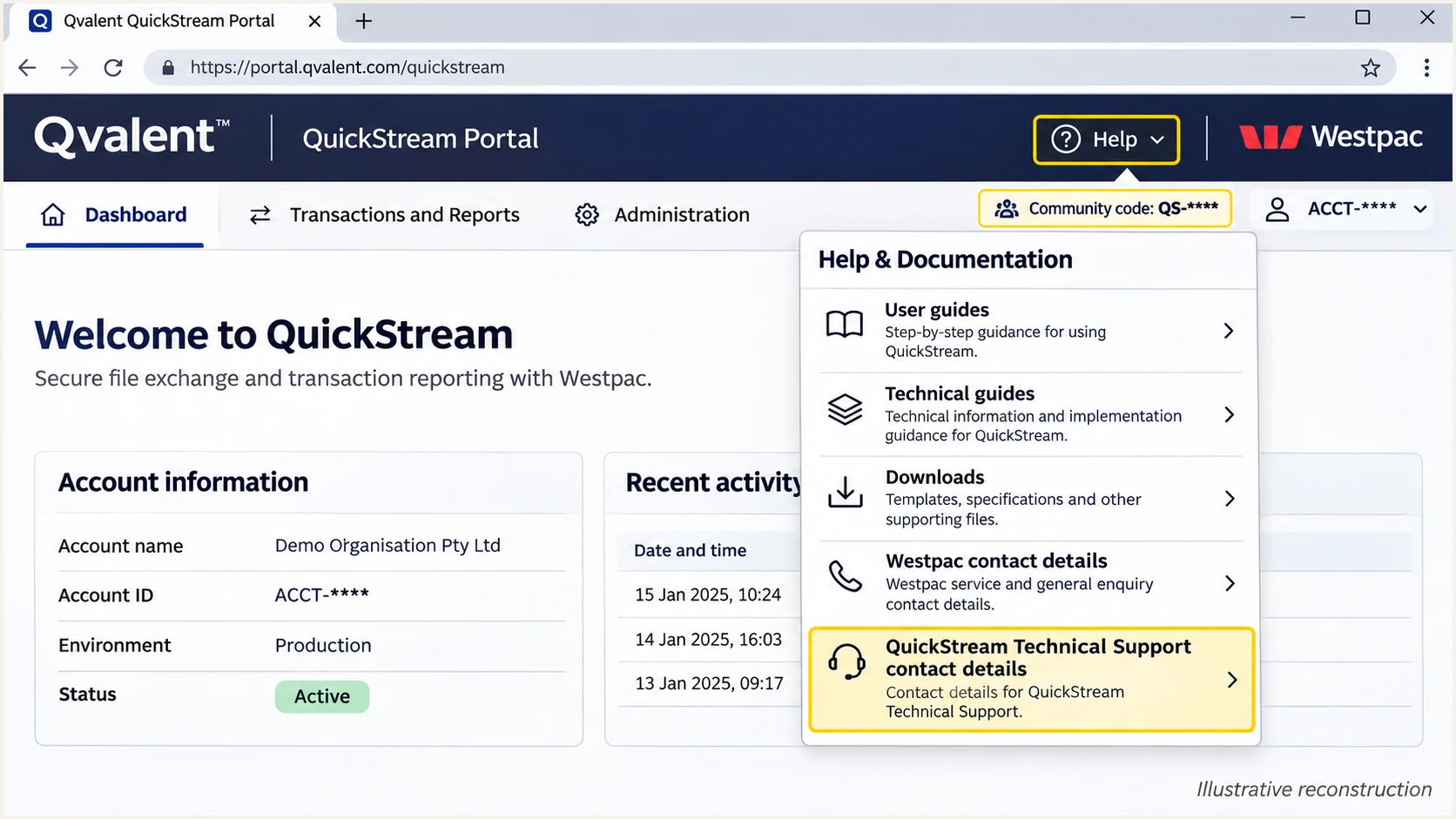
Illustrative QuickStream Portal Help menu for contacting technical support.
I keep test and production details separate. A successful test receipt does not establish that the production facility uses the same envelope domain or sending IPs.
Set up SPF
Publish SPF for the domain Qvalent actually uses in the SMTP MAIL FROM address, normally visible in the received Return-Path. Qvalent supports Return-Path alignment, so ask support to activate it for your sending configuration.
- Confirm the domain. Use the exact envelope domain supplied by support. With relaxed DMARC alignment, bounce.example.com matches a visible From domain of example.com; strict alignment requires an exact match.
- Authorize Qvalent. Add only the ip4, ip6, or include mechanisms Qvalent approves. Insert them before the existing terminal all mechanism, preserving other authorized senders.
- Keep one SPF record. Edit the existing v=spf1 TXT record at that hostname. Do not add a second SPF record. A bounce subdomain needs its own SPF setup; it does not inherit the parent record.
- Check lookup limits. Keep SPF evaluation within 10 DNS-querying terms, including nested includes. Do not use +all or authorize a broad network based on an observed IP.
I do not infer an include target from qvalent.com or copy an IP out of an old receipt. Support must confirm the complete current authorization. If support delegates the envelope domain with a CNAME, follow that delegation rather than adding a TXT record at the same name.
Inspect SPF at the actual envelope domainbash
dig +short TXT example.com
dig +short TXT bounce.example.com
Replace the example names with your actual envelope domain. These commands inspect DNS; they do not enable a custom Return-Path in Qvalent.
Run the SPF checker against that same hostname after publishing. Check for duplicate SPF records and lookup errors before sending another receipt.
SPF checker
Find SPF syntax issues, lookup limits, and weak records.
?/16tests passed
The message test must show SPF passing for the expected envelope domain. An SPF pass for a provider-owned domain does not establish SPF alignment with your visible From domain.
If Qvalent still uses a provider-owned Return-Path, return to support. Adding Qvalent to your root SPF record cannot change the envelope sender used by the application.
Set up DKIM
I ask Qvalent to confirm custom DKIM support before publishing a key. A DNS record alone cannot make Qvalent sign messages, and there is no public selector or key that should be assumed to work for every facility.
- Confirm capability. Ask whether this Qvalent service signs using your domain, rather than only a Qvalent-owned domain.
- Obtain the records. If supported, request the signing domain, selector, record type, and exact TXT value or CNAME target. Never substitute an independently generated key.
- Publish and activate. Create the supplied selector records in DNS, then ask Qvalent to activate signing. Keep any unrelated selectors used by other senders.
- Test the signature. Send a new message. Require dkim=pass and verify that the DKIM d= domain matches the visible From domain under your DMARC alignment mode.
DKIM keys are published under selector._domainkey followed by the signing domain. Use Qvalent's exact selector and public record; the private signing key belongs on the sending system.
Custom DKIM is available
Publish Qvalent's records and verify the resulting signature. Passing DKIM with a matching domain provides another DMARC authentication path when forwarding breaks SPF.
Custom DKIM is unavailable
Use passing SPF with a matching envelope domain for direct delivery. Record the absence of DKIM as a limitation and assess forwarding and recipient requirements before enforcement.
An SPF alignment error is acceptable for DMARC when DKIM passes with a matching domain. If Qvalent does not provide that DKIM signature, SPF alignment remains necessary.
DMARC passing through SPF alone does not satisfy every receiver requirement. For example, Gmail requires bulk senders to authenticate with both SPF and DKIM, even though only one matching authentication path is required for DMARC.
Set up DMARC
Publish DMARC for the domain in the visible From address. For a domain without DMARC enforcement, start with p=none. If the applicable policy is already quarantine or reject, keep it and authenticate Qvalent under that policy.
- Inspect the policy. Look up _dmarc followed by your From domain. Check for an applicable parent-domain policy before creating a new subdomain record.
- Build the record. Use the DMARC record generator to prepare the TXT value and reporting destination.
- Publish one record. Create or update the applicable DMARC TXT record. Use the monitoring example below only when the domain is not already protected by quarantine or reject.
- Enable reporting. Replace dmarc@example.com with a working aggregate-report destination you control. Complete external reporting authorization if reports go to another domain.
For example.com, the DNS host is _dmarc.example.com. Some DNS editors automatically append the zone name, so enter _dmarc in those editors. Use a normal TTL such as 3600 seconds.
Initial monitoring record
TXT value at _dmarc.example.comtext
v=DMARC1; p=none; rua=mailto:dmarc@example.com
Replace the example reporting address before publishing. The p=none policy collects feedback without requesting DMARC enforcement; it does not authorize Qvalent or guarantee inbox delivery.
Use the DMARC checker to confirm that DNS returns one valid policy with the intended reporting address. Retain existing quarantine or reject settings when updating reporting.
DMARC checker
Look up a domain's DMARC record and catch policy issues.
?/7tests passed
A valid DMARC record establishes policy. It does not prove that Qvalent's messages pass. That requires a message generated by the configured sending facility.
I keep relaxed alignment unless there is a specific reason for strict matching. An existing aspf=s setting requires the envelope domain to equal the visible From domain exactly.
Verify and troubleshoot
I test a receipt sent by Qvalent rather than an email sent manually through a staff mailbox. Use an existing approved transaction or a supported test transaction; no new customer payment is needed just to inspect authentication.
- Open a receipt. In QuickStream Portal, select Transactions and Reports > Find or Refund a Transaction. Search for the approved transaction and click its receipt number.
- Choose the recipient. Use the email receipt action in the transaction details. Enter the temporary recipient address supplied by the email tester below.
- Inspect the message. Read the tester diagnosis and the receiving server's Authentication-Results. Compare the From domain with smtp.mailfrom and, when present, the DKIM d= domain.
- Repeat each workflow. Test production receipts and each notification type that sends with your domain. Repeat after changing SPF or enabling DKIM.
Qvalent's QuickStream user guide documents the receipt-number workflow and the option to enter a recipient address. Available transaction actions depend on transaction status and your permissions.
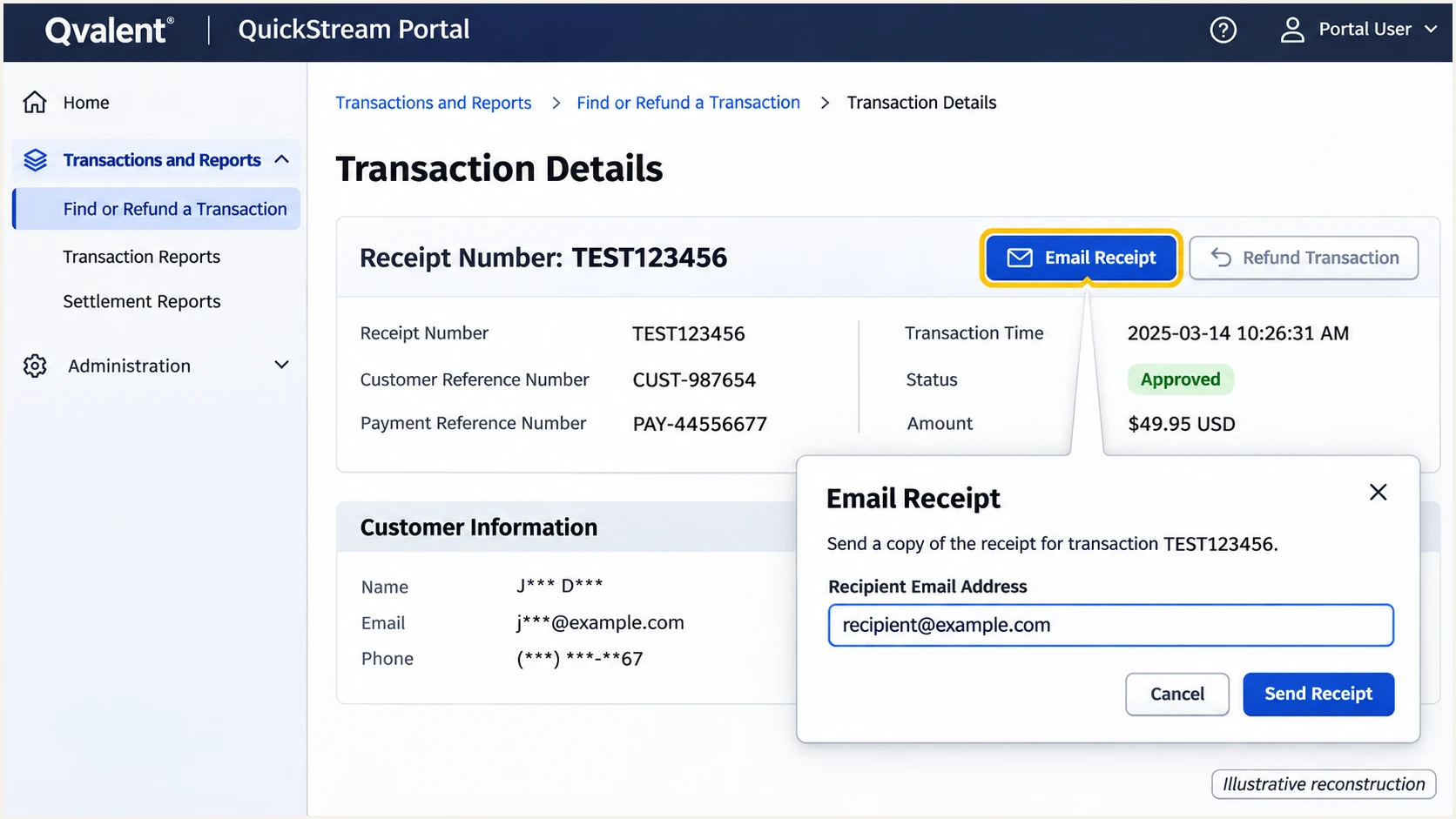
Illustrative QuickStream transaction details showing the email receipt workflow.
Send directly to the tester address. Forwarding an existing receipt changes the delivery path and can break SPF, so it is a separate test.
The email tester prompts you to send a message and gives a full diagnosis of the received email. It is the quickest check of the configuration actually used by Qvalent, including authentication and other delivery checks.
Email tester
Send a real email to this address. Suped shows a results button when the test is ready.
?/43tests passed
Read the receiving server's results alongside the domains it evaluated. A bare SPF or DKIM pass is insufficient for DMARC when the authenticated domain does not match your From domain.
Use these outcomes to choose the next action. An absent DKIM signature is different from a signature that was present but failed verification.
|
|
|
|
|---|---|---|---|
Pass, matching | Absent | Pass | Check DKIM availability |
Pass, different | Absent | Fail | Fix Return-Path |
Fail | Pass, matching | Pass | Investigate SPF |
Pass, different | Pass, different | Fail | Fix domain matching |
Interpret authentication and domain matching together.
For an SPF failure, check the actual sending IP against Qvalent's approved authorization and inspect the envelope domain's SPF record. For DKIM failures, check the selector record and confirm that signing was activated.
For escalation, give Qvalent the sending timestamp, message ID, receiver error, and relevant authentication headers. I also test forwarded delivery separately when the facility relies entirely on SPF.
Get alerted when it breaks
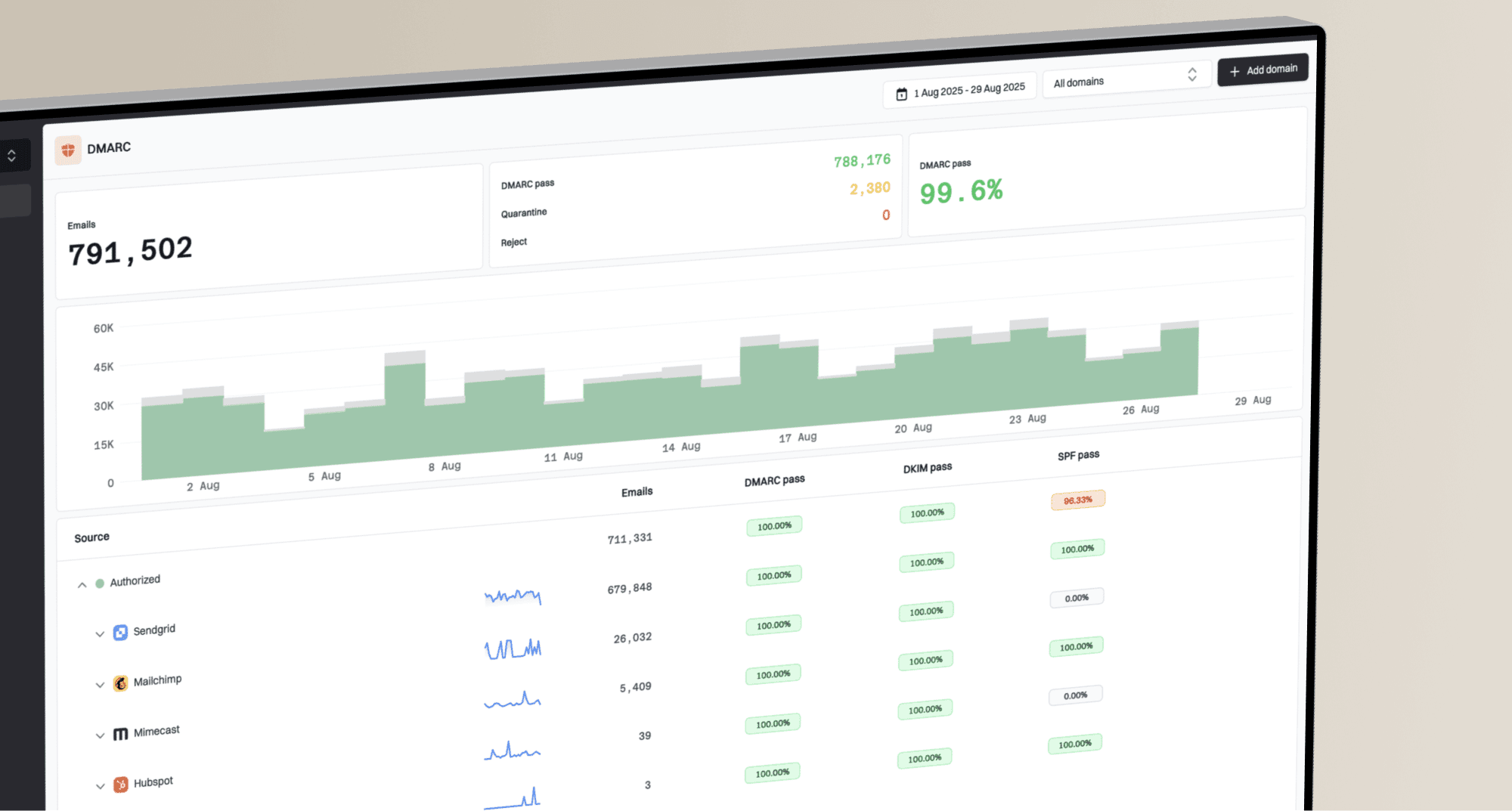
Our DMARC platform, Suped, provides ongoing DMARC monitoring for Qvalent traffic. Use it to connect authentication failures to the sending source and investigate DNS changes after setup.
- Keep reports flowing. Use your configured Suped aggregate-report destination in the existing policy's rua tag, preserving its enforcement setting.
- Verify the source. Review Qvalent in Sources and confirm that it is an authorized sender before marking it verified. Investigate unfamiliar IPs rather than authorizing them automatically.
- Enable notifications. In Settings > Notifications, enable DMARC failure alerts and summary emails. Configure the available failure threshold for the domain's normal sending volume.
- Investigate changes. Filter Data view by source and IP, then open Detail view for SPF and DKIM diagnostics. Compare the failure period with DNS history.
Suped's automated issue detection and fix steps help identify an SPF error or an unexpected sender domain. DNS history helps establish whether a record change preceded the failures.
Allow for report delay
DMARC aggregate reports arrive after receivers collect the data, commonly a day or more after sending. Suped's failure alerts depend on incoming reports. Use a fresh message test for immediate validation.
I repeat the Qvalent receipt test after every sender or DNS change. Report-based alerts then check whether the same configuration continues working across normal traffic.
Secure your domain with p=reject
Move to p=reject after every legitimate sender has a working DMARC authentication path. For Qvalent without custom DKIM, that means consistently passing SPF with the correct envelope domain, plus a deliberate assessment of forwarding risk.
- Inventory all senders. Use Suped's source table to review Qvalent alongside every other authorized source using the domain. One successful Qvalent receipt is not enough.
- Cover normal cycles. Review a period containing your actual billing and notification cycles. Resolve legitimate failures and investigate unexplained sources before changing policy.
- Stage enforcement. If you are starting at none, move to quarantine and inspect legitimate failures before reject. Keep an existing reject policy in place when adding Qvalent.
- Enforce and observe. Set p=reject when legitimate failures are resolved. Retain aggregate reporting and Suped alerts, then resend a Qvalent receipt after the change.
Suped keeps source review and failure diagnostics in the same workflow. Our Hosted DMARC controls let teams stage policy changes after hosted DNS setup, while continuing to inspect authentication results.
Final policy example after validationtext
v=DMARC1; p=reject; rua=mailto:dmarc@example.com
Replace the reporting mailbox and retain any required existing tags. Check inherited subdomain policies before changing the parent record; the policy affects other senders using that domain too.
A Qvalent message with passing SPF and a matching domain still passes DMARC under p=reject when DKIM is absent. Receivers decide final handling, and forwarding that breaks SPF remains a concern for messages without matching DKIM.
Frequently asked questions
Yes. Passing SPF with an envelope domain that matches the visible From domain is sufficient for DMARC. Confirm Qvalent's production Return-Path configuration. Missing DKIM remains a limitation for forwarding and for receivers that separately require DKIM.
Ask Qvalent support for the approved SPF mechanisms for your facility. Do not assume include:qvalent.com is valid or copy an old sending IP. Publish the authorization at the actual envelope domain and preserve other authorized senders.
The authenticated envelope domain can differ from the visible From domain. Check smtp.mailfrom in the receiver's results. Configure a matching Return-Path, or use passing DKIM with a matching domain if Qvalent supports it. With strict SPF alignment, the domains must match exactly.
Keep the existing reject policy. Configure Qvalent's authentication before enabling the new sender, then test actual messages. The p=none example is for domains that are not already enforcing DMARC.
mailpr.qvalent.com is associated with Qvalent. Qvalent's published infrastructure documentation lists that hostname. If it appears in an email source's rDNS, investigate Qvalent and confirm the current sending IP with support. The hostname alone does not establish that the message was authorized by your organization.
After DNS caches expire, send a new Qvalent receipt directly to the email tester and inspect its results. Aggregate reports and Suped failure alerts depend on receiver reporting schedules, so they arrive later than a direct message test.