
How to set up DMARC/DKIM/SPF for Qualtrics

Authenticate Qualtrics email by registering your custom From domain, publishing its generated DKIM key and valid MX records, and configuring DMARC in DNS. Add include:_spf.qualtrics.com when authorizing a custom envelope sender. I verify a delivered message before changing enforcement, because an SPF pass alone does not prove that your visible From domain is authenticated.
Qualtrics makes SPF optional for custom domain activation. Its standard bounce address uses bounces.qemailserver.com, so custom DKIM is the important path to DMARC success when that default Return-Path remains in use.
Add your domain
I start with a dedicated sending subdomain, such as research.example.com, and access to both Qualtrics brand administration and public DNS. These steps apply to direct sending through Qualtrics; an existing SMTP relay needs authentication on the relay instead.
- Open settings. As a Brand Administrator, open Admin > Organization Settings > Messaging > Custom email domains > Add domain.
- Create the domain. Enter research.example.com. Choose a selector such as qualtrics and a 2048-bit key, then click Add. Use a different selector for each brand sharing the domain.
- Copy the configuration. Save the generated Domain, Type, and Value entries. Publish the DKIM TXT record and check the displayed MX and DMARC requirements.
- Validate mail routing. Keep an existing valid MX. Otherwise, configure an MX through your mail administrator. Its destination must resolve through A or AAAA records, a Qualtrics requirement since June 8, 2026.
An MX routes incoming mail, including replies addressed to this domain. I confirm the destination with the mail administrator before editing it; an outbound authentication change should not interrupt incoming mail.
Save the generated key before leaving this screen. Complete the SPF, DKIM, and DMARC checks below, then return to activate the domain.
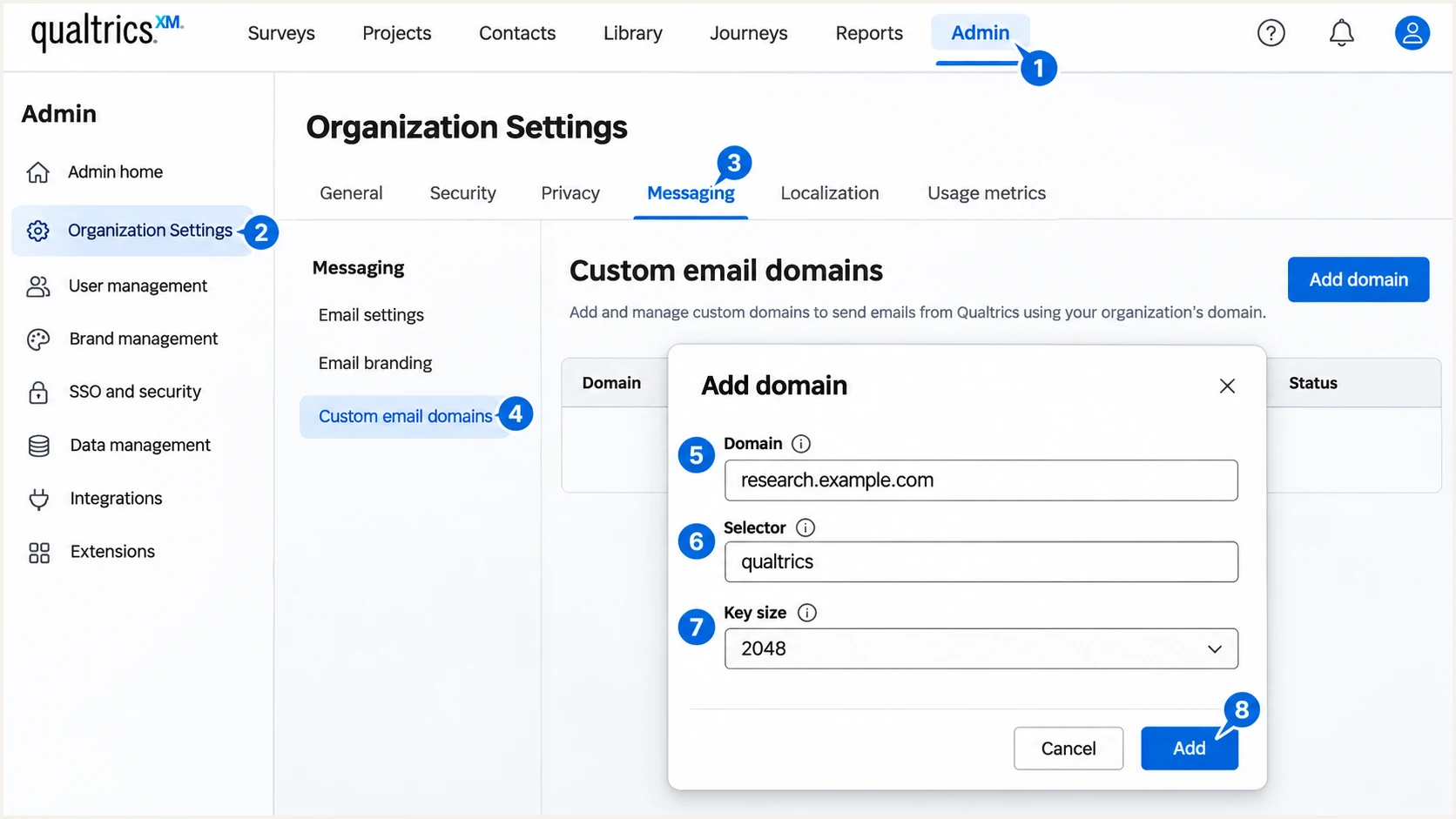
Illustrative Qualtrics screen for adding a custom sending domain.
Set up SPF
I check the Return-Path of a received Qualtrics message before editing SPF. SPF evaluates the envelope sender domain, while DMARC compares that domain with the visible From domain. A Reply-To change does not change either identity.
- Check the sending route. For the default bounces.qemailserver.com Return-Path, Qualtrics manages SPF. Adding its include to your From domain does not change that Return-Path or fix SPF alignment.
- Confirm a custom sender. For a custom envelope sender, confirm the hostname and configuration with Qualtrics. Publish include:_spf.qualtrics.com at that exact hostname. Do not assume adding the TXT record switches your brand to it.
- Merge existing records. Keep one SPF TXT record per hostname. Add the include before the final all mechanism, preserve other authorized senders, and stay within the 10 DNS lookup limit, including nested includes.
- Preserve enforcement. Keep an existing -all ending when updating a working record. The ~all example below is for a new envelope domain whose only sender is Qualtrics.
SPF TXT value for a Qualtrics-only custom envelope domaintext
v=spf1 include:_spf.qualtrics.com ~all
Publish this example only at the custom envelope domain confirmed for your setup. An SPF record on example.com does not automatically apply to research.example.com or another subdomain.
Enter the actual envelope hostname in the checker. I check syntax and the full lookup count before sending another message.
SPF checker
Find SPF syntax issues, lookup limits, and weak records.
?/16tests passed
A valid DNS record confirms authorization, but the received message confirms which domain Qualtrics actually used. With the default Return-Path, SPF alignment failure is expected for your custom From domain; DMARC still passes when matching custom DKIM passes.
Set up DKIM
I publish the public key generated for this specific Qualtrics domain and brand. A key generated elsewhere will not match the private key used by Qualtrics.
- Publish the key. Create the TXT record at the exact Domain shown in Qualtrics. With selector qualtrics and domain research.example.com, the hostname is qualtrics._domainkey.research.example.com.
- Copy the complete value. Use the full generated DKIM value. Check whether your DNS provider automatically appends example.com so you do not duplicate the zone name.
- Check public DNS. Run the lookup below. The published public key must match the current Qualtrics value, including every character of the p= field.
- Keep the selector stable. Do not recreate the domain to refresh verification. Reconfiguration generates another key and requires another DNS update.
Look up the generated DKIM selectorbash
dig +short TXT qualtrics._domainkey.research.example.com
A DNS response split into quoted chunks is normal for a long public key. The chunks must concatenate into one complete TXT value; do not publish separate DKIM records for each chunk.
The public lookup checks publication. The final proof is a received message with dkim=pass and a signing domain that matches your From domain under your DMARC settings.
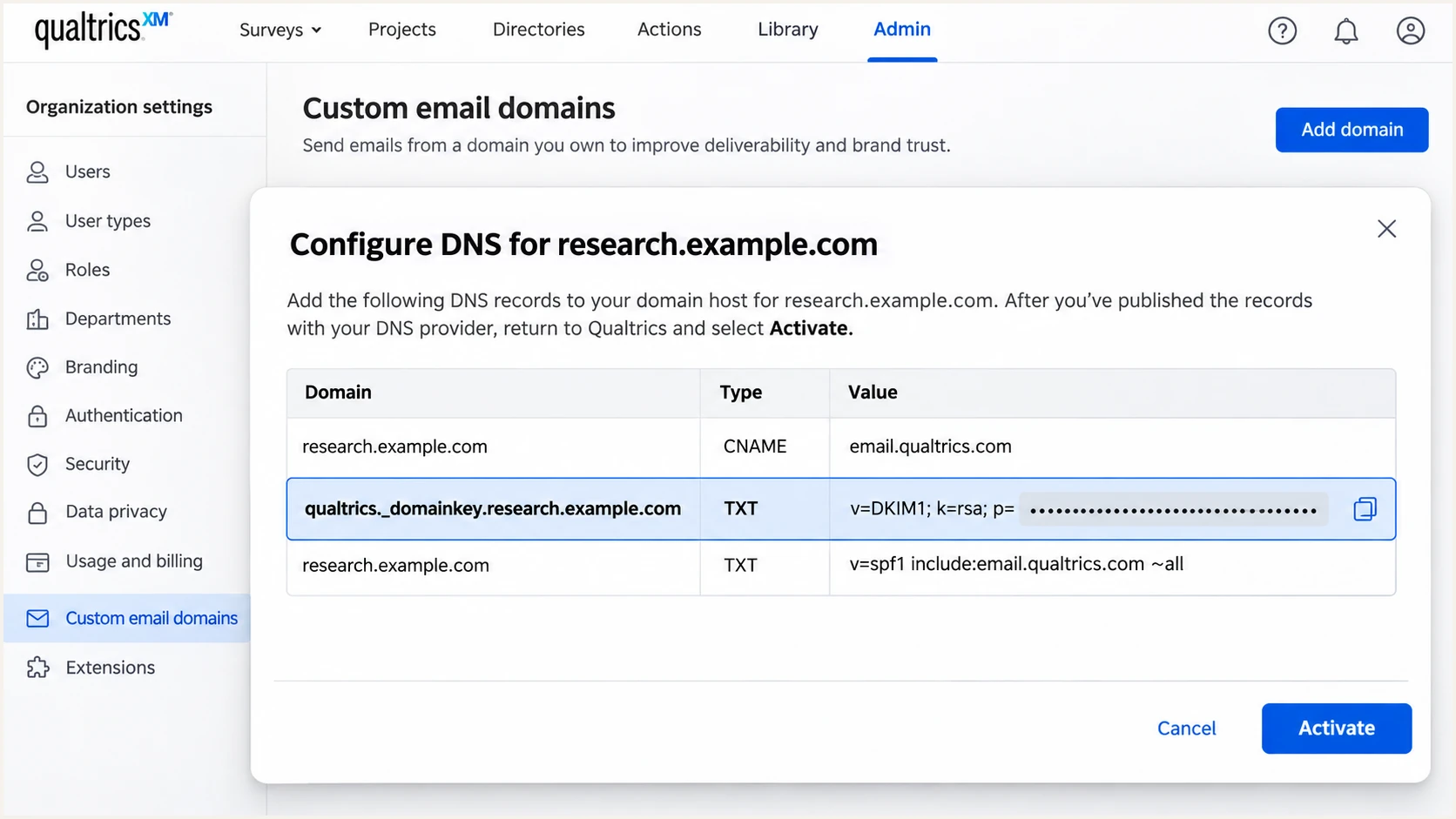
Illustrative Qualtrics DNS configuration dialog showing the generated DKIM TXT record.
Set up DMARC
I start a new, unenforced domain with p=none to collect reports. Keep an existing p=quarantine or p=reject policy, including one inherited by a subdomain; do not replace it with a weaker example.
- Find the policy. Check _dmarc.research.example.com first. If there is no record there, inspect the organizational domain policy at _dmarc.example.com and its subdomain policy.
- Publish one record. For a new monitoring policy on example.com, create one TXT record at _dmarc.example.com with the value below. Do not add a second DMARC TXT record at the same hostname.
- Set the recipient. Replace dmarc@example.com with a working aggregate-report destination. An external reporting domain also needs authorization in that destination domain's DNS.
- Activate the domain. After the required records are visible, return to Qualtrics Custom email domains and click Activate. Allow up to 24 hours for Qualtrics to see DNS changes.
Initial DMARC TXT value at _dmarc.example.comtext
v=DMARC1; p=none; rua=mailto:dmarc@example.com
Use the DMARC record generator to build the record with your actual reporting address. For research.example.com, a valid organizational domain policy is sufficient unless a child record overrides it.
Query the visible From domain below and review the effective policy. I check inherited enforcement before creating a separate subdomain record.
DMARC checker
Look up a domain's DMARC record and catch policy issues.
?/7tests passed
A p=none policy collects feedback without requesting quarantine or rejection. Domain activation confirms the Qualtrics setup checks; it does not replace a test of a delivered message.
Verify and troubleshoot
I send through the same Qualtrics route used for production. A message sent from an unrelated mailbox cannot validate the Qualtrics signing configuration.
- Open the editor. In your survey, select Distributions > Emails > Send a message. Choose a test contact list, click Next, and set From email to the activated custom domain.
- Send a real test. Use Set up a test message for an initial check. Then send a small distribution to controlled recipients to verify the production route. Repeat for reminders and workflow email tasks you use.
- Inspect receiver results. Check Authentication-Results in the original delivered message. Require dkim=pass for the expected signing domain and dmarc=pass for the visible From domain.
- Keep a baseline. Save the original headers and distribution details. Compare future failures against the same sending route and From domain.
The email tester is the quickest configuration check. It provides a recipient address, asks you to send a message, and returns a diagnosis of the received email.
Send to that address directly through Qualtrics using the custom From address. Forwarding an existing email changes the delivery path and obscures the original SPF result.
Email tester
Send a real email to this address. Suped shows a results button when the test is ready.
?/43tests passed
Review the authentication findings, including the envelope sender and DKIM signing domain. A passing overall score does not replace checking that the intended From domain passed DMARC.
This illustrative result is healthy for the default Qualtrics Return-Path. SPF authenticates qemailserver.com, while matching custom DKIM provides the DMARC pass.
Illustrative headers with custom DKIM and the default Return-Pathtext
From: Research <surveys@research.example.com>
Return-Path: <bounces@bounces.qemailserver.com>
Authentication-Results: receiver.example;
    spf=pass smtp.mailfrom=bounces.qemailserver.com;
    dkim=pass header.d=research.example.com;
    dmarc=pass header.from=research.example.com
|
|
|
|---|---|---|
Invalid domain | Brand configuration | Activate correct domain |
No valid MX | MX and host address | Fix MX plus A/AAAA |
DKIM key missing | TXT hostname | Fix selector location |
DKIM key mismatch | Current public key | Publish current value |
SPF permerror | Duplicates and lookups | Merge and reduce lookups |
DMARC fail | From and signing domain | Fix matching DKIM |
Start with the failed check, then test another delivered message.
For a missing or mismatched DKIM key, I compare the public DNS response with the current Qualtrics configuration. For an invalid domain error, I check that the From domain is configured for the correct brand.
For workflow email tasks, select the approved domain in the From Address dropdown. Test those tasks separately because changing a survey invitation does not prove every workflow uses that address.
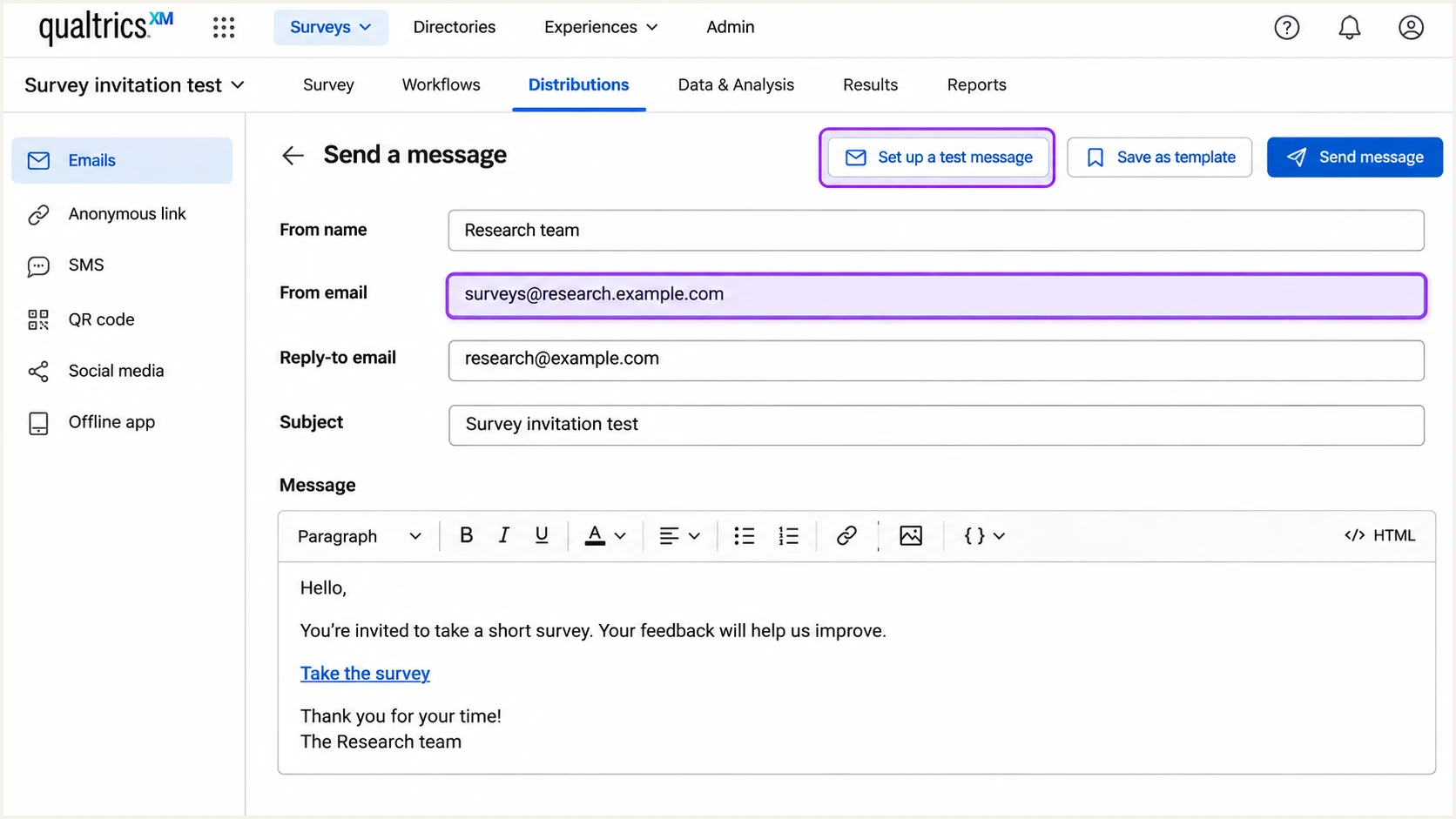
Illustrative Qualtrics email editor showing the custom From address and test message action.
Get alerted when it breaks
I monitor authentication after setup because a removed DNS record or changed sender can break the next distribution. Suped, our DMARC reporting and email authentication platform, connects incoming report failures with detected issues and steps to fix them.
- Enable notifications. In Suped notification settings, enable Issues detected and Sending sources need verification. Add DMARC summary emails for regular review.
- Review Qualtrics traffic. Check the Qualtrics source and inspect failed records by reporter or sending IP. Separate expected default Return-Path behavior from failing custom DKIM.
- Compare DNS changes. Use DNS history to inspect changed SPF and DKIM records. Restore the intended value, then send another Qualtrics test.
- Assign an owner. Route authentication alerts to the team responsible for DNS and Qualtrics. Follow the issue's fix steps and verify the result after publication.
Suped's DMARC monitoring keeps Qualtrics failures visible alongside your other sending sources. Aggregate reports arrive on receiving providers' schedules, so report-based alerts are not an instant notification for each message.
Keep an active sending test
I repeat the Qualtrics email test after a selector change, DNS migration, or SMTP relay change. Reporting detects problems in observed traffic; a controlled test checks the changed route immediately after delivery.
Secure your domain with p=reject
I move to p=reject when every legitimate sender using the domain passes DMARC in representative traffic. Qualtrics is one source to validate; the same policy also affects other services using that From domain.
- Inventory senders. Use Suped source reports to confirm which sources are authorized. Investigate unfamiliar sources before treating their failures as legitimate traffic.
- Validate every route. Check Qualtrics invitations and reminders, plus workflow tasks and relay traffic where used. Require matching DKIM or matching SPF to pass for each route.
- Stage enforcement. For a new rollout, review reports at p=none, move to p=quarantine, then use p=reject after resolving legitimate failures. Cover a complete sending cycle rather than an arbitrary number of days.
- Check subdomain scope. Review sp= and any separate child DMARC records. Relaxed matching is the default; strict SPF or DKIM matching requires exact domain equality.
- Keep reporting enabled. Retain rua and Suped alerts after enforcement. Investigate a new failing legitimate source before approving another campaign.
Suped's Hosted DMARC supports policy management while its source reports and issue diagnostics show what still needs fixing. I use that evidence to decide when the next enforcement stage is ready.
Ready for p=reject
Authorized sources consistently pass DMARC, Qualtrics custom DKIM passes, and remaining failures are understood. Reporting continues after the policy change.
Investigate before advancing
A legitimate workflow fails DKIM, a relay uses the wrong signing domain, or low-volume senders have not appeared in reports. Fix and retest those routes first.
For a directly managed TXT policy on example.com, the following is an enforcement example. If Hosted DMARC manages your policy, make the change there instead of adding a competing TXT record.
Enforced DMARC TXT value at _dmarc.example.comtext
v=DMARC1; p=reject; rua=mailto:dmarc@example.com
Replace the report address and preserve any other required policy tags. After publishing, confirm the effective policy and send another Qualtrics distribution to controlled recipients.
Frequency asked questions
Qualtrics documents include:_spf.qualtrics.com for authorizing its sending infrastructure. Add it only where your Qualtrics configuration requires authorization, normally the custom envelope sender hostname. Finding it in a record does not prove that a particular message came from your brand.
Qualtrics uses qemailserver.com for default email identities, including noreply@qemailserver.com. For an rDNS hostname containing that domain, I verify the actual connecting IP against Qualtrics' published sending infrastructure and check the message headers. A From or Return-Path domain does not establish a particular PTR suffix, and rDNS alone does not authenticate a message.
SPF verification is optional for custom From domain activation. With the default Qualtrics Return-Path, your custom From domain does not match the SPF identity. Passing custom DKIM with the appropriate domain match is sufficient for DMARC.
Configure SPF for the final outbound server and DKIM signing on the relay. Verify those identities against the visible From domain. Do not add the Qualtrics SPF include solely because Qualtrics submitted the email to your relay. The relay path replaces the direct Qualtrics sending setup.
Qualtrics documents up to 24 hours for DNS changes to become visible. If activation still fails, check the exact public TXT hostname and key, the MX destination, and its A or AAAA resolution. Waiting longer does not repair an incorrect record.
Keep p=reject, or p=quarantine if that is your existing policy. Publish the required Qualtrics DKIM record and verify a small distribution before production sending. Correct the sender configuration rather than weakening a working domain policy.




