
How to set up DMARC/DKIM/SPF for QTI

To set up email authentication for QTI, provision your custom sending domain, publish QTI's SPF authorization and DKIM DNS records, then add a DMARC TXT record for your From domain. I verify a message sent through QTI before moving a new DMARC policy beyond p=none.
QTI operates the SAGE email service. SAGE's 'Q2 2026 Development Recap' confirms automatic DKIM signing and authentication setup when SAGE manages DNS. If your DNS is hosted elsewhere, obtain the current SPF instructions and domain-specific DKIM records from QTI support, then publish them at that DNS host.
Add your domain
I start in QTI's SAGEmember.com administration portal with the custom domain used in the visible From address. Domain provisioning and working mailbox access come before DNS authentication checks.
- Sign in: Open the login on QTI's website and sign in to SAGEmember.com with your administration credentials.
- Provision the domain: If QTI has not attached your existing custom domain to your account, ask support to provision it and provide its ownership verification requirements. Complete the checks QTI requests.
- Create the mailbox: Open Email Accounts, click Add New Account, and choose your custom domain when completing the mailbox configuration. For an existing mailbox, confirm that it uses the intended domain.
- Locate the settings: Click Setup Mail Client beside the mailbox. Record its outgoing server settings so your authentication test uses QTI's actual sending route.
The documented Email Accounts controls manage mailboxes. If your custom domain is missing, resolve that with support before testing messages with that From address.
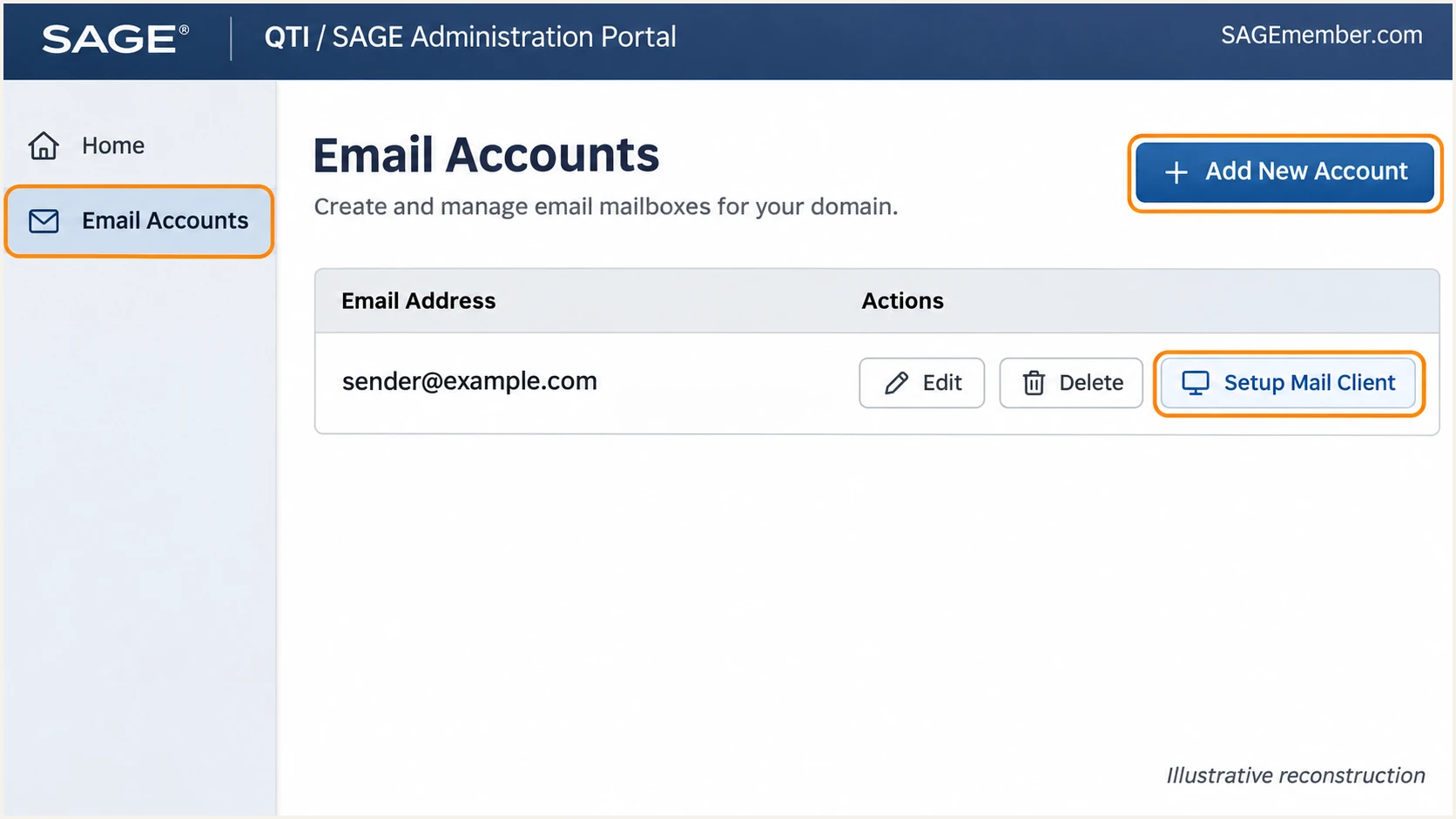
Illustrative SAGEmember.com Email Accounts workflow for creating a mailbox and locating Setup Mail Client.
For QTI-managed DNS edits, contact support@sageworld.com or call 800.925.7243, option 3, as directed in SAGE's 'FAQ: Domain Hosting and DNS'. If DNS is hosted elsewhere, make the changes there. Change MX records or nameservers only as part of an intentional hosting migration.
Set up SPF
QTI supports Return-Path alignment. I compare the envelope sender domain with the visible From domain using the policy's SPF alignment mode, then verify that its SPF record authorizes QTI's outbound servers.
- Get QTI's values: Request the current SPF include mechanism or IP authorization for your outbound service from QTI support. An incoming MX hostname does not establish the complete outbound authorization.
- Check the Return-Path: Inspect a delivered message's Return-Path or the receiver's smtp.mailfrom result. Publish SPF at that domain. A subdomain does not inherit the root domain's SPF record.
- Merge the authorization: Keep exactly one TXT record beginning v=spf1 at each SPF domain. Add QTI's supplied mechanisms before the final all mechanism and retain your other legitimate senders.
- Validate the policy: Keep evaluation within SPF's limit of 10 DNS-querying terms, including nested includes. Resolve duplicate SPF records and permerror results before continuing.
Enter the actual envelope sender domain into the SPF checker below. If QTI uses a bounce subdomain, check that subdomain separately. SPF syntax validation and a successful message-level SPF result are separate checks.
SPF checker
Find SPF syntax issues, lookup limits, and weak records.
?/16tests passed
With default relaxed SPF alignment, bounce.example.com and a From domain of example.com share an organizational domain. With aspf=s, they must match exactly. If QTI is using its own Return-Path domain for your account, ask support to enable your domain; adding QTI to your root SPF record alone does not change that Return-Path.
Set up DKIM
I require a passing DKIM signature using your own sending domain. SAGE's mail update states that signing is automatic for SAGE-managed DNS; externally hosted DNS requires the appropriate records.
- Obtain the selector: Ask QTI for the DKIM selector, record type, complete DNS name, and complete value for your domain. Request confirmation that QTI signs outbound mail with that domain.
- Publish the record: Add the supplied TXT or CNAME at your authoritative DNS host. Check whether its editor appends the domain automatically so the final name contains your domain only once.
- Keep the key private: Publish only QTI's public DNS data. QTI must hold the matching private signing key; creating an unrelated DKIM key does not configure QTI's servers.
- Verify a new message: Inspect DKIM-Signature for the d= signing domain and s= selector. Confirm dkim=pass in the receiving server's Authentication-Results and check DKIM alignment with your From domain.
A published selector is only half of DKIM setup. QTI must also add a valid signature to the outgoing message. If no signature appears, ask support to confirm signing for the specific mailbox or application route you tested.
QTI manages DNS
Confirm that automatic DKIM is active, then test delivery. Send missing-record or signing failures to QTI support with the domain and message headers.
You manage DNS
Publish QTI's supplied selector and value at your existing DNS host. After caches expire, send a new message and verify the signature at the recipient.
For a From address at example.com, d=example.com satisfies both relaxed and strict DKIM alignment. A signing subdomain such as mail.example.com satisfies relaxed alignment; a signature using d=qti.com does not match your example.com identity.
Set up DMARC
For a domain without an existing enforcement policy, I start with p=none and aggregate reporting. If your domain already uses p=quarantine or p=reject, keep that policy while correcting QTI's authentication.
- Inspect existing DNS: Look up TXT records at _dmarc.example.com, replacing example.com with your visible From domain. Edit the existing DMARC record if one is present.
- Choose a report address: Use a working mailbox that can receive aggregate XML reports, or the reporting address assigned by your monitoring service. External report destinations require the destination operator's reporting authorization.
- Generate the value: Use our DMARC record generator to create the policy. Preserve an existing enforcement level and any required reporting destinations.
- Publish one policy: Create a TXT record with the host _dmarc in the example.com DNS zone. For QTI-managed DNS, send the requested name and value to support for publication.
Start new policies in monitoring mode
Publish this value only after replacing the example report address. Keep p=quarantine or p=reject if your existing record already enforces DMARC.
Example TXT value at _dmarc.example.comtext
v=DMARC1; p=none; rua=mailto:dmarc@example.com
Replace dmarc@example.com with your real reporting destination. The example address is not a mailbox for your organization. Do not create a second DMARC policy record alongside the first.
DMARC evaluates the visible From domain across all sending services using that identity. It passes when at least one successful SPF or DKIM check also satisfies domain alignment. A p=none policy requests reporting without requesting quarantine or rejection for failures.
DMARC checker
Look up a domain's DMARC record and catch policy issues.
?/7tests passed
Run the check against your From domain after publication. I confirm the expected policy and reporting destination, then test an actual QTI message. A valid DNS policy does not prove that QTI is sending authenticated mail.
Verify and troubleshoot
The quickest end-to-end check is a real QTI message sent to the email tester below. I test the sending route used in production, since a mailbox test does not validate a separate website notification route.
- Use QTI's route: In Email Accounts, open Setup Mail Client beside the mailbox and use its assigned outgoing server. QTI documents SMTP port 465 with SSL for its POP and IMAP client configurations.
- Send the test: Copy the destination displayed by the widget and send a new message through QTI with your normal From address. Review its authentication diagnosis.
- Check the identities: Read the receiver's SPF, DKIM, and DMARC results. Compare smtp.mailfrom and the DKIM d= domain with the visible From domain; authentication passes alone do not establish DMARC alignment.
- Repeat each route: Test ordinary mailbox mail and every QTI-hosted application that sends with your domain. Retest after any DNS or signing change.
The widget prompts you to send a test email, then reports authentication results and other delivery checks. Send directly through QTI for the baseline test so forwarding does not introduce an extra SPF failure.
Email tester
Send a real email to this address. Suped shows a results button when the test is ready.
?/43tests passed
If SPF alignment fails but DKIM passes with domain alignment, DMARC still passes. Investigate unexpected SPF failures on direct QTI mail because QTI supports Return-Path alignment. For forwarded mail, a surviving DKIM signature often supplies the DMARC pass.
If results are wrong, compare the public DNS response with QTI's supplied records and allow the previous TTL to expire. Send QTI support the full message headers, sending time, and affected domain when the records are correct but signing or routing still fails.
|
|
|---|---|
SPF permerror | Duplicates or lookup limit |
SPF fail | Outbound IP authorization |
DKIM none | QTI signing activation |
DKIM fail | Selector, key, message changes |
DMARC fail | Authentication and domain match |
Old DNS result | Authoritative host and TTL |
First checks for common authentication failures.
Get alerted when it breaks
Suped is our DMARC platform. Its DMARC monitoring turns receiver reports into sending-source diagnostics and issue notifications, so QTI failures can be investigated without manually reviewing each XML report.
- Confirm the source: Review QTI traffic against your sending inventory and verify it only after confirming ownership. A familiar reverse hostname alone is insufficient.
- Enable issue notifications: In Suped's notification settings, enable Issues detected and Sending sources need verification. Use these to investigate broken authentication and newly observed sources.
- Review summaries: Enable DMARC summary emails and check QTI's pass rates alongside your other verified sources. Investigate new failures even when total domain volume looks normal.
- Trace the change: Open the affected record's detail view for SPF and DKIM diagnostics. Compare DNS history with the timing of a selector rotation or SPF edit, then retest the corrected route.
I use the source detail to separate a missing QTI authorization from a DKIM signing problem. Suped's detected issues and fix instructions identify the next DNS or provider-side action; QTI remains responsible for its outbound signing configuration.
Aggregate reporting has a delay, commonly a day or longer, and receiving providers do not all send reports. Use a fresh email test immediately after a change, then confirm the result across subsequent reporting periods.
Alerts depend on incoming evidence
Suped can notify you when it detects an issue in received data. DMARC aggregate reports are not a live feed of every QTI message, so reporting-based alerts do not replace a delivery test.
Secure your domain with p=reject
I move to p=reject only after every legitimate sending route has a reliable DMARC pass. Suped's verified source inventory and authentication diagnostics provide the evidence for each policy change.
- Cover normal traffic: Review reports across a complete business sending cycle, including infrequent messages. Identify QTI and every other authorized source before enforcement.
- Resolve legitimate failures: Fix QTI's SPF authorization and custom-domain DKIM signing. Validate forwarding-sensitive traffic before increasing enforcement.
- Stage enforcement: For a new deployment, move p=none to p=quarantine, review subsequent reports and delivery errors, then change to p=reject when legitimate failures are resolved.
- Check subdomains: Review the subdomain policy and any explicit subdomain DMARC records. Confirm that applications using subdomains are ready for the resulting enforcement.
- Keep monitoring: Retain aggregate reporting and Suped issue notifications after enforcement. Recheck QTI when its sending infrastructure or your DNS records change.
Our Hosted DMARC product lets teams manage the policy in Suped after its DNS delegation is configured. If QTI manages DNS, coordinate that initial delegation with support. Subsequent policy changes can then be managed in the dashboard.
For a directly published TXT policy, update the existing record at your DNS host or request the edit from QTI support. Preserve your working reporting address and existing alignment settings when changing the policy value.
Final TXT value after verification, with an example report addresstext
v=DMARC1; p=reject; rua=mailto:dmarc@example.com
Replace the example address before publishing. Send another QTI test after the change, then inspect new reports for legitimate failures and follow up on delivery errors.
A reject policy asks receivers to reject messages that fail DMARC; receivers retain their own handling policies. It protects against unauthorized use of your exact From domain, while lookalike domains and display-name impersonation require separate controls.
Frequency asked questions
Obtain the current SPF authorization and the DKIM selector, record type, and value from QTI support for your domain and service. Publish those exact values. Do not derive outbound SPF permissions from the incoming MX server or guess a DKIM selector.
SAGE's July 2026 mail update confirms automatic DKIM signing and says no action is required when SAGE manages DNS. With external DNS hosting, publish the required records. In both cases, verify a new message for a passing signature using your domain.
The .qti.com suffix is associated with Quick Technologies (QTI), the operator of SAGE email infrastructure. Confirm the sending IP's ownership and message authentication before attributing a specific message. The reverse hostname alone does not authorize mail using your domain.
Yes. A passing DKIM signature that satisfies alignment with the visible From domain is enough for DMARC. QTI supports Return-Path alignment, so investigate unexpected SPF alignment failures on direct mail while preserving working DKIM.
Keep your existing p=reject or p=quarantine policy while configuring QTI. Start at p=none only for a new monitoring deployment. Correct QTI's authentication and test each legitimate route before sending production traffic under enforcement.




