
How to set up DMARC/DKIM/SPF for Proton Mail

Published 21 Nov 2026
Updated 21 Nov 2026
12 min read
Summarize with
To set up DMARC, DKIM, and SPF for Proton Mail, verify your custom domain, authorize Proton with include:_spf.protonmail.ch, publish all three DKIM CNAME records, and add a DMARC TXT record at _dmarc. I start new DMARC deployments with p=none and verify a delivered message before tightening the policy.
You need a paid Proton plan and access to the domain's authoritative DNS. These changes apply to your own domain. Proton manages authentication for its shared addresses, including @proton.me and @protonmail.com.
Add your domain
I complete ownership verification and create the required addresses before moving incoming mail to Proton. Edit DNS where your authoritative nameservers are hosted.
- Open domain settings: In Proton Mail, select Settings > All settings > Domain names. Business accounts show Domain names under Organization. Click Add domain, enter your domain, and click Next.
- Verify ownership: Open Verify. Copy the generated TXT value beginning protonmail-verification= into a TXT record at @ in your DNS console. Use the exact token from your account, save, then click Next in Proton.
- Create addresses: Open Addresses and use Add address or Add user. Create every mailbox address that must receive mail before changing MX.
- Route incoming mail: For a new migration, open MX and copy both Proton MX records with their priorities. Remove obsolete MX entries when completing the cutover. If Proton already receives your mail, keep its working MX configuration.
Proton Mail MX records for example.comdns
example.com. 300 IN MX 10 mail.protonmail.ch.
example.com. 300 IN MX 20 mailsec.protonmail.ch.
Use @, a blank host, or the full domain according to your DNS provider's naming convention. A TTL of 300 seconds is suitable during setup if your provider supports it.
Return to Domain names > Review and confirm ownership verification succeeds. The unique verification token proves domain control; SPF and DKIM require their own records.
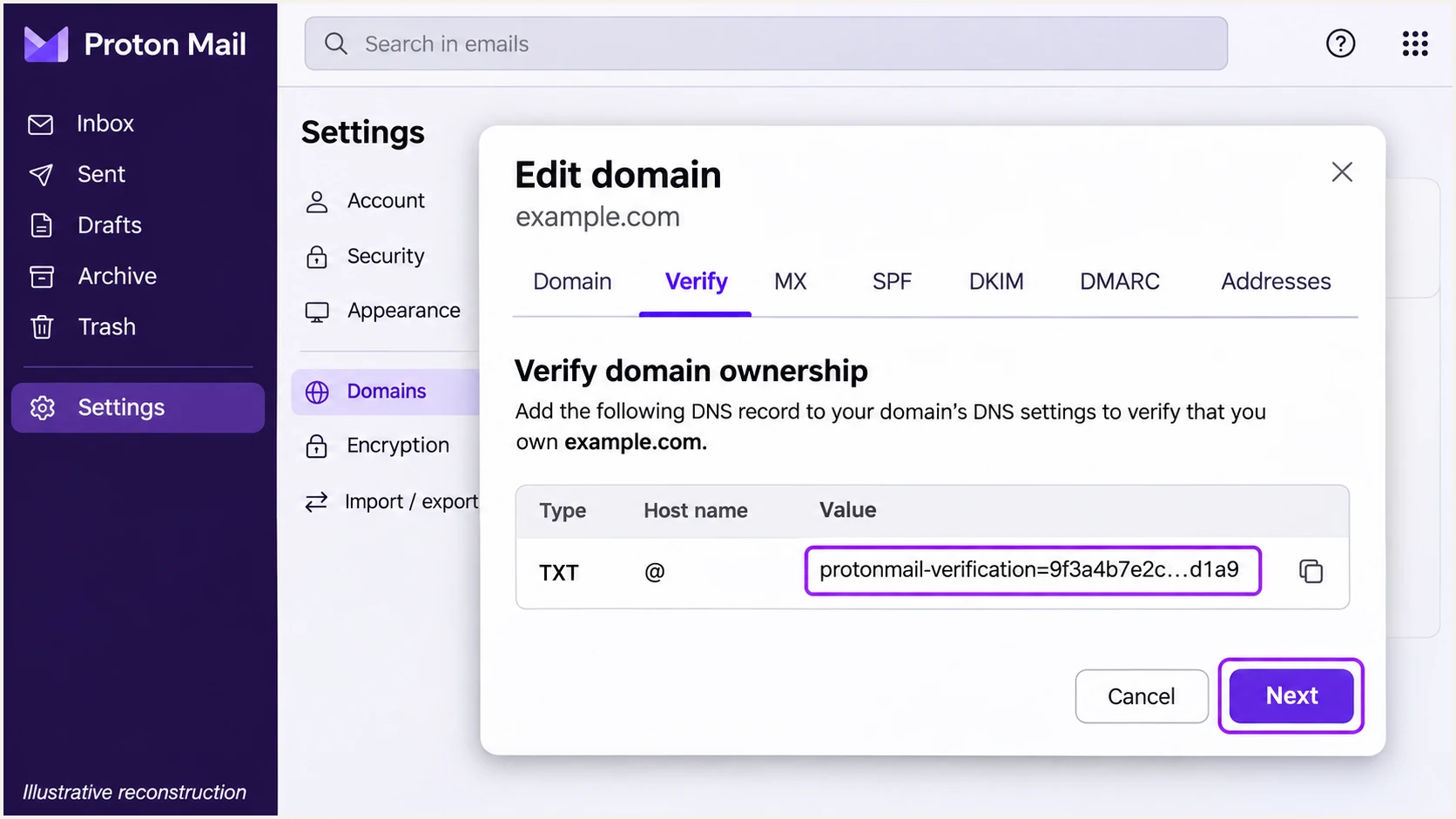
Proton Mail Verify tab showing the domain ownership TXT record (illustrative reconstruction).
Set up SPF
I use the record shown in Proton's SPF tab as the authority for the sending configuration. Its custom-domain support instructions specify include:_spf.protonmail.ch.
- Copy the SPF value: Open Domain names > Review next to your domain > SPF. Copy the recommended TXT value.
- Publish one record: In authoritative DNS, create or edit the TXT record at @ that begins v=spf1. If one already exists, merge Proton's include before the final all mechanism. Preserve other active senders and the existing all mechanism unless deliberately changing it.
- Check lookup limits: Keep SPF within the limit of 10 DNS-lookup-causing terms during evaluation, including nested includes. Do not publish a second SPF record or copy Proton's current IP addresses into a permanent allowlist.
- Confirm alignment: Send using your custom-domain address and inspect smtp.mailfrom at the recipient. Under relaxed SPF alignment, its domain must share the organizational domain of the visible From address.
New SPF TXT value at @ for Proton-only sendingplaintext
v=spf1 include:_spf.protonmail.ch mx ~all
This example authorizes Proton and the domain's MX hosts. Use the current value in your SPF tab if it differs. A domain that also sends through another service needs a merged record.
Check the published domain below after saving. The DNS check detects duplicate SPF records and lookup errors; a delivered-message test later confirms the actual envelope sender.
SPF checker
Find SPF syntax issues, lookup limits, and weak records.
?/16tests passed
Return to Proton's SPF tab and wait for its green verification check. Cached DNS answers remain in use until their previous TTL expires.
For custom-domain mail, check SPF alignment on a direct external delivery. An SPF pass for a Proton-owned envelope domain alone does not establish DMARC authentication for your From domain.
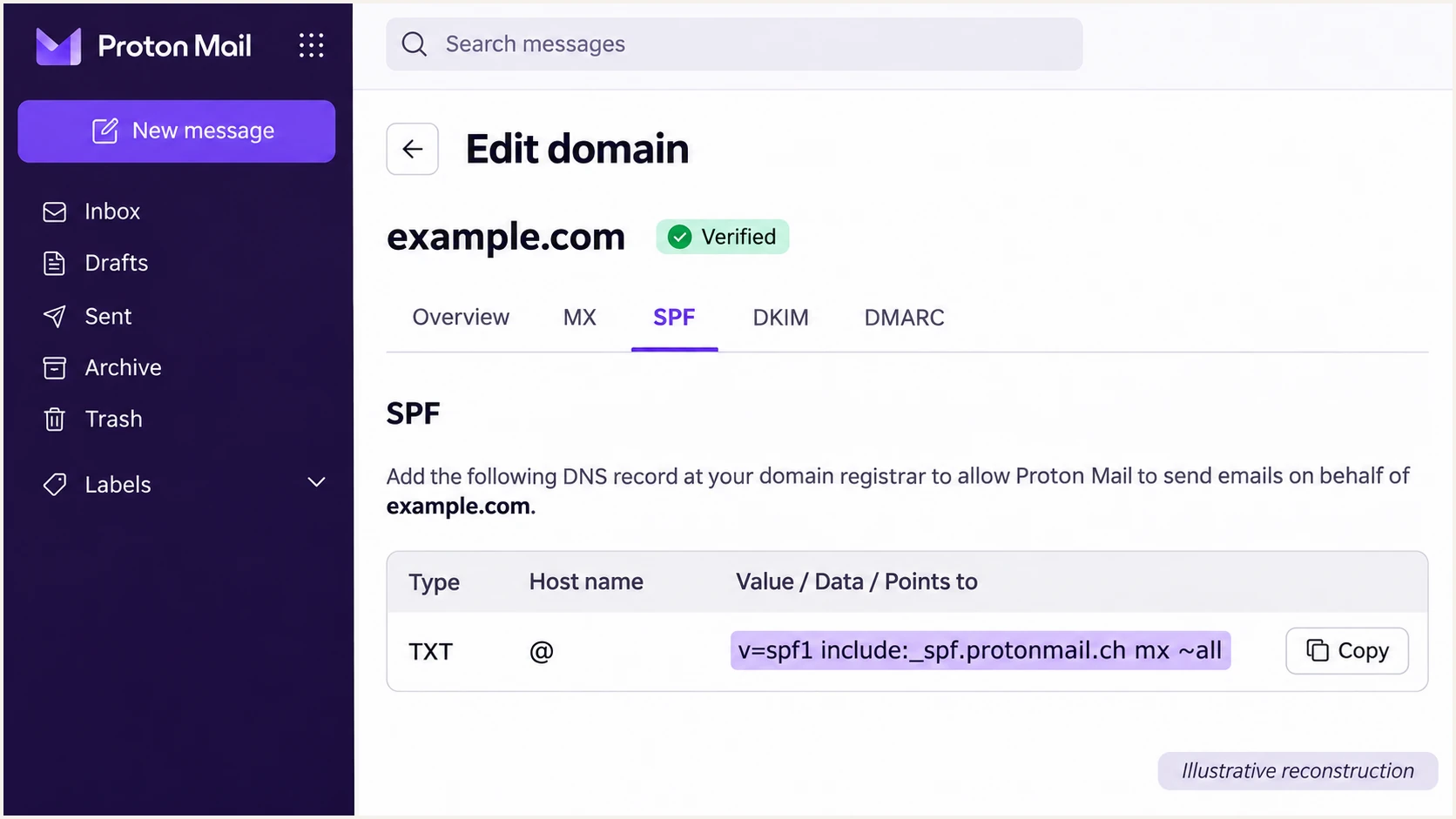
Proton Mail SPF tab showing the recommended TXT value (illustrative reconstruction).
Set up DKIM
Proton manages DKIM signing keys behind three CNAME records. I keep every selector published so automatic rotation can continue.
- Open DKIM: Go to Domain names > Review > DKIM after ownership verification. Copy each complete host name and its matching target.
- Create all selectors: Add CNAME records for protonmail._domainkey, protonmail2._domainkey, and protonmail3._domainkey. Each target is specific to your domain; copy it exactly from Proton.
- Remove DNS conflicts: Use DNS-only resolution for these CNAMEs. Avoid appending your domain twice. A CNAME cannot share its name with a TXT record. For an old manual DKIM setup, prepare Proton's replacement records before removing the conflicting TXT record.
- Verify signing: Wait for the DKIM tab's green check, then send a fresh external test. Confirm dkim=pass and a DKIM d= domain matching your From domain.
Check all three published DKIM CNAMEsbash
dig +short CNAME protonmail._domainkey.example.com
dig +short CNAME protonmail2._domainkey.example.com
dig +short CNAME protonmail3._domainkey.example.com
Each command should return its matching Proton target. If a DNS console rejects a trailing period on a CNAME target, use the equivalent form that console accepts.
A selector existing in DNS does not prove a message was signed correctly. Check the recipient's authentication results on mail sent after Proton enables signing.
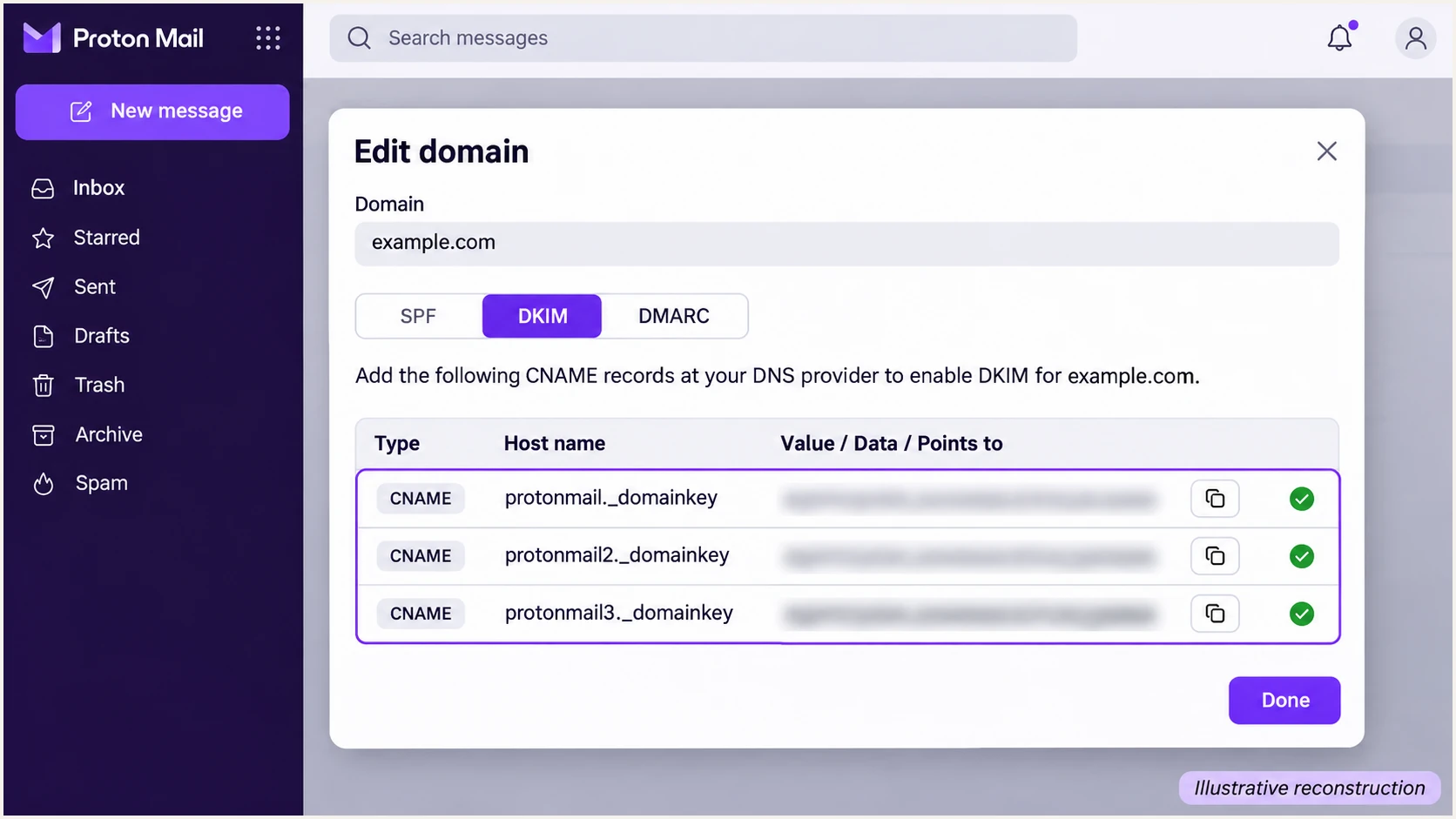
Proton Mail DKIM tab showing the three required CNAME records (illustrative reconstruction).
DMARC needs a passing authentication method whose domain matches the visible From domain under the configured alignment mode. I check these identities separately when troubleshooting.
Forwarding changes the sending IP and often breaks SPF. A valid DKIM signature with domain alignment still lets the forwarded message pass DMARC.
SPF identity
SPF authenticates the envelope sender domain, reported as smtp.mailfrom. A passing result contributes to DMARC when that domain has alignment with the visible From domain.
DKIM identity
DKIM authenticates the signature domain in d=. A passing signature contributes to DMARC when that domain has alignment with the visible From domain. It remains useful when forwarding breaks SPF.
Set up DMARC
For a domain without an enforcement policy, I publish p=none while validating all legitimate sending sources. It requests monitoring without requesting quarantine or rejection.
- Inspect the existing policy: Open Domain names > Review > DMARC and check the live TXT record at _dmarc. Keep an existing p=quarantine or p=reject policy while adding Proton; do not reset it to none.
- Publish one DMARC record: Create a TXT record named _dmarc in authoritative DNS. Edit the existing DMARC record if one is already present.
- Choose the report destination: Use the starter value below, replacing dmarc@example.com with a real mailbox or assigned aggregate-reporting address. Create the mailbox if receiving reports yourself. A reporting destination on another domain requires authorization by its owner.
- Validate the syntax: Use the DMARC record generator to build the record, then check the published result below. Keep default relaxed alignment unless you have a tested reason to require strict matching.
Starter DMARC TXT value at _dmarcplaintext
v=DMARC1; p=none; rua=mailto:dmarc@example.com
The example address is a placeholder. Preserve existing working reporting recipients when updating the policy, and confirm the selected destination actually receives reports.
Run the checker against the domain in your visible From address. A valid record is the policy prerequisite; a delivered-message test establishes whether Proton mail passes it.
DMARC checker
Look up a domain's DMARC record and catch policy issues.
?/7tests passed
Aggregate reports are receiver-generated summaries, commonly sent daily. Send test messages to external recipients and allow a reporting cycle before expecting report data.
A p=none policy still allows a message to receive dmarc=pass. Authentication results and the requested treatment of failing messages are separate.
Preserve existing enforcement
Adding Proton Mail does not require weakening a working DMARC policy. Verify Proton's signing and SPF configuration before sending production traffic under an existing quarantine or reject policy.
Verify and troubleshoot
I verify DNS first, then inspect an actual external delivery. Green checks in Proton confirm the records it detected; the recipient evaluates each delivered message.
- Recheck DNS: Return to Domain names > Review. Confirm SPF and all DKIM records verify, and check the published DMARC TXT value at the correct domain.
- Send a real message: Use your new custom-domain From address in Proton Mail. Send to the address supplied by the email tester below for a full authentication diagnosis.
- Read the recipient results: Look for spf=pass, dkim=pass, and dmarc=pass. Confirm domain alignment for at least one passing method. Trust the authentication results added by the receiving service.
- Retest each route: Test every domain and any different sending route you actually use. If using Proton Mail Bridge, create the sender address in your Proton account before using it in the connected email client.
Look up published SPF and DMARCbash
dig +short TXT example.com
dig +short TXT _dmarc.example.com
These commands inspect DNS only. The email tester asks you to send a message, then checks the authentication evidence in the received message and explains failures.
Send a new message after each correction. Testing an old copy shows the results of the earlier configuration and does not verify the change.
Email tester
Send a real email to this address. Suped shows a results button when the test is ready.
?/43tests passed
If SPF fails after forwarding but DKIM passes with domain alignment, DMARC can still pass. Investigate direct-delivery SPF failures separately.
If DNS looks correct but the result is stale, query authoritative DNS and compare the previous TTL. If all authentication passes and delivery still fails, inspect the recipient's rejection code and sending behavior.
|
|
|
|---|---|---|
SPF permerror | Duplicate SPF | Merge TXT |
DKIM missing | Unverified CNAME | Review DKIM |
DKIM fail | Wrong target | Copy target |
DMARC fail | Domain mismatch | From identity |
Old DNS value | Cached answer | Previous TTL |
Starting checks for Proton Mail authentication failures.
Get alerted when it breaks
I pair Proton's domain verification with report-based alerts for ongoing failures. Suped is our DMARC platform; its DMARC monitoring connects authentication failures to sending sources and provides steps to fix them.
- Confirm report flow: Make sure the live DMARC record sends aggregate reports to your organization's assigned reporting destination. Keep Proton's SPF and DKIM records published.
- Enable issue notifications: In Suped, open Settings > Notifications and enable Issues detected. Use Sending sources need verification to review newly observed sources and DMARC summary emails for periodic checks.
- Investigate the source: Open the detected issue and its steps to fix. Filter the DMARC data by source or IP, then inspect SPF and DKIM domains in the detail view before changing DNS.
- Confirm the repair: Fix the record in authoritative DNS, send another Proton test message, and check subsequent reports. Use DNS history to compare changes when a previously working configuration fails.
DMARC report alerts follow the receivers' reporting schedules, commonly daily. Use a fresh test message for immediate verification after a change.
Review unknown sending sources against your own systems before authorizing them. A source appearing in a report does not prove it belongs in your SPF record.
Keep a repairable alert trail
Suped groups detected authentication issues with diagnostic detail and remediation steps. Record the affected source and the DNS change so the next report can confirm the result.
Secure your domain with p=reject
I move to p=reject after the reports account for legitimate sending and repeated tests pass. Suped's source verification and issue diagnostics support that decision with observed traffic.
- Account for legitimate sources: Review Proton alongside every service using your From domain, including website forms and billing systems. Verify their owners and resolve legitimate DMARC failures.
- Cover a sending cycle: Include infrequent mail such as monthly invoices in the review. A quiet report window or a high overall pass rate alone is insufficient evidence.
- Stage enforcement: For a new rollout, change none to quarantine, inspect reports and delivery feedback, then change quarantine to reject when legitimate traffic remains healthy. Keep a working reject policy in place if already deployed.
- Control the policy: Edit the existing DMARC TXT record. For domains already using Suped's Hosted DMARC, manage policy stages in its dashboard and review new issues between changes.
- Maintain coverage: Keep reporting enabled after enforcement. Review subdomain policy inheritance and any explicit subdomain DMARC records before assuming the entire domain is protected.
Final DMARC TXT value after verificationplaintext
v=DMARC1; p=reject; rua=mailto:dmarc@example.com
Replace the example report address with your working destination. Retain other intentional DMARC tags when editing an existing record and continue monitoring legitimate failures.
Reject asks receiving systems to reject messages that fail DMARC; receivers retain local handling policies. If a legitimate source starts failing, use Suped's issue detail to repair its authentication and verify the next test message.
Frequency asked questions
Custom-domain setup requires a paid Proton plan. Proton manages DNS authentication for shared domains such as proton.me and protonmail.com. You control these records only for a domain you own.
Proton Mail uses protonmail.ch for its mail infrastructure. An rDNS suffix is a source-identification clue. I confirm the sending IP and authenticated domains before treating traffic as an authorized Proton source. Proton manages reverse DNS for its sending servers; custom-domain users do not add their own PTR record for those IPs.
Proton Mail documents include:_spf.protonmail.ch for custom-domain SPF setup. Copy the current recommendation in Domain names > Review > SPF and merge it into your existing SPF record. An include observed in infrastructure or reports alone is insufficient reason to authorize it.
The protonmail, protonmail2, and protonmail3 selectors support automatic key rotation. Keep all three CNAMEs published with their corresponding account-specific targets, including selectors that are not signing the current test message.
Yes. A passing DKIM signature with domain alignment is sufficient for DMARC, even when SPF fails or its domain lacks alignment. This is useful after forwarding. For direct Proton custom-domain delivery, still investigate SPF problems and confirm DKIM is consistently passing.
Keep the existing reject policy. Verify Proton's domain records and confirm a fresh external message passes DMARC before moving production sending. The p=none starter record is for a new monitoring rollout on a domain without an existing enforcement policy.




