
How to set up DMARC/DKIM/SPF for Postmark

Set up Postmark authentication by adding your domain in Sender Signatures, publishing its generated DKIM TXT record, and creating a custom Return-Path CNAME pointing to pm.mtasv.net. Then publish a DMARC TXT record at _dmarc.yourdomain. Postmark handles SPF through the Return-Path, so adding a Postmark include to your root SPF record is unnecessary.
I verify the DNS records in Postmark, then check a message sent through the actual application. DMARC passes when either SPF authentication with SPF alignment or DKIM authentication with DKIM alignment passes. Configuring both gives direct Postmark delivery two authentication paths.
Add your domain
I add the exact domain used after the @ in the visible From address. You need Postmark access and permission to edit that domain's authoritative DNS.
- Open signatures: In Postmark, open Sender Signatures and click Add Domain or Signature.
- Choose domain: Click Add Domain, enter your sending domain without a protocol or email address, and click Verify Domain.
- Open DNS settings: Copy the generated DKIM Hostname and Value and the custom Return-Path details. Keep this page open for the next steps.
- Complete verification: Publish the DKIM TXT record described below, then click Verify in its DKIM row. Successful DKIM verification authorizes the entire domain for sending.
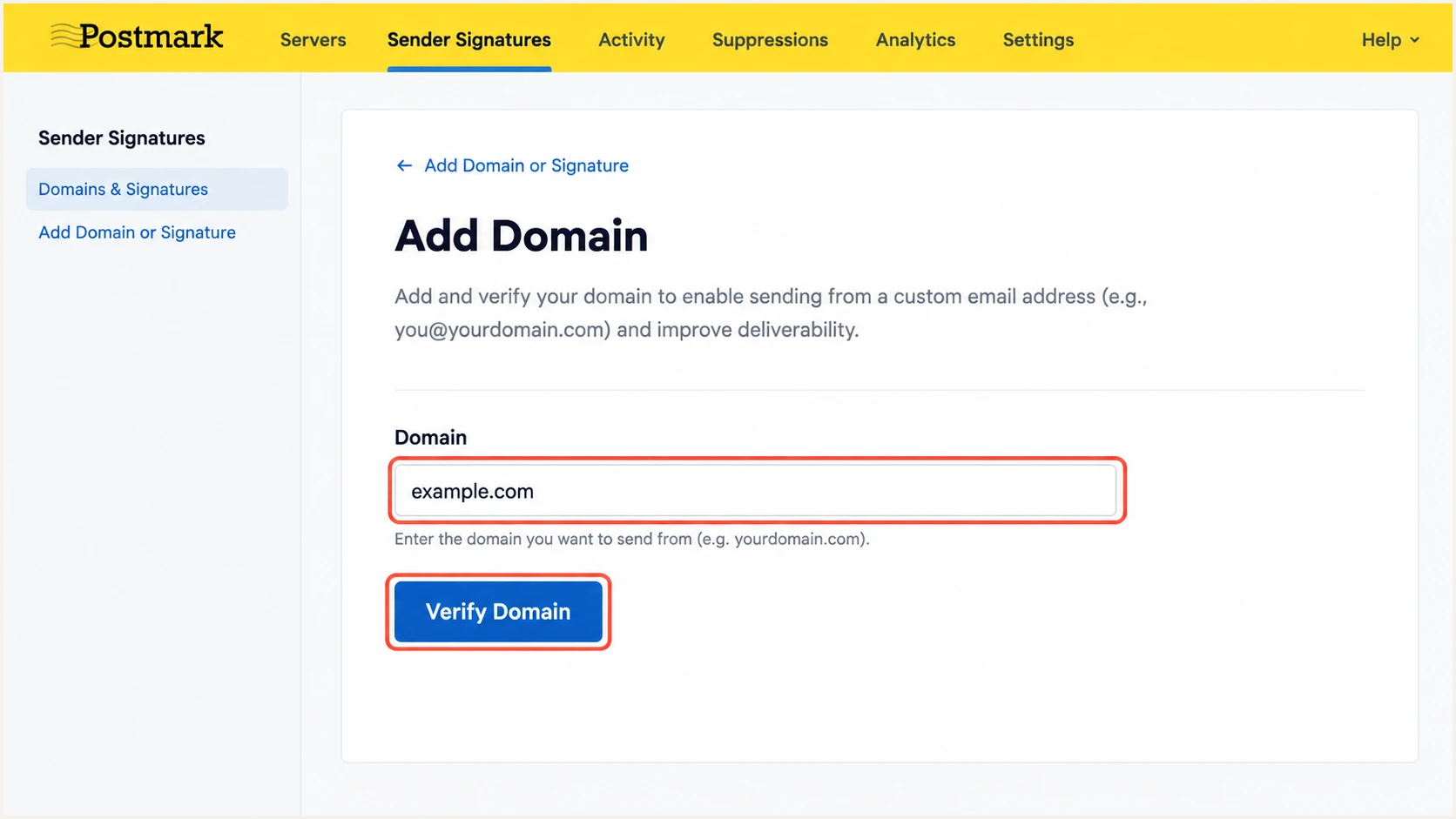
Enter the sending domain in Postmark and click Verify Domain.
Clicking Verify Domain starts the setup. The domain is ready for domain-wide sending only after its generated DKIM record is published and verified. Confirm the verified indicator in Sender Signatures.
If Sender Signatures is missing, ask the account owner to check your access. Keep existing MX records in place; this setup does not move your incoming mail to Postmark.
Set up SPF
Postmark already publishes SPF for its default Return-Path, pm.mtasv.net. To get SPF alignment with your own From domain, configure a custom Return-Path. I leave the root SPF record for other senders unchanged.
- Find the domain: Open Sender Signatures, select DNS Settings beside your domain, and locate Return-Path.
- Match the hostname: Use the hostname shown in your account. For the example below, configure pm-bounces.example.com in Postmark and use the same name in DNS.
- Publish the CNAME: Create a CNAME with target pm.mtasv.net. If your DNS editor appends example.com automatically, enter only pm-bounces as the host.
- Verify the record: Save the DNS change, return to the Return-Path section, and click Verify. Confirm that Postmark marks the custom Return-Path as verified.
Example custom Return-Path for example.comdns
pm-bounces.example.com. 3600 IN CNAME pm.mtasv.net.
Use a DNS-only CNAME without an HTTP proxy. The Return-Path hostname must not also have a TXT or MX record. Postmark's target supplies the SPF policy and bounce handling.
Check the custom Return-Path hostname below, rather than only checking the visible From domain. The SPF lookup should follow the CNAME to Postmark's policy.
SPF checker
Find SPF syntax issues, lookup limits, and weak records.
?/16tests passed
Without the custom Return-Path, SPF authentication still passes on direct Postmark deliveries, but SPF alignment fails because pm.mtasv.net and your From domain are different. Passing DKIM with DKIM alignment still gives a DMARC pass.
Keep SPF alignment relaxed: aspf=r, which is also the default when omitted. Postmark's custom Return-Path is a subdomain, so it does not satisfy aspf=s for a From address at the parent domain.
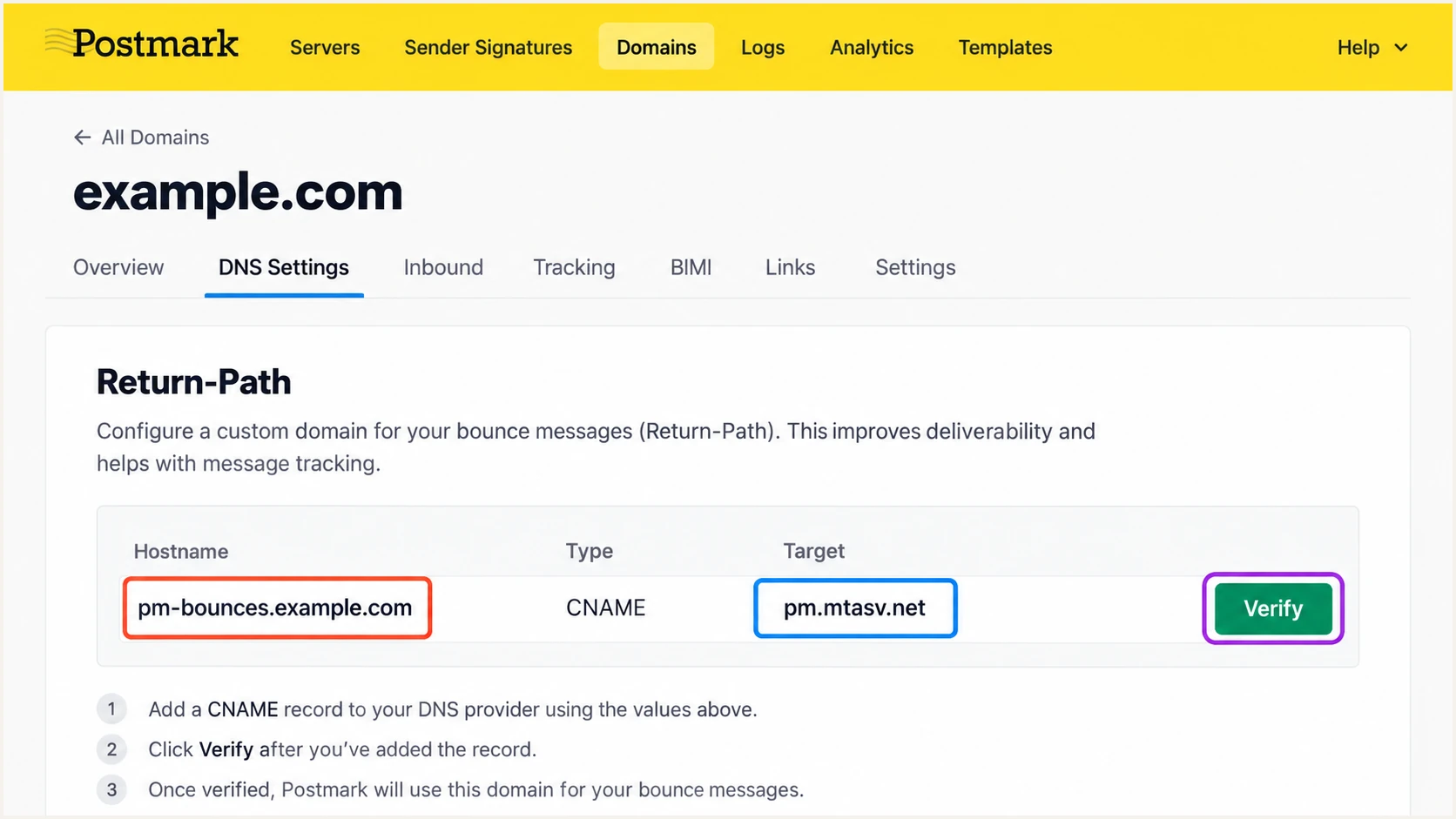
Verify the custom Return-Path CNAME in Postmark's DNS settings.
Postmark allows up to 48 hours for DNS changes to become visible. Use the exact hostname shown in your account, especially if its suggested alias differs from this example.
Do not add a second SPF TXT record at your root domain. An extra include there does not fix Postmark Return-Path alignment.
Set up DKIM
Postmark generates the DKIM selector and public key for your account. I copy that record directly rather than generating a replacement key elsewhere.
- Copy the record: Open Sender Signatures, then DNS Settings beside your domain. Copy the DKIM Hostname and complete TXT Value.
- Publish the TXT: Add the record at the exact selector hostname under _domainkey. Avoid appending your domain twice if the DNS editor adds it automatically.
- Verify signing: Click Verify in Postmark's DKIM row. Wait for the verified status before relying on domain-wide sending or DKIM protection.
- Check a message: Send through your application and inspect the recipient's Authentication-Results. Require dkim=pass for a signature whose d= domain matches your From domain under your DMARC settings.
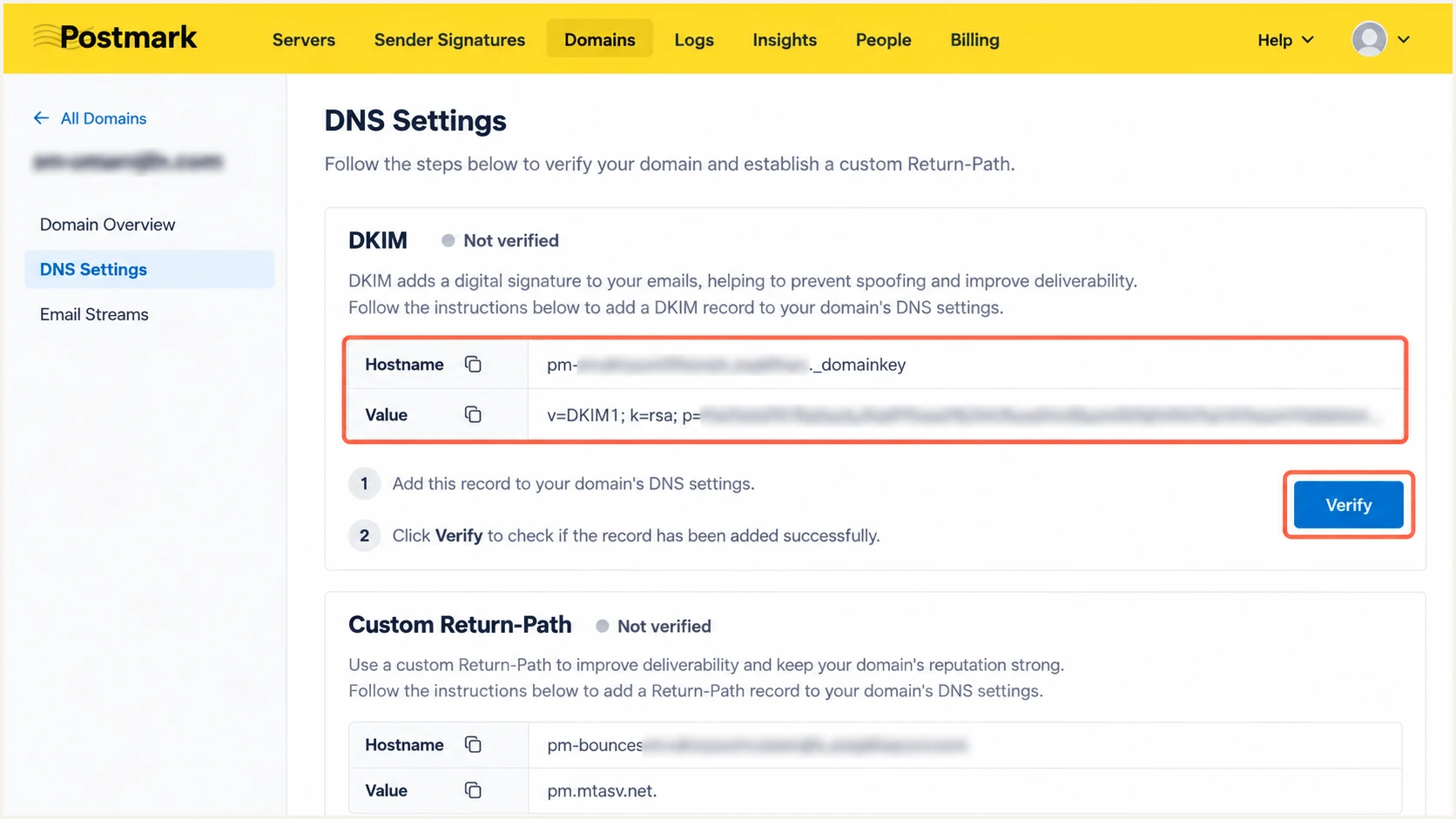
Copy the account-specific DKIM TXT record and verify it in Postmark.
A DKIM record for another sending service does not replace Postmark's selector. Multiple selectors can coexist. Copy the entire Postmark public key without truncation; DNS editors that split long TXT values must preserve the combined value.
I rotate keys through Postmark's Generate New control. Publish and verify the new selector before removing the old TXT record, and retain the old record for a few days for messages still in transit. Postmark recommends rotation at least every three months.
Set up DMARC
DMARC is a DNS policy for your From domain across all sending services. I inspect the existing policy before changing it for Postmark.
- Check the policy: Look up TXT records at _dmarc.example.com. Edit the existing DMARC record if one exists; do not create a second policy record.
- Keep enforcement: If your domain already uses p=quarantine or p=reject, keep that policy while configuring Postmark authentication.
- Start monitoring: For a domain without enforcement, publish the p=none example below at _dmarc.example.com. This requests monitoring without DMARC-based quarantine or rejection.
- Receive reports: Replace the example rua address with your working aggregate-report destination. For an external reporting domain, follow its required reporting authorization setup.
Initial DMARC TXT value at _dmarc.example.comtext
v=DMARC1; p=none; rua=mailto:dmarc@example.com
The example address is a placeholder. A mailbox receiving aggregate XML reports needs a process to interpret them. DMARC does not send those reports into Postmark's message Activity automatically.
Build the policy with our DMARC record generator. Keep aspf=r or omit it to use relaxed SPF alignment. Validate the published record below after saving DNS.
DMARC checker
Look up a domain's DMARC record and catch policy issues.
?/7tests passed
A valid DNS policy does not prove that your application sends authenticated mail. Check a new message after both Postmark authentication records are verified.
Aggregate reports arrive on receivers' schedules, usually daily. Allow time for reporting before assessing the full set of sending sources; one test message does not establish that every workflow passes.
Verify and troubleshoot
I use a real application message for the final check. Our email tester below supplies a recipient address and diagnoses the message you send to it.
- Send a test: Copy the tester's recipient address and trigger a real Postmark message, such as a receipt, using your normal From address and sending configuration.
- Inspect DKIM: Require a passing signature associated with your domain. Read the signature's d= and s= values if the result fails.
- Inspect SPF: Confirm SPF passes for your custom Return-Path and that SPF alignment passes. A pass for pm.mtasv.net alone is insufficient for SPF alignment.
- Confirm DMARC: Require dmarc=pass for your visible From domain. Repeat for each sending domain and materially different application configuration.
Email tester
Send a real email to this address. Suped shows a results button when the test is ready.
?/43tests passed
Read Authentication-Results added by the receiving system you trust. Compare header.from with DKIM header.d and SPF smtp.mailfrom. Application logs showing an accepted API request do not establish a recipient-side authentication pass.
Use the failure type to choose the next check. A missing DNS record, a domain mismatch, and a modified message require different fixes.
|
|
|
|---|---|---|
DKIM missing | Selector TXT | Publish exact key |
DKIM invalid | Key or message | Check truncation or edits |
SPF mismatch | Return-Path | Verify custom CNAME |
DMARC error | Policy TXT | Remove duplicate policy |
Match the receiver's authentication result to the configuration check.
For unresolved DNS checks, confirm the authoritative nameservers, exact host label, and cached TTL. Changing records in an inactive DNS zone has no effect. Keep CNAME records unproxied.
Forwarding often breaks SPF because the connecting IP changes. A surviving DKIM signature with DKIM alignment can still pass DMARC; do not add a forwarding server to your SPF record just to clear that result.
A historical verification flag is insufficient
Postmark's Domains API documents DKIMVerified as whether the domain has ever been verified. It remains true even if the DNS key is removed. I confirm current DNS and a fresh received message when investigating a regression.
Get alerted when it breaks
For ongoing Postmark authentication checks, I recommend our DMARC platform, Suped. Its DMARC monitoring identifies authentication failures across reported traffic and provides issue-specific repair steps.
- Enable notifications: Open Suped's notification settings and enable DMARC failure alerts and summary report emails for the people responsible for sending and DNS.
- Review the source: Inspect Postmark's reported traffic and confirm that your team authorizes it. An infrastructure name alone does not establish sender authorization.
- Diagnose failures: Open affected records in the detail view and compare SPF, DKIM, and DMARC results. Use the detected issue's steps to fix the relevant DNS or sending configuration.
- Retest repairs: After a change, send another application message and check subsequent aggregate reports. Keep alerts enabled during DKIM rotation and DNS migrations.
DMARC alerts depend on receivers delivering aggregate reports. They are not instant notifications for every message. I use fresh message tests for immediate checks after a configuration change.
Continue checking Postmark's Activity for bounces and delivery events. SMTP acceptance and DMARC success do not guarantee inbox placement; investigate delivery problems separately from authentication failures.
Secure your domain with p=reject
I move to p=reject after legitimate traffic passes DMARC across the domain, including services other than Postmark. Suped provides the source-level evidence needed to make that change.
- Inventory senders: Review aggregate reports in Suped across a full business sending cycle. Include infrequent billing messages and operational alerts before enforcing a policy.
- Resolve legitimate failures: Use Suped's source and issue views to repair known senders. Confirm Postmark's DKIM and custom Return-Path on fresh messages.
- Stage enforcement: If starting at p=none, move to p=quarantine, inspect legitimate delivery and subsequent reports, then move to p=reject when no legitimate DMARC failures remain unexplained.
- Keep monitoring: Preserve the report destination and relaxed SPF alignment. Investigate new failures after each policy change rather than relying on a domain-wide pass percentage.
Ready to enforce
- Known traffic: Legitimate senders pass DMARC across representative workflows.
- Verified repair: Recent Postmark messages have passing DKIM with DKIM alignment.
Investigate first
- Unexplained failure: A known application still sends messages that fail DMARC.
- Missing coverage: An infrequent sending workflow has not been observed or tested.
Do not weaken an existing quarantine or reject policy just to connect Postmark. Fix its authentication while keeping the established policy. Treat subdomain policies separately if they override the parent.
The final example below assumes example.com and a working reporting mailbox. Preserve your actual reporting destination and any intentional subdomain policy tags.
Final DMARC TXT value after validationtext
v=DMARC1; p=reject; rua=mailto:dmarc@example.com; aspf=r
Suped's Hosted DMARC lets teams manage the policy through its dashboard after the required DNS setup. That makes staged changes easier to review alongside source-level authentication results.
A reject policy asks receivers to reject messages that fail DMARC; receivers retain local discretion. It protects your domain against unauthenticated direct spoofing, but it does not stop lookalike-domain messages or misuse of an authenticated sending account.
FAQ
For Postmark, the recurring distinctions are SPF authentication versus SPF alignment, and DNS verification versus authentication on a delivered message.
Postmark uses mtasv.net for its mail infrastructure. I treat an rDNS suffix of .mtasv.net as a Postmark infrastructure clue, then confirm the connecting IP and authentication results. The suffix alone does not prove authorization to send using your domain.
spf.mtasv.net is associated with Postmark. Its presence helps identify a sending configuration, but Postmark's current setup does not require adding include:spf.mtasv.net to your root SPF record. Configure the custom Return-Path CNAME for SPF alignment instead.
SPF authentication can pass for Postmark's default Return-Path while SPF alignment fails for your From domain. Verify your custom Return-Path to fix that mismatch. DMARC still passes when a valid DKIM signature has DKIM alignment.
Yes, through a passing DKIM signature with DKIM alignment. Postmark's custom Return-Path uses a subdomain, so it does not satisfy strict SPF alignment for the parent From domain. Use aspf=r if you want SPF alignment to pass with that setup.
Postmark allows up to 48 hours for DKIM and custom Return-Path DNS changes to become visible. Click Verify to retry after publication. If verification still fails, check the authoritative DNS zone and hostname rather than repeatedly recreating records.
No. Outbound domain authentication uses Postmark's generated DKIM TXT record and a custom Return-Path CNAME, plus your domain's DMARC TXT policy. Keep your existing incoming-mail MX records unless you are separately configuring inbound processing.