
How to set up DMARC/DKIM/SPF for porkbun

Published 21 Nov 2026
Updated 21 Nov 2026
10 min read
Summarize with
For Porkbun-hosted email, publish an SPF TXT record containing include:_spf.porkbun.com, enable DKIM through the domain's Configure DMARC button, and publish one DMARC record at _dmarc. Start a new DMARC deployment with p=none and reporting; keep p=quarantine or p=reject if either is already active.
I check the sending service first. Registering a domain at Porkbun does not mean Porkbun sends its email. These values apply to Porkbun hosted mailboxes and applications submitting through Porkbun SMTP. If another service sends your messages, publish that service's authentication records at your authoritative DNS host.
Add your domain
A domain registered with Porkbun is already in Domain Management. Set up its hosted mailbox before enabling Porkbun's outbound authentication.
- Open the domain: Sign in, select ACCOUNT, then Domain Management. Find your domain. Do not add an existing domain again.
- Add an external domain: If necessary, choose ACCOUNT, then Add External Domain. Follow the displayed ownership verification instructions and select Submit and Verify. If moving DNS to Porkbun, copy the existing zone before changing nameservers, then enable DNS under Details.
- Create the mailbox: Click the envelope under EMAIL. On Email Hosting and Forwarding, select Configure next to your purchased Standard Email account or available trial. Enter the mailbox name and a separate mailbox password, then select Create Email Address.
- Confirm access: Check that the address appears under Current Accounts and open webmail. Identify the authoritative nameservers before editing records; an inactive DNS zone will not publish your changes.
Free email forwarding receives and redirects messages. It does not give an application an authenticated Porkbun SMTP mailbox for sending.
Keep existing MX records unless you are intentionally moving incoming email to Porkbun. Authentication changes alone do not require an inbound mail migration.
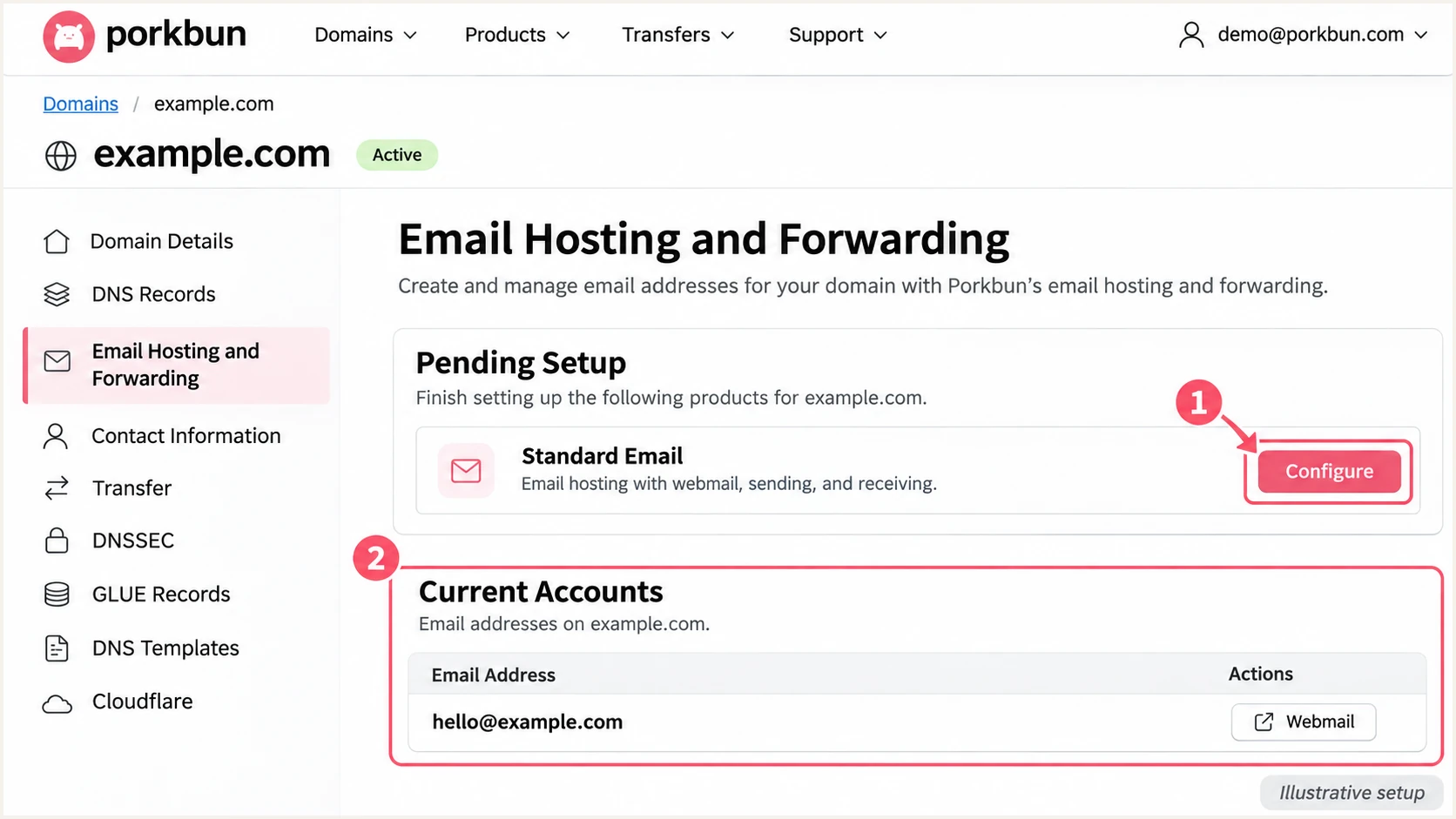
Illustrated Porkbun mailbox setup and Current Accounts confirmation.
If the domain uses external nameservers, keep editing its live records there. Adding a domain to an account does not by itself move its DNS.
Set up SPF
Porkbun's hosted-email SPF value is shown below. I edit an existing SPF record rather than creating a second one at the same name.
- Open DNS: In Domain Management, click DNS beneath the domain, or select Details and the edit icon beside DNS Records. If DNS is external, use that host's editor.
- Find SPF: Look for a root TXT record starting with v=spf1. Preserve other authorized senders and add include:_spf.porkbun.com before the final all mechanism.
- Publish once: If Porkbun is the only sender and no SPF record exists, select Add Record, choose TXT, leave Host blank, paste the value below into Answer/Value, and select Add. Keep the default TTL.
- Check the envelope: Send through your Porkbun mailbox and inspect Return-Path. For SPF to contribute to DMARC, its domain must match the visible From domain under your DMARC alignment mode.
Root TXT value for Porkbun-only hosted emailtext
v=spf1 include:_spf.porkbun.com ~all
Count lookup-triggering SPF terms, including nested includes. SPF permits at most 10 during evaluation. Keep one SPF record per name and one final all mechanism.
Run the check against the domain in the actual envelope sender. Adding an SPF include at example.com cannot change a Return-Path owned by another domain.
SPF checker
Find SPF syntax issues, lookup limits, and weak records.
?/16tests passed
Confirm that the published value contains Porkbun's include and has no duplicate-record or lookup-limit error. Recheck after cached DNS answers expire.
Porkbun's Fix DNS button restores its MX and SPF defaults. Reserve it for restoring Porkbun mail routing; inspect a mixed-provider configuration manually before using a reset.
Set up DKIM
Porkbun enables hosted-email DKIM through Configure DMARC. Its documented selector is default, with the public key published as a TXT record at default._domainkey.
Porkbun DNS
- Open configuration: Select the domain's EMAIL envelope, then scroll to Additional Notices & Configuration and DMARC Notice.
- Enable signing: For a new setup, select Configure DMARC and confirm the prompts. Refresh after 5-10 minutes and check the configuration status.
External DNS
- Get the key: Copy the domain-specific default._domainkey TXT Host and Answer/Value from Porkbun's DNS records. Ask Porkbun support if no key is available.
- Publish the key: Create that TXT record at the authoritative DNS host. Paste the complete public key without altering it or duplicating the domain suffix.
Configure DMARC changes DKIM and DMARC together. Save the existing _dmarc value first. If quarantine or reject is active and DKIM is missing, ask Porkbun to enable signing without resetting that policy.
The button is available for domains with Porkbun email hosting. A DMARC Warning about external nameservers means the records need to be published at your live DNS host.
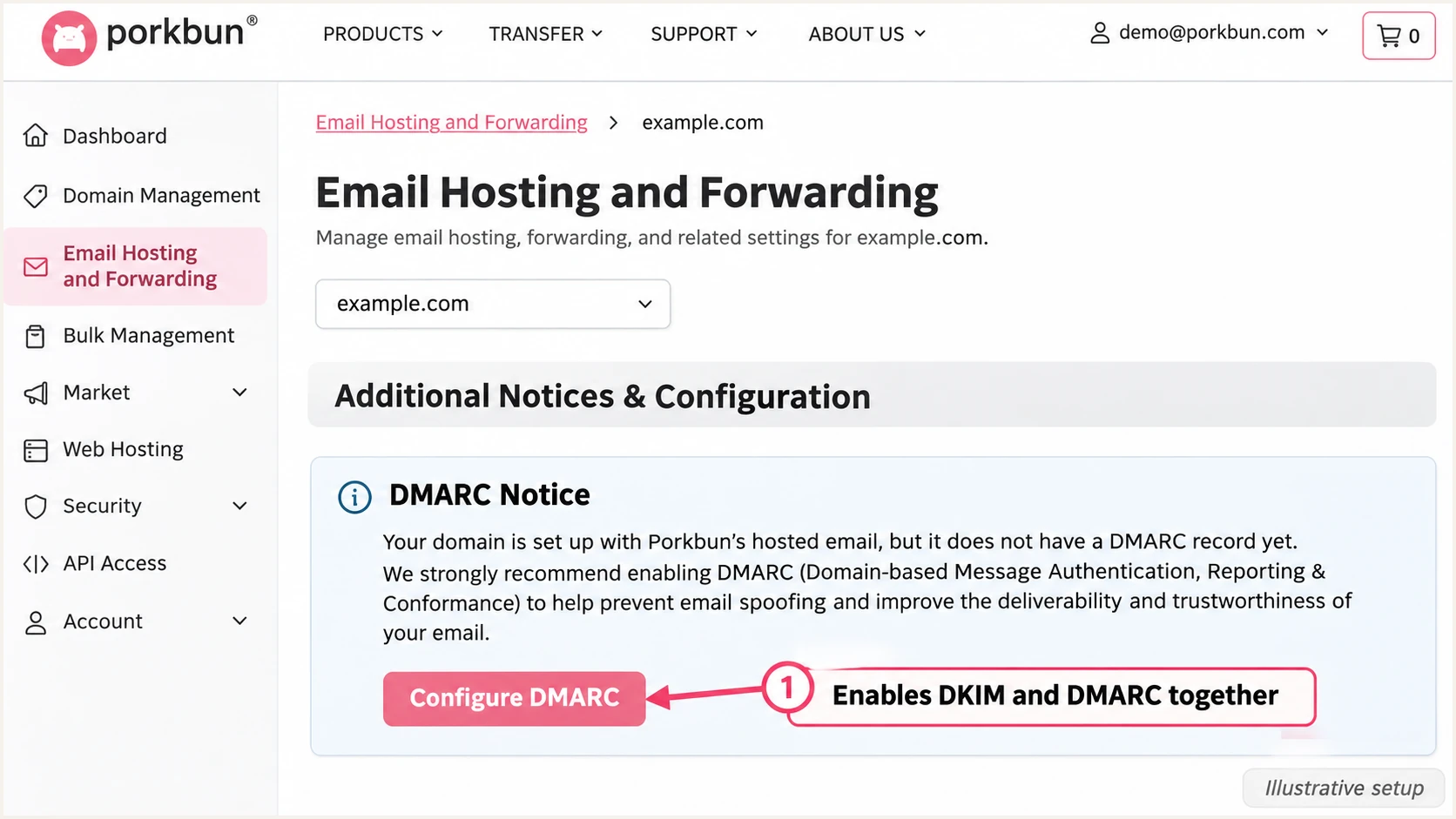
Illustrated Porkbun Configure DMARC control used to enable DKIM.
A DNS key alone does not prove signing works. Send a new message and check dkim=pass with header.d matching your From domain. Use the selector in the actual DKIM-Signature header when troubleshooting.
Set up DMARC
Publish DMARC after checking SPF and DKIM. For a new deployment, use the exact starter value below, then replace its example reporting address with a real destination you control.
- Inspect existing policy: In Manage DNS Records, find the TXT record with Host _dmarc. Edit it rather than adding a duplicate. Keep an existing p=quarantine or p=reject policy.
- Set the host: For a new record, select Add Record, choose TXT, and enter _dmarc in Host. This creates _dmarc.example.com for example.com.
- Set the value: Paste the starter value into Answer/Value, replace dmarc@example.com with your working aggregate-report address, keep the default TTL, and select Add.
- Retain reporting: If Porkbun created a record automatically, check its policy and rua destination. Preserve required reporting destinations when editing it.
Starter DMARC TXT valuetext
v=DMARC1; p=none; rua=mailto:dmarc@example.com
The example address is a placeholder, not a destination that collects your reports. A report address on another domain also needs that destination's external-report authorization.
Use the DMARC record generator to produce the TXT value. The p=none policy requests reporting without requesting quarantine or rejection for DMARC failures.
DMARC checker
Look up a domain's DMARC record and catch policy issues.
?/7tests passed
Check that one valid DMARC record is returned for your sending domain and that its policy matches your intended setting. A syntax pass does not confirm your messages authenticate.
In Porkbun's Host field, enter only _dmarc. At an external DNS host, check whether the editor expects a relative name or the full hostname before saving.
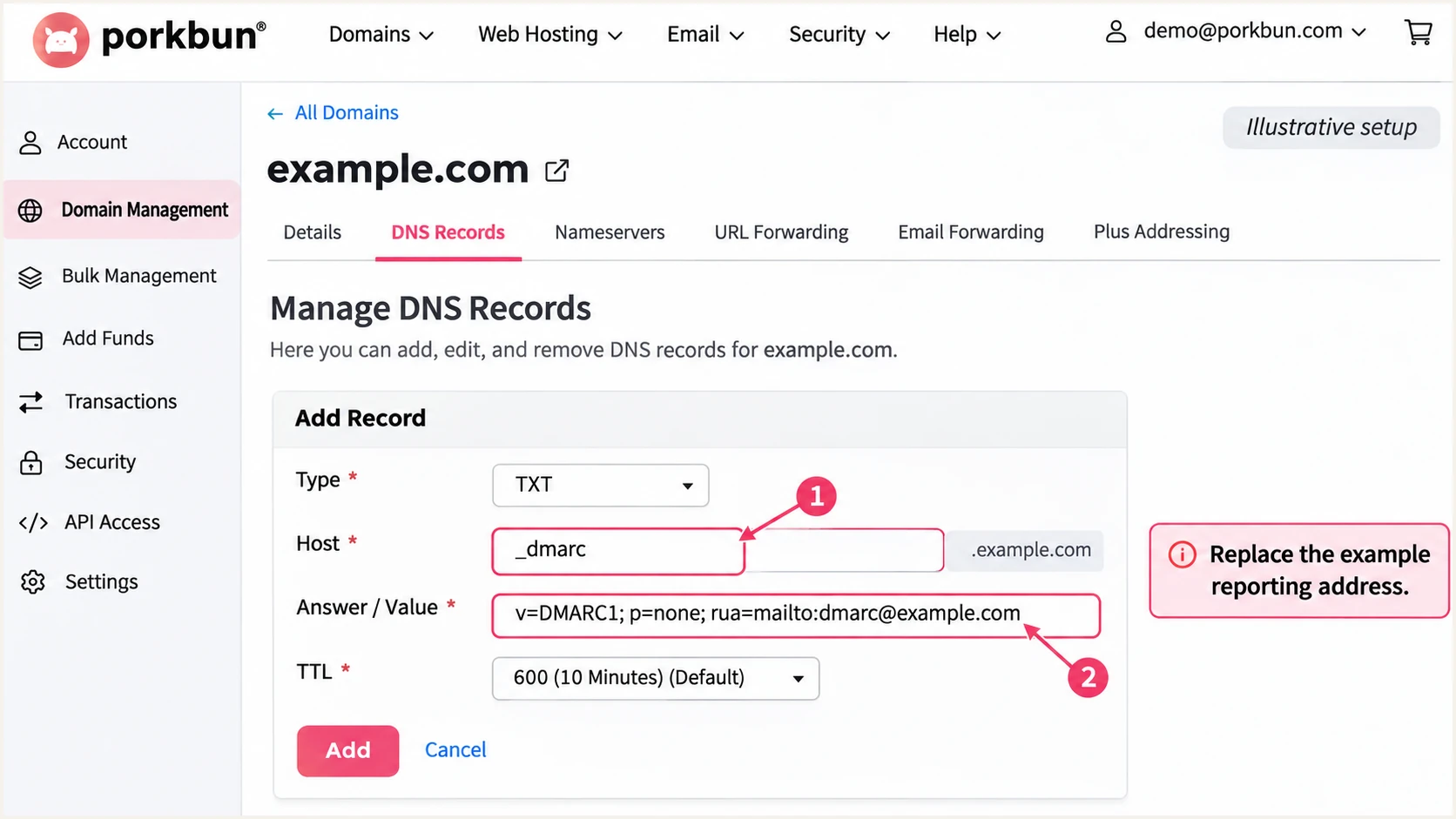
Illustrated Porkbun TXT form for publishing a monitoring DMARC record.
Keep a copy of the previous value so you can reverse an incorrect edit. Retain stronger existing enforcement throughout this setup.
Verify and troubleshoot
I verify a delivered message after checking DNS. Test the mailbox and the application's sending route separately.
- Check live DNS: Run the queries below with your own domain. Confirm one SPF value, the active DKIM selector, and one DMARC value in the authoritative zone.
- Route website mail: Configure your application to submit to smtp.porkbun.com on port 587 with STARTTLS and authentication. Use the full mailbox address and its mailbox password. Set From to that mailbox address.
- Read receiver results: Inspect the receiving system's Authentication-Results header. Look for spf=pass, dkim=pass, and dmarc=pass; compare smtp.mailfrom and header.d with the visible From domain.
- Trace failures: For SPF permerror, check duplicates and lookup limits. For missing DKIM, check the SMTP route and selector. For a DNS mismatch, check nameserver authority and cached answers.
Check your published recordsbash
dig +short NS example.com
dig +short TXT example.com
dig +short TXT default._domainkey.example.com
dig +short TXT _dmarc.example.com
Use the email tester below for a quicker end-to-end diagnosis. Send a fresh message to the address it provides through the exact Porkbun mailbox or application route you need to verify.
The resulting report checks the message's authentication and identifies configuration issues. Repeat the test after each change; a successful webmail message does not validate a website that sends through a different server.
Email tester
Send a real email to this address. Suped shows a results button when the test is ready.
?/43tests passed
An SPF alignment failure is compatible with DMARC passing when DKIM passes with a matching signing domain. If a sending route uses a provider-owned Return-Path, changing your root SPF record will not fix that mismatch.
Forwarding also changes the connecting server and often breaks SPF. Check whether the original DKIM signature survives. For direct Porkbun SMTP messages, investigate an unexpected envelope domain rather than ignoring it.
|
|
|---|---|
SPF permerror | Merge SPF; check limits |
DKIM missing | Check signing and route |
DKIM key missing | Check selector and DNS |
DMARC fail | Check domain matching |
Message results and the next action
Get alerted when it breaks
Keep Porkbun as the sending service and use Suped for ongoing authentication monitoring. Suped is our DMARC platform; its DMARC monitoring turns aggregate reports into source-level issues and steps to fix them.
- Route reports: Point the existing record's rua tag at the reporting address supplied for your domain. Complete any external-report authorization while retaining the current policy.
- Verify sources: Review Porkbun's sending traffic and confirm it is authorized. Investigate unknown sources before adding them to SPF or treating them as legitimate.
- Enable notifications: In Suped's notification settings, enable Issues detected and Sending sources need verification. Enable DMARC summary emails for periodic review.
- Resolve and retest: Open each issue's steps to fix, update the relevant Porkbun or external DNS record, then send another test message and review subsequent reports.
This workflow catches authentication regressions that a one-time DNS check misses. Suped keeps the source investigation and fix instructions with the reported failure.
Alerts depend on incoming reports
DMARC aggregate reports usually arrive daily, with additional processing and delivery delay. Suped alerts you when it detects an issue in available data; aggregate reporting is not a live feed of every message.
Secure your domain with p=reject
Move toward p=reject after legitimate sending routes pass DMARC consistently. I use source-level evidence and message tests as the release criteria, rather than a domain-wide pass rate alone.
- Inventory every sender: In Suped, verify Porkbun and every other legitimate source. Test infrequent business mail as well as routine mailbox and website messages.
- Fix signing first: Ensure legitimate messages have passing DKIM with a matching signing domain. Do not rely solely on SPF for a reject deployment.
- Stage enforcement: For a new deployment, monitor at p=none, then evaluate p=quarantine before p=reject. Keep reporting active and compare failures and delivery outcomes at each stage.
- Check indirect mail: Test forwarding and mailing-list participation. For domains whose users post to Internet mailing lists, current DMARC guidance recommends avoiding reject; use at least a month at none and a month at quarantine if evaluating it.
- Publish and watch: Change the existing _dmarc TXT value after resolving legitimate failures. Keep Suped issue notifications active and investigate new failures after the policy change.
Staged policy values, use one at a timetext
v=DMARC1; p=quarantine; rua=mailto:dmarc@example.com
v=DMARC1; p=reject; rua=mailto:dmarc@example.com
Replace the example report address and preserve your real rua destination and other intentional tags. Review subdomain policies before enforcement because subdomains without their own policy can inherit it.
Suped's Hosted DMARC lets you stage policy changes in our dashboard after its DNS setup. Pair those controls with source verification and issue resolution before increasing enforcement.
Reject is a policy request
p=reject requests rejection of messages that fail DMARC. Receivers make the final delivery decision. It does not guarantee inbox placement or protect against messages using a different lookalike domain.
Frequency asked questions
A hostname under porkbun.com is a clue to Porkbun infrastructure, not proof that a message came from your hosted mailbox. Check the connecting IP, the current _spf.porkbun.com authorization, and the message's authenticated domains together. Registration at Porkbun alone does not identify the sending service.
The button requires Porkbun email hosting for that domain. Open its Email Hosting and Forwarding page and confirm the mailbox service is configured. External nameservers also prevent automatic DNS configuration; publish the supplied records at your authoritative DNS host.
Use include:_spf.porkbun.com when Porkbun sends email for your domain. If Porkbun only registers the domain or hosts its DNS, use the actual sender's SPF and DKIM instructions. Preserve other authorized senders in one SPF record.
Yes. Passing DKIM with a signing domain that matches the From domain under your DMARC alignment mode is sufficient. A provider-owned Return-Path does not become yours when you edit SPF. Keep DKIM working and investigate whether the mismatch is expected for that sending route.
Porkbun documents a 5-10 minute wait for its automatic configuration status. DNS visibility also depends on cached TTLs. Test a newly sent message after the records resolve; aggregate reporting commonly takes 24-48 hours to become visible and depends on participating receivers.




