
How to set up DMARC/DKIM/SPF for Plusnet

Published 22 Nov 2026
Updated 22 Nov 2026
12 min read
Summarize with
For a domain you own, configure Plusnet email authentication by authorizing its outbound servers in one SPF TXT record, enabling DKIM signing for your domain, and publishing DMARC at _dmarc. For an address such as alex@account.plus.com, the email provider controls DNS and signing, so authentication changes require its support.
I check the account's migration status first. Plusnet is moving email and domain services to Greenby, which manages migrated accounts. The steps below distinguish legacy Plusnet settings from the controls available after migration.
Check your existing domain
Existing Plusnet mailboxes and hosted domains move with the account. A new domain-verification wizard is not part of this setup. Confirm the existing service and who controls its DNS.
A mailbox alias does not give you DNS control over the domain after the @ sign. Only follow the DNS publishing steps for a domain whose records you can manage.
- Check migration: Find the Greenby welcome or migration-complete email. After migration, use that account to manage email and domains. Before migration, continue using Plusnet.
- Confirm the mailbox: Before migration, open Plusnet Member Centre > Email Settings > Manage My Mail > Summary. After migration, open Email in Greenby and confirm that the expected mailbox is listed.
- Locate DNS: For a custom domain, run dig +short NS example.com. Edit records at the host identified by those nameservers. If Greenby manages the domain, check its Domains area and migration instructions.
- Preserve routing: Save the existing DNS values. Keep working MX records while adding authentication. If the legacy panel cannot publish TXT records, ask the current DNS operator to publish them.
The Member Centre navigation below applies only while the account is still managed by Plusnet. Manage My Mail stops being available there after migration.
For provider-owned addresses, verify the mailbox and send a test message. Ask the current email operator to fix missing records or invalid signatures on its domain.
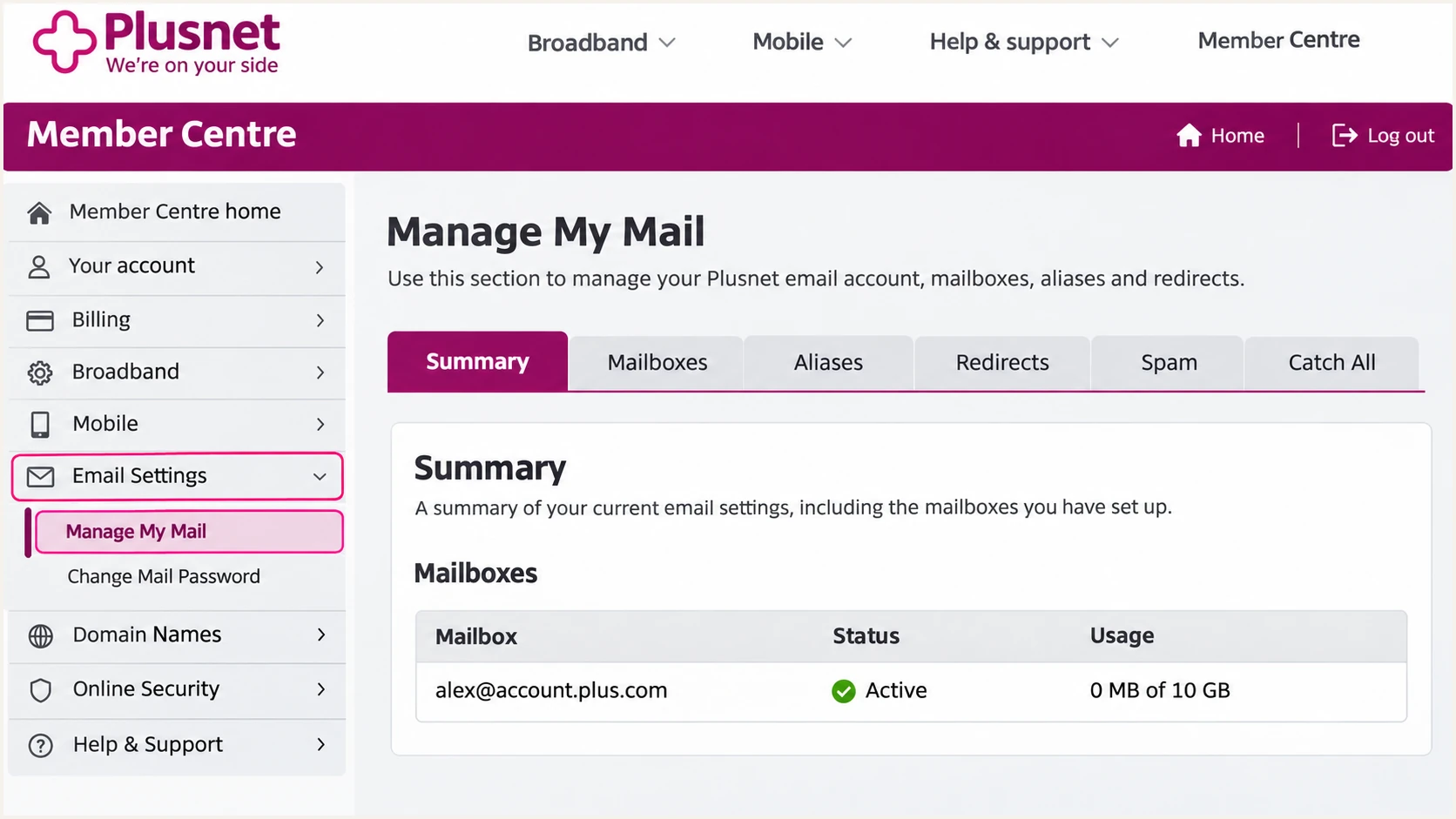
Before migration: Plusnet Member Centre > Email Settings > Manage My Mail.
Set up SPF
I check which servers actually deliver the account's outgoing mail before editing SPF. The legacy Plusnet relay uses both _spf-internal.plus.net and _spf-internal2.plus.net.
Greenby delivery also uses spf.greenby.com. Confirm the required includes with the current operator for your account. An unchanged SMTP hostname does not establish which outbound network is in use.
- Inspect the record: Look up TXT records for the envelope-sender domain shown as smtp.mailfrom in a delivered message. Find the existing value starting with v=spf1.
- Authorize delivery: For legacy Plusnet sending, include both Plusnet SPF domains. When Greenby delivery is confirmed, include spf.greenby.com. Retain other authorized senders in the same SPF record.
- Publish one value: At the appropriate DNS hostname, edit the existing TXT record or create one if absent. Use @ only for the domain apex. Keep exactly one SPF record per hostname.
- Check the return path: Send with your custom-domain address and inspect smtp.mailfrom or Return-Path. For relaxed SPF alignment, its domain must share the organizational domain of the visible From address.
Enter the envelope-sender domain in the SPF checker. Check the expanded includes and the limit of 10 DNS-querying SPF terms, including nested lookups.
Adding a broadband IP or copying the IP behind relay.plus.net does not reliably authorize the outbound relay pool. Use the provider-confirmed includes.
SPF checker
Find SPF syntax issues, lookup limits, and weak records.
?/16tests passed
The example below covers both legacy Plusnet and Greenby delivery. Use it only when both are authorized for your domain; merge any other legitimate senders before the final ~all.
This is DNS zone-file notation for one TXT record. In a DNS control panel, enter the quoted fragments as one continuous value with spaces, without the parentheses or surrounding quotes.
One SPF TXT record for confirmed Plusnet and Greenby sendingdns
@ 3600 IN TXT (
  "v=spf1 include:_spf-internal.plus.net "
  "include:_spf-internal2.plus.net "
  "include:spf.greenby.com ~all"
)
Set up DKIM
DKIM requires the sending server to sign the message and DNS to publish the matching public key. Adding a key to DNS alone does not enable signing.
For migrated Plusnet accounts, Greenby exposes DKIM under Email > Settings. Its DNS-managed accounts have automatic record setup; externally managed domains need the supplied DNS configuration.
- Open settings: Sign in to the migrated account, open Email > Settings, and find DKIM. Check the domain being configured before enabling signing.
- Publish the key: If you manage DNS externally, copy the exact hostname, record type and value supplied for your domain. Publish TXT or CNAME as instructed. Never invent a selector or public key.
- Verify signing: Send a new message. Inspect DKIM-Signature for d= and s=. Query the selector under s._domainkey.d using those actual values, then confirm dkim=pass in the receiver's results.
- Check the domain: For your own domain, require a passing signature whose d= domain matches the visible From domain under the chosen DMARC alignment mode. A signature using only plus.com does not authenticate an unrelated custom domain for DMARC.
The DKIM control applies to the account's current sending service. A legacy Plusnet account without custom-domain DKIM controls needs operator support to confirm signing capability.
If the operator cannot sign for your custom domain, DNS edits cannot add that capability. Confirm an outbound service with custom-domain DKIM before relying on DKIM for DMARC enforcement.
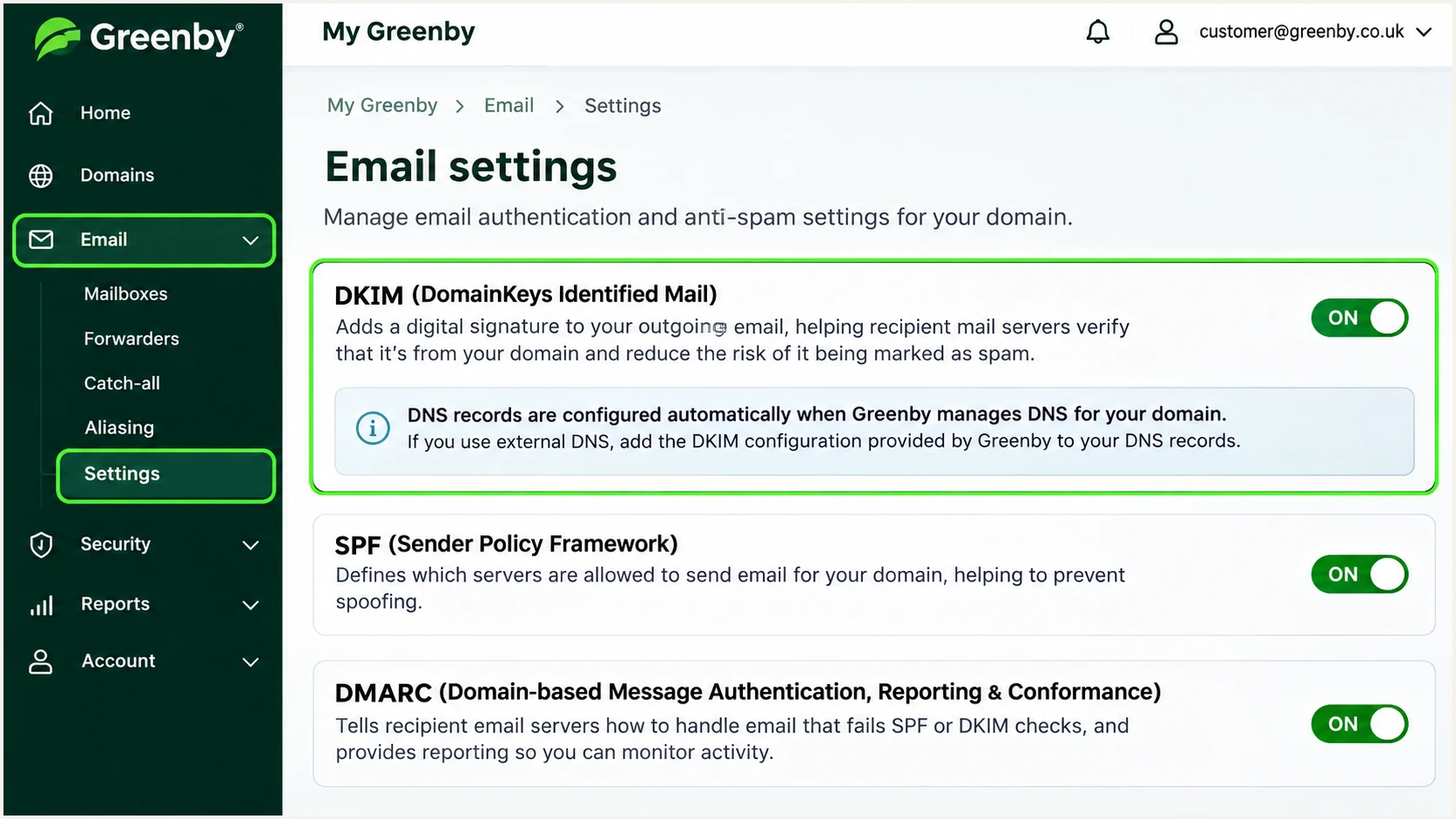
After migration: Greenby Email > Settings contains the DKIM control.
Set up DMARC
Publish DMARC on the domain in the visible From address. DMARC passes when SPF passes with a matching envelope domain, or DKIM passes with a matching signing domain.
For a domain without an existing enforcement policy, I start with p=none to collect reports. Keep an existing p=quarantine or p=reject policy while you fix the sending configuration.
Keep an existing enforcement policy
Do not replace quarantine or reject with the monitoring example below. Preserve the current policy and reporting destinations, then correct SPF or DKIM for Plusnet mail.
Use our DMARC record generator to build the TXT value. The reporting address in the example must be replaced with a real mailbox or reporting destination that you control.
The example assumes the visible From domain is example.com. Publish at _dmarc.example.com, usually entered as _dmarc in the DNS zone. It requests reports without requesting rejection.
Initial DMARC TXT value at _dmarc.example.comdns
v=DMARC1; p=none; rua=mailto:dmarc@example.com
A reporting mailbox receives aggregate XML reports; publishing rua does not create the mailbox. If the destination is outside your domain, its operator must provide the required external reporting authorization.
If the domain already has DMARC, edit that record. Publishing multiple DMARC policy records at the same hostname makes policy discovery invalid.
- Check existing DNS: Query TXT at _dmarc.your-domain and inspect the policy already published. For a subdomain sender, also check inherited policy at the organizational domain.
- Save the policy: Create or update one TXT record at the correct _dmarc hostname. Keep relaxed alignment defaults unless every sender supports your stricter settings.
- Wait for caches: Allow the previous DNS TTL to expire. Check the authoritative DNS answer and a public recursive resolver before retesting.
- Validate the result: Enter your visible From domain below. Confirm valid syntax, one applicable policy, and the intended reporting destination.
Provider-owned Plusnet addresses inherit policy controlled by the provider. Request changes through the current operator; a TXT record on an unrelated domain has no effect.
A published DMARC record confirms DNS setup. A new message and its authentication results confirm whether the actual sending route passes.
DMARC checker
Look up a domain's DMARC record and catch policy issues.
?/7tests passed
Verify and troubleshoot
I test the same mailbox, From address and SMTP route that will send production mail. Repeat the test for webmail and each mail client if they use different outgoing servers.
The email tester is the quickest end-to-end check. Copy its generated destination, send a message through the Plusnet account, and review the authentication diagnosis.
Email tester
Send a real email to this address. Suped shows a results button when the test is ready.
?/43tests passed
Confirm dmarc=pass in the receiver's Authentication-Results. Also inspect smtp.mailfrom for SPF and header.d for DKIM against header.from.
An SPF alignment error is acceptable for DMARC when DKIM passes with a matching signing domain. If the service fixes the return path to its own domain, adding SPF to your From domain cannot change that return path.
|
|
|---|---|
SPF fail | Sending IP and includes |
SPF permerror | Duplicate SPF or lookup limit |
DKIM none | Signing and outbound route |
DKIM fail | Selector, key or message changes |
DMARC fail | Authenticated domain matching |
Use the receiver's results to select the next check.
For Plusnet SMTP sending with an envelope address on your custom domain, configure SPF for that domain. If the envelope domain belongs to the provider, its SPF is the provider's responsibility and your DMARC route is matching DKIM.
The commands below inspect a sample custom domain. Replace en with the selector from the actual message; it is an example, not a universal Plusnet selector.
Inspect the actual DNS names used by the messagebash
dig +short NS example.com
dig +short TXT example.com
dig +short TXT en._domainkey.example.com
dig +short CNAME en._domainkey.example.com
dig +short TXT _dmarc.example.com
An authenticated message still faces reputation and recipient filtering checks. Keep the exact SMTP rejection text when investigating delivery failures after authentication passes.
A missing HELO SPF policy does not automatically fail DMARC when a nonempty envelope sender passes SPF with the required domain match. Check the identity associated with each result.
- Retest after changes: Send a new message after DNS caches expire. Previously delivered messages retain their original authentication results.
- Check forwarding: Forwarding commonly breaks SPF. Require a surviving matching DKIM signature for forwarded mail to pass DMARC independently.
- Escalate signing faults: For migrated accounts, contact Greenby support with the From address, UTC timestamp, Message-ID and receiver's results. Include the DKIM d= and s= values.
- Confirm reporting: Allow roughly 24-48 hours for initial aggregate reports. Check the reporting destination and traffic to participating receivers if no data arrives.
Get alerted when it breaks
Suped is our DMARC and email authentication platform. Its DMARC monitoring connects authentication failures to sending sources so Plusnet relay changes are visible after the initial setup.
I use ongoing report analysis alongside message tests. A single successful test does not cover every mailbox or future change to the outbound relay pool.
- Check report delivery: Confirm that the existing DMARC rua value includes the reporting destination assigned by Suped. Preserve other report recipients that are still needed.
- Enable notifications: In Settings > Notifications, enable Issues detected and Sending sources need verification. Configure DMARC summary emails for routine review.
- Investigate the source: Open the affected source and inspect its IP addresses and SPF/DKIM results. Compare changes with DNS history and recent Plusnet or Greenby migration activity.
- Verify the fix: Follow the issue's steps to fix, send a fresh test, and confirm later reports show the expected authentication. Mark a source as verified only after confirming it is yours.
Suped combines issue detection with record-level diagnostics. That gives the investigation an affected source and a specific DNS or signing problem to resolve.
Report-based alerts depend on when receivers submit aggregate reports. Use the email tester for immediate feedback after an individual configuration change.
One-time verification
DNS checks validate published records. A message test validates one mailbox and sending route.
- Use during setup: Catch syntax and signing errors immediately.
- Repeat after edits: Check each affected sending route again.
Ongoing monitoring with Suped
Aggregate reports expose failures across observed sending sources after setup is complete.
- Detect changes: Investigate new sources and authentication issues.
- Track recovery: Confirm fixes in subsequent reported traffic.
Secure your domain with p=reject
Move a custom domain to p=reject after every legitimate sending source has a reliable DMARC pass path. Prefer matching DKIM as well as SPF because forwarding changes the connecting IP address.
Suped helps identify which source still needs a fix before enforcement. Our hosted DMARC lets teams manage the policy after its DNS delegation is configured, including staged changes through the dashboard.
- Review every sender: In Suped, confirm Plusnet or Greenby traffic and all other legitimate sources. Review a complete sending cycle, including infrequent systems. A week or two is a starting window, not a universal completion rule.
- Resolve legitimate failures: Fix SPF includes, return-path mismatches and DKIM signing problems. Test important forwarded routes. Do not authorize an unknown IP solely to increase the pass rate.
- Stage enforcement: For an initial p=none rollout, change the same DMARC record to p=quarantine. Check new reports and delivery complaints, then move to p=reject when legitimate mail is accounted for. Keep existing stronger policies in place.
- Keep observing: Leave aggregate reporting and Suped issue notifications enabled. Review inherited subdomain policy and retest after adding mailboxes or changing the outbound service.
The final example replaces the existing policy value. Keep your real reporting destination and any intentional settings. Publish one applicable DMARC record at that hostname.
p=reject asks receiving systems to reject messages that fail DMARC. It does not repair authentication or guarantee inbox placement for messages that pass.
Final DMARC TXT value after verifying legitimate sendersdns
v=DMARC1; p=reject; rua=mailto:dmarc@example.com
For an account.plus.com address, the provider controls enforcement. These policy changes apply only to domains whose DNS you administer.
If a new legitimate source fails after enforcement, correct that source's authentication and retest its real message path before resuming its normal sending volume.
Frequency asked questions
The provider controls DNS for account.plus.com. Ask Plusnet before migration or Greenby after migration to resolve authentication problems. For your own custom domain, publish DMARC at its _dmarc hostname using your authoritative DNS host.
Legacy Plusnet outbound sending uses _spf-internal.plus.net and _spf-internal2.plus.net. Greenby delivery uses spf.greenby.com. Confirm which infrastructure serves your account, then merge its required includes into one SPF TXT record.
Check the actual account and sending route. Migrated accounts have DKIM controls in Greenby under Email > Settings. For a custom domain, confirm that signing uses that domain and that the provider supplies its DNS records. A provider-domain signature alone is insufficient for an unrelated custom From domain.
Yes. A passing DKIM signature with the required domain match is sufficient for DMARC. If the provider uses its own fixed return-path domain, expect an SPF alignment error and verify matching DKIM. SPF on your From domain cannot change the provider's return path.
Legacy outbound hostnames such as avasout-ptp-001.plus.net are associated with Plusnet. Hosts under gateway.enmail.co are associated with Greenby/Enix delivery, including migrated Plusnet accounts. The wider plus.net suffix also covers other network hosts. Treat rDNS as an investigation clue and verify the source IP and authentication before trusting mail.
Switch after reports cover a complete sending cycle and every legitimate source has a reliable DMARC pass path. Use quarantine as an intermediate step for a new rollout. Keep an existing reject policy, and fix individual senders without weakening the domain's protection.




