
How to set up DMARC/DKIM/SPF for Paubox

To authenticate Paubox email, add include:_spf.paubox.com to your existing SPF TXT record, publish the DKIM record generated by Paubox, enable DKIM signing, and publish a DMARC TXT record under _dmarc for your sending domain.
I verify the result on a message sent through Paubox. DMARC passes when SPF or DKIM passes with domain alignment to the visible From address. A published DNS record alone does not prove that outgoing messages pass.
Add your domain
I first check whether the account uses Paubox Email API or Paubox Email Suite. Their domain onboarding steps differ.
- Email API. Open Settings > Domains > Add Domain. Enter the exact sending domain and confirm. Add sending subdomains separately.
- Email Suite. For an additional domain, contact support@paubox.com. Paubox support adds it to the account and confirms outbound routing.
- Inspect verification. For Email API, open the new domain while its status is Pending. Compare Current Value and Required Value for SPF, preserving every existing authorized sender.
- Verify ownership. Publish the SPF update described below. Return to Settings > Domains, click Verify, and confirm Verified status after DNS updates become visible.
Paubox Email API uses the SPF change for domain verification. That status confirms onboarding; I still test signing and DMARC separately.
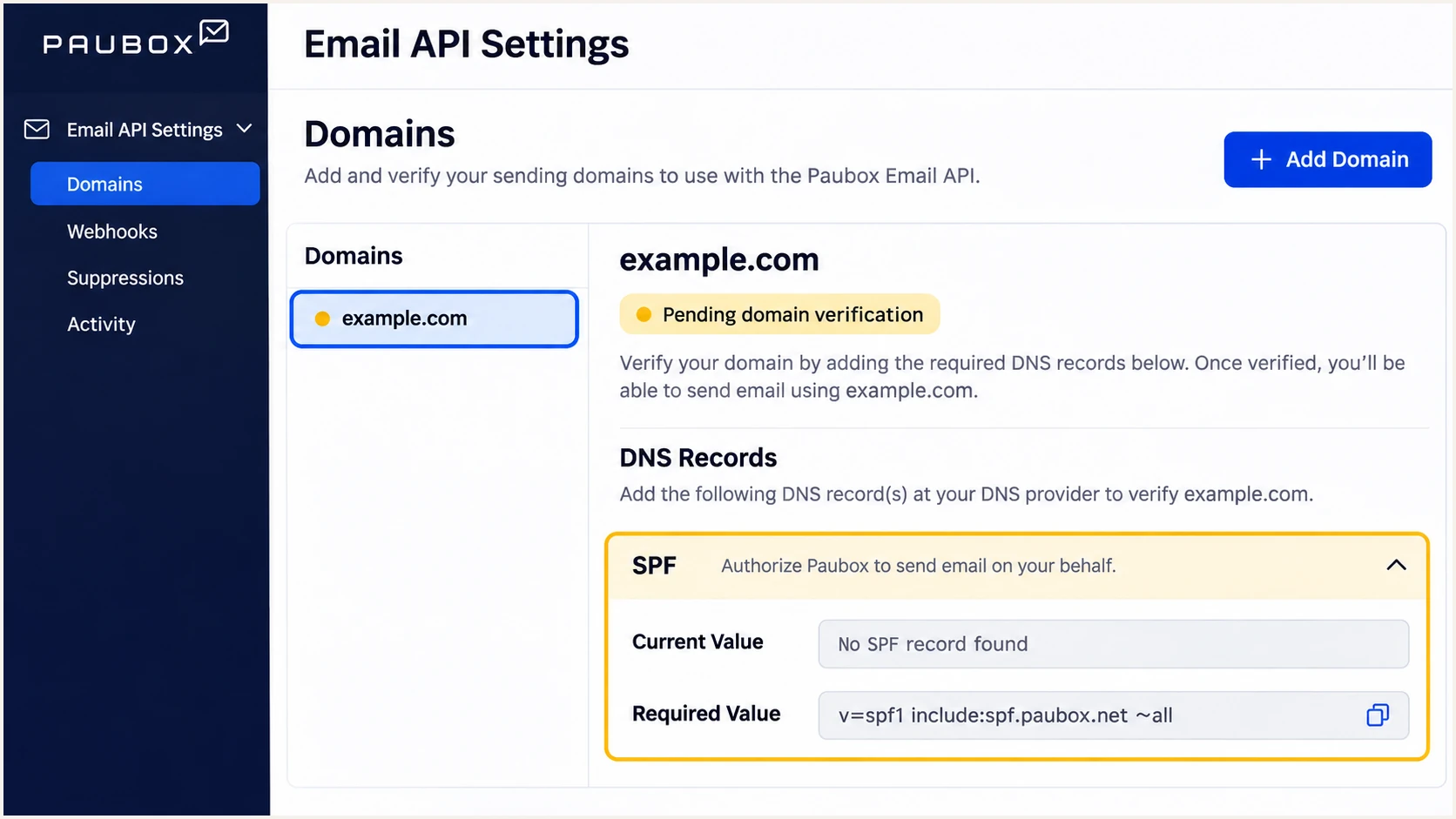
Paubox Email API domain settings and pending SPF verification.
I leave existing MX records in place for outbound authentication. Paubox inbound security has separate routing requirements that need coordination with its support team.
Set up SPF
Paubox documents include:_spf.paubox.com as its SPF authorization mechanism. I merge it into the existing record rather than replacing the domain's other senders.
- Find the record. Open your authoritative DNS provider and locate the TXT value beginning v=spf1. Use @ for the zone apex, or the appropriate host for a sending subdomain.
- Merge Paubox. Insert include:_spf.paubox.com before the final all mechanism. Keep the existing qualifier, such as ~all or -all, unless you are deliberately reviewing SPF enforcement.
- Keep one SPF record. Preserve Google Workspace, Microsoft 365, and other authorized mechanisms in the same record. Do not publish a second v=spf1 TXT record at that name.
- Check the limit. Keep SPF evaluation within 10 DNS-querying terms, including nested includes. Exceeding the limit causes permerror; counting only the visible includes is insufficient.
SPF examples, choose your existing mailbox providertext
# Google Workspace plus Paubox
v=spf1 include:_spf.google.com include:_spf.paubox.com -all

# Microsoft 365 plus Paubox
v=spf1 include:spf.protection.outlook.com include:_spf.paubox.com -all
These examples assume the listed services are your authorized senders. Preserve any additional legitimate mechanisms in your real record. Use Paubox's include instead of copying its current sending IP addresses into SPF.
Paubox supports return-path alignment. I inspect the delivered Return-Path domain and compare it with the visible From domain. Adding an include does not change the Return-Path identity.
SPF checker
Find SPF syntax issues, lookup limits, and weak records.
?/16tests passed
Check the published record for duplicate SPF values and lookup errors. For Email API, return to the Paubox domain screen and complete verification once the corrected DNS value is visible.
Set up DKIM
I enable Paubox's own signing so the message has a valid signature after passing through its outbound service. Use the key generated for your domain.
- Open signing settings. In Paubox, open your profile menu, select Account Settings, then DKIM Settings. Newer navigation places account settings under Settings > Account.
- Generate the key. Select the sending domain and choose Generate DKIM Key. Copy the DNS name, type, and complete public value shown for that domain.
- Publish the record. Paubox's documented TXT selector is paubox, giving paubox._domainkey.example.com for example.com. Follow your account's displayed values and avoid appending the domain twice.
- Enable signing. After the public DNS record resolves correctly, switch DKIM Email Signing to Enabled. Publishing the key without enabling signing leaves outgoing messages unsigned by Paubox.
- Handle extra domains. Contact Paubox support if an additional domain or subdomain is missing from DKIM settings. Its Email API instructions require support involvement for those additional signing domains.
I keep the full public key intact. If a DNS provider splits a long TXT value into quoted strings, those strings must remain parts of one TXT record.
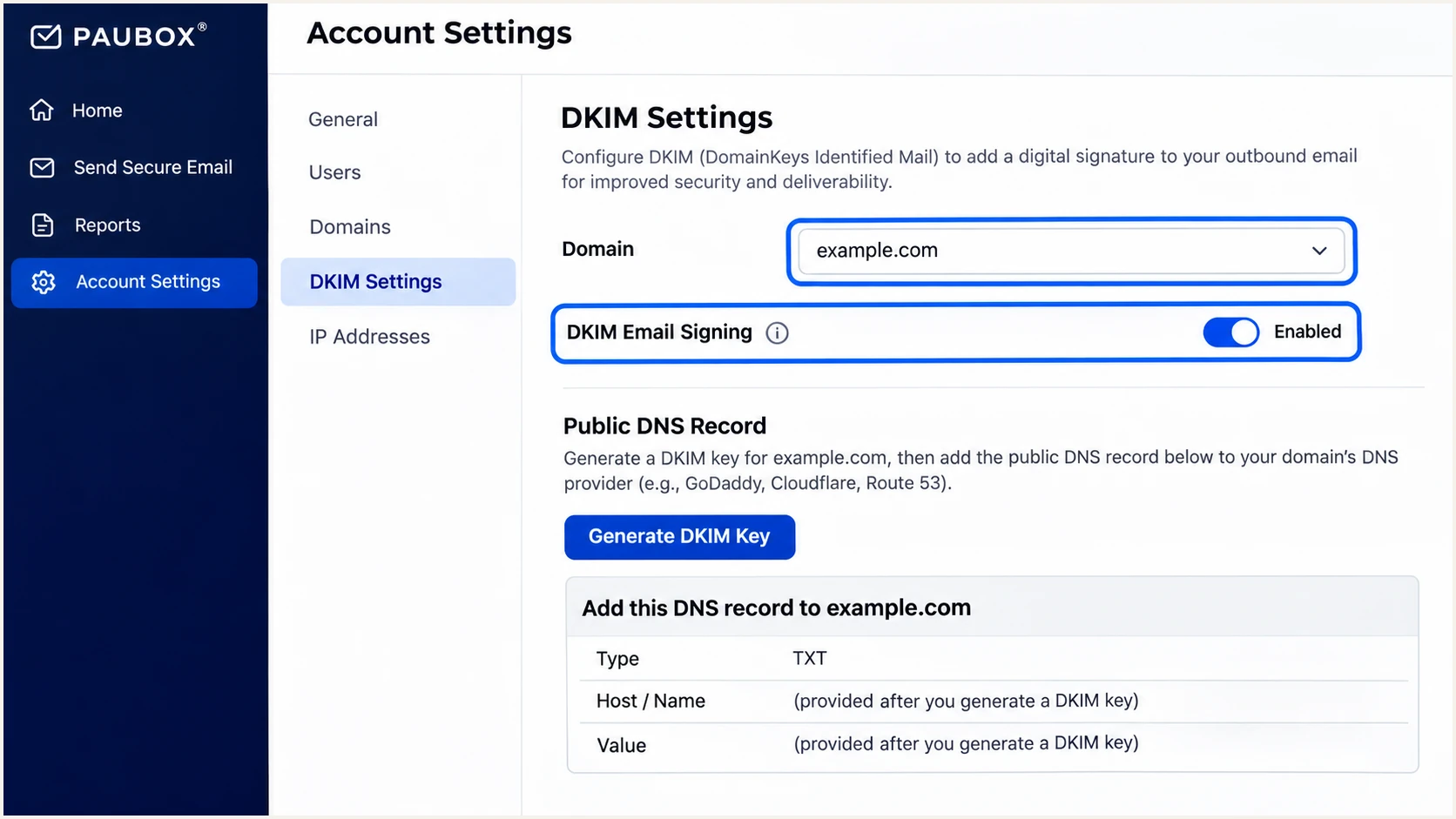
Paubox DKIM settings with a selected domain and email signing enabled.
On the delivered message, I check the DKIM signing domain, shown as d=, and the selector, shown as s=. The signing domain needs alignment with the visible From domain for that signature to satisfy DMARC.
Avoid unplanned key replacement
Generating a replacement key for an active selector requires coordinated DNS and signing changes. Keep the existing working key during setup unless a rotation is intended.
Set up DMARC
DMARC is a DNS policy for your sending domain. I start a new deployment with p=none and working aggregate reporting while checking every legitimate sender.
- Find the policy. Look up the TXT record at _dmarc.example.com. Edit the existing DMARC record if one exists; keep a single policy record at that name.
- Publish monitoring. For a new policy, create a TXT record with host _dmarc in the example.com zone and the value below. For a subdomain-specific policy, use _dmarc under that subdomain.
- Set reporting. Replace dmarc@example.com with a mailbox or reporting destination you control. Preserve existing report recipients. An external reporting service must authorize reports for your domain.
- Keep relaxed alignment. Leave the default SPF and DKIM alignment modes unless your deployment requires exact domain matching. Strict modes also require subdomains to match exactly.
Keep existing enforcement
If your domain already publishes p=quarantine or p=reject, keep that policy. Configure Paubox to meet it instead of downgrading the domain to p=none.
New DMARC policy at _dmarc.example.comtext
v=DMARC1; p=none; rua=mailto:dmarc@example.com
The example requests aggregate reports without requesting quarantine or rejection for DMARC failures. The receiving server still applies its other delivery and security checks.
DMARC checker
Look up a domain's DMARC record and catch policy issues.
?/7tests passed
Check the exact domain used in the visible From address. If it inherits a parent policy, review that policy's subdomain settings before making changes.
I keep reporting active during each policy change so the effect on Paubox and the domain's other senders remains visible.
Monitoring policy
p=none requests no failure disposition. Use report data to find legitimate senders and repair their authentication.
Enforcement policy
p=quarantine treats failures as suspicious. p=reject signals unauthorized domain use. Receivers apply their own handling rules.
Verify and troubleshoot
I test the actual production route after DNS updates. A Paubox delivery log confirms routing; the recipient's authentication results establish whether the message passes.
- Send a fresh message. Use the real From address through Paubox Email Suite or your Email API integration. Test each sending domain and any separate application route.
- Find the message. For Email Suite, open Outbound Security > Mail Log. For Email API, open Paubox Email API > Mail log. Match the recipient and timestamp.
- Check routing. If the message is absent, check the Google Workspace outbound gateway or Microsoft 365 outbound connector against the host Paubox supplied during setup.
- Inspect final headers. Read the recipient's Authentication-Results. Check SPF and smtp.mailfrom, DKIM and header.d, then DMARC and header.from. Do not infer success from a Delivered log entry.
Check your public DNS after replacing example.combash
dig +short TXT example.com
dig +short TXT paubox._domainkey.example.com
dig +short TXT _dmarc.example.com
DNS queries confirm publication, but they cannot show whether Paubox signed a particular message or whether a later hop changed it.
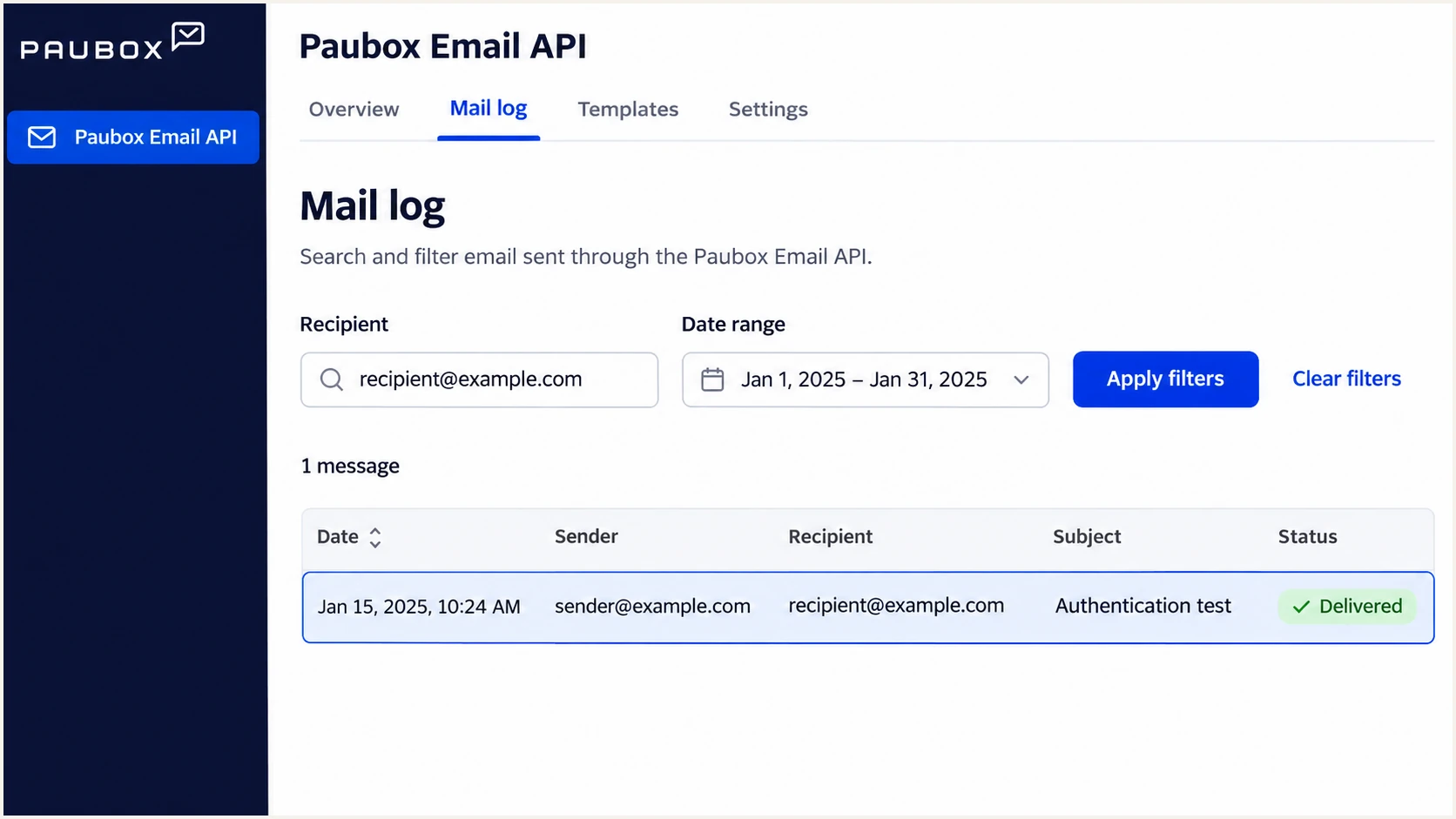
Paubox Email API mail log used to locate an authentication test message.
For a quicker end-to-end check, the email tester supplies a destination address. Send a new message through Paubox to that address to receive a full diagnosis of the delivered message.
I use a plain test message without sensitive information. Keep its sending identity and routing identical to production so the result covers the configuration being tested.
Email tester
Send a real email to this address. Suped shows a results button when the test is ready.
?/43tests passed
Aim for SPF and DKIM authentication with domain alignment. DMARC needs only one passing, aligned mechanism. If SPF alignment fails but aligned DKIM passes, DMARC still passes; investigate an unexpected Return-Path separately.
|
|
|
|---|---|---|
SPF permerror | Duplicates; lookups | Merge; reduce lookups |
DKIM missing | Signing; routing | Enable; check route |
DKIM fail | Public key; edits | Correct key; retest |
DMARC fail | Domain alignment | Check From identities |
No report data | rua; reporting delay | Verify destination |
Common Paubox authentication failures and the next check.
If DNS still shows an old value, check the authoritative zone and allow cached answers to expire. Paubox advises allowing up to 48 hours for domain verification. A new Email API account's 24-hour security review is a separate sending restriction.
Get alerted when it breaks
Our platform, Suped, provides DMARC monitoring with issue detection and notifications. I use source-level results to distinguish a Paubox signing failure from an unfamiliar sender using the domain.
- Enable notifications. In Suped's notification settings, enable Issues detected and Sending sources need verification. Enable DMARC summary emails for recurring review.
- Investigate the source. Review Paubox records by source and sending IP. Open individual results to inspect SPF, DKIM, and DMARC diagnostics before changing authorization.
- Compare DNS history. Check whether a removed SPF include, changed selector, or edited DMARC policy coincides with the failure. Use the previous values to understand the change.
- Close the loop. Fix the Paubox setting or authoritative DNS record, send another test, and check subsequent aggregate reports for recovery.
Suped keeps authentication investigations together with deliverability and blocklist (blacklist) signals. Those signals help investigate delivery problems that continue after authentication passes.
Report timing affects alerts
DMARC aggregate reports usually arrive daily. Suped can notify you when report data reveals an issue, but aggregate reporting is not a live result for each individual message.
Secure your domain with p=reject
I move to p=reject after the domain's legitimate sending paths pass, including Paubox. Suped's source verification and issue diagnostics make that readiness review easier to maintain.
- Inventory every sender. Review a representative sending cycle, including infrequent billing messages. Verify sources you recognize; investigate unknown sources instead of adding them to SPF automatically.
- Require reliable DKIM. Confirm aligned DKIM on Paubox messages and test forwarding. Review mailing-list behavior for domains used by people, because message changes can break signatures.
- Stage enforcement. Move a monitoring policy to p=quarantine, then inspect reports and delivery complaints before p=reject. Keep reporting destinations intact at both stages.
- Use policy controls. Our Suped Hosted DMARC product supports policy management through the dashboard once DNS delegation is configured. Stage changes there and review the resulting source data.
- Enforce and observe. Set p=reject when legitimate failures are resolved. Keep notifications enabled and re-test Paubox after routing changes or key rotation.
With Hosted DMARC, Suped manages policy updates without repeated manual TXT edits. If you manage DNS directly, edit the existing record instead of adding another policy.
Enforcement example at _dmarc.example.comtext
v=DMARC1; p=reject; rua=mailto:dmarc@example.com
Use your actual reporting destination in that example. I keep the last working policy available and review legitimate failures by source, rather than treating every rejected impersonation attempt as a configuration problem.
Frequency asked questions
Paubox documents include:_spf.paubox.com for authorizing its outbound service in SPF. Add it only when Paubox is an authorized sender for your domain. Keep other legitimate senders in the same SPF record.
I compare the report's source IP with Paubox's published sending infrastructure and the delivered message headers. Paubox documents outbound.paubox.com as an outbound relay hostname; that does not establish a universal rDNS suffix. Confirm the actual PTR record and authorized use before verifying a source.
Yes. Paubox's DNS instructions document the selector paubox and a TXT record at paubox._domainkey. Use the exact name and public key generated for your domain, then enable signing in Paubox. Do not copy another domain's key.
SPF authenticates the envelope sender domain, which can differ from the visible From domain. If that identity lacks alignment and no aligned DKIM signature passes, DMARC fails. I check the Return-Path and DKIM signing domain on the delivered message.
No. Outbound SPF, DKIM, and DMARC setup uses the relevant DNS authentication records and Paubox signing settings. MX changes apply to inbound mail routing and should follow the separate Paubox inbound setup instructions.
Keep p=reject, or p=quarantine if that is your existing policy. Publish Paubox's SPF authorization, enable domain-specific DKIM, and verify a delivered test message against the current policy before relying on the new sending route.




