
How to set up DMARC/DKIM/SPF for Pantheon

Published 22 Nov 2026
Updated 22 Nov 2026
12 min read
Summarize with

Authenticate email from a Pantheon-hosted WordPress or Drupal site by configuring DKIM for your sending domain in the site's outbound mail service, publishing the supplied DNS records, and adding DMARC. Pantheon's default mail path does not support a custom Return-Path, so rely on passing DKIM with a domain that matches the visible From address. Adding Pantheon's SPF include alone does not establish DMARC compliance.
I check the actual sending route before editing DNS. Pantheon's current CMS email documentation recommends a separately configured outgoing service for production, preferably through a REST API. The signing records come from that service; website ownership verification in Pantheon is a separate step.
Keep an existing quarantine or reject policy while fixing the sender. Use monitoring mode only when the domain does not already have an enforced DMARC policy.
Avoid outdated automatic-mail instructions
Pantheon's 2024 transactional-email API announcement has a January 2026 editorial note stating that the announced functionality is unavailable today. Follow the current CMS email instructions and verify your site's configured transport instead of assuming automatic domain signing.
Add your domain
For a new custom website domain, complete Pantheon's ownership check first. If the website domain is already connected, skip these web setup steps. A domain used only as an email sender does not need a website connection in Pantheon.
- Open the environment. In the Pantheon Site Dashboard, select the target environment, usually Live, then open Domains / HTTPS and click Connect Domain.
- Enter the hostname. Add the website hostname, such as example.com. Connect www.example.com separately if the website also uses it. Custom website domains require a paid site plan.
- Verify ownership. Choose the DNS TXT challenge or verification-file method shown by Pantheon. Publish the exact generated value or file, then click Verify Ownership. If your workspace is exempt, follow the displayed workflow.
- Check the connection. Open the domain's Details view. Compare Required Values with Detected Values, update the website DNS records as instructed, and confirm HTTPS provisioning completes.
- Preserve email DNS. Keep the existing MX and email authentication records. Connecting a website does not require moving inboxes or replacing working mail records.
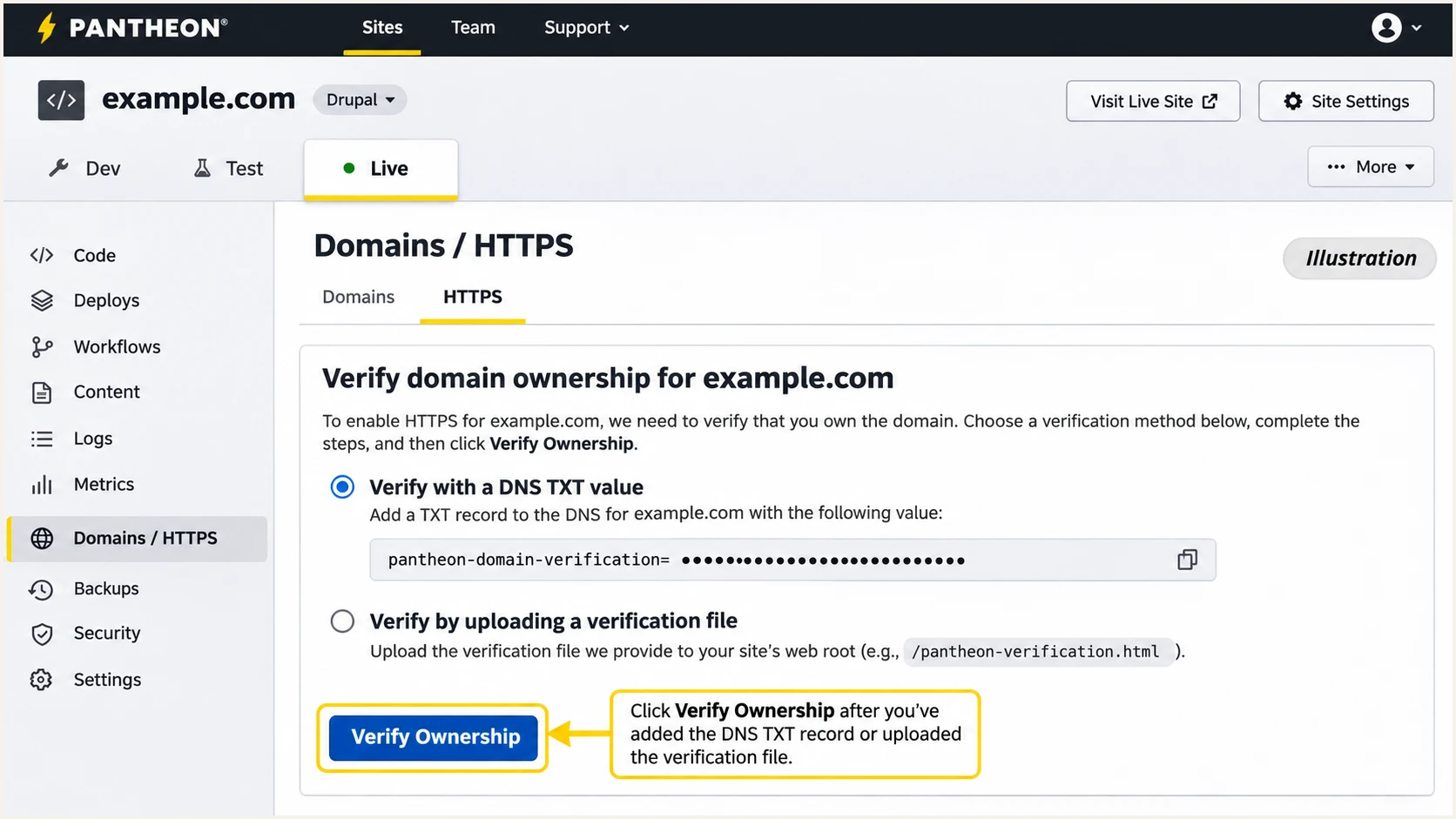
Illustrated Pantheon domain ownership verification using DNS or a file.
I publish authentication records at the domain's authoritative DNS host. Pantheon's website verification token proves control for the web connection; it does not authorize the outbound mail service or turn on DKIM.
After ownership verification, Pantheon's Details view shows the website's required DNS values and HTTPS status. Complete those checks without treating a healthy website connection as evidence that email authentication passes.
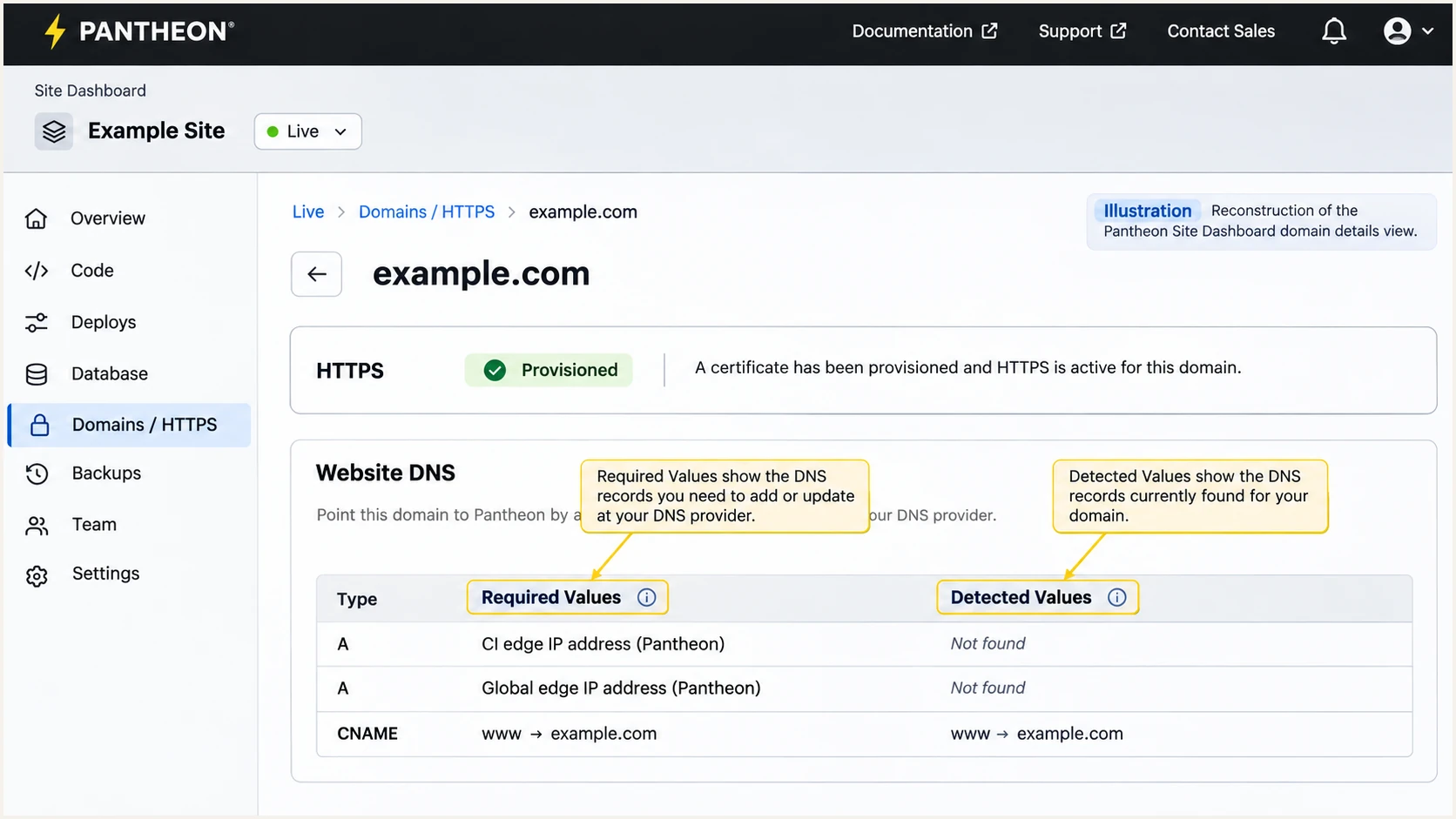
Illustrated Pantheon domain Details view for website DNS and HTTPS checks.
Next, identify the From address used by the CMS mailer. Use an address on a domain you control, such as notifications@example.com, and verify that domain with the outbound mail service.
Set up SPF
I do not add an SPF include merely because a website runs on Pantheon. SPF checks the SMTP envelope sender, usually recorded in Return-Path. An SPF record on the visible From domain cannot change a provider-owned Return-Path.
- Inspect the envelope. Send a site-generated message and inspect Return-Path and smtp.mailfrom in the receiver's Authentication-Results header. Compare that domain with the visible From domain.
- Use the actual transport. For a configured external mail service, follow its account-specific DNS instructions. Do not automatically add Pantheon's include to the visible From domain.
- Handle legacy sending. Pantheon's CMS email documentation specifies include:spf.pantheon.io for its local MTA. If you retain that route, merge the include into the existing SPF record before its final all mechanism. Preserve other authorized senders.
- Validate the record. Publish only one SPF record per hostname and stay within the limit of 10 DNS-querying terms, including nested evaluations. Do not hard-code Pantheon website IP addresses as mail senders.
Legacy local-MTA example, only if no SPF record existstext
Name: example.com
Type: TXT
Value: v=spf1 include:spf.pantheon.io ~all
This example authorizes Pantheon's documented local mail relays. It does not configure a custom Return-Path, enable DKIM, or repair an SPF domain mismatch. Skip this change when your configured mail transport does not require it.
Enter the domain whose SPF policy you need to inspect. Check syntax and nested lookups before saving changes; a website domain and the SPF-checked envelope domain are not automatically the same.
SPF checker
Find SPF syntax issues, lookup limits, and weak records.
?/16tests passed
A valid DNS record does not prove that a received message passed SPF. Check the receiver's result on a fresh message after the change.
An SPF domain mismatch is expected on Pantheon's default route. DMARC still passes when DKIM verifies successfully and its signing domain matches the From domain under the published DMARC matching rules. A genuine SPF authentication error still warrants investigation.
Set up DKIM
I require a passing DKIM signature for the visible From domain before depending on this sending route. Pantheon's published email setup does not document a native custom-domain DKIM wizard or a universal Pantheon selector and public key.
- Identify the mailer. Inspect the active mail integration in WordPress or Drupal. Configure its supported API transport, or authenticated SMTP if required, using the outbound service's actual endpoint and credentials.
- Authenticate the domain. In that outbound mail account, register the exact sending domain and obtain its generated DKIM DNS records. The records are account-specific; do not copy another site's selector or key.
- Publish the records. At your authoritative DNS host, add each supplied TXT or CNAME with its exact hostname and value. Avoid duplicating the domain suffix when the DNS editor appends it automatically.
- Enable the sender. Complete the mail service's verification, enable domain signing, and set the CMS mailer's From address to the verified domain. In Drupal, also check Configuration > System > Basic site settings > Email address and any module overrides.
- Test actual messages. Trigger a password reset and a form notification. Confirm dkim=pass and inspect header.d. Changing a WordPress administration notification address alone does not configure the sending identity or DKIM.
Keep private signing keys out of public DNS. Publish only the public key or delegation supplied by the signing service. If it cannot sign with your domain, change the site's outbound route before enforcing DMARC.
A passing signature for a provider-owned domain does not authenticate your visible From domain for DMARC. Under relaxed DKIM matching, a signing subdomain of the same organizational domain also qualifies; strict mode requires the exact domain.
Default Pantheon mail path
No custom Return-Path is available. A legacy SPF include does not provide a matching DKIM signature. Verify the received message before considering this route DMARC compliant.
Configured outbound mail service
The service supplies your domain's DKIM records and signs messages after verification. Configure the CMS to use that transport, then prove the domain match on a received message.
There is no shared Pantheon DKIM record to paste into DNS. The required selector and target depend on the mail transport that actually sends your site's messages.
Set up DMARC
I keep an existing p=quarantine or p=reject policy. If the domain has no DMARC policy, start with p=none to collect reports while validating the site's sending route.
- Check existing DNS. Look up TXT records at _dmarc.example.com, substituting your From domain. Edit the existing policy if present; do not create a second DMARC record.
- Prepare reporting. Create a working aggregate-report mailbox or use your reporting service's assigned destination. For an external destination, complete its required reporting authorization.
- Publish monitoring mode. For a domain without an existing policy, add the TXT record below at its authoritative DNS host. Replace example.com and the example reporting address with your actual values.
- Keep matching defaults. Leave adkim and aspf unset unless your organization requires strict matching. Their default is relaxed. A matching, passing DKIM signature is sufficient for DMARC when SPF has a domain mismatch.
Initial DMARC TXT recordtext
Name: _dmarc.example.com
Type: TXT
Value: v=DMARC1; p=none; rua=mailto:dmarc@example.com
Use the DMARC record generator to build the policy with your actual report destination. The example mailbox is not a reporting endpoint to use unchanged.
Check the published From domain below after DNS propagation. Confirm that the policy and reporting address match the values you intended to publish.
DMARC checker
Look up a domain's DMARC record and catch policy issues.
?/7tests passed
The checker validates the DNS policy. It does not prove that Pantheon-hosted application mail has a valid DKIM signature.
Aggregate reports arrive on the receivers' reporting schedules, commonly over the next 24-48 hours. Send a fresh site message to verify authentication immediately rather than waiting for aggregate reporting.
Verify and troubleshoot
I test through the live website's configured mailer. A message sent manually from a mailbox exercises a different sending route and does not validate the CMS configuration.
- Exercise each flow. Test password resets and form notifications, including scheduled messages where used. Check that every sending module uses the intended transport and From domain.
- Read trusted results. Use Authentication-Results added by the receiving mail system. Require dkim=pass with the correct header.d and dmarc=pass for the visible From domain.
- Inspect the selector. Read s= and d= in DKIM-Signature, then query that selector's DNS owner. Check the exact TXT value or CNAME target supplied by the signing service.
- Keep visitor addresses separate. Use your verified address in From for contact forms. Put the visitor's address in Reply-To so the site does not impersonate a domain it cannot authenticate.
Illustrative successful received-header resultstext
Authentication-Results: receiving.example;
 dkim=pass header.d=example.com;
 dmarc=pass header.from=example.com
For a DNS check, substitute the selector and signing domain from the actual message. In the commands below, mail1 is an example selector, not a Pantheon default.
Check the actual policy and DKIM selectorbash
dig +short TXT _dmarc.example.com
dig +short TXT mail1._domainkey.example.com
dig +short CNAME mail1._domainkey.example.com
|
|
|
|---|---|---|
SPF mismatch | Envelope domain differs | Passing DKIM domain |
DKIM fail | Key or signature error | Selector and signer |
DMARC fail | No passing domain match | From and signing domain |
No message | Application or transport issue | CMS and transport events |
Diagnose received results before changing DNS.
The email tester is the quickest received-message check. Copy its generated recipient into the site's mailer test-send field, or trigger a site notification addressed to it, and send through the same route used in production.
Read the full diagnosis to see the authentication results and the domains they authenticated. I also test actual application notifications because a mailer test alone does not cover every module's From-address overrides.
Email tester
Send a real email to this address. Suped shows a results button when the test is ready.
?/43tests passed
Treat passing DKIM with the correct domain and dmarc=pass as the target result. An SPF domain mismatch alone does not justify weakening DMARC.
If nothing arrives, investigate the CMS and the configured transport first. Pantheon does not provide downloadable local mail logs. Its email documentation also identifies WordPress URL mismatches as a cause of unsent password resets, so check the environment URL configuration when that flow never generates mail.
Get alerted when it breaks
I keep authentication monitoring active after the first successful test. Suped is our DMARC platform for this workflow: its DMARC monitoring connects reported failures with sending sources and concrete steps to fix them.
- Enable issue notifications. In Suped's Notifications settings, enable Issues detected and Sending sources need verification emails. Enable DMARC summary emails for recurring review.
- Review source changes. Investigate unfamiliar sending sources before marking them verified. A website deployment or changed mail integration is a reason to retest the actual CMS message.
- Investigate failures. Use Suped's Detail view to inspect DKIM and DMARC results. Compare selector failures with DNS history to find deleted records or changed targets.
- Confirm the fix. Follow the detected issue's resolution steps, send a fresh site test, and verify that subsequent reporting shows the expected authentication results.
Suped keeps the failure investigation and DNS history in the same workflow. I investigate a changed signing domain or a failing selector immediately, especially when DKIM is this sender's only working DMARC authentication method.
Keep application delivery monitoring alongside authentication monitoring. A message the CMS never sends does not produce a DMARC authentication result at the receiver.
DMARC reporting is delayed
Suped's DMARC notifications depend on incoming reports and detected issues. Aggregate reports are not an instant feed of individual delivery failures. Use your configured transport's delivery events and site-generated test messages for immediate sending problems.
Secure your domain with p=reject
I move a new monitoring policy through quarantine to reject after legitimate sending routes pass DMARC across a complete sending cycle. For Pantheon's default Return-Path behavior, working DKIM with the correct domain is the requirement to prove first.
- Inventory legitimate senders. Use Suped's Sources and Data view to review every authorized service using the domain, including low-volume and scheduled senders. Do not judge readiness from the website's messages alone.
- Fix DKIM failures. Resolve missing keys, incorrect CNAME targets, and unexpected From-domain overrides. An SPF include cannot compensate for missing domain-matching DKIM on the default Pantheon route.
- Stage enforcement. For a new rollout, change p=none to p=quarantine, examine legitimate failures, then change to p=reject when resolved. Preserve an existing enforcement policy while repairing newly added senders.
- Keep reviewing reports. Confirm the report destination still works and retest after mailer changes or key rotation. Review any separate subdomain policies before assuming the parent policy covers every sender.
Final reject policy after validationtext
Name: _dmarc.example.com
Type: TXT
Value: v=DMARC1; p=reject; rua=mailto:dmarc@example.com
Suped's Hosted DMARC supports policy changes in the dashboard after the initial DNS setup. Combined with its source review and issue diagnostics, this gives teams a practical way to stage enforcement and investigate failures before advancing.
Keep aggregate reporting enabled at reject. A policy requests receiver handling for failed authentication; it does not repair an unsigned message or guarantee inbox placement.
Frequency asked questions
No. Pantheon's published email setup does not provide a universal custom-domain DKIM selector or key. Configure signing in the outbound mail service used by the site, publish its exact records, and verify the signing domain on a received message.
Pantheon documents include:spf.pantheon.io for its local MTA. That association does not mean every Pantheon-hosted website needs this include. Sites using a separate outbound transport must follow that transport's DNS instructions. The include alone does not fix a Return-Path domain mismatch.
An rDNS hostname alone does not reliably attribute a message to a Pantheon-hosted application. A site using an external mail transport has that transport's sending infrastructure. Check the sending IP, received headers, and the site's configured mail route together. Do not authorize a sender based only on a PTR hostname.
Yes. DMARC passes when at least one verified authentication method has the required domain match. Passing DKIM for the visible From domain is sufficient even when SPF authenticates a different Return-Path domain. A passing signature for an unrelated provider domain is insufficient.
No. Domains / HTTPS verifies the website connection and provisions HTTPS. Email authentication requires the actual sending service's signing configuration and DNS records, plus a DMARC policy at the From domain. Changing a WordPress administration notification address also does not enable DKIM.
Keep an existing p=reject or p=quarantine policy. Authenticate and test the new sending route before using it in production. For a domain without an existing policy, start with p=none and reporting, then enforce after reviewing legitimate senders.




