
How to set up DMARC/DKIM/SPF for Ortto

To set up SPF, DKIM and DMARC for Ortto, verify a custom sending domain using Ortto's generated CNAME records, then publish a DMARC TXT record for your From domain. Ortto's custom-domain setup supports both DKIM and SPF return-path alignment. Start a new DMARC deployment with p=none; retain an existing quarantine or reject policy.
I check a delivered message before calling the setup complete. DNS verification confirms the records exist; the message confirms which From domain, return path and DKIM signature Ortto actually used.
Add your domain
Use the domain after the @ in your intended From address. For newsletters@example.com, configure example.com. For newsletters@news.example.com, configure news.example.com. Have access to its authoritative DNS zone before starting.
- Open Ortto. Go to Settings > Custom domains > Add domain.
- Enter the domain. Use a lowercase domain name without an email address, URL prefix or trailing slash. Select your Domain provider.
- Choose email only. Leave optional hosting and tracking boxes unchecked unless needed, then click Ok.
- Publish and verify. Copy every generated CNAME into DNS. Return to the domain's expanded details and click Verify setup after publishing.
I keep the generated record list open while editing DNS. Each host and target must match its account's values. Adding authentication records at dedicated subdomains does not require replacing the domain's existing inbound MX records.
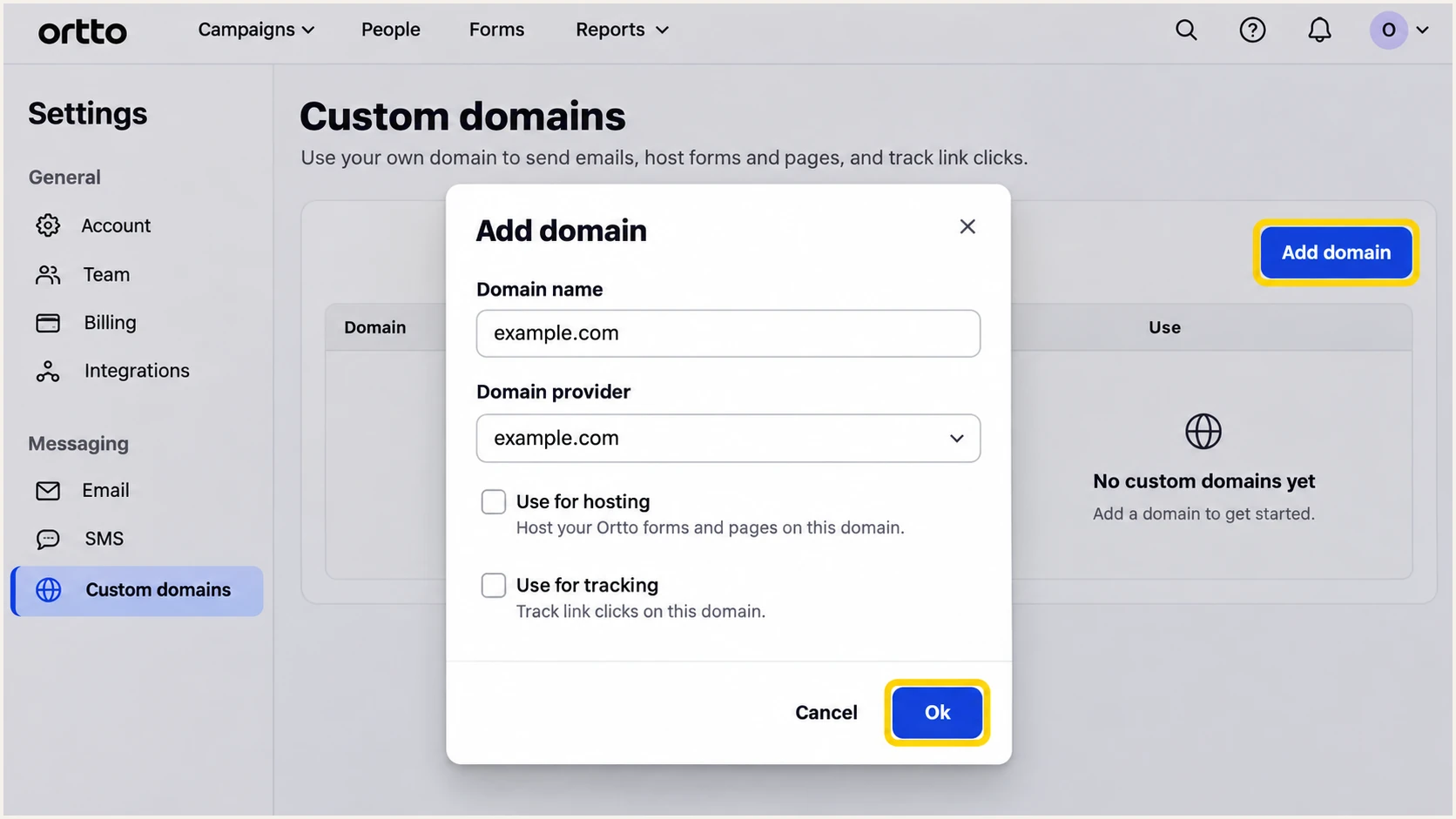
Add a sending domain under Ortto's Custom domains settings.
After verification, go to Settings > Channels > Email > Email. Set the default From name and From email to your verified domain, configure Reply-to if needed, and click Save. Check the sender again in each existing campaign because campaign settings override defaults.
Set up SPF
I verify SPF against the envelope sender, shown in a delivered message's Return-Path. Ortto documents SPF return-path alignment as part of its custom-domain setup, so publish the generated email CNAMEs before changing a root-domain SPF TXT record.
- Keep the return path. Publish the generated bounce-domain CNAME together with the DKIM CNAMEs. Use the host and target from your account.
- Inspect the message. Check the receiver's SPF result and smtp.mailfrom domain. With relaxed SPF alignment, the envelope domain and visible From domain must share the same organizational domain.
- Treat TXT as optional. Ortto's Custom domains documentation lists include:autopilotmail.com as an optional SPF addition. Add it only where your sending configuration requires it; it does not fix a different Return-Path domain.
- Preserve existing senders. If editing SPF, merge the needed include into the single existing SPF record before its final all mechanism. Keep evaluated DNS-lookup terms within the limit of 10, including nested includes.
Enter the actual smtp.mailfrom domain in the SPF checker below, including its generated subdomain. Also check the root domain if you edited its SPF. These are separate DNS names and can have different SPF results.
A valid SPF record is one part of the check. The delivered email must also show SPF passing for the sending IP, and the authenticated domain must meet your DMARC alignment setting.
SPF checker
Find SPF syntax issues, lookup limits, and weak records.
?/16tests passed
If an optional TXT addition is appropriate and Ortto is the only sender authorized at that DNS name, the following is a minimal example. For a domain with existing senders, edit its current record instead of replacing it with this value.
Publish SPF as a TXT record only at a name you manage without a CNAME. A CNAME host cannot also hold an SPF TXT record; Ortto manages the SPF reached through its generated alias.
Optional SPF TXT value for an Ortto-only configurationtext
v=spf1 include:autopilotmail.com ~all
Set up DKIM
I use the selectors generated in the current Ortto account. A selector identifies the public key for a signature, so copying another account's selector or DNS target will not authenticate your messages.
- Copy both keys. Publish both DKIM CNAME records shown for the domain. Their hostnames contain _domainkey.
- Check the full name. If your DNS editor appends example.com automatically, enter only the relative host. For a sending subdomain, include that subdomain in the relative host.
- Preserve delegation. Keep the CNAME targets exactly as supplied. Do not replace them with a self-generated DKIM public key.
- Check the signature. Send a message and confirm dkim=pass. Read d= and s= in DKIM-Signature, then compare the signing domain with the visible From domain under your DMARC alignment setting.
The public-key lookup uses selector._domainkey.signing-domain. Query the selector from the message rather than guessing it. The following example uses a sample selector; replace it with the actual s= value and d= domain.
Inspect a sample DKIM selectorbash
dig +short CNAME ap3._domainkey.example.com
dig +short TXT ap3._domainkey.example.com
A passing signature for an unrelated provider domain does not satisfy DKIM alignment. Under relaxed alignment, the signing and From domains share an organizational domain. Strict alignment requires an exact domain match.
I keep SPF and DKIM checks separate when diagnosing a failure. The two methods authenticate different identities, and either can provide the passing authentication with domain alignment that DMARC needs.
SPF identity
SPF checks the connecting IP against the envelope sender's domain. A custom return path supports domain alignment. Forwarding often changes the connecting IP and breaks SPF.
DKIM identity
DKIM checks the message signature using the d= domain and s= selector. A valid signature with domain alignment can keep DMARC passing when forwarding breaks SPF.
Set up DMARC
DMARC is a DNS policy for your visible From domain. I inspect the existing policy before publishing anything: keep p=quarantine or p=reject if already deployed, and repair Ortto's authentication without weakening that policy.
- Find the policy. Look up TXT at _dmarc.example.com for From addresses at example.com. Check for an explicit subdomain policy when sending from a subdomain.
- Choose reporting. For a new deployment, start with p=none and a working aggregate-report destination. Replace the example mailbox below with a report address you control.
- Publish one record. Add one DMARC TXT record at the correct _dmarc name. Edit an existing record rather than adding a second DMARC policy.
- Confirm discovery. Use the checker to verify the published policy and reporting address. A DNS pass does not prove an Ortto message passes DMARC.
New deployment: TXT at _dmarc.example.comtext
v=DMARC1; p=none; rua=mailto:dmarc@example.com
Build the value with the DMARC record generator. The example mailbox is a placeholder. A reporting service supplies its own destination; external report destinations also need the appropriate DNS authorization.
Enter your visible From domain in the checker below. When using news.example.com, inspect that domain as well as the organizational-domain policy that applies if no explicit subdomain record exists.
DMARC checker
Look up a domain's DMARC record and catch policy issues.
?/7tests passed
I leave the default relaxed alignment settings in a new deployment unless a specific requirement calls for strict matching. A generated bounce subdomain normally needs relaxed SPF alignment when the From address uses the parent domain.
Keep reporting active after setup. A new campaign, changed sender address or removed DNS record can change the authentication result even after the original verification succeeded.
Monitoring does not enforce protection
p=none requests reporting without requesting quarantine or rejection for DMARC failures. Keep it while discovering legitimate senders, then move to enforcement after those senders pass.
Verify and troubleshoot
I test an actual Ortto email using the same sender settings as production. Start with the email tester below: it supplies a recipient address, then diagnoses the authentication of the message you send to it.
- Open the campaign. Go to Marketing > Campaigns, select the email, click Edit, and check its From address on Setup.
- Send the test. Open Content > Send test and send to the address supplied by the tester. Review any configured CC or BCC recipients because Ortto includes them on test sends.
- Read the results. Confirm the intended From domain, SPF result and envelope domain, DKIM result and signing domain, and dmarc=pass. Repeat for each sending domain and production message type.
- Repair DNS. For a pending domain, check public CNAME answers, duplicate domain suffixes and conflicting records. Use DNS-only CNAME resolution, then retry Verify setup; Ortto allows 24-48 hours for propagation.
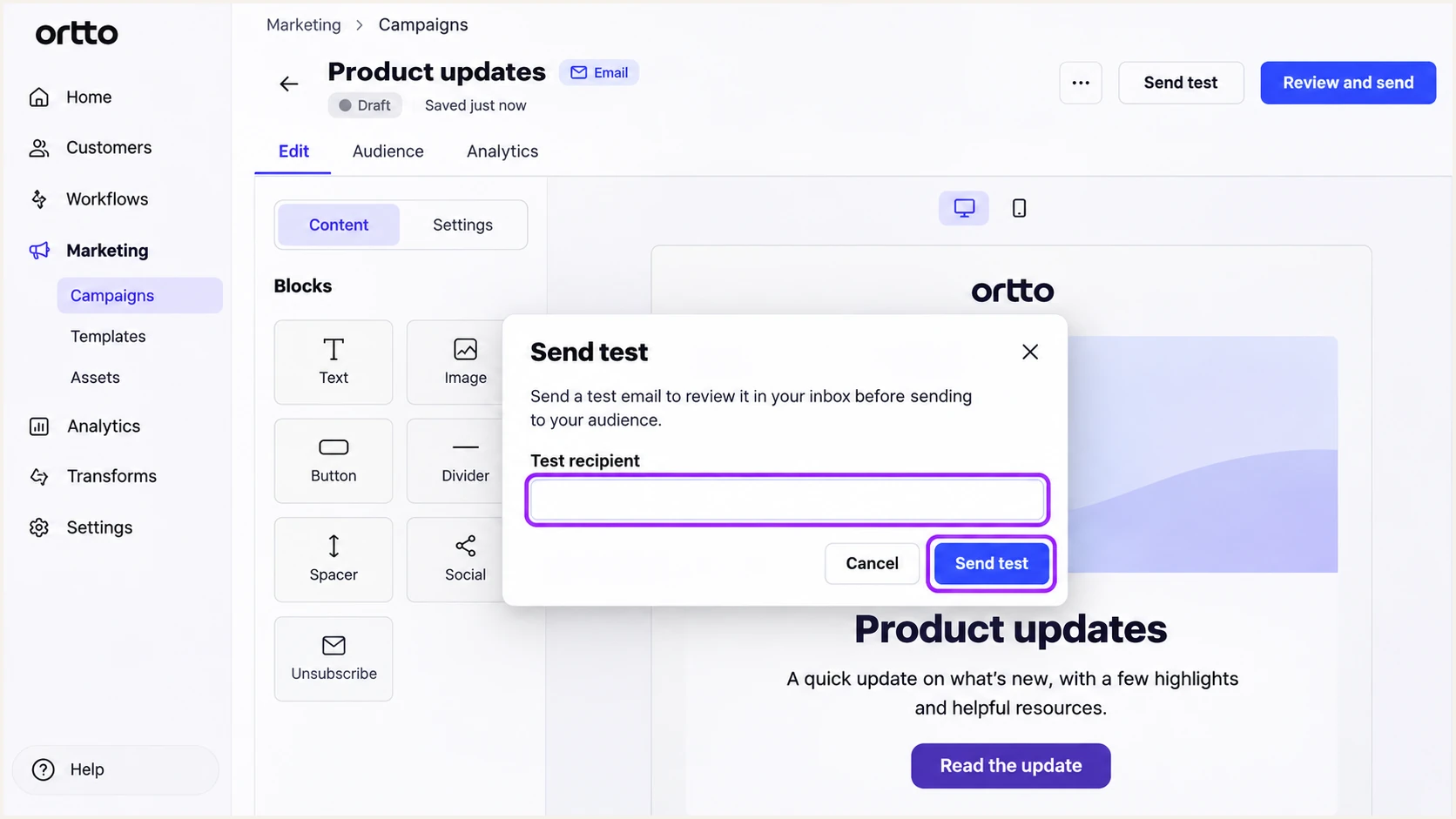
Send an Ortto campaign test to the diagnostic recipient address.
Use the tester's recipient directly in Ortto. Forwarding a message to the tester changes the delivery path and can change SPF results. The report then measures the forwarded message rather than the original Ortto delivery.
After the initial test, send a controlled production campaign to an internal test contact. Confirm the same sender identities and passing results before sending broadly, especially if test and production settings differ.
Email tester
Send a real email to this address. Suped shows a results button when the test is ready.
?/43tests passed
A raw SPF pass with an alignment failure means the IP was authorized for a different domain. DMARC still passes through DKIM when its signature passes with domain alignment. Ortto supports return-path alignment, so investigate a mismatch rather than assuming it is unavoidable.
A domain that becomes unverified needs another DNS review. Check Ortto's current generated values before deleting anything. If an account was migrated from Autopilot, follow Ortto's migration troubleshooting and coordinate any regenerated records before removing old ones.
|
|
|
|---|---|---|
Pending | Public CNAME | Correct host or target |
SPF error | Record count | Merge duplicate SPF |
DKIM failure | Selector lookup | Restore correct CNAME |
DMARC failure | Domain matching | Repair SPF or DKIM |
Unexpected From | Domain status | Verify custom domain |
Use delivered-message results together with DNS checks.
Get alerted when it breaks
Suped is our DMARC reporting and email authentication platform. Its DMARC monitoring connects receiver reports with source diagnostics and notifications, so an Ortto authentication change has an investigation path.
- Enable issue emails. In Suped's notification settings, enable Issues detected and Sending sources need verification. Keep DMARC summary emails enabled for regular review.
- Confirm the source. Match Ortto traffic to a known campaign and its authentication domains before marking the source verified. Source verification records your approval; it does not change DNS authentication.
- Investigate failures. Filter Suped's data view by source, reporter or IP. Open a record's detail view to compare SPF and DKIM results with the From domain, then review DNS history for relevant changes.
- Close the loop. Apply the issue's fix steps, re-verify the domain in Ortto, and send a fresh diagnostic email. Check later aggregate reports to confirm the production traffic recovered.
I use the issue email to identify the affected source, then use message testing for immediate verification. Aggregate-report alerts depend on participating receivers sending reports, commonly daily, so their timing follows report arrival.
Keep checking the visible From address after DNS changes. Ortto documents fallback to its default sending domain when a custom domain is unavailable; traffic using a provider's From domain will not appear in your domain's DMARC reports.
Secure your domain with p=reject
I move to p=reject after every authorized sender using the domain is identified and authenticated. One successful Ortto test is insufficient evidence for an organization-wide policy change.
- Review all traffic. Use Suped's source table and data view to review Ortto alongside every other authorized sender. Cover a complete sending cycle, including infrequent operational emails.
- Resolve legitimate failures. Use Suped's issue diagnostics to repair authentication and domain matching. Judge readiness against known legitimate traffic rather than a combined pass rate that includes unauthorized attempts.
- Stage enforcement. Move a new deployment to quarantine, review delivery and receiver reports, then use reject when legitimate traffic remains healthy. Preserve any stronger existing policy.
- Keep control. Suped's Hosted DMARC lets the team manage policy changes through its dashboard. Retain reporting, review inherited subdomain policies, and test Ortto again after each policy change.
For a manually managed policy, the final TXT value below retains aggregate reporting. Replace the example mailbox with the real destination and preserve any other intentional settings in the existing record.
Final enforcement example: TXT at _dmarc.example.comtext
v=DMARC1; p=reject; rua=mailto:dmarc@example.com
For a team managing several senders, Suped keeps source review and policy management in the same workflow. Use Hosted DMARC to manage the policy, and continue using Ortto's generated CNAMEs for its sending authentication.
Keep a copy of the previous policy and define who can change it. If an authorized sender breaks, repair its configuration and verify a new message before making a domain-wide policy change.
What reject requests
p=reject asks receivers to reject messages that fail DMARC. Receivers apply their own handling rules. Authentication also does not guarantee inbox placement; consent and sender reputation still affect delivery.
Frequency asked questions
Not for the standard custom-domain setup. Publish all generated CNAMEs and verify the actual Return-Path and SPF result. Ortto documents an additional SPF include as optional. A root-domain TXT change does not repair SPF alignment when the message uses a different envelope domain.
Ortto documents include:autopilotmail.com as an optional SPF mechanism. Its presence identifies an authorization in DNS, not proof that a particular message came through Ortto. Confirm the sending source from the message and your account configuration before changing SPF.
Ortto uses autopilotmail.com for shared email infrastructure. A reverse DNS hostname is only a clue about the connecting server, and shared infrastructure can carry traffic for multiple accounts. I confirm an Ortto source using the sending IP, DKIM identity and a matching campaign send rather than assuming a universal rDNS suffix.
DMARC needs SPF or DKIM to pass with domain alignment. A valid DKIM signature using a matching signing domain satisfies that requirement even when SPF fails or its envelope domain does not match. Ortto supports return-path alignment, so check the custom-domain records and actual envelope domain if the mismatch persists.
Check the authoritative DNS zone for every generated CNAME. Correct duplicated domain suffixes, wrong targets, proxying and conflicting records, then click Verify setup again. Ortto allows 24-48 hours for DNS propagation. If records are publicly correct and verification still fails, give Ortto Support the failing hostname and expected target.
Keep the existing reject policy. Configure and verify Ortto's custom sending domain, then confirm a delivered test passes DMARC before using that domain for production campaigns. Use p=none as the starting policy for a new DMARC deployment, rather than weakening an established policy during onboarding.




