
How to set up DMARC/DKIM/SPF for Open-Xchange


I set up Open-Xchange email authentication by authorizing its outgoing servers in SPF, enabling DKIM signing for the sending domain, and publishing a DMARC TXT record at _dmarc. DMARC passes when SPF or DKIM passes with a domain that matches the visible From domain under the configured matching rules.
These changes belong in your hosting provider's administration tools and authoritative DNS. Open-Xchange's Mail Authenticity documentation describes checks on received messages. Enabling that setting does not configure outgoing DKIM signing.
Add your domain
I first identify the hosting provider operating the mailbox and outgoing SMTP service. OX App Suite webmail does not have one universal domain administration menu.
For OX Cloud per-domain DKIM, create at least one user with an address on the domain, or provision a shared mail domain, before requesting signing keys.
- Provision the domain. Open your provider's control panel, select the OX App Suite email service, attach example.com and create sender@example.com. Use the existing domain and mailbox if already provisioned.
- Verify ownership. If your provider requests a TXT or CNAME ownership record, publish its exact name and value, then repeat its verification check. There is no universal Open-Xchange verification token.
- Check DNS hosting. Find the domain's authoritative nameservers and edit records at that DNS host. Apply the provider's MX records when moving inbound email to Open-Xchange.
- Test the mailbox. Sign in to OX App Suite with the full email address. Compose a message with sender@example.com in From, send it externally and confirm that a reply reaches the mailbox.
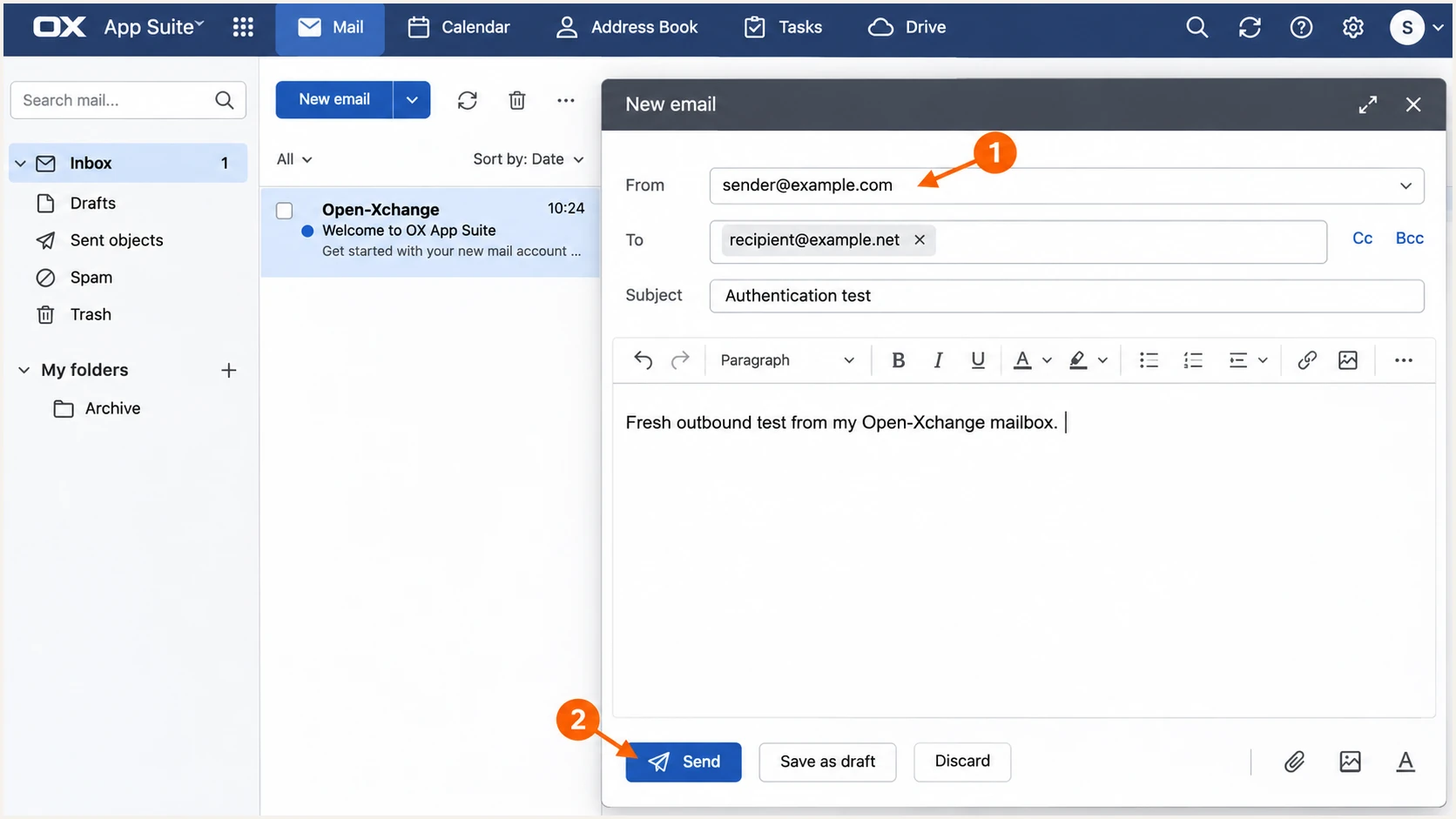
Illustrative OX App Suite compose window showing the sender address and Send button.
A successful mailbox test confirms provisioning and routing. Inspect the delivered message separately to confirm outbound authentication.
Save the existing SPF and DMARC values before editing them. Other services sending with the same domain still need authorization.
Set up SPF
Open-Xchange's OX Cloud US domain setup instructions publish the SPF example below. Confirm the include with your provider, because reseller and regional services use different outbound infrastructure.
SPF checks the SMTP MAIL FROM domain, usually visible in the delivered Return-Path. For sender@example.com using that same envelope domain, the SPF TXT record belongs at @ in example.com's DNS zone.
- Get the sending value. Ask your host for its SPF include or documented outgoing IP ranges. Do not assume that the MX servers are also the outgoing servers.
- Edit one record. Merge the confirmed include into the existing v=spf1 TXT value before its final all mechanism. Keep other authorized senders and publish only one SPF record per hostname.
- Check the envelope. If MAIL FROM uses bounces.example.com, publish SPF for that subdomain. SPF records do not inherit from the parent domain.
- Validate lookups. Keep SPF evaluation within the limit of 10 DNS-querying terms, including nested includes. Remove obsolete senders before adding unnecessary mechanisms.
OX Cloud US SPF example, TXT at @, TTL 3600text
v=spf1 include:spf.cloudus.oxcs.net ~all
Use this complete value only when your provider confirms it and Open-Xchange is the only authorized sender. For an existing record, merge the include instead of replacing the whole value.
Run the SPF checker against the actual MAIL FROM domain. A valid record at the visible From domain does not fix a different envelope domain.
SPF checker
Find SPF syntax issues, lookup limits, and weak records.
?/16tests passed
Resolve syntax errors or excess lookups, then send a fresh message. Confirm spf=pass in the receiving server's results.
Open-Xchange supports a matching Return-Path, but the host controls the implementation. If it keeps a provider-owned envelope domain, changing your domain's SPF cannot fix SPF alignment. Request a custom envelope domain, or rely on passing DKIM with your domain for DMARC.
Set up DKIM
I request DKIM signing with my sending domain. A passing signature under cloudus.xion.oxcs.net does not satisfy DMARC for example.com.
Open-Xchange's public "OX Cloud DKIM (incl. per maildomain)" instructions specify two CNAMEs for its current service. Confirm that your provider uses this implementation.
- Check existing selectors. Inspect oc-rsa-selector1 and oc-rsa-selector2 under _domainkey for conflicts. Preserve unrelated selectors.
- Publish both CNAMEs. Use the fields below for example.com. Replace the domain in each target, changing its dots to hyphens.
- Generate signing keys. Have the provider provision per-domain keys. OX Cloud operators use the provisioning API with brand credentials, not a mailbox password.
- Verify live signing. Resolve both selectors and send fresh mail. Check dkim=pass and a DKIM d= domain matching the From domain.
Current OX Cloud DKIM fields for example.comtext
Type: CNAME
Name: oc-rsa-selector1._domainkey
Target: oc-rsa-selector1-example-com._domainkey.oxcloud.zone.

Type: CNAME
Name: oc-rsa-selector2._domainkey
Target: oc-rsa-selector2-example-com._domainkey.oxcloud.zone.
Both CNAMEs support key rotation. Publishing them alone does not generate the signing keys.
For legacy OX Cloud or self-managed App Suite, obtain the active selectors and signing configuration from the operator. Use its supplied values.
OX Cloud operator API: inspect, then create per-domain keystext
GET /cloudapi/v2/mail/dkim/{brand}/{domain}
PUT /cloudapi/v2/mail/dkim/{brand}/{domain}
For the current OX Cloud service, verify DNS resolution after key creation with the commands below. Expect a CNAME target and its public-key TXT response.
A missing key requires a provider-side provisioning check. A valid key with dkim=fail requires inspection of the signing domain, selector and message path.
Resolve both current OX Cloud selectorsbash
dig +short TXT oc-rsa-selector1._domainkey.example.com
dig +short TXT oc-rsa-selector2._domainkey.example.com
Set up DMARC
I start a new DMARC deployment with p=none while checking legitimate senders. If the domain already uses p=quarantine or p=reject, keep that policy and repair the Open-Xchange configuration.
Publish DMARC in the DNS zone for the visible From domain. Use the DMARC record generator to prepare the value with your reporting address.
- Read the current policy. Look up TXT at _dmarc.example.com before making changes. Edit the existing policy rather than adding a second DMARC record.
- Publish the TXT value. For a new deployment, use host _dmarc and the exact example below. Replace the example domain and reporting mailbox with your own.
- Enable reporting. Use a mailbox or report processor that receives aggregate XML reports. If the destination is on another domain, complete any required external reporting authorization.
- Keep relaxed matching. Leave adkim and aspf omitted unless strict matching is required and tested. Relaxed matching permits authenticated subdomains with the same organizational domain.
Starting DMARC value, TXT at _dmarc, TTL 3600text
v=DMARC1; p=none; rua=mailto:dmarc@example.com
The reporting address must exist and accept reports. The example address is a placeholder, not an Open-Xchange reporting destination.
Check the published policy below. A valid DNS record establishes policy discovery; a delivered test is still needed to confirm that Open-Xchange passes DMARC.
DMARC checker
Look up a domain's DMARC record and catch policy issues.
?/7tests passed
Correct duplicate records or syntax errors at the authoritative DNS host. Retest after cached answers expire.
A p=none policy requests monitoring without DMARC-based quarantine or rejection. It does not disable spam filtering or guarantee delivery.
Verify and troubleshoot
I test a fresh message sent through the actual Open-Xchange SMTP route. The recipient's delivered copy contains the authentication results needed for diagnosis.
- Test each sending path. Send through OX App Suite, configured desktop clients and applications using the mailbox SMTP service. Test aliases with different From domains separately.
- Read received headers. At an OX App Suite recipient, select the delivered message, open More actions, then View source. Use receiving-server results, rather than the sender's Sent copy.
- Check matching domains. Compare the visible From domain with smtp.mailfrom for SPF and the DKIM d= domain, often reported as header.d. At least one passing mechanism must match for DMARC.
- Repeat after changes. Send another message after DNS caches expire. If SPF fails after forwarding, a surviving DKIM signature with a matching domain can still pass DMARC.
|
|
|
|---|---|---|
SPF permerror | Duplicates or lookups | Merge or simplify |
DKIM missing | Signing inactive | Ask the operator |
DKIM fail | Key or message change | Check selector/path |
DMARC fail | No passing match | Check domains |
Start with the delivered message, then inspect DNS and provider configuration.
The source window exposes the complete message headers. Trust authentication results added by the receiving system handling that message.
The screenshot below uses illustrative passing results. Match them against a real delivery before treating your setup as verified.
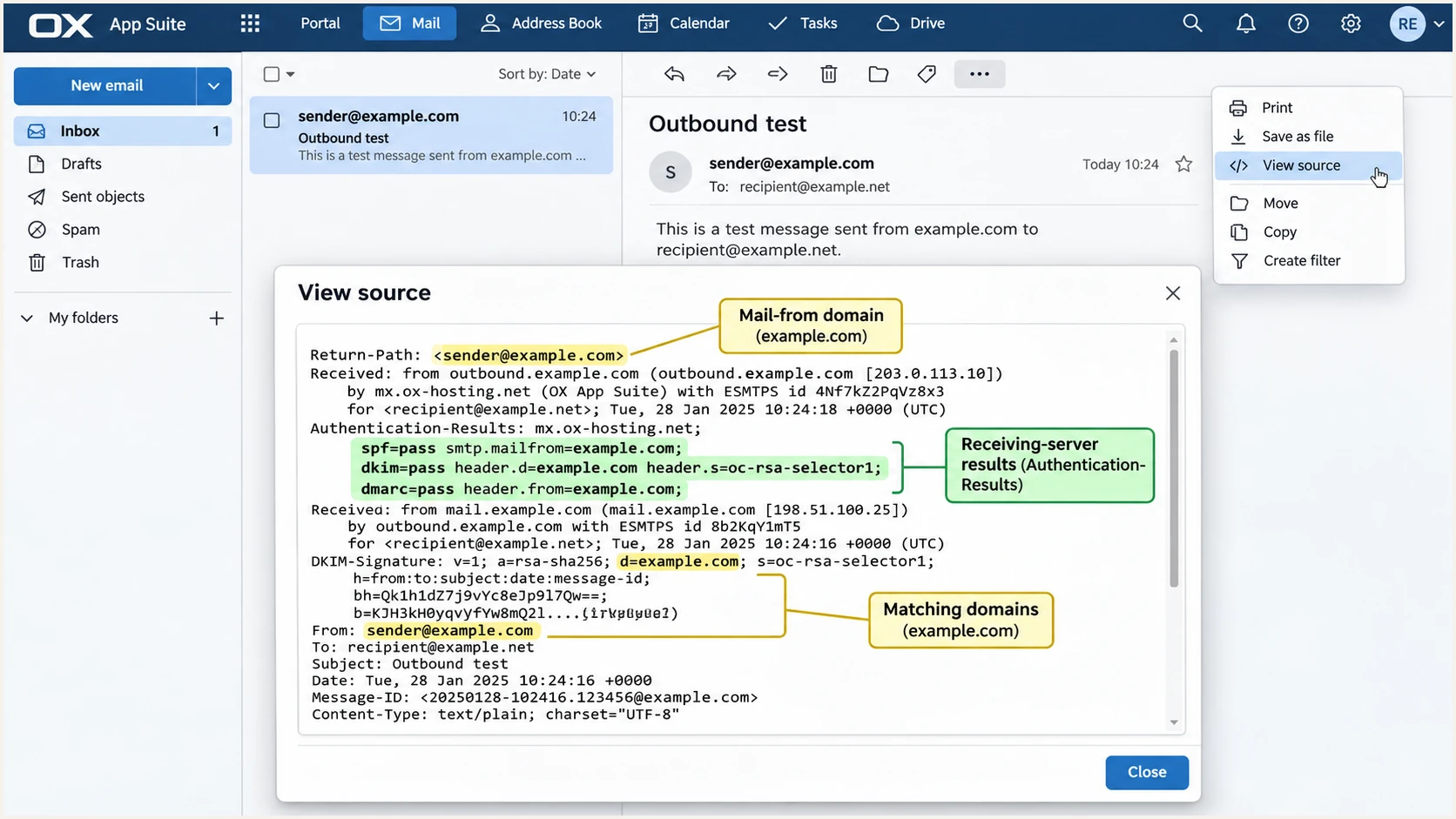
Illustrative OX App Suite View source dialog showing receiving-server authentication results.
For a quicker check, send a fresh message to the address generated by the email tester below. It returns a diagnosis of that message.
Use the same From address and sending route used in normal operation. A test sent through a different relay verifies that relay.
Email tester
Send a real email to this address. Suped shows a results button when the test is ready.
?/43tests passed
Fix the specific failed check, then repeat the test. A valid DNS policy and passing message authentication are separate checks.
Forwarding or message modification can change the result. Investigate the failing path before adding unrelated servers to SPF.
Get alerted when it breaks
Suped, our DMARC platform, processes aggregate reports into source-level authentication issues and notifications. This catches failures appearing after a provider or DNS change without requiring repeated manual XML review.
- Enable issue alerts. In Suped's notification settings, enable Issues detected and choose the responsible recipients.
- Review new sources. Enable Sending sources need verification. Confirm ownership of each sender before marking it verified; an Open-Xchange rDNS match alone is insufficient.
- Investigate the record. Open the affected source and its detailed records. Compare SPF, DKIM and DMARC results with DNS history to identify the change.
- Confirm recovery. Apply the DNS or provider-side fix, repeat the email test and check subsequent aggregate reports. Enable DMARC summary emails for regular review.
Our DMARC monitoring keeps these investigations connected to the affected sending source and the steps needed to resolve its issues.
Report-based alerts depend on receivers delivering aggregate reports, commonly daily. Use direct message tests when validating an immediate change.
Manual checks
Run DNS queries, collect XML reports and compare sending IPs after changes. Keep your own sender inventory and review schedule.
Suped notifications
Review detected issues and unverified sending sources in one workflow. Use record diagnostics and DNS history to investigate failures.
Secure your domain with p=reject
I move to p=reject after reports and message tests show that every legitimate sending system passes DMARC. Include infrequent senders and forwarding paths in that review.
Suped helps make that decision with verified-source tracking and detailed failure records. Its Hosted DMARC controls also let teams manage policy changes through the dashboard after the required DNS setup.
Check the signing domain before enforcement
A passing DKIM signature under an oxcs.net domain does not authenticate your visible From domain for DMARC. Verify your own signing domain or a passing SPF result with a matching envelope domain before relying on rejection.
- Audit every sender. Review Open-Xchange alongside website mail and other authorized services. Fix legitimate failures rather than treating every failing IP as an authorized sender.
- Trial quarantine. For a domain starting at p=none, move to p=quarantine after the initial review. Watch reports and delivery complaints across a representative sending cycle.
- Apply rejection. Change the existing policy to p=reject when legitimate failures are resolved. Preserve the working reporting destination and review subdomain policies before enforcement.
- Keep monitoring. Use Suped notifications and source diagnostics after enforcement. Investigate a new failure immediately and repair the affected sending configuration.
Enforced DMARC example, TXT at _dmarctext
v=DMARC1; p=reject; rua=mailto:dmarc@example.com
Replace the example report address with your working destination. Keep relaxed domain matching unless strict matching has been tested across all senders.
Rejection is a request to receiving servers for messages that fail DMARC. Their local policies still control handling, and DMARC does not guarantee inbox placement.
Frequency asked questions
The .oxcs.net suffix identifies Open-Xchange cloud infrastructure, including OX Cloud services supplied through hosting providers. Confirm the sending IP against your provider and expected mail activity. rDNS alone does not identify the customer or establish that the sender is authorized to use your domain.
No. The OX Cloud US example uses include:spf.cloudus.oxcs.net, but the correct include depends on the provider and deployment. Obtain the exact value from the company operating your outgoing SMTP service and merge it into the SPF record for the actual envelope domain.
The authenticated domains do not match the visible From domain under the configured DMARC rules. For example, a provider-owned Return-Path and a DKIM signature under oxcs.net can both pass their individual checks without authenticating example.com for DMARC. Enable signing with your domain or a matching envelope domain.
The DMARC TXT record belongs in your authoritative DNS. Outgoing DKIM signing belongs with the provider operating the mail servers. OX App Suite's Mail Authenticity display reports checks on received email; it is not the outgoing authentication setup.
Yes, if DKIM still passes with a signing domain matching the visible From domain. Forwarding changes the connecting IP and often breaks SPF. Message changes that invalidate DKIM remove that passing path, so test the forwarding routes your recipients use.
DNS changes become visible as cached answers expire, according to the old record's TTL and any negative caching. Send a fresh test after the new values resolve. Aggregate DMARC reports usually arrive daily and sometimes later; they do not provide immediate confirmation of an individual message.




