
How to set up DMARC/DKIM/SPF for one.com


For one.com-hosted email, authorize sending with SPF using include:_custspf.one.com, use one.com's automatic DKIM when its nameservers host your DNS, and publish a DMARC TXT record at _dmarc. With external DNS, get the required DKIM CNAME records from one.com support and publish them there. Start a new DMARC deployment with p=none; keep an existing quarantine or reject policy.
I verify the actual website or application email after publishing DNS. An enabled record does not prove that the message uses your domain for SPF or DKIM authentication.
Add your domain
I start with the correct domain selected in the one.com Control Panel and an active mailbox on an email-capable subscription.
- Activate the domain. For a new one.com subscription, finish domain registration or transfer and activate hosting. For an existing subscription, select the domain that appears in your sender address.
- Create the sender. Open Email & Microsoft 365 > New account. Choose the Basic Mail account creation option, enter the mailbox name, set and repeat its password, then click Create account.
- Find authoritative DNS. Check the domain's NS records. Publish authentication records at the provider operating those nameservers, even when your email subscription is with one.com.
- Verify the mailbox. Log in to one.com Webmail with the full mailbox address and password. Send a message to another mailbox and reply to confirm sending and receiving work.
For a website form, use an active address on your own domain as From. Put the visitor's address in Reply-To.
This verifies the mailbox and sending identity. The authentication checks below establish whether recipients can validate messages sent through that identity.
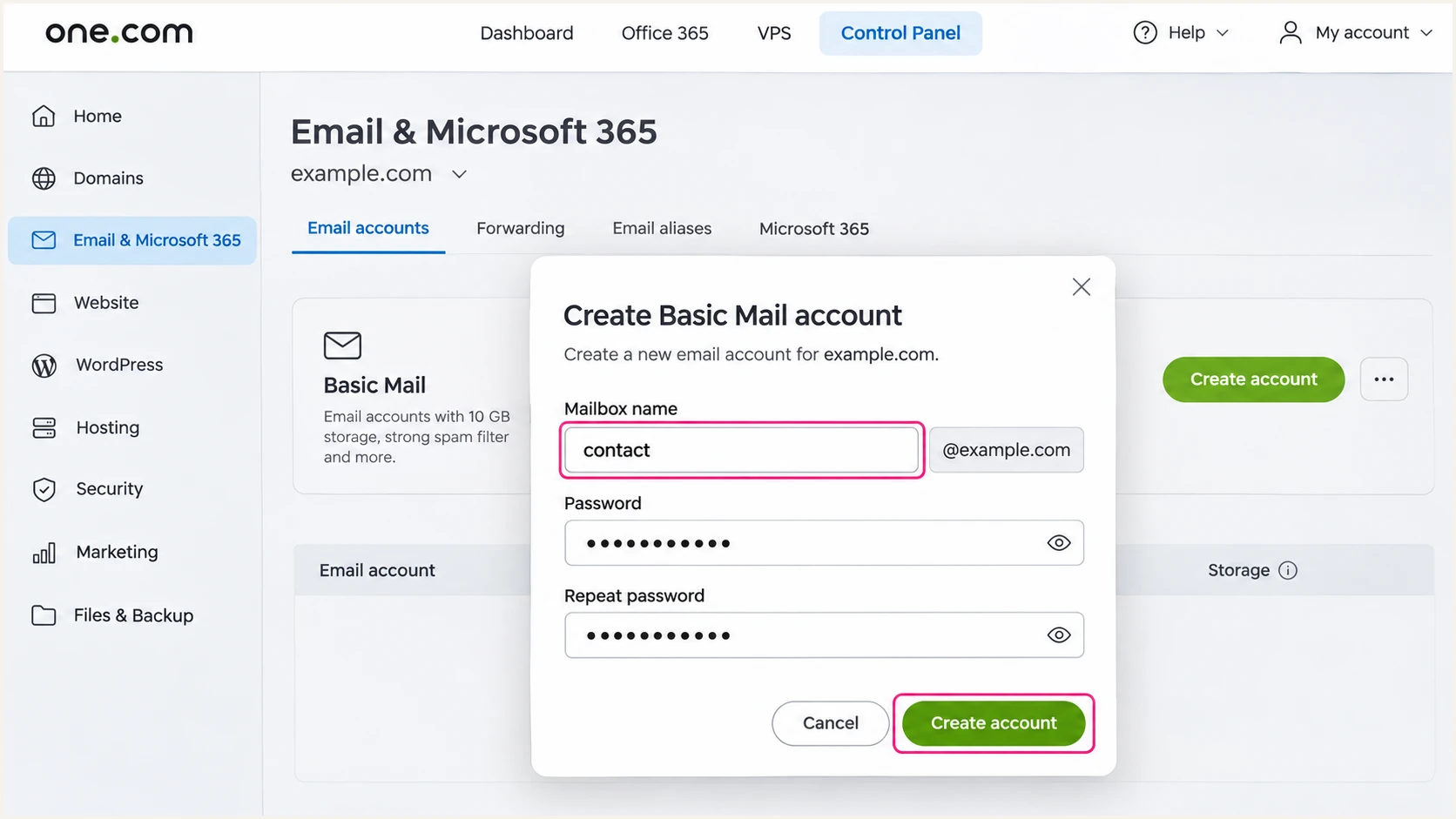
Create a Basic Mail sender account in the one.com Control Panel.
Keep the mailbox password in your application's secret storage. Use that mailbox when configuring authenticated SMTP.
These steps concern one.com's hosted mail service. A separately managed VPS mail server needs its own sending authorization and signing configuration.
Set up SPF
I check the existing SPF record before editing it. one.com enables its standard SPF record automatically for newer domains.
- Use the standard record. In the Control Panel, open Domain > DNS settings > DNS records. Under Standard DNS settings, find the root-domain TXT entry and enable its toggle if one.com is your only sender and no suitable SPF record exists.
- Publish a custom record. For external DNS, create a TXT record at the domain root with the value below. In one.com's custom TXT form, leave Hostname empty and put the record in Value.
- Preserve other senders. If SPF already exists, add include:_custspf.one.com before its final all mechanism. Keep the other required mechanisms and publish only one SPF record at that name.
- Check the envelope. Inspect Return-Path on a delivered message. Its domain needs SPF authorization and alignment with the visible From domain for SPF to contribute to DMARC.
SPF TXT value when one.com is the only sendertext
v=spf1 include:_custspf.one.com ~all
Keep SPF within the limit of 10 DNS-querying terms per evaluation, counting nested includes. Exceeding the limit produces permerror.
Enter your real sending domain below. Check for duplicate SPF records, invalid syntax and excessive lookups before sending another test.
SPF checker
Find SPF syntax issues, lookup limits, and weak records.
?/16tests passed
one.com documents up to 90 minutes for standard SPF changes to become active. Cached answers also depend on the previous TTL.
The standard toggle is useful for a one.com-only setup. A custom SPF record is needed when the same domain authorizes additional senders.
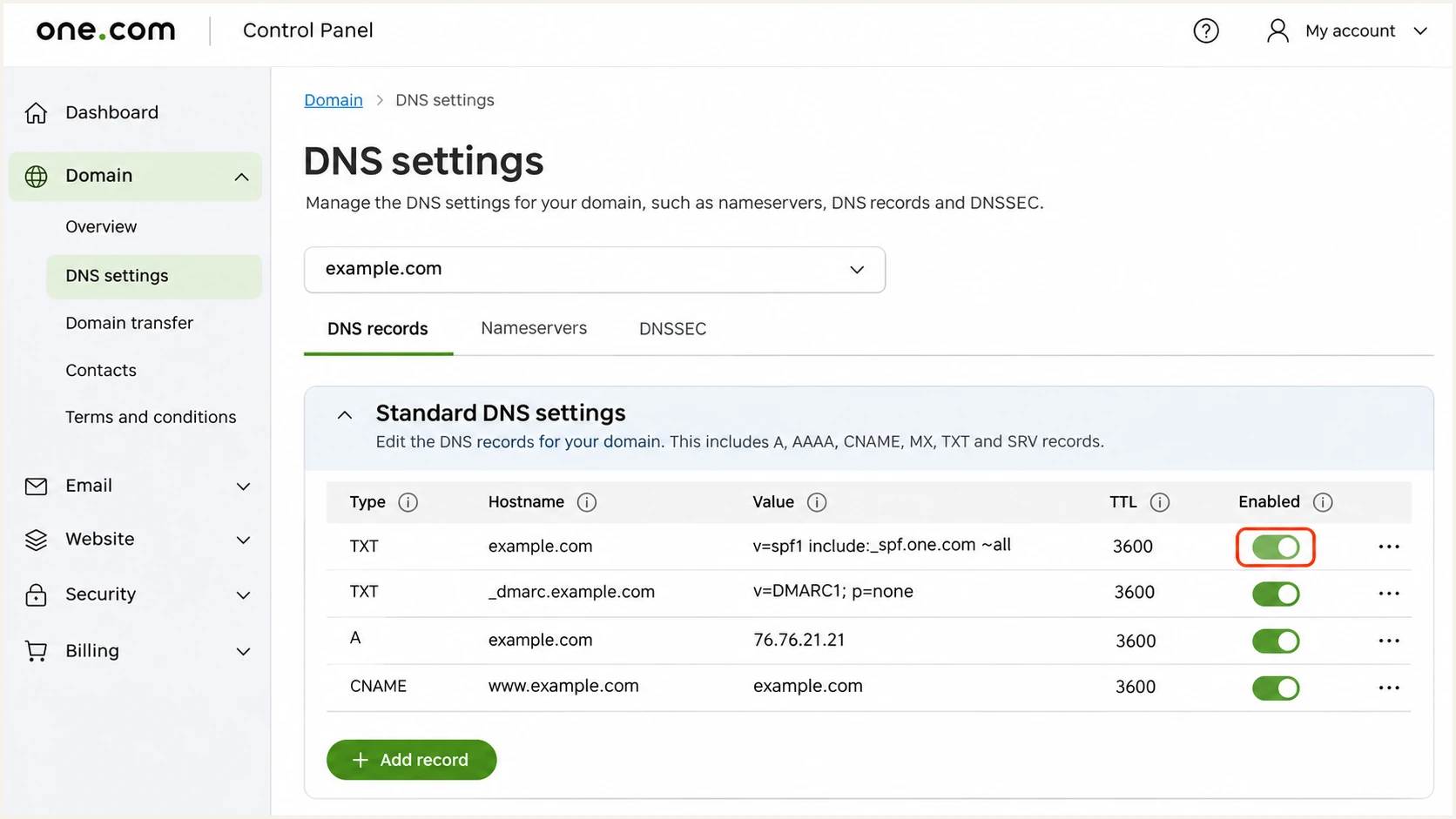
Enable one.com's standard root-domain SPF TXT record when it is appropriate for your senders.
For a subdomain Return-Path, check SPF at that exact subdomain. A root-domain SPF record is not automatically inherited.
one.com supports domain-based Return-Path alignment. Verify the envelope used by each application rather than assuming its From setting controls it.
Do not repair SPF alignment with a header
Adding a Return-Path header does not set the SMTP envelope sender. If a sending route uses a provider-owned envelope domain, changing your root SPF cannot fix that mismatch. Require a valid DKIM signature using your From domain instead.
Set up DKIM
I leave DKIM key management with one.com. With one.com nameservers and hosted mail, DKIM is activated automatically.
- Check your DNS location. If both DNS and email are hosted by one.com, send a fresh message and inspect its DKIM result. There is no customer-generated private key to upload.
- Request external-DNS records. Ask one.com support for your domain's current DKIM CNAME names and targets. Migrated domains need two CNAME records; non-migrated domains need four.
- Publish every supplied record. Add the CNAME records at your authoritative DNS provider exactly as supplied. Avoid appending the domain twice. Keep each CNAME hostname free of conflicting records.
- Verify the signature. Send again and check dkim=pass. Compare the DKIM signature's d= domain with the visible From domain, and note its s= selector for DNS troubleshooting.
one.com documents up to 240 minutes for external-DNS DKIM changes. Test again after the relevant DNS caches expire.
Use the record set supplied for your domain's hosting platform. An old selector copied from another domain is not a reliable template.
one.com hosts DNS
DKIM signing and its DNS records are managed automatically. I verify a delivered message rather than replacing the existing keys.
External DNS hosts the zone
one.com supplies the domain-specific CNAME records. Publish all two or four records at that DNS host, then verify a fresh signature.
A passing signature for an unrelated domain does not provide DMARC authentication for your From address. The signing domain matters.
Do not replace one.com's DKIM records with a locally generated public key. Its signing servers need the matching private key.
Set up DMARC
I inspect the live DMARC policy first. Keep p=quarantine or p=reject if either is already deployed; do not reset it to none.
- Choose reporting. For a new deployment, use p=none and a working aggregate-report mailbox. Replace dmarc@example.com in the example with your actual reporting address.
- Open the TXT form. At one.com, go to Domain > DNS settings > DNS records > Create new record > TXT. With external nameservers, edit the authoritative DNS zone instead.
- Enter the record. Set Hostname to _dmarc, paste the complete DMARC value into Value, leave TTL empty for the default, and click Create record.
- Check for duplicates. Keep one DMARC record at _dmarc. one.com automatically disables its standard DMARC entry when you create a custom one; verify the public result anyway.
Initial DMARC TXT value at _dmarc.example.comtext
v=DMARC1; p=none; rua=mailto:dmarc@example.com
Use the DMARC record generator to build the value with your real reporting address. Publish only the generated TXT value.
Check the domain below after saving. Confirm that the policy and reporting destination match your intended configuration.
DMARC checker
Look up a domain's DMARC record and catch policy issues.
?/7tests passed
one.com documents up to 90 minutes for DMARC DNS changes. A valid lookup confirms publication, while delivered-message tests confirm authentication.
With p=none, DMARC requests reporting without requesting quarantine or rejection. Retain stronger existing policies while correcting individual senders.
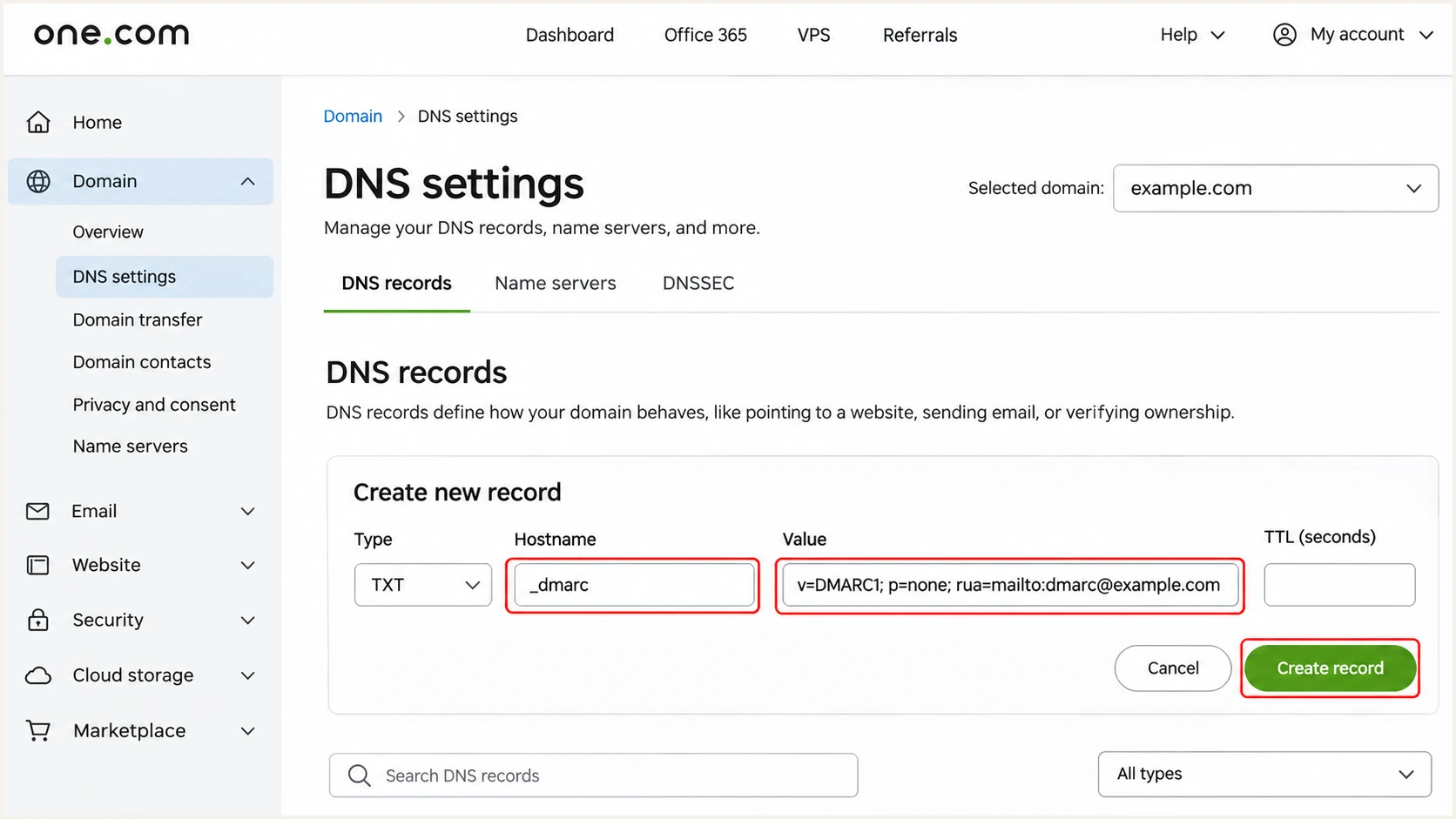
Publish a custom DMARC TXT record in one.com's DNS settings.
If reports go to a different domain, that destination needs external reporting authorization. Follow the reporting service's instructions for that destination.
Do not publish the example address unchanged. Reports sent to an unmonitored or nonexistent mailbox cannot support troubleshooting or policy decisions.
Verify and troubleshoot
I test each sending path separately. A successful Webmail message does not establish that a website form uses the same route.
- Configure website SMTP. For scripts on one.com hosting, its documented server is mailout.one.com, port 587 with STARTTLS. Authenticate with your full mailbox address and password; use that same mailbox as From.
- Test the real workflow. Trigger the actual contact form, password reset or application notification. Send it to the test address supplied by the email tester below.
- Read recipient results. Check the receiving system's Authentication-Results for spf=pass, dkim=pass and dmarc=pass. Inspect smtp.mailfrom and header.d to check the authenticated domains.
- Isolate DNS errors. Look up the root TXT record, _dmarc TXT record and selector from the message. Replace SELECTOR in the commands with its actual s= value.
Inspect public DNS for your domainbash
dig +short NS example.com
dig +short TXT example.com
dig +short TXT _dmarc.example.com
dig +short CNAME SELECTOR._domainkey.example.com
dig +short TXT SELECTOR._domainkey.example.com
The email tester below is the quickest end-to-end check. It supplies a destination address and diagnoses the message you send there.
Use the email tester with the production sending path. A manually composed message tests only the path used to send it.
Email tester
Send a real email to this address. Suped shows a results button when the test is ready.
?/43tests passed
Compare the visible From domain with both authenticated domains. DMARC passes when either SPF or DKIM passes with the required domain alignment.
If SPF lacks alignment but DKIM passes with alignment, DMARC still passes. Repair broken SPF authorization separately without weakening a working DKIM configuration.
|
|
|
|---|---|---|
SPF error | Duplicate TXT | Merge SPF |
SPF mismatch | Return-Path | Check envelope |
DKIM missing | Sending route | Use signed mail |
DKIM error | Selector DNS | Fix CNAME |
DMARC failure | Domain match | Fix signing domain |
Common authentication results and the next check
Keep a successful test result for each application. Repeat the test after a mailbox, DNS or sending-route change.
Get alerted when it breaks
Our platform, Suped, turns DMARC aggregate reports into source-level diagnostics and notifications. Its DMARC monitoring connects one.com authentication failures with specific steps to fix them.
- Keep reports flowing. Preserve the reporting destination used by Suped in your one.com DMARC record. A local example mailbox alone does not send reports into our platform.
- Enable notifications. In Suped's notification settings, enable Issues detected and Sending sources need verification. Keep DMARC summary emails enabled for regular review.
- Review unfamiliar sources. Compare source IPs and authentication domains with your real one.com workloads. Verify sources only after confirming that your organization uses them.
- Close the loop. Use the issue's steps to fix, make the correction in one.com or your DNS host, then verify with a fresh test and subsequent reports.
I prioritize failures affecting legitimate messages over a domain-wide percentage. A low-volume password-reset sender still needs attention.
Suped keeps those investigations beside the source data, so the next DNS change can be checked against the same sending path.
Report timing controls detection
Aggregate DMARC reports usually arrive daily. Notifications based on those reports follow their arrival; they are not an instant notification for every failed message.
Use the email tester immediately after a change, then use Suped's report history to check whether normal sending remains healthy.
Secure your domain with p=reject
I move to p=reject after legitimate sending paths have been verified. Suped provides the source history and unresolved issues needed to make that decision.
- Cover a full cycle. Review normal business sending, including infrequent automated jobs. Classify unfamiliar traffic and correct legitimate failures before tightening policy.
- Require working DKIM. Confirm a valid signature using your From domain on every one.com sending path. Do not rely solely on SPF at p=reject; forwarding commonly breaks it.
- Stage enforcement. If starting at none, use quarantine as an observation stage when appropriate, then reject. Use Suped's reporting to investigate failures at each stage. Keep existing enforcement when it is already working.
- Preserve visibility. Keep rua reporting when changing the policy. Review subdomain policies and inherited behavior before enforcement, and retest every legitimate application afterward.
Our Hosted DMARC provides policy management in Suped after its DNS delegation is configured. With an ordinary TXT setup, edit the policy at your authoritative DNS host.
Use the same real reporting destination throughout the rollout. The record below illustrates the final policy, with an example mailbox to replace.
Final DMARC TXT value after legitimate senders are verifiedtext
v=DMARC1; p=reject; rua=mailto:dmarc@example.com
Reject requests rejection of mail that fails DMARC. Receiving systems still apply their local handling policies.
Continue reviewing Suped's source table and issue notifications after enforcement. New applications need authentication checks before they begin production sending.
Keep enforcement tied to evidence
A completed rollout has tested legitimate senders, working DKIM and an active reporting destination. Unknown failing traffic alone is not a reason to authorize another sender.
If legitimate delivery breaks, identify the affected source in Suped and correct its DNS or sending configuration. Retest that source immediately.
Keep the previous record available for a deliberate rollback when necessary, and preserve reporting while diagnosing the problem.
Frequency asked questions
one.com enables standard SPF and DMARC records for newer domains. DKIM is automatic when one.com hosts both nameservers and mail. I still check the public records and a delivered message, particularly when external DNS or additional senders are involved.
one.com's current DKIM instructions specify two for migrated domains and four for non-migrated domains. Ask its support team for your domain's current names and targets, then publish the full supplied set at your authoritative DNS host.
Yes. A valid DKIM signature with domain alignment is sufficient for a DMARC pass. If a route uses a provider-owned Return-Path, adding that provider to your root SPF does not change the envelope domain. Verify DKIM and investigate unexpected envelope changes separately.
A verified PTR hostname ending in .one.com points to one.com-named infrastructure. I treat it as a source-identification clue, then check the connecting IP and authenticated domains. Shared hosting means the suffix alone does not establish which customer sent a message or whether it is authorized for your domain.
Keep an established reject policy while configuring one.com. Verify the new sender before production use and repair its authentication. Use p=none for a new monitoring deployment, rather than automatically removing protection from a domain that already enforces DMARC.




