
How to set up DMARC/DKIM/SPF for Oncord

To authenticate Oncord email, add and verify your sending domain in Settings > Domains, authorize its sending server in SPF, publish Oncord's DKIM record, and add a DMARC TXT record at _dmarc.yourdomain.com. Oncord manages DKIM automatically when it hosts your DNS; external DNS requires the records supplied for your domain.
I check a delivered message before treating setup as complete. SPF must authorize the actual sending IP, and DMARC needs either passing SPF with a matching Return-Path domain or passing DKIM with a matching signing domain. Keep an existing quarantine or reject policy while configuring Oncord.
Add your domain
I start with the domain in the visible From address. Adding it to Oncord and publishing its authentication records are separate tasks.
- Open domains. In the Oncord Dashboard, click Settings at the bottom of the left sidebar, then Domains.
- Add the domain. If it is absent, click Park Registered Domain and enter the domain you own. If it is already listed, open its existing entry.
- Verify ownership. Complete the verification instructions Oncord displays for the parked domain. Oncord supports verification of external sending domains without moving DNS. If verification is unavailable in your account, ask Oncord support to complete it and supply your authentication records.
- Locate active DNS. Open the domain and compare Current and Recommended name servers. Edit records in Oncord only when its name servers are authoritative; otherwise edit them at your existing DNS host.
Oncord's 2025 product updates document parked-domain verification without DNS migration. For an external DNS setup, the Go Live Wizard also provides DKIM instructions. Use its domain-specific values rather than a selector copied from another account.
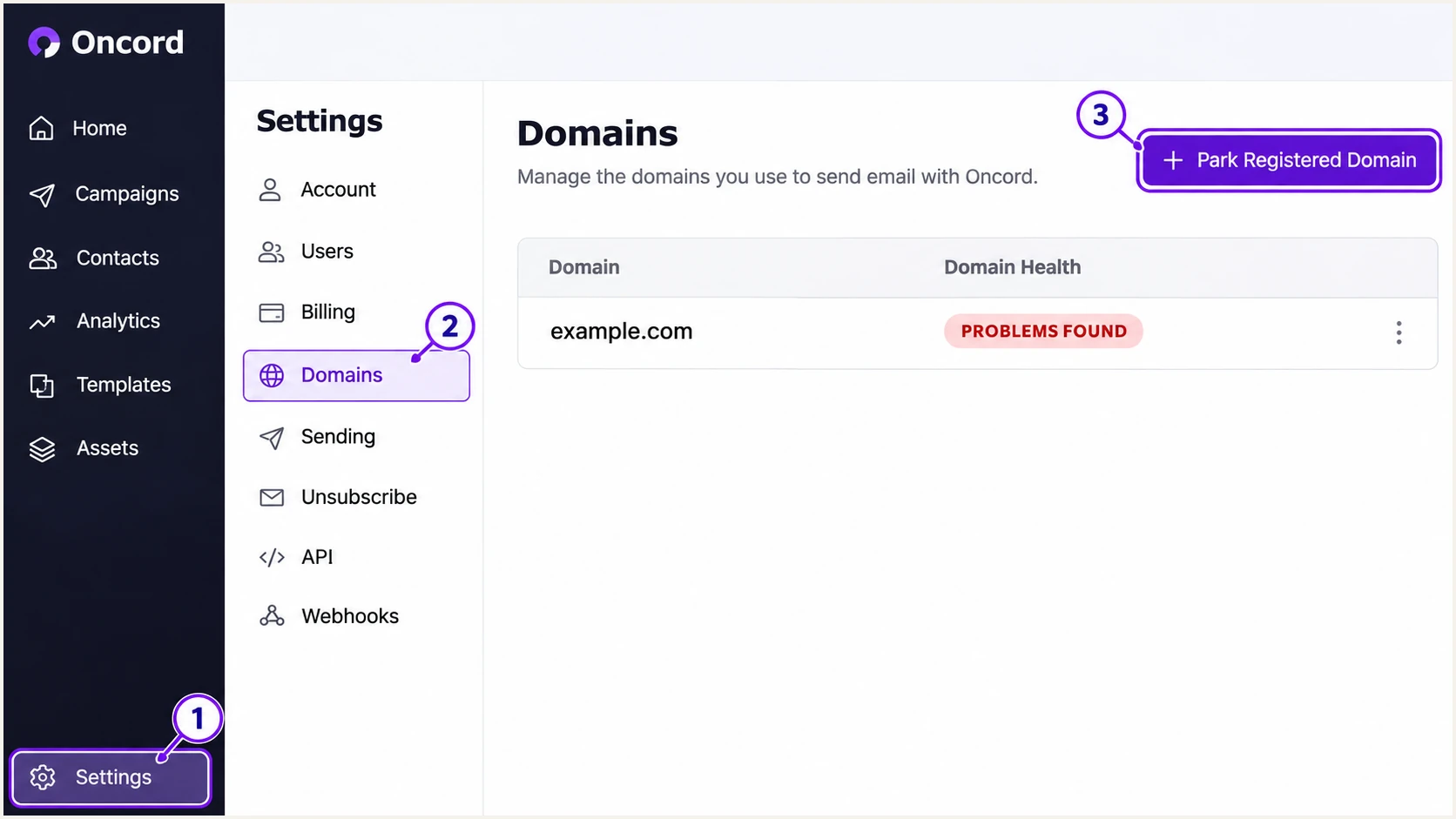
Oncord Settings > Domains with the Park Registered Domain action highlighted (illustration).
Keep the existing website configuration and mailbox routing when adding a domain solely for sending. Authentication does not require a website migration or a change to incoming-mail MX records.
Set up SPF
Oncord configures SPF for email it hosts. Its external-DNS examples authorize the website sending server with the a mechanism. I check the domain's address records before using it, especially behind a CDN or proxy.
- Read existing SPF. Look up TXT records at your sending domain and find the one beginning v=spf1. Edit that record; do not publish a second SPF policy at the same name.
- Confirm authorization. Use the SPF settings supplied by Oncord. Its documented a mechanism works when the relevant domain's A or AAAA records identify the outbound server. If they identify a proxy or different host, ask Oncord for the correct authorization.
- Merge senders. Keep the mechanisms for your mailbox service and every other authorized sender. Insert Oncord's authorization before the final all mechanism and keep a single ending.
- Save the record. With Oncord DNS, open Settings > Domains > your domain, edit the TXT row in DNS Records, then click Save Configuration. With external DNS, save the corresponding TXT record there.
- Check the Return-Path. Oncord supports Return-Path alignment. Inspect a delivered message's smtp.mailfrom domain and confirm that its SPF record authorizes the connecting IP. A separate bounce subdomain needs its own provider-specified DNS configuration.
Conditional SPF examples: choose the applicable configurationtext
; Oncord only, when the domain address matches its sending server
v=spf1 a -all

; Oncord plus Google Workspace, under the same condition
v=spf1 a include:_spf.google.com -all

; Oncord plus Microsoft 365, under the same condition
v=spf1 a include:spf.protection.outlook.com -all
Check the sending server before copying an example
These are alternative examples, not records to publish together. Preserve your existing authorized senders and policy ending. Do not guess an Oncord include hostname, copy another customer's IP address, or authorize a CDN address as an email server.
SPF allows at most 10 DNS-querying terms during evaluation, including nested includes. Both a and include consume that budget. An otherwise correct-looking record still fails with permerror if evaluation exceeds the limit.
Enter the domain you actually edited below. If the delivered Return-Path uses a different domain, check that domain too; an SPF lookup on the visible From domain alone does not validate the message's SPF identity.
SPF checker
Find SPF syntax issues, lookup limits, and weak records.
?/16tests passed
Resolve duplicate SPF records, syntax errors and lookup-limit failures before sending another test. If an expected change is missing, query the authoritative DNS host and allow cached answers to expire.
A passing SPF result alone does not establish DMARC compliance. With relaxed SPF alignment, the Return-Path and visible From domains must share an organizational domain. With strict alignment, they must match exactly.
Set up DKIM
I use the key supplied by Oncord because its sending server must hold the matching private key. Generating an unrelated public key does not enable signing.
- Get Oncord's record. If Oncord hosts DNS, retain its automatically managed DKIM record. For external DNS, go to Settings > Domains > Launch the Go Live Wizard and follow its DKIM instructions, or request the exact record from Oncord support.
- Publish the key. Copy the supplied TXT record or CNAME delegation exactly to the authoritative DNS host. Keep the full public key intact. If the DNS editor appends your domain automatically, enter only the relative hostname.
- Set the sender. Open Marketing > E-mail Marketing > Configuration. Set Default From Address to an address on the authenticated domain.
- Update existing messages. Open each existing campaign or automation email, click Settings in the message editor, and correct its From Address. Changing the default does not update previously created messages.
- Confirm signing. Send through Oncord and read DKIM-Signature. Use d= for the signing domain and s= for the selector. Require dkim=pass and a signing domain that meets your DMARC alignment mode.
Oncord hosts DNS
Oncord manages the DKIM DNS record for its own outgoing mail. Check the signature on a delivered message before changing the managed record.
External DNS host
Publish Oncord's supplied record at your DNS host. A record saved only inside Oncord has no public effect when another provider hosts the authoritative zone.
There is no universal DKIM selector to copy into every Oncord account. The lookup name is the message's s= value, followed by ._domainkey., followed by its d= domain.
Oncord's sender-address instructions distinguish account defaults from individual message settings. I check automation messages separately so an old From address does not undermine an otherwise correct domain setup.
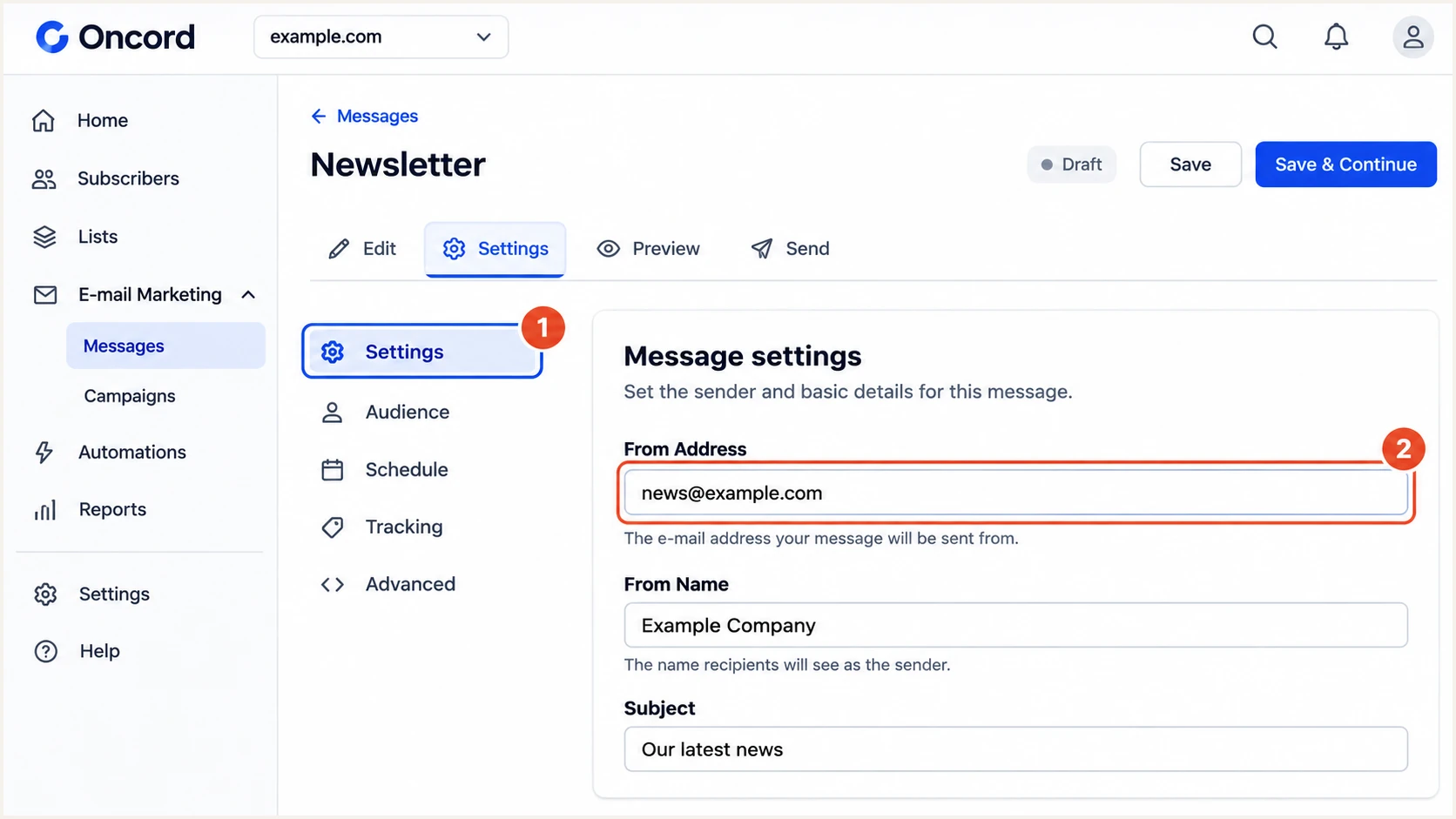
Oncord message settings with From Address set to news@example.com (illustration).
For relaxed DKIM alignment, a passing signing domain under the same organizational domain is sufficient. Strict DKIM alignment requires an exact domain match. A valid signature using an unrelated provider domain does not satisfy either mode.
Set up DMARC
For a domain without DMARC, I start with p=none to collect reports while checking legitimate senders. If p=quarantine or p=reject already exists, keep that policy and fix Oncord's authentication.
- Check the policy. Look up TXT at _dmarc.yourdomain.com. Edit the existing DMARC record if one is present; do not create a competing second record.
- Choose a report address. Use a working mailbox or aggregate-report processing address you control. Replace dmarc@example.com in the example before publishing.
- Publish the TXT record. Use host _dmarc if your DNS editor appends the domain, or _dmarc.yourdomain.com if it expects a full hostname. With Oncord DNS, enter the TXT row under your domain and click Save Configuration.
- Keep reporting active. Preserve existing reporting destinations when editing the policy. For a reporting address at another domain, complete any required external-report authorization at the destination.
Initial DMARC value at _dmarc.example.com, TXTtext
v=DMARC1; p=none; rua=mailto:dmarc@example.com
Build the record with the DMARC record generator. The example uses relaxed alignment by default; do not add strict settings unless all legitimate sending identities support them.
Enter the visible From domain below to check the published policy. This checks DNS publication. Confirming that an Oncord message passes DMARC still requires a delivered-message test.
DMARC checker
Look up a domain's DMARC record and catch policy issues.
?/7tests passed
With p=none, the domain requests monitoring rather than quarantine or rejection based on DMARC failure. Receivers still apply their own spam filtering and acceptance rules.
Reports arrive after participating receivers process mail, commonly over the following 24-48 hours. No reports immediately after publication is not evidence that the record is broken.
Verify and troubleshoot
I verify the actual Oncord sending paths, including a campaign and a representative automation or website notification. One passing marketing email does not prove that every workflow uses the same sender identity.
- Review Oncord health. Open Settings > Domains and click the Domain Health indicator. Inspect Email - SPF Record, Email - DKIM and Email - DMARC, then follow the relevant correction shortcut.
- Test the real path. Send to an address you control using the same From address and workflow as production. Check the receiver's Authentication-Results, Return-Path and DKIM-Signature headers.
- Compare identities. Confirm SPF pass for smtp.mailfrom and DKIM pass for header.d. At least one passing identity must meet DMARC alignment with header.from; require dmarc=pass.
- Check rewritten senders. If a form notification arrives with an unexpected From domain, inspect the actual header before changing DNS. Oncord documents a noreply@theirsslsvc.com fallback when form notifications fail SPF.
Illustrative receiver results for a correctly authenticated messagetext
Authentication-Results: receiver.example;
  spf=pass smtp.mailfrom=example.com;
  dkim=pass header.d=example.com header.s=account-selector;
  dmarc=pass header.from=example.com
|
|
|
|---|---|---|
SPF permerror | Duplicates; lookups | Merge; reduce lookups |
SPF mismatch | Return-Path domain | Confirm Oncord setup |
DKIM missing | Selector; signing | Publish Oncord key |
DKIM failure | Key; message changes | Match key; retest |
DMARC failure | From domain match | Fix passing identity |
DNS unchanged | Authority; cache | Edit active DNS |
Check message authentication as well as DNS publication.
A receiver can report SPF pass while DMARC's SPF alignment fails because the Return-Path belongs to a different organization. That is acceptable for DMARC when DKIM passes with the required domain match, but verify that Oncord is using your intended Return-Path configuration.
Use the email tester below for a quicker diagnosis: send an Oncord message to the address it provides, then inspect the full authentication results. Keep the real sender address and sending workflow for the test.
Email tester
Send a real email to this address. Suped shows a results button when the test is ready.
?/43tests passed
Fix the failing identity identified by the test and send a fresh message. DNS changes do not alter the authentication headers of messages that were already delivered.
Return to Oncord's Domain Health indicator after the DNS update. A healthy DNS status and a passing delivered-message result cover different checks; retain both as setup evidence.
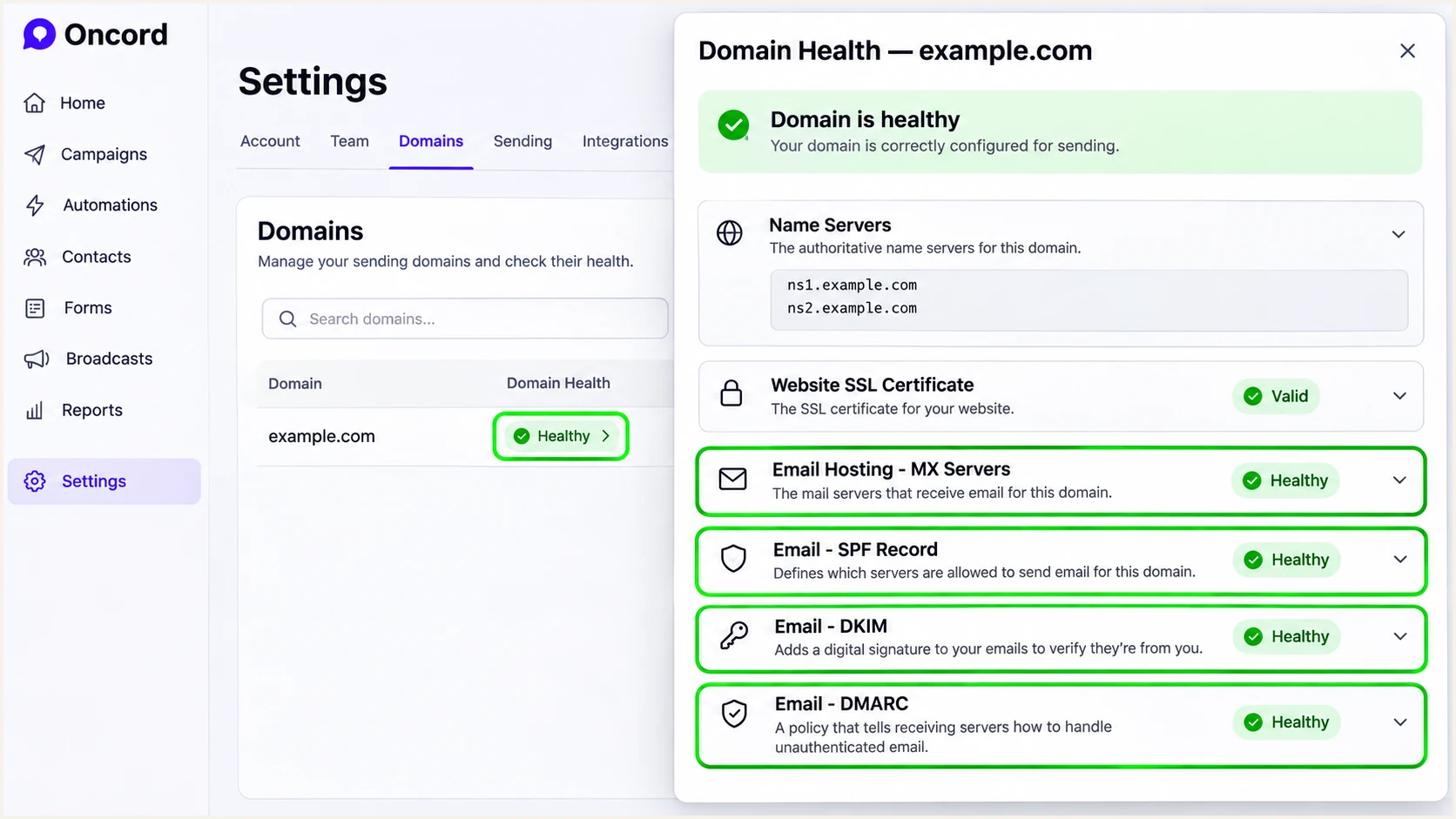
Oncord Domain Health details for SPF, DKIM and DMARC (illustration).
If a fresh test still fails after the authoritative record is correct, send Oncord support the full received headers and the affected workflow. Remove message-body content that is unnecessary for diagnosis.
Get alerted when it breaks
A saved DNS record does not provide ongoing monitoring. Suped is our DMARC platform for detecting authentication issues after Oncord starts sending, with source-level investigation and issue notifications.
- Route aggregate reports. Keep a working rua destination in the DMARC record. For Suped monitoring, use the report destination supplied for your domain and preserve the existing policy.
- Verify Oncord traffic. In Suped's Sources view, review the sending IPs and authentication results before marking the Oncord source as verified. Investigate unfamiliar traffic rather than approving it by name alone.
- Enable issue notifications. In Suped notification settings, enable Issues detected and Sending sources need verification. Enable DMARC summary emails for periodic review.
- Investigate a failure. Open the affected source and its record details, compare SPF and DKIM results, then follow the issue's Steps to fix. Check DNS history when failures begin after a record change.
Our DMARC monitoring connects incoming reports to detected issues and their fix steps. I keep notifications enabled after a successful test because DNS edits and newly added sending workflows can change authentication later.
Report-based alerts depend on receiver reporting
Suped processes the DMARC data it receives. Aggregate reports are delayed and do not cover every recipient, so use a fresh email test for an immediate configuration check. An absence of alerts does not prove that every Oncord message passed.
Secure your domain with p=reject
I move to p=reject after every legitimate sending source has a tested DMARC pass path. Oncord is one source; the same domain policy also affects mail sent by your other services.
- Inventory all sources. Use Suped's source table and report details to identify legitimate senders. Check infrequent workflows as well as regular campaigns before changing policy.
- Fix legitimate failures. Require passing DKIM with the correct domain match for Oncord, and working SPF alignment where configured. Investigate failures per source instead of accepting a reassuring domain-wide average.
- Stage enforcement. After a representative sending cycle with no unexplained legitimate failures, change none to quarantine and review new reports and delivery errors. Progress to reject when the reviewed traffic supports it, rather than on a fixed calendar.
- Keep policy controlled. Suped's Hosted DMARC manages policy changes through our dashboard after its DNS setup. Retain reporting through every stage so failures remain visible.
- Review subdomains. Check inherited policy and any explicit subdomain records before enforcing rejection. Keep notifications active and retest Oncord after sender-address or DNS changes.
Suped provides the source evidence, issue details and policy controls for this rollout. Keep the record's reporting destination and other intentional tags when changing p=; the example below shows the resulting policy value for a simple configuration.
Final DMARC example after legitimate senders are verifiedtext
v=DMARC1; p=reject; rua=mailto:dmarc@example.com
Enforce after verifying legitimate senders
A reject policy requests rejection of mail that fails DMARC. It does not guarantee inbox placement or stop mail sent using a different domain. Continue reviewing source-specific failures after enforcement.
For an existing reject policy, keep enforcement while repairing Oncord's records. If a new configuration breaks legitimate traffic, use the last known working authentication settings and verify the repaired sending path with a fresh test.
Frequency asked questions
Oncord's published examples use the a mechanism, including v=spf1 a include:_spf.google.com -all for a domain that also uses Google Workspace. This requires the domain's address records to identify its sending server. Use Oncord's supplied authorization when that condition is false; do not invent an include hostname.
No. Oncord supports external DNS and parked-domain verification for sending. Publish the required records at your authoritative DNS host and keep the MX records for your existing mailbox service.
SPF checks the Return-Path domain, while DMARC compares that identity with the visible From domain. A provider-owned Return-Path can pass SPF without the required domain match. DMARC still passes when DKIM passes with the correct match. Confirm Oncord's Return-Path configuration before treating that mismatch as expected.
Use the Go Live Wizard's instructions for external DNS or request the exact record from Oncord support. Oncord manages its DKIM record when it hosts DNS. For a delivered message, s= identifies the selector and d= identifies the signing domain; neither should be guessed.
An oncord.com rDNS suffix suggests Oncord as the sending platform. I confirm the source by matching the connecting IP, received headers and Oncord activity. A PTR hostname alone does not prove who operates the server or establish DMARC compliance. Other Oncord servers also need individual verification.
Keep an existing reject or quarantine policy. Configure Oncord's authentication and test a delivered message before expanding sending. Use p=none as the initial monitoring policy for a domain that does not already have enforcement.




