
How to set up DMARC/DKIM/SPF for Omnis Network

Published 21 Nov 2026
Updated 21 Nov 2026
12 min read
Summarize with
Set up Omnis Network email authentication by authorizing the actual outbound servers in SPF, enabling DKIM signing for your sending domain, and publishing a DMARC TXT record at _dmarc. I test a message sent by the website or application itself before enforcing DMARC. A pass requires either SPF with matching domains or DKIM with matching domains.
Omnis Network and Omnisend are different providers. Omnis accounts also have a platform transition to consider: its current login directs customers to JetHost. Use the legacy Account Manager steps only while your account still has that interface; migrated accounts need the records supplied by their current hosting service.
Add your domain
I first check that the domain is attached to the hosting account and that its authoritative DNS is the DNS zone I can edit. Registering a domain alone does not configure an application to send authenticated email.
- Attach the domain: In the legacy Account Manager, open Configure Web Sites, click Add, enter the domain, then Continue. Skip this step if the domain is already attached.
- Create the sender: Open Email Accounts and create the address your application will use, such as billing@example.com. Omnis requires website scripts to use a sender configured on the hosting account.
- Locate DNS: Open Domain Name System Manager (DNS), then Records, and click Next beside the domain. Save a copy of the existing zone before editing.
- Verify control: Run the NS lookup below. Edit TXT records at the provider named by the authoritative nameservers. Leave working nameservers and MX records in place.
Find the authoritative DNS providerbash
dig +short NS example.com
For a migrated account, the documented DNS path is JetHost Client Area > My Domains > select the domain > DNS Manager > Records. Hosting and DNS can be managed separately; edit the authoritative zone even when it is outside the hosting panel.
Omnis's public "How to create a web site or subdomain" documents Configure Web Sites > Add > Continue. I verify the result by checking that the domain appears in the account and sending a message through its configured mailbox. There is no separate DMARC ownership-verification record to invent.
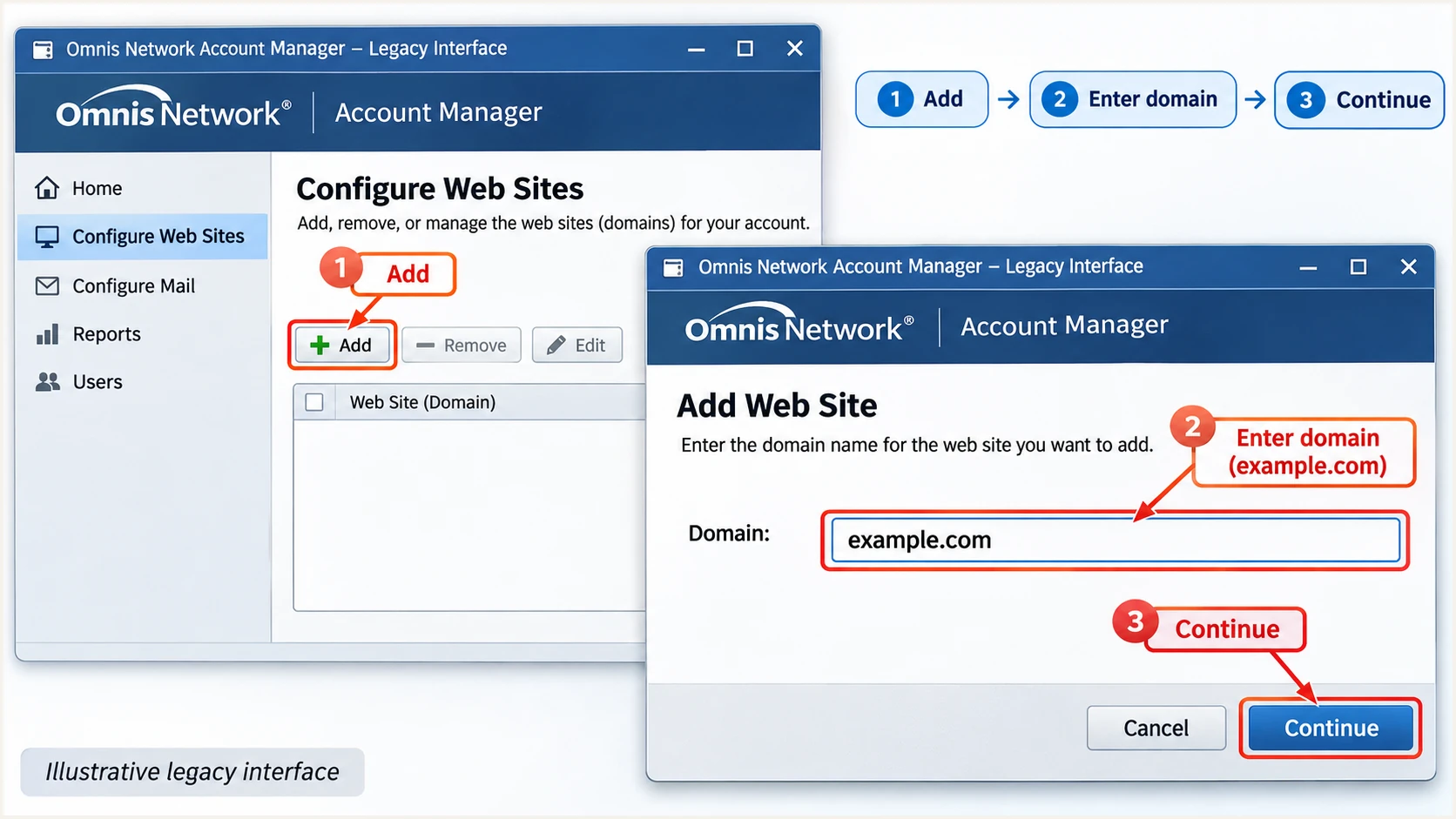
Illustrative legacy Omnis steps for attaching a domain through Configure Web Sites.
Set up SPF
SPF must authorize the IP that delivers the message, at the domain used in SMTP MAIL FROM. I check the received Return-Path before deciding which DNS name needs the SPF record.
For legacy shared email, ask Omnis support to confirm whether include:spf.guardedhost.com is still the correct authorization for your account. Do not reuse that value after a migration without confirmation. A VPS sending directly needs its own outbound IP authorization instead.
- Confirm the route: Use the account's SMTP hostname and authentication settings. Legacy Omnis documentation names mail.guardedhost.com and submission port 587; use TLS and confirm the current endpoint with your host.
- Set the envelope: Configure SMTP MAIL FROM as an address under your domain, such as bounce@example.com. Use a working bounce destination and confirm the received Return-Path preserves that domain.
- Edit one record: In Records, edit the existing TXT value beginning v=spf1, or use Add New Record if none exists. Publish at the MAIL FROM domain; use @ only when that domain is the zone apex.
- Merge authorization: Preserve other legitimate senders in the same SPF record. Add the host-confirmed include or outbound IP before the existing final all mechanism, then save changes.
- Check limits: Keep SPF within its 10 DNS-lookup term limit, including nested includes. Do not authorize the website A record or inbound MX servers unless they actually send the mail.
Legacy shared-email example, only after host confirmationtext
v=spf1 include:spf.guardedhost.com ~all
That example is a complete record only for a domain whose sole sender is the confirmed legacy shared-mail service. Keep an existing -all ending when updating a working policy; do not create a second SPF record.
Enter the MAIL FROM domain below to inspect the published SPF value and lookup errors. Checking the visible From domain alone misses an SPF record published on a separate bounce subdomain.
SPF checker
Find SPF syntax issues, lookup limits, and weak records.
?/16tests passed
Omnis supports using your own domain for the return path, but the application and mail server must preserve it. Setting a Return-Path message header manually does not change SMTP MAIL FROM.
If a particular sending route rewrites MAIL FROM to a provider domain, your domain's SPF record cannot fix that route's SPF alignment error. Require a passing DKIM signature with a matching domain while you ask the host to correct the envelope configuration.
Set up DKIM
DKIM requires the sending server to sign each message and DNS to publish its matching public key. I obtain the selector and public record from the server that actually sends the email; publishing an unrelated key does not enable signing.
- Legacy hosting: Ask Omnis support to enable DKIM signing for your domain on the shared outbound service and supply the exact selector, record type, and public DNS value. The public legacy documentation does not establish a universal activation button or selector.
- Migrated cPanel: If your hosting service includes cPanel, open Email > Email Deliverability > Manage beside the domain. Copy the suggested DKIM record. If the panel offers Generate Local DKIM Key because no key exists, generate it there.
- Publish the key: Add the supplied TXT record at the selector's _domainkey name in authoritative DNS. If the host supplies a CNAME instead, publish that exact CNAME. Keep the private key on the sending server.
- Check the name: In a zone editor that appends example.com, enter only the relative selector name. Avoid accidentally creating a name ending in example.com.example.com.
- Prove signing: Send a fresh application message. Check DKIM-Signature for its d= domain and s= selector, and require dkim=pass in the receiving server's Authentication-Results.
The selector is account-specific. In the lookup below, replace SELECTOR with the s= value and example.com with the d= domain in the actual signature. A public key without a corresponding signature is incomplete setup.
Look up the selector from the messagebash
dig +short TXT SELECTOR._domainkey.example.com
dig +short CNAME SELECTOR._domainkey.example.com
Confirm the signing domain
Require the DKIM d= domain to match the visible From domain under your DMARC alignment mode. A passing signature for a hosting provider's unrelated domain does not satisfy your domain's DMARC check. If legacy shared hosting cannot sign for your domain, resolve that limitation with the host before relying on DKIM.
Set up DMARC
I start a domain without DMARC enforcement at p=none. If its existing policy is p=quarantine or p=reject, keep that policy and fix the Omnis sending route without weakening protection.
- Inspect first: Look up _dmarc.example.com and edit the existing DMARC record if one exists. Publish only one DMARC TXT record at that name.
- Prepare reports: Create a dedicated reporting mailbox you control. Replace dmarc@example.com in the example with its real address before saving.
- Publish the policy: In the authoritative DNS editor, add TXT with Name _dmarc and the monitoring value below. Use a TTL such as 3600 and save the change.
- Check the domain: Publish for the domain in the visible From address. A sending subdomain can inherit the parent policy, so inspect both locations before adding an override.
Initial DMARC TXT valuetext
v=DMARC1; p=none; rua=mailto:dmarc@example.com
Use the DMARC record generator to build the record. The default alignment mode is relaxed, which permits related subdomains under the same organizational domain.
Google's DMARC setup documentation confirms that DMARC passes when either SPF authentication and SPF alignment pass, or DKIM authentication and DKIM alignment pass. The checker below validates DNS configuration; a real message is still needed to verify the sender.
DMARC checker
Look up a domain's DMARC record and catch policy issues.
?/7tests passed
Enter your actual From domain and verify that the policy and reporting address are correct. DNS caches retain older answers until their TTL expires, so compare the published answer with the value you saved.
A reporting destination outside your domain also needs external reporting authorization at the destination domain. For managed reporting, use the exact destination and authorization instructions supplied by the reporting service.
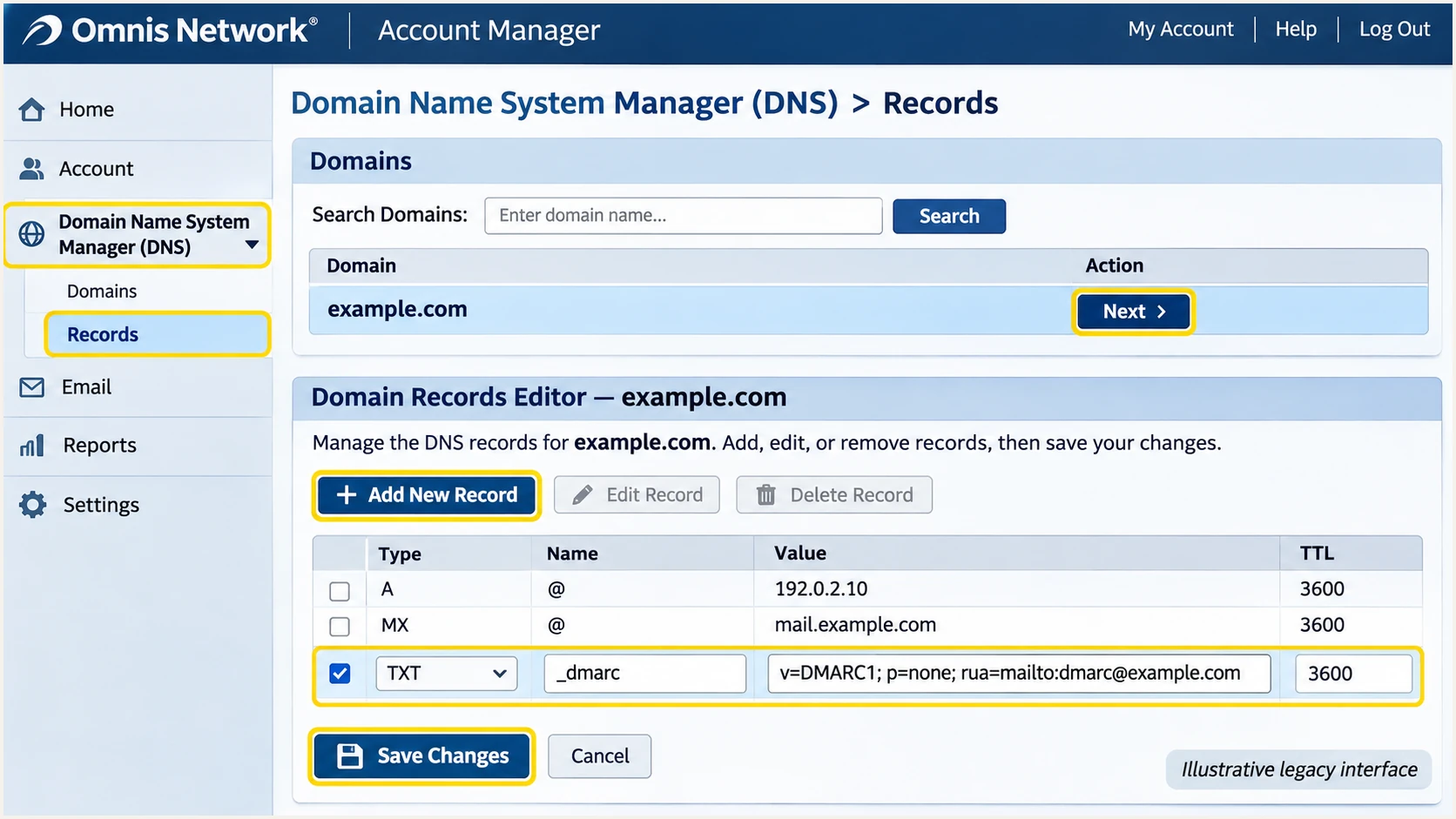
Illustrative legacy Omnis DNS editor showing the DMARC TXT record and Save Changes.
Verify and troubleshoot
I test the exact sending path that matters: a website form, an order confirmation, or a scheduled application message. A successful webmail test does not prove that a separate script uses the same outbound server.
Use the email tester below for a quick diagnosis. It supplies a destination address; send a fresh message there through Omnis, then inspect the received authentication results and any reported errors.
Email tester
Send a real email to this address. Suped shows a results button when the test is ready.
?/43tests passed
The target is spf=pass for the intended MAIL FROM domain, dkim=pass for your signing domain, and dmarc=pass for the visible From domain. Prefer both SPF and DKIM with matching domains, even though one passing method is sufficient for DMARC.
Read Authentication-Results added by the receiving server. In the illustrative headers below, the envelope domain and DKIM signing domain both match the visible sender; these are expected results, not a live test of your account.
Illustrative passing message headerstext
From: Billing <billing@example.com>
Return-Path: <bounce@example.com>
Authentication-Results: receiver.example;
 spf=pass smtp.mailfrom=example.com;
 dkim=pass header.d=example.com;
 dmarc=pass header.from=example.com
- SPF permerror: Remove duplicate SPF records and fix excessive DNS-lookup terms. Preserve all legitimate sending authorizations when merging.
- DKIM missing: Enable signing on the actual outbound server. Check whether the website script bypasses the authenticated SMTP route.
- DMARC failure: Compare the visible From domain with SMTP MAIL FROM and DKIM d=. Two unrelated provider-domain passes still fail your domain's DMARC check.
- DNS mismatch: Check authoritative nameservers, the exact selector, and saved changes. Wait for cached values to expire before retesting with a new message.
- Script rejection: Use an address configured in Omnis Email Accounts. Set the envelope sender explicitly where the application supports it and enable SMTP AUTH when sending through SMTP.
|
|
|---|---|
SPF fail | Check outbound IP |
DKIM fail | Check selector/key |
DMARC fail | Check domain match |
All pass, spam | Check reputation |
If authentication passes but delivery still fails, inspect the SMTP response and sending-IP reputation. A blocklist (blacklist) listing is separate from SPF, DKIM, and DMARC. For a managed outbound IP or its PTR record, ask the host to investigate.
Get alerted when it breaks
I keep receiver reports running after the first successful test. Suped is our DMARC platform, and it turns those reports into source-level authentication results with detected issues and steps to fix them.
- Keep reports flowing: Use the Suped reporting destination assigned to the domain in rua, while preserving any existing destinations you need. A local dmarc mailbox alone does not feed reports into Suped.
- Verify the source: In Suped's Sources view, review the Omnis IPs and authentication results. Mark a source verified only after matching it to a sending system your team recognizes.
- Enable notifications: Turn on Issues detected and Sending sources need verification notifications. Keep DMARC summary emails enabled for ongoing review.
- Investigate changes: Open the affected record's Detail view and compare SPF, DKIM, and DMARC results. Check DNS history when failures begin after a record change or hosting migration.
- Retest the fix: Correct the application or DNS setting, send another email test, and confirm improvement in subsequent receiver reports.
Our DMARC monitoring connects these reports with authentication issue detection. For Omnis hosting, this is useful when a script changes its sender address or a migration changes its outbound servers.
Report-based alert timing
Suped alerts depend on available evidence. Aggregate DMARC reports arrive on receiving providers' schedules, often daily. An alert based on those reports is not an immediate notification for every failed message; use a fresh email test when checking a change now.
Secure your domain with p=reject
I move to p=reject after legitimate sending routes consistently pass DMARC across a complete business sending cycle. Check all senders using the domain, including infrequent application jobs, before enforcing a domain-wide policy.
- Inventory senders: Use Suped's source table to identify legitimate systems and investigate unknown IPs. Do not add every observed IP to SPF; unauthorized senders should continue to fail.
- Resolve failures: Use Suped's issue details to correct the return path or DKIM signing domain. Test automated messages and check forwarded mail where relevant.
- Stage enforcement: If the domain is at p=none, move to p=quarantine after fixing legitimate failures. Review new reports and recipient feedback before changing to p=reject.
- Apply the policy: Edit the existing DMARC record, preserve rua, and set p=reject. If Hosted DMARC is already configured in Suped, manage the policy there instead of adding a competing TXT record.
- Review subdomains: Check subdomain sending and any sp policy or explicit subdomain DMARC records. Keep monitoring after enforcement and after every hosting change.
Suped gives this process a practical review loop: identify the failing source, follow its fix steps, verify fresh reports, and change the policy after legitimate failures are resolved. I use evidence about each sender rather than a fixed waiting period or an overall pass percentage alone.
Keep investigating
Legitimate Omnis messages fail, selectors are missing, or a migration has not been tested. Resolve the sending route before increasing enforcement.
Ready for enforcement
Recognized senders pass DMARC through a matching SPF or DKIM domain, infrequent workflows have been tested, and reporting remains active.
For a domain already at p=reject, keep enforcement while repairing an individual source. The example below keeps the same reporting mailbox; replace the example address with your working destination.
Final DMARC TXT value after verificationtext
v=DMARC1; p=reject; rua=mailto:dmarc@example.com
A reject policy requests rejection of messages that fail DMARC, subject to the receiving server's handling. It does not guarantee inbox placement or prevent impersonation through a different domain.
Frequency asked questions
Use the authorization confirmed for your actual outbound service. If your legacy setup uses include:spf.guardedhost.com, have support confirm it still applies. Migrated hosting and directly sending VPS accounts need their current server values. Merge authorization into one SPF TXT record at the MAIL FROM domain.
For legacy shared hosting, request domain-specific DKIM signing and its DNS record through support. Do not assume a universal selector or toggle. On a migrated account with cPanel, use Email > Email Deliverability > Manage for the domain, then publish the supplied public record in authoritative DNS.
Yes. A valid DKIM signature with a d= domain matching the visible From domain under the configured alignment mode is enough. I still correct the return path where supported, because it gives direct mail another valid authentication path.
Those domain names are clues to investigate Omnis Network infrastructure or its current hosting operator. An rDNS suffix does not identify the individual customer or authorize the sender. I compare the sending IP, trusted Received headers, and authentication domains with the account's actual SMTP route before verifying the source.
Wait until reports cover your normal sending cycle and every legitimate source passes DMARC. Include infrequent scheduled messages and recent hosting migrations. DNS propagation and report delivery are separate delays; a successful DNS lookup alone is insufficient evidence for enforcement.




