How to set up DMARC/DKIM/SPF for Odoo

To authenticate a custom sending domain with Odoo's mail servers, publish SPF with include:_spf.odoo.com, add the DKIM CNAME odoo._domainkey pointing to odoo._domainkey.odoo.com, and publish a DMARC TXT record at _dmarc. Set the domain as your company's Alias Domain in Odoo, then verify a delivered message. External SMTP servers require their own SPF and DKIM records instead.
I check the sending route first. Odoo Online requires DKIM for DMARC on a custom domain, so an SPF pass alone is insufficient. A Return-Path under odoo.com does not match your custom From domain. Keep an existing quarantine or reject policy while fixing Odoo.
Add your domain
Use an Odoo administrator account and access to your domain's authoritative DNS. The menu paths below follow Odoo 19. Prepare the SPF and DKIM records below before switching production sending to your custom domain.
- Select the company: Switch to the company that will send the messages. Open Settings > General Settings and locate Emails > Alias Domain.
- Set the domain: Enter example.com without @ or a website prefix, create or select the alias domain, and save. Repeat for each company using a different domain.
- Inspect the aliases: Activate developer mode in Settings. Open Settings > Technical > Email > Alias Domains. Keep Bounce Alias as bounce, Catchall Alias as catchall, and Default From Alias as notifications unless your routing requires different values.
- Preserve the sender: For Odoo's default mail route, check Settings > Technical > Parameters > System Parameters > mail.default.from_filter. Include your permitted sending domain if necessary. For a custom outgoing server, check that server's FROM Filtering instead.
- Verify with a message: After publishing DNS, send a quotation to a mailbox you control. Confirm that From uses your domain and that the received DKIM signature passes for that domain. Saving Alias Domain alone does not verify authentication.
Odoo Online and Odoo.sh already authenticate their default database.odoo.com addresses. These changes are for your own domain. Odoo's documented custom-domain workflow uses Alias Domain and DNS; it does not require a separate domain-verification token.
Keep bounce and catchall mail reaching Odoo through your existing forwarding or incoming-mail configuration. Changing your website domain does not configure email authentication, and replacing your normal mailbox MX records is unnecessary for this setup.
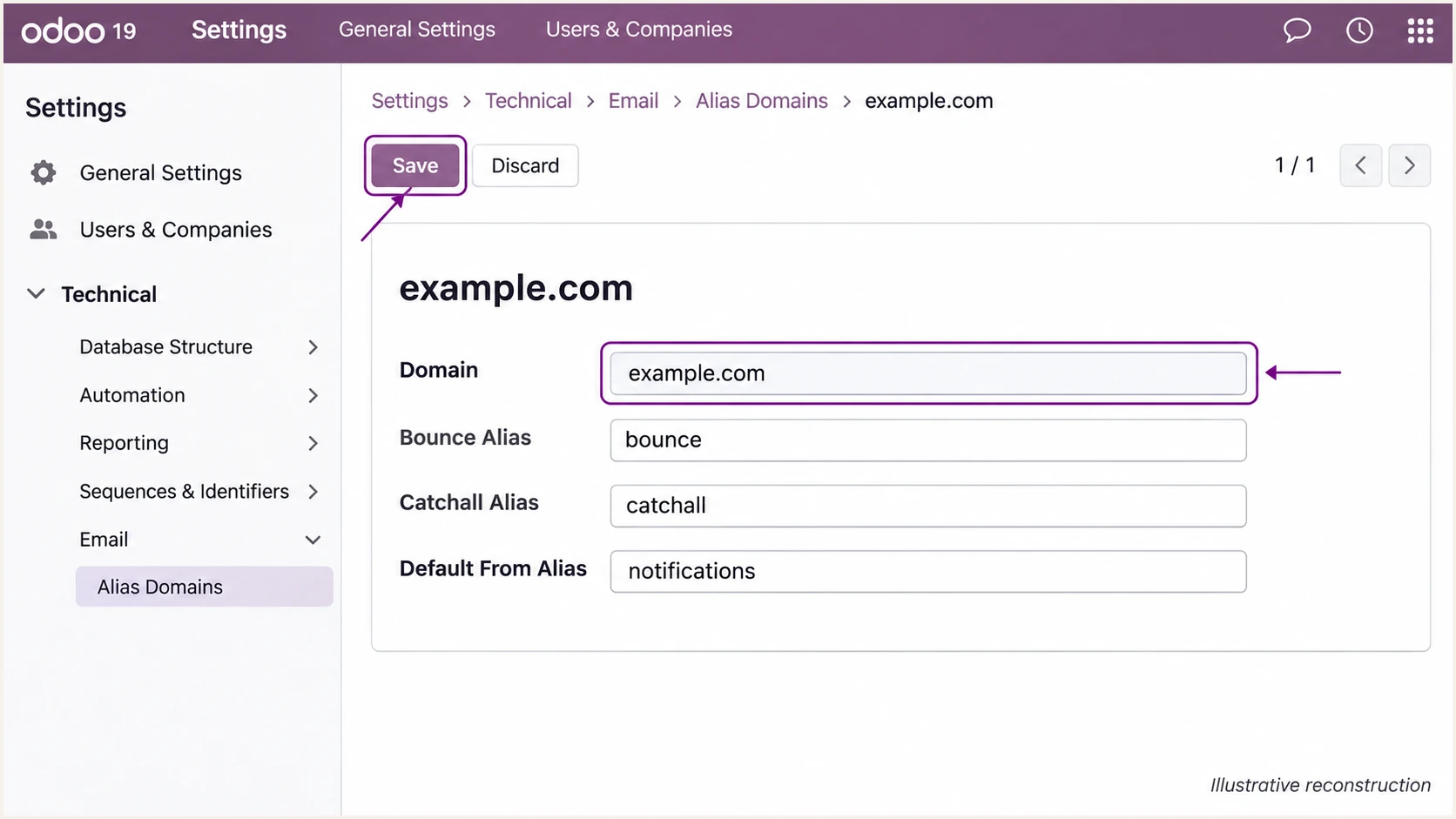
Illustrative Odoo Alias Domains form with the domain and default aliases.
For an external SMTP route, enable Use Custom Email Servers under Settings > General Settings > Emails, save, then open Outgoing Email Servers > New. Enter the provider's connection settings and test the connection. Authenticate the domain with that provider, rather than copying Odoo's DNS records.
Set up SPF
SPF checks the SMTP envelope sender, normally visible in Return-Path, rather than the visible From address. I inspect that domain before editing DNS. Records on example.com do not affect SPF checks performed against database.odoo.com.
- Find the existing record: Open DNS for the actual custom envelope-sender domain. Find the TXT record beginning v=spf1. SPF is not inherited automatically by subdomains.
- Authorize Odoo: When Odoo's servers send with your custom envelope domain, add include:_spf.odoo.com before the existing all mechanism. If Odoo is its only sender and no SPF record exists, use the example below.
- Keep one policy: Edit the existing SPF record instead of adding another. Preserve other authorized senders and the existing terminal policy. Keep the complete evaluation within SPF's 10 DNS-lookup limit.
- Check the route: Odoo Online's Odoo-domain Return-Path does not gain DMARC domain matching from this edit. That SPF edit is unnecessary for DMARC when your domain's DKIM passes. External SMTP requires the relay's documented authorization instead.
SPF example for a domain sending only through Odoodns
example.com. IN TXT "v=spf1 include:_spf.odoo.com ~all"
Odoo's DNS documentation specifies _spf.odoo.com for its own sending servers. Add it only where it applies to your sending route. Authorizing Odoo does not configure a custom Return-Path or change an existing SPF domain.
Check the exact custom envelope domain below. Review duplicate SPF records and lookup errors, then compare the result with a delivered message. A valid DNS record alone does not prove which envelope domain Odoo used.
SPF checker
Find SPF syntax issues, lookup limits, and weak records.
?/16tests passed
If the delivered Return-Path is bounce@database.odoo.com and From is notifications@example.com, SPF can pass while failing DMARC's domain-matching requirement. That outcome is acceptable when DKIM passes with a matching signing domain and DMARC passes.
Odoo.sh or an external SMTP route supports different envelope configurations. Confirm the delivered Return-Path before expecting SPF to satisfy DMARC. Odoo Online's custom-domain DMARC setup should rely on correctly configured DKIM.
Set up DKIM
For Odoo's own mail servers, publish the documented CNAME on the domain used in the visible From address. Odoo manages the signing key; you do not generate or upload a private key for this route.
- Create the CNAME: In the example.com DNS zone, set Type to CNAME, Name to odoo._domainkey, and Target to odoo._domainkey.odoo.com. Use DNS-only resolution if your DNS provider offers HTTP proxying.
- Check the hostname: Confirm the resulting name is odoo._domainkey.example.com. Avoid appending example.com twice. Remove a conflicting record at that exact name before creating the CNAME.
- Test the signature: Send a fresh Odoo message. Inspect DKIM-Signature for s=odoo and a d= domain matching your From domain, then check the receiving server's Authentication-Results for dkim=pass.
- Handle external SMTP: Use the selectors and DNS values issued by the actual SMTP provider. Odoo's CNAME does not enable that provider's DKIM signing.
DKIM CNAME for Odoo's mail serversdns
odoo._domainkey.example.com. IN CNAME odoo._domainkey.odoo.com.
For a sender such as notifications@mail.example.com, publish DKIM under the sending subdomain when that is the signing domain. A record at odoo._domainkey.example.com does not create odoo._domainkey.mail.example.com.
DNS proves that the key is discoverable. A fresh delivered message proves that the sending route used it successfully. A passing signature for odoo.com alone does not satisfy DMARC for example.com.
Odoo Online depends on working DKIM
Odoo's DNS documentation explicitly requires DKIM on the custom sending domain for Odoo Online to pass DMARC. Fix a missing CNAME or incorrect signing domain before enforcing a new DMARC policy. An SPF pass for an Odoo-owned envelope domain cannot substitute for it.
Set up DMARC
Publish DMARC for the domain in the visible From header. Start a new deployment with p=none to collect evidence before enforcement. If the domain already uses p=quarantine or p=reject, keep that policy and preserve its reporting destinations.
- Check the existing policy: Look for the TXT record at _dmarc.example.com. Maintain one DMARC policy at that name. Check a sending subdomain separately because it can have its own policy or inherit its parent domain's policy.
- Publish the initial record: For a domain without DMARC, create the TXT record shown below. Replace example.com with your domain and dmarc@example.com with a working aggregate-report destination you control.
- Keep domain matching relaxed: The default relaxed SPF and DKIM matching is appropriate for this setup. Avoid adding aspf=s or adkim=s without a specific requirement and tests of every sending route.
- Confirm reporting: Verify that the reporting mailbox or processor accepts aggregate reports. If the destination is on another domain, confirm its external reporting authorization is published where required.
Initial DMARC policy for a domain without an existing recorddns
_dmarc.example.com. IN TXT (
  "v=DMARC1; p=none; rua=mailto:dmarc@example.com"
)
The example report address is a placeholder. Replace it with a working mailbox or a reporting processor's assigned destination. Publishing the placeholder unchanged does not deliver reports to your team.
Use the DMARC record generator to prepare the policy, then validate the live DNS record below. DMARC passes when either SPF or DKIM passes with a domain that matches the visible From domain under the policy's matching rules.
DMARC checker
Look up a domain's DMARC record and catch policy issues.
?/7tests passed
A valid policy does not prove that Odoo's messages pass it. Check the receiving server's result on a new message, especially if the From address is set by a template or marketing campaign.
Aggregate reporting is delayed and depends on participating receivers. Reports commonly arrive on a daily cycle, so a test email gives faster confirmation of the current configuration.
Verify and troubleshoot
I verify a real Odoo-generated email before treating DNS setup as complete. Send a quotation or invoice to an external mailbox you control, then open the received message's full headers.
- Test each route: Send a transactional email and, if enabled, an Email Marketing message. They can use different outgoing servers, templates or From addresses.
- Inspect receiver results: Read Authentication-Results added by the receiving mailbox. Confirm dmarc=pass and a passing DKIM signature for your domain. Inspect Return-Path before interpreting SPF.
- Check the queue: With developer mode enabled, open Settings > Technical > Email > Emails. Open failed messages and inspect Failure Reason. Fix sender permissions or SMTP errors before retrying.
- Check DNS directly: Run the queries below. Verify a single SPF policy where needed, the DKIM CNAME target, and a single DMARC policy. After changing DNS, allow the previous TTL to expire and send a new message.
Inspect the published recordsbash
dig +short TXT example.com
dig +short CNAME odoo._domainkey.example.com
dig +short TXT odoo._domainkey.odoo.com
dig +short TXT _dmarc.example.com
A successful outgoing-server Test Connection does not prove DKIM or DMARC success. The received message is the evidence of how the actual sender, relay and DNS configuration work together.
Use the email tester below for the quickest diagnosis: generate the test address, send an actual Odoo email to it, then inspect the authentication results. Sending the test through a different application does not test Odoo's route.
Email tester
Send a real email to this address. Suped shows a results button when the test is ready.
?/43tests passed
If SPF passes but DMARC fails, check whether the envelope domain matches From and whether a matching DKIM signature passed. If DKIM fails, check the selector and DNS name before changing the DMARC policy.
If DMARC passes but delivery still fails, inspect the SMTP rejection and the recipient's filtering result. Authentication does not guarantee inbox placement. A blocklist (blacklist) listing is a separate reputation issue, and it does not change the DNS records required here.
|
|
|
|---|---|---|
SPF mismatch | Odoo envelope | Matching DKIM |
DKIM missing | Wrong DNS name | Selector CNAME |
DKIM fails | Wrong sending route | Signing domain |
DMARC fails | No matching pass | Receiver headers |
SMTP denied | Sender permission | Failure Reason |
Use received headers and the Odoo queue to distinguish DNS errors from sending errors.
The table identifies the next check, rather than proving the cause. Preserve the complete message headers and any SMTP error when escalating an unresolved delivery problem.
The Odoo queue helps with messages that failed before delivery. Confirm authentication at the receiver for messages accepted by the outgoing server, because the queue does not establish a recipient-side DMARC pass.
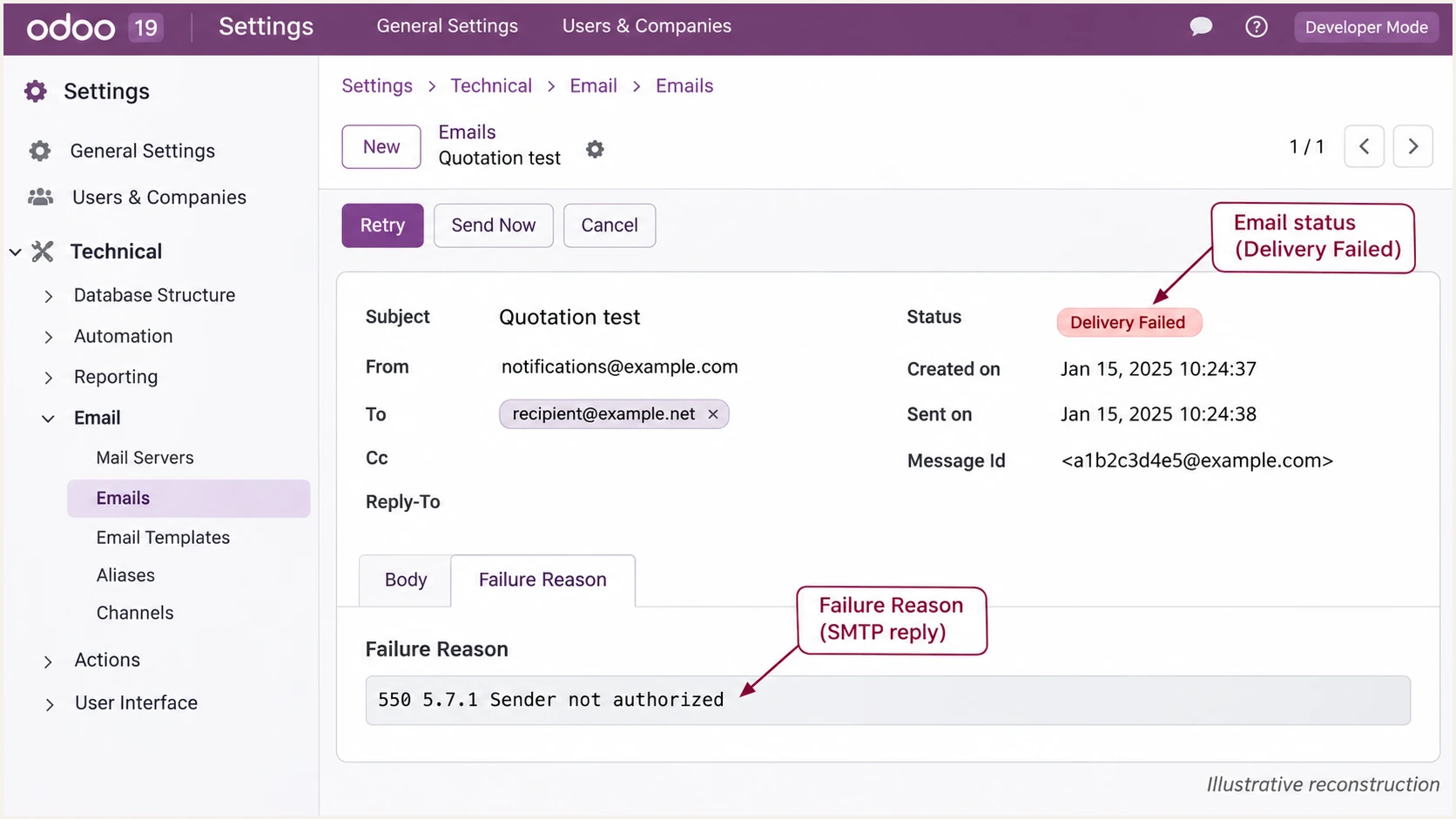
Illustrative Odoo failed-email record showing where to inspect the SMTP error.
Retry after correcting the recorded error, then send a fresh test to confirm the fix. Retest separately after changing the outgoing server or a template's From address.
Get alerted when it breaks
Use Suped's DMARC monitoring to track Odoo authentication after setup. Suped is our platform: it processes aggregate reports, detects authentication issues and provides steps to fix them. Odoo's SMTP connection test does not provide that ongoing receiver-side view.
- Enable notifications: In Suped's Notifications settings, enable Issues detected and Sending sources need verification. Enable DMARC summary emails for routine review.
- Verify the source: Confirm that Odoo is an authorized sender before marking it verified. Investigate unexpected IPs instead of trusting a source name or rDNS suffix alone.
- Investigate failures: Filter Odoo records by source, reporting receiver or sending IP. Open Detail view to compare DKIM's signing domain with From and inspect the SPF envelope domain.
- Confirm the repair: Use DNS history to correlate failures with record changes. Follow the issue's steps to fix, send another Odoo test email, and confirm recovery in subsequent reports.
Aggregate-report alerts are limited by report arrival. An immediate DNS or SMTP change is best checked with a new test email; subsequent reports show whether the fix holds across participating receivers.
Treat expected Odoo Online SPF domain mismatches differently from failing DKIM. When your custom-domain DKIM and DMARC pass, keep monitoring that successful path instead of adding unrelated SPF includes to silence the mismatch.
Prioritize failures that change DMARC results
For Odoo Online, investigate the loss of a matching DKIM pass immediately. In Suped, compare affected records by receiver and sending IP, then verify a fresh Odoo message. A stable DMARC pass with an Odoo-owned envelope domain does not require an SPF workaround.
Secure your domain with p=reject
Move a new monitoring-only policy to enforcement after every legitimate sending route passes DMARC consistently. Include your normal business mail and all services sending as the domain, because the policy applies beyond Odoo.
- Cover a full sending cycle: Review enough reports to capture infrequent messages, including month-end invoices. Classify each sender and resolve failures on legitimate mail before changing policy.
- Validate Odoo DKIM: Check each company domain and each outgoing route. Odoo Online can pass DMARC through DKIM while SPF uses an Odoo-owned envelope domain; a matching SPF pass is not a prerequisite for enforcement.
- Stage enforcement: Change p=none to p=quarantine, review legitimate mail for disruption, then change to p=reject. Keep the reporting destination. A percentage rollout is not a substitute for verifying your senders.
- Keep existing protection: If quarantine or reject is already active, repair Odoo without lowering it. Review any sp setting and explicit subdomain policies before assuming every subdomain has the same protection.
Suped's source verification and record-level diagnostics provide the evidence for each policy change. Check the legitimate Odoo source separately from unauthorized traffic; a combined pass rate can hide a broken invoicing route.
Our Hosted DMARC supports managing the policy in Suped after its DNS delegation is configured. Use the reporting evidence to stage quarantine and reject, then continue watching Odoo's matching DKIM results after enforcement.
Ready for enforcement
Odoo-generated messages pass DMARC for each sending domain. Other legitimate sources are verified, and infrequent workflows have been tested.
Resolve before advancing
Legitimate messages have no matching authentication pass, an outgoing route is untested, or expected senders remain unidentified in the reports.
The final example below requests rejection of mail that fails DMARC. Replace the placeholder report mailbox with your actual destination and preserve any other intentional policy tags.
A reject policy still allows Odoo mail that passes through matching DKIM. It does not guarantee delivery, and receiving servers retain control of their final handling decision.
Final policy after legitimate senders are verifieddns
_dmarc.example.com. IN TXT (
  "v=DMARC1; p=reject; rua=mailto:dmarc@example.com"
)
After publishing reject, send a fresh Odoo quotation and invoice to controlled recipients. Confirm the received DMARC result and watch subsequent aggregate reports for newly failing legitimate traffic.
Keep notifications enabled when adding a company domain or changing the SMTP route. Those changes require another message-level test even when the existing DMARC record stays the same.
Frequency asked questions
_spf.odoo.com is Odoo's documented SPF include for its own sending servers. Add it only when that route sends using your custom envelope domain. An external SMTP server needs its own documented SPF authorization. An include found in a nested SPF lookup is not automatically a record you should add.
Treat it as an identification clue, rather than proof that the message is authorized. Check the sending IP, its PTR and forward DNS, the received headers, and authentication results together. External SMTP routes use the relay's infrastructure, so Odoo-generated messages do not all have one universal rDNS suffix.
SPF can authenticate an envelope domain under odoo.com while the visible From uses your business domain. Those domains do not match for DMARC. Adding _spf.odoo.com to your business domain does not rewrite the envelope domain. A matching DKIM pass lets the message pass DMARC despite that SPF mismatch.
Odoo's documented shared-mail-server setup uses selector odoo and a CNAME to odoo._domainkey.odoo.com on each custom signing domain. An external SMTP provider can issue different selectors. Use the selector actually present in the delivered message's DKIM-Signature header.
You do not need to replace your domain's mailbox MX records or add an external outgoing server to authenticate Odoo's default sending service. Keep reply and bounce routing working separately. Create an outgoing server only when you intentionally use an external SMTP route.
Yes. Configure DKIM for your custom From domain and verify that delivered Odoo messages pass DMARC through that signature. Check every other legitimate sender before moving a new policy to reject. Keep an existing reject policy while correcting Odoo's configuration.