
How to set up DMARC/DKIM/SPF for Oderland

Published 22 Nov 2026
Updated 22 Nov 2026
11 min read
Summarize with
For Oderland's cPanel email hosting, authorize its sending servers in one SPF TXT record, publish the domain's cPanel-generated DKIM public key, and add a DMARC TXT record at _dmarc.yourdomain. Start a new DMARC setup with p=none, then verify a real outgoing message before enforcing rejection.
I check the public DNS and the received message separately. A green cPanel status checks records; DMARC also requires a passing SPF or DKIM result whose domain matches the visible From domain under the configured alignment mode.
Add your domain
I first confirm the domain is attached to the correct Oderland hosting account. Adding it in cPanel is separate from registering it.
- Open cPanel: In the Oderland Client Area, select Services > Shared Hosting, then click cPanel beside the correct account.
- Add the domain: Open Domains > Create A New Domain. Enter your bare domain, such as example.com, and click Submit. Skip this if it is already listed.
- Find DNS authority: Check the public NS records. If another provider hosts DNS, publish the authentication records there, even though Oderland sends the email.
- Confirm readiness: Find the domain under Email > Email Deliverability and click Manage. After publishing the records below, verify their public TXT answers and send a test message.
Oderland documents this domain-creation workflow in its public support instructions. The cPanel domain list confirms the hosting configuration.
Standard cPanel hosting has no separate sender-domain verification token in this workflow. Public DNS results confirm publication at the authoritative provider.
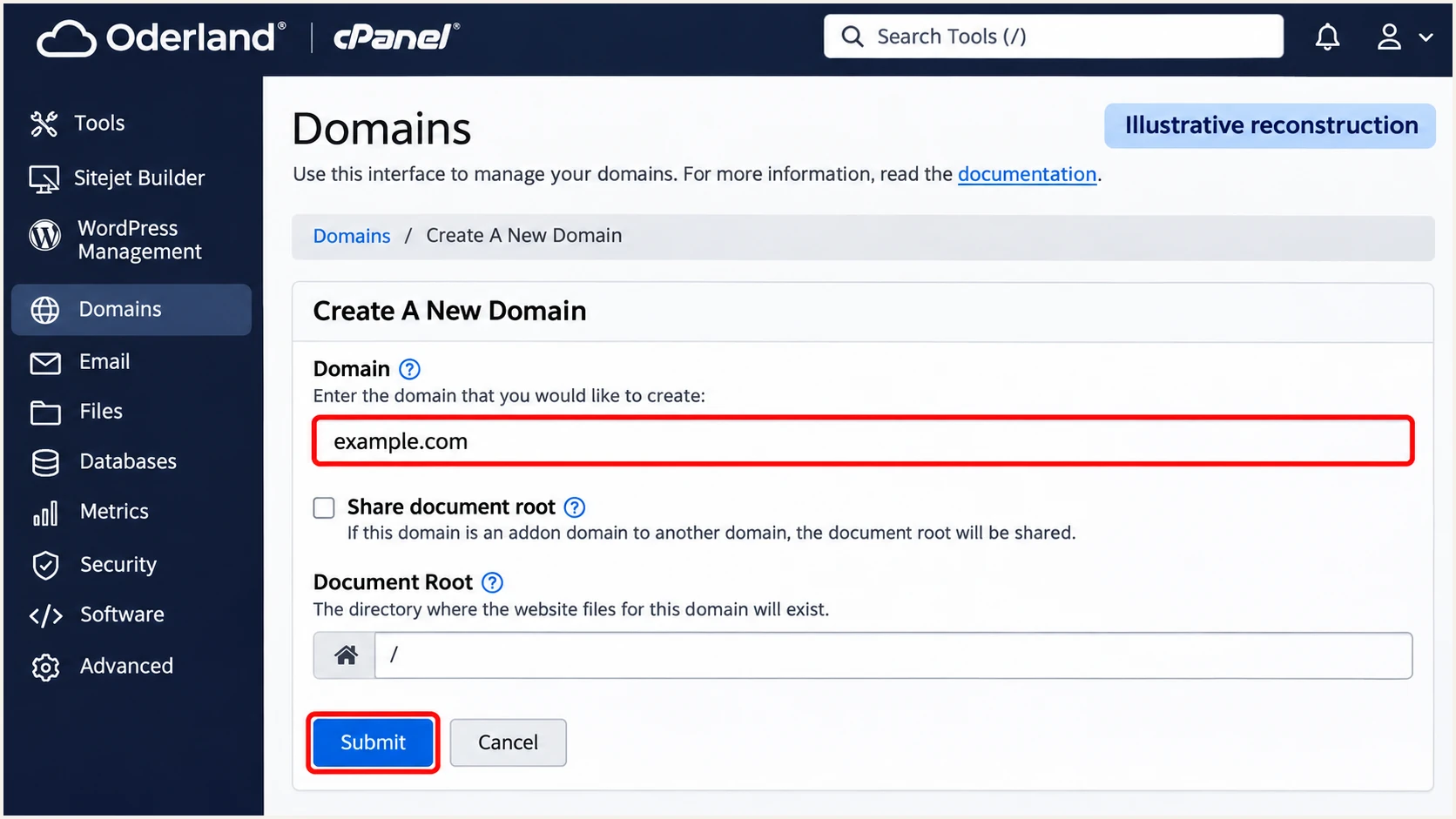
Illustrative Oderland cPanel form for adding a domain to the hosting account.
Check nameservers with the command below before deciding where to edit TXT records. Domain registration at Oderland alone does not identify the DNS host.
If the answers belong to another provider, changes to a local cPanel zone alone will not publish your authentication records.
Find the authoritative DNS providerbash
dig +short NS example.com
Oderland's Postal service has a different onboarding flow: select your mail server, open Domains > Add new domain, select DNS verification, then click Create Domain.
For Postal, publish its verification TXT record, click Verify TXT record, and use its generated SPF, DKIM, and Return Path records. The cPanel SPF example below applies to standard hosting.
Set up SPF
I edit the existing SPF policy instead of adding another one. Oderland's standard hosting instructions specify the hosting server's IPv4 address plus include:_vsp.oderland.com.
- Inspect SPF: Open Email Deliverability > Manage for the domain. Under SPF, compare the current and suggested records, then open Customize or Edit.
- Authorize Oderland: Keep the account server IP shown by cPanel and add _vsp.oderland.com to the include list if it is missing. Do not substitute the website IP without checking.
- Preserve senders: Merge these mechanisms into the single existing v=spf1 TXT record. Retain other legitimate senders. Keep DNS-triggering terms, including recursively evaluated includes, within the SPF limit of 10.
- Publish once: Save the customized policy if cPanel controls DNS. Otherwise, edit the existing TXT record at the authoritative DNS provider.
This example uses 192.0.2.10, a documentation-only address. Replace it with the actual hosting server IP and retain your other authorized mechanisms.
Use the bare domain as the record name in cPanel, rather than @. The example uses ~all while auditing; preserve an existing -all policy.
Example SPF TXT record for standard hostingtext
Name: example.com
Type: TXT
Value: v=spf1 ip4:192.0.2.10 include:_vsp.oderland.com ~all
Run the SPF check against the domain used by the SMTP envelope sender. Inspect Return-Path on a delivered message to identify it.
The checker validates the published policy and lookup budget. It does not prove that your application uses the expected envelope sender.
SPF checker
Find SPF syntax issues, lookup limits, and weak records.
?/16tests passed
Oderland supports SPF alignment when the envelope sender uses your sending domain. Configure the actual SMTP envelope sender, rather than adding a Return-Path header yourself.
If the message uses an unrelated envelope domain, an SPF pass alone will not satisfy DMARC. A passing DKIM signature with the required domain match still satisfies DMARC.
Set up DKIM
I use the DKIM key generated for the domain on the sending server. An unrelated key published in DNS cannot validate its signatures.
- Inspect DKIM: Open Email Deliverability > Manage and locate DKIM. If no local key exists, use Generate Local DKIM Key when available.
- Copy public data: Copy the suggested TXT Name and Value. Use the displayed selector; default is common, but do not assume it.
- Publish the key: If Oderland controls DNS, review the DKIM repair before applying it. With external DNS, create the suggested TXT record there.
- Verify signing: Send through the Oderland mailbox or authenticated SMTP connection. Check dkim=pass and the signature domain against the visible From domain.
Oderland normally handles DKIM automatically when both email and DNS are hosted there. External DNS requires publishing the public key yourself.
Copy the complete public value. For long TXT values, use the supported split-string format within one DNS record; never publish the private key.
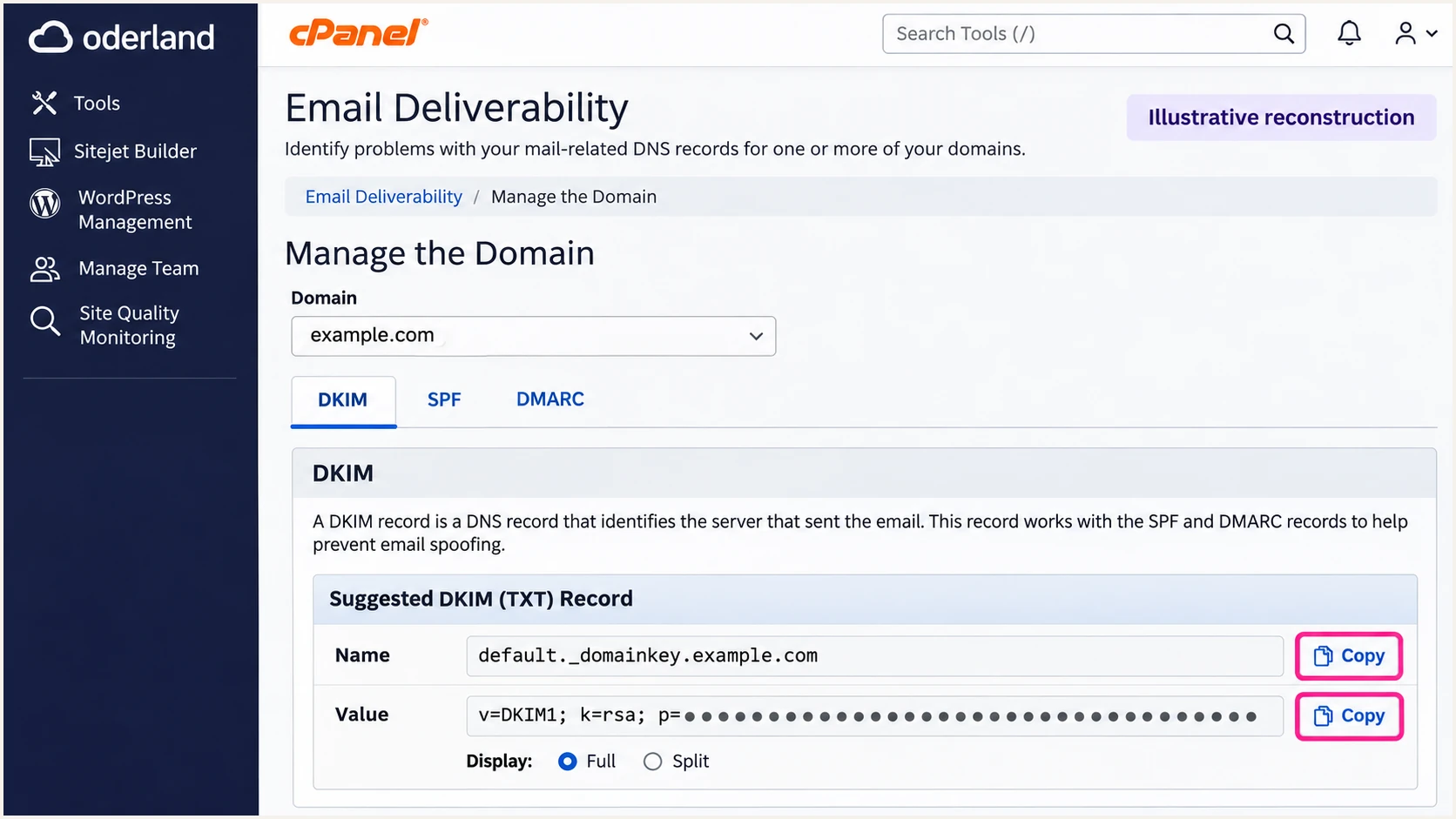
Illustrative Oderland cPanel view for copying the DKIM public record.
The selector belongs in the DNS record name. In a delivered DKIM-Signature header, s= identifies that selector and d= identifies the signing domain.
Test website-generated mail separately. If it lacks the expected signature, route it through authenticated Oderland SMTP and retest that application.
Set up DMARC
I start a new deployment in monitoring mode so reports expose legitimate sending paths before enforcement. Keep an existing quarantine or reject policy.
- Inspect the policy: Look up _dmarc.example.com first. Edit an existing DMARC record instead of creating a second one at the same name.
- Open the zone: In cPanel, open Domains > Zone Editor > Manage for the domain. Add a TXT record, or use the authoritative DNS provider if DNS is external.
- Enter the record: Use _dmarc.example.com as the name and the monitoring value below for a new deployment. Keep the current TTL, or use 7200 seconds for a new record.
- Route reports: Replace dmarc@example.com with a working mailbox or your assigned aggregate-report address, then save. Complete external reporting authorization if the destination uses another domain.
The exact starting value is shown below. example.com is illustrative; the reporting mailbox must belong to a destination you control.
Starting DMARC TXT recordtext
Name: _dmarc.example.com
Type: TXT
Value: v=DMARC1; p=none; rua=mailto:dmarc@example.com
In cPanel, enter the complete DNS name. At a provider that appends the domain automatically, enter only _dmarc.
The record belongs to the visible From domain or its applicable parent policy. It is separate from the SPF TXT record.
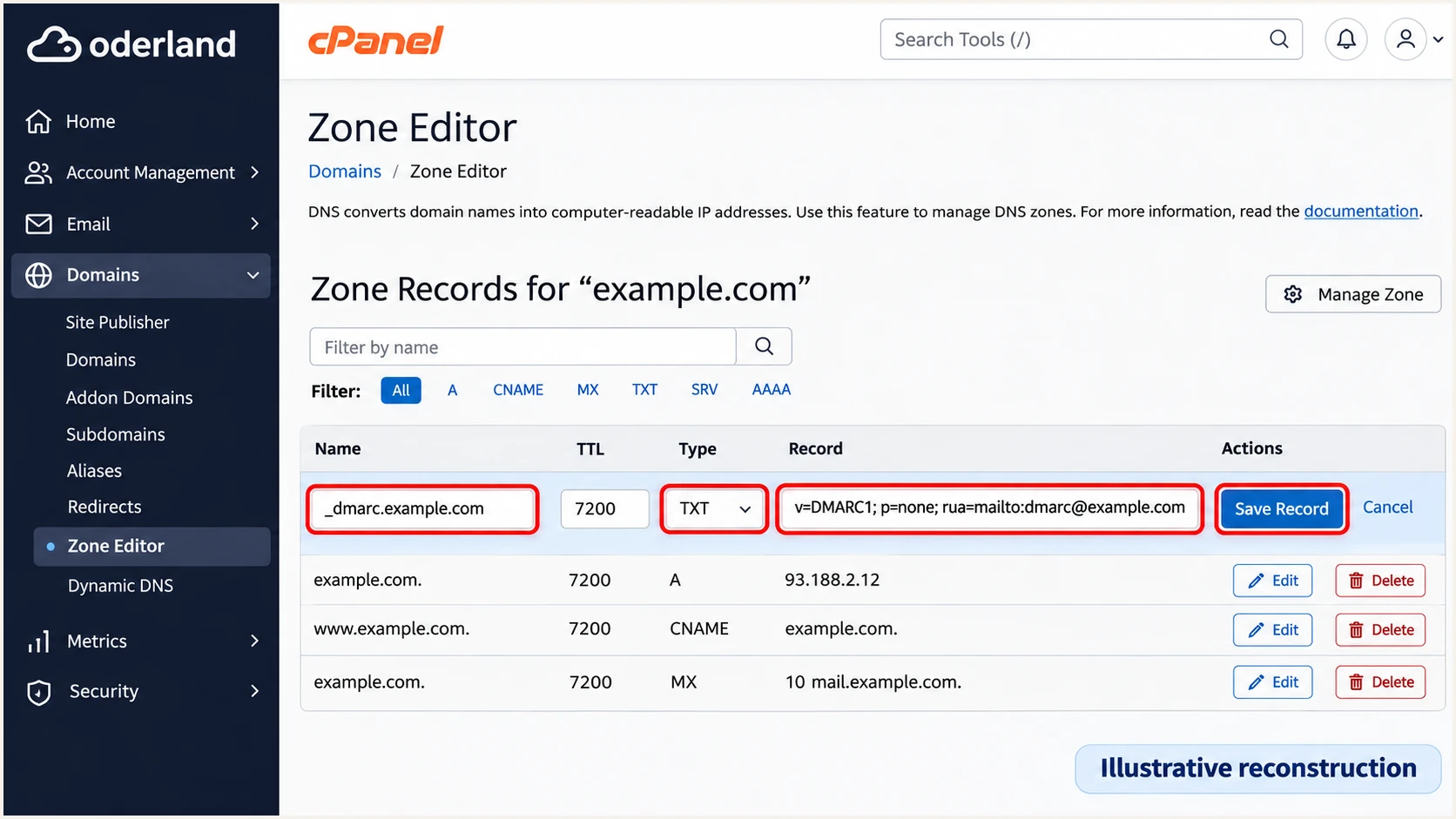
Illustrative Oderland cPanel Zone Editor entry for the DMARC TXT record.
Check the public record after saving. Confirm a single DMARC policy, the intended reporting address, and correct syntax.
A new policy should show p=none. An established quarantine or reject deployment should still show its existing enforcement level.
DMARC checker
Look up a domain's DMARC record and catch policy issues.
?/7tests passed
A valid record does not establish whether an outgoing email passes DMARC. Run the message test below after the DNS change is visible.
Aggregate reports commonly arrive daily. An empty reporting view immediately after publication does not establish a configuration failure.
Verify and troubleshoot
I test the actual sending path, including website forms and scheduled email. Mailbox email and application email can use different envelope senders.
- Check DNS: Run the queries below. Replace default with the selector from cPanel or the received DKIM-Signature header.
- Send a test: Use the email tester below and send a fresh message to its generated test address through your Oderland sending path.
- Inspect results: Check SPF authorization, the DKIM signature, and DMARC. Read the authenticated domains as well as the pass/fail labels.
- Fix the cause: Correct duplicate policies, wrong DNS names, incomplete public keys, or the SMTP envelope sender. Wait for the previous DNS TTL to expire, then retest.
Use the DNS answers to confirm publication. For a delegated subdomain, inspect its authoritative zone rather than assuming the parent zone controls it.
TXT output split into adjacent quoted strings can be one logical record. Two separate SPF policies at one name are an error.
Read the published authentication recordsbash
dig +short TXT example.com
dig +short TXT default._domainkey.example.com
dig +short TXT _dmarc.example.com
The email tester is the quickest message-level check: send it an email and inspect the resulting authentication diagnosis.
Use the same sender address and application settings as production. Repeat the test for each distinct path, rather than relying on one webmail message.
Email tester
Send a real email to this address. Suped shows a results button when the test is ready.
?/43tests passed
Look at the receiving server's Authentication-Results header. A passing DKIM signature must have the required domain match to count toward DMARC.
Under relaxed alignment, a subdomain and its organizational domain match. Strict alignment requires the exact domain; the mailbox portion is irrelevant.
|
|
|
|---|---|---|
SPF | Pass | Envelope domain |
DKIM | Pass | Signing domain |
DMARC | Pass | From domain |
rDNS | Resolves | Sending IP |
Expected results for a direct Oderland message.
DMARC needs one passing authentication method with the required domain match. An SPF alignment error does not cause DMARC failure when suitable DKIM passes.
Forwarding often breaks SPF. Retaining a valid DKIM signature helps preserve DMARC authentication through that path.
SPF passes, DMARC fails
SPF passes for an unrelated envelope domain, and no passing DKIM signature matches the From domain. Fix the envelope sender or DKIM configuration.
DKIM passes, DMARC passes
DKIM passes with the required From-domain match. DMARC passes even when SPF fails or its authenticated domain does not match.
Get alerted when it breaks
Our DMARC platform, Suped, uses aggregate reports to detect authentication issues after setup. I treat report-based monitoring as an ongoing check on actual sending traffic.
- Enable issue alerts: In Suped notification settings, enable Issues detected so authentication problems trigger a notification.
- Review new sources: Enable Sending sources need verification. Confirm new sending services against your inventory before marking them verified.
- Investigate failures: Open the affected source and inspect SPF, DKIM, and DMARC details. Compare DNS history when failures begin after a record change.
- Confirm the repair: Follow the issue-specific fix steps, retest the Oderland sending path, and check subsequent reports for recovery.
Suped combines the source view with actionable issue details, so a new sender or broken key has a specific investigation path.
Our DMARC monitoring follows receiver report delivery. It is not a live feed of every message; use a fresh email test for immediate verification.
Reports and test messages answer different questions
Keep DMARC summary emails enabled for periodic review. Use issue notifications for detected problems and message tests after configuration changes.
Secure your domain with p=reject
I move to enforcement only after legitimate sending paths pass DMARC across a complete sending cycle, including infrequent jobs.
- Review every sender: Use Suped source data to identify Oderland traffic and other authorized senders. Investigate failures separately from unauthorized traffic.
- Fix domain matching: Confirm passing DKIM with the required From-domain match. For direct Oderland mail, also correct SPF authorization and the envelope sender where needed.
- Stage enforcement: Change p=none to p=quarantine, retain reporting, and review legitimate traffic. Move to p=reject after the remaining legitimate failures are fixed.
- Check subdomains: Review subdomain senders and any separate DMARC records. Without an explicit sp= tag, the parent policy can apply to subdomains that inherit it.
- Keep monitoring: Use Suped alerts and reports after each change. With our Hosted DMARC, manage policy staging through the dashboard once its DNS delegation is configured.
If the policy remains in DNS, edit the existing _dmarc TXT value in the authoritative zone. Keep the reporting destination during enforcement.
The example below retains the same illustrative address. Substitute the real reporting destination already receiving your reports.
DMARC TXT value after successful enforcement testingtext
v=DMARC1; p=reject; rua=mailto:dmarc@example.com
Do not use an overall pass percentage as the only readiness test. Identify the failing messages and confirm whether any are legitimate.
Maintain the Oderland DKIM configuration during enforcement. SPF changes alone will not repair an unrelated envelope domain.
Preserve existing enforcement
If your domain already uses p=quarantine or p=reject, keep that policy while configuring Oderland. Repair the sending path before expanding its production use.
Before editing the policy, record its current value and TTL. This gives the next administrator a clear reference for the change.
After saving p=reject, query the public _dmarc record again and run a fresh test through each production sending path.
Frequency asked questions
For standard cPanel hosting, Oderland specifies include:_vsp.oderland.com together with the hosting server IPv4 address. Merge these into one existing SPF policy. Postal has service-specific records shown in its own interface.
No. Copy the public authentication records from cPanel and publish them at your authoritative DNS provider. A local cPanel repair alone cannot update DNS hosted elsewhere.
SPF authenticates the SMTP envelope domain. If that domain does not match the visible From domain under the configured alignment mode, it does not satisfy DMARC. A passing DKIM signature with the required domain match is sufficient.
An rDNS hostname ending in .oderland.com points to Oderland-named infrastructure. Treat the suffix as a clue, then verify the sending IP, network ownership, and message authentication. Shared infrastructure does not identify the customer or establish that a message is authorized.
Select the Postal mail server, open Domains > Add new domain, choose DNS verification, and click Create Domain. Publish the requested TXT record and click Verify TXT record. Add the displayed SPF, DKIM, and Return Path records, then click Check my records are correct.
No. It requests rejection of messages that fail DMARC. Passing email still faces recipient filtering and reputation checks. Verify authentication with a real message and keep monitoring your legitimate sending paths.