
How to set up DMARC/DKIM/SPF for OCLC

For OCLC-hosted ILLiad, authorize include:illiad.oclc.org in SPF, publish the illiad1 DKIM CNAME, and ask OCLC Support to enable signing for your domain. For current OCLC Wise deployments, publish the generated DKIM TXT record and custom Return-Path CNAME supplied through Wise. Publish DMARC at _dmarc on your library's sending domain, then verify a message sent by the actual OCLC service.
I identify the sending service before changing DNS because OCLC does not have one authentication record for every product. DMARC passes when SPF or DKIM passes with a domain that matches the visible From domain under the applicable DMARC matching rules.
Add your domain
OCLC-hosted ILLiad uses support-assisted DKIM activation. Wise has a domain registration and DNS verification workflow. Use the domain in the actual From address, such as example.com for circulation@example.com, and arrange access to its public DNS.
- Identify the route: Confirm whether messages leave through OCLC-hosted ILLiad, Wise, or your institution's SMTP relay. If ILLiad uses your own relay, configure authentication on that relay rather than adding OCLC's hosted-mail records.
- Register ILLiad: Give OCLC Support your sending domain and request DKIM signing. In ILLiad Customization Manager, search EMailFromAddress, DocDelEmailFromAddress, and LendingEMailFromAddress. Check that each uses an address on a domain you control.
- Register Wise: Wise 8.0.2 introduced the newer mail service. Contact OCLC Support before configuring it. In Wise Manager, open systemWise > Messages and the email domain configuration screen identified by Support. Click New, enter the domain, then OK. Click Report to retrieve its generated DNS data.
- Verify Wise: Publish the generated records in public DNS and check the domain's progression through new, created, and active. Wait for active before using a new sender domain. Complete SPF and DKIM below to verify actual delivery.
- Set the Wise sender: After verification, open OCLC Wise > Management organizations > Branches in the configuration manager. Open the library system, select Detail beside the branch, choose Change, then OK. Update Email address general on Address details and click OK to save.
For ILLiad, also check EmailRouting overrides and LocalInfo when the delivered From address differs from the main setting. I check each notification type because borrowing and document delivery can use different sender addresses.
The illustration below shows the ILLiad sender setting. DNS records and OCLC's signing activation are separate steps; saving an address alone does not authenticate it.
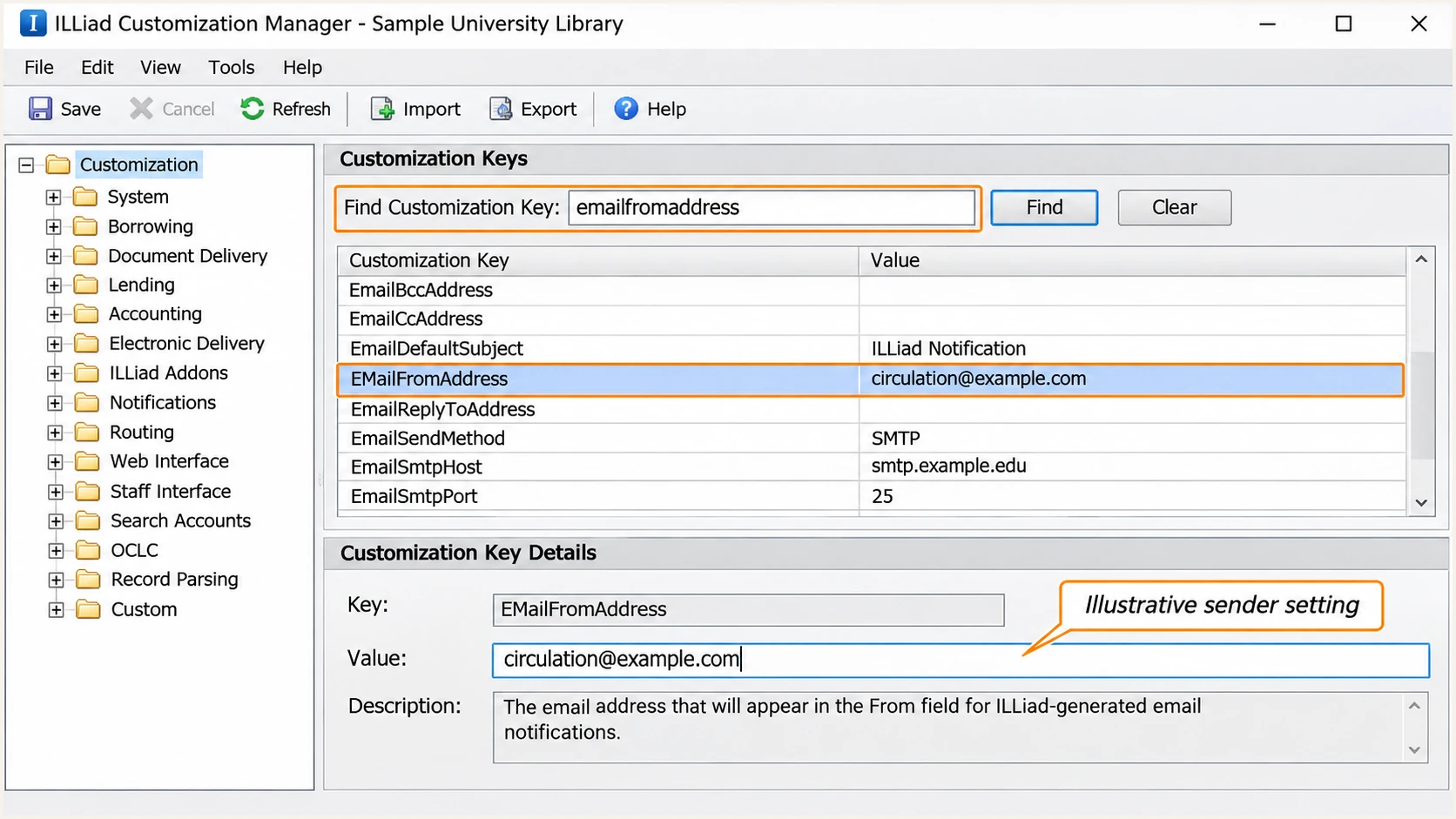
Illustrative ILLiad Customization Manager view of the EMailFromAddress setting.
For WorldShare ILL, Tipasa, and other OCLC services, ask OCLC Support for the authentication options for that service and sender domain. The ILLiad selector and Wise DNS records below apply only to those named services.
If a message's From domain belongs to OCLC, OCLC manages that domain's authentication. Receiving OCLC messages at your library does not require adding OCLC to your own SPF record.
Set up SPF
I check the delivery route and Return-Path before editing SPF. OCLC's ILLiad SPF support article specifies illiad.oclc.org, while the older Wise mailer uses oclcspf3.oclc.org. Current Wise uses a generated custom Return-Path CNAME instead of requiring another include in the root SPF record.
|
|
|
|---|---|---|
Hosted ILLiad | Merge OCLC include | OCLC guidance |
Current Wise | Return-Path CNAME | Wise domain report |
Legacy Wise | Merge Wise include | Legacy guidance |
Institutional relay | Relay authorization | Mail administrator |
Choose the route actually sending your messages.
- Hosted ILLiad: At the domain used for your envelope sender, merge include:illiad.oclc.org into the existing SPF TXT value before its final all mechanism. Retain every other authorized sender and the existing ending.
- Current Wise: Copy the Return-Path CNAME hostname and destination from your Wise domain report into public DNS. SPF is handled through that delegation. Do not add an SPF TXT record at the same hostname as the CNAME.
- Legacy Wise only: If OCLC confirms the older mailer is still active, its documented authorization is include:oclcspf3.oclc.org. Keep legacy records during migration until OCLC confirms removal.
- Validate SPF: Keep one SPF record per hostname and stay within the 10 DNS lookup limit, including nested includes. Prefer OCLC's maintained include over copying a list of current IP addresses.
ILLiad-only SPF example: TXT value at example.comtext
v=spf1 include:illiad.oclc.org ~all
That example is for a domain whose only sender is OCLC-hosted ILLiad. For an existing domain, merge the include into its current record. Replacing the entire record would remove authorization for your other mail.
Enter the actual SPF hostname below to check syntax and lookup usage. For a custom Return-Path, check that hostname as well as the domain used by your normal mail system.
SPF checker
Find SPF syntax issues, lookup limits, and weak records.
?/16tests passed
A valid SPF record does not prove that SPF counts toward DMARC. The authenticated envelope domain must also match the visible From domain, normally allowing subdomains of the same organizational domain under relaxed matching.
Legacy Wise documents an envelope sender under wise-emea.oclc.org. With a library From domain, that path does not provide matching SPF for DMARC. A passing DKIM signature for the library domain is sufficient for DMARC; adding an include to the library domain cannot change the envelope sender.
Set up DKIM
I verify both the public key lookup and OCLC's signing configuration. DNS publication alone does not cause the sending service to sign mail with your domain.
- Publish ILLiad: Create the CNAME below for each ILLiad From domain, replacing example.com with your actual domain. Use DNS-only resolution if your DNS provider offers proxying.
- Activate ILLiad: Ask OCLC Support to confirm DKIM signing is enabled for that domain. Reopen the ILLiad client and send a new notification after activation.
- Publish current Wise: Copy the exact DKIM TXT hostname and complete public-key value from the Wise domain report. The selector and key are generated for your domain; do not substitute the fixed legacy selectors.
- Check the signature: On a delivered message, inspect DKIM-Signature. Its d= domain must match your From domain under your DMARC settings, and the receiving server must report dkim=pass.
OCLC-hosted ILLiad DKIM CNAMEtext
illiad1._domainkey.example.com. 300 IN CNAME illiad1.illiad.oclc.org.
OCLC's older Wise configuration instructions specify the four CNAME records below. Use them only for a confirmed legacy mailer, and notify OCLC after publication so signing can be enabled.
Legacy Wise DKIM CNAMEs onlytext
wise1._domainkey.example.com. 300 IN CNAME dkim1.wise.oclc.org.
wise2._domainkey.example.com. 300 IN CNAME dkim2.wise.oclc.org.
wise3._domainkey.example.com. 300 IN CNAME dkim3.wise.oclc.org.
wise4._domainkey.example.com. 300 IN CNAME dkim4.wise.oclc.org.
Keep the key owner name separate from the TXT value. When the DNS editor appends your domain automatically, enter only the relative owner name. Preserve the complete generated key, and do not publish a TXT record alongside a CNAME at the same name.
Keep records through the migration
Retain legacy Wise DKIM records until OCLC confirms they are no longer needed. An active domain status is useful confirmation, but a fresh message with a passing signature for your domain is the final signing check.
Set up DMARC
I publish DMARC in the library's public DNS, at _dmarc.example.com for mail using example.com in From. DMARC is a domain policy shared by all its senders, including senders outside OCLC.
For a domain without an existing enforcement policy, start with the monitoring record below. The DMARC record generator can build the value. Replace dmarc@example.com with a reporting mailbox you control before publication.
Monitoring policy: TXT value at _dmarc.example.comtext
v=DMARC1; p=none; rua=mailto:dmarc@example.com
- Keep enforcement: If the domain already uses p=quarantine or p=reject, retain that policy and repair OCLC authentication. Do not weaken an existing policy just to follow this example.
- Use one record: Edit the existing DMARC TXT record at the applicable hostname rather than publishing a second one. Preserve intentional settings and existing report destinations.
- Check report delivery: Use a mailbox or reporting destination that accepts aggregate XML reports. An external reporting destination requires the appropriate external-report authorization.
- Check the From domain: For a subdomain sender, check for its own DMARC record and any inherited parent policy. Changing Reply-To does not change the domain DMARC evaluates.
Enter your real From domain below to check the published DMARC policy and reporting configuration. The tool checks DNS; it does not send an OCLC notification or verify that OCLC has enabled signing.
A p=none policy requests reports without requesting quarantine or rejection for DMARC failure. Receiving systems still apply their own spam and delivery policies.
DMARC checker
Look up a domain's DMARC record and catch policy issues.
?/7tests passed
After publication, send new messages through each active OCLC workflow. A single successful message does not test every sender address or notification path used by the library.
Keep the report destination active while testing. Aggregate reports show authentication results across participating receivers, including activity that a one-message test misses.
Verify and troubleshoot
The quickest message-level check is the email tester. It gives you a destination address, accepts a test message, and diagnoses the received authentication results.
I trigger the test inside the OCLC service, using a test patron or another authorized recipient workflow. Send directly to the tester address. Forwarding a message adds another delivery path and changes the evidence.
Email tester
Send a real email to this address. Suped shows a results button when the test is ready.
?/43tests passed
Read the receiver's Authentication-Results together with From, Return-Path, and DKIM-Signature. For the ILLiad example, the expected selector is illiad1, and a passing signature must use your library's domain.
The two outcomes below explain why an SPF pass alone does not establish DMARC success. Both examples assume the visible From address uses example.com.
SPF pass without matching domains
SPF passes for an OCLC-owned envelope domain. There is no passing DKIM signature for example.com. DMARC fails because neither authentication method passes with a matching domain.
DKIM pass with matching domains
DKIM passes with d=example.com. DMARC passes even if SPF does not provide matching domains. This is an acceptable result for a sending path that cannot customize its Return-Path.
- Check public DNS: Query the exact owner names shown below. Confirm that a CNAME target resolves to its key and that DNS editors have not appended the domain twice.
- Check Wise readiness: Open the domain configuration screen and inspect the active state and DKIM and Return-Path readiness. Allow for DNS caching and the service's periodic rechecks.
- Check ILLiad activation: If the key resolves but no library-domain signature appears, ask OCLC Support to verify signing. After sender-setting changes, have the administrator restart ILLiad System Manager; OCLC handles this for hosted sites.
- Retest every route: Test borrowing and document delivery separately, along with other enabled notification paths. Give OCLC Support the complete headers, sending time, and affected workflow when a failure persists.
Public DNS checks for the ILLiad examplebash
dig +short TXT example.com
dig +short CNAME illiad1._domainkey.example.com
dig +short TXT illiad1.illiad.oclc.org
dig +short TXT _dmarc.example.com
In Wise, verification is complete when the domain is active and a newly delivered message confirms matching authentication. New and created are intermediate states, not proof that sending is ready.
The illustration below shows where to inspect Wise's domain readiness. Use the values generated for your own domain; the sample domain is only an illustration.
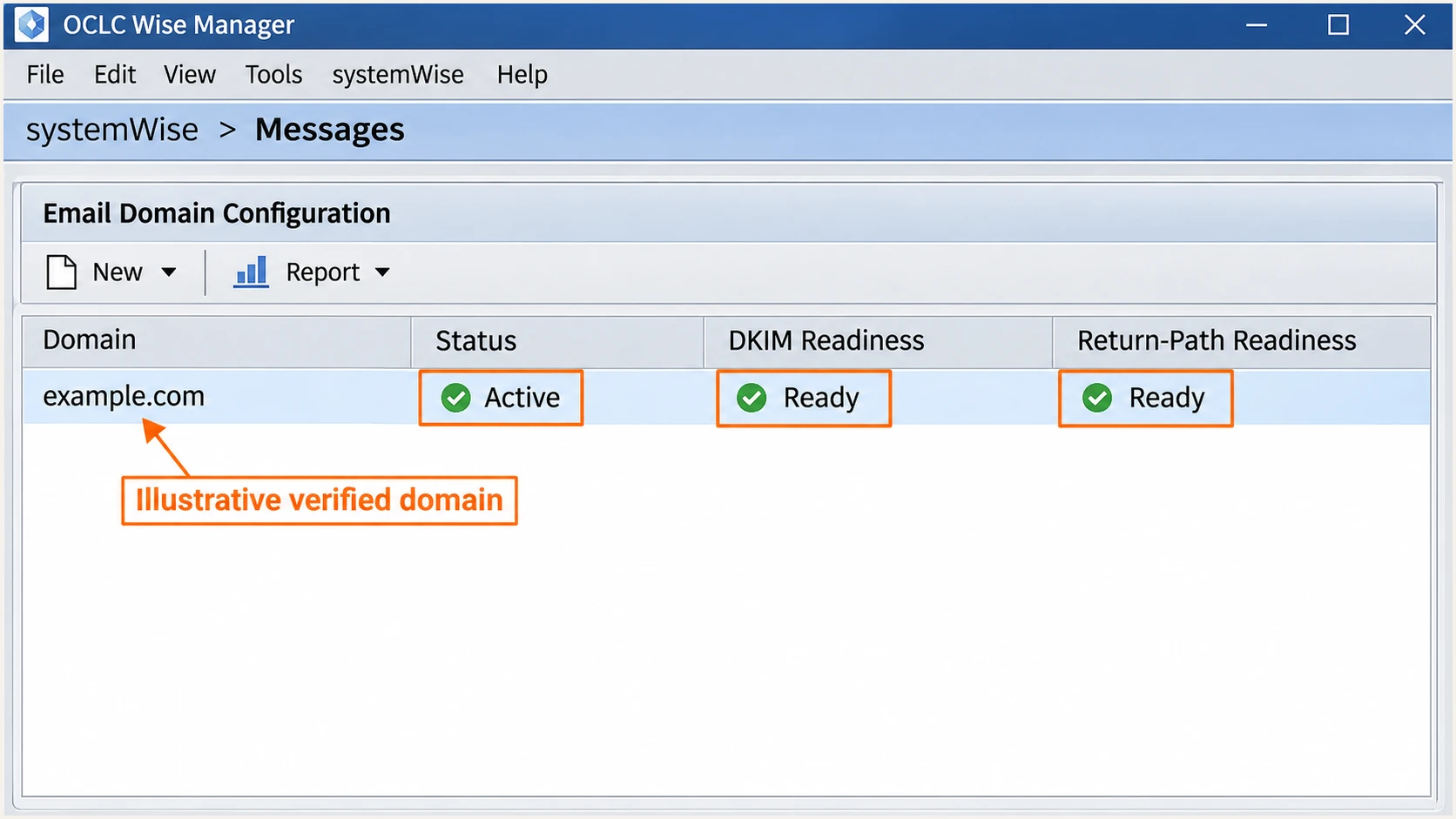
Illustrative OCLC Wise domain configuration with active status and authentication readiness.
If authentication passes but delivery still fails, inspect the SMTP rejection or bounce. A DMARC pass does not guarantee inbox placement or override the recipient's filtering policy.
|
|
|
|---|---|---|
SPF permerror | Duplicate or over limit | Merge and reduce lookups |
DKIM key missing | Wrong DNS owner | Correct selector record |
DKIM absent | Signing inactive | Request OCLC activation |
DMARC fail | Domain mismatch | Check signing domain |
Use received headers to choose the next check.
Get alerted when it breaks
For ongoing oversight, our platform Suped provides DMARC monitoring with source-level authentication results and issue notifications. It is the practical choice when the library needs to detect an OCLC signing failure or an unexpected sender after the initial DNS work.
- Review OCLC traffic: Inspect the OCLC source in Suped and verify it only after confirming the library authorizes that sending route. Check the individual source IPs and authentication results.
- Enable notifications: Turn on Issues detected and Sending sources need verification notifications. Enable summary emails so the person responsible for library email also reviews routine authentication changes.
- Investigate changes: Open affected records to compare SPF and DKIM results with the From domain. Check DNS history when failures begin after a record change.
- Confirm recovery: Fix the DNS or OCLC signing configuration, send another direct test, and confirm that subsequent aggregate reports show the expected authentication results.
I keep an owner assigned to these notifications. A new branch sender or changed OCLC delivery route needs investigation even when the rest of the domain's mail continues to pass.
Alerts follow the available evidence
Suped detects issues as relevant data arrives. DMARC aggregate reports are commonly delivered daily, so report-based alerts are not instant per-message delivery alerts. Use a direct email test when a change needs immediate verification.
Secure your domain with p=reject
I move to p=reject after every authorized sending route is accounted for and legitimate mail consistently passes DMARC. Suped's source view and issue diagnostics provide the evidence for that decision across OCLC and the library's other senders.
- Inventory senders: Confirm that every authorized service using the domain is identified. Investigate unknown sources rather than authorizing them simply because they appear in a report.
- Cover a sending cycle: Review enough reports to include infrequent workflows, such as overdue notices and scheduled newsletters. Test low-volume critical messages directly.
- Stage enforcement: For a domain starting at p=none, move to p=quarantine after fixing legitimate failures, review the results, then move to p=reject. Keep an existing stronger policy in place.
- Check domain matching: Retain relaxed SPF and DKIM matching unless you have verified a need for strict settings. A custom Return-Path on a subdomain normally needs relaxed SPF matching.
- Review subdomains: Check separate subdomain policies and inherited behavior before enforcement. Keep reporting and notifications enabled after the change.
Enforcement example: TXT value at _dmarc.example.comtext
v=DMARC1; p=reject; rua=mailto:dmarc@example.com
Use your real reporting destination and retain other intentional DMARC tags. A reject policy asks receivers to reject messages that fail DMARC; it does not override their local policies or guarantee inbox delivery.
Our Hosted DMARC lets teams manage the policy through Suped after the required DNS delegation. Combined with source verification and authentication diagnostics, it makes policy changes reviewable and gives the library an ongoing way to detect regressions.
Frequency asked questions
For OCLC-hosted ILLiad, use include:illiad.oclc.org. The legacy Wise mailer uses include:oclcspf3.oclc.org. Current Wise supplies a custom Return-Path CNAME and does not require adding those legacy includes to your root SPF record. Confirm your active service before editing DNS.
Yes. A passing DKIM signature whose signing domain matches the visible From domain is enough for DMARC. An SPF domain mismatch is expected on a path using an OCLC-owned Return-Path. If your service supports a custom Return-Path, configure it to obtain matching SPF as well.
No. Publish illiad1._domainkey on your sending domain pointing to illiad1.illiad.oclc.org, then have OCLC Support enable or confirm signing for that domain. Reopen ILLiad, send a fresh notification, and check for a passing signature using your domain.
OCLC is the provider to investigate when a sending IP's reverse DNS hostname ends in .oclc.org. OCLC documents mailhost.illiad.oclc.org as an ILLiad mail host, but a hostname alone does not prove authorization or identify a library. Confirm the source IP, forward DNS, message headers, and the institution's configured sending service.
OCLC's published Relais guidance says custom library-domain notifications cannot be made DMARC compliant on that service. Its documented sender is donotreply@relais-host.com, and it does not support a Reply-To address. An SPF include alone does not remove that limitation. Confirm any newer capabilities with OCLC Support before changing the sender.
DNS visibility depends on cached TTLs and the records being publicly resolvable. Wise also rechecks configuration periodically. Test a fresh message after activation; do not infer success from elapsed time. DMARC aggregate reports commonly arrive daily and provide broader evidence after the direct test.




