
How to set up DMARC/DKIM/SPF for Newsprout

Published 22 Nov 2026
Updated 22 Nov 2026
11 min read
Summarize with
Set up Newsprout email authentication by publishing your hosting account's SPF and DKIM TXT records, then adding a DMARC TXT record at your domain's _dmarc hostname. Get the SPF value and DKIM public key from cPanel's Email Deliverability screen. DMARC passes when SPF or DKIM passes with a domain that matches the visible From address.
I start by checking which server actually sends the mail. Newsprout's General Email Setup documentation describes cPanel mailboxes and authenticated SMTP on port 587. These settings apply to custom-domain email sent through Newsprout hosting; email sent through another provider needs that provider's authentication records.
Add your domain
Use the domain after the @ in your sending address. Newsprout normally provisions the primary hosting domain during signup, so check for an existing entry before creating another.
- Open cPanel. Use the hosting login details in your Newsprout Account Information email. Open Domains and find your sending domain.
- Add if missing. If your plan permits additional domains, select Create a New Domain, enter your registered domain, and submit. Ask Newsprout support to provision it if this control is unavailable.
- Create a mailbox. Open Email Accounts, select Create, choose the domain, and create the address you will send from. Skip this when the mailbox already exists.
- Check DNS authority. Run the NS lookup below. Publish authentication records at the DNS service named by your active nameservers, even when that service is outside Newsprout.
Find the authoritative DNS hostbash
dig +short NS example.com
Replace example.com with your own domain in every example. Adding a domain to cPanel creates its local hosting configuration; public DNS still has to contain the correct records.
Verify the domain appears in cPanel and that its intended mailbox works. Keep existing MX records unless you are also migrating incoming mail; authentication setup does not require moving your nameservers.
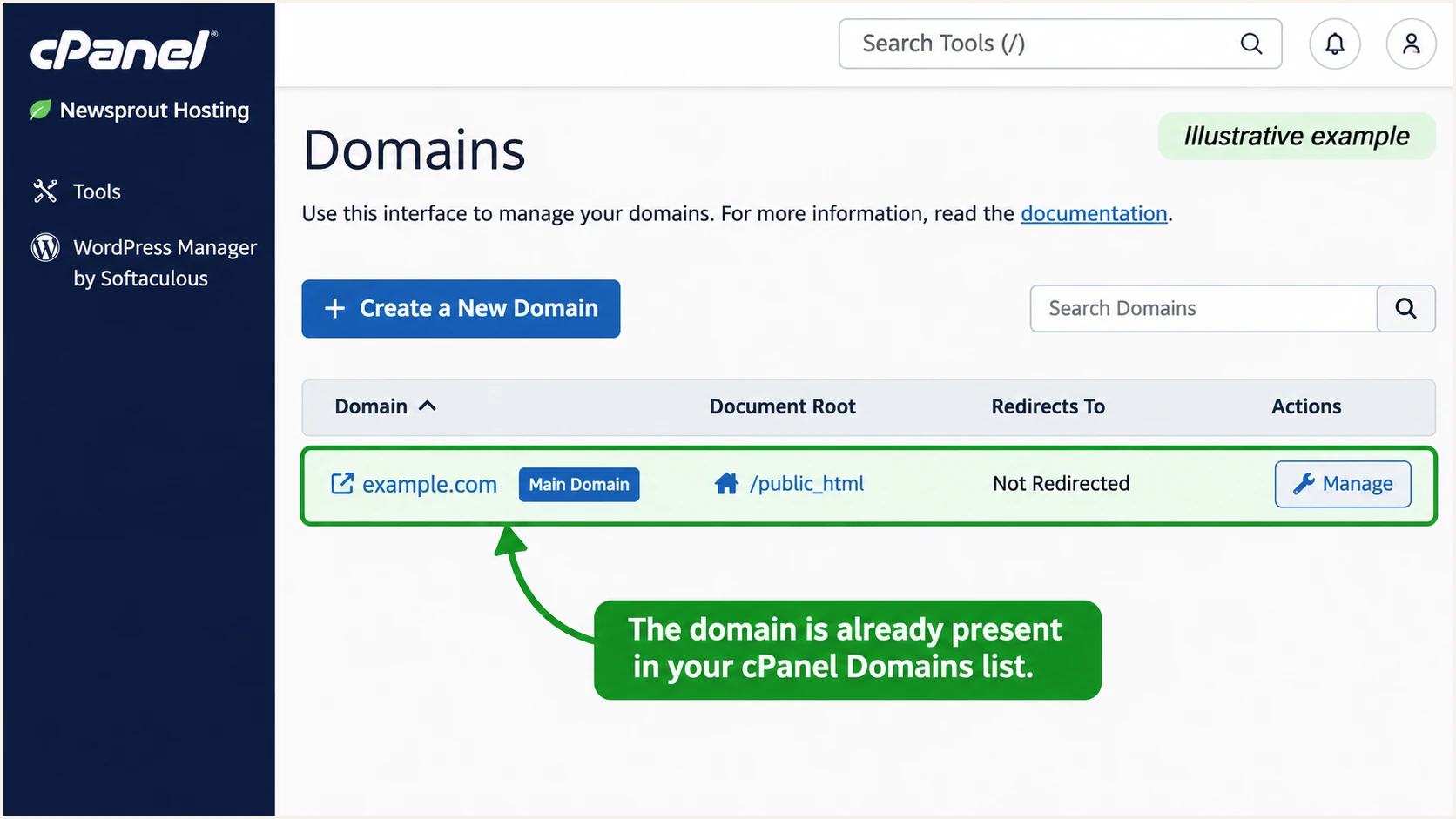
Illustrative Newsprout cPanel Domains screen showing an existing hosting domain.
Set up SPF
I use the SPF value generated for the hosting account, rather than guessing an include hostname. Newsprout's public General Email Setup article does not specify a universal customer SPF include.
- Read the suggested value. In cPanel, open Email > Email Deliverability, find your domain, and select Manage. Copy the SPF Name and Value displayed for that domain.
- Inspect the existing record. At the authoritative DNS host, find the TXT record beginning v=spf1. Merge the Newsprout authorization into that record while retaining other approved senders.
- Publish one policy. Save one SPF TXT record at the domain used in the SMTP envelope sender. Use cPanel's installation controls only when its DNS zone is authoritative.
- Check the sending route. Send through the Newsprout SMTP server specified for your mailbox, with authentication and TLS on port 587. Confirm the delivered Return-Path uses your domain or a permitted subdomain.
Newsprout supports SPF domain alignment. SPF checks the SMTP envelope sender, usually visible in the delivered Return-Path, rather than the From address alone. Under relaxed DMARC settings, both domains must share the same organizational domain.
Enter the envelope-sender domain into the SPF checker. Check for duplicate policies and the limit of 10 DNS-querying terms, including nested includes. Do not authorize incoming MX servers unless they also send your outbound mail.
SPF checker
Find SPF syntax issues, lookup limits, and weak records.
?/16tests passed
A published SPF record does not prove that your email application uses the intended SMTP server. I check a delivered message after saving DNS, particularly when a computer still has an older ISP relay configured.
If SPF passes for a provider-owned Return-Path, adding more entries to your visible From domain will not fix the domain mismatch. Correct the envelope-sender configuration with Newsprout support, or confirm that matching DKIM passes. Do not try to change Return-Path by adding a message header.
Set up DKIM
DKIM requires Newsprout's sending server to sign messages with your domain. Publishing a public key alone does not turn signing on.
- Open the DKIM details. In Email Deliverability > Manage, locate the DKIM record for your sending domain.
- Create a key if needed. If no key exists and Generate Local DKIM Key is available, use it. Ask Newsprout support to enable signing if your account does not expose this control.
- Publish the public record. Copy the exact selector hostname and public TXT value into authoritative DNS. Keep all key characters and preserve split TXT strings as one logical record.
- Verify a signed message. Send a fresh message through Newsprout. Read d= and s= in DKIM-Signature, then confirm the recipient reports dkim=pass for the expected signing domain.
Use the selector that cPanel supplies. A hostname such as default._domainkey.example.com is a common cPanel pattern, not a confirmed selector for every Newsprout account. Never publish the private key.
I check both a normal mailbox message and any website form using the domain. A form that bypasses authenticated SMTP can take a different sending route and produce different DKIM results.
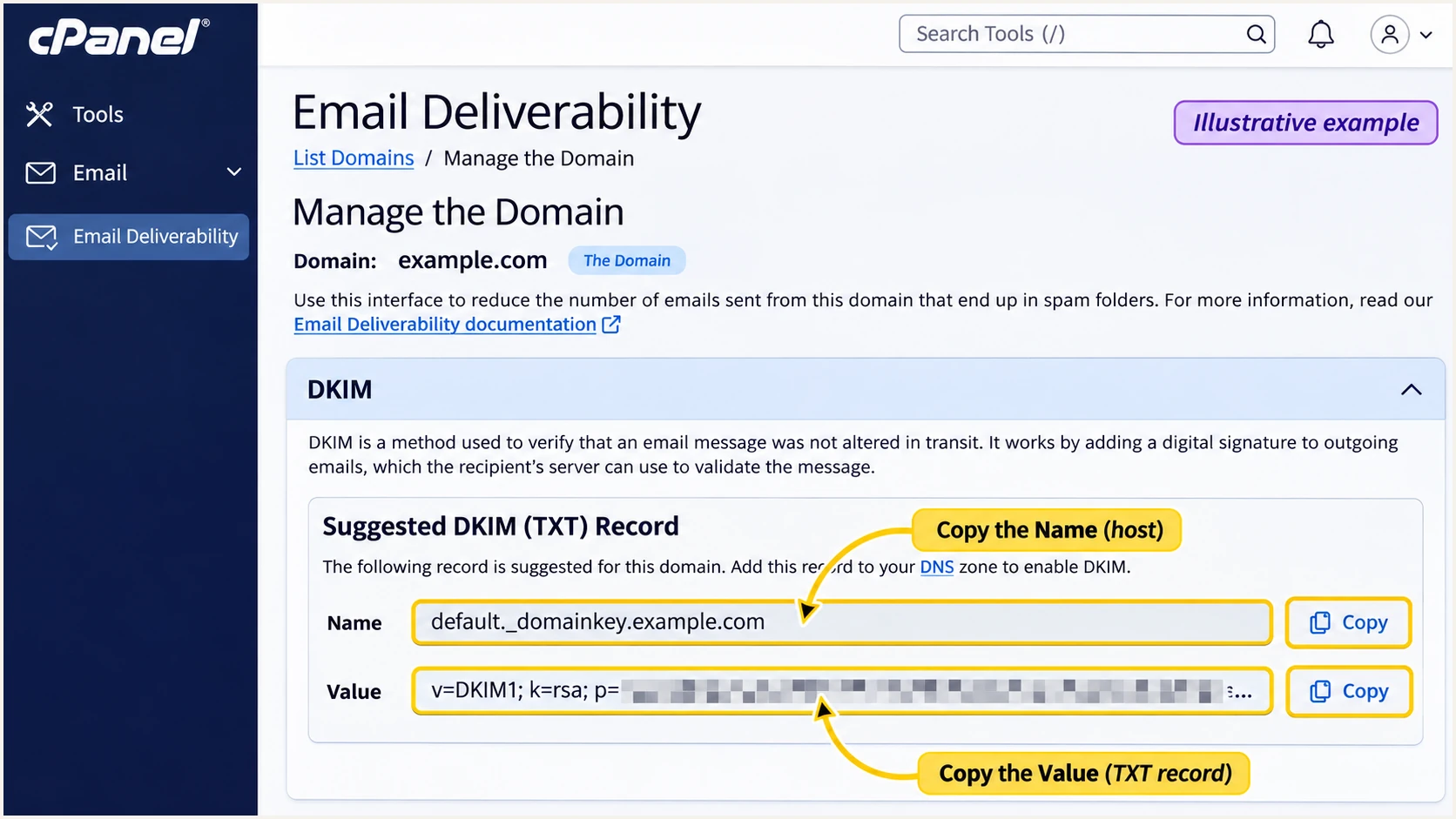
Illustrative Newsprout cPanel DKIM screen highlighting the record name and public value.
Set up DMARC
Start with p=none when the domain has no enforced DMARC policy. If it already uses p=quarantine or p=reject, keep that policy and fix Newsprout authentication without weakening it.
- Check the current policy. Look up TXT records at _dmarc.yourdomain. Edit an existing DMARC record instead of adding a second one.
- Create the TXT record. In authoritative DNS, add a TXT record named _dmarc, or its full hostname if required. In authoritative cPanel DNS, use Zone Editor > Manage > Add Record > TXT.
- Set reporting. Use the monitoring record below and replace dmarc@example.com with a real reporting mailbox or your reporting platform's assigned address.
- Save and recheck. Save the record, wait for cached answers to expire, then check that DNS returns one valid DMARC policy with the intended reporting address.
Initial monitoring record, replace the example domain and mailboxtext
Host: _dmarc.example.com
Type: TXT
Value: v=DMARC1; p=none; rua=mailto:dmarc@example.com
Use the DMARC record generator to build the value before publishing it. A p=none policy requests reporting without requesting quarantine or rejection of failing messages.
The rua mailbox must accept aggregate report attachments. If the reporting destination belongs to another domain, follow that destination's external-report authorization instructions. Keep the default relaxed domain matching unless you have a specific reason for strict matching.
DMARC checker
Look up a domain's DMARC record and catch policy issues.
?/7tests passed
Check the domain used in the visible From address. A valid record on a different sending subdomain does not automatically apply to that address; DMARC policy discovery depends on the From domain.
The checker verifies the DNS policy. A delivered message is still needed to establish that Newsprout's SPF or DKIM identity matches the From domain.
Verify and troubleshoot
I verify the actual sending paths before changing enforcement. A green DNS result and a successful SMTP login do not prove that DMARC passes.
- Send real traffic. Send a fresh message from your Newsprout mailbox and another from each website or application that uses the same domain.
- Read receiver results. Use the receiving service's Authentication-Results header. Check spf=pass, dkim=pass, and dmarc=pass, together with the domains associated with those results.
- Check exact DNS names. Query the actual DKIM selector from s= and the signing domain from d=. Check for an accidentally duplicated domain suffix in the DNS host field.
- Escalate server faults. Give Newsprout support the message headers and sending time when signing is missing or server PTR records are wrong. Newsprout controls its server keys and reverse DNS.
DNS checks, replace the domain and use your actual DKIM selectorbash
dig +short TXT example.com
dig +short TXT default._domainkey.example.com
dig +short TXT _dmarc.example.com
The email tester is the quickest check of a real message. Open it, copy the temporary recipient it provides, and send a message through the same Newsprout mailbox or application you use in production.
Read the authentication diagnosis first, then investigate the specific failing identity or record. Repeat the test after each correction; a test sent through a different SMTP server does not verify the Newsprout route.
Email tester
Send a real email to this address. Suped shows a results button when the test is ready.
?/43tests passed
A passing DMARC result needs at least one passing method with the required domain match. If DKIM passes for your From domain, an SPF domain mismatch does not by itself make DMARC fail.
Use the receiver's results to separate DNS mistakes, signing failures, and sending-route problems. Forwarding can break SPF, which is another reason to verify matching DKIM on original messages.
|
|
|---|---|
SPF permerror | Duplicate TXT; lookup count |
SPF domain mismatch | Return-Path domain |
DKIM missing | SMTP route; server signing |
DKIM key missing | Selector; DNS authority |
DMARC fail | From-domain match |
Common results and the next diagnostic check.
Get alerted when it breaks
Our Suped platform connects ongoing DMARC monitoring with detected authentication issues and steps to fix them. This makes the workflow useful after the initial Newsprout test, especially when a new website or application starts sending.
- Confirm report delivery. Ensure the existing DMARC rua value includes your assigned Suped reporting address and that aggregate reports are arriving. Keep the current enforcement policy.
- Verify the source. Review Newsprout's sending IPs and authentication results in Suped. Mark a source as verified only after confirming it is an approved sender.
- Enable issue notifications. In Settings > Notifications, enable Issues detected and Sending sources need verification. Enable DMARC summary emails for periodic review.
- Resolve with evidence. Open the affected source or record, inspect its SPF and DKIM domains, follow the issue's fix steps, and verify the correction with fresh mail.
Aggregate reports are delayed and do not cover every recipient. Expect many reporters to send daily batches, often arriving within 24-48 hours. These alerts depend on the reporting data that Suped receives.
Check the first summary against your expected Newsprout volume. Investigate missing sources as well as failures, particularly after a hosting migration or a change to website mail settings.
Keep a working notification route
Send operational notifications to a mailbox your team checks. Use the email tester immediately after a DNS or server change; use Suped's reports and issue notifications to track subsequent traffic.
Secure your domain with p=reject
Move to p=reject after every approved sending route passes DMARC, including Newsprout mailboxes and website messages. I judge readiness by known traffic and unresolved failures, rather than a fixed waiting period.
- Inventory legitimate mail. In Suped, review each sending source across a complete business cycle. Include infrequent systems such as invoices and scheduled messages.
- Fix approved failures. Correct SPF authorization, DKIM signing, and domain mismatches. Do not authorize an unknown source solely because it appears in a report.
- Stage enforcement. Change p=none to p=quarantine after approved traffic passes. Review new reports and delivery problems before moving to p=reject.
- Maintain the policy. Keep rua reporting active, retest after Newsprout server changes, and review subdomains. Add sp=reject only after checking the mail they send.
Our Suped dashboard puts source verification and failure diagnostics beside the traffic needed for that decision. Hosted DMARC lets your team manage policy changes in Suped after its DNS delegation is configured.
Keep your real reporting address when changing p=. A reject policy asks receivers to reject mail that fails DMARC; receiver handling remains subject to local policy, and the record does not authenticate legitimate mail for you.
Quarantine stage
Use after legitimate sending paths pass. Review reports and recipient feedback before the next policy change.
Example TXT value at _dmarc.example.comtext
v=DMARC1; p=quarantine; rua=mailto:dmarc@example.com
Reject stage
Use after enforcement testing shows no unexplained legitimate failures. Continue monitoring new sources.
Example TXT value at _dmarc.example.comtext
v=DMARC1; p=reject; rua=mailto:dmarc@example.com
Replace the example mailbox before using either value. Keep investigating failures after enforcement, because a newly introduced sender still needs valid authentication for your domain.
If one approved Newsprout route fails after enforcement, correct that route and retest it promptly. A working route can continue passing through matching DKIM even when forwarding breaks SPF.
Frequency asked questions
Newsprout's public General Email Setup article does not specify one. Copy the SPF value for your domain from cPanel Email Deliverability or request the correct outbound authorization from Newsprout support. Do not copy Newsprout's own corporate-domain policy into your DNS.
No. DMARC passes when either SPF passes with the required envelope-sender domain match, or DKIM passes with the required signing-domain match. Configure both for Newsprout where supported. A provider-owned Return-Path can produce an SPF domain mismatch while matching DKIM still passes DMARC.
The message can use a different SMTP server, lack a valid DKIM signature, or authenticate domains that do not match its visible From address. Check the receiver's Authentication-Results and test each sending application separately. DNS validity alone does not establish message authentication.
That suffix indicates Newsprout infrastructure, but an rDNS name alone does not prove who sent a message or whether the sender is approved. Compare the source IP with your Newsprout hosting details and confirm SPF or DKIM results. Ask Newsprout support to confirm an unfamiliar server before authorizing it.
Authoritative DNS should show a saved change first. Cached answers remain until their TTL expires, and negative caching also affects newly created records. Test a fresh message once public DNS is correct. Aggregate DMARC reports arrive later, commonly within 24-48 hours, and not every recipient sends them.
Keep an existing quarantine or reject policy while configuring Newsprout. Publish the correct account-specific SPF and DKIM records, verify a real message, and correct approved sending routes that fail. Start with p=none only when introducing monitoring on a domain without an enforced policy.




