
How to set up DMARC/DKIM/SPF for Naver Works

To authenticate Naver Works email, verify your domain, publish its SPF include, activate DKIM signing for your own domain, and publish a DMARC TXT record at _dmarc. Start a new DMARC deployment with p=none, verify actual outgoing messages, then progress to p=reject after checking every authorized sender.
I check the signing domain as well as the pass result. Naver Works signs with worksmobile.com by default; that signature alone does not satisfy DMARC for an unrelated custom From domain. DMARC needs SPF or DKIM to pass with a domain that matches the visible From domain under its alignment rules.
Add your domain
Use a domain you control and an administrator account. Naver Works Mail settings require a mail-enabled plan; the public administrator guide lists Standard and Standard Plus.
- Primary domain: During company signup, choose "Owned", enter your existing domain, and complete the account setup.
- Ownership: On desktop, open Admin > Check Status > Domain ownership verification guide. Publish exactly the DNS record requested there and return to complete verification.
- Secondary domain: For an existing organization, open Admin > Settings > Domain > Add Domain. Enter the domain, click "Complete", and follow its activation instructions.
- Mail activation: For a secondary domain used with Mail, publish the MX values shown by Naver Works and wait for its status to become "In use". Configure DKIM separately for each sending domain.
Change MX records only when moving incoming mail to Naver Works. Adding SPF, DKIM, or DMARC to an existing working deployment does not require an MX change.
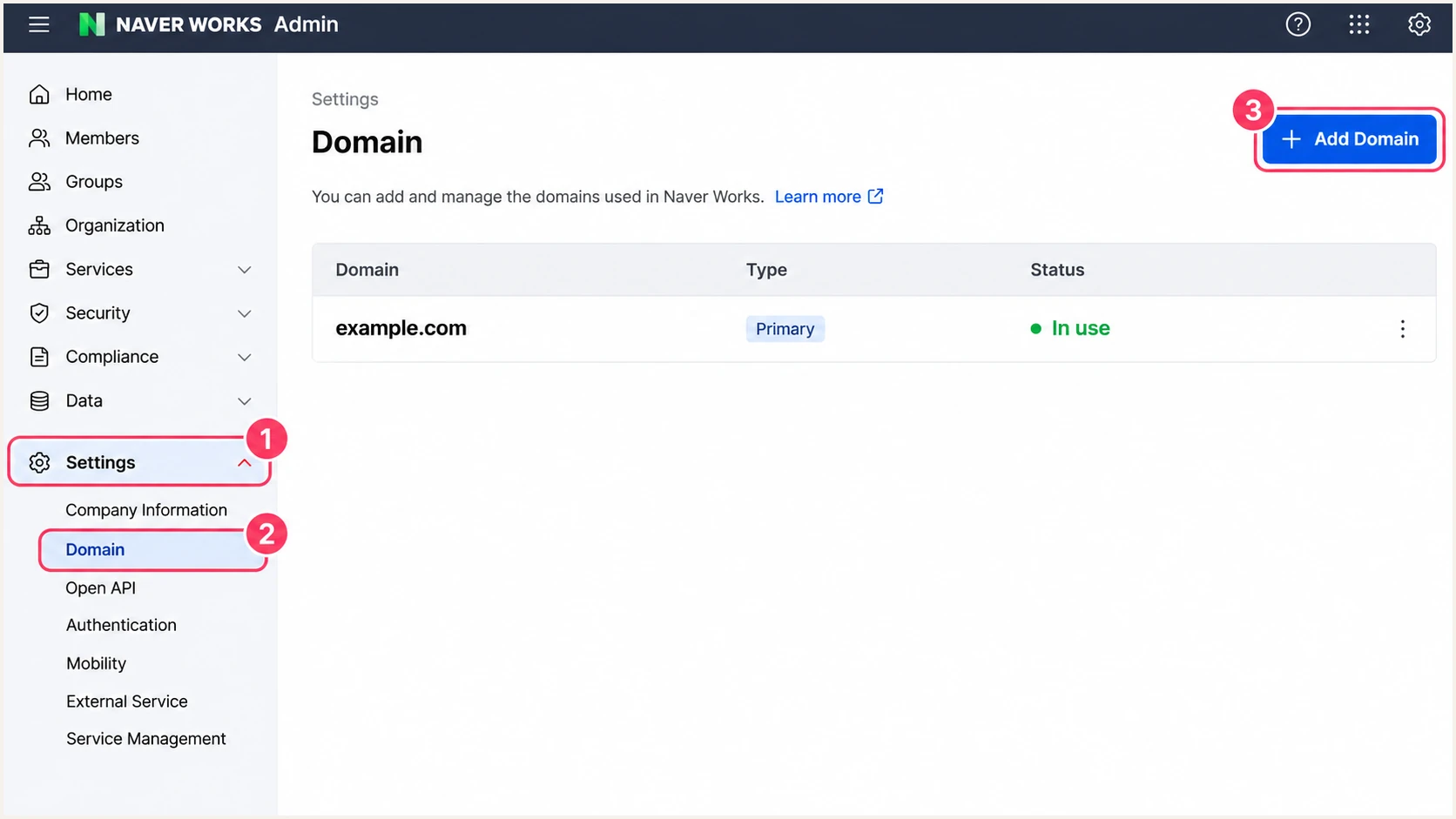
Naver Works Admin: open Settings > Domain to add a secondary domain.
Before editing authentication records, confirm the address selected in the Naver Works From field uses this domain. Service-generated notifications using a provider-owned From address are outside the authentication policy of your own domain.
Set up SPF
For ordinary Naver Works Mail, authorize its published sending infrastructure with the SPF record below. Publish it as TXT at the domain used by the envelope sender, normally your custom sending domain.
- Find the record: Open your authoritative DNS settings and locate the existing TXT value beginning with v=spf1.
- Merge senders: Add the Naver Works include to that existing value before its final all mechanism. Keep other authorized senders and the existing ending. Publish only one SPF record per name.
- New record: If Naver Works is your only sender and no SPF record exists, use the value below at @ for example.com. A sending subdomain needs its own SPF record.
- Gateway routing: If outgoing mail passes through your own gateway, authorize its public egress IP too. Use the delivered message to identify which server the recipient actually evaluates.
TXT at example.com, for a new Naver Works-only SPF recordtext
v=spf1 include:spf.worksmobile.com ~all
SPF authenticates the SMTP envelope sender, shown in the delivered Return-Path, rather than the visible From address. Naver Works supports SPF domain matching for custom-domain mail; confirm the actual Return-Path on the sending route you use.
Enter that envelope domain in the SPF checker. Check the complete evaluation against the limit of 10 DNS-lookup-causing terms, including nested includes. A single include in your own record does not mean the full evaluation uses one lookup.
SPF checker
Find SPF syntax issues, lookup limits, and weak records.
?/16tests passed
If a particular notification route keeps a provider-owned Return-Path, publishing SPF at your own domain cannot change that identity. SPF alignment failure is acceptable for DMARC when a valid DKIM signature uses a matching domain.
Retest after DNS caches expire. A successful DNS lookup confirms publication; a fresh delivered message confirms which envelope domain and sending IP Naver Works actually used.
Set up DKIM
Generate the signing key inside Naver Works so the platform retains the matching private key. Use a 2048-bit key where your DNS host supports it.
- Open DKIM: In Admin, select Service > Mail > Send/Receive. Beside "Mail Authentication(DKIM)", click "Manage".
- Create selector: Select the sending domain. Enter naverworks, the default selector, or a distinct selector, choose the key length, and click "Create".
- Publish TXT: Copy "Host name" and the full "Public Domain Key (TXT Record)" into your DNS host. Use the generated values, including the entire public key.
- Activate signing: Return to the DKIM page and click "Begin authentication". Wait for success before testing a fresh outgoing message.
With selector naverworks, the lookup name is naverworks._domainkey.example.com. If the DNS editor appends example.com automatically, enter only naverworks._domainkey in its host field.
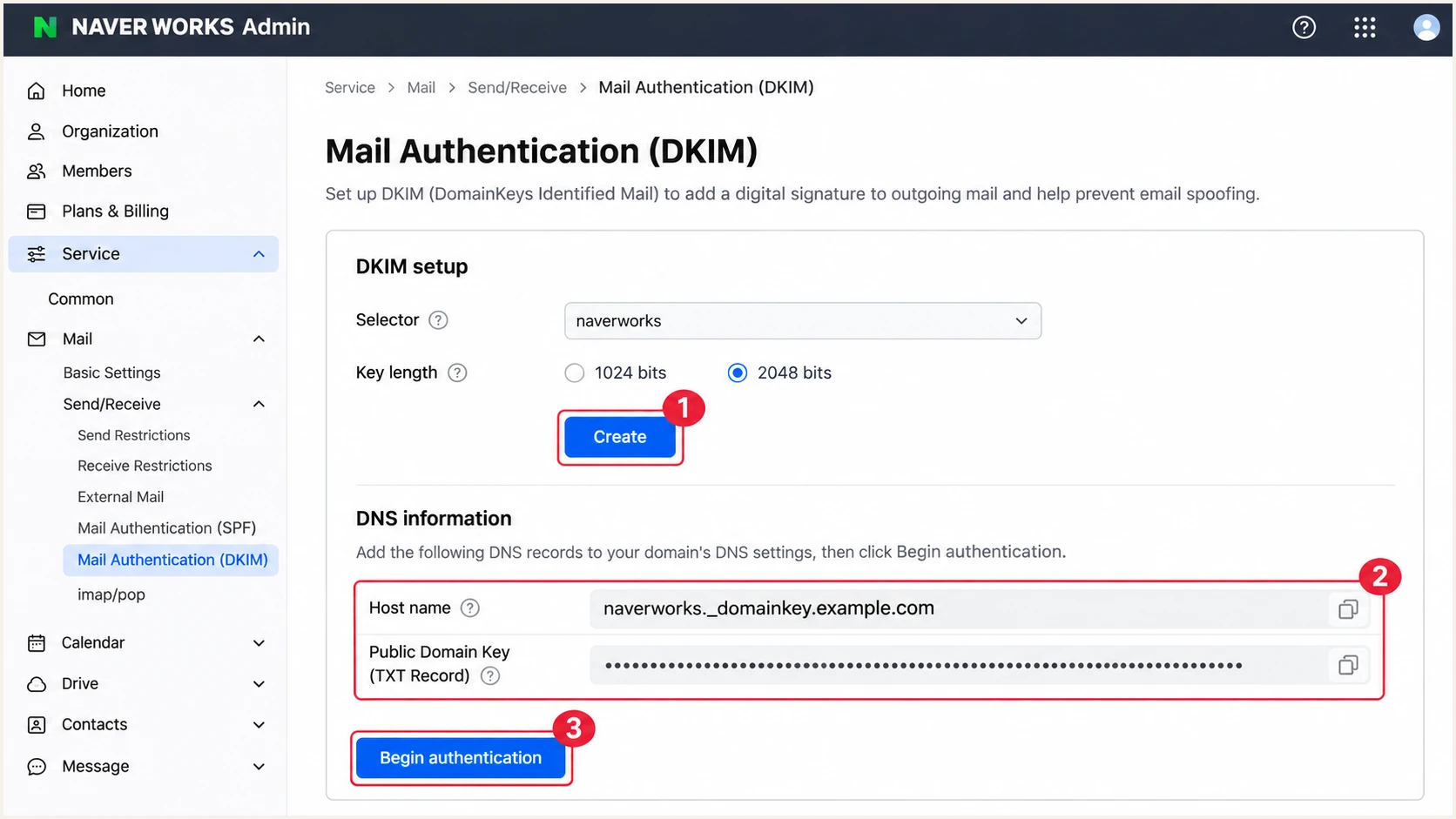
Naver Works DKIM settings: create the selector, copy DNS values, then begin authentication.
For long TXT values, keep all character strings in one DNS record. Never truncate the key or create several separate TXT records at the selector. A standard DNS host can store a long key as multiple quoted strings within one record.
If verification fails, compare authoritative DNS with the generated value and retry after caches expire. Naver Works documents propagation taking up to 72 hours. Its by-works.com primary-domain option does not provide this custom-domain DKIM control.
Set up DMARC
Publish DMARC in your DNS host, rather than in the Naver Works DKIM screen. For a new policy, use p=none while collecting reports. If the domain already uses p=quarantine or p=reject, keep that policy and fix Naver Works authentication without weakening it.
- Check existing DNS: Look up TXT at _dmarc.example.com. Edit an existing DMARC policy rather than adding a second DMARC record.
- Choose the destination: Use a mailbox that receives and processes aggregate reports. Replace dmarc@example.com below with your real reporting address.
- Publish the policy: Create a TXT record at _dmarc for example.com with the value below. Keep the default relaxed SPF and DKIM domain matching initially.
- Validate syntax: Use the DMARC record generator to create the value, then check the published record below.
Initial DMARC TXT value at _dmarc.example.comtext
v=DMARC1; p=none; rua=mailto:dmarc@example.com
The example address is a placeholder. If reports go to Suped, our DMARC platform, use the reporting address issued for your domain. An external reporting destination also needs the applicable DMARC reporting authorization in its DNS.
The DMARC checker validates public DNS and policy syntax. It does not prove Naver Works signs outgoing mail correctly, so follow it with an actual message test.
DMARC checker
Look up a domain's DMARC record and catch policy issues.
?/7tests passed
A p=none policy requests monitoring without DMARC quarantine or rejection. Receivers still apply their own spam and security decisions.
Reports arrive on receiver schedules, commonly daily. An empty report view immediately after publishing DNS is not evidence of an authentication failure.
Verify and troubleshoot
I test the exact path used for production email. A message composed in Naver Works does not validate a separate application, SMTP route, or notification sender.
- Send a sample: Open Naver Works Mail and compose a fresh message using your custom-domain From address. Send it to the address generated by the email tester below.
- Read the diagnosis: Confirm SPF pass and inspect its envelope domain. Confirm DKIM pass with your domain in the d= signing identity, then confirm DMARC pass for the visible From domain.
- Repeat by route: Test every secondary domain and any automated route separately. Keep a direct-delivery sample and test forwarding too, because forwarding often breaks SPF.
- Trace failures: Check DNS at the exact hostname, then compare the delivered selector and signing domain with the active Naver Works configuration.
The email tester gives a quicker configuration check: send the prompted test message and inspect its authentication diagnosis. Use the address generated for your test session.
Email tester
Send a real email to this address. Suped shows a results button when the test is ready.
?/43tests passed
For a direct message, aim for SPF and DKIM passes with matching domains. DMARC needs only one qualifying pass; a provider-domain DKIM pass does not qualify for your unrelated From domain.
Use the result combinations below to decide whether to repair DNS, activate signing, or investigate a changed sending route.
|
|
|
|---|---|---|
SPF permerror | Duplicate or lookup limit | Merge; inspect includes |
DKIM key missing | Wrong selector or host | Compare generated DNS |
DKIM domain differs | Default provider signature | Activate custom signing |
DKIM body mismatch | Gateway changed content | Inspect outbound routing |
SPF mismatch; DKIM matches | Provider path or forwarding | Confirm DMARC pass |
No DMARC reports | Address or reporting delay | Check rua and timing |
Diagnose the delivered message, not just the published DNS.
These commands check publication only. Replace example.com and the selector with your own values; inspect the received headers separately.
A missing key after propagation usually means the wrong DNS zone or a duplicated domain suffix in the host field. A published key with a failing signature needs message-level investigation.
Check the published authentication recordsbash
dig +short TXT example.com
dig +short TXT naverworks._domainkey.example.com
dig +short TXT _dmarc.example.com
Get alerted when it breaks
Suped is our DMARC platform for detecting authentication problems after setup. Its DMARC monitoring connects aggregate report results to sending sources and provides issue notifications with steps to fix them.
- Enable notifications: With reports flowing to Suped, open Settings > Notifications and enable "Issues detected" and "Sending sources need verification". Enable DMARC summary emails for ongoing review.
- Verify the source: Review the Naver Works source and its IPs before marking it as verified. Compare unexpected senders with your approved sending inventory.
- Investigate the issue: Open the affected DMARC record and compare SPF, DKIM, the From domain, and rDNS. Use DNS history to check whether a recent record edit explains the change.
- Confirm recovery: Apply the fix in DNS or Naver Works, send another test message, and confirm later aggregate reports show the expected result.
I keep the original working DNS values before changing keys or sender authorization. That makes it easier to identify an accidental deletion when an alert arrives.
Report-based alerts follow report delivery
Suped detects problems in the data it receives. Aggregate DMARC reports are delayed, so these notifications are not instant alerts for each individual message. Use a fresh email test to verify an urgent repair.
Secure your domain with p=reject
Move to p=reject once every authorized sending route has a reliable DMARC pass. I review a complete business sending cycle, including infrequent notifications, rather than treating one successful test as sufficient.
- Inventory senders: In Suped, review verified and unverified sources. Identify legitimate application mail and resolve its authentication before increasing enforcement.
- Protect DKIM: Confirm Naver Works custom-domain DKIM works on direct mail and survives the forwarding paths you rely on. Keep the current key published while delayed signed mail is still in transit.
- Stage policy: For a new monitoring deployment, move to quarantine, inspect legitimate failures, and then move to reject. Keep the reporting destination throughout.
- Review subdomains: Check inherited policy and any explicit subdomain policies. Do not assume a primary-domain pass covers every secondary domain or sending subdomain.
- Monitor after enforcement: Keep Suped issue notifications enabled. Recheck authentication whenever you add a sender, change routing, rotate a key, or edit DNS.
Suped's Hosted DMARC manages policy changes from the dashboard once configured. Use its policy controls with source-level report evidence to stage enforcement and verify the effect of each change.
Ready for enforcement
Authorized sources are identified, custom-domain DKIM is active, and representative messages pass DMARC.
- Evidence: Reports cover normal and infrequent legitimate sending.
- Recovery: A responsible owner can correct DNS or routing failures promptly.
Resolve before enforcement
Legitimate mail still fails DMARC or an unfamiliar source has not been investigated.
- Signing: Naver Works only signs with its provider domain and SPF does not match.
- Coverage: A secondary domain or application route has no successful test.
At reject, receivers are asked to reject mail that fails DMARC. Receiver policy can override that request, and authentication does not guarantee inbox placement.
Apply the final value below only after that review. Keep your actual reporting destination instead of the example address.
Final DMARC TXT value after validating authorized senderstext
v=DMARC1; p=reject; rua=mailto:dmarc@example.com
If a new failure appears after enforcement, identify the affected legitimate source and repair its authentication. Check whether the failure is limited to one route before changing domain-wide policy.
Keep recurring source review active after reaching reject. New applications and routing changes need the same message tests as the original Naver Works deployment.
Frequency asked questions
For ordinary Naver Works Mail, use v=spf1 include:spf.worksmobile.com ~all when it is your only sender and no record exists. Otherwise merge its include into the single existing SPF record, preserving other authorized senders and the existing final mechanism.
The default selector is naverworks. Publish the exact TXT record generated in Admin and click Begin authentication. If you choose another selector, use that selector in DNS and when troubleshooting.
A passing signature using worksmobile.com does not satisfy DMARC for an unrelated custom From domain. Enable signing with your own domain, then confirm DKIM pass and a matching signing domain. SPF also needs a matching envelope domain to count toward DMARC.
Yes. A valid DKIM signature with a domain matching the visible From domain is enough for DMARC. This matters for forwarded mail and notification routes with a provider-owned Return-Path. Fix an actual SPF authorization error on direct custom-domain mail, but do not confuse it with a domain-matching failure.
The worksmobile.com namespace is associated with Naver Works infrastructure. Treat an rDNS hostname under that suffix as a clue, not proof of sender authorization or a specific customer. Check the connecting IP against published SPF authorization and inspect DKIM and DMARC results. Naver Works controls reverse DNS for its sending servers; you do not add its PTR records to your own domain.
DNS changes depend on cache expiry and provider updates. Naver Works documents up to 72 hours for DKIM DNS updates. After publication, retry Begin authentication and send a fresh message. Aggregate DMARC reports then arrive on each reporting receiver's schedule, commonly daily.




