
How to set up DMARC/DKIM/SPF for Mythic Beasts

Authenticate Mythic Beasts email by authorizing its mail servers in SPF, enabling DKIM in your domain's Email settings, and publishing a DMARC TXT record. Start a new DMARC deployment with p=none and reporting. Keep an existing quarantine or reject policy. I verify a received message before changing enforcement.
These steps cover Mythic Beasts Web and Email Hosting and applications sending through its hosted mail service. A VPS that sends directly needs its own sending IP authorization and DKIM configuration; buying server hosting does not configure those automatically.
Add your domain
I first confirm that the sending domain is attached to the correct hosting account. Skip the attachment step if it is already listed.
- Open hosting. In the Customer Control Panel, open Web and Email Hosting (Hosting and Shell Accounts) and select your hosting account.
- Attach the domain. Under Hosted domains, choose Add Domains or Sub-domains. In Configure Hosting for Domain, select your domain and choose Configure Hosting.
- Handle external registration. For a domain registered elsewhere, add it as a 3rd party domain, then follow the Hosting settings checklist. Transferring the registration is optional.
- Verify the setup. Complete the relevant checklist items. Return to Hosted domains and confirm the domain is listed with Email settings available. Publish DNS changes at the provider named by its authoritative nameservers.
If you need authenticated SMTP, open Email Addresses for the domain and choose Create mailbox. Use a mailbox authorized for the application's sending address.
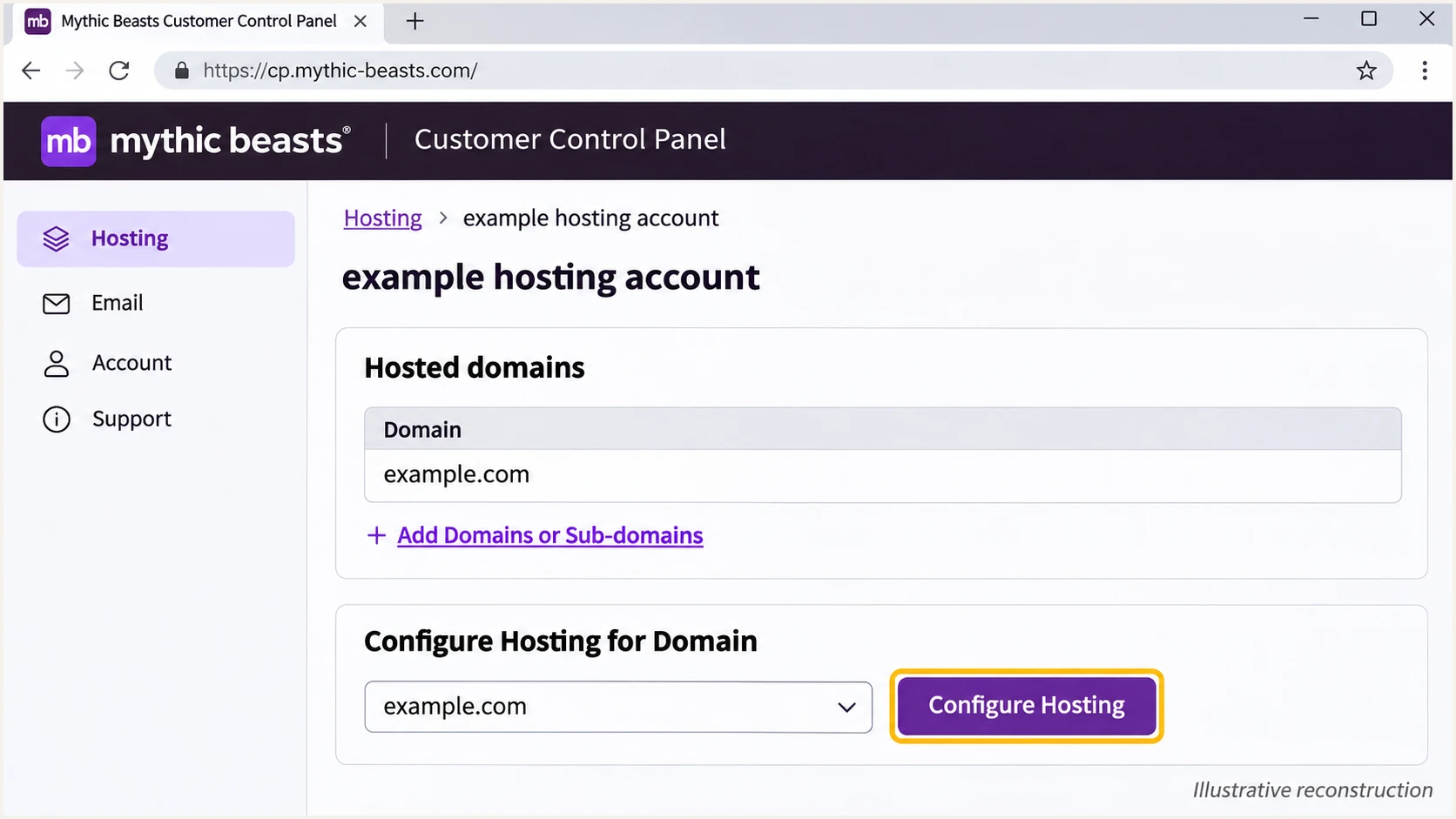
Illustrative Mythic Beasts control panel showing where to attach a domain.
A domain appearing in the account confirms its hosting association. I also check its public DNS, because account settings alone do not confirm that the active DNS zone has been updated.
Keep existing inbound mail routing when configuring outbound authentication. Change MX records only when intentionally moving incoming email to Mythic Beasts.
Set up SPF
Mythic Beasts publishes _spf.mythic-beasts.com for its hosted outgoing mail servers. I merge that authorization into the existing SPF record, preserving other legitimate senders.
- Use the simple option. For Mythic Beasts DNS and Mythic Beasts-only sending, open the domain's Email settings and click Use Mythic Beasts SPF.
- Edit a mixed setup. For external DNS or additional senders, edit the existing SPF TXT record manually. Add include:_spf.mythic-beasts.com before the final all mechanism. Publish only one SPF record at that name.
- Set the envelope sender. Configure the application's SMTP MAIL FROM or bounce address to use your sending domain, such as notifications@example.com. Publish SPF at that envelope domain; a separate bounce subdomain needs its own SPF record.
- Check the lookup budget. Keep the total of lookup-triggering SPF terms, including nested includes, within 10. Do not add a second SPF record or assume that a short record has few lookups.
SPF TXT at @, for a domain sending only through Mythic Beaststext
v=spf1 include:_spf.mythic-beasts.com -all
Use this complete record only if all authorized mail uses Mythic Beasts. During a new deployment, ~all is a softer alternative to -all while you identify senders. Preserve the existing policy unless you intend to change it.
Check the domain used by the envelope sender below. The visible From address and the SMTP login do not, by themselves, determine which domain receives the SPF check.
SPF checker
Find SPF syntax issues, lookup limits, and weak records.
?/16tests passed
Mythic Beasts supports using your domain as the envelope sender. Set that address through the application's mail library or SMTP configuration; manually adding a Return-Path header does not set SMTP MAIL FROM.
For application submission, use the documented authenticated SMTP settings below. Keep the password in the application's secret storage and check that the mailbox has permission to use the From address.
Authenticated SMTP settings for your applicationtext
Server: smtp-auth.mythic-beasts.com
Port: 587
Encryption: STARTTLS
Username: full mailbox email address
Password: mailbox password
From: notifications@example.com
Envelope sender: notifications@example.com
A passing SPF result contributes to DMARC only when its authenticated domain matches the From domain under the published alignment mode. I check the received Return-Path and authentication results after configuring the application.
Set up DKIM
I enable domain-specific DKIM signing so authentication can survive forwarding when the signed message remains intact.
- Open DKIM settings. Select the hosting account, find the domain under Hosted domains, and open Email settings.
- Use hosted DNS. If Mythic Beasts hosts the active DNS zone, click Enable DKIM. Mythic Beasts adds the required DNS records.
- Use external DNS. Copy every record shown in the DKIM section into your active DNS provider first. Preserve its record type, name and value, then return and click Enable DKIM.
- Check signing. Send a fresh message and inspect its DKIM-Signature. Confirm that the recipient reports dkim=pass and that the d= domain matches your From domain under your DMARC alignment settings.
Use the selector and public record supplied by your account. Mythic Beasts shows mythic-beasts-k1 in a published example, but I do not assume it is the selector for every domain or future key rotation.
A DNS record only publishes the verification material. Signing must also be enabled on the sending service. Never publish a private key in DNS.
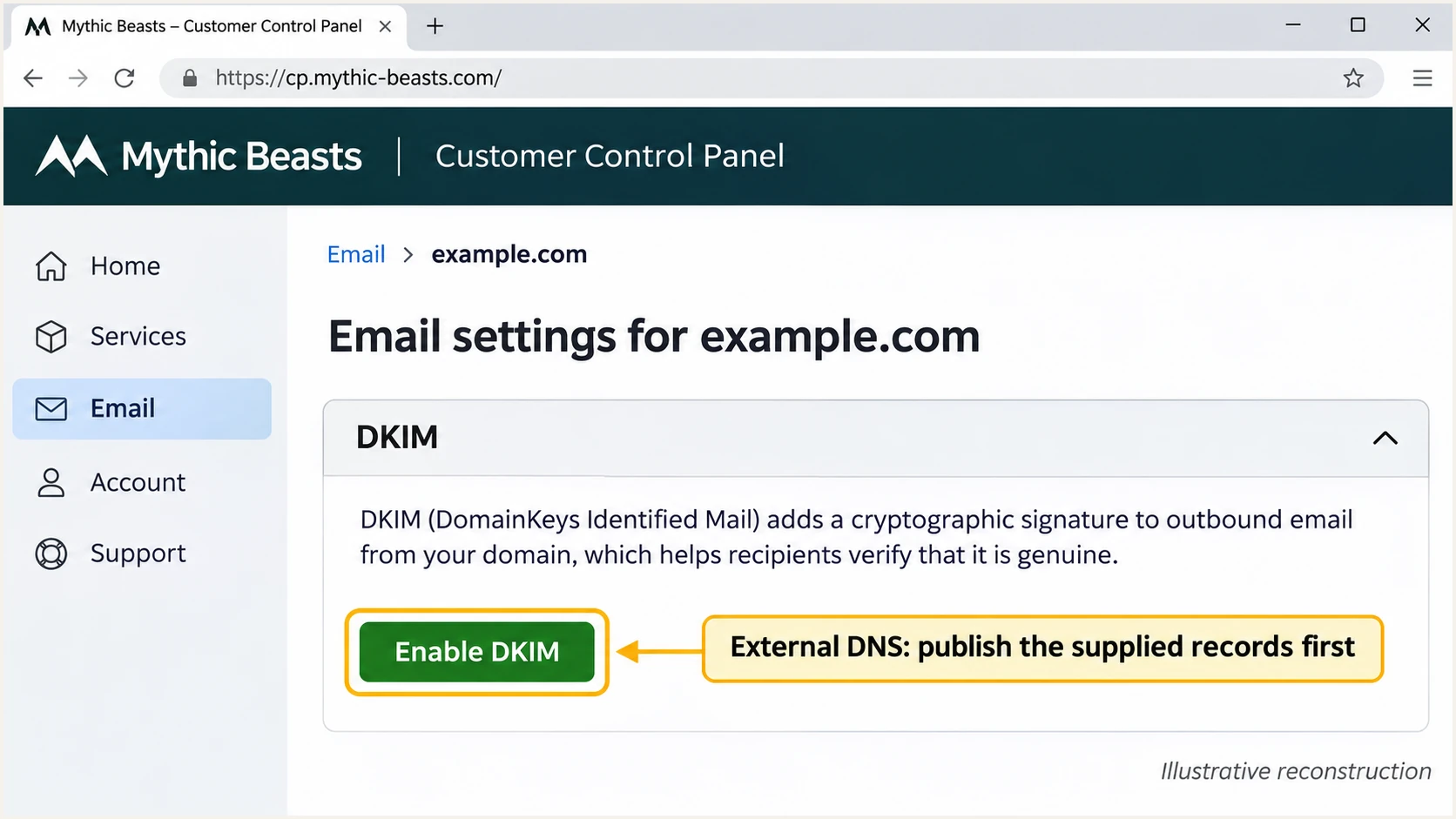
Illustrative Mythic Beasts Email settings showing the Enable DKIM control.
If DKIM is enabled but a message is unsigned, check sender permissions. Open Web and Email Hosting, then Email Addresses, then Details for the mailbox. Sender Authorisations controls which From addresses that mailbox can use.
Choose the narrowest permission that covers the application: Address only for the mailbox address, Domain for other addresses in that domain, or Account when cross-domain sending within the hosting account is required.
Sender restrictions affect signing
With DKIM restricted, unauthorized mail is accepted without a DKIM signature. With Sender restricted, unauthorized mail is rejected. Correct the mailbox authorization rather than weakening DMARC.
Enable Sender restricted only after reviewing all legitimate sending and forwarding paths. Mythic Beasts warns that this setting affects forwarding of unsigned messages by other customers.
Set up DMARC
I publish DMARC for the domain in the visible From address. For a new deployment, use p=none while collecting reports. If the domain already uses p=quarantine or p=reject, keep that policy.
- Find the active zone. For Mythic Beasts DNS, open Domains and Manage DNS for the domain. Otherwise, edit the zone at its active DNS provider.
- Check existing policy. Look for a TXT record at _dmarc. Edit the existing DMARC policy instead of creating another one.
- Publish the record. For a domain without DMARC, add the TXT value below at _dmarc. A DNS editor that expects a full name needs _dmarc.example.com instead.
- Set reporting. Replace dmarc@example.com with a working aggregate-report destination. If the destination is outside your domain, complete any required external reporting authorization.
Initial DMARC TXT value at _dmarctext
v=DMARC1; p=none; rua=mailto:dmarc@example.com
The address above is a placeholder. It must be replaced before publication. A normal mailbox receives machine-readable aggregate reports; it does not automatically turn them into monitoring or alerts.
Use the DMARC record generator to build the value with your reporting address, then check the published domain below.
DMARC checker
Look up a domain's DMARC record and catch policy issues.
?/7tests passed
Confirm that the lookup finds one valid DMARC policy at the intended name. DNS providers that append the zone name automatically need only _dmarc in the host field.
A p=none policy requests monitoring without DMARC enforcement. Receivers still apply their own filtering. Reporting is separate, and aggregate reports usually arrive daily rather than immediately.
Verify and troubleshoot
I start with a test sent through the actual website or application. A successful webmail test does not prove that a contact form uses the same sender or mail route.
The email tester below gives you a destination address. Send a message to it through Mythic Beasts to get a diagnosis of authentication and other delivery checks.
Email tester
Send a real email to this address. Suped shows a results button when the test is ready.
?/43tests passed
Check the recipient's authentication results and compare smtp.mailfrom, header.d and header.from. A raw SPF or DKIM pass is different from a DMARC pass.
Repeat the test after repairs using a fresh message. Previously delivered messages keep their original authentication results.
- Test every route. Trigger the contact form and each scheduled mail job. Test mailbox submission separately if people also send from the domain.
- Check the envelope. Confirm the received Return-Path uses the intended domain and SPF passes for it. If the application uses a hosting-account hostname, correct its envelope sender.
- Check the signature. Read s= and d= in DKIM-Signature. Look up that selector under the signing domain, then confirm dkim=pass at the recipient.
- Check DNS caching. Compare the authoritative answer with cached resolver answers. Retest after the previous record's TTL expires; a fixed 72-hour wait is not required for every change.
DNS checks, replacing example.com and SELECTOR with your valuesbash
dig +short TXT example.com
dig +short TXT SELECTOR._domainkey.example.com
dig +short CNAME SELECTOR._domainkey.example.com
dig +short TXT _dmarc.example.com
Use the signing domain from d= for the DKIM lookup, even if it differs from the From domain. For a CNAME selector, also confirm that the target resolves to the supplied public key.
I use these failure patterns to choose the next check instead of changing several DNS records at once.
|
|
|
|---|---|---|
SPF permerror | Duplicates / lookups | Merge / reduce |
SPF mismatch | Envelope domain | MAIL FROM |
No DKIM | Signing / permissions | Sender rights |
DKIM fail | Key / message changes | Selector DNS |
No reports | Address / timing | rua destination |
Common authentication failures and the next check.
DMARC needs one passing authentication method with domain alignment. Both methods passing without alignment still produces a DMARC failure.
Forwarding often changes the SPF outcome. Check whether a valid DKIM signature survives before treating every forwarded SPF failure as a broken configuration.
SPF passes, DMARC fails
The envelope domain differs from your From domain, and no passing DKIM signature has the required domain match. Fix the envelope sender or domain-specific DKIM signing.
SPF fails, DMARC passes
A passing DKIM signature has the required domain match. This is common after forwarding. Do not authorize arbitrary forwarding servers in your SPF record.
Get alerted when it breaks
Suped is our platform for ongoing DMARC monitoring. It connects authentication failures to sending sources and gives you issue-specific repair steps. I recommend keeping that monitoring active after the initial Mythic Beasts test passes.
- Enable notifications. In Suped notification settings, enable Issues detected and Sending sources need verification. Turn on DMARC summary emails for routine review.
- Review the source. Confirm that the Mythic Beasts traffic belongs to a service you operate. Verify legitimate sources after checking the sending IPs and authentication results.
- Investigate failures. Open the affected source and record detail to inspect SPF, DKIM and DMARC diagnostics. Check DNS history when failures begin after a record change.
- Confirm the repair. Follow the issue's fix steps, correct the Mythic Beasts or DNS setting, and send another test. Check subsequent reports for the same failure pattern.
Aggregate reports provide evidence across normal traffic, including jobs that a single test misses. Suped's summaries and issue notifications make that review practical without manually reading report attachments.
I keep a named owner for these notifications so a missing signature or newly introduced sender leads to a configuration check.
Report alerts depend on incoming data
DMARC aggregate reports usually arrive daily and depend on receiver participation. Notifications based on those reports are not an instant alert for every failed message. Use a fresh email test when you need immediate confirmation of a repair.
Secure your domain with p=reject
I move to p=reject after legitimate sources pass DMARC across a complete sending cycle, including infrequent application jobs. A high overall pass rate alone is insufficient if a low-volume legitimate source still fails.
- Identify senders. Review Mythic Beasts traffic and every other authorized source. Investigate unknown traffic before deciding whether it is legitimate or unauthorized.
- Fix legitimate failures. Correct sender permissions, DKIM signing and envelope-domain configuration. Confirm a passing method with domain alignment for every legitimate route.
- Stage enforcement. For a new deployment at p=none, move to p=quarantine and inspect the next report cycles. Preserve a stronger policy that is already working.
- Apply rejection. Change the single DMARC policy to p=reject when legitimate traffic is ready. Preserve the real reporting destination and review inherited subdomain policies.
- Keep monitoring. Retest after application migrations or sender changes. Use Suped's source review and issue notifications to catch authentication regressions.
Final DMARC TXT value at _dmarc, after validationtext
v=DMARC1; p=reject; rua=mailto:dmarc@example.com
Replace the placeholder report address with your existing destination. Publish this as the replacement policy value, not as an additional TXT policy.
Our Hosted DMARC in Suped lets you manage policy stages through the dashboard once hosted DNS is configured. Use the report history and repair steps to decide when to advance; changing the policy does not repair a failing sender.
Reject requests enforcement
p=reject asks receivers to reject messages that fail DMARC. Receivers retain local discretion. It does not guarantee inbox placement or stop abuse of lookalike domains and display names.
Frequency asked questions
That suffix identifies Mythic Beasts infrastructure, including hosted services and customer servers. It does not identify a particular customer or prove that a message is authorized. I check the connecting IP, received headers and SPF/DKIM results before attributing the traffic to a specific sender.
Yes. Configure the application's SMTP envelope sender to use your domain and publish SPF for that domain. Confirm the received Return-Path after sending. If a particular application cannot control its envelope sender, a passing DKIM signature with the required domain match can still give it a DMARC pass.
Use the selector and DNS records shown in your domain's DKIM settings. Mythic Beasts publishes an example using mythic-beasts-k1, but the current account settings and the s= value on a new message determine which selector to check.
Confirm that the message uses Mythic Beasts' signing route and the DNS records are public. Then check the mailbox's Sender Authorisations. Under DKIM restricted, an unauthorized sender is accepted without a signature. Reauthorize the intended From address and send a fresh test.
No. MX records control incoming mail routing. Keep them unchanged when you only want to authenticate outgoing Mythic Beasts mail. Set the required TXT records and any DKIM record types supplied by the account in the active DNS zone.
Use evidence rather than a fixed number of days. Check a complete normal sending cycle and test infrequent jobs. Advance only after every legitimate source passes DMARC consistently, and keep reporting active after enforcement begins.




