
How to set up DMARC/DKIM/SPF for MXroute

Published 22 Nov 2026
Updated 22 Nov 2026
11 min read
Summarize with
To authenticate MXroute email, publish one SPF TXT policy authorizing include:mxroute.com, copy your domain's DKIM TXT key to x._domainkey, and publish a DMARC TXT policy at _dmarc. I start new deployments with p=none and reporting, then enforce p=reject after checking every legitimate sender.
Make these changes at your authoritative DNS provider. MXroute supplies the domain-specific values in its Control Panel. DMARC passes when SPF or DKIM passes with a domain that matches the visible From domain under DMARC's alignment rules.
Add your domain
I first add the sending domain to the correct MXroute hosting service and confirm that its mailbox exists.
- Open the panel. Sign in to MXroute Management, open Subscriptions, select the intended Active service, and click Open control panel.
- Add the domain. Open Domains > Add New Domain. Enter your bare domain in Domain Name, click Add Domain, and confirm it appears in Your Domains.
- Verify ownership. If Action Required appears, open DNS > Domain Verification Key. Publish the exact TXT name supplied by MXroute with the value domain-verified, wait for DNS publication, and retry Add Domain.
- Create the sender. Open Email Accounts, select the domain, and use Create New Email Account to create the mailbox you will authenticate with.
- Check incoming routing. If MXroute receives your mail, copy the MX hostnames and priorities shown under DNS > Email DNS Records. In Domains > Settings, use Host mail on this server. If receiving elsewhere, retain that provider's MX records and select Mail hosted elsewhere.
Adding a domain does not update public DNS. Save the existing records before editing them, especially when moving an active mailbox service.
The ownership verification name is account-specific. Copy it exactly, and check whether your DNS provider automatically appends the domain name.
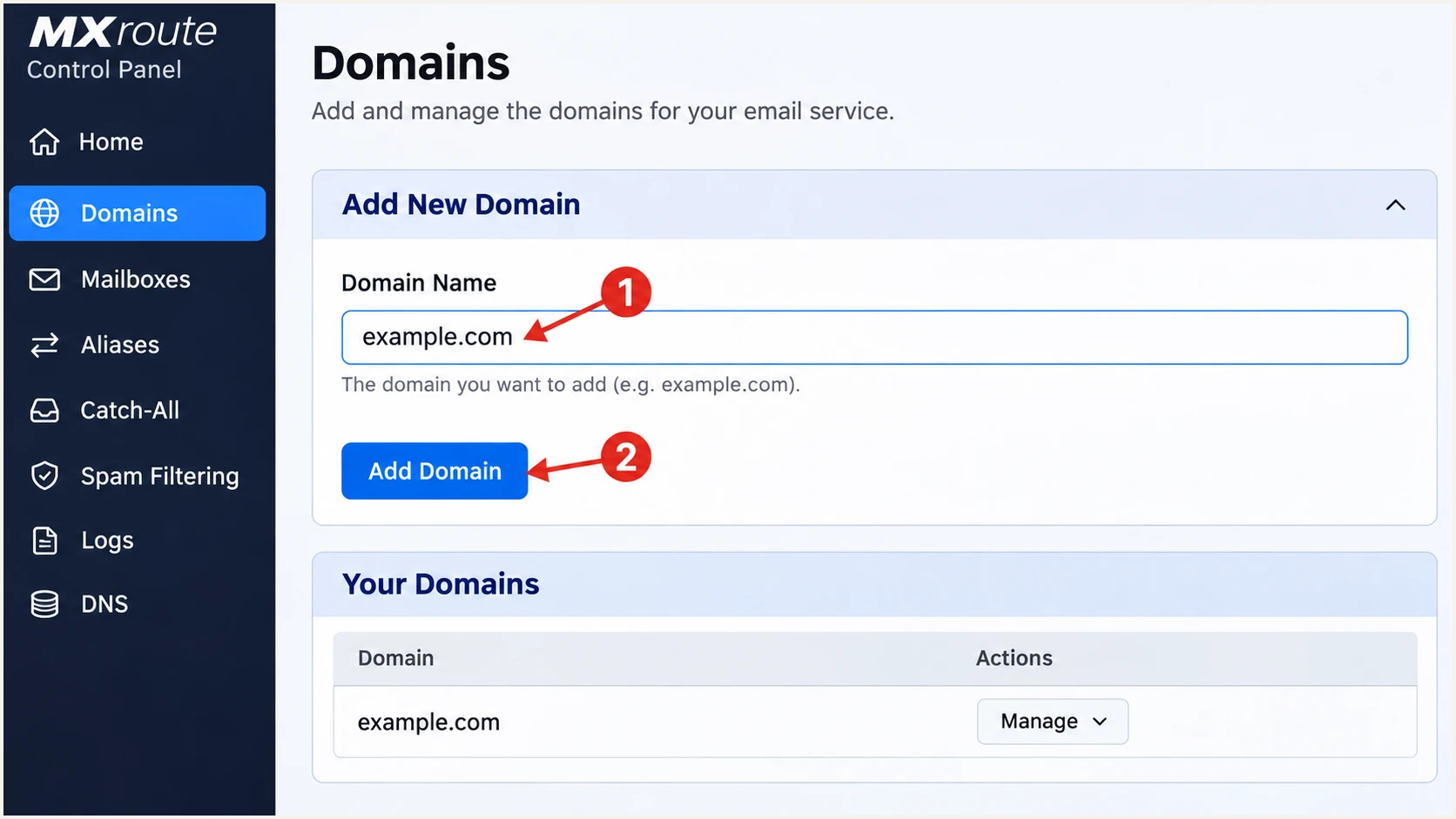
Illustrated MXroute Domains screen showing where to add your domain.
Set up SPF
MXroute supports SPF alignment through your domain's envelope sender, shown as Return-Path after delivery. For normal mailbox sending, use your own domain for the SMTP login and From address.
- Publish one policy. At your DNS provider, create or edit the root TXT record, usually named @. Use the SPF policy displayed for your MXroute account.
- Merge existing senders. If a TXT record already starts with v=spf1, add MXroute authorization to that record. Preserve every other legitimate sender and keep one final all mechanism.
- Choose one include. MXroute documents include:mxroute.com and include:mxlogin.com as equivalent. Use either one; including both is unnecessary.
- Check the lookup budget. Keep SPF evaluation within 10 DNS-querying terms, including nested includes. Avoid replacing MXroute's include with a manually copied IP list.
For a domain that sends only through MXroute, use the following record. Add other authorized services before the final -all if they also send using this envelope domain.
SPF for MXroute-only sendingtext
Type: TXT
Name: @
Value: v=spf1 include:mxroute.com -all
Use a TXT record, and keep your DNS provider's default TTL unless you have a migration plan. Other unrelated TXT records at the domain root can stay.
Check the published policy below. Resolve duplicate policies, syntax errors, and excessive DNS lookups before testing a real message.
SPF checker
Find SPF syntax issues, lookup limits, and weak records.
?/16tests passed
I also inspect the received message's Return-Path. An SPF pass for an unrelated domain does not satisfy DMARC's SPF alignment requirement.
Forwarding can break SPF or change its checked domain. A passing DKIM signature with the correct domain still lets DMARC pass; fix SPF failures on direct MXroute mail separately.
Set up DKIM
Use the public key generated by MXroute for this domain. A key generated elsewhere will not match MXroute's signing key.
- Copy the key. In the Control Panel, open DNS, select the sending domain, and copy the complete DKIM TXT name and value. The current selector is x, giving the relative name x._domainkey.
- Publish the TXT record. At your authoritative DNS provider, paste the complete public value at the displayed name. Keep every character in the p= key value.
- Check the final name. The resulting hostname must be x._domainkey.example.com for the example domain. Avoid accidentally creating x._domainkey.example.com.example.com.
- Match the login domain. MXroute signs using the SMTP-authenticated domain. Authenticate with a mailbox at the domain used in From, then confirm the received signature's d= value matches that domain.
Long public keys sometimes need multiple quoted strings within one TXT record. The strings concatenate into one value; do not create separate TXT records for different pieces of the key.
I verify each sending domain separately. Merely changing the visible From address while authenticating with an unrelated domain does not establish DKIM alignment.
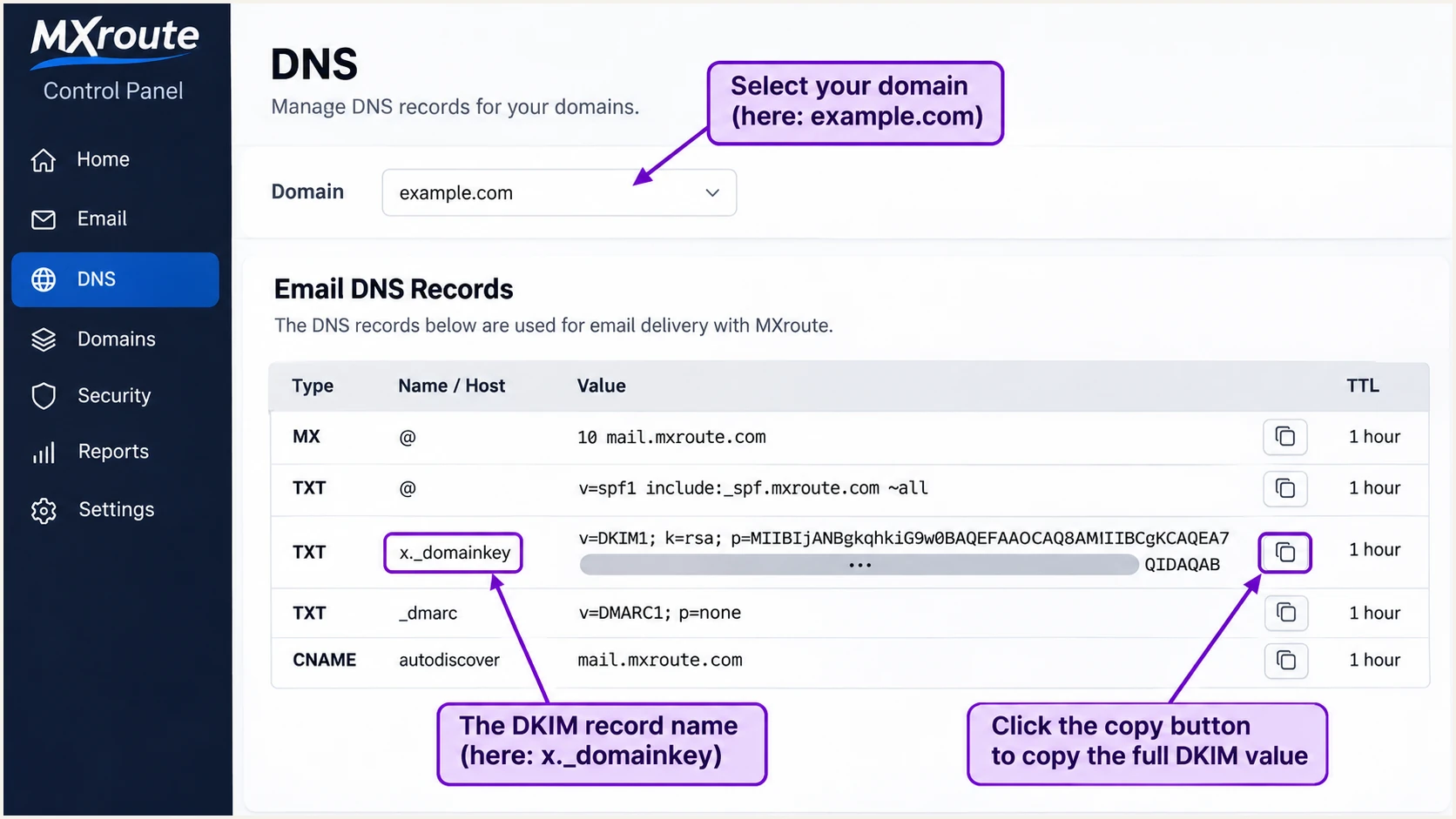
Illustrated MXroute DNS screen showing the domain selector and DKIM copy controls.
Set up DMARC
Publish DMARC at your DNS provider. I start with p=none only when the domain has no enforced policy; retain p=quarantine or p=reject if either is already deployed.
- Inspect the existing policy. Look up TXT records at _dmarc.yourdomain. Edit the existing DMARC record if present, rather than creating a duplicate.
- Generate the record. Use the DMARC record generator to configure the policy and reporting recipient.
- Set a real recipient. Replace dmarc@example.com in the example with a working aggregate-report mailbox or your assigned report collection address. An external reporting domain requires authorization by the destination domain.
- Publish at _dmarc. Create a TXT record with the relative name _dmarc, or the full hostname if your DNS provider requires it. Keep useful existing reporting destinations.
This starter record requests monitoring and aggregate reports. The example recipient is a placeholder; replace it before publishing.
Starter DMARC policytext
v=DMARC1; p=none; rua=mailto:dmarc@example.com
The p=none policy requests no DMARC-based quarantine or rejection. Receivers still apply their normal spam filtering and other delivery rules.
Validate your published domain below. A valid DNS policy establishes the instructions; testing sent messages establishes whether MXroute is authenticating correctly.
DMARC checker
Look up a domain's DMARC record and catch policy issues.
?/7tests passed
Aggregate reports usually arrive on a daily schedule after participating receivers see your mail. Expect a delay between your first test and report visibility.
Store report attachments in a dedicated mailbox or send them directly to a report collection address. Review reports across all legitimate sources, including applications that send outside MXroute.
Avoid forwarding reports back to Gmail
MXroute warns that Google does not accept its own aggregate reports forwarded back through an MXroute mailbox to Gmail. Use local mailbox storage or direct report collection instead.
Verify and troubleshoot
I test the actual mailbox and application that will send production mail. DNS checks alone cannot confirm that the application is using MXroute.
- Run MXroute's test. Open DNS > DNS Tester, choose your domain under Domain to Test, and click Test DNS Records. Check the MX, SPF, and DKIM results individually.
- Use authenticated SMTP. Copy Server Hostname from Email Clients. Use port 465 with TLS or 587 with STARTTLS, SMTP authentication, your full mailbox address, and its password.
- Inspect received headers. Check the receiving server's Authentication-Results for spf=pass, dkim=pass, and dmarc=pass. Compare smtp.mailfrom and header.d with header.from.
- Resolve sender verification. For Sender verify failed, confirm the From address has a mailbox or suitable forwarding route. Check Mail Hosting if incoming mail is elsewhere; changing SPF will not repair local sender routing.
For the quickest end-to-end diagnosis, use the email tester below. Send an email to its generated address through your MXroute mailbox, then repeat through each application.
The received test evaluates the authentication actually applied to that message, alongside delivery-related checks. Inspect the individual failures rather than relying only on the overall score.
Email tester
Send a real email to this address. Suped shows a results button when the test is ready.
?/43tests passed
For From: user@example.com, the usual target is SPF passing for an example.com envelope sender and DKIM passing with d=example.com. Under relaxed matching, a shared organizational domain also qualifies.
DMARC needs one passing mechanism with a matching domain. For direct MXroute delivery, I fix both mechanisms so that a later forwarding-related SPF failure does not leave DKIM as an untested dependency.
|
|
|
|---|---|---|
SPF error | Duplicate policy | Merge SPF TXT |
SPF limit | Nested lookups | Review includes |
DKIM fail | Wrong key | Recopy domain key |
DMARC fail | Domain mismatch | Check SMTP login |
No reports | Recipient issue | Check rua |
SMTP 550 | Sender routing | Read full error |
Common failure patterns and the next check.
For a DNS failure, query the record at the final hostname and compare it character by character with the panel. Cached answers persist until their TTL expires.
After correcting DNS, rerun MXroute's tester and send a fresh message. Retesting an old email cannot show a new DKIM signature or a new authentication decision.
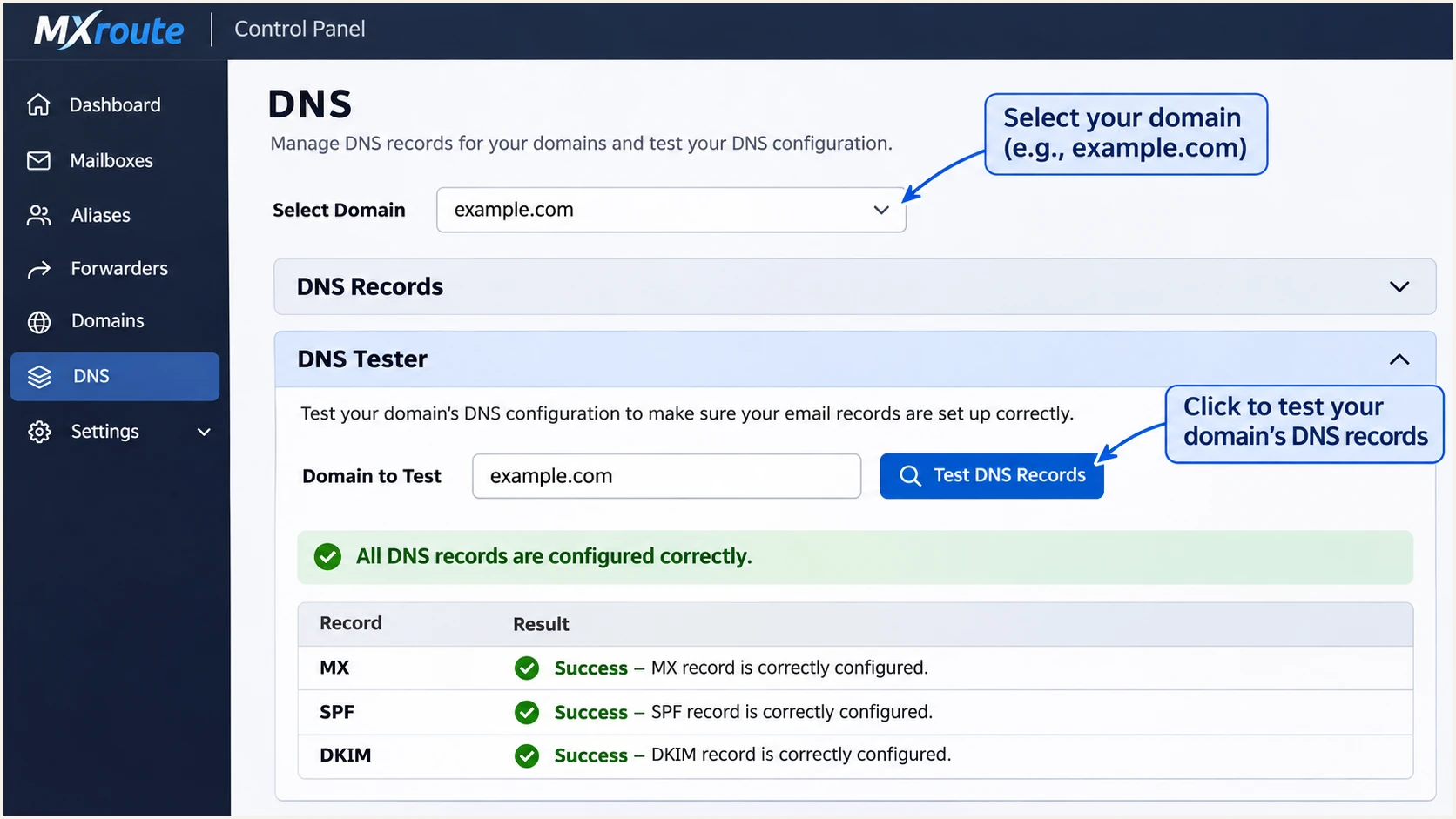
Illustrated MXroute DNS Tester with separate MX, SPF, and DKIM results.
Get alerted when it breaks
Suped is our DMARC reporting and email authentication platform. Its DMARC monitoring connects receiver reports with sending-source results and detected authentication issues.
- Enable issue notifications. In Suped notification settings, enable Issues detected and Sending sources need verification. Use DMARC summary emails for regular reviews.
- Verify authorized sources. Review the source table and mark MXroute as verified only after confirming it is an approved sender. Investigate every unfamiliar source before approving it.
- Inspect the failure. Open the affected source and its record details. Compare the From domain, SPF domain, DKIM domain, and source IP; follow the detected issue's steps to fix.
- Check DNS changes. Use Suped's DNS history to compare the record before and after a failure. Correct the authoritative DNS record, send another test, and verify subsequent results.
I keep alerts enabled after setup because a DNS edit or application login change can break an otherwise working domain. Source-level results help separate MXroute failures from another sender's failures.
Source verification records your authorization decision. Actual authentication still depends on the message signatures and public DNS.
Allow for receiver reporting delays
Suped sends issue notifications when it detects problems. Alerts based on aggregate reports follow the receiver's reporting schedule, commonly daily. Use a fresh email test and SMTP errors to investigate an immediate sending failure.
Secure your domain with p=reject
I enforce p=reject after legitimate sending paths consistently pass DMARC, including less frequent mail. Suped's source review and detailed diagnostics provide the evidence for that decision.
- Inventory every sender. Review MXroute mailboxes and applications such as website forms or billing systems. Include low-volume jobs and every active sending subdomain.
- Repair legitimate failures. Check DKIM and envelope-domain matching for each approved sender. Do not authorize unknown sources merely to improve the overall pass percentage.
- Stage enforcement. Review several weeks of representative reports, including infrequent business workflows. Move to p=quarantine, inspect legitimate delivery failures, and proceed to p=reject when they are resolved.
- Keep monitoring. Preserve rua, retest after each policy change, and inspect new failures. Check subdomain policies before enforcing the parent domain.
The monitoring period must cover your real sending schedule. A quiet week without failures does not validate a monthly billing run.
Suped's Hosted DMARC lets teams manage the policy through the dashboard after its DNS setup. Use Suped's reports and issue diagnostics to review each enforcement change.
Ready for p=reject
Every approved source has passing DMARC results across its normal sending cycle. MXroute tests show the expected signing domain, and remaining failures have been investigated.
Keep investigating
An approved application still fails domain matching, an infrequent sender has not been tested, or a forwarding workflow loses DKIM. Resolve the legitimate failure before increasing enforcement.
This final example retains aggregate reporting. Replace the placeholder recipient with your working destination and edit the existing _dmarc TXT record.
The default relaxed SPF and DKIM matching is sufficient for p=reject. Strict matching is a separate decision and is unnecessary for this MXroute setup.
DMARC enforcement after verificationtext
v=DMARC1; p=reject; rua=mailto:dmarc@example.com
A p=reject policy asks receivers to reject messages that fail DMARC. Receivers retain local discretion, and the policy does not guarantee inbox placement for passing messages.
An explicit subdomain DMARC record can override the parent policy for that subdomain. Review those records and keep the report destination working after enforcement.
Frequency asked questions
For MXroute-only sending, publish the SPF value shown above using include:mxroute.com and a final -all. MXroute also accepts include:mxlogin.com. If other services send using the same envelope domain, merge their authorizations into that single SPF TXT policy.
The current selector is x, so the TXT record is published at x._domainkey.yourdomain. Copy the complete value for the selected domain from Control Panel > DNS. Use the name displayed for your account if it differs.
Yes. A passing DKIM signature whose d= domain matches the visible From domain satisfies DMARC independently of SPF. Forwarding can cause SPF alignment failures. For direct MXroute sending, investigate unexpected SPF failures and confirm DKIM is passing with the correct domain.
MXroute uses mxrouting.net hostnames for its email servers. I treat that rDNS suffix as an identification clue, then check the source IP and authentication results. Hostnames alone do not prove a message is authorized, and outbound relay hostnames can differ.
Keep an existing p=reject or p=quarantine policy while configuring MXroute. Publish the correct SPF authorization and domain-specific DKIM key, then test the actual sender. Starting a new deployment at p=none does not require weakening an already enforced domain.
A valid signature for an unrelated domain does not satisfy DMARC. Check the DKIM d= domain against the visible From domain and inspect SPF's checked domain too. MXroute signs using the SMTP login domain, so authenticate with the intended sending domain's mailbox and send a fresh test.