
How to set up DMARC/DKIM/SPF for mxHERO

To authenticate mail delivered directly by mxHERO, verify your domain, add include:_spf.mxhero.com to its SPF record, verify a DKIM key in mxHERO, and publish a DMARC TXT record. For outbound loopback, your mail provider handles final delivery and must authenticate the processed message.
I check the final delivery route before changing DNS. Replacing attachments with links changes signed content, so a DKIM signature applied before mxHERO processing can fail. The final receiver needs a valid signature or SPF result with the required domain match for DMARC.
Add your domain
I start in the mxHERO Admin Dashboard with an Owner or Administrator account and access to the domain's DNS.
- Open domain setup. Go to Settings > Organization and domains > Manual Domains > Start connecting. Enter your domain in Connect a new domain and click Add....
- Publish verification. Copy the generated mxhero-domain-check TXT value to the domain apex, usually entered as @ in DNS. Keep existing TXT records.
- Verify ownership. After DNS publishes the value, return to mxHERO and click Verify. Use the exact token supplied for your domain.
- Connect the domain. Open Domains > Add, select the verified domain, enter its Server and save. For an alias, select its parent domain and Save the alias.
A verified domain still needs connecting. If Add is missing on the Domains tab, check that verification succeeded and the domain is not already connected.
Repeat for each sending domain and alias. The domain verification TXT record is separate from SPF and DKIM.
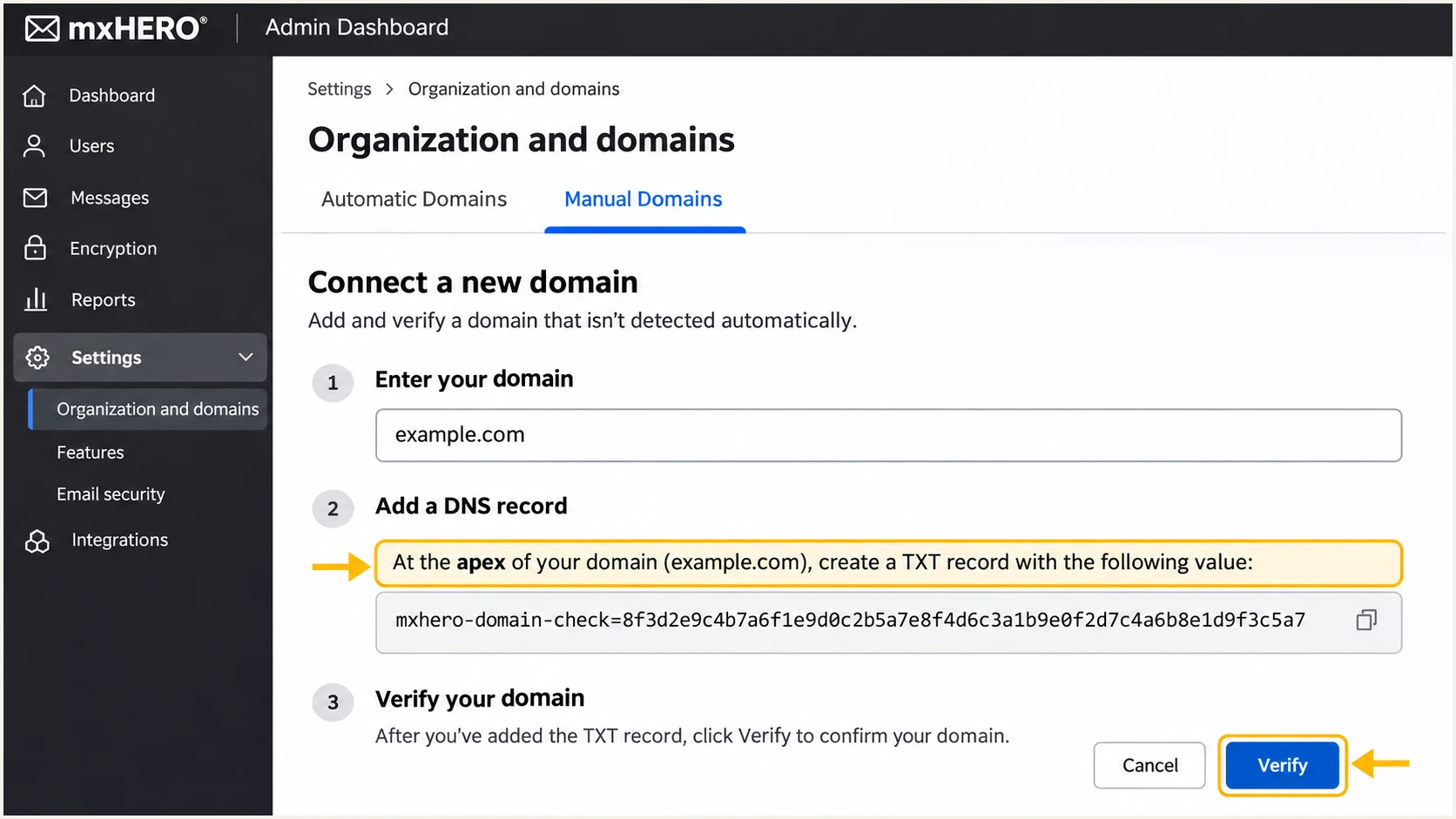
Illustrated mxHERO domain verification flow with the TXT value and Verify action.
Set Server to the actual mailbox destination: your tenant MX hostname for Microsoft 365, or smtp.google.com for Google Workspace. Leave MX Lookup off for these providers. Never point Server back to an mxHERO host.
Connecting a domain does not activate mail routing. Choose the outbound route before enabling connectors or mail flow rules.
Outbound Standard
Leave Relay Server empty. Route outbound messages to smtp-relay.mxhero.com. mxHERO makes the final delivery.
Authorize mxHERO in SPF and enable its DKIM signing after message processing.
Outbound Loopback
Set Relay Server to smtp-relay.gmail.com for Google Workspace, or your tenant MX hostname for Microsoft 365.
Configure relay permissions and verify that your provider signs the processed message on final delivery.
Set up SPF
Direct mxHERO delivery requires include:_spf.mxhero.com. Preserve every other authorized sender in the same SPF record.
- Find the record. Locate the TXT record beginning v=spf1 at the domain used in the outbound Return-Path. For ordinary apex-domain sending, this is your main domain.
- Merge mxHERO. Insert include:_spf.mxhero.com before the existing ~all or -all. Preserve that ending and the existing sender mechanisms.
- Avoid duplicates. Publish one SPF record per DNS name. Adding a second v=spf1 record causes an SPF permanent error.
- Check the result. Open Settings > Organization and domains > Domains and check for SPF is set. Also check the recursive SPF lookup count, which must not exceed 10.
Apex TXT examples, choose the relevant provider and retain other senderstext
; Host: @ | Type: TXT | Microsoft 365 example
v=spf1 include:spf.protection.outlook.com include:_spf.mxhero.com ~all

; Host: @ | Type: TXT | Google Workspace example
v=spf1 include:_spf.google.com include:_spf.mxhero.com ~all
These examples assume ~all is your existing ending. Do not replace a working -all merely to copy the example. Nested includes count toward the SPF lookup limit.
Run the checker against the actual envelope domain. A green mxHERO domain indicator confirms its include was detected, rather than proving a delivered message passes DMARC.
SPF checker
Find SPF syntax issues, lookup limits, and weak records.
?/16tests passed
mxHERO supports Return-Path alignment. I compare smtp.mailfrom in the received authentication results with the visible From domain. Under relaxed alignment, they need the same organizational domain; strict alignment requires an exact domain match.
If your Return-Path uses a subdomain, publish SPF at that subdomain as required by your route. Updating only the apex does not authorize a different envelope domain. Loopback delivery also needs your final mail provider authorized there.
Set up DKIM
I enable mxHERO signing for Outbound Standard so the signature covers the message after processing. With loopback, confirm your mail provider signs after the return hop.
- Create the key. Open Settings > Organization and domains > DKIM > Setup DKIM.... Select the sending domain or alias and click Continue. Use the recommended 2048-bit key option when shown.
- Publish the TXT. Copy the DNS name and public key exactly. The initial selector is mxhero; later selectors have a generated suffix. Use the selector displayed for this key.
- Enable signing. Wait for DNS publication, then click Verify in mxHERO. Publishing the record alone does not start signing.
- Test every identity. Repeat for each sending domain and alias, then check a processed message for dkim=pass with header.d matching the From domain under your DMARC alignment mode.
Initial-selector TXT structure, replace the placeholder before publishingtext
; Host: mxhero._domainkey | Type: TXT
v=DKIM1; k=rsa; p=REPLACE_WITH_PUBLIC_KEY_FROM_MXHERO
The placeholder above is not a working public key. Publish the complete value generated by mxHERO, and keep private keys out of DNS.
DNS editors often append the domain automatically. Enter the host in the format your DNS provider expects so you do not accidentally duplicate example.com in the record name.
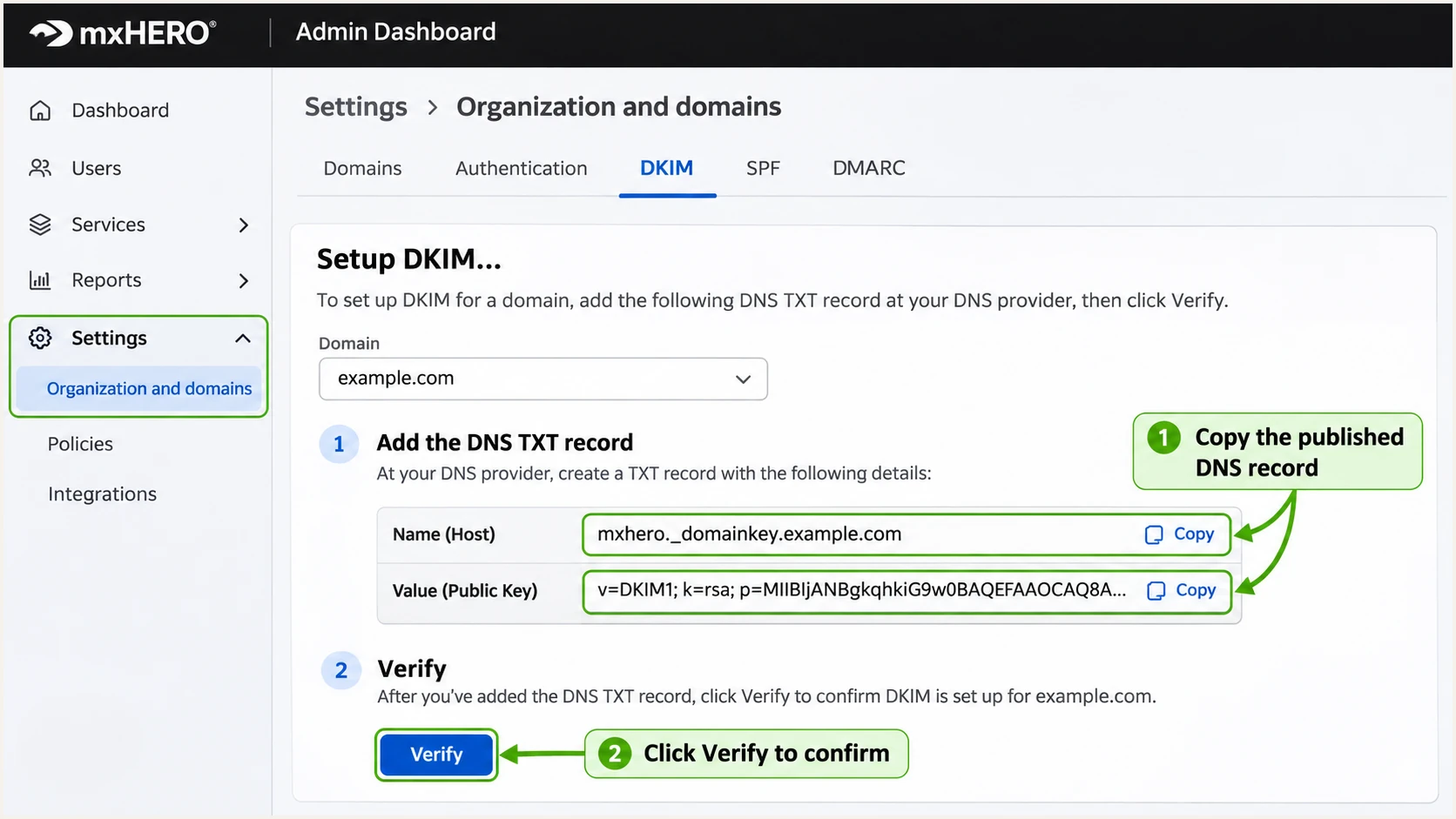
Illustrated mxHERO DKIM setup showing the public TXT record and Verify action.
If a modified message still fails DKIM, confirm which server applied the last signature. A valid signature with an unrelated header.d domain does not satisfy DMARC for your From domain.
During rotation, verify the replacement key before retiring its predecessor. Keep the old public DNS record available long enough for queued messages carrying the old signature to finish delivery.
Set up DMARC
DMARC is published in your DNS, rather than enabled by an mxHERO switch. I begin with monitoring for a domain that has no enforcement policy.
- Check existing policy. Look up TXT at _dmarc.example.com. If p=quarantine or p=reject is already deployed, keep that policy while configuring mxHERO.
- Publish monitoring. For a new setup, create one DMARC TXT record at _dmarc using the example below. Replace example.com and the reporting mailbox with values you control.
- Receive reports. Make sure the rua address accepts aggregate report attachments. An external reporting destination also needs the reporting service's authorization DNS setup.
- Validate the record. Check that only one DMARC policy record is returned at that name and that its syntax and reporting destination are correct.
Starting DMARC value, TXT at _dmarc.example.comtext
v=DMARC1; p=none; rua=mailto:dmarc@example.com
Use the DMARC record generator to build the value with your reporting address. The example mailbox is a placeholder, not an mxHERO reporting destination.
Check the visible From domain below. A valid policy record is only the DNS part of setup; delivered messages must also pass an authentication mechanism with domain alignment.
DMARC checker
Look up a domain's DMARC record and catch policy issues.
?/7tests passed
DMARC passes when SPF passes with Return-Path alignment, or a DKIM signature passes with signing-domain alignment. Both are desirable for direct delivery, but either qualifying result satisfies DMARC.
A p=none policy requests no DMARC enforcement. It does not turn a failed message into a pass, and other receiver filtering still applies.
Verify and troubleshoot
I test the route with a pilot user before expanding it. Include a message that triggers your actual attachment or body processing, so the test exercises the final signature.
- Send through mxHERO. Send outbound mail from the pilot user to an external mailbox. Also test inbound delivery and each sending alias used in production.
- Inspect headers. At the receiving mailbox, inspect Authentication-Results, Return-Path and DKIM-Signature. Confirm dmarc=pass and the domain identities behind the SPF and DKIM results.
- Inspect flow logs. Open Reports > Email Flow Logs. Search by Sender, Recipient or Subject, open the message, and inspect Rule Executed, Mail Delivered and recipient delivery details.
- Fix loop prevention. Copy the Transport Agent value from Settings > Gateway. Routing rules must skip returned mail carrying X-mxHero-Server with that value, and must send outbound mail to smtp-relay.mxhero.com.
The email tester below gives a quicker configuration diagnosis. Send a fresh message to its generated address through the same mxHERO route your users use.
Use a real sending identity and trigger the relevant processing rule. A message sent through a different route cannot validate your mxHERO configuration.
Email tester
Send a real email to this address. Suped shows a results button when the test is ready.
?/43tests passed
Read the received results after the final hop. Earlier Authentication-Results headers describe earlier checks and do not prove the processed message passes at its destination.
I separate DNS errors, message modification and routing failures before changing records. These checks identify the next action.
|
|
|
|---|---|---|
SPF permerror | Duplicate records or lookup limit | Merge or reduce lookups |
DKIM failure | Selector and final signer | Verify key and signing |
DMARC failure | Authenticated domain mismatch | Correct domain alignment |
50-hop bounce | Server and loop exception | Repair route before retrying |
In mxHERO, recipient details show the relay host and SMTP delivery status. This confirms whether direct delivery or loopback actually occurred.
X-mxHero-Server identifies recognized mxHERO processing. Its absence warrants checking the route and Transport Agent value.
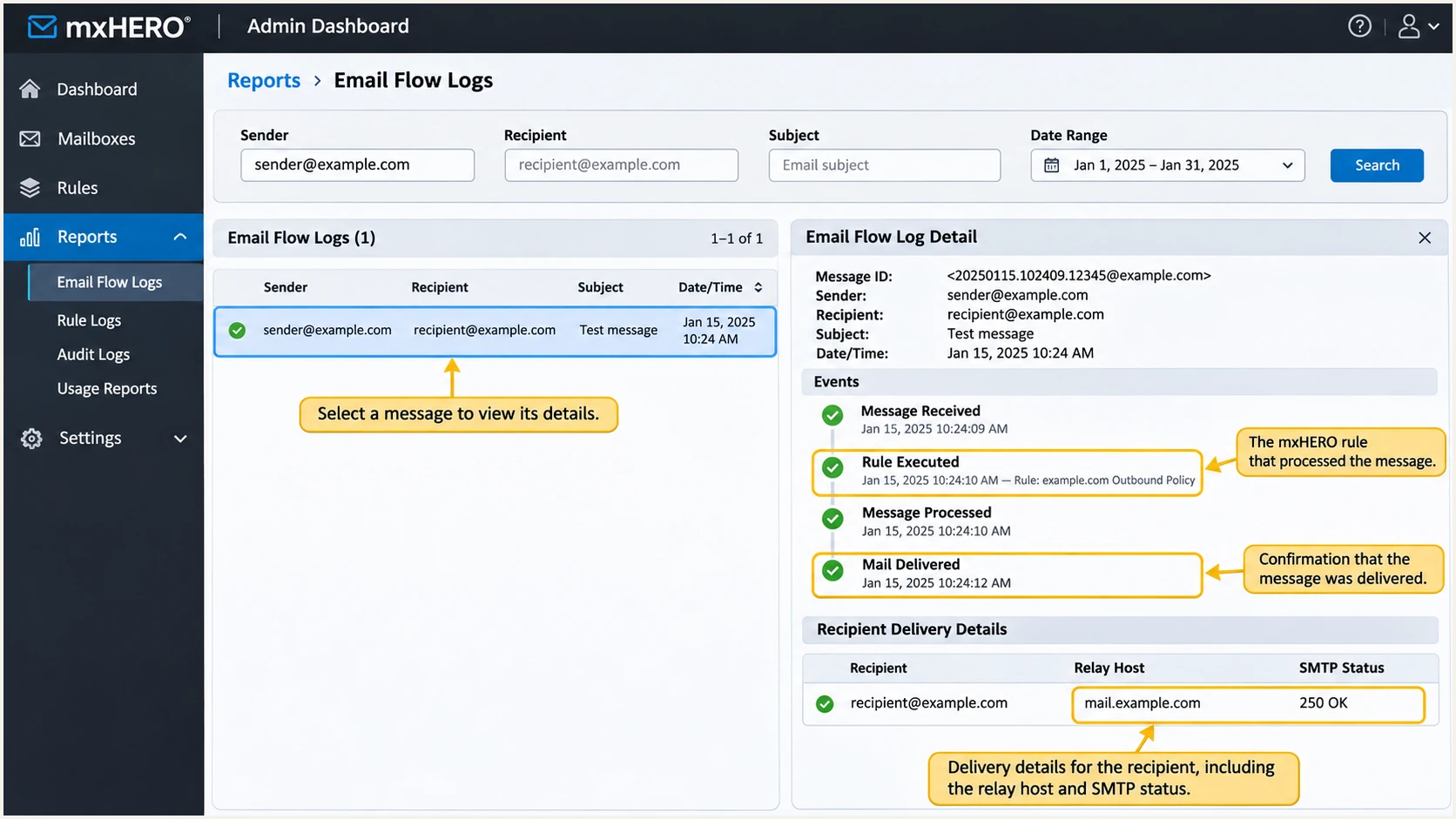
Illustrated mxHERO Email Flow Logs with rule execution and delivery details.
For mail returned into Microsoft 365, configure mxhero.com as a trusted ARC sealer in the email authentication settings. Preserve existing trusted sealers, and configure the mxHERO connector and current IP trust settings using its deployment instructions.
Google Workspace evaluates ARC without a manual trusted-sealer entry. Configure its mxHERO inbound gateway using the current mxHERO IP list. These inbound trust settings do not authenticate your outbound From domain.
ARC acceptance is different from a DMARC pass
An ARC seal with d=mxhero.com preserves authentication evidence across processing. In Microsoft 365, compauth=pass reason=130 indicates acceptance through trusted ARC, even when the current DMARC result is fail. Verify outbound domain authentication separately.
Get alerted when it breaks
Suped is our DMARC reporting platform for detecting authentication regressions across mxHERO and your other senders. Its issue detection and fix instructions help connect a failing source to the DNS or signing change that needs attention.
- Route authentication alerts. Enable Suped's Issues detected and Sending sources need verification notifications for the team responsible for the domain. Use DMARC summary emails to track the trend.
- Investigate the source. Review mxHERO failures by source IP and reporting receiver. Inspect detailed SPF and DKIM results, then compare DNS history with the first failing reports.
- Keep operational alerts. In mxHERO, open Settings > Notifications. Add your shared IT mailbox under Notification addresses and press Enter.
- Save digest preferences. Enable relevant E-mail processing and Rules execution error levels, choose By hour, and click Save settings. Investigate events in Reports > Notifications.
Suped's DMARC monitoring exposes authentication failures reported by receiving systems. mxHERO's operational digests cover processing problems in its own service.
Aggregate reports arrive on receiver schedules, commonly daily. DMARC alerts depend on those reports, so use a fresh email test immediately after a change.
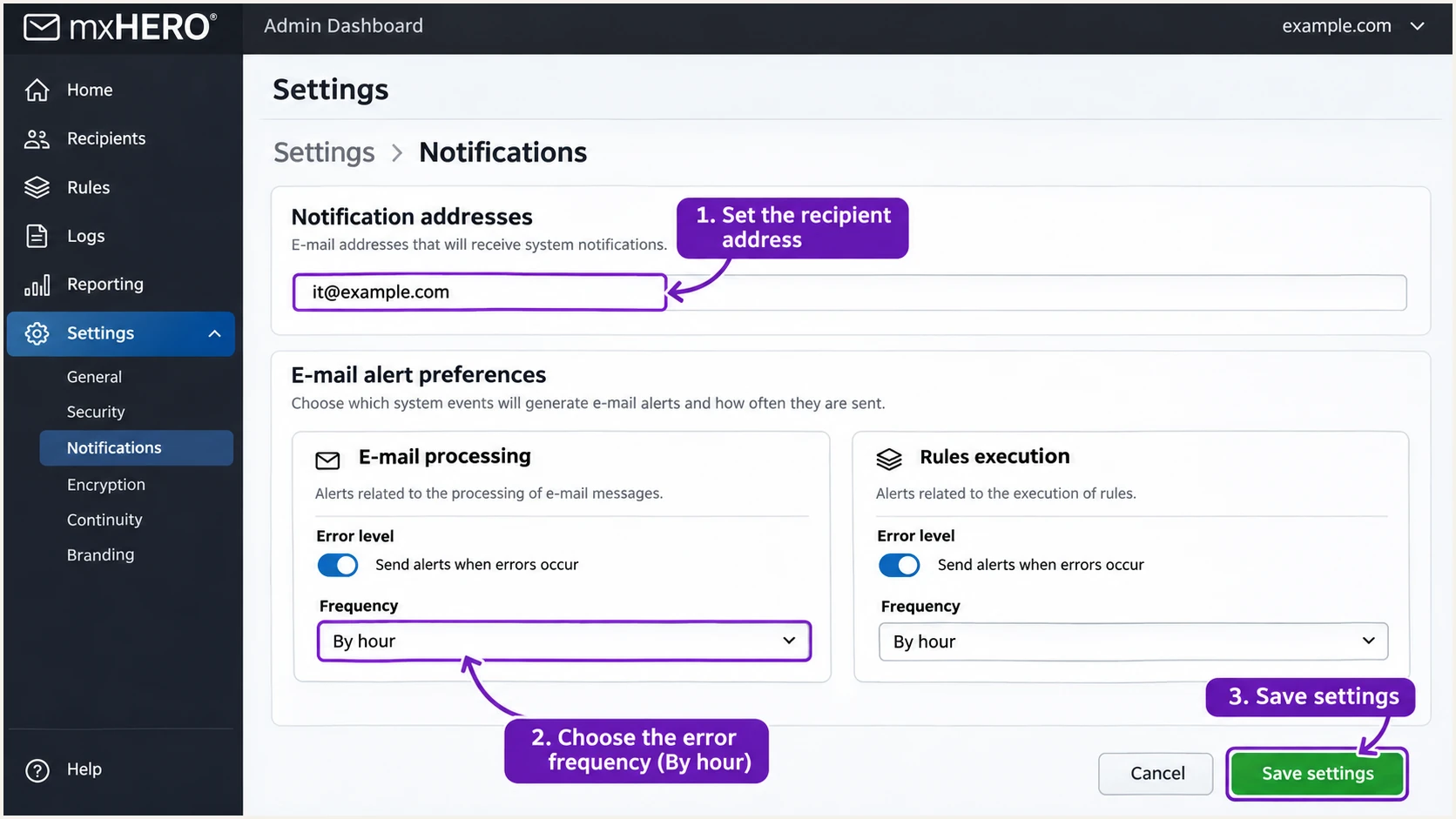
Illustrated mxHERO notification settings for hourly operational error digests.
Assign each new authentication issue to an owner and rerun the same sending test after the fix. Check subsequent reports to confirm the failure volume has stopped.
Secure your domain with p=reject
I move toward p=reject after legitimate mail consistently passes DMARC, including modified mxHERO messages and indirect delivery paths. Suped provides the source inventory and failure details needed to assess that change.
- Account for senders. Review mxHERO, employee mail and every other authorized service. Resolve legitimate failures by source, including aliases and low-volume senders.
- Require dependable DKIM. Confirm a valid signature with the correct signing domain after mxHERO processing. Do not base rejection readiness solely on an SPF pass.
- Assess indirect mail. Test forwarding and mailing lists. For domains with routine user mail, assess at least a month of p=none reports and a comparable quarantine period before rejection.
- Change and watch. Use Suped's Hosted DMARC policy staging or edit your existing DNS record. Keep reporting enabled and investigate new legitimate failures after every policy change.
Policy progression, edit the existing TXT record and retain your rua addresstext
; Intermediate policy
v=DMARC1; p=quarantine; rua=mailto:dmarc@example.com

; Final policy after validation
v=DMARC1; p=reject; rua=mailto:dmarc@example.com
With Hosted DMARC, Suped manages policy changes through its dashboard after the hosted DNS setup is complete. Source-level reports help verify that each stage preserves legitimate delivery.
Keep existing quarantine or reject policies during mxHERO onboarding. Pilot the new route and fix its authentication before sending production traffic through it.
Assess mailing lists before rejection
Mailing lists that change messages can break DKIM and disrupt delivery under p=reject. Address these paths before enforcement. A reject policy expresses the domain owner's handling preference; each receiving system makes its own delivery decision.
Frequency asked questions
Yes. Check that smtp.mailfrom uses your domain or an appropriate subdomain, publish SPF at that DNS name, and authorize the final delivery service. If SPF alignment fails but a valid DKIM signature has the required domain alignment, DMARC still passes.
Attachment replacement or body changes can invalidate a signature applied earlier. For direct delivery, verify a DKIM key in mxHERO so it signs processed mail. For outbound loopback, confirm your mail provider applies a valid signature after processing.
No. ARC records authentication history for receivers that trust it. An ARC seal is separate from a DKIM signature for your From domain. Microsoft 365 acceptance through ARC can coexist with dmarc=fail in the current authentication results.
Keep the existing enforcement policy. Restrict mxHERO routing to pilot users and verify the final SPF, DKIM and DMARC results before rollout. The p=none example is for a new monitoring setup.
Investigate mxHERO, then verify the sending IP and message headers. Its published sending addresses include 54.208.111.28 and 54.236.184.32. Compare against the current mxHERO IP list and inspect X-mxHero-Server and ARC evidence. Its routing hosts are not a guarantee of specific PTR names; rDNS alone does not authenticate a message.
No. Verify it on Manual Domains, connect it on Domains, and set Server. Mail reaches mxHERO only after you configure routing in your mail platform. Configure outbound authentication before enabling the route for production users.




