
How to set up DMARC/DKIM/SPF for MSP360

Published 21 Nov 2026
Updated 21 Nov 2026
10 min read
Summarize with
MSP360 notification email passes DMARC when SPF or DKIM authenticates a domain that matches the visible From address. Verify your sender, publish the domain-specific DKIM records, configure SPF for the actual Return-Path, and add a DMARC TXT record. Start a new DMARC policy at p=none; keep an existing quarantine or reject policy.
I check the sending route first: MSP360's built-in email service, custom SMTP, or your own Amazon SES account. The steps below focus on Managed Backup's Management Console; DNS values depend on the selected route.
Add your domain
Use an address on a domain you control. Keep access to its mailbox and DNS; MSP360 starts with sender verification rather than a separate domain wizard.
- Open settings. In the Management Console, select Settings > Email Service.
- Choose sender. Select MSP360 email service and enter your sender, such as alerts@example.com.
- Verify address. Click Verify email and follow the confirmation link sent to that mailbox.
- Save. Return to the console and click Save changes.
Mailbox verification confirms permission to use the address. It does not prove that an email has passing SPF or a DKIM signature for your domain.
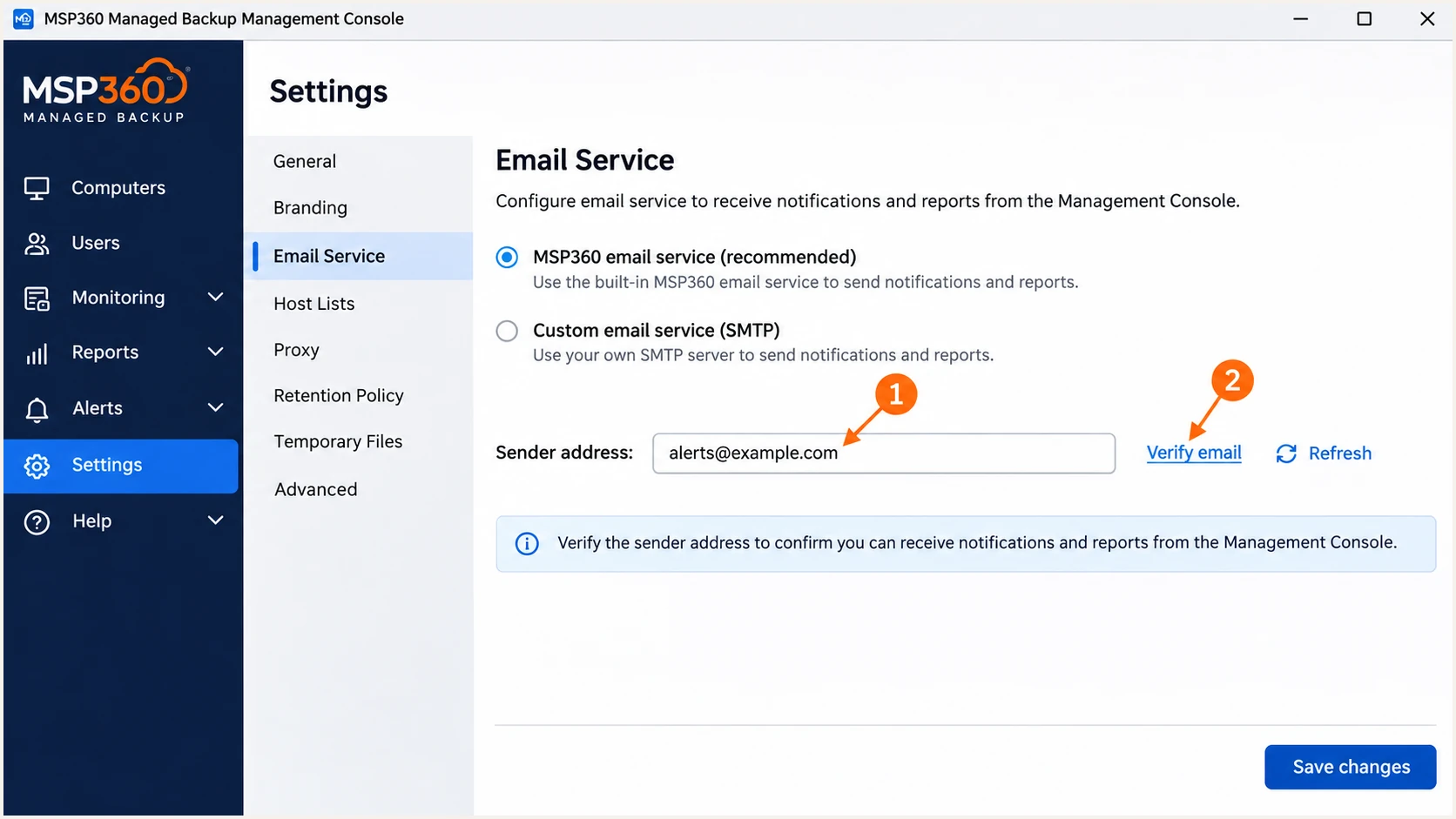
MSP360 Email Service controls for entering and verifying a sender.
Keep DNS access available for the next steps. If you select custom SMTP instead, the relay administrator must authorize the sender and configure signing on that delivery route.
Set up SPF
SPF checks the envelope sender, usually visible in Return-Path. I identify that domain before editing DNS so the authorization applies to the identity receivers actually check.
- Identify the domain. Open a delivered notification's raw headers. Record Return-Path and the receiving server's smtp.mailfrom result.
- Authorize the documented route. MSP360's Managed Backup SPF knowledge base specifies ip4:50.19.243.6. Add that mechanism to the existing SPF record for the applicable sender domain when using that mail-server route; confirm with MSP360 if your headers show different infrastructure.
- Preserve existing senders. Keep one SPF TXT record per hostname. Merge the authorization before the final all mechanism, retain other valid senders, and stay within the 10 DNS lookup limit.
- Configure the return path. MSP360 supports return-path alignment. If your route still uses a provider domain, request its custom MAIL FROM hostname and DNS instructions from MSP360 support. DNS changes alone do not change the envelope sender.
- Handle other routes. For custom SMTP, use the relay's outbound SPF requirements. For your own Amazon SES account, configure custom MAIL FROM and publish its supplied MX and SPF records on that subdomain.
Use this example only for the documented Managed Backup mail-server route when no SPF record exists. Do not replace an existing record with this single-sender example.
Example SPF record for the documented Managed Backup mail serverdns
example.com. 3600 IN TXT "v=spf1 ip4:50.19.243.6 ~all"
An SES Return-Path under amazonses.com uses Amazon's SPF record. Adding an IP or include to example.com does not make that provider-owned domain match example.com.
Check the actual MAIL FROM domain below. A valid DNS record confirms syntax and authorization structure; a delivered message is still needed to confirm SPF authentication and domain alignment.
SPF checker
Find SPF syntax issues, lookup limits, and weak records.
?/16tests passed
If your route retains a provider-owned Return-Path, expect SPF alignment errors even when SPF authentication passes. Extra SPF authorization at your root is unnecessary for that route. A passing DKIM signature with a domain matching the visible From address is sufficient for DMARC.
Set up DKIM
I prioritize a DKIM signature for the visible From domain. Unlike SPF, that signature can survive forwarding when the signed content remains unchanged.
- Retrieve records. In Email Service, click Refresh beside Verify email. If DKIM configuration required appears, copy every supplied DNS record.
- Publish records. Create the supplied CNAME or TXT entries in authoritative DNS. Publish all entries, not just the first one.
- Check hostnames. If your DNS host appends the domain automatically, enter only the relative hostname. Keep DKIM CNAMEs unproxied.
- Confirm setup. Click Save changes and check for green checks, then test a fresh notification.
Selectors and record targets are specific to your domain. Copy the values supplied for your account; do not reuse another domain's keys or publish a private signing key in DNS.
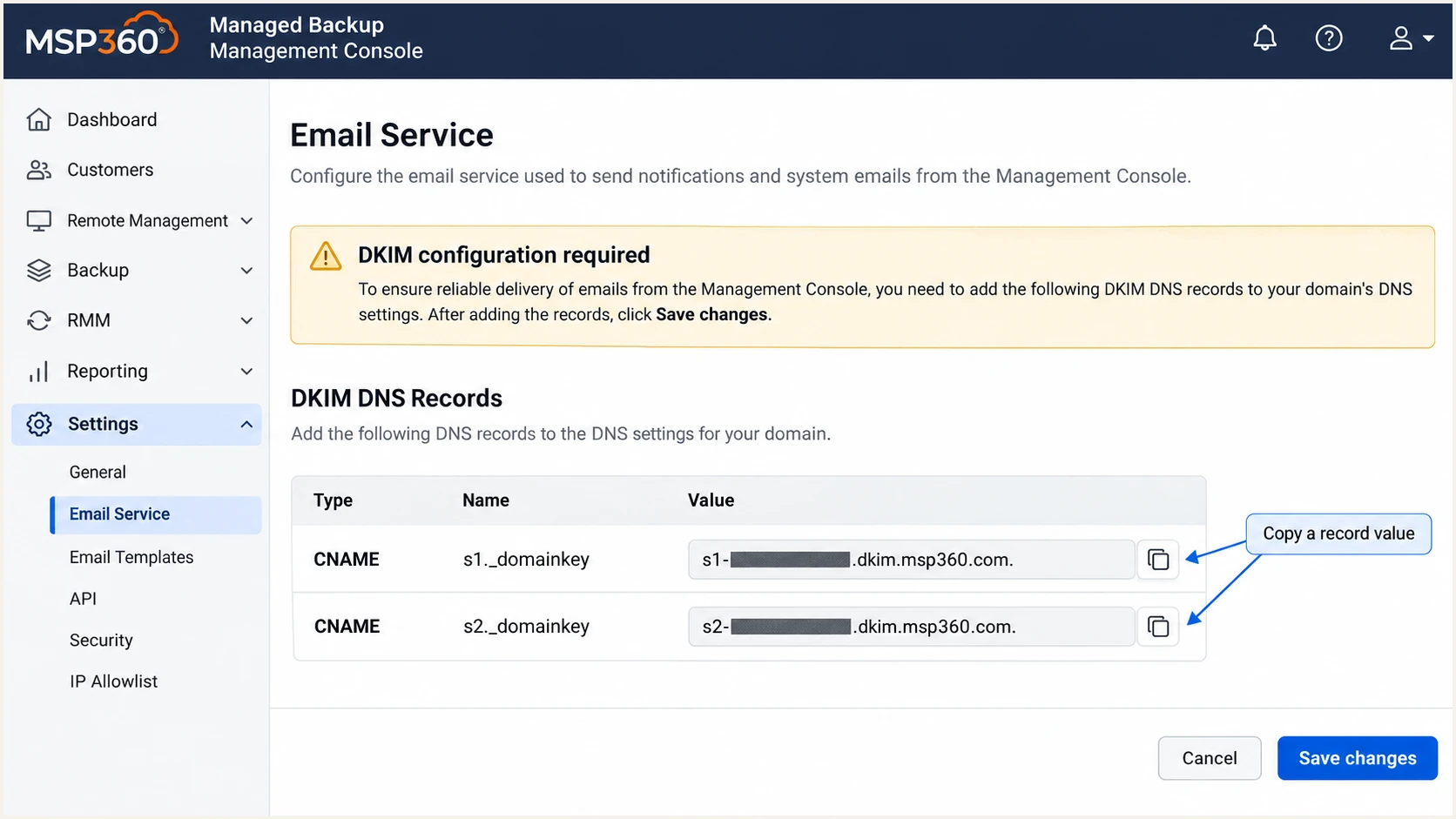
MSP360's DKIM warning and domain-specific DNS records to copy.
Require dkim=pass in the receiver's Authentication-Results with a signing domain matching your From domain. A signature for amazonses.com alone is insufficient. If your console supplies no records and domain-matching DKIM is absent, ask MSP360 support to provision it.
Set up DMARC
DMARC is a DNS policy for the visible From domain. It passes when SPF or DKIM passes with the required domain match; publishing the policy does not enable either authentication method.
- Keep enforcement. Retain an existing p=quarantine or p=reject policy while adding MSP360. Do not weaken working protection for onboarding.
- Create a new policy. If no DMARC policy exists, add one TXT record at _dmarc.example.com using the monitoring value below.
- Set reporting. Replace dmarc@example.com with a real mailbox that accepts aggregate reports, or your reporting service's assigned address. Complete external reporting authorization when required.
- Check subdomains. For a subdomain in From, inspect its own DMARC record and any inherited parent policy. Keep only one DMARC record at each policy hostname.
Use the DMARC record generator to build the value. The example requests monitoring without DMARC-based quarantine or rejection; other receiver filtering still applies.
New monitoring policy: TXT value at _dmarc.example.comtext
v=DMARC1; p=none; rua=mailto:dmarc@example.com
Replace the example reporting address before publishing. Keep your current reporting destinations when editing an existing policy so historical monitoring continues.
Enter the visible From domain below to validate the published policy. A passing DNS check does not prove that MSP360 messages pass DMARC; verify an actual notification next.
DMARC checker
Look up a domain's DMARC record and catch policy issues.
?/7tests passed
Confirm the lookup returns the intended policy and reporting destination. If results disagree with your DNS editor, check the authoritative nameservers and cached TTL before editing again.
Verify and troubleshoot
I test the actual MSP360 delivery route after DNS changes. Sending a message manually from your normal mailbox tests a different route and does not validate backup notifications.
- Send through MSP360. Use a test notification or a controlled backup event with notifications enabled. For custom SMTP, use its Send test email to field.
- Read receiver results. Check the destination's Authentication-Results for spf, dkim, and dmarc. Compare the authenticated domains with the visible From domain.
- Check selectors. Look up the selector in the actual DKIM-Signature, not a guessed selector. Resolve its CNAME chain and confirm the public key is available.
- Clear delivery blocks. Review MSP360's notification-delivery error details. Fix the cause, then unblock affected recipients and retest.
The email tester gives a quicker message-level diagnosis. Send from MSP360 to the temporary address it provides, using the same sender and delivery route as your production alerts.
Keep the resulting report with your change record. It separates authentication results from other delivery checks, which helps avoid treating a successful DNS lookup as proof of successful sending.
Email tester
Send a real email to this address. Suped shows a results button when the test is ready.
?/43tests passed
Require dmarc=pass on the received test. SPF alignment failure is acceptable for DMARC when a passing DKIM signature matches the From domain; failures of both matching methods require a fix before enforcement.
These are illustrative successful receiver results for an aligned return path and DKIM signature. Real headers also contain the receiver hostname and additional fields.
Illustrative authentication resultstext
Authentication-Results: receiver.example;
  spf=pass smtp.mailfrom=bounce.example.com;
  dkim=pass header.d=example.com;
  dmarc=pass header.from=example.com
A sending-domain match alone is insufficient: the relevant SPF or DKIM authentication result must also pass. Under default relaxed matching, bounce.example.com can match example.com.
Use the symptom to choose the next check rather than replacing every authentication record. Recheck a fresh notification after each correction.
|
|
|
|---|---|---|
SPF error | Duplicate TXT | Merge SPF |
SPF mismatch | Return-Path | Use matching DKIM |
DKIM failure | Selector DNS | Correct records |
DMARC failure | Domain match | Fix SPF or DKIM |
No notification | Delivery errors | Fix, unblock, retry |
Common MSP360 authentication and delivery checks
Get alerted when it breaks
Suped is our DMARC platform for ongoing authentication monitoring. Our DMARC monitoring connects report data with detected issues and fix steps, so a broken MSP360 sender does not depend on someone remembering to inspect headers.
- Enable issue notifications. Use Suped's Issues detected emails and send them to an operational mailbox your team monitors.
- Verify the source. Confirm MSP360 is an approved sender after checking your configuration and real messages. Investigate unfamiliar sources before marking them as trusted.
- Investigate regressions. Use Suped's record detail diagnostics to inspect failed SPF or DKIM results, then compare DNS history with the last working configuration.
- Keep delivery monitoring. Review MSP360's own notification errors alongside authentication alerts. DMARC reports do not confirm that each backup notification arrived.
I keep message tests and report monitoring as separate checks. A test validates one message; Suped's reports show patterns across participating receivers and subsequent sends.
Aggregate reports normally arrive on a daily cycle. Suped's report-based alerts depend on incoming data, so use MSP360's delivery-error information for failures that need immediate operational attention.
Keep the alert route working
Use a working alert destination outside the notification route being changed. After correcting an issue, send another MSP360 test and confirm that subsequent reports show the expected authentication result.
Secure your domain with p=reject
I increase enforcement after checking every legitimate sender using the domain, including low-volume scheduled alerts. One passing MSP360 test is insufficient evidence for a domain-wide policy change.
- Inventory senders. Use Suped's source data to account for MSP360 and every other approved sender. Review failures per source so high-volume successes do not hide broken backup alerts.
- Fix known failures. Use Suped's issue diagnostics and fix steps to correct authentication. Retest notification paths and resolve unexplained failures before changing policy.
- Stage enforcement. Move a new deployment from p=none to p=quarantine, observe a complete notification cycle, then use p=reject. Choose the observation period around your real sending schedule.
- Keep watching. Preserve aggregate reporting and issue notifications after enforcement. Investigate legitimate failures promptly and retain the last working DNS configuration for recovery.
Suped's hosted DMARC lets your team manage policy stages in our dashboard once its DNS setup is in place. Combined with source-level reports and issue alerts, it gives each policy change evidence and a way to check the result.
Keep default relaxed matching unless you have a tested requirement for strict matching. With strict SPF matching, bounce.example.com does not match example.com.
Ready for p=reject
Approved senders consistently pass DMARC. Real MSP360 notification paths have been tested, and the observation period includes scheduled jobs.
Resolve before advancing
Approved sources still fail or a notification path remains untested. Inspect those sources in Suped and repeat message tests before increasing enforcement.
At p=reject, receivers are asked to reject messages that fail DMARC; receiver policy still determines the final handling. Continue checking MSP360 authentication after sender-address changes or a switch of delivery route.
If a legitimate alert fails after rollout, inspect its receiver results and restore the last working configuration while correcting that sender. Confirm recovery with a fresh MSP360 notification.
Frequency asked questions
MSP360's Managed Backup SPF knowledge base specifies ip4:50.19.243.6 for its documented mail-server route. A new record for that route is v=spf1 ip4:50.19.243.6 ~all. Merge it into existing SPF rather than adding a second record. Custom SMTP and SES routes require the values for their actual MAIL FROM domain.
Yes. Use the domain-specific records supplied for your sending route, then confirm dkim=pass with a signing domain that matches your visible From domain. Verifying a sender mailbox alone does not establish domain-matching DKIM.
SPF can pass for a provider-owned Return-Path while the visible From uses your domain. That is an SPF alignment failure. DMARC still fails if no passing DKIM signature has the required domain match. Configure a custom return path or fix domain-matching DKIM.
DMARC requires at least one passing method with the required domain match. Configure both where your sending route permits. If a provider-owned Return-Path cannot be changed, passing domain-matching DKIM is sufficient for DMARC even when SPF alignment fails. Receivers apply additional delivery requirements separately.
That suffix identifies Amazon SES infrastructure. MSP360's built-in email service uses SES, but many other applications also use it, so rDNS alone does not identify MSP360. Correlate the sending IP and timestamp with your notification event, then check Return-Path and the DKIM signing domain.
Yes. Keep your existing policy and configure the new sender to pass before enabling production notifications. Publish the required DNS records, verify a real MSP360 message, and monitor report data for legitimate failures.




