
How to set up DMARC/DKIM/SPF for Migadu


To set up Migadu authentication, add include:spf.migadu.com to your single SPF TXT record, publish its key1, key2 and key3 DKIM CNAMEs, and create a DMARC TXT record at _dmarc. I start new DMARC setups with p=none, test a real message, then move to enforcement after reviewing legitimate traffic.
Migadu supports a return path using your domain, so direct outgoing mail can pass DMARC through both SPF and DKIM. Keep an existing p=quarantine or p=reject policy while adding Migadu. All examples below use example.com; copy domain-specific values from your Migadu account.
Add your domain
I keep the existing authoritative DNS host and choose external DNS in Migadu. You need access to both the Migadu administration panel and the domain's DNS records.
- Add the domain. In Migadu, open the email domains area, choose the option to add a domain, enter example.com without www, and save.
- Copy the verification TXT. Open the domain's DNS setup instructions. Add the ownership TXT at the exact name shown, normally @. Copy the complete account-specific value and keep the record in place.
- Prepare receiving mail. Create the required mailboxes and aliases before changing MX records. At migration cutover, replace the previous host's MX records with the two Migadu records below.
- Check ownership. Run the domain's DNS diagnostics after publishing the ownership record. Complete SPF and DKIM below, rerun diagnostics, and activate the domain when the required checks pass.
Migadu MX records for example.comdns
example.com. 3600 IN MX 10 aspmx1.migadu.com.
example.com. 3600 IN MX 20 aspmx2.migadu.com.
MX records route incoming mail. They do not authorize outbound senders or create DKIM signatures, but Migadu also checks MX configuration before allowing sending.
Use the DNS host's @ shorthand for example.com when required. The ownership TXT is separate from SPF, so both TXT values can coexist at the same name.
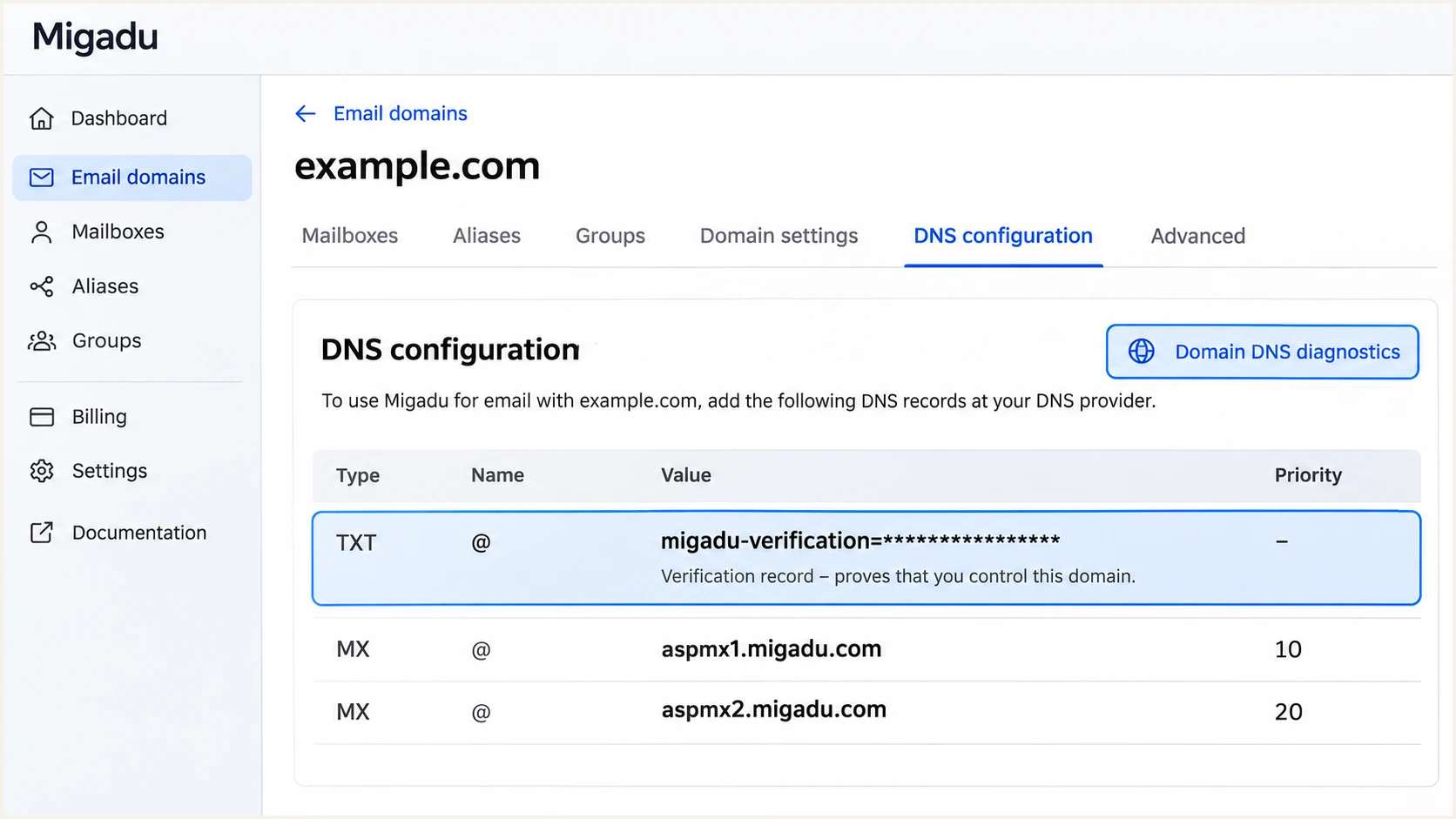
Illustrative Migadu DNS instructions for domain ownership and MX records.
Keep the domain's generated DNS instructions open while adding the authentication records. Use its values if they differ from these examples.
If diagnostics still show missing records, confirm you edited the DNS zone served by the domain's current nameservers and allow cached answers to expire.
Set up SPF
Migadu's documented SPF include is spf.migadu.com. Publish SPF at the domain used by the SMTP envelope sender, which appears as smtp.mailfrom in the recipient's authentication results.
- Inspect existing SPF. Look up TXT records at example.com and find the value beginning v=spf1. Keep exactly one SPF record at that name.
- Authorize Migadu. If Migadu is the only sender, publish the record below. Otherwise insert include:spf.migadu.com into the existing SPF record before its final all mechanism, preserving other approved senders.
- Check lookup limits. Keep the full SPF evaluation within the 10 DNS lookup limit, including nested includes. Do not copy Migadu's current sending IPs into a static allowlist.
- Confirm the return path. Send through Migadu and verify that smtp.mailfrom uses your domain. A passing SPF result for an unrelated domain does not satisfy DMARC's domain-matching requirement.
SPF when Migadu is the only authorized senderdns
example.com. 3600 IN TXT "v=spf1 include:spf.migadu.com -all"
The example ends with -all, matching Migadu's published record. Do not replace a working multi-sender SPF record with this single-sender example.
Enter your sending domain in the SPF checker. Inspect duplicate-record errors and the total lookup count before treating the DNS setup as complete.
SPF checker
Find SPF syntax issues, lookup limits, and weak records.
?/16tests passed
A valid SPF record confirms DNS syntax and authorization rules. A delivered test message confirms which envelope sender and sending IP Migadu actually used.
For normal direct Migadu mail, investigate SPF failures instead of treating them as expected. Forwarded mail is a separate case: the forwarding server changes the IP checked by SPF, so working DKIM is essential.
Set up DKIM
Migadu publishes DKIM public keys behind CNAME records. I copy all selectors supplied for the domain so later signing-key changes do not depend on another DNS edit.
- Copy all selectors. Open the domain's DNS instructions and locate the CNAME entries for key1._domainkey, key2._domainkey and key3._domainkey.
- Publish the CNAMEs. Create each record at your DNS host using its exact target. The example targets intentionally contain your domain before _domainkey.migadu.com.
- Keep DNS unproxied. Use DNS-only resolution for these CNAMEs. Remove a conflicting TXT record only after confirming it is an obsolete record at the same selector name.
- Recheck signing. Rerun Migadu DNS diagnostics, then send a fresh message. Confirm dkim=pass with header.d matching your visible From domain.
Migadu DKIM CNAME examples for example.comdns
key1._domainkey.example.com. IN CNAME key1.example.com._domainkey.migadu.com.
key2._domainkey.example.com. IN CNAME key2.example.com._domainkey.migadu.com.
key3._domainkey.example.com. IN CNAME key3.example.com._domainkey.migadu.com.
Each line is one CNAME record. Enter the name and target in separate DNS fields. Keep the complete target intact, including your domain inside Migadu's hostname.
Migadu's support notes identify proxied CNAMEs and accidentally repeated domain names as DKIM verification problems. Check whether the DNS editor appends example.com automatically before entering a full selector name.
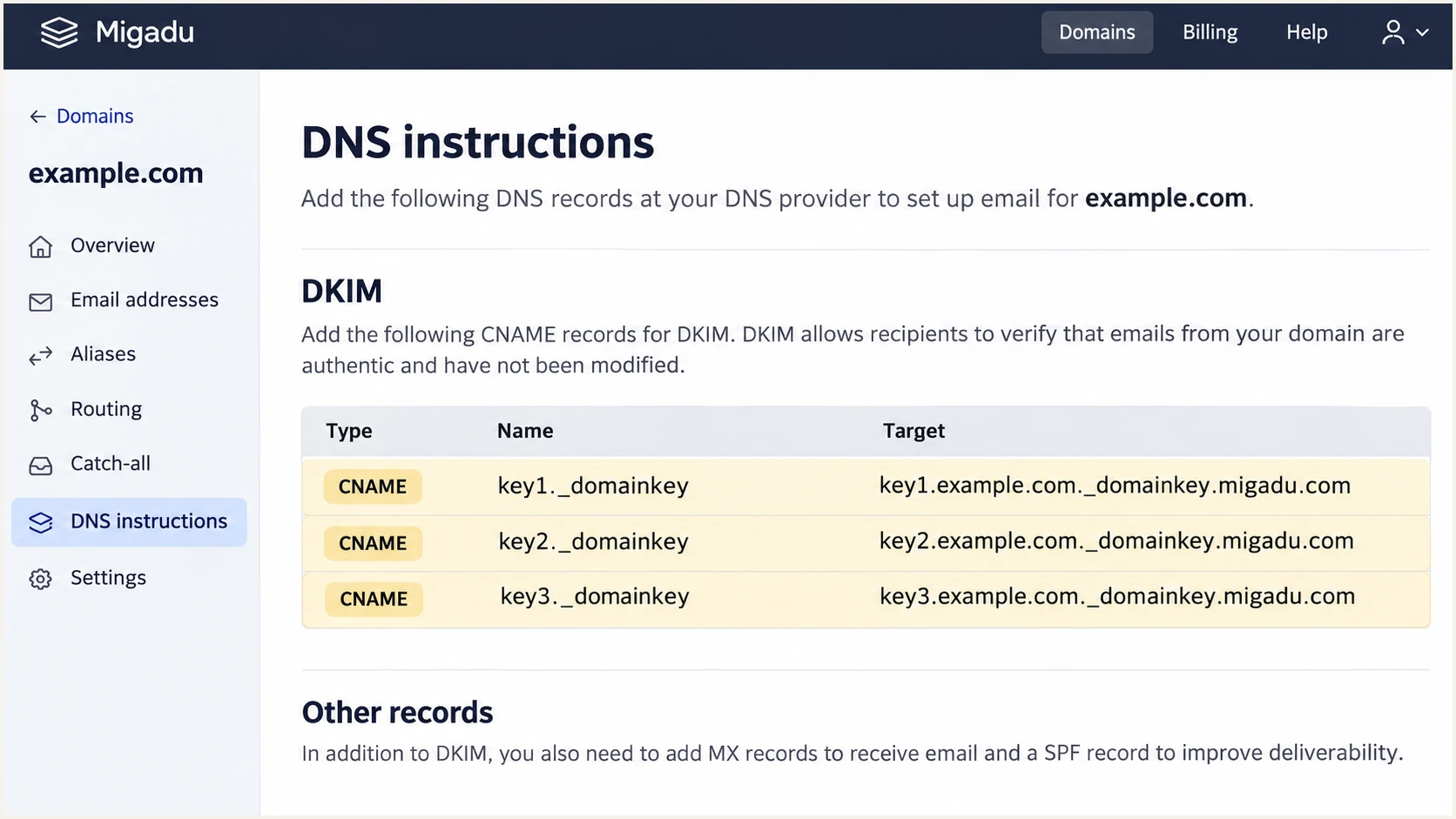
Illustrative Migadu DNS instructions showing all three DKIM CNAMEs.
Migadu keeps the DKIM private keys. You do not need to generate a replacement key or paste a public-key TXT value over its CNAMEs.
A message uses an active selector; it does not need signatures from all selectors. Leave the other supplied selectors published for rotation.
Set up DMARC
DMARC passes when SPF or DKIM passes and the authenticated domain matches the visible From domain under the policy's matching rules. I aim for both on direct Migadu mail, while relying on DKIM to survive ordinary forwarding.
- Inspect the policy. Query TXT at _dmarc.example.com. Edit the existing DMARC record if one exists; do not publish a second record.
- Start new setups in monitoring. If there is no enforcement policy already, publish the p=none example below. If p=quarantine or p=reject is already working, keep it and repair Migadu authentication without weakening the policy.
- Set a real report destination. Replace dmarc@example.com with a working address that can receive aggregate XML reports. For an external reporting domain, satisfy the receiver's external-report authorization requirement.
- Validate the result. Check the published record and reporting address, then send a fresh message through Migadu. Publishing p=none does not turn a DMARC failure into a pass.
New DMARC policy: TXT value at _dmarc.example.comtext
v=DMARC1; p=none; rua=mailto:dmarc@example.com
Use the DMARC record generator to build the TXT value with your real reporting address. Enter _dmarc as the host when your DNS editor adds the domain automatically.
Run the DMARC checker after saving. Confirm there is one valid policy and that rua points to the intended destination.
DMARC checker
Look up a domain's DMARC record and catch policy issues.
?/7tests passed
The example uses relaxed domain matching by default. There is no need to add strict adkim or aspf settings to complete a normal Migadu setup.
Monitoring mode requests reports without requesting quarantine or rejection for DMARC failures. Receivers still apply their own filtering, and reports generally arrive on a daily cycle rather than immediately.
Verify and troubleshoot
I verify both public DNS and an actual outgoing message. A green DNS check alone does not prove that an application is using Migadu for delivery.
- Finish activation. Open the Migadu domain's DNS diagnostics, rerun the checks and activate the domain after required records pass. Confirm the sending mailbox or identity is enabled.
- Use Migadu SMTP. For a mail client or application, use smtp.migadu.com, port 465, implicit TLS and the full mailbox address as the username. Use an address hosted or authorized in Migadu for sending.
- Send a fresh test. Use the email tester below and send a message to its generated address through the actual Migadu mailbox or application you intend to use.
- Inspect authentication. Check spf=pass, dkim=pass and dmarc=pass in the recipient's results. Compare smtp.mailfrom and DKIM header.d with the visible From domain; also note header.s for the active selector.
Public DNS checks, replacing example.com with your domainbash
dig +short TXT example.com
dig +short MX example.com
dig +short CNAME key1._domainkey.example.com
dig +short CNAME key2._domainkey.example.com
dig +short CNAME key3._domainkey.example.com
dig +short TXT key1.example.com._domainkey.migadu.com
dig +short TXT _dmarc.example.com
The DKIM target query checks the published public key behind key1. Use the target for the selector named by the message's header.s value when diagnosing an individual signature.
The email tester is the quickest end-to-end check: send it a message and review the authentication diagnosis. Test each sending application separately so a working mailbox does not conceal a broken website sender.
Email tester
Send a real email to this address. Suped shows a results button when the test is ready.
?/43tests passed
If SPF passes but DMARC fails, inspect the authenticated domain rather than adding more SPF includes. If DKIM fails, compare the signature's selector and signing domain with the published DNS record.
A forwarded message can fail SPF while passing DMARC through an intact DKIM signature whose domain matches From. Treat a DKIM failure on that route as a separate problem and inspect whether an intermediary changed signed content.
|
|
|
|---|---|---|
SPF permerror | Duplicates or lookups | Merge and recount |
DKIM key missing | CNAME resolution | Fix host and target |
DKIM bad signature | Message changed | Test direct delivery |
DMARC fail | Domain matching | Check From and d= |
Domain inactive | Migadu diagnostics | Resolve required checks |
Use the failure type to choose the next diagnostic check.
Get alerted when it breaks
A successful test covers one message. Our DMARC platform, Suped, adds ongoing DMARC monitoring with source-level authentication results and issue notifications, so a later DNS edit or newly introduced sender is visible.
- Route aggregate reports. Use the reporting address supplied for your domain in Suped as a rua destination in the existing DMARC record. Preserve any required recipients and verify that reports are arriving.
- Review Migadu traffic. Find Migadu in the source table and confirm you recognize its use. Inspect failures by sending IP and reporter, checking the SPF and DKIM domains before verifying the source.
- Enable notifications. In Suped notification settings, enable Issues detected and Sending sources need verification, then enable DMARC summary emails for routine review.
- Resolve and confirm. Open an authentication issue, follow its steps to fix, and rerun the relevant check after updating DNS. Confirm fresh reports show passing legitimate traffic.
Suped combines the report evidence with authentication checks and DNS history. That gives the next investigation a specific source and record change to inspect instead of relying on a remembered setup date.
DMARC traffic alerts depend on reports arriving from receivers. Treat them as ongoing monitoring, and use the email tester for immediate confirmation after a change.
Migadu setup checks
Run DNS diagnostics in Migadu to verify required records and complete domain activation.
Use these checks when changing ownership, MX or DKIM records.
Suped ongoing monitoring
Review receiver reports in our platform to see authentication outcomes across Migadu and your other approved senders.
Use issue notifications and source verification to investigate new failures after setup.
Keep DNS checks and receiver reports in the workflow: they measure different things. A valid record can coexist with mail sent through the wrong SMTP service.
Retest after replacing a DNS zone or changing an application's sending configuration, then review the next report cycle for wider effects.
Secure your domain with p=reject
Move to p=reject once every legitimate sending source passes DMARC. I use report evidence covering a complete sending cycle, including infrequent mail, rather than a fixed waiting period.
- Verify approved sources. Review the Suped source table for Migadu and every other legitimate sender. Investigate unrecognized sources instead of adding them to SPF just to raise a pass rate.
- Fix legitimate failures. Use Suped's detailed SPF and DKIM results to repair each approved source. Direct Migadu messages should pass both; forwarded messages need a surviving authentication path with the required domain match.
- Stage policy changes. For a new monitoring setup, move to p=quarantine, review legitimate delivery and fresh reports, then set p=reject. Preserve a working enforcement policy throughout a Migadu migration.
- Review subdomains. Check inherited policy and any explicit subdomain DMARC records. Test active subdomain senders before tightening their effective policy.
- Keep reporting enabled. Preserve rua when changing p. Continue issue notifications and test new sending systems before production use.
Suped's Hosted DMARC lets you manage the policy through our dashboard after the required DNS delegation is configured. For this workflow, reporting and policy controls in one place make each enforcement change easier to check.
If you manage DMARC directly in DNS, edit the existing TXT value at _dmarc.example.com. Keep the real reporting address and any intentional policy settings when applying the example below.
Enforcement target after legitimate senders passtext
v=DMARC1; p=reject; rua=mailto:dmarc@example.com
A high overall failure rate is not automatically a reason to delay enforcement. Separate unauthorized traffic from failing legitimate mail before making that decision.
At p=reject, the domain requests rejection of messages that fail DMARC. Receiving systems retain delivery discretion, and DMARC does not prevent impersonation using a different domain.
Keep authentication working during enforcement
Keep Migadu's DKIM CNAMEs published and preserve all approved SPF senders. If legitimate mail fails after a change, diagnose the affected source and record instead of removing the DMARC record.
After the policy change, send a fresh Migadu test and confirm dmarc=pass. Continue reviewing report data for legitimate sources that did not appear in the initial test.
Include authentication checks in future DNS migrations. Moving nameservers without copying the DKIM CNAMEs and reporting record breaks an otherwise working setup.
Frequency asked questions
The .migadu.com suffix is associated with Migadu mail infrastructure. Use it as a source-identification clue, then verify the connecting IP, forward-confirmed reverse DNS and authentication results. A hostname suffix alone does not establish that a message is authorized by your domain.
Those identifiers are associated with Migadu in our sending-source data, but they are not the SPF values to copy into a new setup. Migadu's documented include is include:spf.migadu.com. Copy the domain's current instructions and merge that authorization into one SPF record.
Yes. Migadu supports an envelope sender using your domain, so properly configured direct mail can pass DMARC through SPF. Confirm smtp.mailfrom in an actual message and compare its domain with the visible From domain. Keep DKIM working for forwarding paths where SPF fails.
Publish every DKIM CNAME supplied for the domain, normally key1, key2 and key3. An individual message uses an active selector, but keeping the complete supplied set allows signing-key changes without removing a needed DNS record. Do not replace these CNAMEs with self-generated TXT keys.
Keep a working p=reject or p=quarantine policy. Add Migadu's SPF authorization and DKIM CNAMEs, confirm the actual sending path passes DMARC, and retain aggregate reporting. The p=none example is for a new monitoring setup, not a required migration step.
Check that the ownership TXT and DKIM CNAMEs exist at the authoritative DNS host. Inspect automatically appended domain names, proxied CNAMEs and stale cached answers. Rerun Migadu DNS diagnostics after corrections and complete domain activation once required checks pass.




