
How to set up DMARC/DKIM/SPF for Meltwater

Published 21 Nov 2026
Updated 21 Nov 2026
10 min read
Summarize with
To authenticate Meltwater mail sent using your domain, confirm an Approved Sender, publish the six CNAME records supplied by Meltwater, and add a DMARC TXT record. The CNAMEs cover two SPF records and four DKIM records; their names and targets are specific to your account.
I verify a real message before sending a campaign. This setup applies to mail using your own From domain, such as outreach and branded newsletters. Receiving Meltwater notifications sent using Meltwater's domain does not require changing your domain's authentication records.
Add your domain
Use a business domain you control and have its public DNS administrator available. I treat email address confirmation and domain authentication as separate checks.
- Open settings: Sign in as an administrator. Open Account > Approved Senders.
- Create the sender: Click New Email Account, enter the sender details using your work email address, then click Next.
- Confirm the address: Open the "Confirm your email address" email in that mailbox and click Confirm Email. Check spam if it is missing.
- Get the DNS records: Under Domains, select Configure Domain for the unverified domain. Share the Domain Verification page with your DNS administrator.
Keep the verification page available while completing SPF and DKIM below. Copy each hostname and destination directly; records supplied for a different account are not interchangeable.
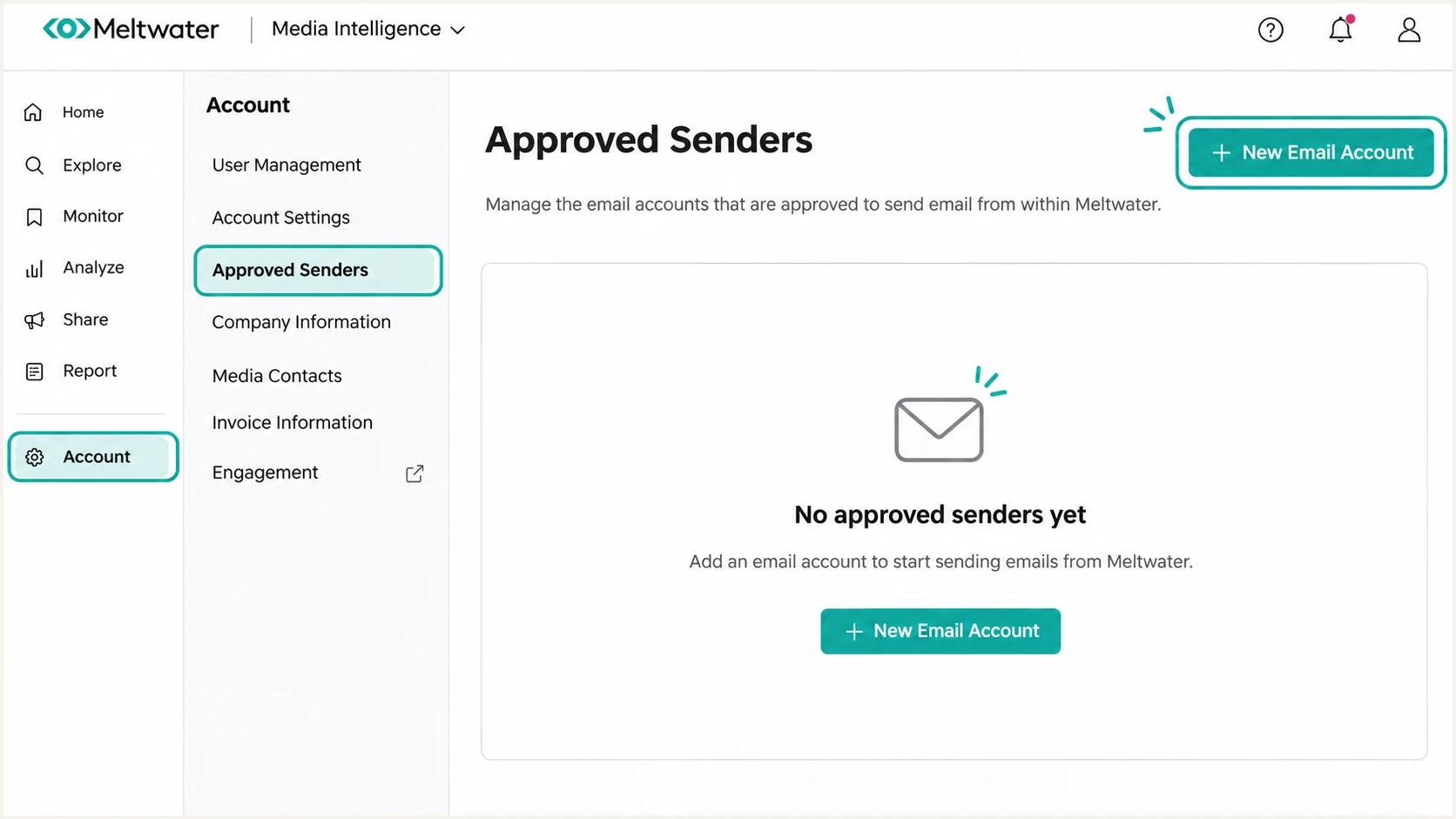
Meltwater Approved Senders navigation and New Email Account button.
A confirmed mailbox does not prove that Meltwater can authenticate mail using its domain. Complete the public DNS changes, then check both the domain status and a delivered message.
Set up SPF
Meltwater supports Return-Path alignment through its delegated DNS setup. Publish both SPF-related CNAMEs from the Domain Verification page.
- Copy the pair: Create each supplied record as a CNAME at the exact hostname shown, with its exact destination. Use DNS-only mode if your DNS host offers proxying.
- Preserve existing SPF: This delegated setup does not require another SPF TXT record at your root domain. Keep the SPF record used by your existing mail systems.
- Avoid conflicts: A CNAME cannot share its hostname with a TXT record or another CNAME target. Ask Meltwater support to resolve a collision before replacing an existing sender's records.
- Check the identity: In a fresh message, inspect Return-Path and smtp.mailfrom. With relaxed SPF alignment, its domain must share the organizational domain of the visible From address.
SPF checks the envelope sender, which is normally recorded in Return-Path after delivery. I check that hostname instead of assuming the visible From domain is the SPF lookup target.
SPF checker
Find SPF syntax issues, lookup limits, and weak records.
?/16tests passed
Enter the actual Return-Path domain in the checker. Confirm that the CNAME chain reaches a valid SPF TXT record and that evaluation stays within the 10 DNS-lookup-causing terms limit, including nested terms.
For command-line verification, replace bounce.example.com below with the exact hostname supplied by Meltwater. These are lookup examples, not DNS records to publish.
Check the delegated SPF hostnamebash
dig +short CNAME bounce.example.com
dig +short TXT bounce.example.com
An SPF pass using an unrelated provider domain does not satisfy DMARC's SPF alignment requirement. A passing DKIM signature with the correct domain still permits DMARC to pass, but investigate the custom Return-Path setup because Meltwater supports it.
Set up DKIM
Publish all four DKIM CNAMEs from the same Meltwater verification page. I keep the entire supplied selector set in DNS, including selectors that are not signing the current test message.
- Publish the selectors: Copy every supplied _domainkey hostname and its CNAME destination exactly. Do not guess selector names or generate replacement keys.
- Use public DNS: Add the records to the authoritative public zone. If your DNS panel appends the zone automatically, enter only the required relative hostname.
- Keep keys separate: Preserve DKIM records belonging to other senders. A selector hostname must have only the record type and destination expected by its sender.
- Test the signature: Send through Meltwater and inspect the receiving server's Authentication-Results for dkim=pass. Check the signature's d= domain and s= selector.
For DMARC, the passing signature must use a domain that matches your From domain under the configured alignment mode. A valid signature belonging only to an unrelated provider domain is insufficient.
Your domain passes DKIM
From: press@example.com. DKIM passes with d=example.com. That signature satisfies DMARC's DKIM requirement.
Only a provider domain passes
DKIM passes, but d= belongs to an unrelated domain. DMARC still needs a passing, matching identity through DKIM or SPF.
With the default relaxed mode, a signing subdomain within the same organizational domain also qualifies. Strict mode requires an exact domain match. Preserve stricter existing settings unless a reviewed change is necessary.
Replace SELECTOR and example.com below with the s= selector and d= domain in a real Meltwater DKIM signature. Confirm both the CNAME destination and the public key returned through it.
Resolve the selector used by a test messagebash
dig +short CNAME SELECTOR._domainkey.example.com
dig +short TXT SELECTOR._domainkey.example.com
A public key lookup proves that the key is available. The received message's authentication result proves whether Meltwater actually signed that message successfully.
Set up DMARC
DMARC is published in your DNS, separately from Meltwater's CNAME records. Start with p=none only when introducing DMARC; keep an existing p=quarantine or p=reject policy.
- Choose the domain: Use the domain in the visible From address. For press@example.com, the direct DMARC record location is _dmarc.example.com.
- Check existing DNS: Check the effective policy, including inheritance for subdomains. Maintain one DMARC record at each policy hostname; update an existing record rather than adding a duplicate.
- Publish the policy: Create a TXT record using the monitoring value below when no policy exists. Use your DNS host's normal TTL.
- Enable report delivery: Replace the example report mailbox with a working destination you control. If reports go to another domain, complete that recipient's external reporting authorization requirements.
Use the DMARC record generator to build the policy and reporting settings. I preserve existing reporting destinations when updating a production domain.
Monitoring DMARC TXT value at _dmarc.example.comtext
v=DMARC1; p=none; rua=mailto:dmarc@example.com
The example uses example.com and dmarc@example.com as placeholders. Replace them with your actual domain and report destination. A plain mailbox receives report files; it does not analyze them automatically.
Once published, check the From domain below. A valid policy should be discoverable in public DNS, with the intended reporting address and policy value.
DMARC checker
Look up a domain's DMARC record and catch policy issues.
?/7tests passed
Enter the domain without the _dmarc prefix. Inspect the discovered policy, including any inherited policy when your From address uses a subdomain.
DNS validation and message validation are separate. I require dmarc=pass on a real Meltwater email before treating the sender as ready for production.
Keep existing enforcement
Do not weaken p=quarantine or p=reject to connect Meltwater. Authenticate and test the sender first. The p=none policy requests monitoring and does not request rejection of messages that fail DMARC.
Verify and troubleshoot
I test every Meltwater workflow that uses the domain, including outreach and newsletters when both are enabled. A successful test in one workflow does not establish that the other uses the same authenticated identities.
- Recheck status: Return to Approved Senders and inspect the domain status. Meltwater documents a 24-48 hour window for it to show Verified after correct DNS publication.
- Send fresh tests: Send a message through Meltwater to an internal recipient and an external mailbox. Use the same approved sender and workflow as the production email.
- Read receiver results: Open the original message headers. Check SPF and DKIM results, their domains, and dmarc=pass in the receiving server's Authentication-Results.
- Fix DNS mistakes: Check for doubled domain suffixes, private-only records, incorrect destinations, and CNAME conflicts. Compare public answers with each assigned record.
- Retest after changes: Wait for cached DNS answers to expire, then send another Meltwater message. Changing DNS cannot repair authentication results on an already-delivered message.
For a quicker diagnosis, use the email tester below. Send a fresh message through Meltwater to the address it supplies, using the sender and workflow you are configuring.
Email tester
Send a real email to this address. Suped shows a results button when the test is ready.
?/43tests passed
The tester provides a full diagnosis of the received message, including authentication and delivery-related checks. Review the individual failures as well as the overall score.
Use these checks to decide the next action. I distinguish an authentication failure from an authenticated message that a recipient rejects for another reason.
|
|
|
|---|---|---|
SPF | Pass | Inspect Return-Path |
DKIM | Pass, matching domain | Check signing selector |
DMARC | Pass | Compare identity domains |
Delivery | Accepted | Read SMTP rejection |
Validate each production sending workflow separately.
For an unresolved failure, collect the From address, full headers, timestamp, and SMTP rejection text. Contact Meltwater through Help > Live Chat or help@meltwater.com without sharing private signing keys.
Treat the Verified status as completion of Meltwater's DNS check. Continue using message tests to confirm the behavior of the specific workflow you are sending.
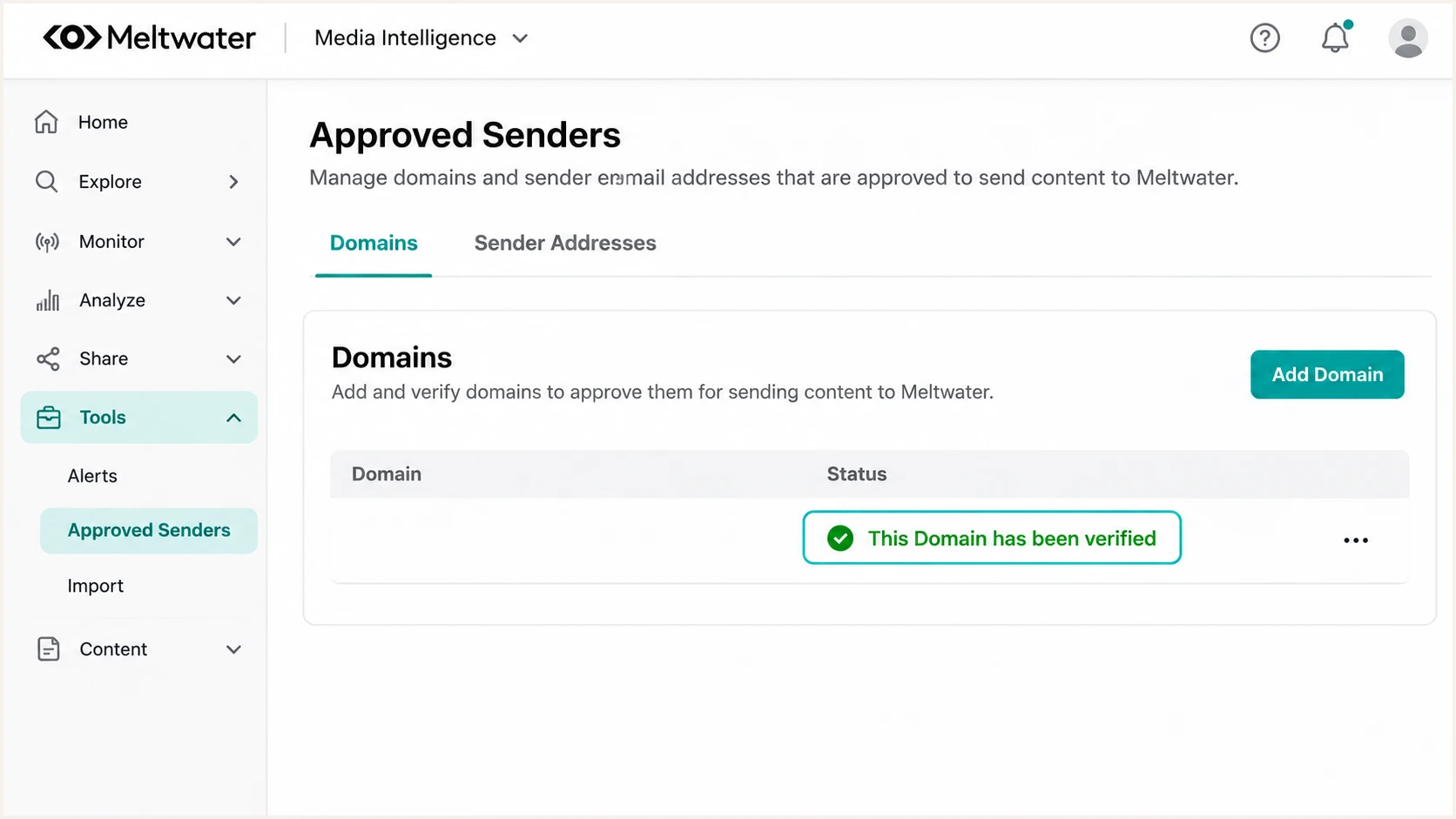
Meltwater domain verification confirmation on Approved Senders.
Get alerted when it breaks
Suped is our DMARC reporting and email authentication platform. Its DMARC monitoring turns incoming reports into source-level authentication results so changes affecting Meltwater remain visible after setup.
- Enable issue alerts: In Suped's notification settings, enable Issues detected and route notifications to the team responsible for email authentication.
- Review sender changes: Enable Sending sources need verification. Confirm unfamiliar sending activity against your authorized Meltwater workflows before marking a source as verified.
- Investigate the failure: Use Data view to filter by source or sending IP. Open Detail view to inspect SPF, DKIM, DMARC, and rDNS diagnostics.
- Confirm the repair: Follow the detected issue's steps to fix, review DNS history for unexpected edits, and verify recovery with a fresh Meltwater test and subsequent reports.
I keep DMARC summary emails enabled alongside issue notifications. Summaries help check legitimate sending volume and pass rates across a full campaign cycle.
Reports have delivery delays
Suped alerts on detected issues, but aggregate DMARC reports are not a live feed of every message. Notification timing depends on receiving services delivering reports. Use a fresh message test for immediate validation after a DNS change.
Keep the configured report destination active. Notifications based on DMARC reports depend on continuing report delivery, including any required external reporting authorization.
Secure your domain with p=reject
Move to p=reject after legitimate sending sources consistently pass DMARC. I assess authorized mail separately from impersonation attempts, since unwanted mail should continue failing.
- Inventory every sender: Review the entire domain, including Meltwater, business mail, and other authorized applications. Resolve legitimate sources that lack a passing, matching identity.
- Cover real traffic: Observe a representative sending cycle that includes infrequent campaigns. Investigate unexplained legitimate failures before changing policy.
- Protect the DKIM path: Require reliable DKIM using your domain. Test relevant forwarding paths because SPF often fails after forwarding.
- Stage enforcement: If starting at p=none, move to p=quarantine, review the resulting reports and delivery behavior, then move to p=reject once legitimate failures are resolved.
- Keep monitoring: Use Suped to review source-level failures throughout the policy change and investigate new senders afterward. Review subdomain policies separately, including explicit overrides.
Suped's Hosted DMARC manages policy changes through our dashboard after its DNS delegation is configured. It gives the team a practical way to stage enforcement while reviewing the same source-level reports and detected issues.
Final DMARC TXT value, with your report destination substitutedtext
v=DMARC1; p=reject; rua=mailto:dmarc@example.com
Update the existing policy rather than publishing a second record. Preserve your real reporting destination and any reviewed tags; the example is the minimal enforcement value.
p=reject requests rejection of messages that fail DMARC, subject to the receiving server's handling. Keep Suped notifications active and test newly authorized Meltwater senders before their first campaign.
Frequency asked questions
Use the account-specific delegated records supplied by Meltwater. Do not invent a universal SPF include or publish a second SPF TXT record at the root. Inspect the actual Return-Path domain when validating SPF.
SPF authenticates the envelope sender domain. If that domain is unrelated to the visible From domain, its SPF pass does not satisfy DMARC. DMARC then requires a valid DKIM signature whose domain meets the applicable alignment mode.
Yes. Keep the existing enforcement policy, publish the required authentication records, and test a fresh message through Meltwater before starting production sending. Fix the sender configuration rather than weakening the domain policy.
These suffixes identify Meltwater sending infrastructure. Its published examples include o6.ptr5219.mediaoutreach.meltwater.com for outreach, o1.ptr5902.newsletter.meltwater.com for newsletters, and o10.ptr7375.reports.meltwater.com for reports. Check the sending IP and authentication domains as well; rDNS alone does not prove that a message is authorized for your domain.
No. Authentication establishes permitted domain use. Recipients also evaluate sender reputation and message content, and apply their own filtering rules. Investigate the SMTP response or spam placement after SPF, DKIM, and DMARC are working.




