
How to set up DMARC/DKIM/SPF for Mailtrap

To set up DMARC, DKIM and SPF for Mailtrap Email Live Sending, add your sending domain, publish its Domain Verification CNAME and both DKIM CNAMEs, then publish one DMARC TXT record. Mailtrap covers SPF through the verification CNAME, so its current setup does not require an extra SPF include on your sending domain.
I follow these steps for real delivery through Mailtrap's Email API/SMTP. Email Sandbox captures development messages and needs no custom-domain verification. A sandbox test does not establish that production email passes authentication.
Add your domain
I start with the exact domain in the visible From address and access to its authoritative DNS zone. Add example.com for notices@example.com, or news.example.com for notices@news.example.com.
Mailtrap's domain setup skill specifies using the actual sending subdomain and completing compliance after DNS verification.
- Create the domain. In Mailtrap, open Domains, click Add Domain, enter the sending domain, and click Add. Older interfaces call this Sending Domains.
- Copy the records. Open Domain Verification. Copy each Type, Name and Value. The current setup displays four CNAMEs, covering verification, two DKIM selectors and tracking, plus one DMARC TXT record.
- Publish DNS. Use the records in the following sections. Keep existing mailbox MX records. If another administrator manages DNS, use Send Instructions.
- Complete verification. After publishing DNS, click Verify DNS Records. Complete Sender information and any requested Compliance Check. Wait for the domain status to be Verified before live sending.
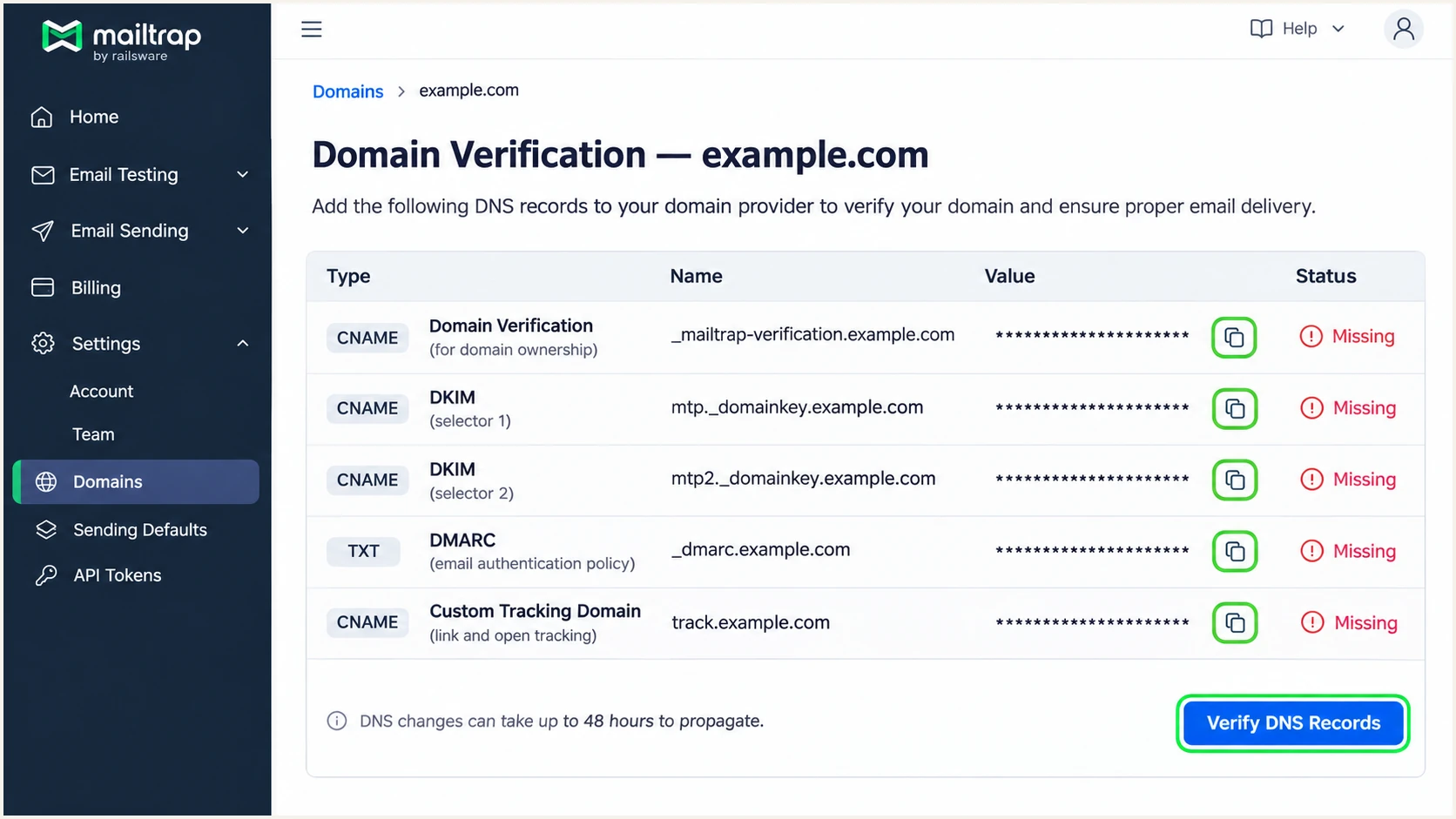
Mailtrap Domain Verification shows the records to copy into DNS.
DNS verification and compliance are separate checks. A verified DNS row alone does not mean the domain has been approved for live sending.
Set up SPF
Mailtrap's Domain Verification CNAME covers SPF. I keep the existing SPF policy for other senders and configure the generated CNAME exactly as Mailtrap displays it.
SPF checks the SMTP MAIL FROM domain, visible as Return-Path after delivery. Mailtrap supports a return path under your domain. A bounce subdomain can satisfy relaxed SPF alignment with the visible From domain.
- Copy the CNAME. In Domain Verification, copy the Name and Value from the Domain Verification row. Create that CNAME at your authoritative DNS host.
- Disable proxying. For Cloudflare, set this CNAME to DNS only. Do not publish a TXT record or MX record at the same hostname as the CNAME.
- Preserve other senders. Do not replace your existing root SPF policy or add a second SPF policy. Mailtrap's current CNAME setup needs no extra root-domain include.
- Check the right domain. Send a live message and copy its Return-Path domain into the SPF checker below. Checking only example.com does not test a separate bounce subdomain.
SPF checker
Find SPF syntax issues, lookup limits, and weak records.
?/16tests passed
I expect SPF to pass for the live message's Return-Path domain. If that domain is a subdomain of the From domain, strict SPF alignment would require an exact match and would fail.
A passing DKIM signature with the required domain match is sufficient for DMARC even when SPF alignment fails. Investigate unexpected Mailtrap Return-Path values, but do not add arbitrary SPF includes to fix an identity mismatch.
Set up DKIM
I publish both Mailtrap DKIM selectors so key rotation does not depend on a missing record. Mailtrap manages signing; there is no need to generate a separate DKIM private key.
The documented selector names are rwmt1._domainkey and rwmt2._domainkey. Copy each full target from your domain's live setup rather than copying a target from another account or an older example.
- Publish selector one. Create a CNAME using the first DKIM row's Name and Value. For example.com, its full DNS name is rwmt1._domainkey.example.com.
- Publish selector two. Repeat for rwmt2._domainkey.example.com. Keep both records published after verification.
- Check host formatting. If the DNS host appends example.com automatically, enter only rwmt1._domainkey or rwmt2._domainkey. Avoid appending the domain twice.
- Verify signing. Click Verify DNS Records in Mailtrap, then send a live message. Check dkim=pass and the signature's d= domain against the visible From domain.
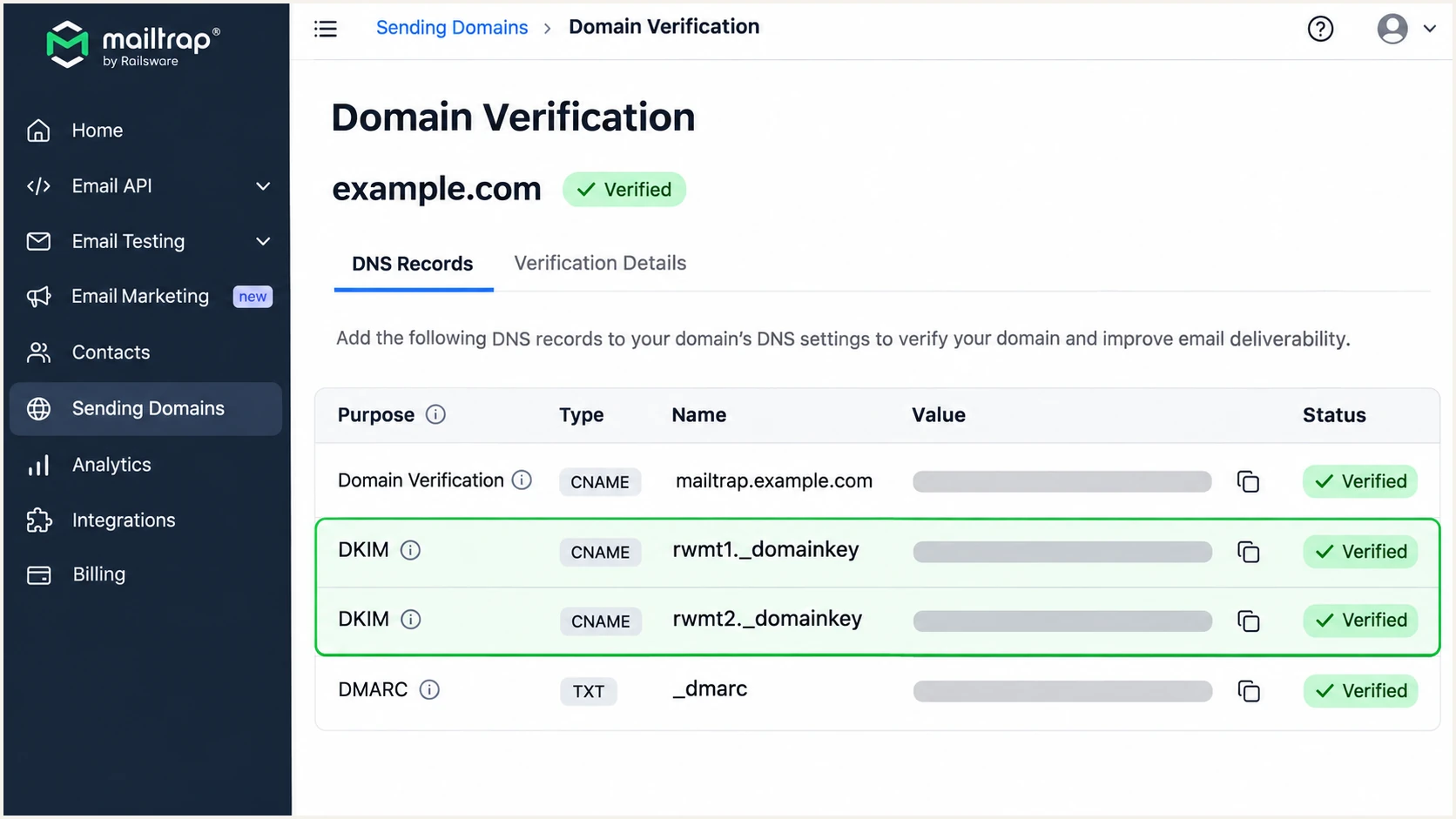
Mailtrap DKIM verification requires both generated CNAME records.
A DKIM record in DNS does not prove that a message was signed correctly. I check the receiving mailbox's authentication results after sending through the production application.
Set up DMARC
I publish DMARC at _dmarc followed by the visible From domain. For notices@example.com, the name is _dmarc.example.com. For a new policy, start with p=none and aggregate reporting.
Use the DMARC record generator to prepare the TXT value. Keep one DMARC policy at each record name and preserve any working reporting destinations.
If the domain already uses p=quarantine or p=reject, keep that policy. Do not weaken it to complete Mailtrap verification. The following value is a starting example for a domain without an existing policy.
Starting DMARC TXT value at _dmarc.example.comtext
v=DMARC1; p=none; rua=mailto:dmarc@example.com
Replace dmarc@example.com with a reporting mailbox you control or your assigned aggregate-report address. The example mailbox is a placeholder. An external reporting destination also needs the destination operator's DNS authorization.
Mailtrap verifies the presence of your DNS configuration; receiving mail servers evaluate DMARC on actual messages. A policy of p=none requests monitoring and does not request quarantine or rejection for failures.
- Inspect the existing policy. Look up the exact _dmarc hostname before adding anything. Edit an existing policy instead of creating a duplicate.
- Publish the TXT record. Use _dmarc as the relative host for example.com, or the complete name if your DNS host requires it. Save the policy and reporting address.
- Check subdomain scope. When sending from a subdomain, check its own DMARC record and the applicable parent policy. Do not assume a new root policy overrides an explicit subdomain policy.
- Validate the result. Enter the visible From domain in the checker below. Confirm a valid policy and reporting destination, then recheck the domain in Mailtrap.
DMARC checker
Look up a domain's DMARC record and catch policy issues.
?/7tests passed
DMARC passes when SPF or DKIM passes with the required domain match. Both mechanisms do not have to pass for DMARC, although I configure and test both for normal direct delivery.
Verify and troubleshoot
I test with a real message sent through the production application. In Mailtrap, open Live Sending, then Sending Setup, choose the verified domain and the intended Transactional or Bulk stream.
For SMTP, switch to SMTP and copy the displayed credentials into the application. Transactional SMTP uses live.smtp.mailtrap.io; sandbox.smtp.mailtrap.io captures messages instead of delivering them to the tester.
- Send the test. Use an address on your verified domain as From. Send directly to the unique address displayed by the email tester below.
- Inspect the results. Require dkim=pass with the correct signing domain and dmarc=pass for the From domain. Check SPF against the actual Return-Path.
- Read delivery errors. In Mailtrap Email Logs, find the message by recipient or subject. Inspect its event history and the mailbox provider's full response for rejections.
- Recheck after changes. After correcting DNS or application settings, send a fresh message through the same production path. A previous result does not validate the new configuration.
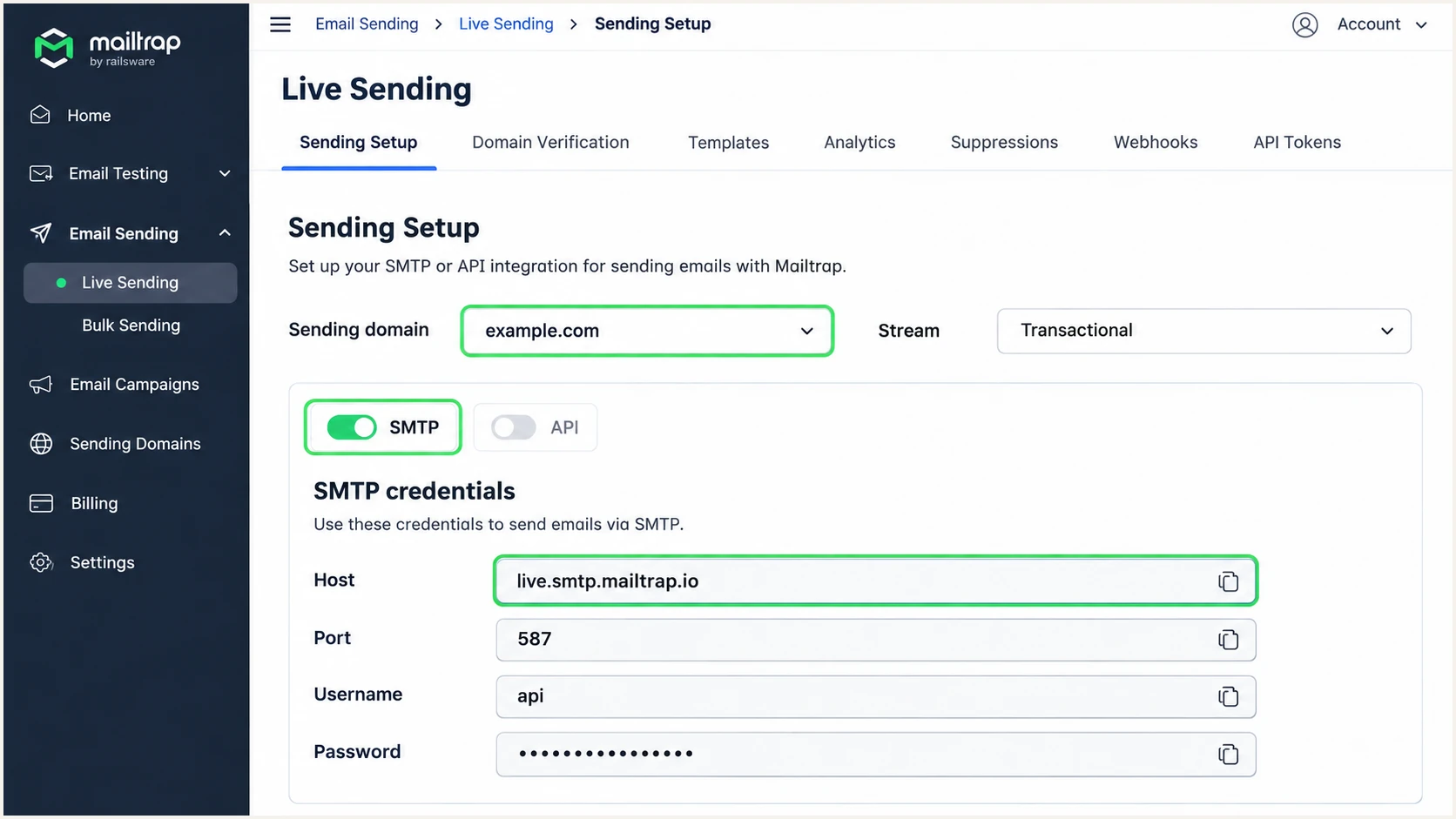
Mailtrap Sending Setup provides live SMTP credentials for the selected domain.
The email tester below is the quickest check of the delivered message. Send through Mailtrap to its generated test address to receive a diagnosis of authentication and other delivery checks.
This checks what the receiver actually sees, including the signing domain and Return-Path. A successful API response or a green DNS verification row does not provide that evidence.
Email tester
Send a real email to this address. Suped shows a results button when the test is ready.
?/43tests passed
I separate DNS failures from sending failures. DNS problems affect record discovery; an incorrect From domain or the wrong credentials affects the application's use of the verified domain.
Mailtrap documents DNS detection taking 15 minutes to several hours, with some updates taking up to 24 hours. Check the authoritative DNS answer and the record's TTL before repeatedly changing correct values.
|
|
|
|---|---|---|
Missing CNAME | Host and target | Copy exact values |
DKIM failure | Both selectors | Repair CNAMEs |
SPF mismatch | Return-Path | Check domain match |
DMARC failure | DKIM domain | Match From domain |
No live delivery | SMTP host | Use live credentials |
Domain pending | Compliance | Finish review |
Mailtrap setup checks for common failures.
To inspect DNS locally, replace example.com with your sending domain. The DKIM TXT queries follow the CNAME to the published key; compare each CNAME answer with Mailtrap's displayed target.
For SPF, query the full Return-Path domain from the delivered message separately. These root-domain and DKIM lookups do not substitute for that check.
Check the published domain and DKIM recordsbash
dig +short NS example.com
dig +short CNAME rwmt1._domainkey.example.com
dig +short CNAME rwmt2._domainkey.example.com
dig +short TXT rwmt1._domainkey.example.com
dig +short TXT rwmt2._domainkey.example.com
dig +short TXT _dmarc.example.com
If a record remains missing, check for a duplicated domain suffix, a proxied CNAME or a conflicting record at the same name. If DNS is correct but the domain remains Pending, inspect Compliance Check rather than changing DKIM keys.
Get alerted when it breaks
I keep monitoring after the first successful test. Suped is our DMARC platform, and its DMARC monitoring identifies authentication issues by sending source so a Mailtrap regression has a concrete investigation path.
Use Suped for ongoing authentication alerts across your domain's senders, and Mailtrap Email Logs for the individual messages sent through Mailtrap. These views answer different operational questions.
- Enable notifications. In Suped Notifications, enable Issues detected and Sending sources need verification. Enable DMARC summary emails for periodic review.
- Verify the source. In Sources, confirm that Mailtrap is an authorized sender before marking it verified. Investigate unfamiliar traffic rather than authorizing it automatically.
- Inspect failures. Open the issue's steps to fix, then use Data view or Detail view to examine the reported IP and SPF/DKIM results. Compare with a new live test.
- Trace DNS changes. Use DNS history to compare the previous and current records when a previously working selector or policy breaks.
Mailtrap message investigation
Find the affected email in Email Logs. Inspect the sending IP, event history and receiving server response for that delivery attempt.
Suped authentication monitoring
Review source-level failures, detected issues and DNS history. Follow the fix steps and confirm that subsequent reports show recovery.
DMARC aggregate reports arrive on receiving providers' schedules. Suped's report-based alerts follow incoming report data; they are not synchronous checks of each outgoing message.
Secure your domain with p=reject
I move to p=reject after legitimate traffic across the whole domain passes DMARC consistently. One successful Mailtrap message is insufficient evidence for changing a domain-wide policy.
Suped's Hosted DMARC provides policy staging and dashboard policy management. Together with source verification and issue diagnostics, it supports checking legitimate senders before each enforcement change.
- Inventory every sender. Review Mailtrap and every other authorized service in the reports. Resolve failures affecting legitimate mail before tightening policy.
- Cover normal sending cycles. Include infrequent jobs, such as monthly invoices, and test the production paths used by each sender. Separate unrecognized traffic from confirmed business mail.
- Stage enforcement. Move a new p=none policy to p=quarantine, review legitimate traffic again, then set p=reject. Keep an existing quarantine or reject policy in place during Mailtrap onboarding.
- Keep domain matching workable. Retain relaxed alignment unless exact domain matching is required and tested. A Mailtrap bounce subdomain does not satisfy strict SPF alignment with the root From domain.
- Continue monitoring. Keep aggregate reporting active. Use Suped's issue alerts and source diagnostics after each policy change, and send another live Mailtrap test.
Use this final TXT value only after verifying all legitimate senders. Replace the reporting mailbox, preserve any other required tags, and update the existing record rather than adding a second policy.
Enforced DMARC TXT value at _dmarc.example.comtext
v=DMARC1; p=reject; rua=mailto:dmarc@example.com
A reject policy requests rejection of messages that fail DMARC. Passing Mailtrap traffic remains eligible for delivery; authentication does not guarantee inbox placement.
After enforcement, keep both Mailtrap DKIM CNAMEs and the verification CNAME published. Removing a record during a DNS cleanup can break a sender that previously passed every test.
Frequency asked questions
No. Email Sandbox captures development messages and does not require custom-domain verification. Configure domain authentication for Email Live Sending when delivering to real recipients. Test production authentication with live sending credentials.
Mailtrap has used include:_spf.smtp.mailtrap.live in its own published SPF examples. This is an infrastructure identification clue, not a recommendation to add it to your domain. Current Mailtrap setup covers SPF through its Domain Verification CNAME. Copy your domain's generated records.
Mailtrap documents smtp-124-128-171-35.mailtrap.live as an rDNS example. The mailtrap.live suffix is a Mailtrap infrastructure clue, not proof that a message is authorized for your domain. Compare the sending IP with Mailtrap Email Logs and inspect SPF/DKIM results.
DMARC needs either a passing SPF result with the required domain match or a passing DKIM signature with that match. A valid Mailtrap DKIM signature using your From domain can satisfy DMARC when SPF alignment fails. SPF pass alone does not prove SPF alignment.
No. Keep your existing p=reject or p=quarantine policy. Configure Mailtrap's verification and DKIM CNAMEs, then confirm that real messages pass DMARC. Edit the existing policy only when a deliberate reporting or policy change is required.
Domain approval also requires Mailtrap's compliance process. Complete Sender information, inspect Compliance Check and answer any additional questions. If DNS rows remain Missing, check record names and CNAME targets, disable DNS proxying, and allow for cached DNS answers before rechecking.




