
How to set up DMARC/DKIM/SPF for MailRoute

Published 21 Nov 2026
Updated 21 Nov 2026
11 min read
Summarize with
For MailRoute outbound email, add include:spf.mailroute.net to your existing SPF TXT record, publish the mr01, mr02, and mr03 DKIM CNAMEs, and publish a DMARC TXT record at _dmarc. Start a new DMARC policy at p=none; keep an existing p=quarantine or p=reject policy.
I check the sending path first. MailRoute Hosted Mail, outbound relay, and Email Continuity send through MailRoute and need its authentication records. Inbound-only filtering without Continuity does not: configure SPF and DKIM for the platform that actually sends your mail.
Add your domain
I add the domain in MailRoute and confirm its delivery destination before changing mail routing. If the domain already exists, open its settings and check the configuration below.
- Open Domains. Sign in to the MailRoute Control Panel as an administrator. Select Domains, then Add Domain to open the Domain Setup Wizard.
- Enter the domain. Use your sending domain, such as example.com. For filtering, enter the hostname or IP of your existing mail server as the delivery destination. For Hosted Mail, confirm that MailRoute has provisioned the hosted domain and its mailboxes.
- Finish the wizard. Review the MX instructions, complete setup, and confirm the domain appears in Domains. Configure Email Accounts before switching inbound delivery. Publish the authentication records below before the mail cutover.
- Verify DNS. Open the domain's DNS Setup view after publishing the records. Check the displayed names and values, then confirm the record checks turn green. Change MX only when the destination and recipient accounts are ready.
- Enable outbound. For filtering with outbound relay, open the domain, then Delivery > Outbound Servers. Complete the request form and wait for MailRoute support confirmation. Hosted Mail already includes outbound sending.
After outbound approval, register your server's public static sending IP under Outbound Servers and configure its SmartHost as outbound.mailroute.net. MailRoute handles the sending IP registration for Microsoft 365 and Google Workspace domains; those domains still need approval.
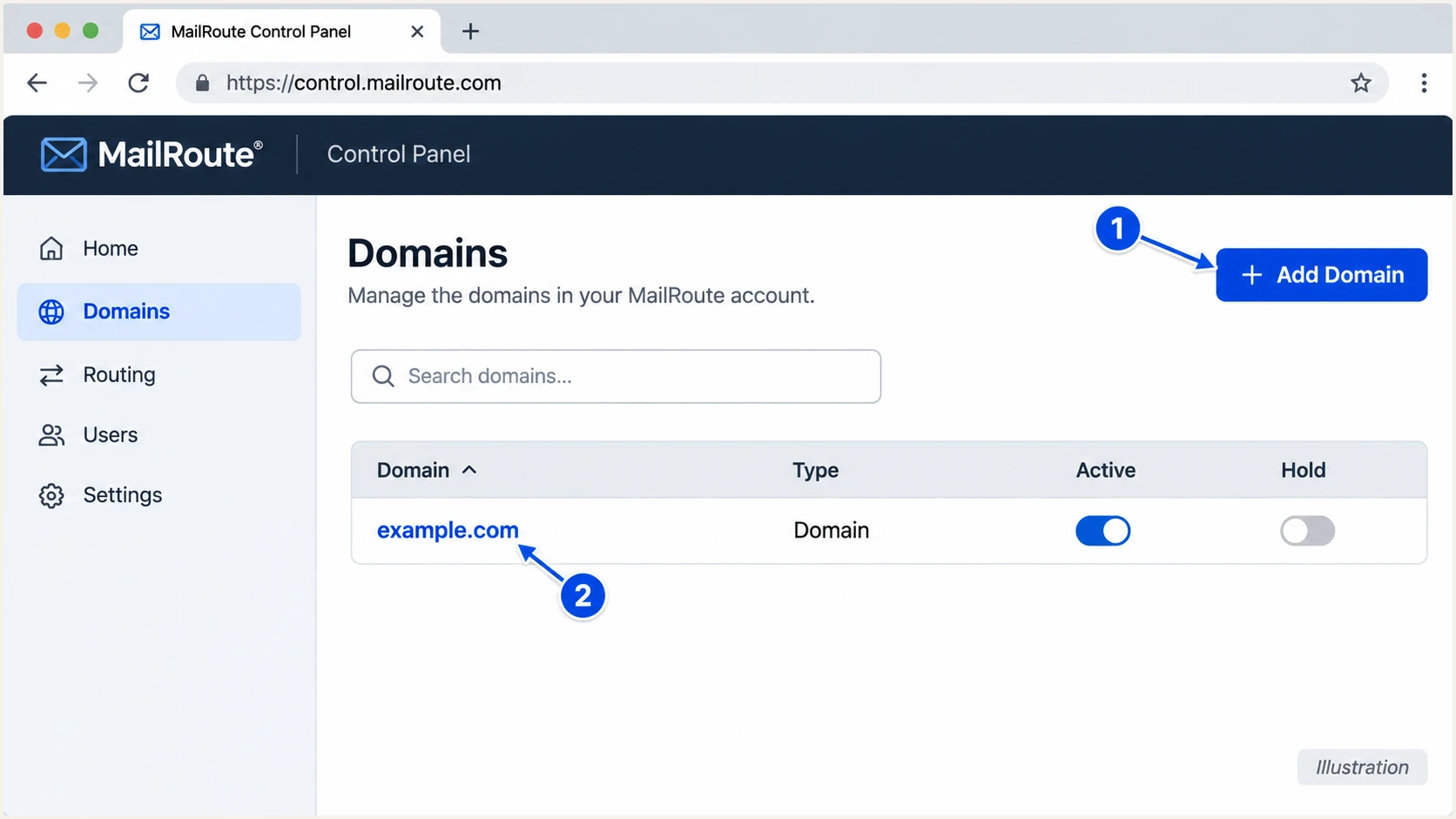
MailRoute Domains list with Add Domain highlighted (illustration).
If users send through SMTP Auth Relay instead of a server SmartHost, open Delivery > SMTP Auth Relay after approval. On an eligible plan, enable relay for the domain and separately for each required account, then use the server settings shown on that user's relay page.
Set up SPF
I authorize MailRoute on the domain used by the SMTP envelope sender, visible as Return-Path on delivered mail. When that is your root domain, edit the TXT record at @ in your DNS provider.
- Find the record. Locate the TXT value beginning v=spf1. Keep exactly one SPF record at each hostname; multiple SPF records cause permerror.
- Merge MailRoute. Insert include:spf.mailroute.net before the final ~all or -all. Preserve the other authorized senders and your existing ending.
- Create only if absent. If MailRoute is the only outbound sender and no SPF record exists, use the example below. Include every additional authorized sender before enforcing -all.
- Check the budget. Keep SPF within the limit of 10 DNS-lookup-causing terms, including nested includes. Check the complete evaluation, not just the number of includes visible in your top-level record.
SPF TXT record when MailRoute is the only senderdns
@ IN TXT "v=spf1 include:spf.mailroute.net ~all"
MailRoute supports Return-Path alignment. Check a delivered message to confirm that its envelope domain matches the visible From domain under your DMARC SPF matching mode. Publishing SPF at the root does not configure SPF for a different Return-Path subdomain.
Enter the actual envelope domain below to validate its published SPF record and lookup budget. For inbound-only filtering without Continuity, validate the sending platform's SPF instead of adding MailRoute authorization.
SPF checker
Find SPF syntax issues, lookup limits, and weak records.
?/16tests passed
A valid SPF record is only the DNS part of the check. I also confirm that a real message passes SPF at the receiver and that its authenticated envelope domain matches the From domain for DMARC. DKIM can provide the matching authentication when forwarding breaks SPF.
Set up DKIM
I publish all three MailRoute DKIM CNAMEs for every domain that sends through MailRoute. MailRoute manages the signing keys behind these targets and rotates selectors.
- Add the CNAMEs. Create the three records below at your authoritative DNS provider. If the provider appends example.com automatically, enter only mr01._domainkey, mr02._domainkey, and mr03._domainkey as the record names.
- Use DNS-only records. Keep these records as CNAMEs with DNS proxying and flattening disabled. Do not replace the targets with copied public-key TXT records.
- Keep other selectors. Leave DKIM selectors for other legitimate senders in place. A CNAME cannot share its exact owner name with an unrelated TXT record.
- Check the signature. Send through MailRoute and inspect DKIM-Signature. Confirm that s= names a MailRoute selector, d= matches your From domain for DMARC, and the receiver reports dkim=pass.
MailRoute DKIM CNAME records for example.comdns
mr01._domainkey.example.com. IN CNAME mr01.dkim.mailroute.net.
mr02._domainkey.example.com. IN CNAME mr02.dkim.mailroute.net.
mr03._domainkey.example.com. IN CNAME mr03.dkim.mailroute.net.
Replace example.com with your own domain. These are CNAME records, so there is no private key to generate or upload. The DNS changes do not enable the outbound relay service.
Use MailRoute's DNS Setup view to confirm that every selector is visible. One missing CNAME causes intermittent failures when MailRoute rotates to that selector, even if an earlier test message passed.
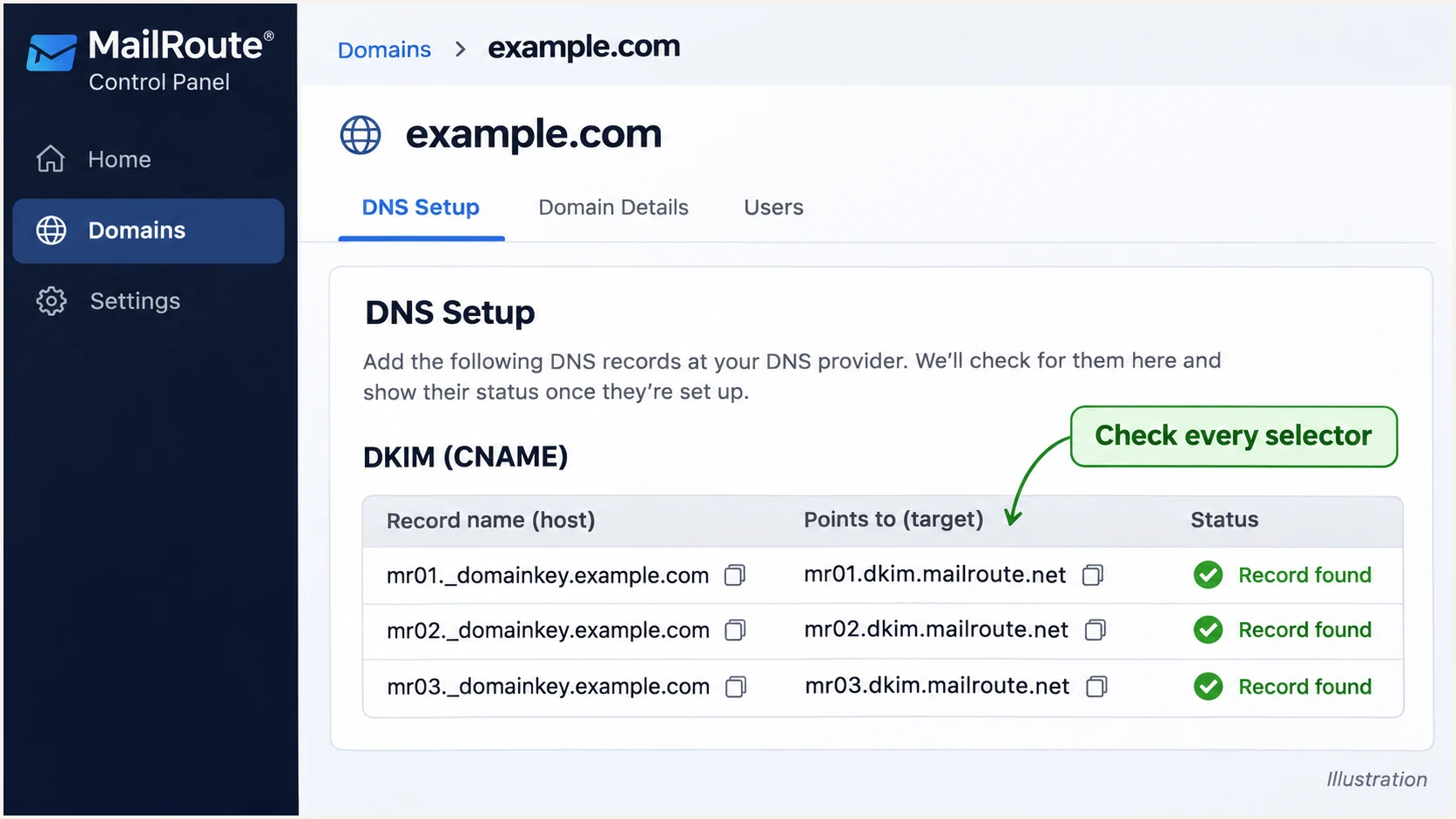
MailRoute DNS Setup checks for the three DKIM selectors (illustration).
A green DNS check confirms record discovery. I still test a delivered message because a reachable public key does not establish that the message used the correct signing domain or survived delivery without signature-breaking changes.
Set up DMARC
For a domain without DMARC, I start with p=none and aggregate reporting. If the domain already uses p=quarantine or p=reject, keep that policy and verify MailRoute authentication before routing production mail through it.
- Check the hostname. Look for an existing TXT record at _dmarc.example.com. Edit that record if present; do not publish a second DMARC record.
- Publish the policy. For a new deployment, create a TXT record with Name _dmarc and the exact starting value shown below.
- Choose the report inbox. Replace dmarc@example.com with an address you control that can receive and process aggregate XML reports. An external reporting destination also needs the receiving domain's authorization.
- Keep relaxed matching. Use the default relaxed SPF and DKIM matching unless you have a documented reason for strict matching. DMARC needs a passing, matching SPF result or a passing, matching DKIM signature.
Starting DMARC TXT record at _dmarc.example.comdns
_dmarc.example.com. IN TXT "v=DMARC1; p=none; rua=mailto:dmarc@example.com"
Build the record with the DMARC record generator, then publish it at your DNS provider. MailRoute does not publish your domain's DMARC TXT record merely because the domain exists in its control panel.
Monitoring does not request rejection
p=none requests monitoring without DMARC quarantine or rejection. It does not guarantee inbox delivery, and receivers still apply their own spam policies. Keep an existing enforcement policy while adding MailRoute.
Check the domain below after saving DNS. Confirm that one valid DMARC policy is discoverable and that the reporting address is correct. A valid policy does not prove that every sending path passes authentication.
DMARC checker
Look up a domain's DMARC record and catch policy issues.
?/7tests passed
I wait for aggregate reports before changing enforcement. Reports describe what participating receivers observed; they are separate evidence from a DNS lookup or a single successful test message.
Verify and troubleshoot
I check public DNS, then test actual mail through each configured sending path. Test Email Continuity separately if your plan uses it; a normal mailbox test does not verify the outage sending path.
- Confirm routing. Send an external test and find it in MailRoute Mail Log. If it is missing, inspect your server's relay settings and outbound queue.
- Inspect the receiver. Read the destination's Authentication-Results header. Look for spf=pass, dkim=pass, and dmarc=pass. Compare smtp.mailfrom and header.d with header.from.
- Resolve all selectors. Run the DNS commands below. Each CNAME must return its corresponding MailRoute target, and each target must publish a DKIM public key.
- Retest changes. After correcting DNS, allow cached answers to expire and send a new message. Re-reading an old email does not retest authentication.
|
|
|
|---|---|---|
SPF permerror | Duplicate or limit | Merge; reduce lookups |
DKIM intermittent | Missing selector | Publish all CNAMEs |
DMARC fail | Domain mismatch | Fix matching domain |
Relay refused | Approval or IP | Verify Outbound Servers |
Check these causes before changing your DMARC policy.
Inspect public records, replacing example.combash
dig +short TXT example.com
dig +short CNAME mr01._domainkey.example.com
dig +short CNAME mr02._domainkey.example.com
dig +short CNAME mr03._domainkey.example.com
dig +short TXT mr01.dkim.mailroute.net
dig +short TXT mr02.dkim.mailroute.net
dig +short TXT mr03.dkim.mailroute.net
dig +short TXT _dmarc.example.com
SPF passing for an unrelated Return-Path domain does not satisfy DMARC. If DKIM passes with a matching d= domain, DMARC still passes despite an SPF alignment error. Fix a MailRoute envelope mismatch where possible, and keep DKIM working on every sending path.
For a faster end-to-end check, send a message through MailRoute to the address supplied by the email tester below. It diagnoses the received message's authentication and delivery checks together, which a DNS lookup alone cannot do.
Email tester
Send a real email to this address. Suped shows a results button when the test is ready.
?/43tests passed
I inspect the individual results rather than relying on the overall score. Confirm the expected MailRoute route, the signing domain, and the DMARC result, then repeat the test for another configured path or affected sender.
Get alerted when it breaks
For ongoing checks, our DMARC platform, Suped, processes aggregate reports and detects authentication issues. I use source-level results to separate legitimate MailRoute failures from unauthorized mail using the same From domain.
- Process reports. Use Suped's assigned aggregate-report destination in your existing DMARC rua tag. Confirm reports are arriving before relying on the monitoring.
- Verify the source. Review MailRoute traffic against your mail logs and actual usage. Mark a sending source verified only after confirming it belongs to your organization.
- Enable notifications. In Suped notification settings, enable Issues detected and Sending sources need verification. Add DMARC summary emails for routine review.
- Investigate failures. Open an affected record's detail view to inspect SPF and DKIM diagnostics. Follow the issue's fix steps, then send a fresh MailRoute test.
Suped's DMARC monitoring keeps MailRoute and your other authorized sources visible together. DNS history also helps connect a new failure with a changed record, rather than guessing which edit caused the problem.
Report arrival controls detection time
Aggregate reports usually arrive daily and do not cover every receiver. Suped notifications act on the information available; they are not per-message SMTP alerts. Check MailRoute Mail Log and run a test immediately after a routing change.
Secure your domain with p=reject
I move to p=reject when every legitimate sending path has demonstrated passing DMARC. Suped's source table and record diagnostics make that decision reviewable by showing which authorized sources still fail and why.
- Inventory senders. Account for MailRoute relay, Hosted Mail or Continuity where used, plus every other legitimate sender. Check sending aliases and subdomains separately; different domain names need their own authentication setup.
- Fix legitimate failures. Require a passing SPF result with a matching envelope domain or a passing DKIM signature with a matching signing domain. Investigate failures by source, not only the domain-wide pass percentage.
- Observe normal activity. Review reports across the full sending schedule, including infrequent mail and a Continuity test. An arbitrary number of days or a high overall pass rate is not sufficient evidence.
- Stage enforcement. For a new policy, progress through p=none, p=quarantine, and p=reject after checking legitimate mail at each stage. Keep existing stronger policies in place. Review the effect on subdomains and any explicit sp policy.
- Keep monitoring. Use Suped alerts and record details to investigate changes after enforcement. Fix the affected sender and retest; document any temporary policy exception and remove it once the problem is resolved.
Final DMARC TXT record after verifying all legitimate sendersdns
_dmarc.example.com. IN TXT "v=DMARC1; p=reject; rua=mailto:dmarc@example.com"
Keep your real reporting address and any intentional DMARC settings when changing policy. With Suped's Hosted DMARC, complete the initial DNS delegation once, then manage policy staging in the dashboard. This gives the team one place to review failures and control enforcement.
Manage policy in DNS
Edit the existing TXT record at your DNS provider for every policy change. Keep a change log and validate the published value after each edit.
Manage policy with Suped
After Hosted DMARC delegation, change the policy in Suped. Review source diagnostics and issue notifications alongside the enforcement decision.
p=reject requests rejection of messages that fail DMARC; receivers retain control of their handling. It protects against unauthorized use of your exact domain in From, while lookalike domains and display-name impersonation need separate controls.
Frequency asked questions
Only if MailRoute also sends for the domain, including through Email Continuity. For inbound-only filtering without Continuity, I configure SPF and DKIM for the actual outbound mail platform. MX records control inbound routing and do not authorize outbound sending.
MailRoute rotates signing across mr01, mr02, and mr03. Each selector needs its CNAME pointing to the corresponding MailRoute DKIM target. A missing record causes failures when that selector is used, even if other messages pass.
SPF authenticates the envelope sender domain, which is not necessarily the visible From domain. DMARC also requires domain matching. I check the Return-Path and the DKIM signing domain. A passing DKIM signature with a matching domain is sufficient for DMARC even when SPF alignment fails.
An rDNS hostname under mailroute.net is a clue to MailRoute infrastructure. I verify the sending IP, its forward-confirmed reverse DNS, and the corresponding MailRoute mail log before attributing a message. The hostname alone does not establish that your organization authorized the sender or that DMARC passed.
For filtering domains, outbound relay needs MailRoute support approval separately from DNS setup. Check Delivery > Outbound Servers and your registered public sending IP. SMTP Auth Relay also needs domain and per-account switches enabled. Hosted Mail includes outbound sending.
The DMARC policy applies to your domain, not just MailRoute. I change it after reports and message tests confirm that every legitimate source passes, including infrequent senders and Continuity. Keep reporting and alerts active after enforcement so new failures are investigated.




