
How to set up DMARC/DKIM/SPF for Mailhop

Published 22 Nov 2026
Updated 22 Nov 2026
10 min read
Summarize with
To authenticate Mailhop email, add your sending domain in the DuoCircle portal, authorize the Mailhop relay in SPF, publish the generated DKIM TXT record, and turn on DKIM signing. Then publish DMARC at _dmarc.yourdomain and test a delivered message. For the standard relay, the SPF authorization is include:outbound.mailhop.org.
I verify the delivered message before changing DMARC enforcement. These steps cover Mailhop Outbound SMTP, managed through DuoCircle's Client Admin Portal, using its public domain-validation and DKIM documentation. Using Mailhop only for inbound filtering or forwarding does not automatically require authorizing its outbound relay.
Add your domain
Have access to your authoritative DNS provider and the Mailhop Outbound SMTP service. Add the domain used in your visible From address.
- Open the service: Sign in to the Client Admin Portal and select your Outbound SMTP subscription.
- Find sender settings: Open Configuration > Sending Domains. Older portal views call this Sender Domains & DKIM.
- Add the sender: Click Add Domain, enter example.com, and save. Add each sending subdomain separately when it has its own From domain.
- Open verification: Click the domain row or pencil icon. Complete the SPF and DKIM checks below to verify the domain.
Enter a domain name, without an email address or https:// prefix. For alerts@example.com, enter example.com; for alerts@news.example.com, enter news.example.com.
Saving the domain starts configuration. DNS verification and enabling DKIM signing are separate actions.
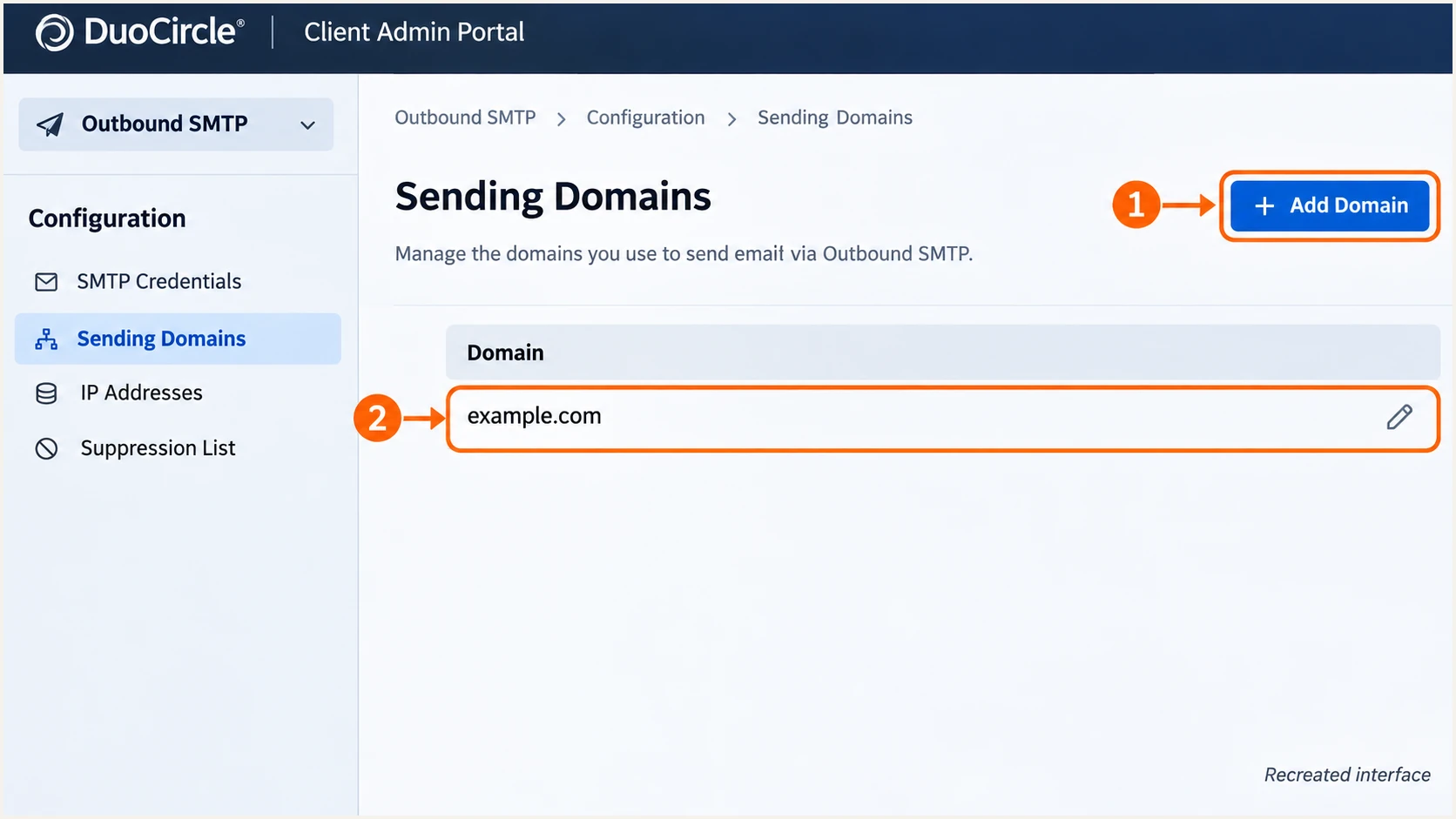
Recreated Mailhop management screen showing where to add and edit a sending domain.
Set up SPF
I use the SPF include for the relay actually sending the email. The standard Mailhop relay uses include:outbound.mailhop.org. DuoCircle's public 'Country Specific Outbound SMTP' instructions specify different includes for its US-only and EU-only relays.
- Inspect existing DNS: Find the TXT record beginning v=spf1 at your sending hostname. Keep exactly one SPF record at that hostname.
- Merge authorization: Insert the appropriate include before the final all mechanism. Preserve your other legitimate senders; do not publish a second SPF record.
- Check the hostname: For news.example.com, edit that subdomain rather than the root. SPF is checked on the SMTP MAIL FROM domain, normally shown in the delivered Return-Path.
- Recheck Mailhop: Save DNS, then select Retry SPF Check in the domain configuration. Wait for cached DNS to expire if verification still shows the old record.
Standard relay SPF, TXT at example.com, when no SPF record existstext
v=spf1 include:outbound.mailhop.org ~all
|
|
|
|---|---|---|
Standard | outbound.mailhop.org | include:outbound.mailhop.org |
US only | outbound.ore.mailhop.org | include:_spf.outbound.ore.mailhop.org |
EU only | outbound.eu.mailhop.org | include:_spf.outbound.eu.mailhop.org |
Match the include to the configured relay; regional routes replace the standard include.
Keep the complete SPF evaluation within the 10 DNS lookup limit, including nested includes. Use include rather than a:outbound.mailhop.org; the latter does not authorize the complete relay pool.
Enter the exact sending hostname below to inspect its published SPF record. A root-domain lookup does not validate a separate Return-Path subdomain.
SPF checker
Find SPF syntax issues, lookup limits, and weak records.
?/16tests passed
Mailhop supports SPF alignment when the envelope sender uses your domain. Configure the SMTP MAIL FROM address in your sending application or mail server; adding an SPF include alone does not change that address.
Check the delivered Return-Path against the visible From domain. Under relaxed DMARC settings, their organizational domains must match. If the Return-Path uses an unrelated domain, passing DKIM with your domain is required for DMARC to pass.
Set up DKIM
I generate the DKIM key inside Mailhop so its relay has the matching signing key. Publish the public TXT value supplied for your domain; another account's selector or key will not work.
- Generate the key: Open your sending domain, expand the DKIM configuration, and select Generate a DKIM key if no key exists.
- Publish the TXT record: Copy Record Name and Record Text into your authoritative DNS zone. Use the exact selector and complete public key supplied by the portal.
- Verify the key: Select Retry DKIM Check after DNS is visible. If your DNS editor appends the domain automatically, enter only the relative record name.
- Enable signing: Select Turn On Signing after verification, then send a fresh message through Mailhop.
Verified does not mean signing is enabled
Mailhop can consider the domain valid while DKIM signing is off. Confirm signing is enabled, then check a received message for a passing signature using your domain.
The Record Name contains the selector followed by _domainkey and your domain. Keep the public key intact. DNS editors differ in how they accept quoted TXT chunks; the resolved chunks must concatenate to the original value.
DuoCircle's 'Rotating your DKIM Key' documentation also separates DNS validation from signing. During rotation, publish and verify the new key before switching, and retain the old TXT record until queued messages using it have been delivered.
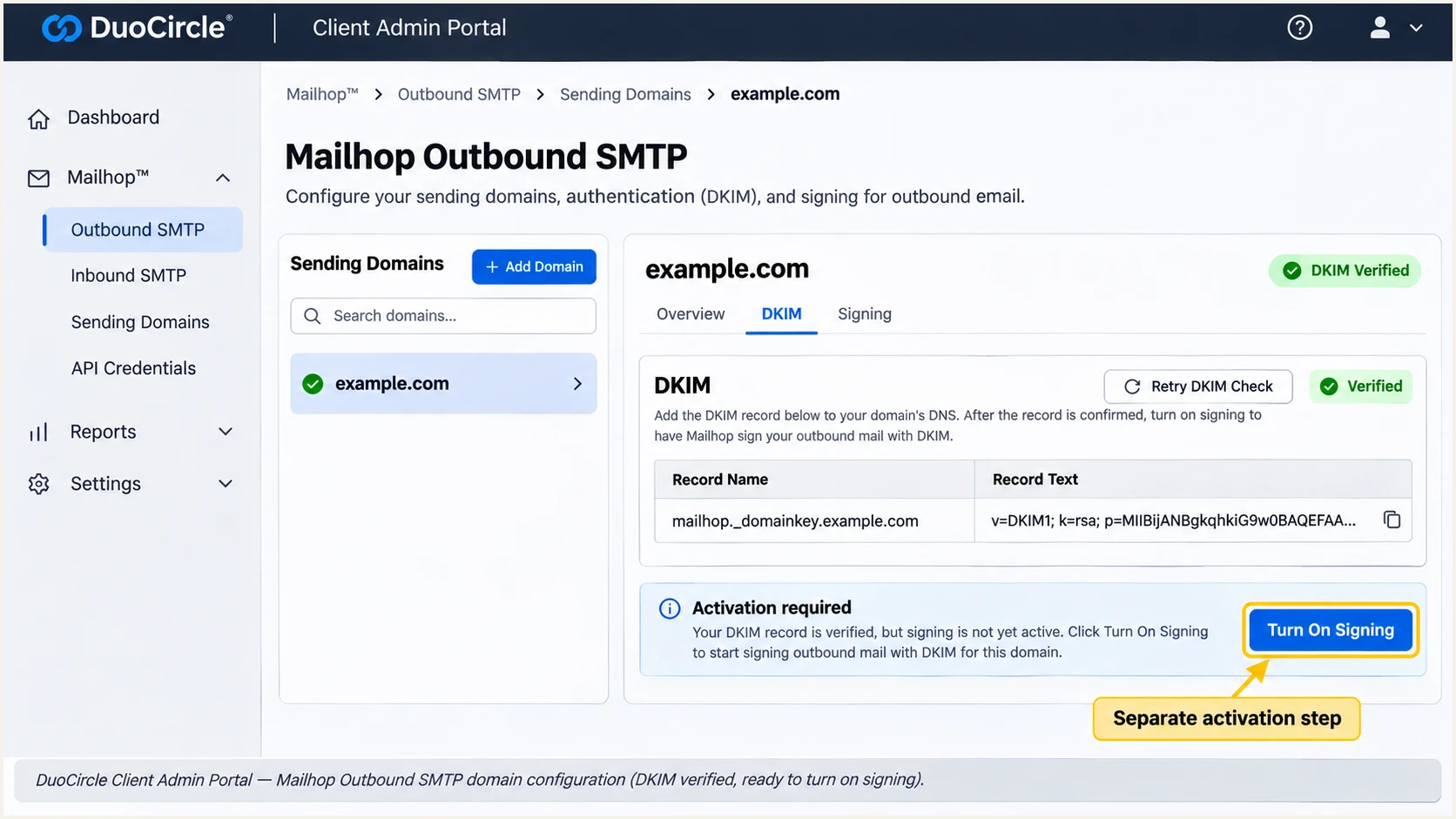
Recreated Mailhop DKIM panel showing verified DNS and the separate signing activation.
After enabling signing, inspect the new message for dkim=pass and a header.d domain matching your From domain under the configured DMARC rules. A DNS check alone does not prove the relay is signing.
Set up DMARC
Publish DMARC in your DNS provider for the visible From domain. Use the DMARC record generator to build the TXT value. DMARC is a domain policy; it is not a separate Mailhop signing switch.
- Inspect the policy: Look up _dmarc.example.com first. Edit an existing record instead of creating a duplicate.
- Start monitoring: For a domain without an existing enforcement policy, publish the p=none example below. Keep p=quarantine or p=reject if either is already active.
- Set the report address: Replace dmarc@example.com with a reporting mailbox you control or your assigned report-processing address. Complete external reporting authorization when required.
Monitoring policy, TXT at _dmarc.example.comtext
v=DMARC1; p=none; rua=mailto:dmarc@example.com
The address in this example is a placeholder. Without a working rua destination, you will not receive the aggregate reports needed to identify legitimate sending sources and authentication failures.
Check the actual From domain below. DMARC needs at least one passing authentication method whose domain matches the From domain under the policy: SPF or DKIM. Both methods passing for unrelated domains is insufficient.
DMARC checker
Look up a domain's DMARC record and catch policy issues.
?/7tests passed
Confirm that the lookup returns one valid DMARC policy and the intended reporting destination. The example leaves SPF and DKIM alignment in their default relaxed mode.
A p=none policy requests monitoring without DMARC enforcement. Aggregate reports commonly arrive on a daily cycle, and only participating receivers send them. Use the message test below to validate a fresh send immediately.
Verify and troubleshoot
I test the application that will send production email. Sending successfully through SMTP proves that the relay accepted the message; it does not prove receiver-side DMARC passed.
- Confirm the route: Use outbound.mailhop.org or your configured regional relay with TLS and your SMTP-specific credentials. Authentication failures at SMTP login are separate from SPF and DKIM failures.
- Read receiver results: Open the delivered message source and inspect the final receiver's Authentication-Results. Check spf, dkim, and dmarc alongside smtp.mailfrom and header.d.
- Diagnose failures: For SPF permerror, check duplicate records and lookup limits. For DKIM failure, check the selector, public key, and signing state. Confirm the message actually went through Mailhop.
- Repeat for each sender: Test every From domain and application path, including automated notifications. Repeat after a relay-region change or DKIM rotation.
SPF mismatch, DKIM passes
SPF uses an unrelated Return-Path domain, but a valid DKIM signature uses your From domain. DMARC passes through DKIM. Investigate the envelope sender, while preserving the working signature.
Both identities mismatch
SPF and DKIM pass only for domains unrelated to the From domain. DMARC fails. Enable signing for your sending domain or correct the envelope sender before increasing enforcement.
The email tester is the quickest check of a real message. It supplies a test recipient and diagnoses the received email, including authentication results.
Send to that recipient using the same application, From address, and Mailhop relay as production. Review the SPF and DKIM domain matches as well as the DMARC result.
Email tester
Send a real email to this address. Suped shows a results button when the test is ready.
?/43tests passed
Look for dmarc=pass and a passing DKIM signature for your domain. A successful authentication result does not guarantee inbox placement.
If DNS and the message disagree, query the exact record names below. Replace selector with the value Mailhop generated, allow cached DNS to expire, then retry the portal checks and send another message.
DNS checks for example.combash
dig +short TXT example.com
dig +short TXT selector._domainkey.example.com
dig +short TXT _dmarc.example.com
Get alerted when it breaks
Suped is our DMARC platform for ongoing DMARC monitoring. I recommend it for this workflow because it connects sending-source visibility with detected authentication issues and specific repair steps.
- Keep reports flowing: Maintain your assigned aggregate-report destination in rua. Suped uses incoming reports to show Mailhop traffic alongside your other sending sources.
- Enable notifications: In Suped notification settings, enable Issues detected, Sending sources need verification, and DMARC summary emails.
- Review new sources: Confirm recognized Mailhop traffic before marking it verified. Investigate unfamiliar sources rather than adding them to SPF automatically.
- Trace the change: Filter records by source, reporter, or IP address. Use detailed authentication checks and DNS history to identify a changed SPF record or missing DKIM selector.
DMARC alerts depend on reports arriving from receivers. They are not an immediate notification for every failed message, so keep Mailhop delivery logs available for live SMTP troubleshooting.
Retest after every authentication change
After a DNS edit, key rotation, or relay change, run a fresh message test and confirm the next aggregate reports show the expected result. A saved configuration is not proof of successful authentication.
Secure your domain with p=reject
I move to p=reject after legitimate mail passes DMARC consistently across a complete sending cycle. Suped makes that review practical by separating verified sending sources from unfamiliar traffic and exposing the failures that need repair.
- Inventory legitimate senders: Include Mailhop and every other service using the domain. Validate a matching SPF pass or DKIM pass for each; keep Mailhop DKIM signing enabled.
- Cover infrequent traffic: Include monthly invoices and automated alerts in the review. Assess failures for legitimate sources separately from unauthorized traffic; one overall pass percentage is insufficient.
- Stage enforcement: Use p=quarantine as an intermediate policy when needed. Review legitimate failures before moving to p=reject; preserve an existing enforcement policy while fixing Mailhop.
- Apply the policy: Update the existing DMARC record and retain reporting. Review subdomain coverage, including any sp tag and separate subdomain policies, before enforcement.
- Continue monitoring: Retest production messages and review Suped issue notifications after the change. Repair legitimate failures at their source.
For policy changes managed through Suped, our Hosted DMARC controls let the team manage enforcement in the dashboard after hosted configuration is in place. Use the source data to decide when to advance the policy.
Enforcement policy after validation, TXT at _dmarc.example.comtext
v=DMARC1; p=reject; rua=mailto:dmarc@example.com
Keep your real reporting destination when editing this example. Reject requests apply to messages that fail DMARC, and receivers retain local handling discretion. Continue reviewing legitimate failures after enforcement.
Frequency asked questions
The standard relay uses include:outbound.mailhop.org. US-only routing uses include:_spf.outbound.ore.mailhop.org; EU-only routing uses include:_spf.outbound.eu.mailhop.org. Use the include matching your configured relay and merge it into one existing SPF record.
DNS verification and signing activation are separate. Open the sending domain and select Turn On Signing. Test a new message through Mailhop and check for dkim=pass using your domain.
Yes. A passing DKIM signature using a domain that matches the visible From domain under the DMARC policy is sufficient. Keep the signature working and investigate the Return-Path configuration separately.
The mailhop.org namespace is associated with Mailhop infrastructure operated by DuoCircle. It is used for mail routing, including inbound services, so the suffix alone does not establish the original sender. Check the connecting IP, receiver-generated headers, and authentication results before authorizing a source.
Keep an existing p=reject or p=quarantine policy. Configure and verify Mailhop SPF and DKIM before production sending. Use the p=none starting example for domains without an existing enforcement policy.




