
How to set up DMARC/DKIM/SPF for MailGuard

For MailGuard outbound email, add include:customer.mailguard.com.au to your existing SPF record, enable outbound DKIM signing under Configure > MailGuard > Domains, and publish a DMARC TXT record at _dmarc on your sending domain. I verify the result with a message sent through MailGuard before tightening the DMARC policy.
These steps apply when MailGuard relays your outbound email. If MailGuard only filters incoming messages, configure authentication at the service that actually sends your email. An inbound MX change does not enable outbound SPF or DKIM.
Add your domain
I first confirm that MailGuard has provisioned the exact sending domain and that outgoing messages use its relay. Have MailGuard administrator access and access to your authoritative DNS settings ready.
- Find the domain. Sign in to the MailGuard console and open Configure > MailGuard > Domains. Locate the domain used in your visible From address.
- Provision missing domains. If it is absent, ask your MailGuard administrator, partner, or support@mailguard.com.au to add it to your account. Complete the ownership checks they supply; do not invent a verification TXT record.
- Read outbound settings. Open the domain's > menu and select Configuration. Use the assigned smart host and authentication details under Outbound Configuration to configure your mail server's outbound connector.
- Verify the route. Send to an external mailbox and inspect its Received headers for the MailGuard hop. Confirm the correct domain is provisioned before enabling its DKIM signing.
The relay hostname and credentials are account-specific. Copy them from your MailGuard configuration rather than substituting an inbound MX hostname or another customer's relay.
Set up SPF
I add MailGuard to SPF only for domains whose outbound messages actually leave through MailGuard. MailGuard's published SPF instructions specify include:customer.mailguard.com.au.
- Locate SPF. In DNS, find the TXT record beginning v=spf1 at the envelope sender domain. This is the domain in Return-Path on a delivered message, not necessarily the visible From domain.
- Merge authorization. Insert include:customer.mailguard.com.au before the existing all mechanism. Keep the mechanisms for other legitimate senders and keep a single SPF record at that DNS name.
- Check the limit. Keep SPF evaluation within 10 DNS-querying terms, including nested includes. Adding one visible include does not necessarily add only one lookup.
- Confirm domain matching. Use your sending domain as the envelope sender and verify the delivered Return-Path. A separate bounce subdomain needs its own SPF record; SPF does not inherit from the parent domain.
SPF example when MailGuard is the only outbound routetext
Name: example.com
Type: TXT
Value: v=spf1 include:customer.mailguard.com.au -all
Use that complete example only when MailGuard covers every authorized outbound route for that envelope sender domain. Otherwise, merge the include into the existing policy and retain its other authorizations and final qualifier.
Enter the actual envelope sender domain below. For DMARC, a passing SPF result also needs domain alignment: the same organizational domain as the visible From address under relaxed mode, or an exact domain match under strict mode.
SPF checker
Find SPF syntax issues, lookup limits, and weak records.
?/16tests passed
A valid SPF lookup confirms the published policy. I still check a delivered message to establish that MailGuard's connecting IP passes that policy and that the envelope sender matches the From domain as required.
Set up DKIM
MailGuard supports outbound DKIM signing. I enable signing for the customer's domain so DMARC has a second authentication path when SPF breaks during forwarding.
- Open DKIM. Go to Configure > MailGuard > Domains, open the > menu beside your domain, and choose DKIM.
- Publish the supplied DNS entry. Copy the selector, full record name, record type, and public value or target supplied for your domain. Use those exact values in DNS; there is no universal MailGuard selector or public key.
- Activate signing. Complete the DNS checks and signing activation shown in your account's DKIM screen. If the controls or required records are unclear, request the domain-specific instructions from MailGuard support.
- Test the final message. Send through the normal MailGuard route. Check for a passing DKIM signature whose d= domain matches your From domain under your DMARC alignment mode.
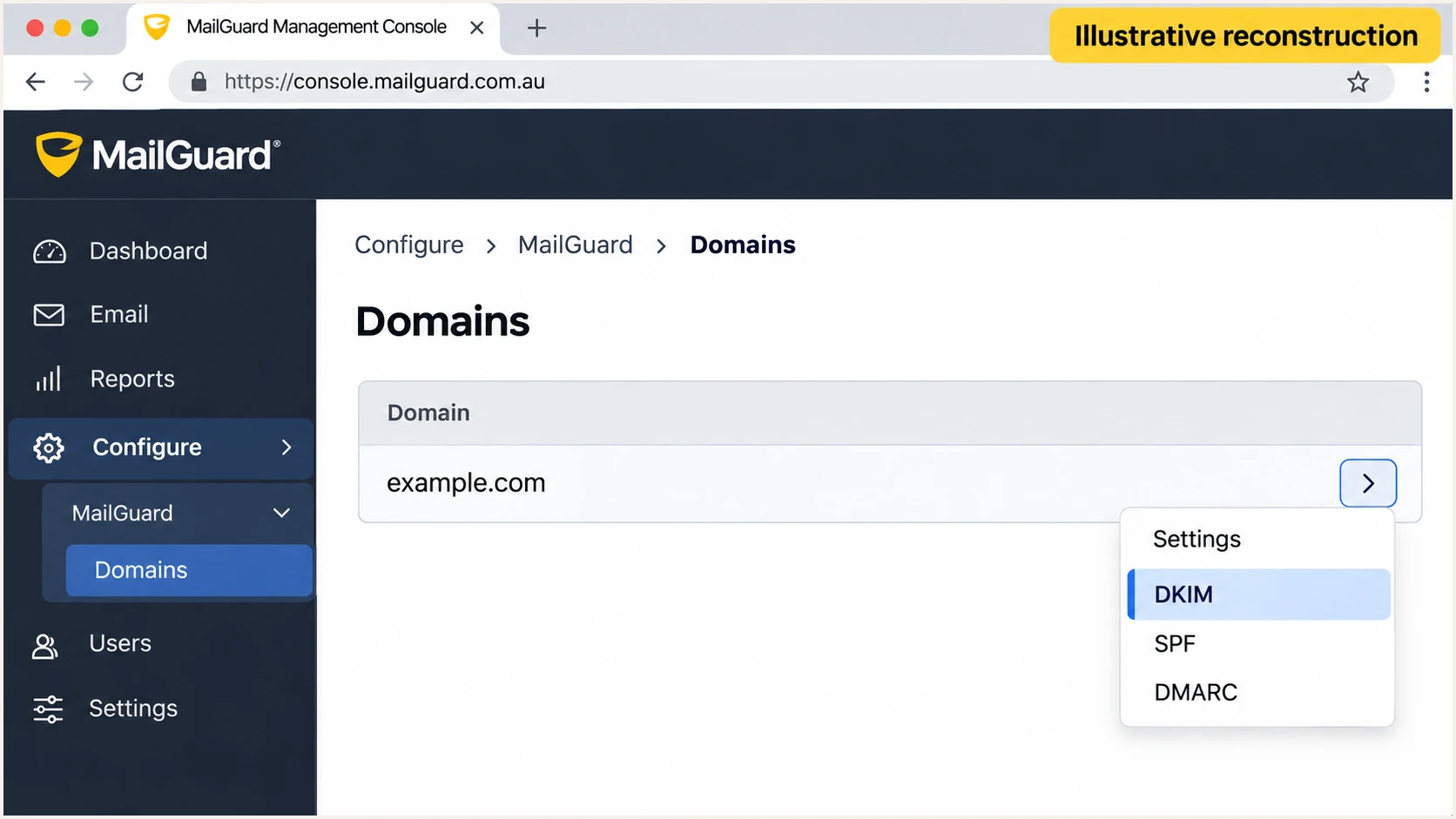
Illustrative MailGuard console view showing the domain's DKIM menu.
Read s= in the message's DKIM-Signature header to identify the selector and d= to identify the signing domain. Query that selector's DNS record when diagnosing a missing key; publishing a key alone does not prove MailGuard is signing messages.
I check the receiving server's Authentication-Results after all gateway processing. A footer or other message modification after an upstream signature was added can invalidate that signature, so verify the final outbound signature.
Set up DMARC
I publish DMARC for the domain in the visible From address. If the domain already has p=quarantine or p=reject, keep that policy while adding MailGuard and preserve the existing reporting settings.
- Inspect the current record. Look up TXT at _dmarc.example.com, replacing example.com with your From domain. Edit an existing record instead of publishing a second DMARC record at the same name.
- Set the reporting destination. Create a working aggregate-report mailbox or use your assigned report-processing address. Replace dmarc@example.com in the example with that destination.
- Publish monitoring mode. For a domain without an existing enforcement policy, add one TXT record at _dmarc with the value below. Check whether your DNS provider automatically appends the domain name.
- Authorize external reporting. If rua points to a different organizational domain, complete the report recipient's external-report authorization requirements.
Initial DMARC TXT value at _dmarc.example.comtext
v=DMARC1; p=none; rua=mailto:dmarc@example.com
Use the DMARC record generator to build the record with your reporting address. The example uses the default relaxed SPF and DKIM alignment modes.
Check the From domain below after publishing. A p=none policy requests monitoring without requesting quarantine or rejection for DMARC failures; it does not guarantee inbox delivery.
DMARC checker
Look up a domain's DMARC record and catch policy issues.
?/7tests passed
Confirm there is one valid DMARC record at the intended name and that the reporting address is correct. Aggregate reports arrive on receiver schedules, commonly daily, rather than immediately after a DNS change.
DMARC passes when at least one authentication method both passes and has the required domain alignment. An SPF pass for an unrelated domain or a DKIM pass using only MailGuard's domain is insufficient.
Keep existing enforcement
Do not replace a working p=quarantine or p=reject policy with this p=none example. Authenticate the MailGuard route and investigate failures while retaining the established policy.
Verify and troubleshoot
I test a fresh message sent by the real mailbox or application through the configured MailGuard route. Forwarding an old message or checking DNS alone does not exercise that route.
- Send a test. Use the tester's recipient address below and send through MailGuard with your normal From address. Repeat for each distinct outbound route.
- Check SPF. Look for spf=pass in the receiving server's Authentication-Results and inspect smtp.mailfrom. A pass only contributes to DMARC when that domain has the required relationship to header.from.
- Check DKIM. Look for dkim=pass with a matching header.d domain. If it fails, inspect the selector's DNS entry and whether message content changed after signing.
- Check DMARC. Confirm dmarc=pass for header.from. If both authentication methods fail their DMARC requirements, fix the sending configuration before increasing enforcement.
The email tester prompts you to send a message and returns a full diagnosis. This is the quickest practical check that the DNS configuration and actual sending route work together.
Email tester
Send a real email to this address. Suped shows a results button when the test is ready.
?/43tests passed
Trust Authentication-Results added by the receiving system, rather than an arbitrary header supplied earlier in the message. If the message never arrives, check your outbound queue and SMTP response before diagnosing DMARC.
For DNS problems, compare the exact record name with the console values. Common errors include a domain appended twice, a missing DKIM record, and duplicate SPF or DMARC records. These commands query public DNS; replace SELECTOR with the actual selector.
Inspect authentication DNS recordsbash
dig +short TXT example.com
dig +short TXT _dmarc.example.com
dig +short TXT SELECTOR._domainkey.example.com
dig +short CNAME SELECTOR._domainkey.example.com
A CNAME-based selector points to another DNS name; a TXT-based selector publishes the public key directly. Follow MailGuard's supplied record type and do not place both types at the same selector name.
I separate a domain-matching problem from a cryptographic or authorization failure. Fixing an SPF include does not change the envelope sender, and changing DMARC policy does not repair either authentication method.
SPF mismatch, DKIM passes
If the Return-Path is unrelated to your domain, SPF does not satisfy DMARC alignment even when SPF itself passes. A passing DKIM signature with the required domain match still gives dmarc=pass.
For a route that cannot use your envelope sender domain, rely on correctly configured DKIM for DMARC. Adding an SPF include to the From domain cannot repair that mismatch.
Both authentication paths fail
Check that MailGuard is authorized for the actual envelope sender domain, outbound DKIM signing is active, and the published selector matches the signature.
If MailGuard is only the inbound gateway, configure authentication at the real outbound sender. Retest the message after fixing the route or DNS.
Get alerted when it breaks
Suped is our DMARC platform for monitoring MailGuard alongside your other sending sources. I recommend ongoing report analysis because a successful setup test cannot detect a later routing change or deleted DNS record.
Suped's DMARC monitoring connects authentication failures to source details and steps to fix them. Use it to investigate new failures and confirm that a change restored authentication.
- Enable notifications. In Suped's notification settings, enable Issues detected and Sending sources need verification, and configure DMARC summary emails for the responsible team.
- Verify sending sources. Review the source table and confirm that MailGuard traffic belongs to your account. Use message evidence and sending IPs, rather than approving a source solely because its rDNS resembles MailGuard.
- Investigate changes. Open the affected record's detail view for SPF and DKIM diagnostics. Compare DNS history when a previously working route begins failing.
- Confirm the fix. Follow the issue's steps to fix, run a fresh live-message test, and review subsequent aggregate reports for recovery.
Alerts based on aggregate reports depend on when receivers deliver those reports. I keep live-message tests for immediate change validation and use Suped notifications for ongoing detection and follow-up.
Secure your domain with p=reject
I move to p=reject once every legitimate sending route has a passing authentication method with the required domain match. A high overall pass rate alone does not prove a low-volume business application is safe.
- Inventory legitimate traffic. Use Suped's source table and record filters to review MailGuard and other authorized senders across a complete business sending cycle, including occasional applications.
- Resolve legitimate failures. Repair MailGuard SPF authorization and DKIM signing. Verify subdomain traffic and test forwarding paths that depend on DKIM surviving delivery.
- Stage enforcement. For a new deployment, progress through p=none, p=quarantine, and p=reject after checking each stage. Preserve a stronger policy that is already working.
- Manage changes with evidence. Use Suped's source verification and authentication diagnostics before changing policy. With Hosted DMARC configured, manage policy in Suped while retaining report collection.
- Keep a rollback record. Save the previous DNS or hosted policy configuration and assign an owner to investigate delivery failures. Continue monitoring after p=reject is active.
Suped's Hosted DMARC keeps policy management alongside the reports used to decide whether enforcement is ready. I assess legitimate-source failures individually instead of waiting for spoofed traffic to authenticate.
|
|
|
|---|---|---|
p=none | No enforcement | Source inventory |
p=quarantine | Suspicious treatment | Legitimate failures |
p=reject | Refuse delivery | Ongoing alerts |
Requested handling applies to DMARC failures; receivers apply local policy.
Edit the existing record when moving to enforcement, keeping the reporting address and other intentional tags. The following example assumes every legitimate source is ready and the reporting address has been replaced.
Review subdomain coverage before publishing: without a separate subdomain policy or an explicit sp override, the parent policy also governs subdomains that inherit it.
Final DMARC TXT example at _dmarc.example.comtext
v=DMARC1; p=reject; rua=mailto:dmarc@example.com
A reject policy requests rejection of messages that fail DMARC. It does not guarantee inbox placement for messages that pass, and it does not stop impersonation using a different domain.
Frequency asked questions
Yes. Open Configure > MailGuard > Domains, select the > menu beside your domain, and choose DKIM. Publish the domain-specific DNS entry and complete signing activation. I verify a fresh message for dkim=pass using the customer's domain.
The .mailguard.com.au suffix is associated with MailGuard infrastructure. An rDNS hostname identifies infrastructure, not your authorization to send through it. I confirm the connecting IP, message route, and authentication results before treating that traffic as an approved MailGuard source.
Yes. DMARC passes if a valid DKIM signature has the required domain match, even when SPF alignment fails. A plain SPF pass for an unrelated Return-Path domain is insufficient. If neither authentication path meets DMARC requirements, the message fails DMARC.
No. MX records route incoming mail. DMARC is a TXT record at _dmarc on the From domain. If MailGuard only handles inbound filtering, set up SPF and DKIM for your actual outbound sender rather than adding MailGuard as an outbound source.
Check authoritative DNS after saving, then allow existing cached records to expire according to their TTL. I run a live-message test once the new values resolve. Aggregate reports commonly arrive daily and depend on receiver participation, so a missing immediate report is not proof of failure.




