
How to set up DMARC/DKIM/SPF for mail.com

Published 22 Nov 2026
Updated 22 Nov 2026
10 min read
Summarize with
mail.com controls SPF, DKIM, and DMARC for the email domains it supplies. For a normal @mail.com account, you do not publish DNS records or enable DKIM yourself. I verify the account's sender address, send through mail.com's servers, and check authentication on a received message.
mail.com's Alias Addresses help page limits sending to addresses belonging to the account. Based on that restriction, I treat its consumer service as a provider-domain mailbox, without a supported custom-domain authentication setup. The DNS examples below apply only to a separate domain you own.
Check your sender address
There is no domain-addition or DNS-ownership verification step in mail.com's documented consumer setup. Choosing one of its available email domains gives you an address, not control of that domain's DNS.
- Open settings. Sign in to mail.com webmail and open Settings > Alias Addresses.
- Choose your address. Use an existing account address, or create an alias using a domain available in mail.com's selector.
- Set the default. Click the wrench icon beside the address and select it as your default sender.
- Confirm the From field. Compose a message and use the arrow beside the sender address to select the intended alias. Test each alias you actually use.
I check this before troubleshooting DNS because an unexpected sender address changes which domain DMARC evaluates. A display name does not change the email address or its authentication.
An external account connected through Mail Collector is not an authorized sending alias. mail.com's help page explicitly excludes external linked addresses from the permitted sender addresses.
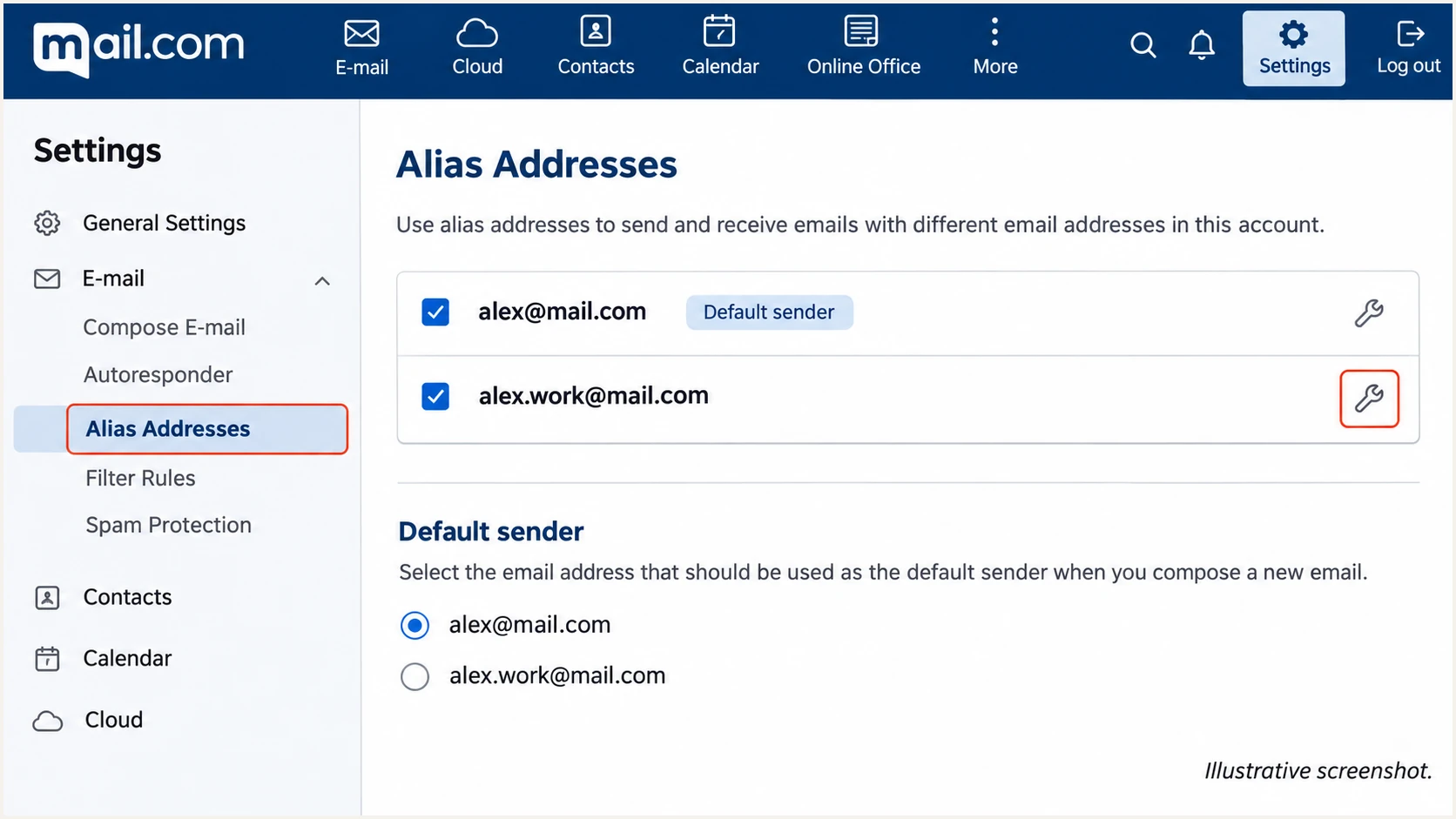
Illustrative mail.com Alias Addresses screen showing the default sender control.
Set up SPF
mail.com maintains SPF for its own sending domains. I do not copy its SPF record into another domain or invent an include value. SPF checks the SMTP MAIL FROM domain, normally visible in the delivered Return-Path, rather than automatically checking the visible From address.
Matching SPF domains are possible for provider-owned addresses without a customer-facing Return-Path setting. mail.com's published consumer instructions do not document a custom Return-Path setup for a domain you own. Check the actual message instead of assuming that capability exists.
- Establish a baseline. Send a fresh message directly from mail.com webmail to an external mailbox.
- Use authenticated SMTP. If your account includes email-client access, configure smtp.mail.com with port 587 and STARTTLS, or port 465 and SSL/TLS. Authenticate using your mail.com account credentials.
- Inspect the result. In the recipient's original message headers, find Authentication-Results and check spf=pass plus the smtp.mailfrom domain.
- Check that domain. Enter the actual SMTP MAIL FROM domain into the SPF checker below. For a provider-owned domain, report DNS failures to mail.com.
SPF checker
Find SPF syntax issues, lookup limits, and weak records.
?/16tests passed
The checker validates public SPF DNS. A successful lookup does not prove that a particular message used an authorized sending IP; the receiving server's SPF result supplies that evidence.
For a separate domain you own, maintain one SPF record per DNS name and authorize only its actual senders, using their documented values. Keep DNS-triggering SPF terms within the 10-lookup limit, including nested includes. Adding mail.com's servers to your domain cannot change a message's Return-Path.
SPF alignment errors need context
If SPF passes for a provider domain unrelated to your visible From domain, SPF does not satisfy DMARC. DMARC still passes when DKIM passes with a matching signing domain. For a sender without custom Return-Path support, use that DKIM path; an SPF include on your From domain does not repair the mismatch.
Set up DKIM
mail.com controls signing and DNS keys for its supplied addresses. Its public consumer help does not document an Enable DKIM switch or a custom-domain selector wizard. I verify the signature on delivered mail instead of generating a key that mail.com's servers cannot use.
Publishing a public key alone does not enable DKIM. The sending system must sign with the matching private key, and the recipient must validate that signature.
- Send directly. Use the selected mail.com address to send a new message, without forwarding it through another mailbox.
- Check verification. Open the received message's original headers and look for dkim=pass in the receiving system's Authentication-Results.
- Read the signature. Find d= and s= in DKIM-Signature. The d= value is the signing domain; s= identifies the DNS selector.
- Compare domains. The verified signing domain must match the visible From domain under its DMARC rules. Relaxed matching permits the same organizational domain; strict matching requires identical domains.
Look up the selector found in the received signaturebash
dig +short TXT SELECTOR._domainkey.SIGNING-DOMAIN
Replace SELECTOR and SIGNING-DOMAIN with the actual s= and d= values. Do not guess a selector such as default, and do not publish the provider's public key under your own domain.
If direct webmail has no valid matching signature, send the original headers to mail.com support. If direct mail succeeds but forwarded mail fails, compare the copies for message changes before requesting a provider fix.
A verified signature
dkim=pass means a signature verified for its d= domain. That domain still needs comparison with the visible From domain.
A DMARC-satisfying signature
A verified signature with the required domain match satisfies DMARC through DKIM, even when SPF fails or its domain does not match.
Set up DMARC
For an @mail.com address, mail.com controls _dmarc.mail.com and its reporting destinations. You cannot set a personal DMARC policy for just your mailbox. I look up the published domain policy and verify a delivered message against it.
DMARC requires a passing SPF or DKIM result with the required domain match. Both mechanisms do not have to pass. A p=none policy requests monitoring without requesting DMARC-based quarantine or rejection; it does not turn an authentication failure into a pass.
- Inspect the existing policy. Use the checker below with the domain after @ in your actual From address. An alias using a different domain needs its own check.
- Keep existing enforcement. If a domain you control already uses p=quarantine or p=reject, keep that policy while diagnosing problems. Do not replace it with the monitoring example.
- Edit only owned DNS. For a separate domain you own without DMARC, create one TXT record at _dmarc. Confirm whether your DNS host appends the domain automatically.
- Prepare reporting. Use a real report destination you control. If reports go to another organization's domain, follow that receiver's external reporting authorization instructions.
DMARC checker
Look up a domain's DMARC record and catch policy issues.
?/7tests passed
This lookup confirms the published DMARC record. It cannot confirm that mail.com signed a specific message correctly or that the receiver accepted its signature.
For a new policy on a domain you own, use the DMARC record generator and start with p=none. The example below is a TXT value for _dmarc.example.com, not a change to mail.com's DNS.
Monitoring example for a domain you owntext
v=DMARC1; p=none; rua=mailto:dmarc@example.com
Replace example.com with your own domain and replace dmarc@example.com with the working report destination before publishing. Keep one DMARC record at that name and preserve an existing quarantine or reject policy.
Verify and troubleshoot
I use a received-message test to check the actual sending route. The email tester supplies a destination address; send a message there to get a diagnosis of authentication and other delivery checks.
Send a newly composed message using your normal mail.com sender address. A forwarded copy tests the forwarding route as well, so it is less useful as the initial baseline.
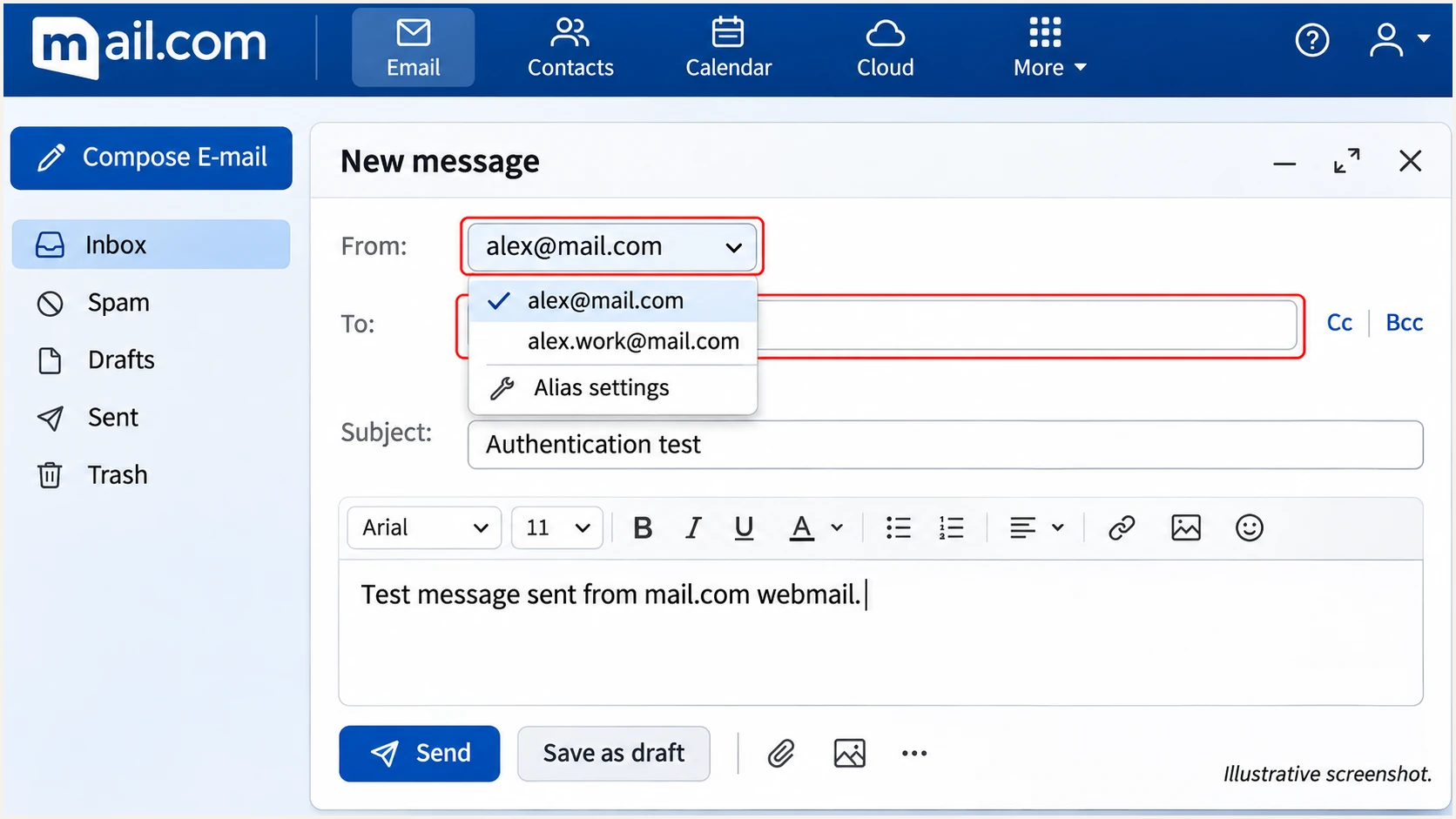
Illustrative mail.com compose window showing the sender dropdown and test recipient field.
Select the same alias used for normal correspondence before sending. Different alias domains use different DNS policies, so a test of one address does not validate every account address.
Use the receiving system's authentication verdicts. A DKIM-Signature header proves only that a signature was attached; dkim=pass confirms that it verified at that receiver.
- Get the test address. Open the tester below and copy its supplied recipient address into mail.com's To field.
- Send and inspect. Send the message and review SPF, DKIM, DMARC, and the reported domains in the resulting diagnosis.
- Compare sending routes. Repeat from your usual email application. If webmail passes and the application fails, check its From address and authenticated SMTP configuration.
- Retain evidence. Save the complete headers, Message-ID, sending time with timezone, and any SMTP error. Give those details to mail.com support when direct webmail fails.
Email tester
Send a real email to this address. Suped shows a results button when the test is ready.
?/43tests passed
If an email application cannot submit mail at all, resolve account access before changing DNS. mail.com's troubleshooting documentation directs users to enable POP3/IMAP access where applicable and verify the outgoing server settings.
If authentication passes but delivery still fails, inspect the receiving server's exact error or filtering result. Passing DMARC does not guarantee inbox placement.
|
|
|
|---|---|---|
SPF fails | Sending route | Check DKIM too |
DKIM fails | Direct copy | Compare headers |
DMARC fails | Domain match | Check From |
SMTP fails | Account access | Check login |
First checks for a failed test
Get alerted when it breaks
For a domain you own, Suped, our DMARC platform, combines DMARC monitoring with issue detection and steps to fix authentication problems. I use its source-level findings to identify the sender behind a failure before changing policy.
DMARC aggregate reports arrive after messages are processed. Alerts based on those reports follow report delivery and processing, rather than observing each SMTP transaction live. An individual @mail.com mailbox does not give you access to the provider domain's aggregate reporting.
- Enable issue emails. For an owned domain already reporting to Suped, open notification settings and enable Issues detected.
- Review new sources. Enable Sending sources need verification. Check whether each source is authorized before marking it verified.
- Enable summaries. Turn on DMARC summary emails and review changes in source volume and authentication results.
- Close the loop. Open the affected source or record, follow its steps to fix, send a fresh test, and confirm improvement in later reports.
Provider-owned addresses have a monitoring limit
Suped cannot change mail.com's DNS or signing configuration. For an ordinary @mail.com address, use delivery errors and repeat message tests to detect problems, then escalate provider-side failures to mail.com. Suped's ongoing domain-report workflow applies to domains you control.
Secure your domain with p=reject
Only the domain owner can choose p=reject. For an @mail.com address, mail.com makes that decision. For a separate domain you own, I use Suped's source verification and authentication diagnostics to establish which legitimate senders are ready for enforcement.
Keep an existing quarantine or reject policy during troubleshooting. For a new deployment, collect reports across a complete sending cycle, including infrequent legitimate messages. A high overall pass rate alone does not prove every important sender works.
- Inventory senders. Verify every authorized source in Suped. Investigate unknown sources before treating them as legitimate.
- Repair authentication. Give each legitimate route a passing SPF or DKIM result with the required domain match. Retest aliases and forwarded routes that matter to your users.
- Stage enforcement. After legitimate routes pass, move an owned domain to p=quarantine and review reports plus delivery failures before requesting rejection.
- Enforce and monitor. Change the owned domain's policy to p=reject, retain reporting, and check subdomain policies. Resolve new source issues before they interrupt important mail.
Reject example for a domain you owntext
v=DMARC1; p=reject; rua=mailto:dmarc@example.com
With Suped's Hosted DMARC, an owned domain's policy can be managed in the dashboard after the required DNS setup. This keeps policy changes beside the reports used to assess their effect.
Replace the example reporting address before publishing. p=reject asks receivers to reject messages that fail DMARC, subject to their local handling rules. It does not prevent abuse of a compromised legitimate mailbox or impersonation using a different domain.
Frequency asked questions
mail.com's public consumer instructions describe addresses under its available domains and restrict sending to account-owned addresses. They do not provide a custom-domain verification flow. I would confirm any separate contractual offering with mail.com before publishing DNS changes.
For a normal mail.com address, neither requires a DNS change by you. mail.com controls its domains' records and signing keys. Read the actual selector from a received DKIM-Signature header when investigating a failure; do not invent an SPF include or selector.
No. DMARC passes through a verified DKIM signature whose signing domain matches the visible From domain under the applicable policy. SPF alignment errors are expected when a sender uses an unrelated provider-owned Return-Path, but the DKIM result must still verify and satisfy the domain match.
mail.com's public Outbound mail server page lists mout.mail.com and mout-bounce.mail.com as its sending server names, plus mout-xforward.mail.com for another outbound pool. I use these names as source-identification clues and confirm the connecting IP against the provider's published information. rDNS alone does not prove sender authorization or a DMARC pass.
No. DMARC policy belongs to the domain owner, so mail.com controls the policy for @mail.com addresses. Suped provides reporting and hosted policy management for domains you control, without granting control over a provider-owned domain.




