
How to set up DMARC/DKIM/SPF for mailbox.org

I configure a custom domain for mailbox.org by verifying ownership, publishing SPF with include:mailbox.org, adding the four DKIM CNAMEs MBO0001 through MBO0004, and publishing DMARC at _dmarc. For a new DMARC policy, I start with p=none and test real email before moving to enforcement.
These changes belong in your custom domain's authoritative DNS. An address ending in @mailbox.org already has provider-managed authentication. The provider-specific values below follow mailbox.org's public custom-domain and SPF/DKIM/DMARC support documentation.
Add your domain
I complete mailbox.org ownership verification before testing authentication. Individual private accounts need Standard or Premium for custom domains; mailbox Business uses its administration console.
Private account
- Open settings. Select the gear icon > All settings > Email addresses > Email aliases.
- Request verification. Enter info@example.com under Add external alias and click Save. The initial validation message supplies your mailbox security key.
- Publish the key. At your DNS host, create the TXT record using the supplied hostname and token.
- Save the alias. After DNS resolves, return to Add external alias, enter the address again, and click Save.
Business account
- Open Domains. In the mailbox Business console, click the plus icon in the Domain section.
- Get the key. Enter example.com and click the reload icon to display the security key.
- Validate ownership. Publish the supplied TXT record at your DNS host, return to the console, and click Validate.
- Create accounts. Set the domain password and click Save. Open the domain and use the plus icon to create each required email account.
The verification hostname is the first part of the security key; the TXT value is the token. Do not paste DNS zone syntax such as IN TXT into a value field. If your DNS editor appends the domain, enter only the hostname prefix.
For the private-account flow, the external alias must save successfully before you send with it. Keep the verification record while completing setup.
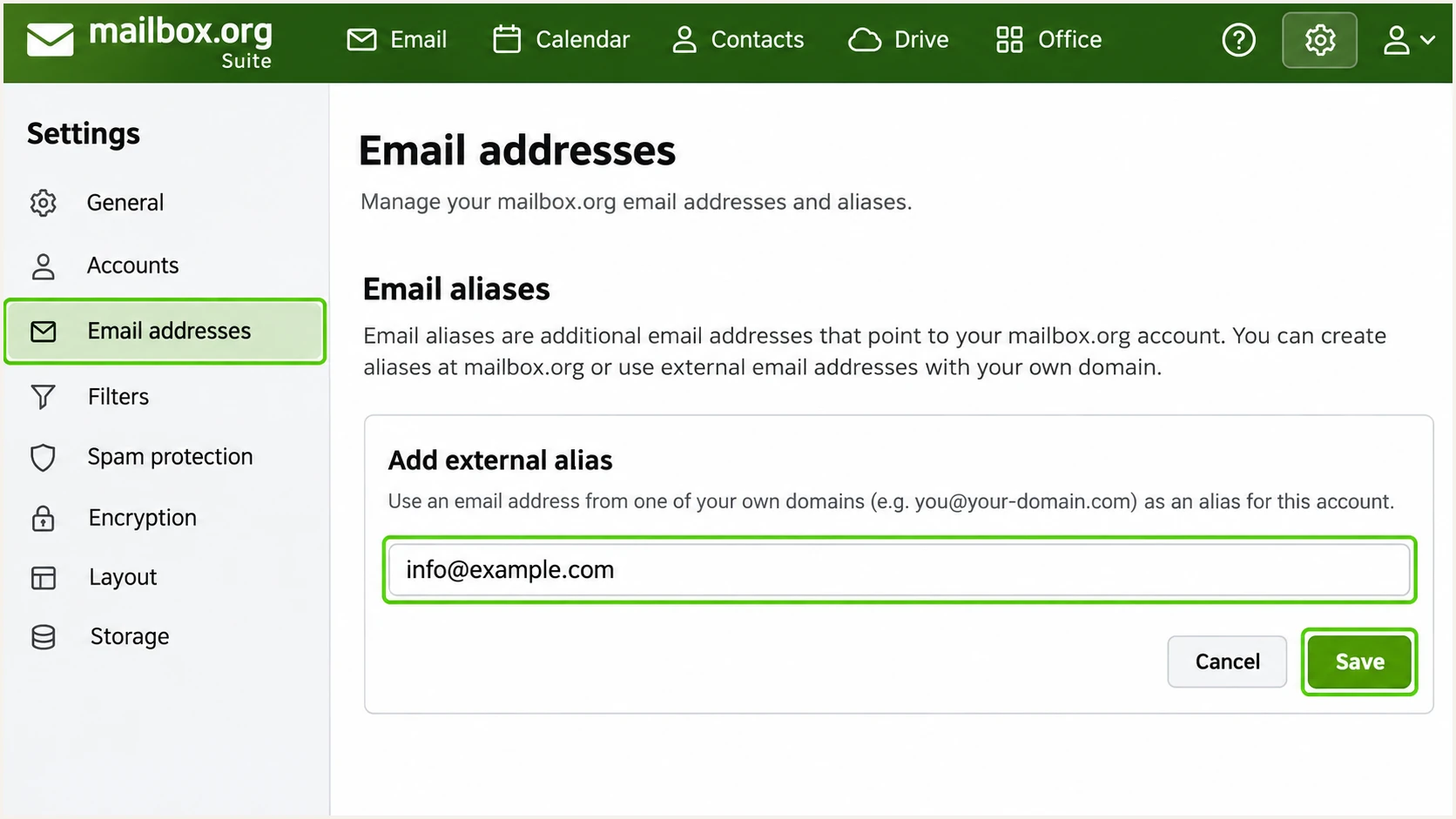
mailbox.org Suite: add a custom-domain address under Email aliases.
Business accounts use a separate domain validation form. The reload control retrieves the key; Validate checks the TXT record after publication.
Create receiving accounts before switching MX records. Otherwise, incoming messages to addresses that do not exist will bounce.
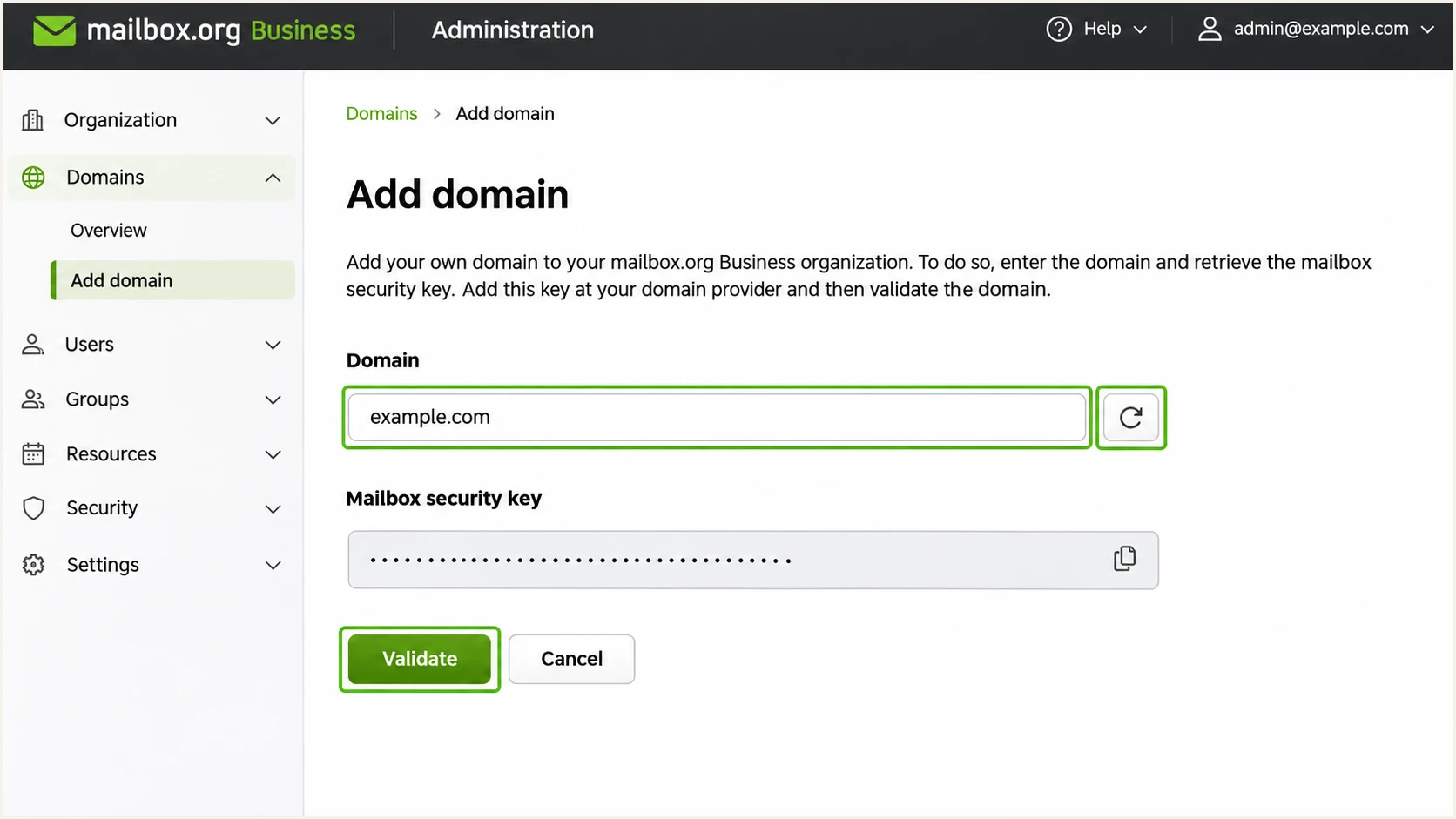
mailbox.org Business: retrieve the domain security key, then validate DNS.
If mailbox.org will receive your domain's email, replace the previous provider's MX records with all four entries below after creating accounts. Keep the old inbox accessible while cached MX records expire.
MX records route incoming email. SPF, DKIM, and DMARC authenticate outgoing email and still need the following steps.
Incoming MX records for example.comdns
example.com. IN MX 10 mxext1.mailbox.org.
example.com. IN MX 10 mxext2.mailbox.org.
example.com. IN MX 10 mxext3.mailbox.org.
example.com. IN MX 10 mxext4.mailbox.org.
Set up SPF
I authorize mailbox.org with its documented include. Because mailbox.org supports a custom-domain Return-Path, SPF can also satisfy DMARC's domain-matching requirement.
- Inspect DNS. Find the existing TXT record beginning v=spf1 at the sending domain.
- Update one record. For a mailbox.org-only domain with no SPF record, publish the value below at @. If SPF exists, insert include:mailbox.org before its final all mechanism and preserve other authorized senders.
- Preserve the policy. The new-record example uses ~all. Keep an existing -all policy when the sender inventory is already complete.
- Check limits. Keep one SPF record per hostname and no more than 10 DNS-lookup terms during evaluation, including nested includes.
TXT value at example.com for mailbox.org-only sendingdns
v=spf1 include:mailbox.org ~all
The include follows mailbox.org's authorized infrastructure. I do not replace it with a snapshot of current server IP addresses.
Enter your actual sending domain below. Check syntax, duplicate SPF records, and the recursive lookup count.
SPF checker
Find SPF syntax issues, lookup limits, and weak records.
?/16tests passed
A valid SPF record confirms DNS authorization. A delivered message must also show spf=pass for its SMTP MAIL FROM domain.
Check that this domain matches the visible From domain, or shares its organizational domain under relaxed alignment. If it is still mailbox.org, adding another include at your domain will not change the envelope sender. Recheck the selected custom-domain identity and confirm DKIM passes with your domain.
Set up DKIM
I publish all four mailbox.org DKIM CNAMEs. mailbox.org manages the signing keys; your DNS delegates each selector to the corresponding provider record.
- Choose CNAME. Create four separate records at your DNS host, using the exact mappings below.
- Enter the hostname. If the editor appends example.com, enter MBO0001._domainkey, then repeat for the other selectors.
- Enter the target. Preserve the matching selector number and the mailbox.org target. Use the trailing dot when your DNS editor requires it.
- Resolve conflicts. A CNAME cannot coexist with a TXT record at the same hostname. Replace legacy DKIM TXT entries carefully, then verify fresh messages.
DKIM CNAME records, replace example.com with your domaindns
MBO0001._domainkey.example.com. IN CNAME MBO0001._domainkey.mailbox.org.
MBO0002._domainkey.example.com. IN CNAME MBO0002._domainkey.mailbox.org.
MBO0003._domainkey.example.com. IN CNAME MBO0003._domainkey.mailbox.org.
MBO0004._domainkey.example.com. IN CNAME MBO0004._domainkey.mailbox.org.
CNAME delegation lets mailbox.org change its published keys without requiring you to copy replacement public keys. Keep all four records even when a test message uses only one selector.
After DNS resolves, send a new message. I check for a valid signature whose d= value is my custom domain. A passing signature for d=mailbox.org alone does not satisfy DMARC for example.com.
Set up DMARC
I inspect the current _dmarc record first. For a domain without an enforcing policy, I publish this monitoring record, replacing example.com with the real domain and a working report mailbox.
- Create reporting. Create dmarc@your-domain as a receiving address, or use the reporting destination supplied by your report processor.
- Publish one TXT. Set the hostname to _dmarc, or _dmarc.example.com if your editor requires the full name. Edit an existing DMARC record instead of adding another.
- Start monitoring. Use p=none for a new rollout. Keep p=quarantine or p=reject if either is already deployed.
- Keep relaxed matching. Omitting adkim and aspf uses relaxed alignment. Do not add strict matching without checking every sending route.
Initial DMARC TXT value at _dmarc.example.comdns
v=DMARC1; p=none; rua=mailto:dmarc@example.com
Use the DMARC record generator to build a value with your actual report address. Publish it at the domain used in the visible From header.
The example address is a placeholder. A rua destination on another domain also needs external-report authorization, normally handled by the reporting service. Validate the published policy below.
DMARC checker
Look up a domain's DMARC record and catch policy issues.
?/7tests passed
DMARC passes when either SPF passes with a matching MAIL FROM domain or DKIM passes with a matching signing domain. Both methods do not have to pass for DMARC to pass.
The p=none policy requests monitoring without DMARC enforcement. It does not guarantee inbox placement or override a receiver's spam filtering.
Keep existing enforcement
Do not downgrade an existing quarantine or reject policy just to add mailbox.org. Configure its SPF and DKIM records, test the custom-domain identity, and preserve the existing reporting destination.
Verify and troubleshoot
I verify DNS first, then test the exact sending routes people use. A DNS lookup alone cannot prove that mailbox.org signs a particular message.
- Query DNS. Run the commands below with your real domain. Each DKIM CNAME must resolve to its matching mailbox.org target and a usable public key.
- Send directly. Choose the custom-domain From address in mailbox.org webmail. Repeat through each configured desktop or mobile client.
- Check submission. Clients must send through smtp.mailbox.org on port 465 with TLS or 587 with STARTTLS. Authenticate with the main account address; use an application password when 2FA is enabled.
- Read results. Inspect the receiving server's Authentication-Results. Confirm spf=pass, DKIM passing for your domain, and dmarc=pass.
DNS verification commandsbash
dig +short TXT example.com
dig +short TXT _dmarc.example.com
for selector in MBO0001 MBO0002 MBO0003 MBO0004; do
  dig +short CNAME "$selector._domainkey.example.com"
  dig +short TXT "$selector._domainkey.example.com"
done
The email tester below is the quickest end-to-end check: send a message to the generated test address using your mailbox.org custom-domain identity.
It returns a diagnosis of the received message, including authentication and domain matching. Test a new message after each DNS correction; an old message retains its original authentication results.
Email tester
Send a real email to this address. Suped shows a results button when the test is ready.
?/43tests passed
I compare direct delivery with forwarded delivery separately. Forwarding commonly breaks SPF; a surviving DKIM signature with the correct signing domain still allows DMARC to pass.
For missing records, check the authoritative DNS zone, accidentally duplicated domain suffixes, and cached answers. mailbox.org advises allowing up to 48 hours for DNS synchronization, although records often become visible sooner.
|
|
|
|---|---|---|
SPF permerror | Duplicate or excess lookups | Merge; count lookups |
DKIM key missing | CNAME or hostname error | Check four selectors |
DKIM domain differs | Wrong signing identity | Inspect signature d= |
DMARC fails | No matching pass | Compare sender domains |
No reports | Address or authorization | Check rua delivery |
Use the failing check to choose the next action.
Get alerted when it breaks
I recommend Suped, our DMARC platform, for the ongoing workflow: identify mailbox.org traffic, detect authentication failures, and track the DNS changes behind them. Its DMARC monitoring turns aggregate reports into source-level checks and issue notifications.
- Route reports. Use the reporting address supplied by Suped in rua. Preserve your current DMARC policy and complete any required report authorization.
- Verify sources. Review mailbox.org as an authorized sending source, then investigate unfamiliar sources before approving them.
- Enable notifications. In Suped Notifications, enable Issues detected and Sending sources need verification. Enable DMARC summary emails for ongoing review.
- Investigate changes. Open the affected records for SPF, DKIM, and DMARC diagnostics. Compare DNS history, apply the proposed correction, and send another test.
Aggregate reports normally arrive on a daily schedule. Failure alerts based on those reports follow report arrival; they are not instantaneous notifications for every message.
I keep a named owner for authentication alerts so a deleted CNAME or newly introduced sender gets investigated before the next policy change.
Authentication and delivery are separate checks
A DMARC pass does not guarantee delivery. Suped also has blocklist (blacklist) monitoring for reputation investigations. For a rejection after authentication passes, inspect the receiver's SMTP response and the affected sending IP.
Secure your domain with p=reject
I move to p=reject only after every legitimate sending route has a reliable DMARC pass. The decision depends on known senders and their results, rather than a fixed waiting period or an overall pass percentage.
- Inventory senders. Review mailbox.org alongside website forms, billing systems, and other services that use your From domain. Observe a complete business sending cycle.
- Fix authorized failures. Use Suped's source verification and issue diagnostics to correct legitimate traffic. Do not authorize unknown traffic merely to increase the pass rate.
- Test indirect delivery. Include forwarding and mailing lists. SPF can fail after forwarding, and message changes can break DKIM. Resolve required routes before enforcing.
- Stage enforcement. Change p=none to p=quarantine, review new reports and delivery problems, then change to p=reject. Keep reporting active throughout.
Suped's Hosted DMARC supports policy management and staging after its DNS configuration is in place. I use source-level reporting to judge each policy change and retain the ability to adjust it if legitimate delivery fails.
The final TXT example below assumes the same working report address. Keep your real rua value and any other intentional tags when changing p.
Final DMARC TXT value at _dmarc.example.comdns
v=DMARC1; p=reject; rua=mailto:dmarc@example.com
A reject policy requests enforcement against messages that fail DMARC; receivers apply their own handling rules. Review sending subdomains before changing the parent policy because they can inherit it when they have no separate DMARC record.
After adding a new sender or changing a DKIM record, repeat the message test and review its reported traffic before treating the change as complete.
Frequency asked questions
No. mailbox.org manages authentication for its own domain. These DNS steps apply to a custom domain you control, such as example.com.
Yes. Publish MBO0001, MBO0002, MBO0003, and MBO0004 under _domainkey with their matching mailbox.org targets. A successful test with one selector does not verify the other records.
Yes, if DKIM passes and its signing domain matches the visible From domain under your DMARC matching rules. mailbox.org supports a custom-domain Return-Path, so investigate mismatches on direct mail. Forwarded mail often depends on DKIM for its DMARC pass.
A valid signature with d=mailbox.org does not match a From address at example.com. Check for another passing signature with your custom domain. If none exists, verify the four CNAMEs and send a fresh message using the verified custom-domain address.
mailbox.org uses outbound hosts such as mout-p-101.mailbox.org and mout-p-202.mailbox.org. When those names appear in rDNS or Received headers, I check the sending IP and authentication domains before classifying the source. The hostname alone does not prove that the message was authorized by your domain.
No. DMARC addresses unauthorized use of your domain in the visible From address. It does not prevent display-name impersonation, messages using a different lookalike domain, or misuse of a compromised authorized account.




